
Import your data
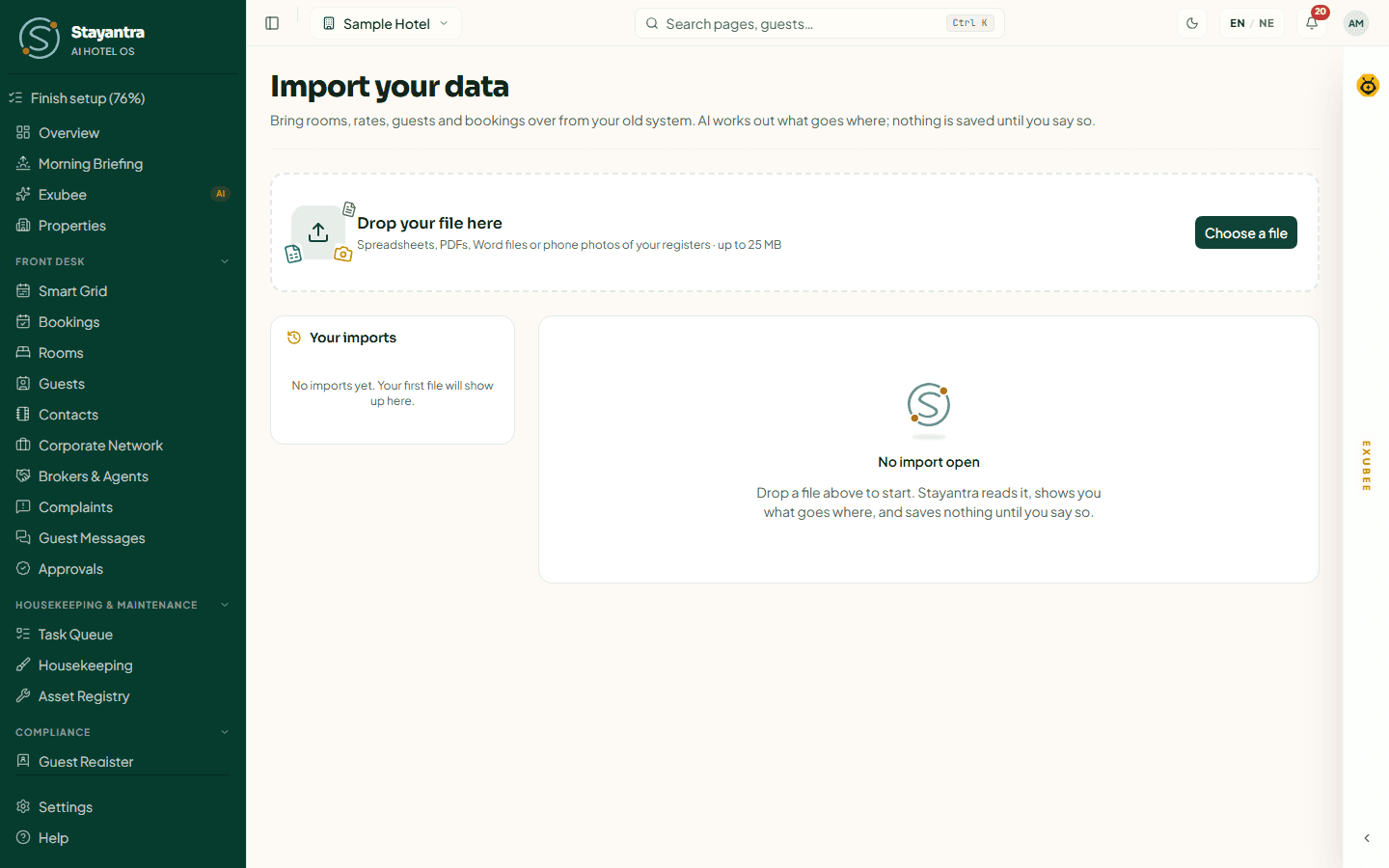
When you move to Stayantra you do not have to type everything again. Drop in an export from your old hotel software, a spreadsheet, a PDF tariff card or a phone photo of your register. Stayantra reads it, shows you what goes where, and saves nothing until you say so.
Where to find it: Settings → Billing & Admin → Data Migration → Open Migration Dashboard. You can also type "Data import" in the search bar. The page is called Import your data. Who can use it: owners and managers. Every owner is told when an import is saved or undone, and by whom.
What you can import
| Kind of record | Fields Stayantra understands |
|---|---|
| Room types | Name, description, base price, maximum guests, amenities |
| Rooms | Room number, floor, room type |
| Rates | Room type, rate plan (default "Standard"), nightly rate, a date or a season start and end |
| Guests | Name, email, phone, nationality, date of birth, address |
| Bookings | Reservation number, guest name, email and phone, room number, room type, check-in, check-out, adults, children, total, amount paid, status, notes |
| Event bookings | Hall bookings for weddings, meetings and other functions |
| Staff | Name, email (required), phone, role (manager or staff), department |
| Hotel profile | From PDFs and Word files only: name, address, city, country, postcode, tagline, description, neighbourhood, check-in and check-out times, cancellation policy, amenities |
Things the import does not bring over: booking source or channel, passport and ID numbers, VIP tags, meal-plan codes, and cancellation rules on rates. Rooms are always created as available. Set these up in Stayantra after the import.
Files you can use
| Kind of file | Types | How Stayantra reads it |
|---|---|---|
| Spreadsheets and exports | CSV, TSV, XLSX, XLS, JSON | Read directly, every sheet |
| Documents | PDF, Word (.docx), plain text | Tables are pulled out first, then AI reads the rest of the text |
| Photos | JPG, PNG, WebP | AI reads the photo, for example a page of a paper register |
- One file at a time, up to 25 MB. Photos up to 10 MB.
- A spreadsheet can have up to 50 sheets, 50,000 rows per sheet and 200 columns.
- Old Word files (.doc) and iPhone HEIC photos are not accepted. Save them as .docx or JPG first.
- A scanned PDF with no text in it is refused: take photos of its pages and upload those instead.
- Very long documents are only partly read, and the import tells you so.
[!TIP] Money columns can include रु, Rs, NPR, $ and similar symbols, and "lakh" amounts. Dates can be in AD (day/month, month/day or year first) or in BS (Nepali calendar), and Stayantra works out which. Nepali phone numbers are turned into +977 format. Amounts are taken in your hotel's currency; nothing is converted.
Import a file
Drop the file
On Import your data, drag the file onto Drop your file here, or click Choose a file. The file appears under Your imports with the badge Working….
Let Stayantra read it
A progress bar walks through Uploading → Reading → Mapping → Checking. You can leave the page; the import carries on and waits for you.
When it is ready the headline says Ready for you — check what goes where, then save. and the badge becomes Needs you.
Check what goes where
Review the mapping for each sheet (see below). If a sheet has a Confirm this mapping button, you must confirm it before you can save.
Fix or accept the rows that need you
Go through the row list. Fix, accept or reject every row marked Needs you.
Save
Click Save to Stayantra. The progress bar moves through Saving → Connecting → Done, and the headline says Import complete.
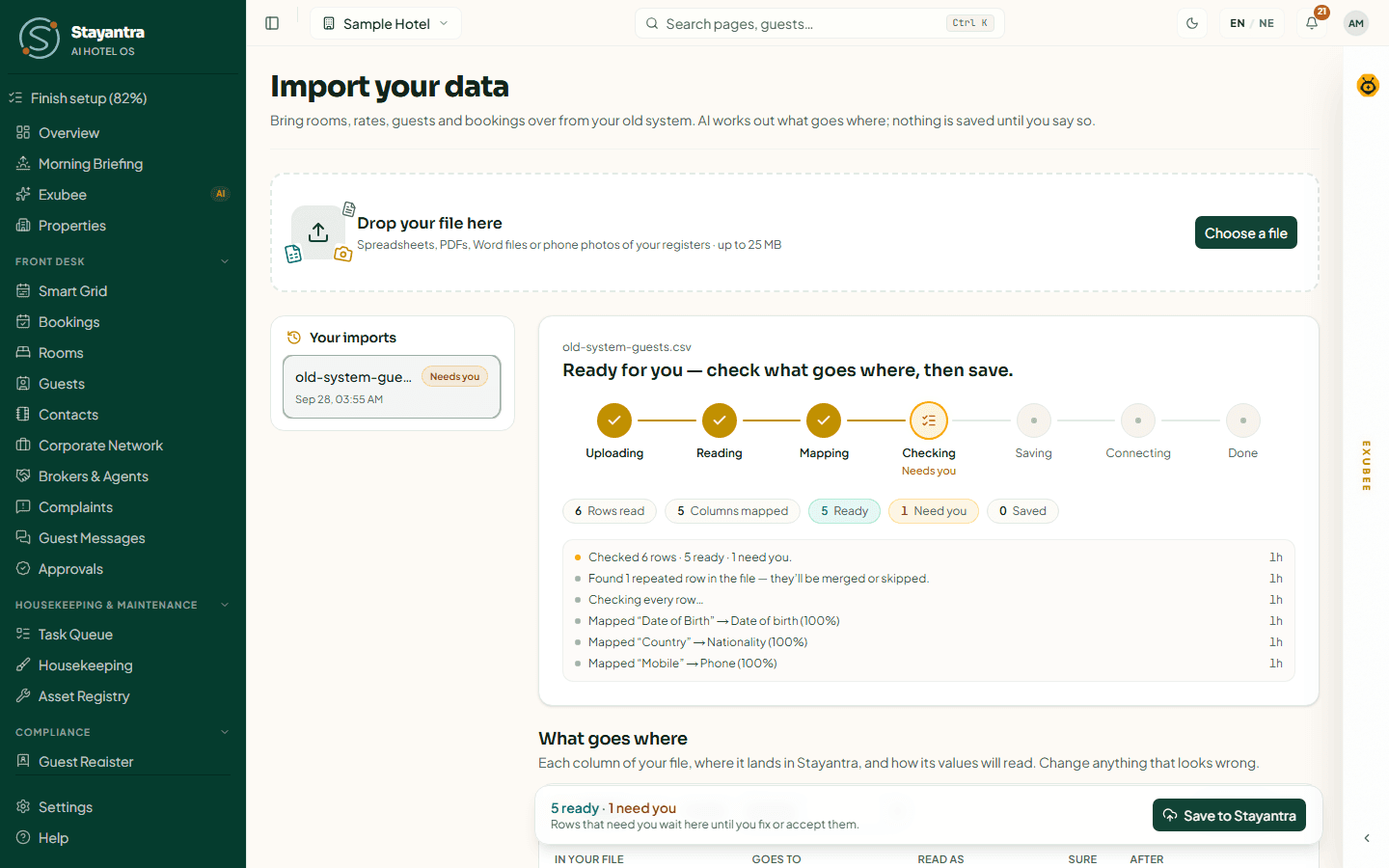
If you upload a file you have imported before, Stayantra says You imported this file on … and offers View that import or Import again.
Review the mapping: "What goes where"
Each sheet (or table, or photo) in your file gets its own card. Stayantra fills it in first, using, in this order: a template you saved earlier for files like this, AI, or matching column names. Each column shows where the suggestion came from — AI, Your template, Matched by name, Edited or Custom reader — and how sure it is (90% sure, for example).
On each card you can change:
- It holds: what the sheet is — Room types, Rooms, Rates, Guests, Bookings, Event bookings, Staff, or Nothing (ignore).
- Goes to, for each column: the Stayantra field it fills, or Ignore. Required fields are marked with
*. - Read as: how to read the value, for example Money (रु, lakhs), AD · day/month, BS (Nepali date), Phone (Nepal) or Auto.
The table columns are In your file, Goes to, Read as, Sure and After. After previews the value as Stayantra will save it, so you can check a date or amount before saving.
When you change a mapping, click Apply changes and the rows are checked again. Tick Save as a template for files like this and give it a Name (for example "eZee bookings export") to reuse the mapping next time.
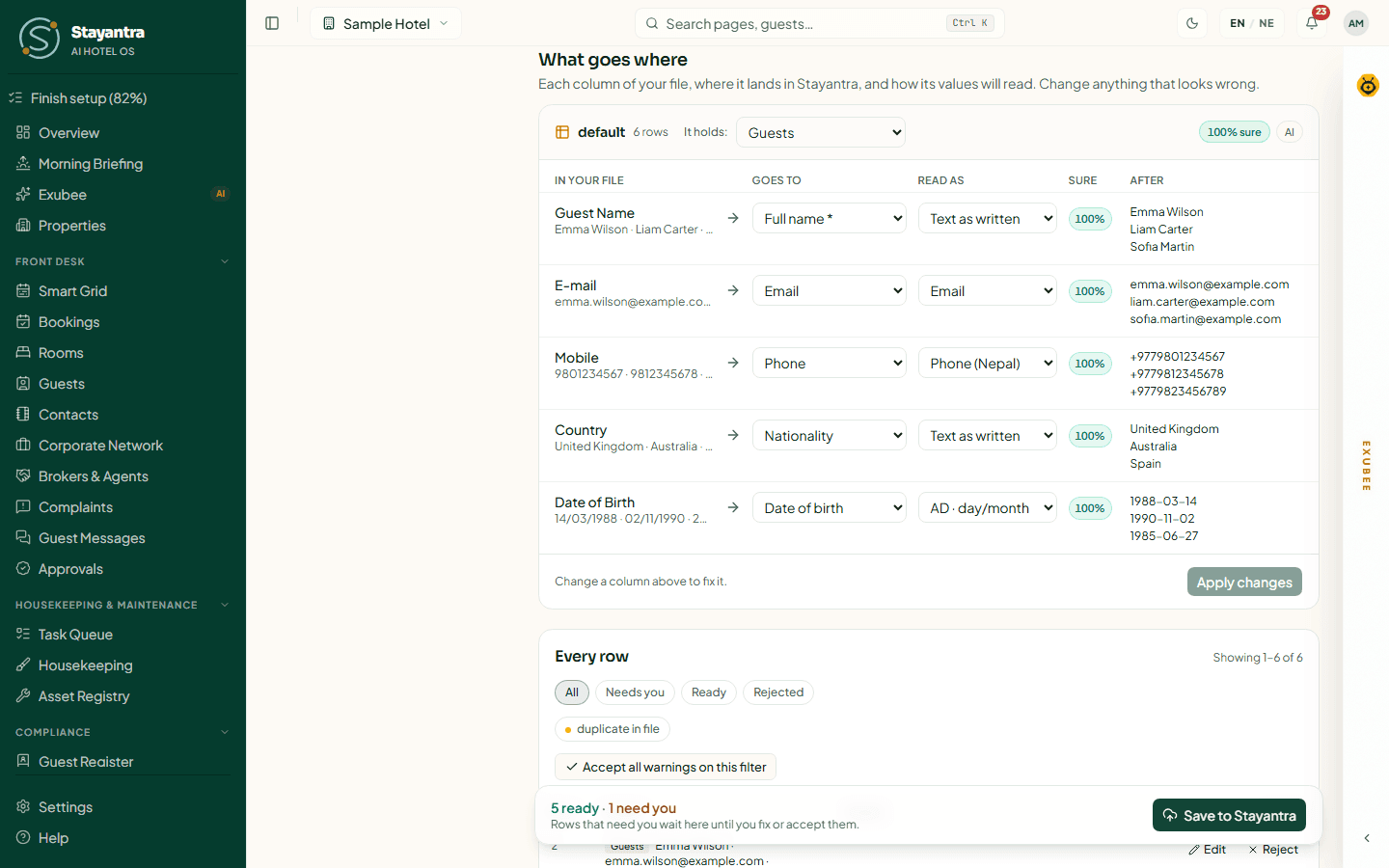
[!IMPORTANT] A sheet shows Confirm this mapping when Stayantra was less than 70% sure, or matched columns by name only. Save to Stayantra stays greyed out until you confirm it.
If a required field has no column, the card says No column is set for … — every row from this sheet will need you.
Match these names
If your file spells room types or halls differently from Stayantra (for example "Dlx" instead of "Deluxe"), Match these names lists them. Pick the right one from the suggestions, or choose Something else…, or click Map all to accept every suggestion.
Review the rows
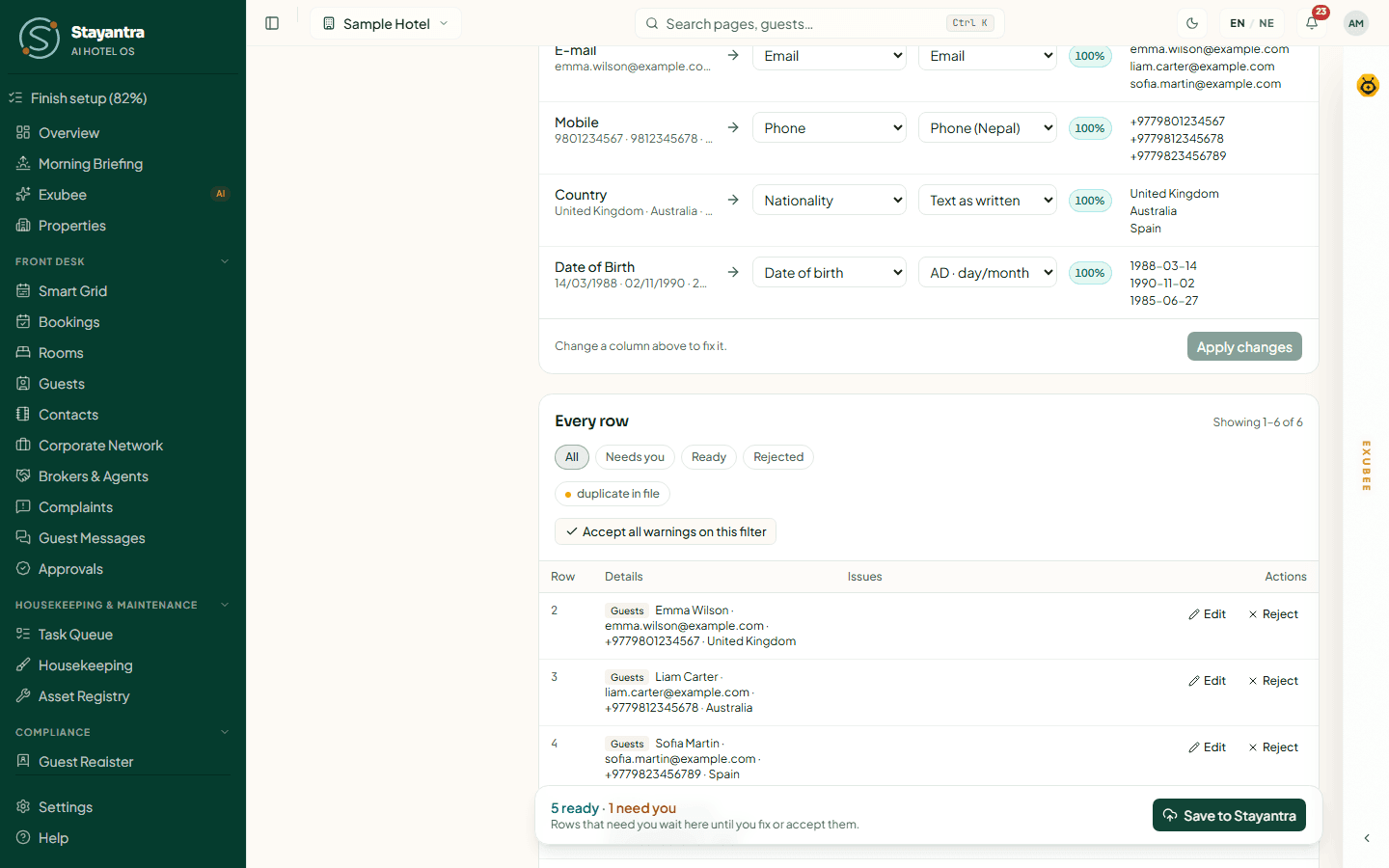
Below the mapping, Every row lists the rows with their Details, Issues and Actions. Filter it by All, Needs you, Ready and Rejected, by record type, or by issue.
For each row you can Edit, Accept (a warning), Reject or Restore. Editing opens the row with What the file said beside it; Save changes checks it again. For many rows at once use Accept all warnings on this filter or Reject all with this issue. You can restore rejected rows later.
What the checks mean
Problems that stop a row until you fix or reject it:
| Problem | Meaning |
|---|---|
| Invalid value, date or number | The value cannot be read. |
| Unknown room type / room not found | The room type or room number does not exist in Stayantra. |
| Price not valid | A price must be more than 0. |
| Date range not valid | Check-out is not after check-in, or a season is longer than 366 days. |
| Paid more than the total | The amount paid is higher than the booking total. |
| Dates overlap | The booking clashes with another booking in Stayantra or in the same file. |
| Room not assigned | The booking has no room. |
| Staff needs an email | Staff rows must have an email address. |
Warnings, which you must accept before the row is saved:
| Warning | Meaning |
|---|---|
| Updates an existing record | A room type, room or rate already exists and will be updated. Changing a live rate also sends the new price to your OTA channels. |
| Duplicate in the file | The same room, room type or booking appears twice; the later copy is skipped. Duplicate guests are merged. |
| Booking already in Stayantra | The booking exists, so it is skipped. |
| Price looks unusual | A price outside NPR 300 – 1,000,000 (or the same in your currency). |
| Long stay | More than 60 nights. |
| Price worked out | No price in the file, so nights × base rate plus taxes was used. |
| Couldn't read | A photo cell AI was not sure of. Check it against the photo. |
| From a document | Hotel details found in a PDF or Word file. |
The save bar shows how many rows are ready and how many need you. Only ready rows are saved. Rows that need you wait on the page until you fix or accept them, and you can press Save to Stayantra again later to save them.
What happens when you save
- Rows are saved type by type. If one row cannot be saved, the others still are; the failed row goes back to review with the reason.
- Room types and rooms that already exist (same name or number) are updated, not duplicated.
- Booking totals are treated as the full price: VAT and service charge are split out using your tax settings on Settings → Hotel Profile → Taxes.
- Cancelled, no-show and checked-out bookings are kept as history only, with their charges voided.
- Imported staff sign in with Forgot password on the sign-in page. Someone who already has a Stayantra account gets an invitation instead.
- Rooms beyond the number your plan allows are refused, with a prompt to upgrade.
After saving, Connecting makes sure every imported booking has its bill (folio).
Undo an import
When an import has finished saving, you can undo it.
Open the import
Click it under Your imports.
Roll it back
Click Roll back this import. The dialog Roll back this import? shows what will happen.
Confirm
Click Roll back, or Keep it to leave everything as it is.
Rolling back removes what the import created and puts back what it changed:
- Bookings are cancelled and their charges voided, not deleted.
- Imported staff are deactivated.
- Records the import updated get their old values back.
Some records are kept, and the dialog says why: anything changed since the import, anything with payments or charges, guests who have other bookings, room types still used by rooms or rates, and staff with shifts or other records.
[!WARNING]
- Only an import that has finished saving can be undone. There is no time limit.
- An import with more than 1,000 bookings or 5,000 records is too large to undo in one step.
- After undoing, the same import cannot be saved again. Upload the file again instead.
When some records were kept, the import shows Partly undone — some records were kept.
Import history
Your imports lists every import, newest first. The newest one opens when you arrive on the page. Each entry shows the file name, the date and time, and a badge:
| Badge | Meaning |
|---|---|
| Working… | Stayantra is still reading, mapping, checking or saving. |
| Needs you | Waiting for you to review and save. |
| Done | Saved. |
| Partly undone | Rolled back, but some records were kept. |
| Rolled back | Fully undone. |
| Failed | Something went wrong. Open it to see why. |
Imports started during the setup wizard show · from setup. When there are none, the list says No imports yet. Your first file will show up here.
Importing during setup
You can import while setting up your hotel, in two places:
- Setup wizard, step 3 (Define Room Types): open Have a room list or tariff? Import it and drop your room list, tariff card, old system export or register photo. Add your hotel's name first; the panel stays locked until you do. Check Check what goes where, then click Confirm & save.
- Chat with Exubee: attach the file with the paperclip. Exubee reads it with the same import pipeline.
Both appear under Your imports later, marked · from setup. See Set up your hotel with the wizard and Import your existing data.
If something goes wrong
| Message | What to do |
|---|---|
| Unsupported file. Import a spreadsheet (CSV, Excel), a PDF, a Word file, or a photo (JPG, PNG, WebP). | Save the file in one of those formats. |
| Drop one file at a time. | Upload files one after another. |
| Photos can be up to 10 MB. Take the picture again at a lower resolution. | Retake or shrink the photo. |
| This PDF is a scan with no text in it. Upload photos of its pages instead — we can read those. | Photograph each page and upload the photos. |
| The import shows Failed | Open it and click Retry from here. If it says This import cannot be resumed. Upload the file again., start a new import. |
| Create your hotel first, then import files. | Finish the first step of the setup wizard. |
| Save to Stayantra is greyed out | A sheet needs Confirm this mapping, no rows are ready yet, or the import was undone. |
| This import was undone. Upload the file again to import it. | Start a new import with the same file. |