
Getting started
This page is for anyone who signs in to the Stayantra web app: owners, managers and staff. It shows how to sign in, what everything on the screen does, what your role lets you see, and how to change your own name, photo and password.
Where to find it: app.stayantra.com, in any modern browser on a computer, tablet or phone. Nothing to install. Who can use it: everyone with a Stayantra account at a hotel. New to Stayantra and setting up your own hotel? Start with the Self-installation guide.
Sign in
Open the sign-in page
Go to app.stayantra.com. The page says Welcome back.
Enter your email and password
Type the Email address your hotel invited you with, and your Password. The eye button shows what you typed.
Choose how long to stay signed in
Tick Remember me for 14 days on your own device. Leave it unticked on a shared computer: you are then signed out after 24 hours, or when the browser closes.
Sign in
Click Sign in. You land on the Overview of your hotel.
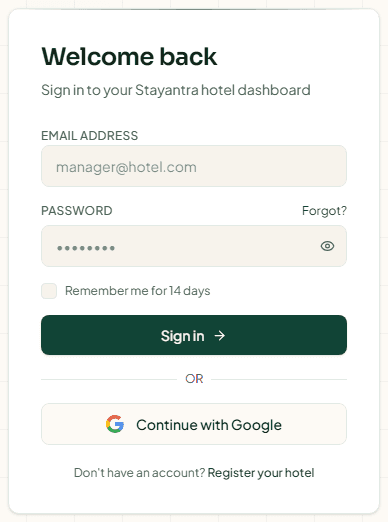
Signing in with Google. Click Continue with Google and choose the Google account that uses the same email address your hotel invited. There is no separate Google password to set up.
First time? Your hotel sends you a Set your password email when it adds you. The link in it works for 72 hours. If it has expired, ask your manager to send it again. Owners setting up a new hotel register at app.stayantra.com/register; see Create your account.
Forgot your password?
- On the sign-in page, click Forgot? next to Password.
- Enter your Email address and click Send reset link.
- The page says Check your email. Open the email and click the link within 1 hour.
- Enter a new password of at least 8 characters twice, and click Reset password.
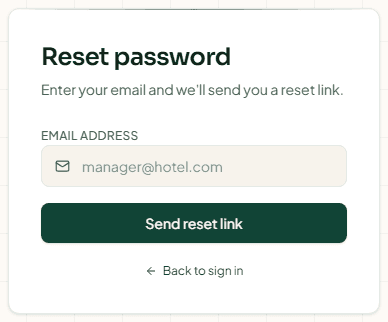
No email? Check your spam folder, and check you typed the address your hotel uses. For your safety the page says the same thing whether or not the address has an account.
Messages you may see
| Message | What it means |
|---|---|
| You're not part of any hotel | Your password was right, but your account is not linked to a hotel. Ask your manager to add you from Team → Staff, then sign in again. If you book stays on Stayantra with this email, they can add the same email: you keep one account for both. |
| Session expired | You were signed out, for example after 24 hours. Click Sign in again; you come back to the page you were on. |
| "Could not sign in. Please try again." | The email or password is wrong, or the connection dropped. Try again, or reset your password. |
Find your way around
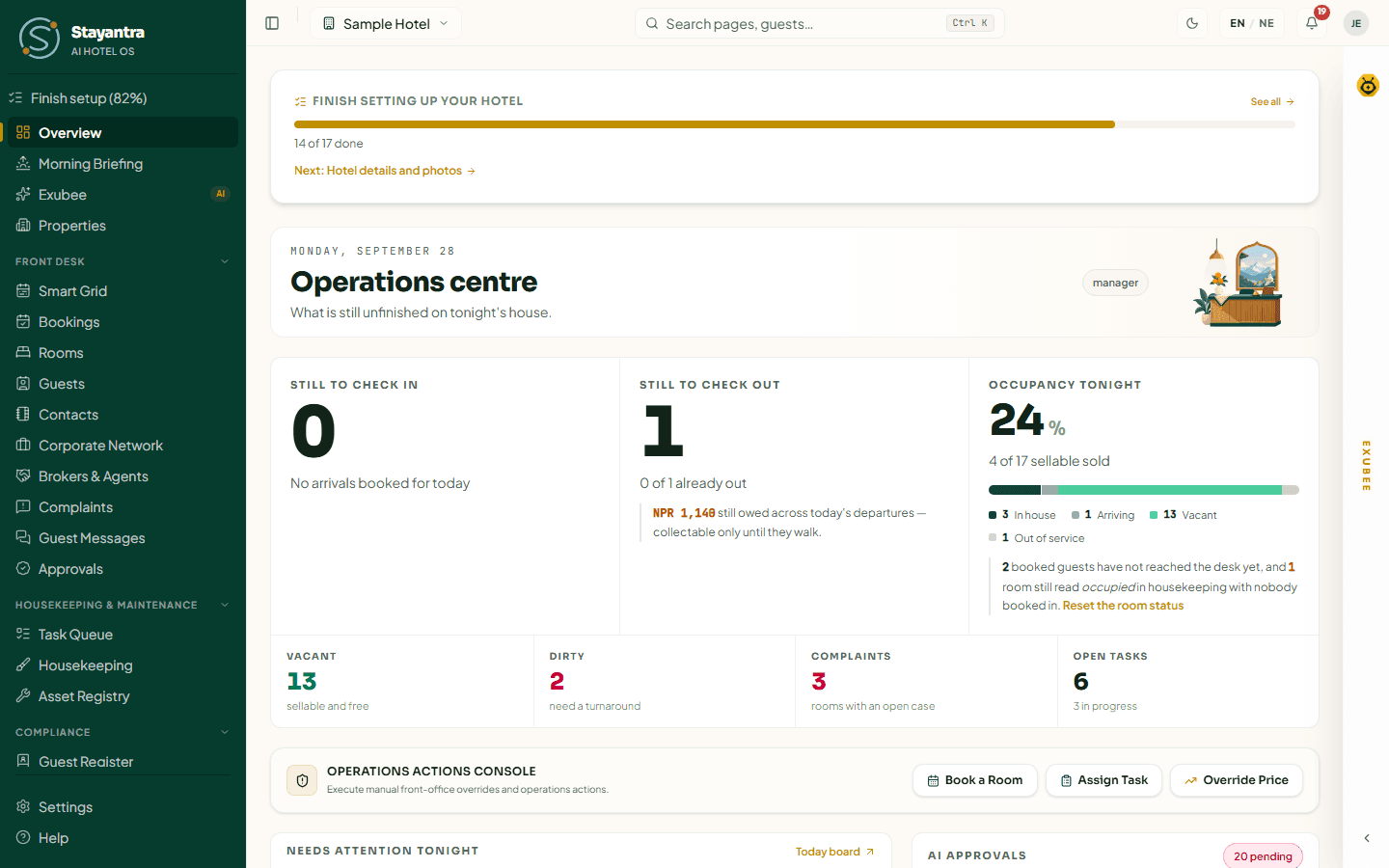
The screen has four parts:
- The sidebar on the left: every page you can open, in groups.
- The top bar: the property you are working on, search, theme, language, notifications and your account.
- The page in the middle.
- The Exubee strip on the right edge, if your plan includes the Exubee chat.
The sidebar
Pages are grouped by the part of the hotel they belong to. You only see the pages your role allows (see What you see depends on your role).
| Group | Pages |
|---|---|
| (top) | Overview, Morning Briefing, Exubee, Properties |
| Front Desk | Smart Grid, Bookings, Rooms, Guests, Contacts, Corporate Network, Brokers & Agents, Complaints, Guest Messages, Approvals |
| Housekeeping & Maintenance | Task Queue, Housekeeping, Asset Registry |
| Compliance | Guest Register, FNMIS Worksheet (hotels in Nepal) |
| Food, Events & Services | F&B Restaurant, Service Outlets, Function Diary |
| Revenue | What You Sell, Restrictions, OTA Allotments, Group Blocks, Market Events, Competitors |
| Marketing & Reviews | Marketing, Guest Reviews, Review Quarantine |
| Stock & Purchasing | Inventory, Procurement |
| Finance | Finance Center, Day Book, Refunds, Pay with Stayantra, OTA Statements, Cashier Shifts, Payroll, Plan & Billing |
| Team | Staff, Shift Roster, Attendance, Leave, My payslips, SOP Checklist |
| Insights & AI | Reports, Analytics, Health score, Autonomy, Policies, House knowledge, Ops Health |
| (bottom) | Settings, Help |
Useful to know:
- Close a group you rarely use by clicking its name. Stayantra remembers this on your device. The group holding the page you are on always stays open.
- Shrink the sidebar to icons with the button at the far left of the top bar. Hover an icon to see its name.
- A padlock next to a page means it is part of a module your plan does not include. Clicking it opens Plan & Billing at that module. See Plans and billing.
- Finish setup (N%) appears at the top of the sidebar for owners and managers until the hotel's setup checklist is complete. See Finish setup and go live.
- Refunds shows a number when refunds are waiting.
The top bar

From left to right:
| Control | What it does |
|---|---|
| Sidebar button | Shrinks or opens the sidebar. On a phone, opens the menu. |
| Property switcher (hotel name) | Shows which hotel you are working on, and switches to another. |
| Search pages, guests… | Opens search. Also Ctrl K (⌘ K on a Mac) from anywhere. |
| Sun or moon | Switch to dark theme or Switch to light theme. |
| EN / NE | Switches between English and Nepali. |
| Bell | Your notifications. |
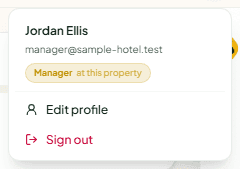
| Your initials or photo | Your account menu: Edit profile and Sign out. |
Switch between properties
If you work at more than one hotel, click the hotel's name in the top bar. Under Switch Property, click another hotel. Stayantra reloads into that hotel; everything you see is now that hotel's.
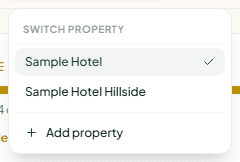
- You arrive with the role you have at that hotel. Someone who owns one hotel and manages another is a manager at the second. The account menu shows it: "Owner at this property".
- If a form has unsaved changes, Stayantra asks before switching.
- Owners also see Add property, to add another hotel. See Owners.
Search
Press Ctrl K (⌘ K on a Mac), or click Search pages, guests…. Type what you want in plain words. Search knows everyday words, so "customer" finds Guests and "Dashain" finds Market Events.
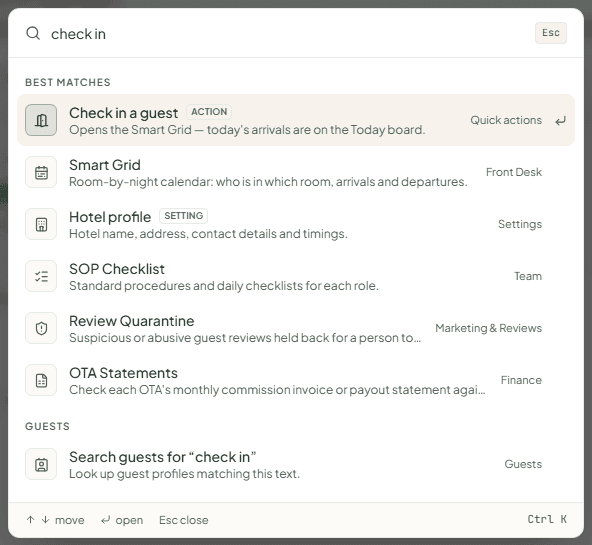
Search shows:
- Recent: pages you opened lately.
- Quick actions: New booking, Check in a guest, Add a room, Add a guest profile, Add a contact, Emergency numbers.
- Settings & help and Best matches: pages that match.
- Guests: Search guests for "…", to look up a guest by name or phone.
Use the arrow keys to move, Enter to open, Esc to close. Pages you cannot open with your role are not shown.
Language: English and Nepali
Click EN / NE in the top bar to switch. Your choice is remembered on this device. Today Nepali covers the Bookings pages, guest profiles and the offline messages; the rest of the app stays in English.
Light and dark theme
Click the sun or moon in the top bar. Your choice is remembered on this device.
Notifications
The bell shows a red number when you have unread notifications. Click it to see the latest: new bookings, tasks, approvals waiting, complaints and more. Click a notification to open the page it is about. Mark all as read clears the count.
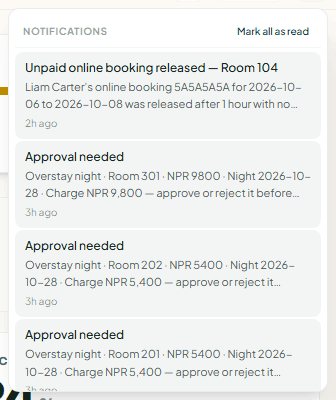
Choose which alerts reach you in Settings → My Account → Alert Preferences. Each switch turns off the alerts it names, on the bell and on your phone. Safety and operations alerts (the kill switch, billing problems, low stock and similar) always reach you. Owners receive every alert a manager gets.
Announcements
Messages from Stayantra (for example new terms or planned maintenance) appear as a banner under the top bar. Close one and it stays closed on this device.
The Exubee panel
Exubee is Stayantra's AI assistant. If your plan includes the Exubee chat (the Co-Pilot add-on), a narrow strip marked EXUBEE runs down the right edge of every page. Click it to open the Exubee Cockpit.
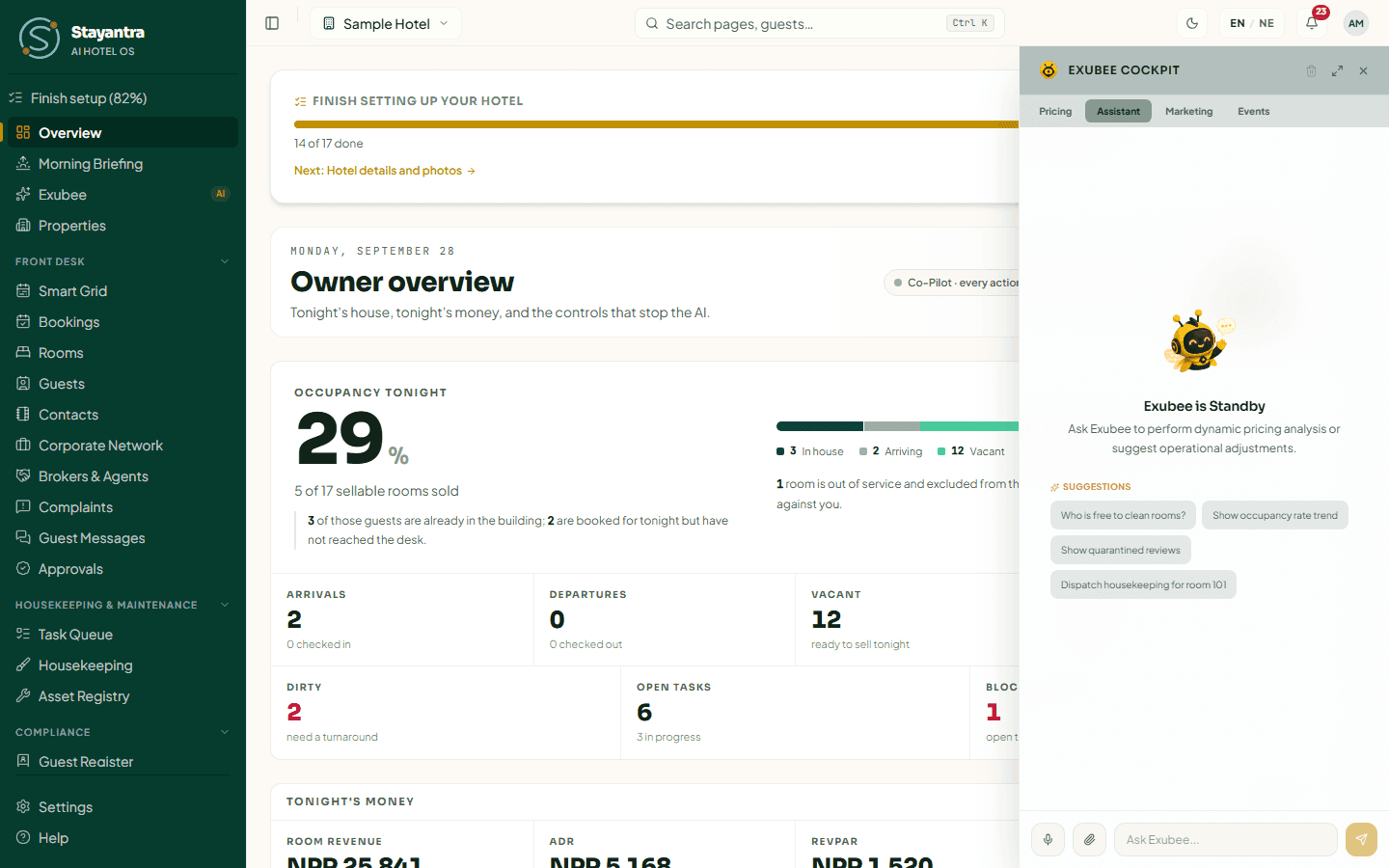
- Tabs across the top depend on your role: Assistant for everyone, Pricing and Marketing for owners and managers, Events for those who can take bookings.
- Type in Ask Exubee... and press Enter, or tap a suggestion. You can also record a voice question, or attach a document (PDF, DOCX, CSV, XLSX, TXT, JSON, MD) or a photo (JPEG, PNG, WebP).
- The buttons at the top clear the conversation, make the panel full screen, or close it back to the strip. Stayantra remembers how you left it.
- Exubee proposes; people approve. When Exubee suggests a change, it shows a card you approve or reject. Nothing changes until someone does. See Co-Pilot and approvals.
Without the add-on, the strip is not shown. Exubee's suggestions and the approvals queue still work on the Exubee page in the sidebar.
What you see depends on your role
Every person at a hotel has one of three roles: owner, manager or staff. Staff also have one or more skills (front desk, cashier, housekeeping and so on), which add the pages that job needs. Your role and skills are set by your manager in Team → Staff.
Owner
Sees everything, including money totals, Plan & Billing, Payroll, Pay with Stayantra, the Autonomy controls and the kill switch that stops Exubee acting on its own. Only an owner can manage API keys, add a property, book setup help and submit business verification.
Manager
Runs the hotel day to day. Sees nearly every page, but not Plan & Billing, Payroll or Pay with Stayantra. Can see Autonomy but not change it. Approves Exubee's suggestions, discounts and refunds.
Staff
Every staff member sees Overview (their own shift: open tasks and the rooms that need someone), Properties, Bookings, Guests, Contacts, Corporate Network, Guest Register and (hotels in Nepal) FNMIS Worksheet, Staff, and (with the staff module) Shift Roster, Attendance, Leave, My payslips and SOP Checklist, plus Settings and Help.
Skills add these pages:
| Skill | Adds |
|---|---|
| Front desk | Smart Grid, Rooms, Guest Messages, Brokers & Agents, Service Outlets, Function Diary, OTA Statements |
| Cashier | Cashier Shifts, Day Book, Refunds, F&B Restaurant (billing) |
| Housekeeping | Housekeeping |
| Maintenance | Asset Registry |
| Service (waiter) | F&B Restaurant (orders and table reservations) |
| Store | Inventory, Procurement |
| Kitchen, bar | The Kitchen screen, opened from a bookmark: see Restaurant and kitchen printers |
| Bellhop, security | No extra web pages; they work in the Stayantra Connect app. |
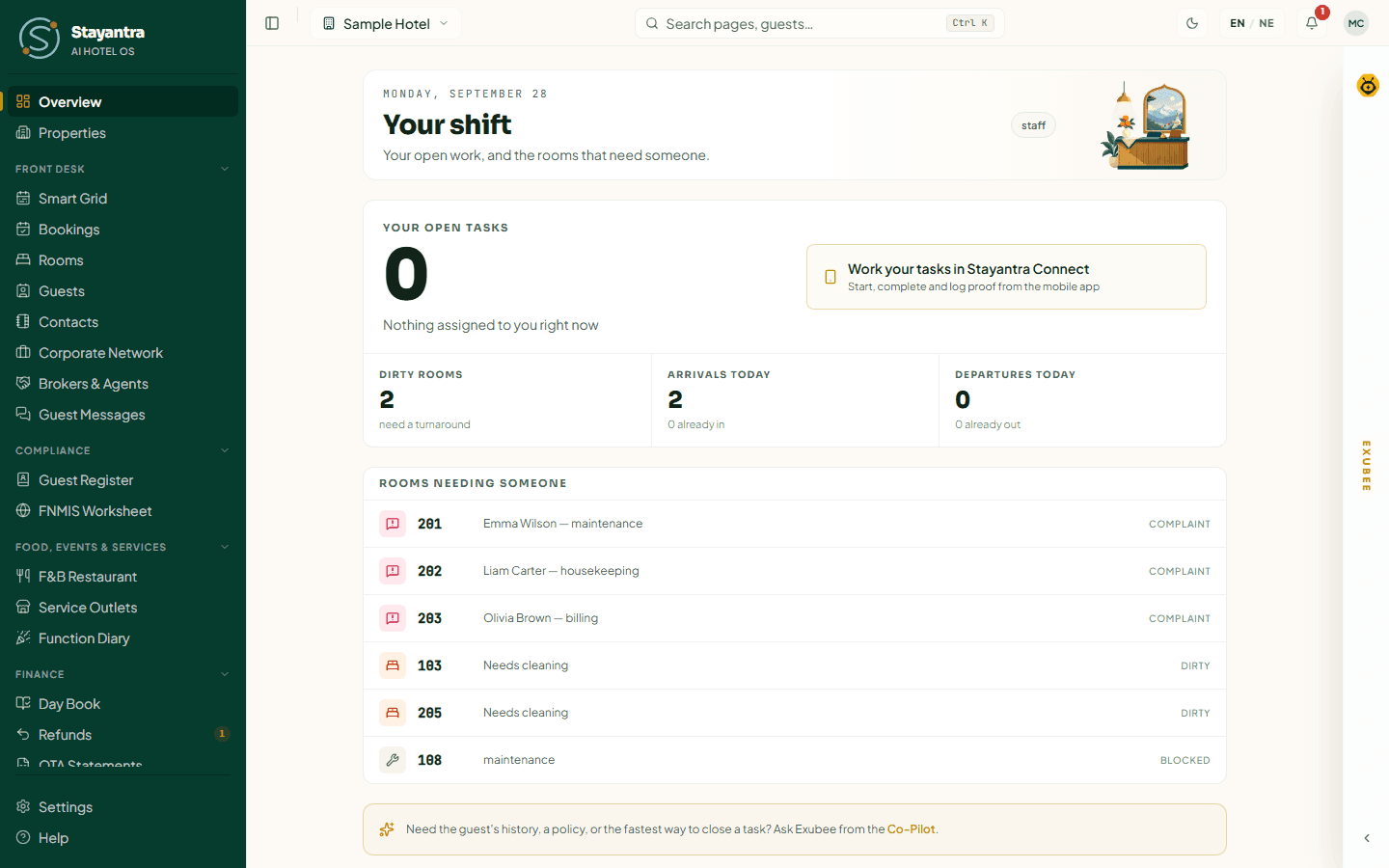
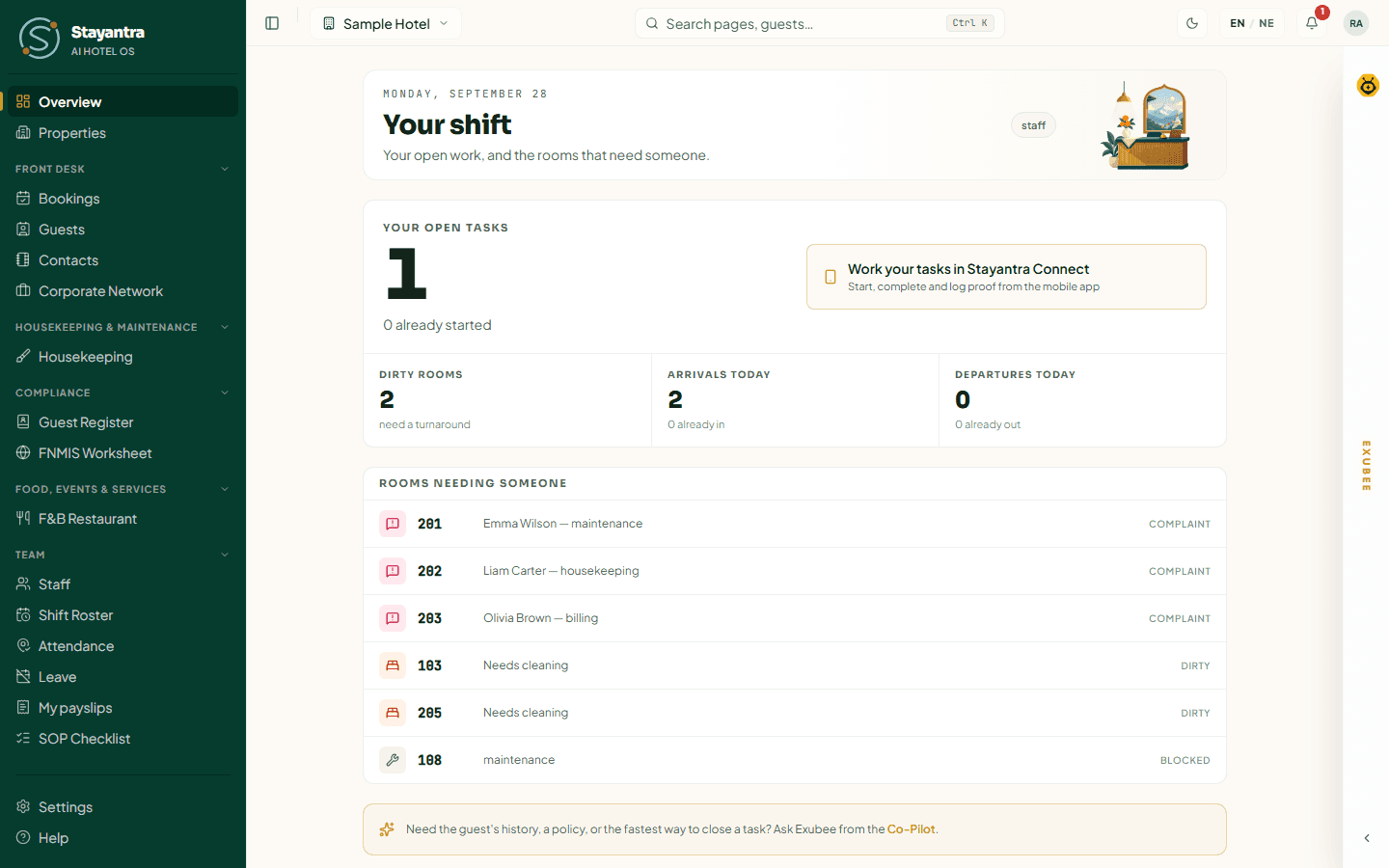
Most staff work mainly in the Stayantra Connect app on their phone. See Install the apps.
If you open a page your role does not include, it says You don't have access to this, with who to ask.
Your profile
Open the account menu (your initials, top right) and click Edit profile, or go to /dashboard/profile. The page is called My profile. Your name, photo and password follow you to every hotel you work at.
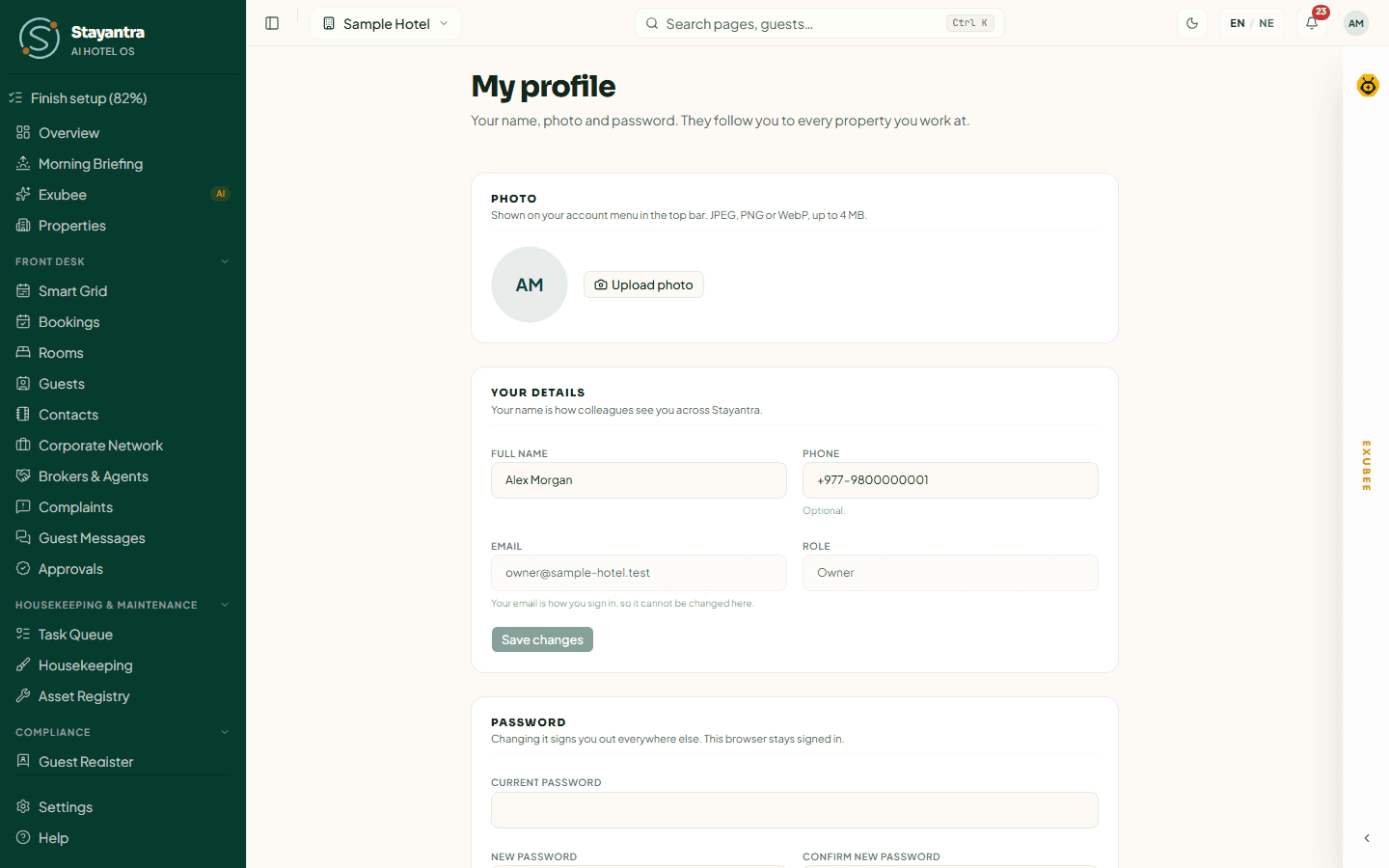
| Section | What you can do |
|---|---|
| Photo | Upload photo or Change photo (JPEG, PNG or WebP, up to 4 MB). Remove takes it off. It shows in the top bar. |
| Your details | Change your Full name and Phone (optional), then Save changes. Email cannot be changed here, because it is how you sign in. Role shows your role at this hotel. |
| Password | Enter your Current password, a New password of at least 8 characters, and Confirm new password, then Change password. You stay signed in on this browser and are signed out everywhere else. If you sign in with Google, there is no password to change. |
| More settings | Notifications: choose which alerts reach you opens your notification settings. |
To change your email address, ask your hotel's owner or manager.
Sign out
Click your initials in the top bar, then Sign out. Always sign out on a shared computer.
On a phone or tablet
The web app works in the browser on a phone or tablet:
- The sidebar becomes a menu: tap the button at the top left to open it. It closes when you pick a page.
- The hotel name shrinks to an icon, and search to a magnifying glass.
- The Exubee panel opens full screen.
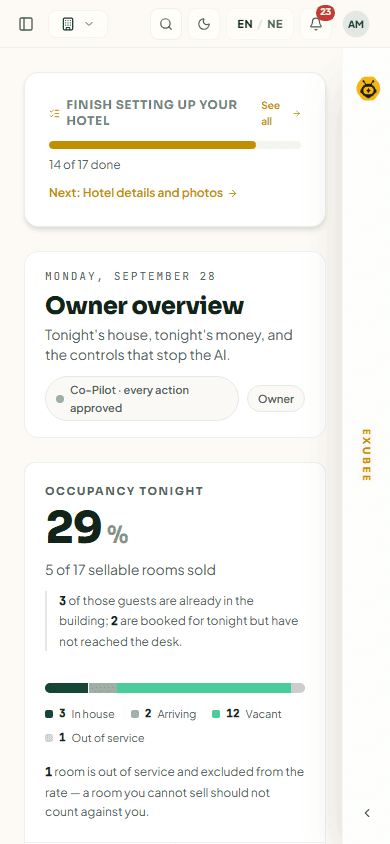
For daily work on a phone, staff are better served by the Stayantra Connect app, and guests by Stayantra Go. See Install the apps.
If the internet drops while you work at the front desk, a small status panel appears at the bottom of the page: Offline, then Syncing when the connection returns, or Needs action if something you did could not be saved. See Bookings and folios.
Next steps
- Setting up a hotel: Self-installation guide
- Front desk: Smart Grid and Bookings and folios
- Working with Exubee: Co-Pilot and approvals
- Stuck: Getting help