
Tasks, housekeeping and maintenance
This page covers the day-to-day work of your team on the web dashboard: the Task Queue, Housekeeping, the Asset Registry and the SOP Checklist. Managers and owners use these screens to hand out work and check it was done. Staff do the work itself in the Stayantra Connect app — see the Staff guide.
Where to find it: in the sidebar, Housekeeping & Maintenance → Task Queue, Housekeeping and Asset Registry, and Team → SOP Checklist.
Who can use it:
| Screen | Owner | Manager | Staff |
|---|---|---|---|
| Task Queue | Yes | Yes | No — staff see their own tasks in the Connect app |
| Housekeeping | Yes | Yes | Staff with the housekeeping skill |
| Asset Registry | Yes (view and edit) | Yes (view and edit) | Staff with the maintenance skill (view only) |
| SOP Checklist | Yes (and manages items) | Yes (and manages items) | The daily checklist |
How a task reaches the right person
Every job in the hotel — cleaning a room, fixing a leaking tap, carrying luggage, taking a room-service order up — is a task. Tasks come from several places:
- Check-out. When a guest checks out, Stayantra creates a room-cleaning task for that room.
- Guests. Requests a guest makes in the Stayantra Go app or on your booking site (towels, a wake-up call, a repair) become tasks.
- Staff. A housekeeper or technician who spots a fault reports it from the Connect app.
- Servicing schedules. A schedule in the Asset Registry creates a maintenance task on its due date.
- Exubee. The assistant can suggest a task. In Co-Pilot mode it waits on the Exubee page until a manager approves it — see Exubee and approvals.
- You. A manager dispatches a task by hand from the Task Queue.
Each task type needs a skill:
| Task type | Goes to staff with the skill |
|---|---|
| Room Cleaning | Housekeeping |
| Room Inspection | Front Desk |
| Maintenance | Maintenance |
| Room Service | Service |
| Table Cleaning | Service |
| Luggage | Bellhop |
| Other | Service |
Stayantra then picks one person, in this order:
- Someone with the skill who is on shift right now (from the Shift Roster). If the room is on a floor, staff who cover that floor come first.
- If your hotel keeps a roster but nobody with the skill is on shift, the task waits. It shows Waiting for someone on shift, and the managers on duty and the owner get an alert. The task goes to the first person with the skill who starts a shift. Staff who are off shift never receive new work.
- If your hotel does not use the roster at all, anyone with the skill can receive it.
- If nobody at the hotel has the skill, anyone still working at the hotel can receive it.
When several people qualify, Stayantra prefers the one whose primary job it is, then the one with the fewest open tasks. The assigned person gets a push notification in the Connect app.
[!TIP] Keep the Shift Roster up to date. If your hotel has rostered anyone in the last week, Stayantra only hands work to people on shift — a stale roster leaves tasks waiting.
When tasks run late, Exubee can raise a finding on the Exubee page. Approving it moves each overdue task to someone else on shift (never back to the person who held it) and raises its priority by one.
Require a photo before a task is done
You can make staff take an "after" photo before they can mark a task done — for example, for every room clean. Owners and managers set this in Settings → Hotel profile → Photo evidence: tick the task types under Photo evidence required and click Save. Untick everything to turn the requirement off. The photos appear on the task's detail page.
Use the Task Queue
The Task Queue lists every task across all departments, newest first. It refreshes itself every 30 seconds.
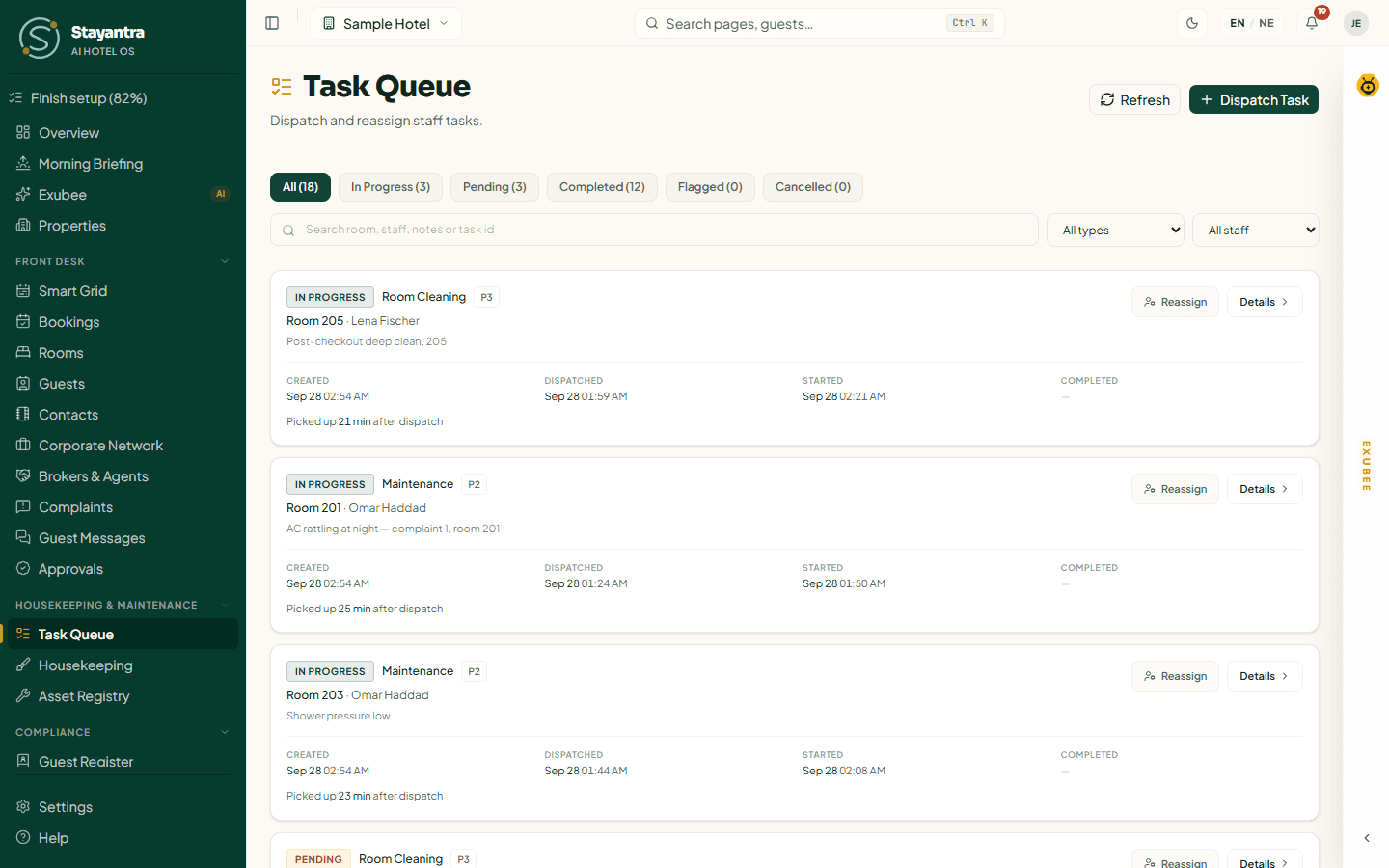
Each task card shows:
- Status — see the table below.
- Task type and priority, from P1 (least urgent) to P10 (most urgent). P7 and above is highlighted.
- The room (or General task when there is no room) and the person it is assigned to.
- Created, Dispatched, Started and Completed times, in the hotel's time zone.
- How fast it was picked up ("Picked up 6 min after dispatch") and how long it took. A time shown in red was faster than the minimum for that task type.
- Badges: Waiting for someone on shift, Flagged, On behalf (someone other than the assignee marked it done) and Proof (a photo is attached).
| Status | Meaning |
|---|---|
| Pending | Created, not started yet. It may be assigned or waiting for someone on shift. |
| In Progress | The staff member has started it in the Connect app. |
| Completed | Done. |
| Flagged | Marked done faster than the minimum time for that task type. A manager should check it. |
| Cancelled | No longer needed. |
To narrow the list, click a status chip (each shows its count), type in Search room, staff, notes or task id, or pick a type from All types and a person from All staff (or Unassigned). Clear removes every filter. Click Refresh to reload now.
Dispatch a task
Open the dialog
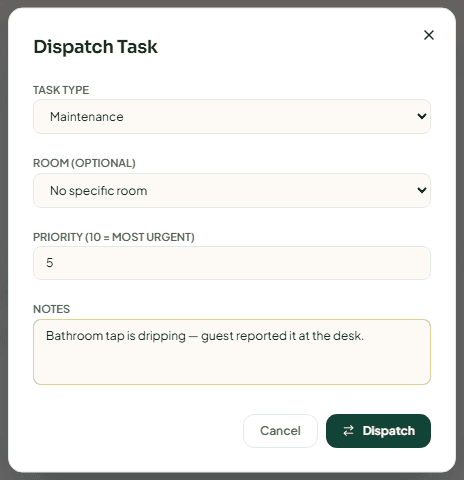
In Housekeeping & Maintenance → Task Queue, click Dispatch Task.
Fill in the task
- Task Type — Room Cleaning, Room Inspection, Maintenance, Room Service, Table Cleaning, Luggage or Other.
- Room (optional) — pick a room, or leave No specific room for a general job. Each room shows its current status.
- Priority (10 = most urgent) — 1 to 10. The default is 5.
- Notes — what needs doing, in plain words. The staff member sees this.
Send it
Click Dispatch. Stayantra picks the person as described above and notifies them. You never choose the person in this dialog — use Assign afterwards if you want someone specific.
Assign or reassign a task
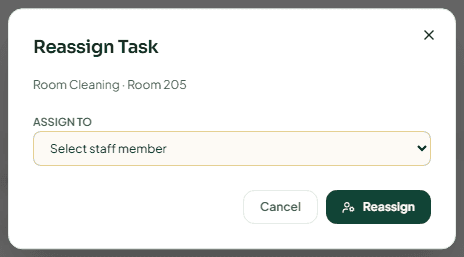
A pending or in-progress task has an Assign button (no one has it yet) or a Reassign button. Click it, choose a person under Assign to — each name shows their department and floors — and click Assign or Reassign. Staff who have left the hotel are not offered.
Open a task's details
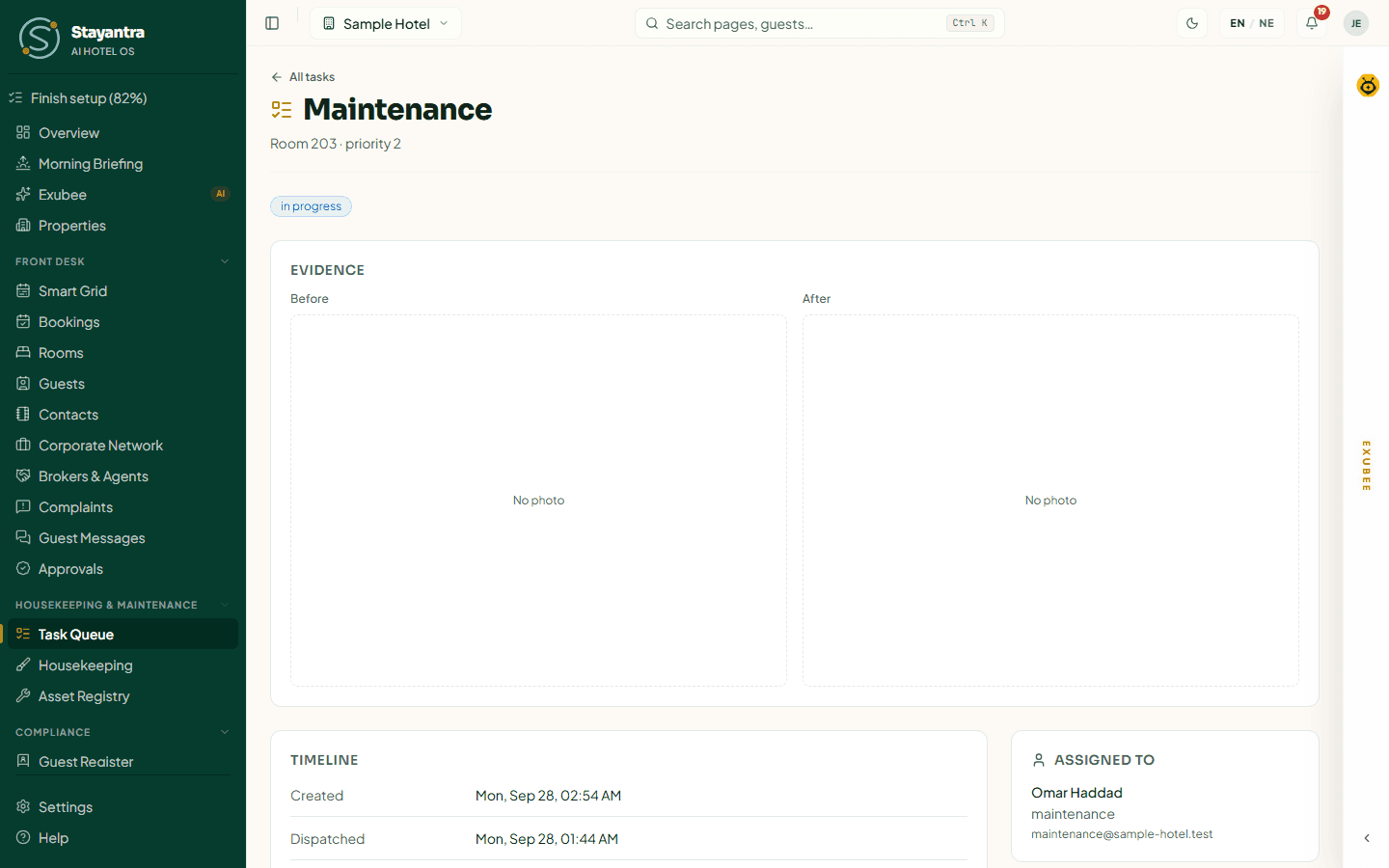
Click the room name or Details on a card. The task page shows:
- Evidence — the before and after photos the staff member took in the Connect app, or No photo when one is missing.
- Timeline — Created, Dispatched, Started (and how many minutes after dispatch), Completed, Time taken against the minimum, the notes, the guest (with a link to their booking) and any Proof attachment.
- Assigned to — the person, their department and email, and who completed it if that was someone else.
- Outside technician (maintenance tasks) — link a technician from your Contacts when an outside company does the repair. If the equipment has a service contact in the Asset Registry, it is suggested here.
- Guest rating — the stars and comment a guest gave for the job in the Go app, or Not rated.
- At a glance — minutes from start to completion.
A box saying Finished faster than the minimum appears when the task was completed under its minimum time.
[!NOTE] A Flagged task is not an accusation — a guest's two-minute towel request finished in three minutes is fine. Check it, and if the work was done, a manager clears the flag from the task in the Connect app. The guest then gets their "your request is done" message.
Record spare parts used on a repair
At the bottom of the Task Queue, Consume Maintenance Parts takes spare parts out of stock against a repair. Choose the Work order (an open maintenance task), the Part (an item from Inventory) and the Quantity, then click Consume. The stock drops and the use is recorded on the task. Pressing Consume twice for the same draw does not take the part twice.
Run housekeeping
Housekeeping & Maintenance → Housekeeping has three tabs: Cleaning, Linen Inventory and Lost & Found.
Cleaning
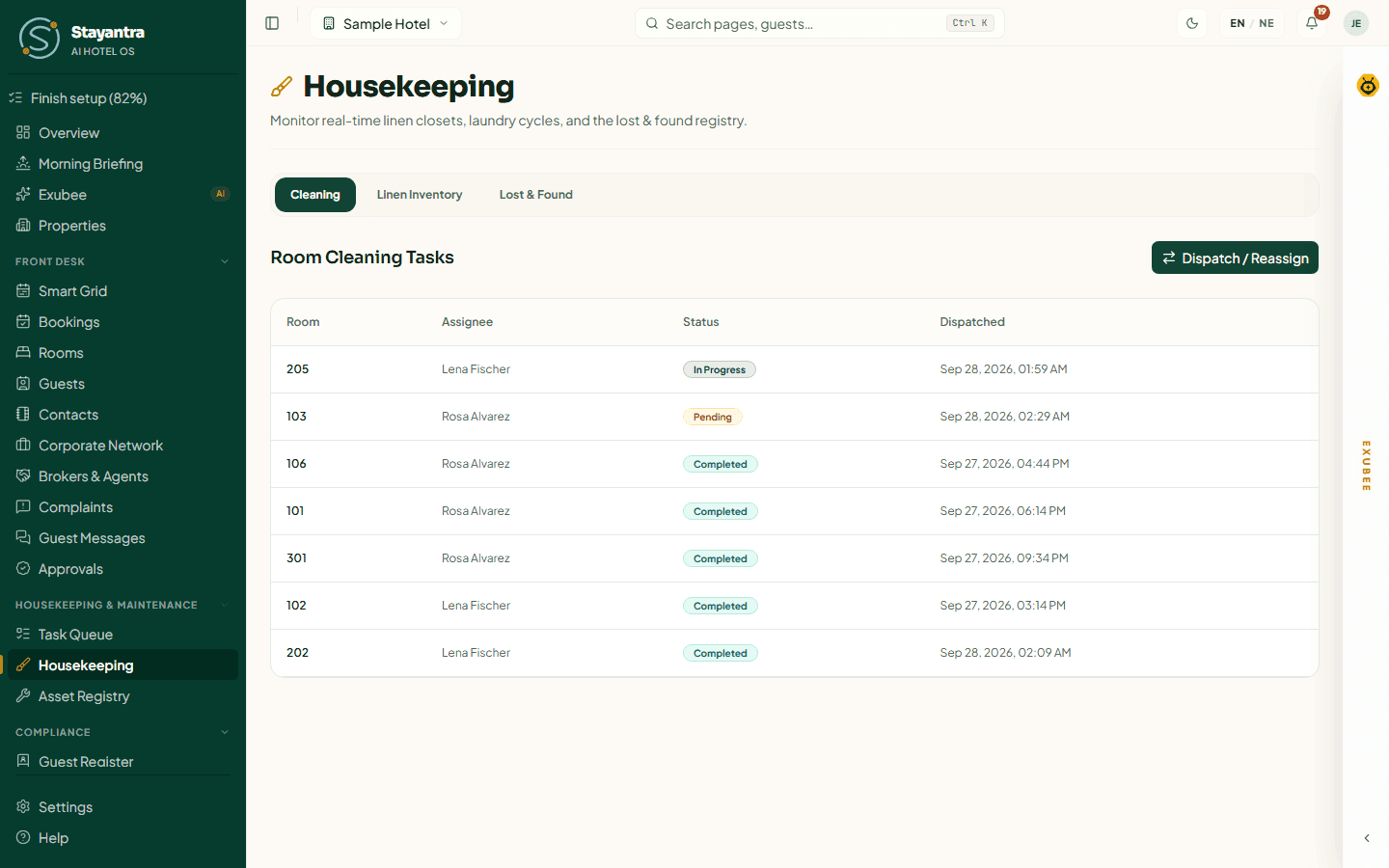
The Room Cleaning Tasks table lists every room-cleaning task with its Room, Assignee (or Unassigned), Status and Dispatched time. Staff with the housekeeping skill see only the cleaning tasks assigned to them ("Showing your assigned cleaning tasks"). Dispatch / Reassign opens the Task Queue.
Inspect cleaned rooms before they are sold
By default a finished clean makes the room ready for the next guest straight away. If you want a supervisor to check every cleaned room first, the owner turns on Inspect rooms after cleaning in Settings → Hotel profile → Stay rules, then clicks Save these rules.
With inspection on, a cleaned room stays dirty and appears under Awaiting inspection at the top of the Cleaning tab, with who cleaned it and how long it has waited. The front desk cannot check a guest into it, and guests cannot self check-in to it. A manager or owner then:
- clicks Pass — the room becomes ready to sell; or
- clicks Send back, types what must be redone (for example "bathroom floor, towels"), and clicks Send back for cleaning — a new cleaning task goes to housekeeping.
Staff see the same list but cannot pass or send back rooms.
Linen Inventory
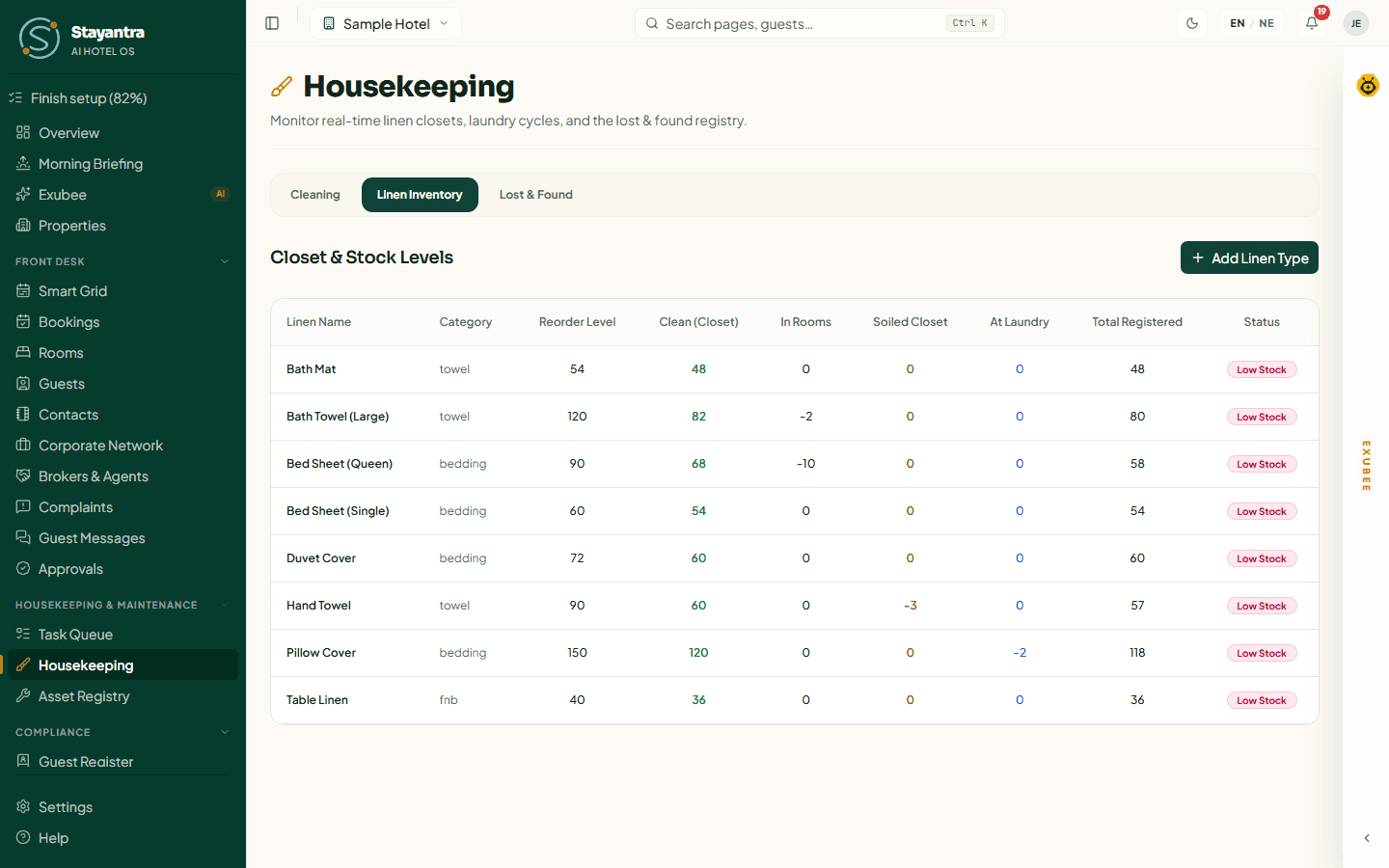
Closet & Stock Levels shows each linen type and where every piece is:
| Column | Meaning |
|---|---|
| Linen Name, Category | What it is, for example "Bath towel", category "Towel". |
| Reorder Level | The par level — how many clean pieces you want on the shelf. |
| Clean (Closet) | Clean and ready. |
| In Rooms | Out in guest rooms. |
| Soiled Closet | Used, waiting to go to the laundry. |
| At Laundry | Sent out for washing. |
| Total Registered | All pieces you own. |
| Status | Low Stock when the clean count is below the reorder level, otherwise Stock OK. |
To add a linen type, click Add Linen Type, fill in Linen Name, Category, Par Level and Unit Cost (in your hotel currency), and click Register Linen Item. Only owners, managers and housekeeping staff can add types.
Housekeepers record movements — pieces going to rooms, to the soiled closet, to the laundry and back — from the Connect app. See Housekeeping in Connect.
Lost & Found
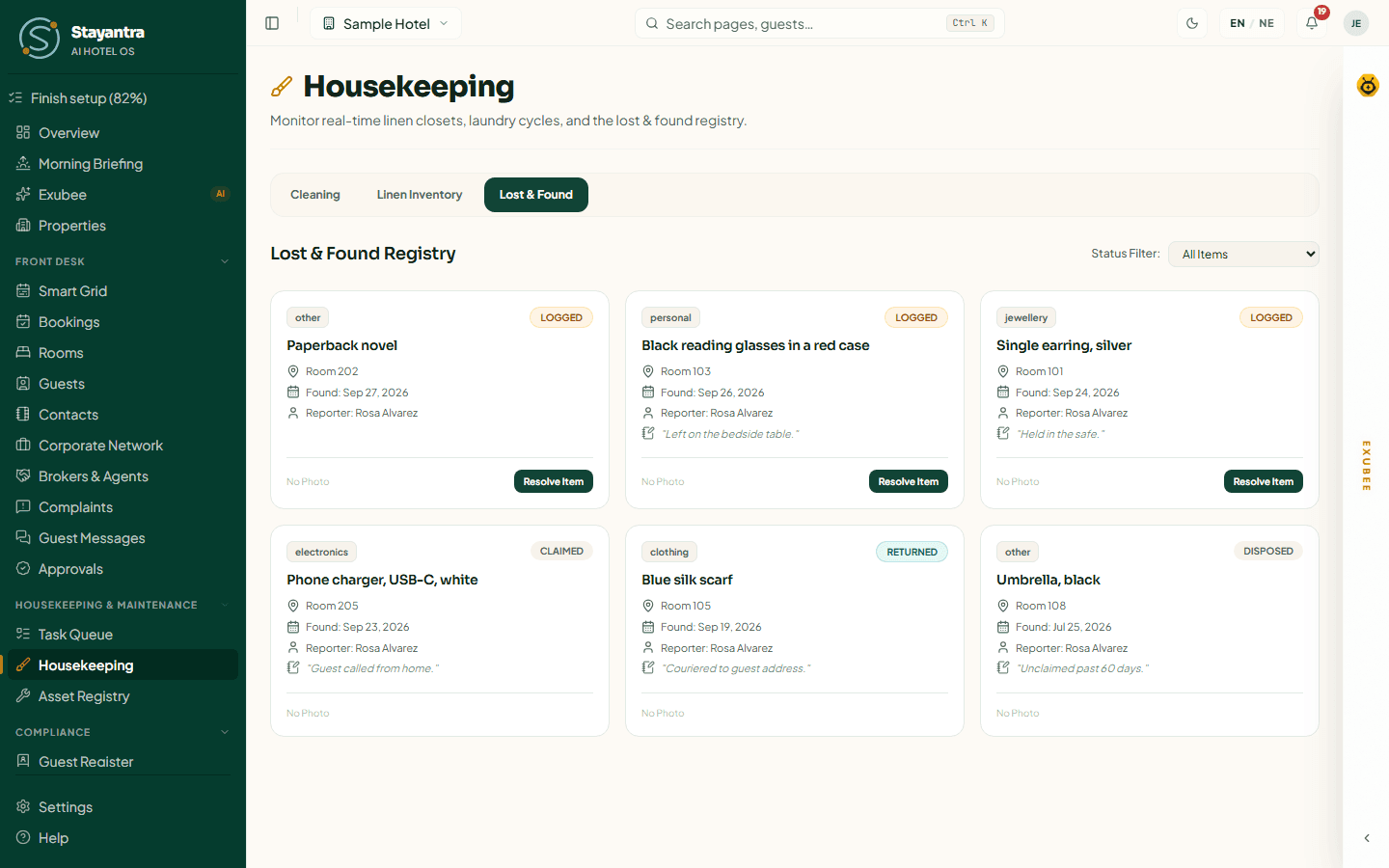
Lost & Found Registry shows every item staff have found, as cards with the category, status, description, room, date found, the staff member who reported it, the guest it belongs to (if known) and a View Photo link.
Staff log found items, with a photo, from the Connect app. On the web you follow them up:
Find the item
Use Status Filter to show All Items, Logged / Found, Claimed, Returned to Guest or Disposed / Donated.
Resolve it
On a card that is still logged, click Resolve Item.
Record what happened
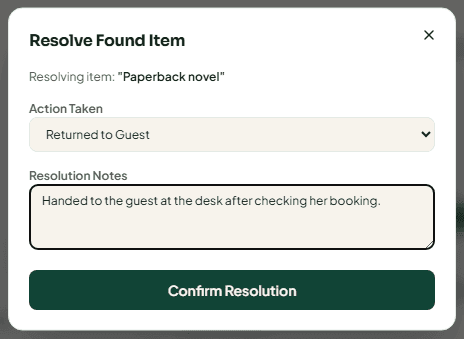
Under Action Taken, choose Returned to Guest, Claimed (Internal ownership verified) or Disposed / Donated. Write Resolution Notes (required) — for example, "Handed to the guest at the desk after checking her booking". Click Confirm Resolution.
Owners, managers, housekeeping staff and bellhops can resolve items.
Keep equipment in the Asset Registry
The Asset Registry is the list of equipment that breaks and costs money — lifts, generators, geysers, AC units, boilers. Every maintenance task raised against a piece of equipment builds up its repair history, and servicing schedules make routine jobs appear on their own.
Housekeeping & Maintenance → Asset Registry has two tabs: Physical Assets and Servicing Schedules. Owners and managers can register equipment and create schedules. Maintenance staff can look but not change anything.
Register an asset
Open the dialog
On Physical Assets, click Register asset (or Register the first asset on an empty register).
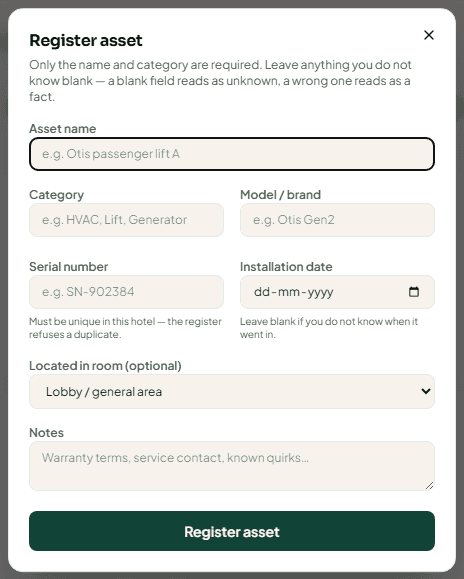
Describe it
- Asset name — for example "Passenger lift A".
- Category — for example HVAC, Lift, Generator. Categories you type become filters.
- Model / brand and Serial number.
- Installation date.
- Located in room (optional) — or Lobby / general area.
- Notes — warranty terms, service contact, known quirks.
Save
Click Register asset.
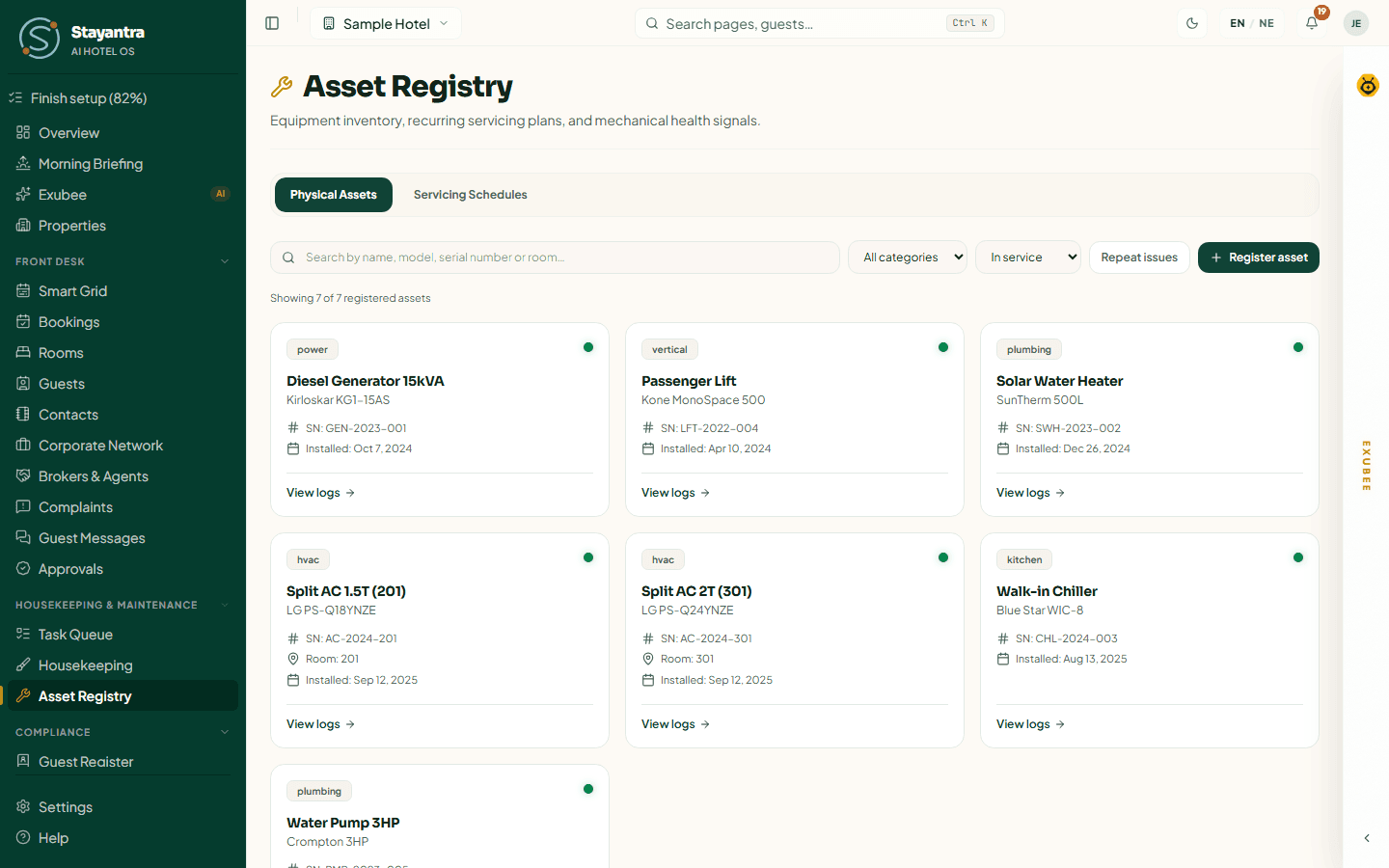
Search by name, model, serial number or room, and filter by category and by In service, Retired or All statuses. Retired equipment is hidden by default. Repeat issues shows equipment that keeps breaking down. Each card has View logs to open its history.
Open an asset
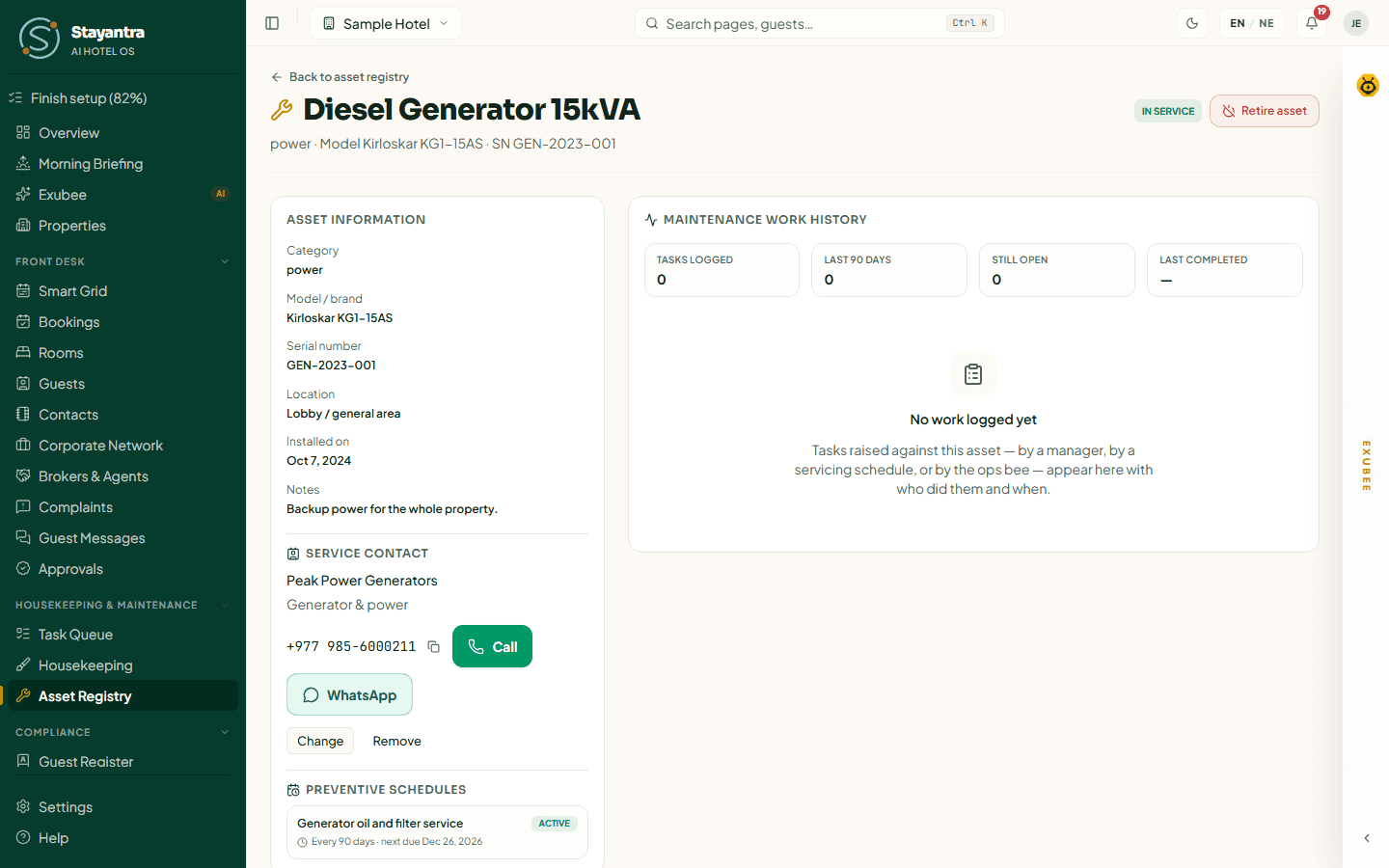
Click an asset to see its record: Category, Model / brand, Serial number, Location, Installed on and Notes, plus:
- Service contact — the outside company that services it, chosen from your Contacts. It is suggested on every maintenance task for this asset.
- Preventive schedules — each with its interval, next due date and Overdue or Due soon (within 7 days).
- Maintenance history — Tasks logged, how many in the last 90 days (a repeat problem shows here), Still open and Last completed, then every task with who did it and when.
- Retire asset — takes it out of the in-service list. Its history and schedules are kept. Return to service puts it back.
Create a servicing schedule
A schedule turns a recurring job — a generator oil change, a lift inspection, a water-tank clean — into a task that appears on its own.
Open the dialog
On Servicing Schedules, click Create schedule.
Set the job
Choose the Target asset, write the Schedule name / action (for example "Generator engine oil filter change"), the Interval (days), and the Next due date.
Save
Click Create schedule.
Every morning at 05:00 hotel time, Stayantra creates a maintenance task ("Preventive Maintenance: …") for each schedule that has come due, then moves its next due date on by the interval. The task is assigned like any other maintenance task, so it is on the technician's list when they arrive.
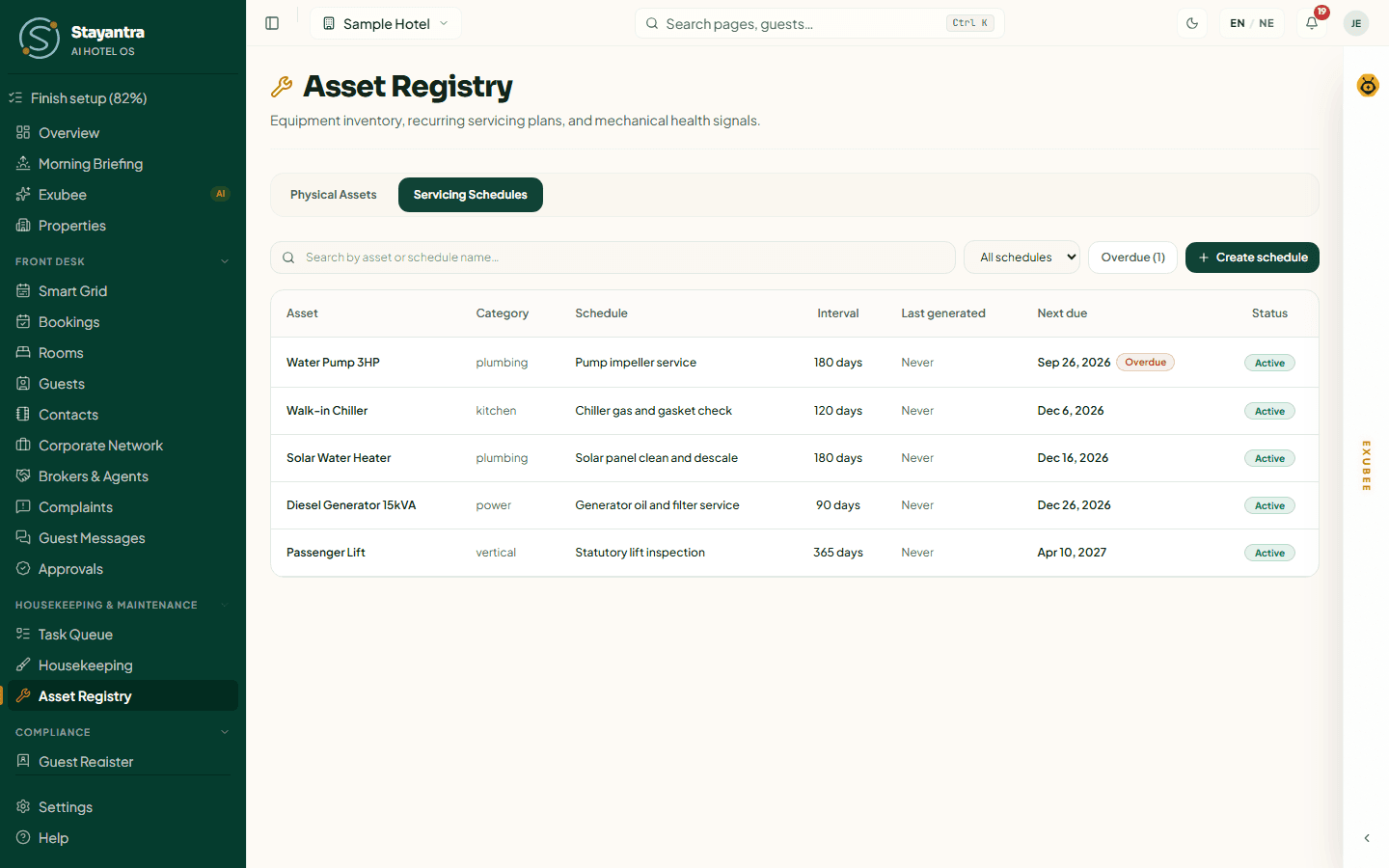
The schedules table shows each Asset, Category, Schedule, Interval, Last generated (Never until the first task is made), Next due and Status (Active or Paused).
Run daily SOP checklists
The SOP Checklist holds each department's standard daily routine — opening the desk, checking lobby lighting, testing the fire panel. Staff tick items off as they do them; managers see who did what and when.
Where: Team → SOP Checklist.
Tick off your checklist
Staff see Daily Checklist Items, with how many are completed (for example 3 / 12 Completed). Click the box next to an item to mark it done; it shows Completed at the time and by your name. Click it again to undo.
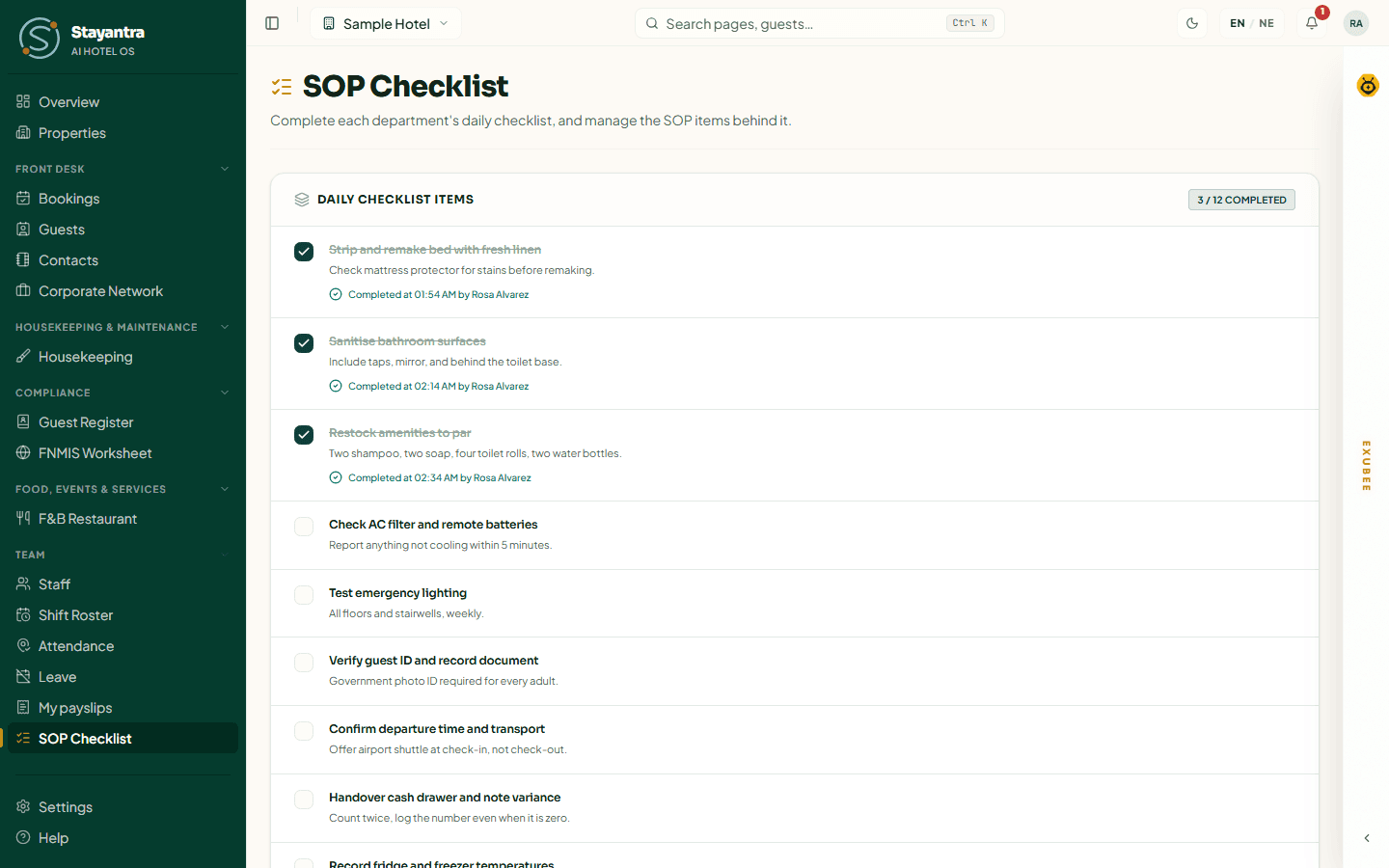
Owners and managers see a Viewing Checklist For: picker. Choose a staff member (grouped by department) to see their checklist and how many items are completed today.
Manage SOP items
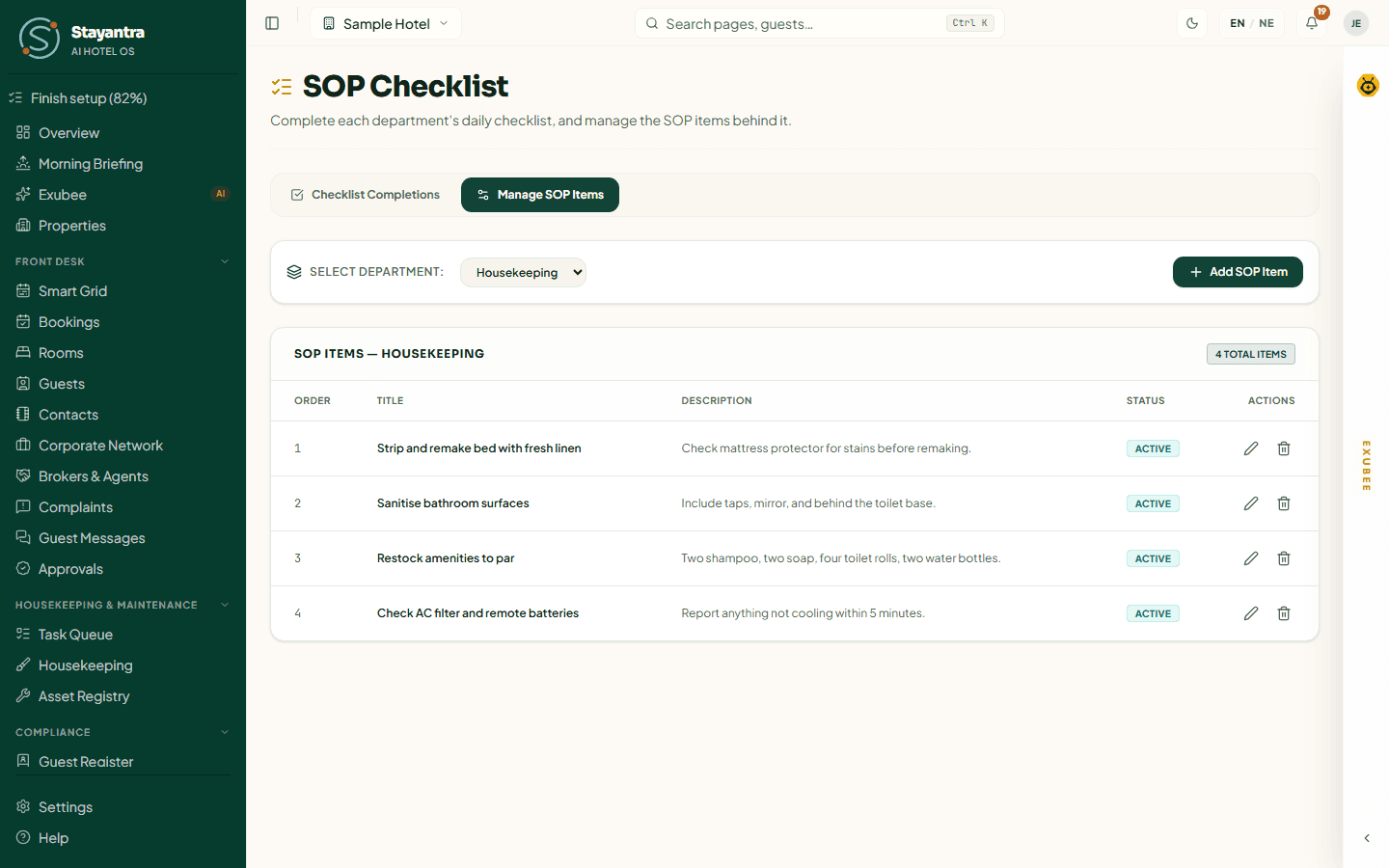
Owners and managers have a second tab, Manage SOP Items.
Pick the department
Under Select Department:, choose housekeeping, maintenance, reception, restaurant or security. The table lists its items with Order, Title, Description, Status and Actions.
Add an item
Click Add SOP Item. Enter Item Title (Standard Instruction) (required), Detailed Description / Steps, and Display Order (lower numbers come first). Click Save Item.
Edit or delete
Use the edit and delete icons in Actions. Deleting asks Delete this SOP item? — it also removes every completion record for that item. Click Keep item if you change your mind.
Troubleshooting
| What you see | What to do |
|---|---|
| A task says Waiting for someone on shift | Nobody with the skill is rostered now. Assign it by hand, or add a shift in the Shift Roster. |
| Room list unavailable in the Dispatch dialog | Your account cannot see rooms. Dispatch without a room, or ask the owner to check your role. |
| A cleaned room will not accept a check-in | Inspection is on and the room is under Awaiting inspection. A manager must Pass it. |
| A staff member cannot finish a task | Your hotel requires an "after" photo for that task type. The staff member must take it in the Connect app. |
| Asset Registry is missing from a staff member's sidebar | Only staff with the maintenance skill see it. Add the skill on their staff profile. |
Reports and analytics
Occupancy, ADR, RevPAR and revenue reports you can download, the Analytics tabs, the Health score, and Ops Health for scheduled jobs and stuck automations.
Guest register and compliance
Print an emergency headcount, keep the guest register for inspection, report foreign guests on FNMIS and handle account-deletion requests.