
Contacts
Contacts is the hotel's phone book: the plumber who comes at night, the gas supplier, the nearest hospital, the accountant. Everyone on the team can find a number and call it; managers keep the list up to date. Emergency numbers sit at the top and print on one sheet for reception.
Where to find it: Front Desk → Contacts. The search box's Add a contact and Emergency numbers also open it. Who can use it: every staff member can search, call, log a call and print the emergency sheet. Managers and owners add, edit, import, export and archive contacts. Contacts is part of every plan.
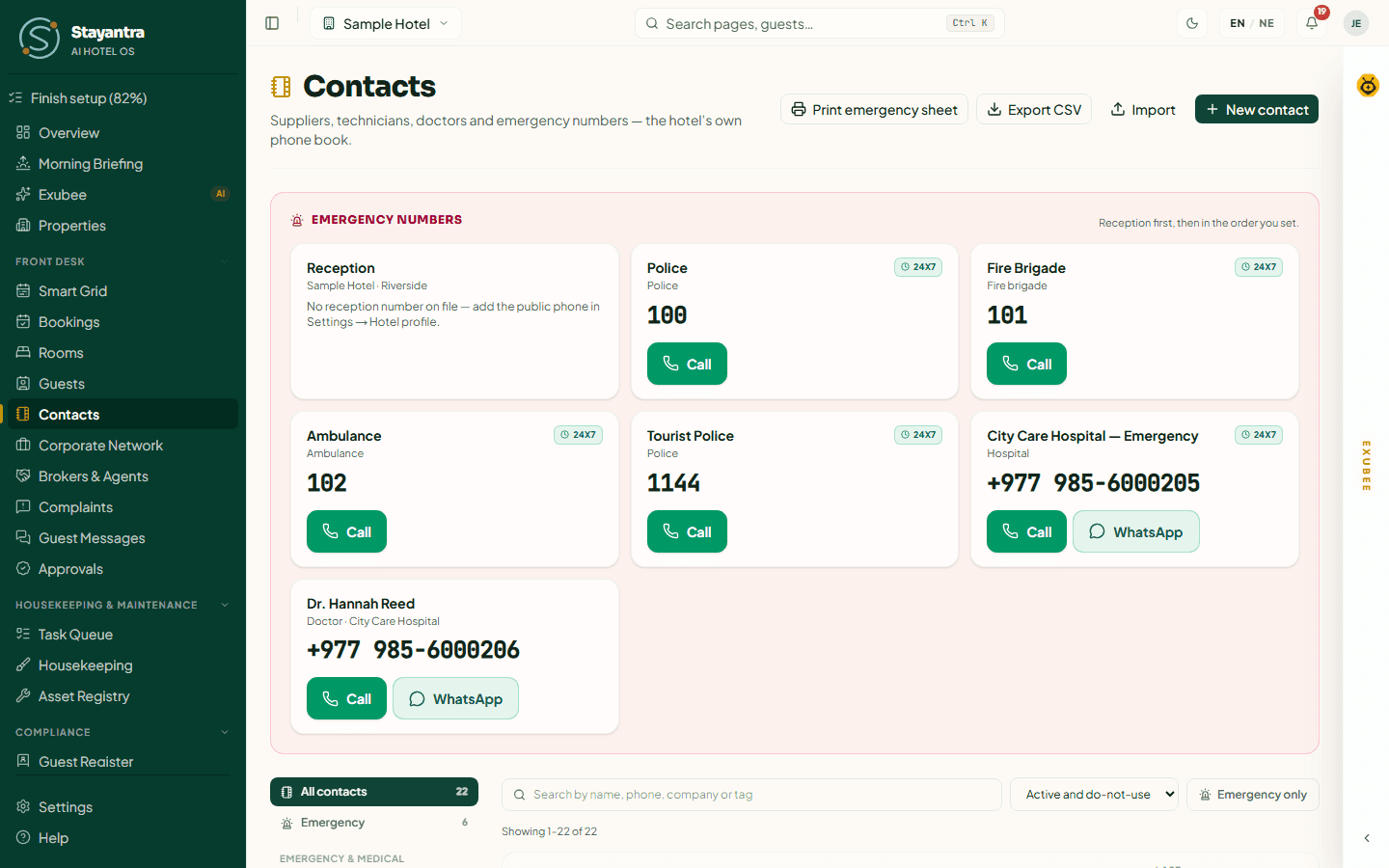
Emergency numbers
The Emergency numbers strip is always at the top: Reception first (your hotel's public phone), then every contact marked as an emergency contact, in the order you set, each with Call and WhatsApp buttons and a 24x7 badge where it applies.
- If the strip says "No reception number on file", add the hotel's public phone in Settings → Hotel profile.
- If you have not marked any emergency contacts yet, the strip shows Nepal's national numbers: Nepal Police 100, Fire brigade 101, Ambulance 102, Tourist Police 1144. A manager can click Add Nepal emergency services to add these four as contacts in one go.
- The strip is saved on each device, so it still works without internet. Offline, it says when the saved copy is from.
Print the emergency sheet
Click Print emergency sheet. A printable page opens titled "Emergency numbers — {your hotel}" with Our emergency contacts and Nepal national numbers, and the time it was printed. Print it and keep it at reception and in the back office.
Find a contact
- Categories on the left: All contacts, Emergency, then groups — Emergency & medical, Repairs & maintenance, Suppliers, Services, Utilities & government, Business & advisers, Other. Only categories that have contacts are shown.
- Search by name, phone, company or tag.
- Status: Active and do-not-use (the default), Active only, Do not use, Archived, Everything. Emergency only narrows to emergency contacts.
- The list shows Name, Category, Phone, Rating, 24x7, Last contacted and Status, 50 to a page.
The built-in categories are: Police, Fire brigade, Ambulance, Hospital, Doctor, Pharmacy, Plumber, Electrician, Carpenter, Painter, Mason, AC & refrigeration, Generator & power, Lift / elevator, IT, Wi-Fi & CCTV, Pest control, LPG gas, Supplier, Laundry, Taxi & transport, Travel agent, Tour guide, Security agency, Cleaning, Electricity (NEA), Water supply, Internet provider, Municipality / ward, Tax office, Accountant / CA, Lawyer, Bank, Insurance and Other.
Add a contact
Open the form
Click New contact (managers and owners). If you were browsing a category, it is already chosen.
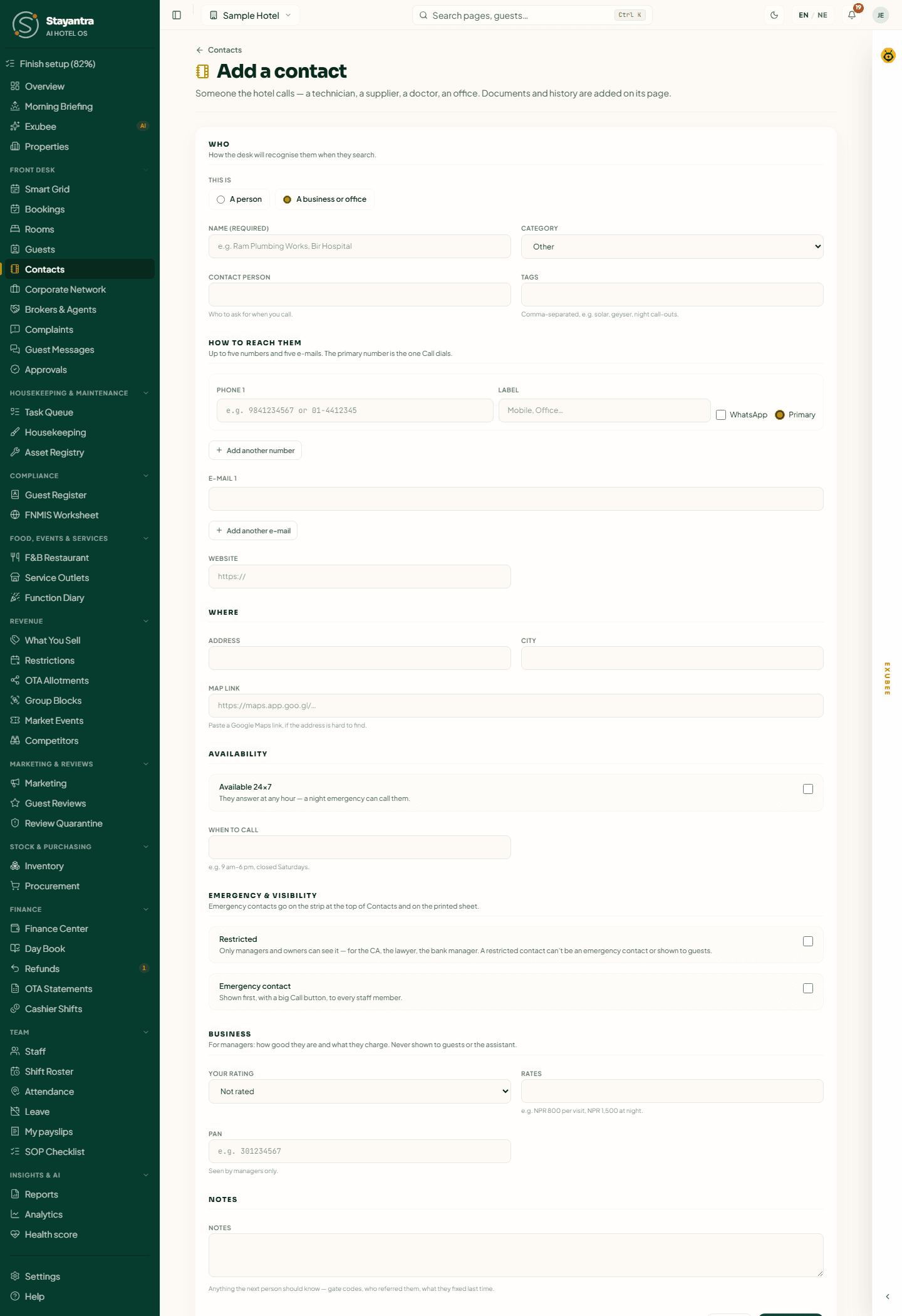
Fill in who they are and how to reach them
| Section | Fields |
|---|---|
| Who | This is a person or a business or office · Name (required) · Category · Company and Job title (for a person) or Contact person (for a business — who to ask for) · Tags (comma-separated, e.g. "solar, geyser, night call-outs") |
| How to reach them | Up to five phone numbers, each with a Label (Mobile, Office, Home, Landline, After hours, Emergency line), a WhatsApp tick and Primary — the number Call dials · up to five e-mails · Website |
| Where | Address, City, Map link |
| Availability | Available 24x7, When to call |
| Emergency & visibility | Restricted (only managers and owners can see it — for the CA, the lawyer, the bank manager) · Emergency contact (shown first with a big Call button to every staff member). Once you tick Emergency contact: Rank (1 is shown first) and Show to guests (in-house guests see this number on the emergency card in the Stayantra Go app) |
| Business | Your rating (1 to 5), Rates, PAN (9 digits; seen by managers only) |
| Notes | Anything else. |
A contact needs at least one phone number or e-mail. Police, Fire brigade, Ambulance, Hospital and Doctor are ticked as emergency contacts automatically.
Save
Click Add contact. If the number, e-mail or name matches a contact you already have, Stayantra asks "This might be a contact you already have" and shows the match. Open existing to use it, or Save anyway.
Some combinations are refused, for good reason: a restricted contact cannot be an emergency contact or shown to guests, only an emergency contact can be shown to guests, and a contact shown to guests needs a phone number.
Import contacts
Bring in the numbers you already keep — a spreadsheet, or the contacts saved on a phone.
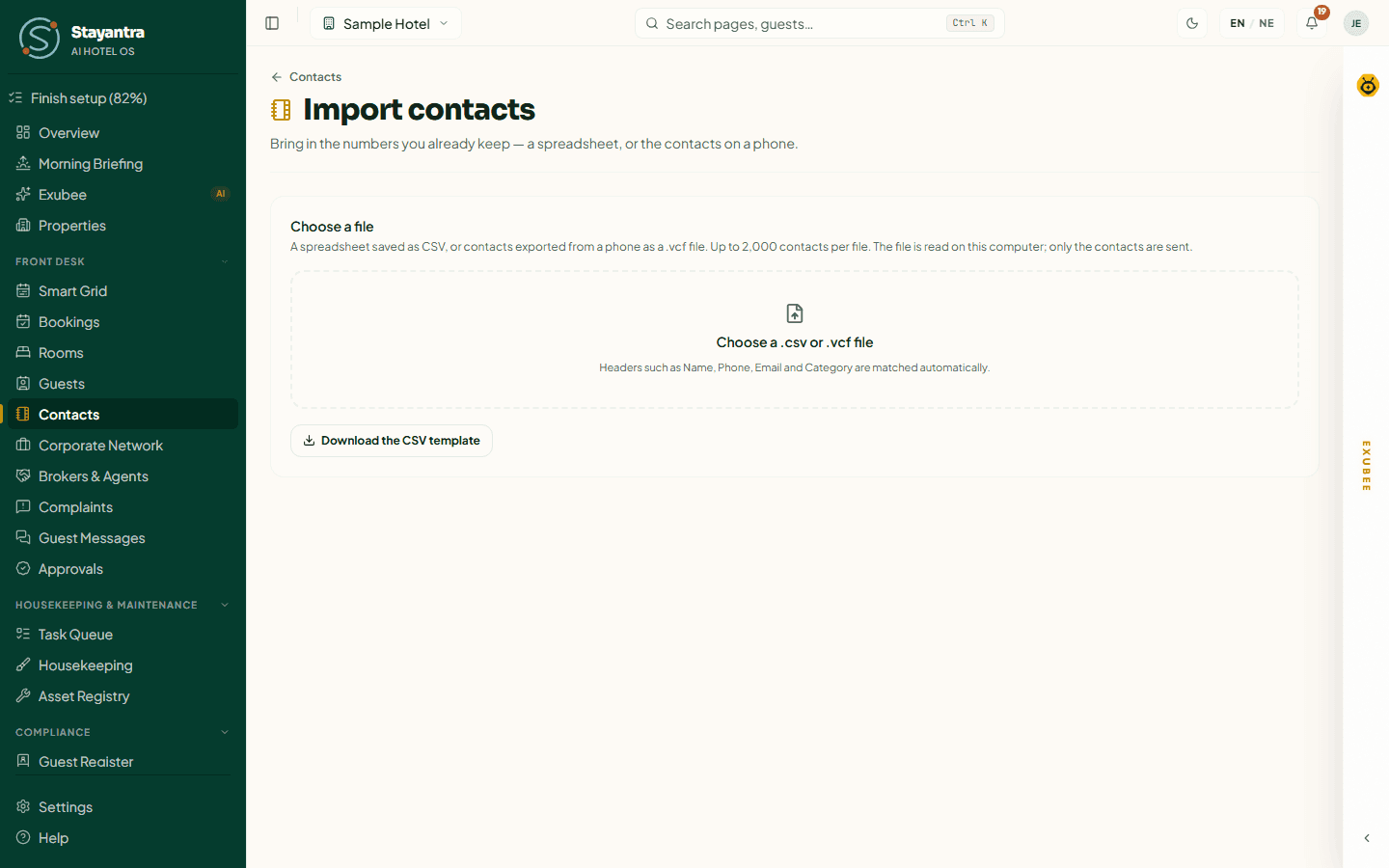
Prepare the file
Use a .csv file (from Excel or Google Sheets) or a .vcf file (exported from a phone's contacts). Click Download the CSV template for a spreadsheet with the right columns: Name, Category, Company, Contact person, Job title, Phone, Phone 2, WhatsApp, Email, Address, City, Website, 24x7, Rate, Tags, Notes. Up to 2,000 contacts per file.
Choose the file
In Contacts, click Import, then Choose a .csv or .vcf file. If Stayantra cannot tell which column holds the name or the phone, it asks you to Match the columns: for each Column in the file, pick what it Holds, or Ignore this column. Then Check the rows.
Check and import
The preview marks each row Ready, Duplicate? (it matches a contact you have — left unticked; tick Import anyway to add it) or Problem (with the reason). Click Import N contacts.
Import finished shows how many were Created, Skipped as duplicates and Failed. Importing the same file twice does not add the same contact twice.
Export CSV downloads the whole list as a spreadsheet.
A contact's page
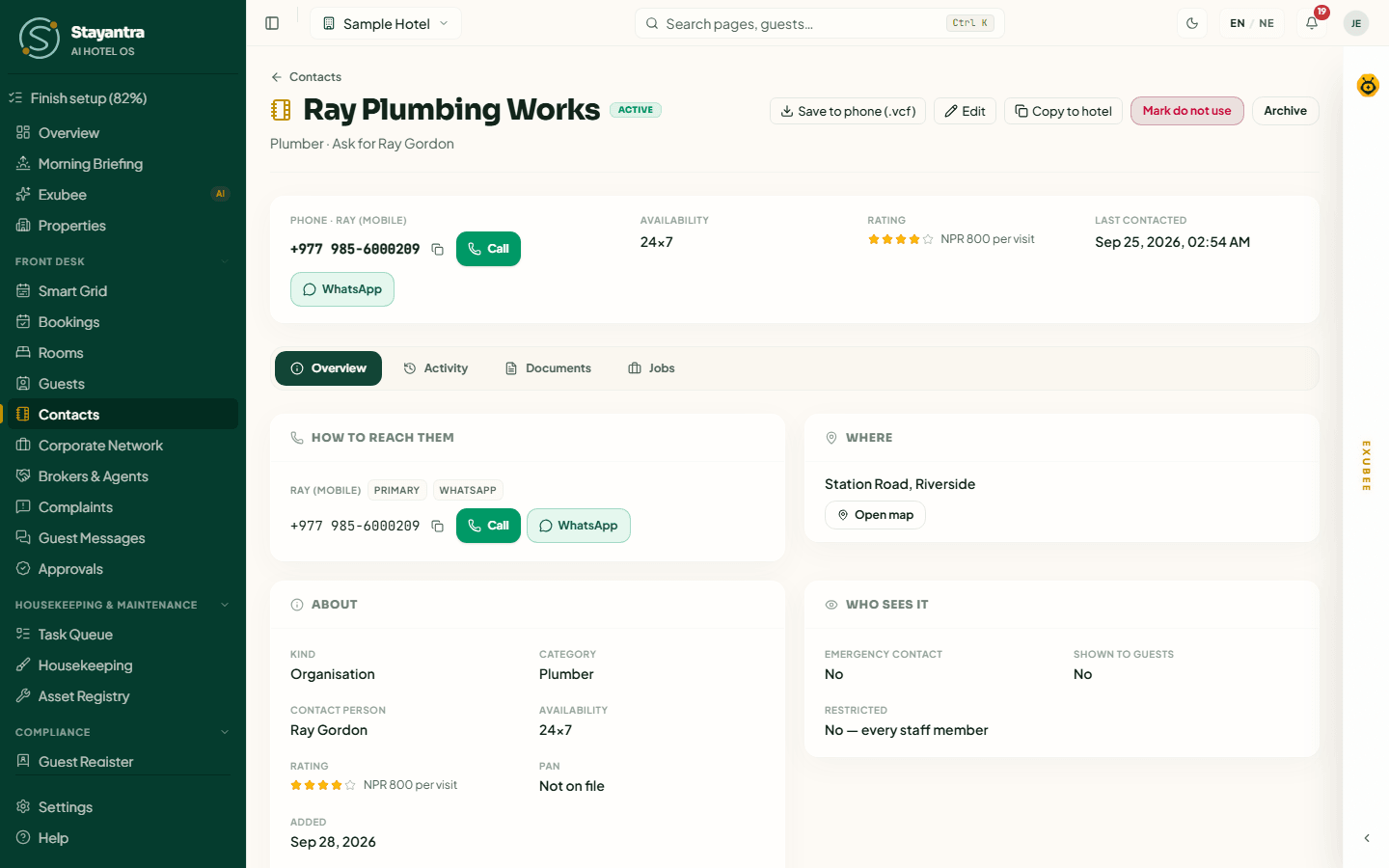
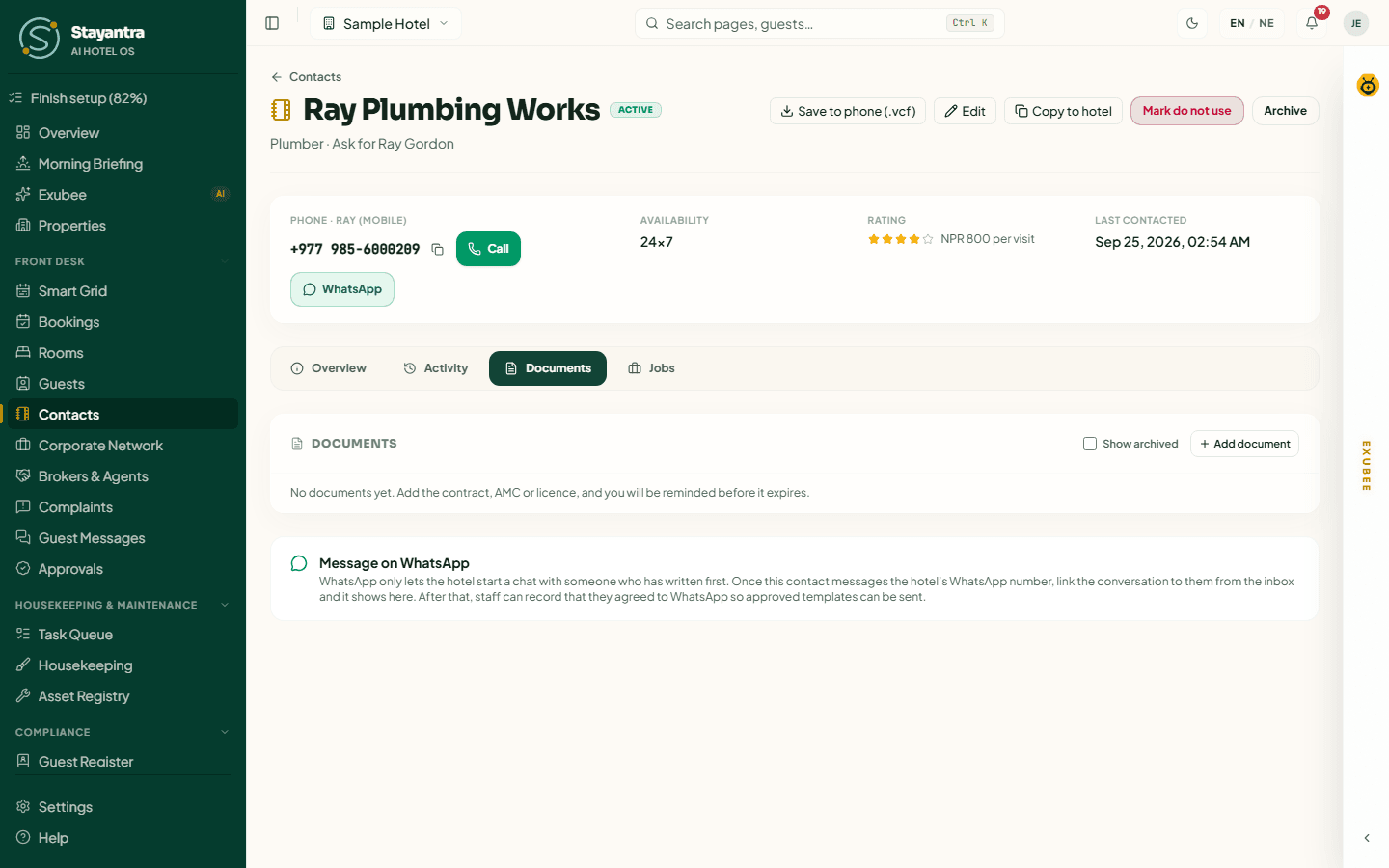
At the top: the name, status, and Save to phone (.vcf) to add the contact to your own phone. Managers also see Edit, Copy to hotel (when you work at more than one hotel) and the status buttons. The quick facts show the phone, availability, rating and when the contact was last called.
| Tab | What is in it |
|---|---|
| Overview | How to reach them, where they are (Open map), about them, who can see the contact, notes. |
| Activity | The contact's history — every call, message and visit. |
| Documents | Contracts, maintenance agreements (AMC), licences, insurance, certificates and quotations, with expiry dates. |
| Jobs | Maintenance jobs this contact worked on, and the equipment they service. Link them from the task or asset page. |
| Supplier | For a supplier: quality, lead time and recent purchase orders. See Procurement. |
Log a call or visit
Anyone can add to a contact's history. On Activity, under Log something, choose the type (Call, WhatsApp, E-mail, Visit, Job done, Note), the outcome (Reached, No answer, Busy, Wrong number, Resolved, Follow up), when it happened (leave blank for now) and a note, then Add to history. Tapping Call, WhatsApp or e-mail on the contact logs itself.
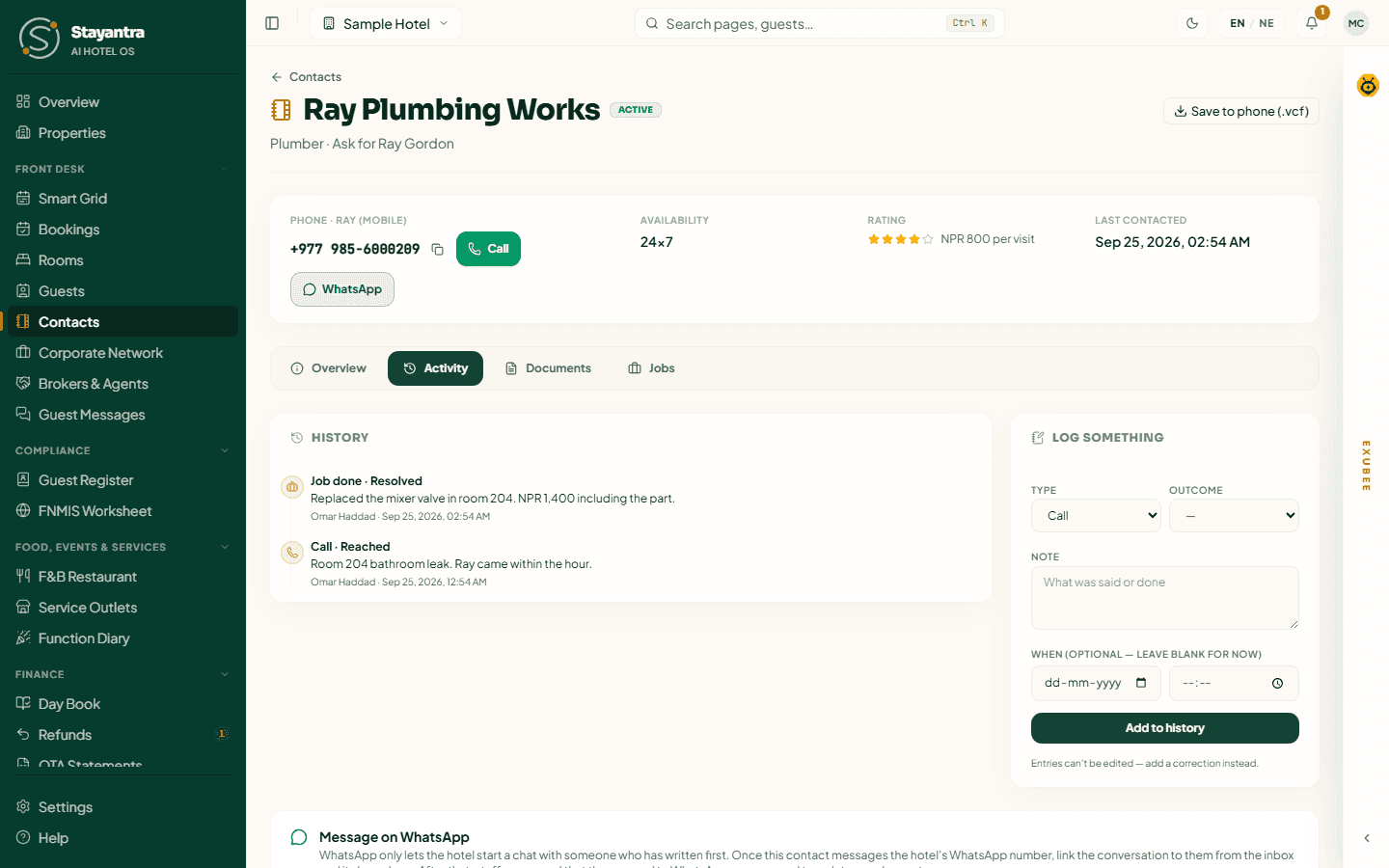
Entries cannot be edited — add a correction instead.
Keep documents and expiry dates
On Documents, managers click Add document: the file (PDF, JPG, PNG or WebP, up to 10 MB, or No file — track the date only), the Type, a Reference, the Title, Issued and Expires dates, Remind (days) before expiry (30 by default) and a note. Each document shows Valid, Expires in N days, Expires today or Expired. The owner and managers are reminded before a document expires — useful for an AMC or an insurance policy.
Do not use, archive, reactivate
- Mark do not use — for a supplier or technician the hotel should stop calling. Say why ("Say why, so the next person knows."). The contact stays in the list with a red Do not use banner, the reason and the date.
- Archive — takes the contact out of the list, the emergency strip and the sheet. Nothing is deleted.
- Reactivate — brings an archived or do-not-use contact back.
Contacts are never deleted, so their history is kept.
Who can do what
| Action | Owner | Manager | Staff |
|---|---|---|---|
| Search, call, save to phone, print the emergency sheet | Yes | Yes | Yes |
| Log a call or visit | Yes | Yes | Yes |
| See restricted contacts and PAN | Yes | Yes | No |
| Add, edit, import, export | Yes | Yes | No |
| Documents, do not use, archive | Yes | Yes | No |
A restricted contact does not appear for staff at all: if a staff member follows a link to one, it says "Contact not found".
When something goes wrong
| What you see | What to do |
|---|---|
| "Add at least one phone number or e-mail." | Fill in one of them. |
| "PAN must be exactly 9 digits." | Check the PAN. |
| "Start the website with http:// or https://" | Add the start of the address. |
| "Nothing matches that search" | Click Clear filters, or check Status — the contact may be archived. |
| An import row shows Problem | Fix that row in the file, or leave it out. The other rows still import. |
Guest messages
The desk's inbox for messages guests send from the Stayantra Go app and your booking page — read them and reply.
Corporate Network
Bill company stays through the Stayantra Corporate Network — your corporate rate and group terms, billing a stay to a company at the desk, payables, payouts and corrections.