Team, rosters, attendance, leave and payroll
This page covers your people: who works at the hotel and what they can do, when they work, whether they turned up, their leave, and their pay.
Where to find it: in the sidebar under Team: Staff, Shift Roster, Attendance, Leave, My payslips and SOP Checklist (see Tasks, housekeeping and maintenance). Payroll is under Finance. Shift Roster, Attendance, Leave, Payroll and My payslips need the Staff & HR module on your plan.
Who can use it:
| Screen | Owner | Manager | Staff |
|---|---|---|---|
| Staff | Everyone, invite and edit | Everyone, invite and edit | Their own scorecard |
| Shift Roster | Schedule shifts, set the rest rules | Schedule shifts | Their own shifts |
| Attendance | Team board, timesheet, settings | Team board, timesheet | Their own sessions |
| Leave | Decide, set leave types | Decide | Ask for leave |
| Payroll | Yes | Only if the owner lets them run payroll | No |
| My payslips | Their own | Their own | Their own |
Add staff
Open the invite
In Team → Staff, click Invite staff.
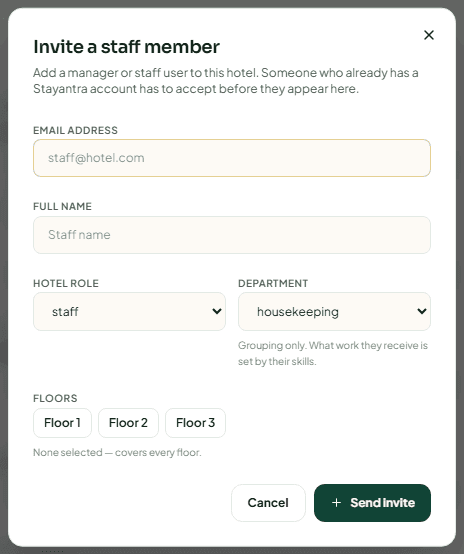
Fill in the details
- Email address and Full name.
- Hotel role — staff or manager. Managers can see and do almost everything except the owner's money and settings.
- Department — housekeeping, maintenance, reception, restaurant or security. This only groups people; the work they receive depends on their skills.
- Floors — the floors they cover, or leave it for all floors.
Send
Click Send invite. A new person gets an email to set their password (the link lasts 72 hours). Someone who already has a Stayantra account must accept the invitation before they appear in your list.
Give them skills
Open their profile and click Edit skills (see below). A person with no skills is never chosen for a task.
Staff then sign in on the web or in the Stayantra Connect app. See Staff and owners and Install the apps.
The staff list
The list shows everyone with their role, email, skills and tasks completed. Search by name, email or skill, filter by department, and show Active, Offboarded or Everyone. A person marked "No skills assigned — never selected for dispatch" needs skills.
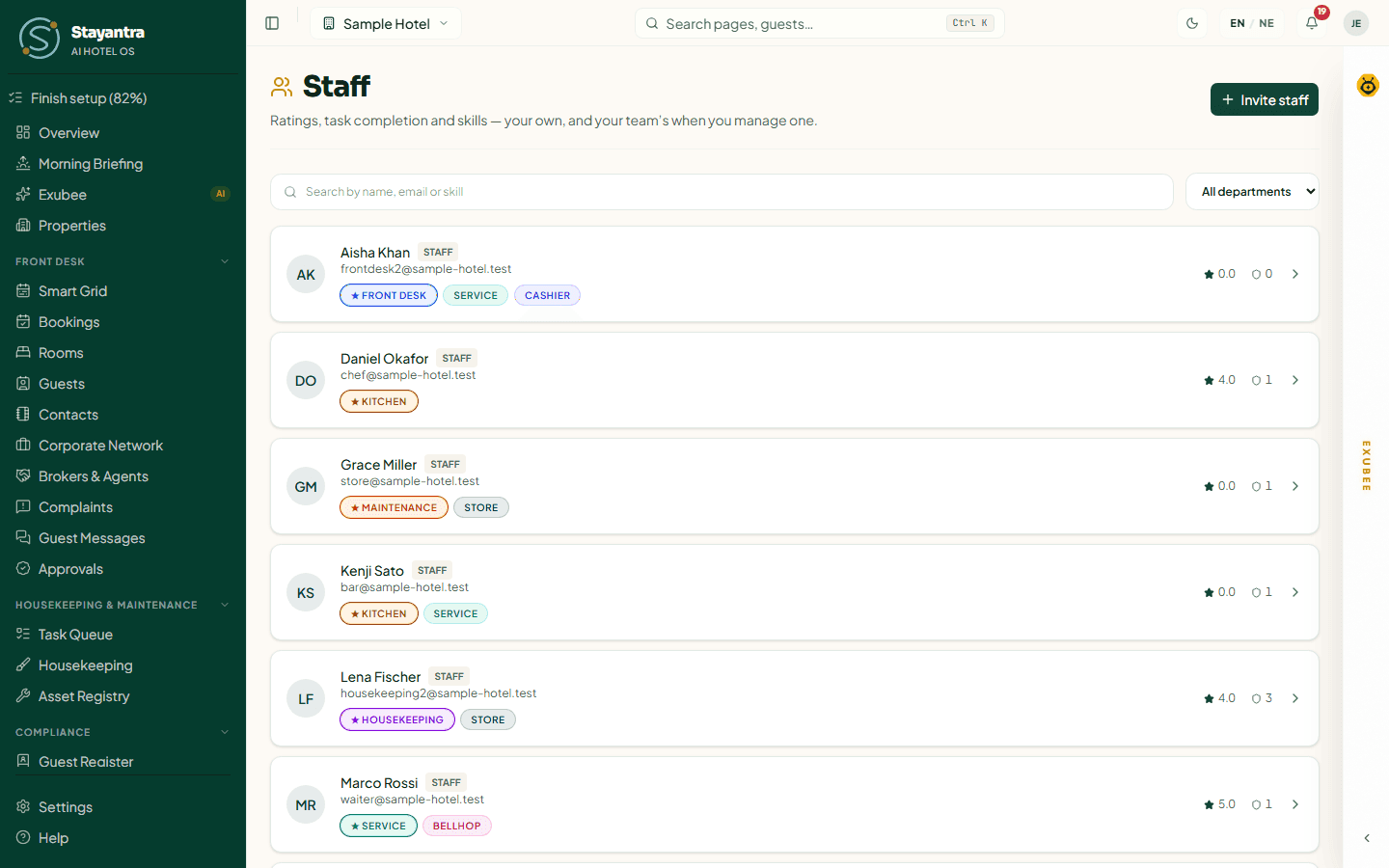
Staff see Your scorecard instead: their Rolling rating (average guest rating over the last 30 days), Tasks completed, Strikes and whether they are eligible for the Monthly bonus. Suspicious completions or low ratings can add strikes; three strikes in a row lose that month's bonus.
Edit a staff profile
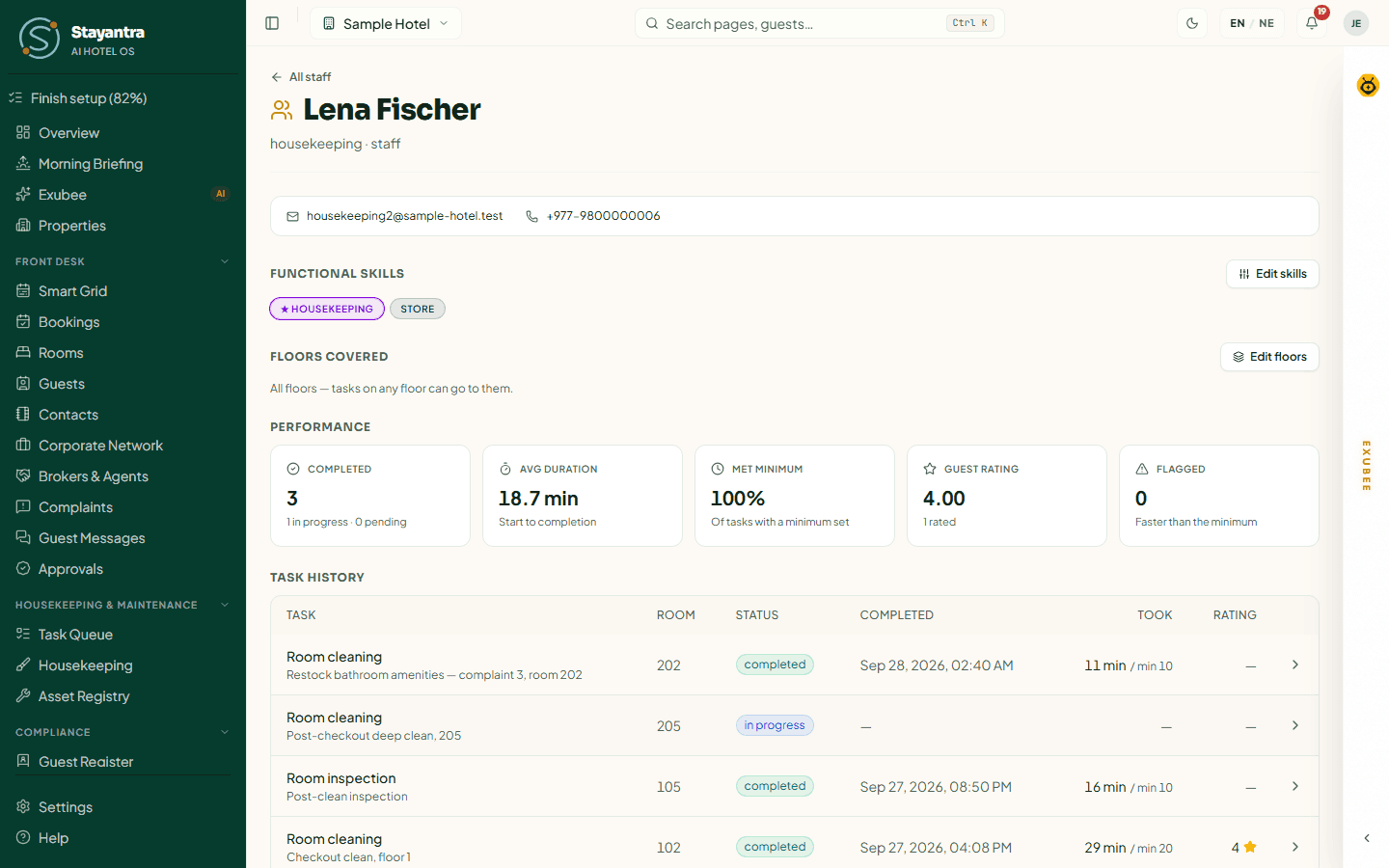
Click a person to open their profile.
- Functional skills — click Edit skills and tick what they can do: Front Desk, Cashier, Housekeeping, Maintenance, Kitchen, Service (waiting tables and room service), Bellhop, Security and Store. Order them: the first is their Primary job. When several people could take a task, Stayantra prefers the one for whom it is their primary job. Skills also decide what staff can see and do — for example, only staff with the cashier skill can take payments, and only staff with the store skill can receive deliveries.
- Floors covered — click Edit floors. Tasks on these floors go to them first. "All floors" means tasks on any floor can go to them.
- Performance — tasks completed, in progress and pending, Avg duration, Met minimum, Guest rating and Flagged (finished faster than the minimum).
- Task history — every task with its room, status, when it was completed, how long it took and its rating.
When someone leaves
Under Ending employment, click Offboard. They lose access to this hotel immediately, their open tasks are handed back for reassignment, any open attendance session is closed, their future shifts are cancelled, and they are marked for a final settlement on the next payroll. Their record and task history stay. If they have a cashier shift open, it must be counted and closed first.
To delete a former colleague's account entirely, see Account deletion.
Plan the shift roster
The roster says who works when. Stayantra uses it to send tasks only to people on shift. See How a task reaches the right person.
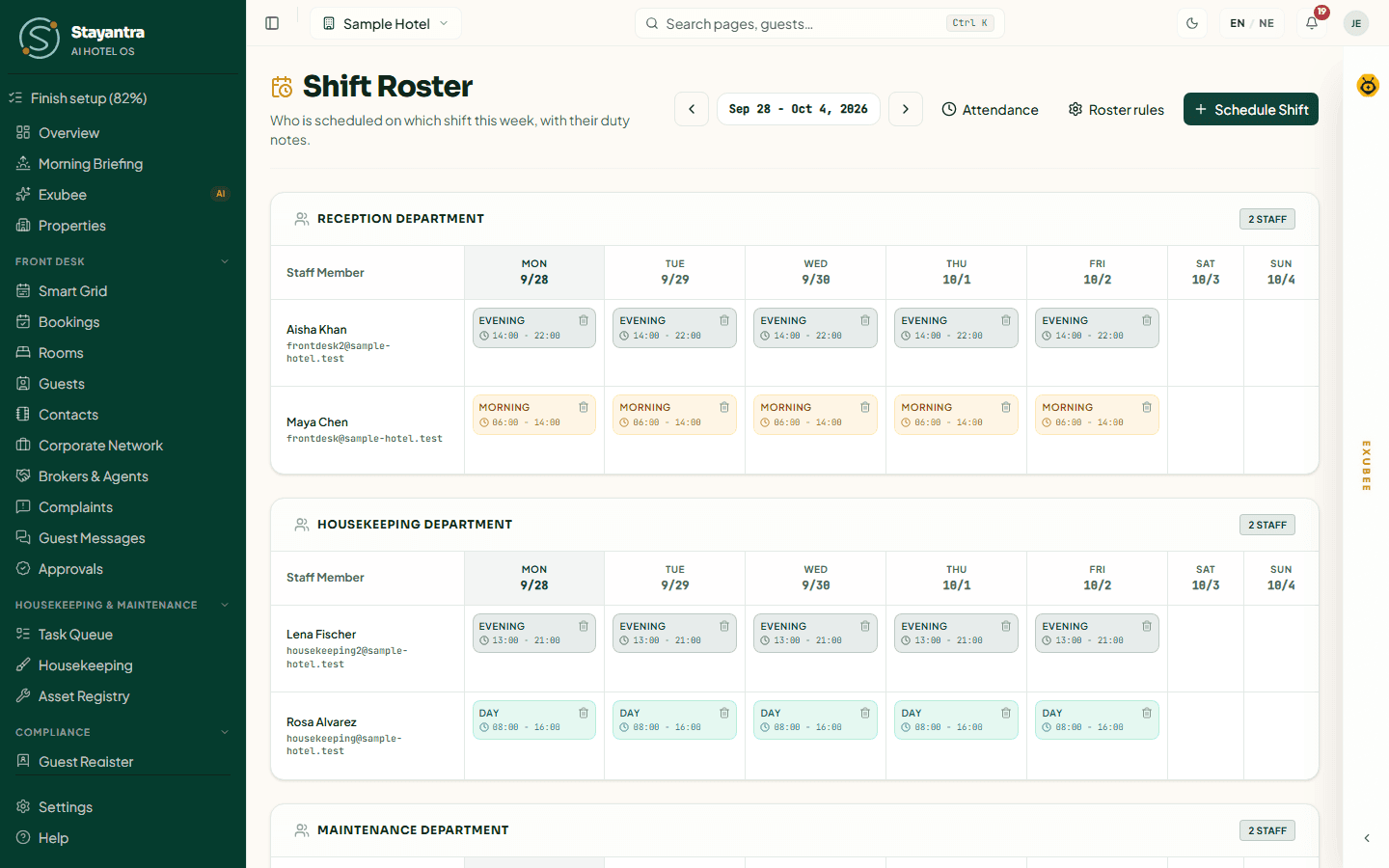
Where: Team → Shift Roster. It shows one week (Previous week, Next week), grouped by department, with each shift coloured by type and any duty notes. Approved leave shows on the days it covers.
Schedule a shift
Open the form
Click Schedule Shift, or the add button on a person's day.
Fill it in
Choose the Staff Member, Shift Date, Shift Type (morning, day, evening or night), and optionally Start Time, End Time and Duty Notes. A shift with no times counts as all day. A night shift can run past midnight (for example 22:00 to 06:00).
Save
Click Schedule. If the shift breaks a rest rule, Stayantra refuses it and says why.
To remove a shift, click its delete button and confirm Delete shift.
Staff see their own upcoming shifts on this page and in the Connect app.
Roster rules
Click Roster rules. The owner sets:
- Most days in a row before a rest day — default 6. Nepal's Labour Act 2074 gives every worker one rest day a week, so do not set more than 6.
- Least hours of rest between two shifts — default 10.
These are checked every time a shift is scheduled or moved, by a person or by Exubee. Managers see them read-only.
Track attendance
Staff clock in and out in the Stayantra Connect app. Each clock-in is proven by the phone's location and a live selfie. Attendance is off until the owner turns it on.
Turn attendance on
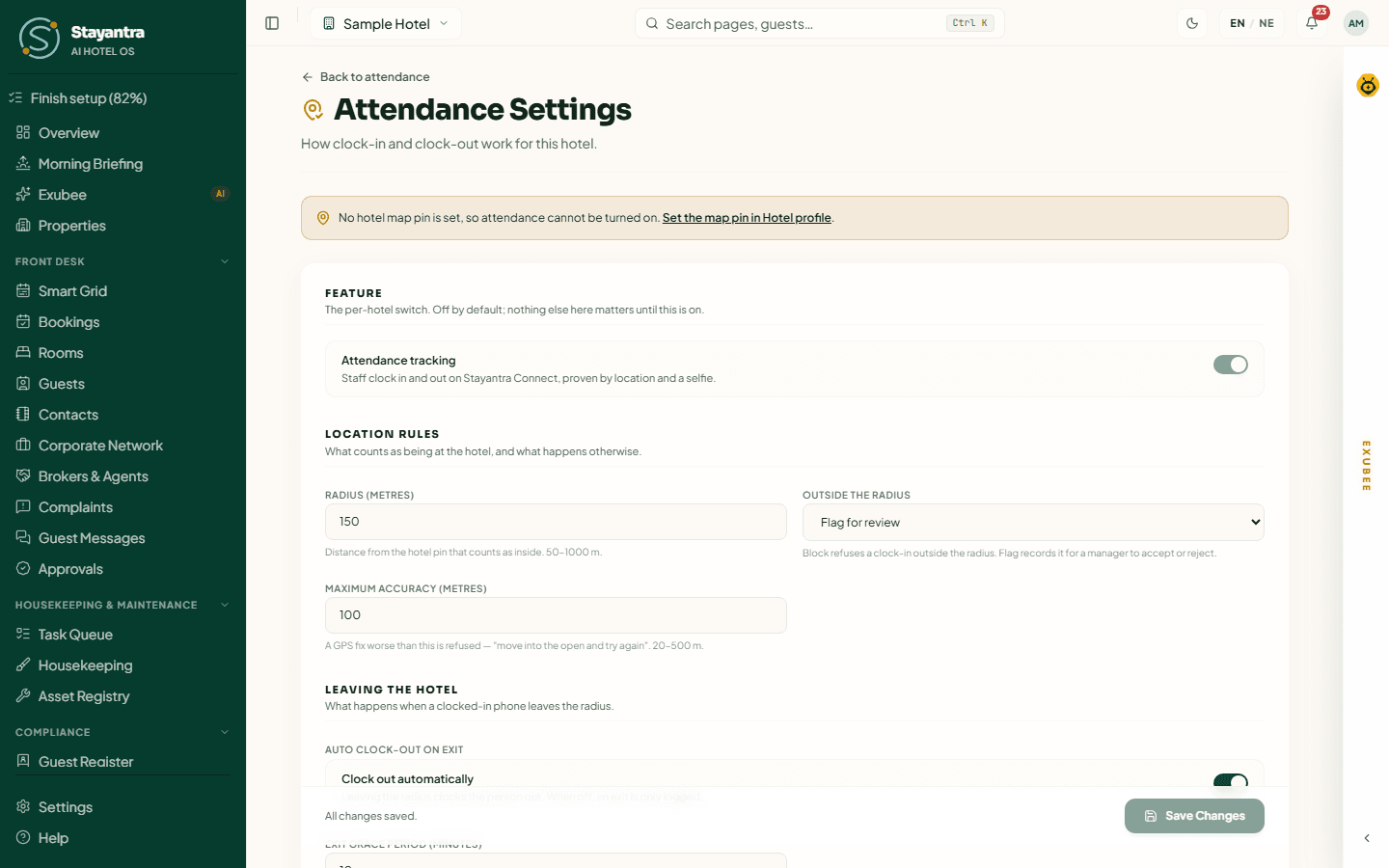
In Team → Attendance, click Settings. Only the owner can change these.
- Set the hotel's map pin first, in Settings → Hotel profile → Location (Set the map pin in Hotel profile).
- Turn on Attendance tracking.
- Set the Location rules: Radius (metres) around the pin that counts as inside, and Outside the radius — Block the clock-in or Flag for review (a manager accepts or rejects it). Maximum accuracy (metres) refuses a GPS fix that is too vague.
- Leaving the hotel: Clock out automatically when a clocked-in phone leaves the radius, after an Exit grace period (minutes). When off, leaving is only logged.
- Unclosed sessions: how many hours after a rostered shift (or after an unrostered clock-in) a session nobody clocked out of is marked unclosed.
- Selfies and manual overrides: Selfie retention (days) — selfies are deleted after this; attendance records are kept. Let a manager clock someone in by hand — the fallback when a phone's GPS fails.
Watch the team board
Managers and owners see two tabs: Today and Timesheet.
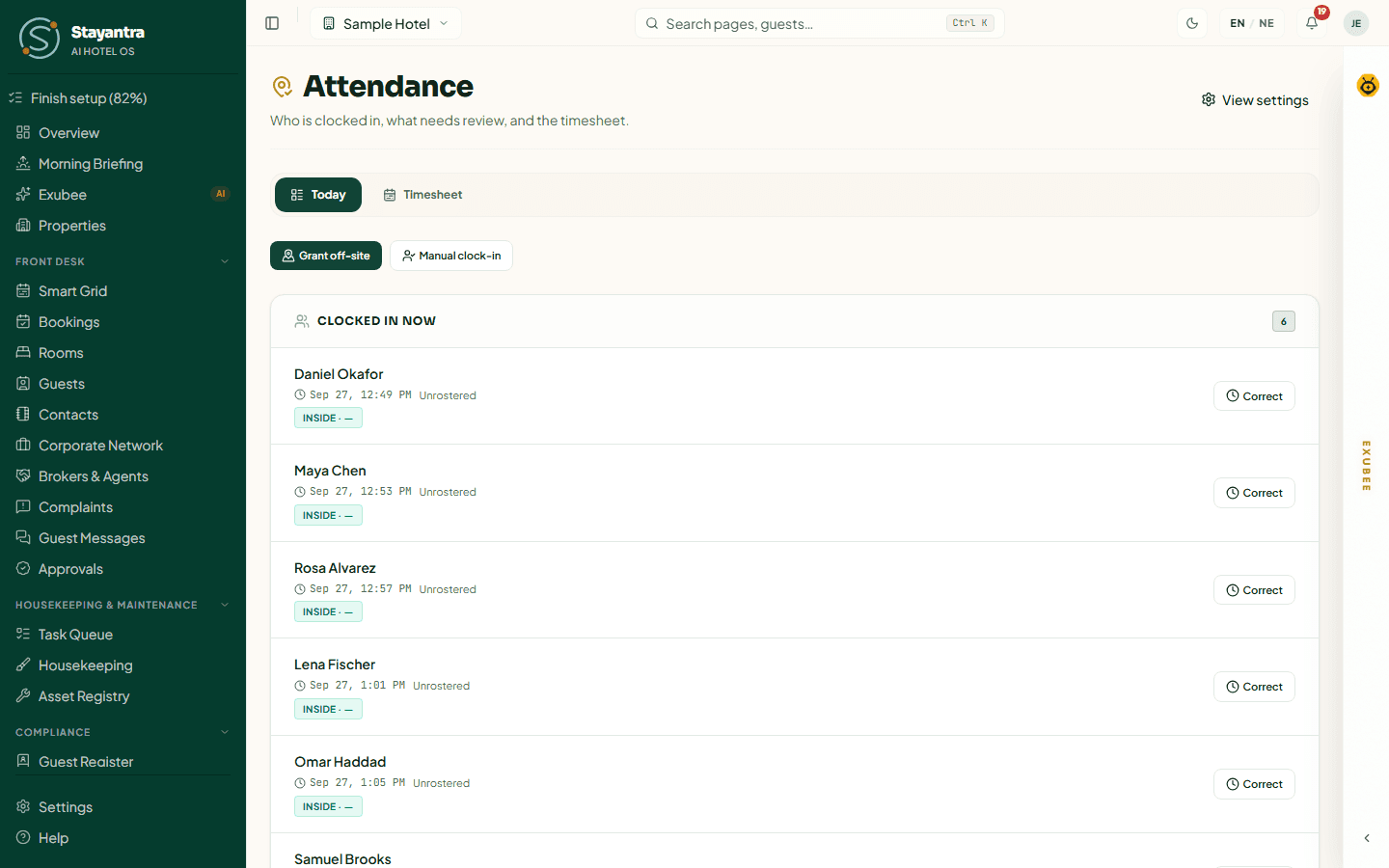
Today shows:
- Clocked in now — who is at work. Click Correct to fix a wrong time.
- Needs review — clock-ins flagged outside the radius or with a mocked location. Click Review to see the distance, the GPS accuracy, the shift and the selfie, then accept or reject it.
- Unclosed — sessions nobody clocked out of. Click Set clock-out.
- Monitoring lost — clocked-in phones that stopped reporting.
- Off-site requests and Active off-site — staff asking to work away from the hotel (a supplier pickup, a bank errand). Approve or decline.
Buttons at the top: Manual clock-in (if allowed: choose the staff member and give a reason, for example "phone GPS not working, clocked in at the front desk") and Grant off-site (a window when leaving the radius will not clock them out).
Timesheet lists sessions for a date range and staff member: Clock-in, Clock-out, Worked, Status, and Per-person totals (sessions, hours worked, flagged, unclosed). Click Export CSV for payroll or your accountant.
Every correction needs a reason of at least 3 characters and is kept on the record.
What staff see
Staff see Right now (clocked in since, or "You are not clocked in. Clock in from the Stayantra Connect app — it needs a live selfie and your location."), their Last 14 days of sessions, and Off-site work, where they can Request off-site. See My work in Connect.
Handle leave
Where: Team → Leave. Days beyond what someone has left are unpaid and come off that month's payroll.
Ask for leave
Under My leave you see what you have left this year and your requests. Click Ask for leave, choose the Kind of leave, the First day and Last day, and an optional Reason. A manager decides. You can cancel a request that is still waiting.
Decide a request
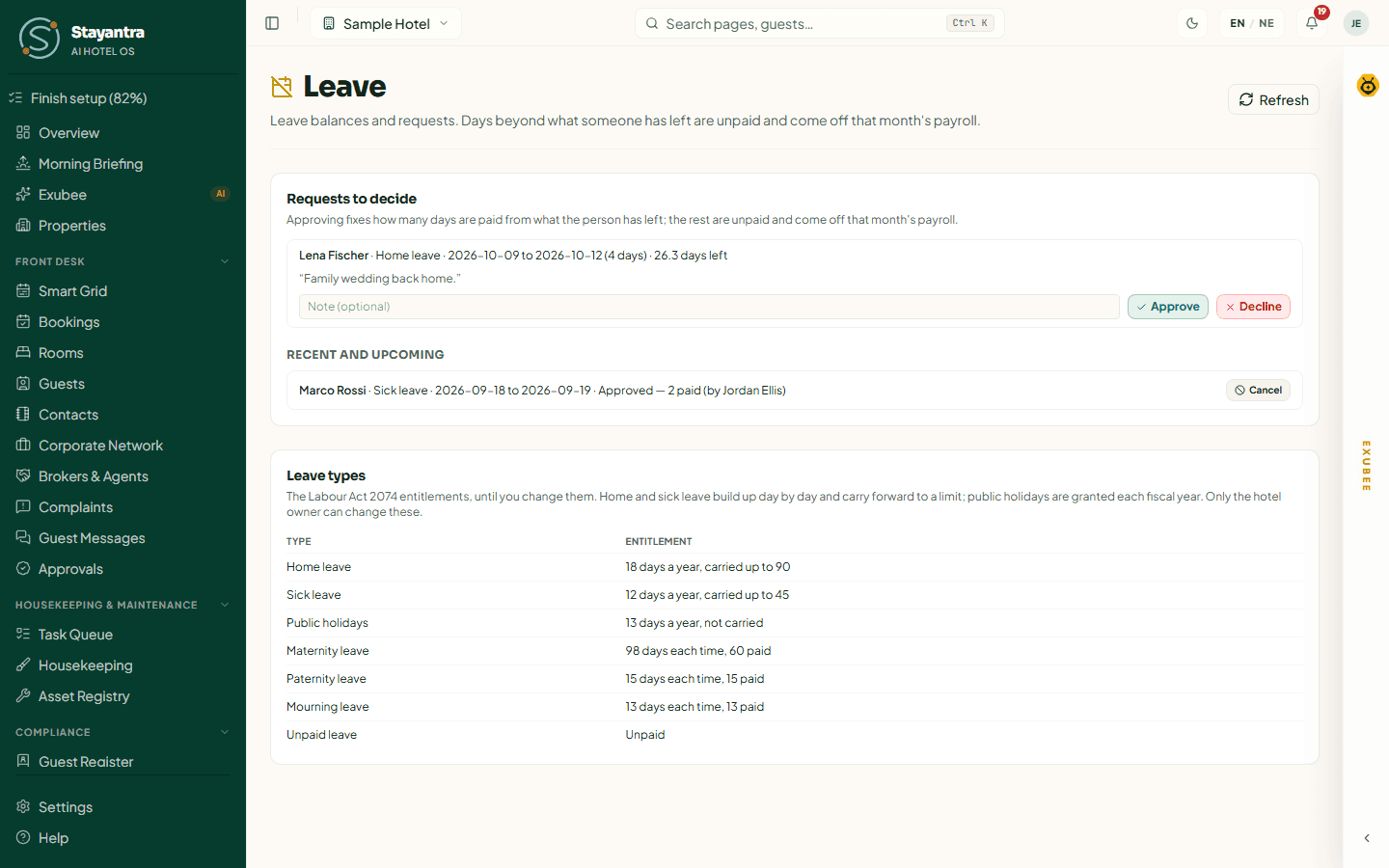
Managers and owners see Requests to decide. Click Approve or Decline, with an optional Note to the person. Approving fixes how many days are paid from what the person has left; the rest are unpaid. The request then shows "Approved — 2 paid" or "Approved — 2 paid, 1 unpaid". Recent and upcoming lists the decided ones.
Leave types
Leave types starts with the Labour Act defaults. The owner can change their entitlements, add types, or switch one off; managers see them read-only.
| Type | Entitlement |
|---|---|
| Home leave | 18 days a year, earned monthly, carried up to 90 |
| Sick leave | 12 days a year, earned monthly, carried up to 45 |
| Public holidays | 13 days a year |
| Maternity leave | 98 days each time, 60 of them paid |
| Paternity leave | 15 days each time, paid |
| Mourning leave | 13 days each time, paid |
| Unpaid leave | No limit, unpaid |
Check these with your accountant against your contracts.
Run payroll
Payroll builds each month's pay from each person's recorded salary, then works out SSF, income tax and TDS from the statutory rate table.
Where: Finance → Payroll. Owners, and managers the owner allows under Who runs payroll.
[!WARNING] Check the statutory rates with your accountant before your first run. Until the owner confirms them, each run says "Statutory rates for FY … are unconfirmed — confirm with your accountant."
Set up once
Work down the payroll page:
- Statutory rates — the SSF (employee and employer shares of basic), income tax bands for single and couple, and the retirement deduction cap for the fiscal year. Check them with your accountant, change any that differ, and click Confirm rates. Only the owner can confirm.
- Staff payroll details — for each person: Basic salary / month (NPR), Dearness allowance, other allowances (Add allowance), In SSF (with Why not in SSF? if not), and Filing status (Single or Couple). A person with no salary recorded cannot be paid.
- Employment record — each person's Start date, End date, Employment type (Permanent, Contract or Probation), PAN number, SSF member id, Bank name and Bank account number. Click Change on a row.
- Performance bonus — pay a bonus to staff whose rating is above a bar you set.
- Festival allowance — the month (for example Dashain) and how many months of pay, on basic or basic plus allowances.
- Overtime and absence — Use attendance on the payroll, with Hours a day, Hours a week, the Overtime rate (×), and Deduct unpaid absence (rostered days with no attendance and no approved leave).
- Service charge to staff — share the service charge on the payroll: the To staff (%) and Welfare fund (%) split, and how it is shared (Equal share each, By days worked or By points).
- SSF and retirement — for anyone recorded as not in SSF, the provident fund and gratuity rates (Labour Act 2074).
Prepare a month's run
Prepare it
Click Prepare payroll, choose the Month (months follow the Nepali calendar, for example Bhadra 2083), optionally add a Final settlement for someone who has left, and tick Include overtime and unpaid absence from attendance. Click Prepare for approval. Stayantra also prepares each month's run on the first day of the next month.
Approve it
The prepared run waits as a proposal on the Exubee page (in the sidebar, Exubee), with each person's pay. The owner (or a manager allowed to run payroll) can edit a line there, then approves it. Nothing is paid or counted until it is approved. Once approved, it appears in the list of runs on the Payroll page. See Exubee and approvals.
The payroll page's Review in Approvals link opens the Approvals page, which does not list payroll runs — go to Exubee instead.
Check and adjust
Each run shows every person's Base, Bonus, Deductions, Net, SSF (employee), TDS and Take-home, with notes on where each item came from. Click Adjust on a line to change Base, Bonus or Arrears (back pay, taxed as a one-off) with a reason; SSF, TDS and take-home are worked out again.
Pay and record it
Pay the salaries from your bank. Then click Mark paid and add the Payment reference (optional) (bank transfer, cheque or cash-book reference). A paid run can no longer be adjusted or voided.
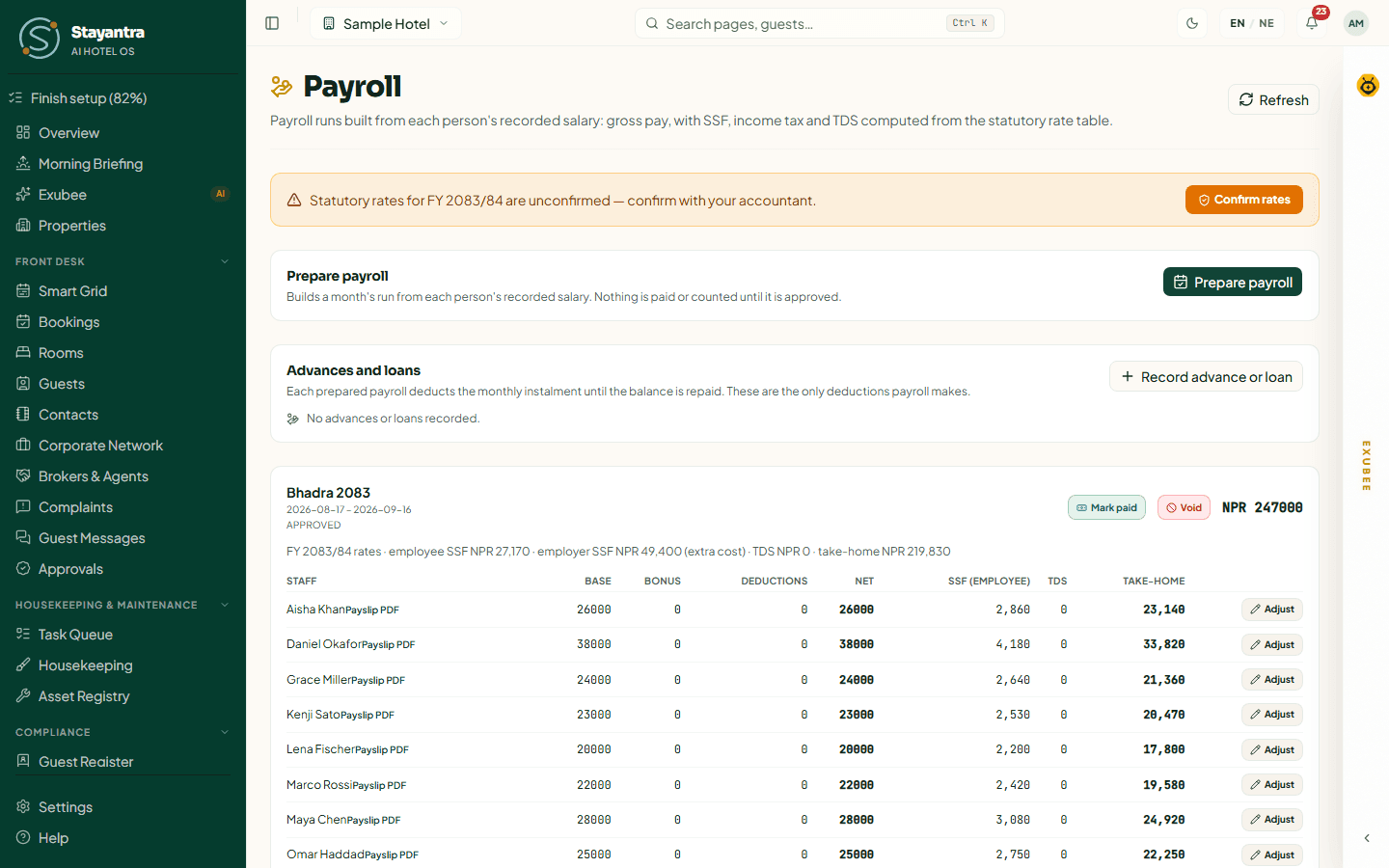
To throw away a wrong run, click Void and give a Reason; the month is free for a corrected run.
Advances and loans
Under Advances and loans, click Record advance or loan. Choose Salary advance or Loan, the amount, the monthly instalment, Given on, First repayment month and a Reason. Each prepared payroll deducts the instalment until it is repaid. These are the only deductions payroll makes.
Statutory dues
Statutory dues lists what you owe to SSF and the tax office from each paid run, with its Due date and Status. When you have paid, click Mark paid and enter the Reference or challan number and Date paid.
My payslips
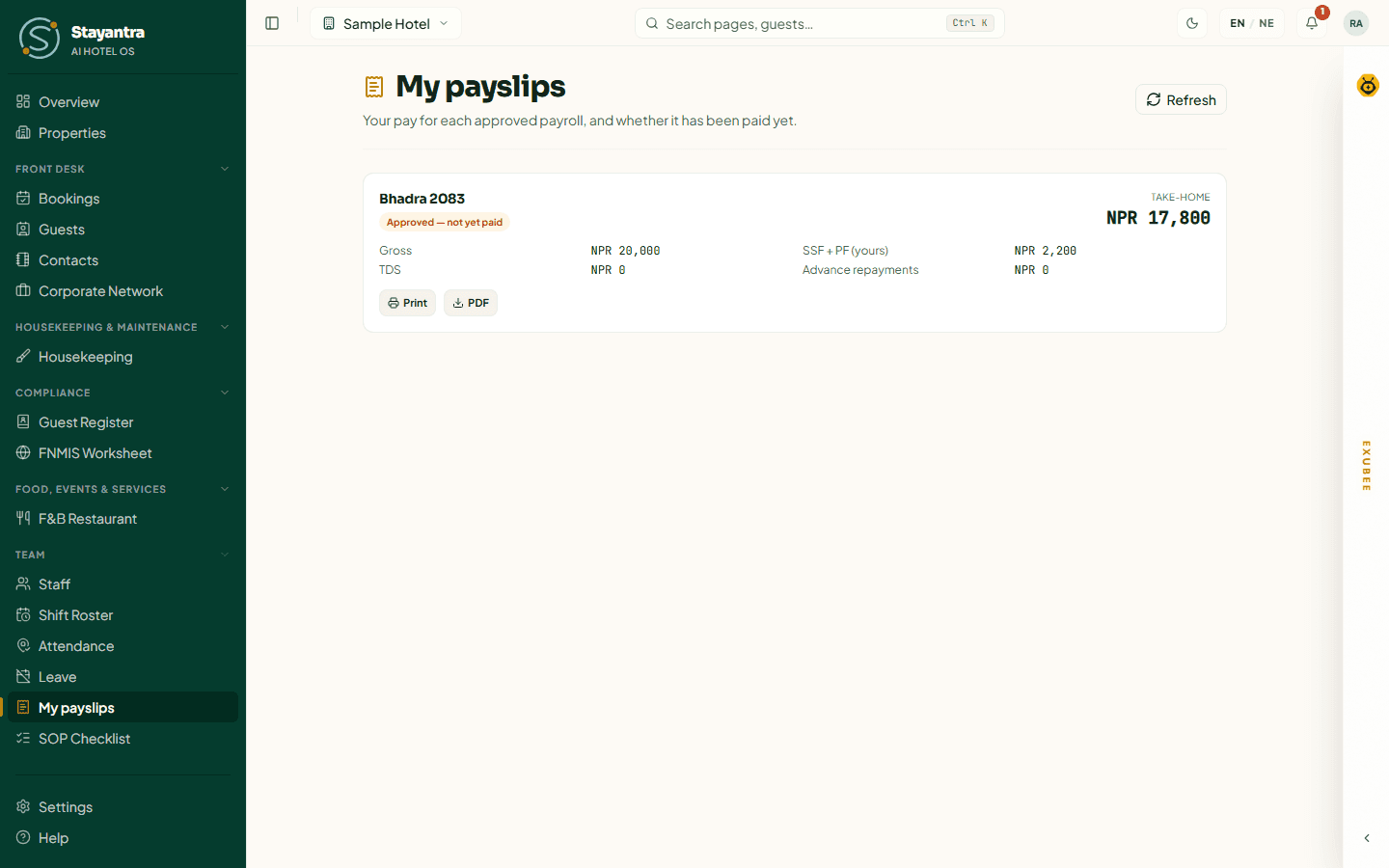
Everyone — staff, managers and owners — sees their own pay in Team → My payslips, once a payroll that includes them is approved. Each payslip shows Pay before SSF and TDS, Gross, SSF + PF (yours), TDS, Advance repayments and Take-home, and whether it is Paid or Approved — not yet paid. Click Print or PDF.