
Booking widget and website
Guests who book on your own website pay no OTA commission. Stayantra gives you three ways to take those bookings:
- The booking widget on the website you already have: a button that opens a booking window with your live rooms and rates. You install it yourself.
- A Book now link to your hotel's page on the Stayantra marketplace. No installation at all.
- A Stayantra-built hotel website, with booking built in. Stayantra builds and runs it for you.
Where to find it: Settings → Connections → API Keys → Manage API Keys. Who can use it: the owner only. Managers do not see API keys.
[!IMPORTANT] Online bookings, from the widget, the marketplace and the API, open only after Stayantra has verified your business. Until then the widget tells guests "This hotel is not accepting online bookings yet." See Business verification.
Option 1: Add the booking widget to your website
The widget adds a round button with the Exubee mark at the bottom right of every page of your website. A guest clicks it, picks dates and guests, chooses a room and books. The booking lands in Front Desk → Bookings like any other.
You need two things: a publishable API key that is allowed on your website's address, and one line of code pasted into your website.
Create a publishable key
Open API Keys
Go to Settings, open the Connections tab, and on the API Keys card click Manage API Keys.
Start a new key
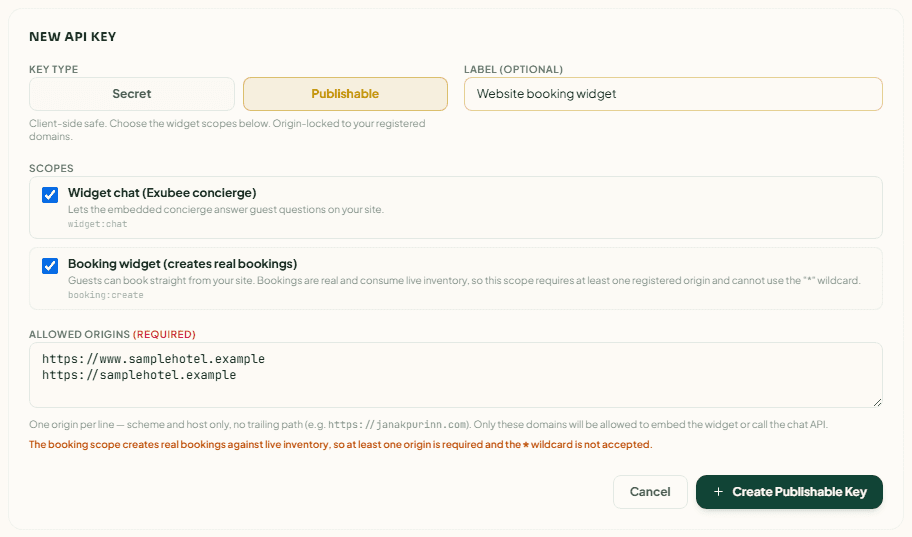
Click Create Key. Under Key Type, choose Publishable. (A Secret key is for a developer's server, never for a website. See Integrations.)
Name it
In Label (optional), write something you will recognise, for example "Website booking widget".
Choose the scopes
Under Scopes:
- Tick Booking widget (creates real bookings). This is the booking window.
- Optionally tick Widget chat (Exubee concierge) as well, to add Exubee answering guests' questions on your site. It installs with its own line of code.
Add your website's address
In Allowed Origins, write your website's address, one per line, with https:// and nothing after the domain. Add both forms if your site answers on both:
https://www.yourhotel.com
https://yourhotel.com
The widget only works on the addresses listed here. The booking scope needs at least one address, and does not accept *.
Create it
Click Create Publishable Key.
A green box appears: Key Created — Copy it now. It will not be shown again. Under it, Install snippet — Booking widget (creates real bookings) shows the line to paste into your website, with a Copy button.
Paste the snippet into your website
The snippet is one line, like this (your own key replaces pk_live_…):
<script src="https://app.stayantra.com/widget/v1/booking-loader.js" data-key="pk_live_…"></script>Paste it into your website just before the closing </body> tag, on every page where the button should appear. How depends on your website:
| Your website is on | Where to paste it |
|---|---|
| WordPress | Use a header-and-footer plugin (for example "WPCode") and add the snippet to the footer. Or ask your theme's developer. |
| Wix | Settings → Custom code → Add custom code, place it in Body - end, on all pages. |
| Squarespace | Settings → Advanced → Code injection → Footer. |
| Plain HTML | In each page's file, just above </body>. |
| Built by a web developer | Send them the snippet and ask them to add it before </body> on every page. |
If you also ticked Widget chat (Exubee concierge), paste its snippet too. It uses loader.js instead of booking-loader.js.
Open your website. The Exubee button appears at the bottom right. Make one test booking and cancel it from Front Desk → Bookings.
What the guest sees
- Select Your Stay: Check-in Date, Check-out Date, Adults, Children, Rooms, then Check Availability. Stays are up to 30 nights. Larger groups see a link to send a group request.
- The available rooms, with the price per night. The guest chooses and clicks Continue.
- The guest's Full Name, Email and Phone (optional), your cancellation terms, and Complete Booking. No payment is taken in the widget: the guest pays at the hotel.
- Booking Confirmed! with a booking reference, and an email to the guest. Manage at Stayantra.com lets the guest see or change the booking.
For a rate that must be paid in advance (a non-refundable rate, for example), the widget sends the guest to your marketplace page to Pay online on Stayantra.
Manage and revoke keys
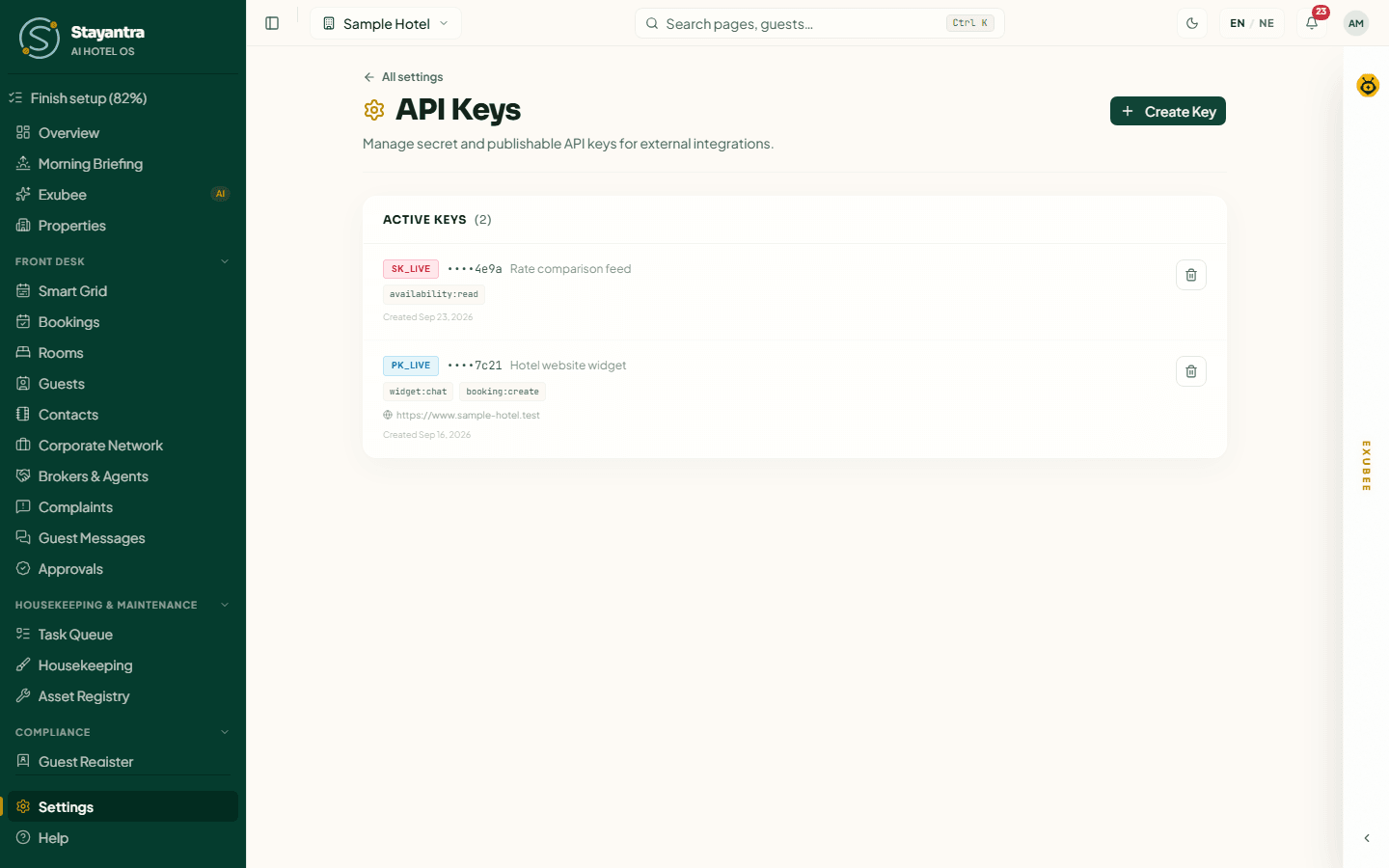
The API Keys page lists Active Keys with the last 4 characters, label, scopes, allowed addresses, and when each was created and last used. To stop a key, click the bin icon (Revoke key) and confirm. Anything using it stops working at once, so create the new key and update your website first. Revoked keys move to Revoked Keys.
You cannot add a website address to an existing key. To change the addresses, create a new key with the right ones, replace the snippet on your website, then revoke the old key.
When the widget does not appear or does not work
| What the guest sees, or you see | Why | What to do |
|---|---|---|
| No Exubee button at all | The snippet is not on the page, or is inside another tag. | View the page source and check the snippet is just before </body>. |
| "Not available here — This can only be used on the hotel's own website." | The website's address is not in the key's Allowed Origins, or differs (www. or not, http instead of https). | Create a new key with every form of your address. |
| "Not available right now — Online booking has not been switched on for this website yet." | The key has no Booking widget scope. | Create a key with the booking scope. |
| "Not available right now — This feature has not been set up correctly on this website." | The key is wrong, revoked or incomplete in the snippet. | Copy the snippet again from a new key. |
| "This hotel is not accepting online bookings yet." | Your business is not verified yet, or your subscription is frozen. | See Finish setup and go live. |
| "No rooms available for these dates." | Everything is booked or closed for those dates. | Check the Smart Grid and your rate plans. |
Option 2: Link a Book now button to your marketplace page
Every listed Stayantra hotel has its own page on the Stayantra marketplace, where guests can book and pay online (eSewa, Khalti, Fonepay or card, as you switched them on). You can link to it from anywhere: your website, Facebook, Instagram, Google Business Profile, WhatsApp.
- Make sure your hotel is listed: Settings → Hotel Profile → Listing & offers. See Hotel profile.
- Open marketplace.stayantra.com, search for your hotel and open its page.
- Copy the address from the browser. It looks like
https://marketplace.stayantra.com/hotels/your-hotel-name. - Use it as the link of a Book now button on your website or social pages.
To send guests straight to the booking step instead, replace /hotels/ with /book/, for example https://marketplace.stayantra.com/book/your-hotel-name.
Your hotel appears on the marketplace only after Stayantra has verified your business.
Option 3: A hotel website built by Stayantra
Stayantra can build and host a branded website for your hotel on your own domain, with live rooms, rates and booking built in: up to 8 pages in English and Nepali, up to 6 room types, basic SEO and analytics. It needs the Hotel Website module on your plan.
[!IMPORTANT] Stayantra turns this on. The website is built and published by the Stayantra team; there is no screen in Stayantra to build it yourself. Order Website: new build from Finish setup → Setup help (see Setup help and prices), or ask for it from Help → Open a support ticket.
You provide photos, your texts (or the facts, and the team writes them) and a domain. If you do not have a domain, Stayantra registers one at cost.
If you already have a website and would rather someone else installed the widget, order Website: integrate existing site instead.
Connect your OTAs (channel manager)
Set up Channex once, connect Booking.com, Expedia, Agoda, Airbnb, Trip.com and Hostelworld, match their rooms and rates to yours, and understand what Stayantra keeps in sync.
Restaurant and kitchen printers
Set up your restaurant in the right order (stations, outlets, menu, tables, the Kitchen screen) and install the print bridge so every kitchen order ticket prints by itself.