
Connect your OTAs (channel manager)
Stayantra connects to the online travel agencies (OTAs) through Channex, a channel manager. You do not need your own Channex account: Stayantra creates your hotel on Channex, publishes your rooms and rates, and keeps every connected OTA's prices and availability in step with Stayantra. OTA bookings come back into Stayantra on their own.
This page is the one-time setup. For day-to-day use (what to do when a sync fails, OTA bookings, allotments), see OTA sync.
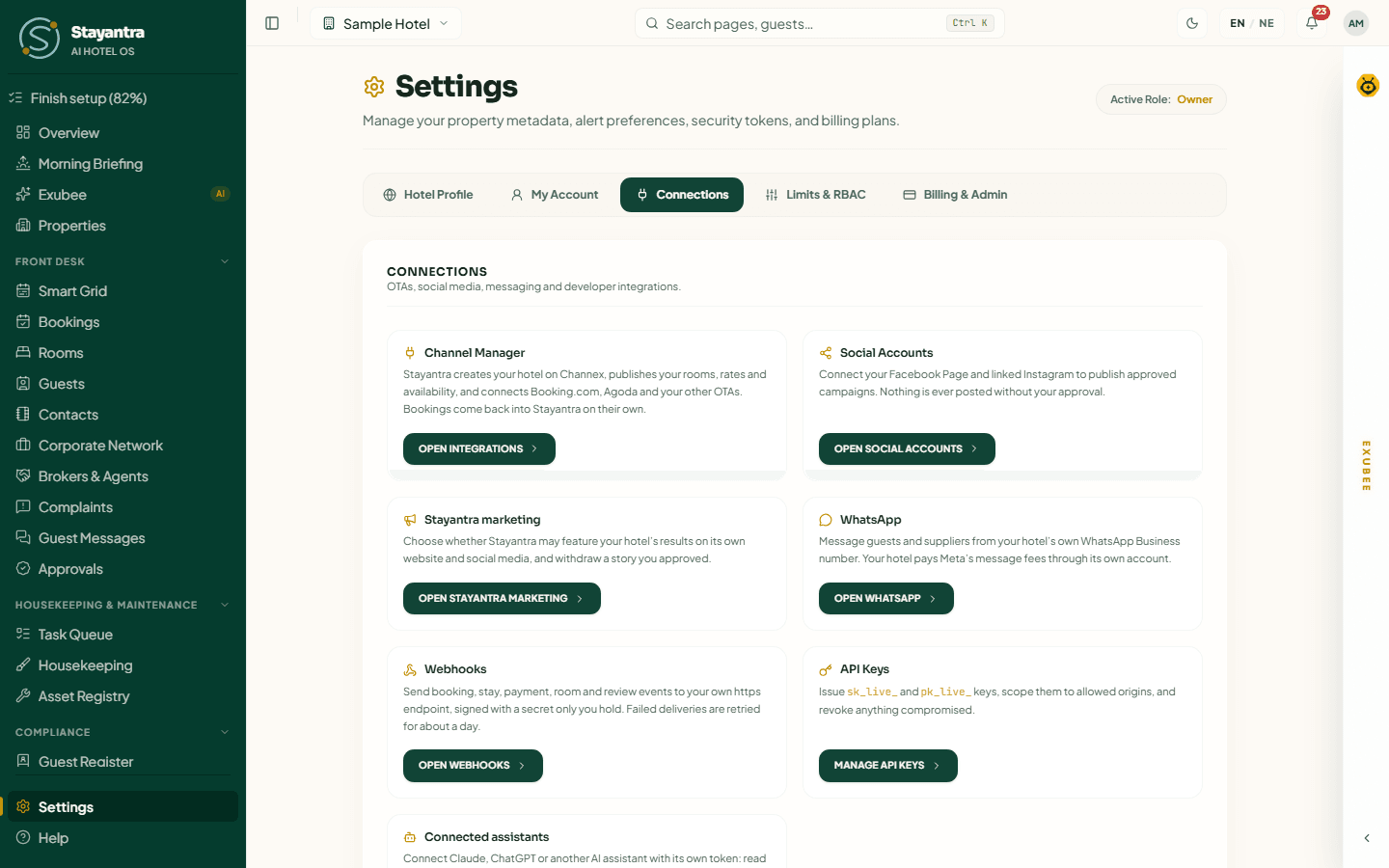
Where to find it: Settings → Connections → Channel Manager → Open Integrations. The page is called Connect channels. Who can use it: owners and managers. It needs the Channel Manager module on your plan; without it the page says "Connecting Booking.com, Agoda and your other OTAs is part of the Channel Manager module."
Before you start
- Your rooms and rate plans are ready. Channex receives exactly what Stayantra has. Finish Rooms and rates first, and import your existing bookings (Import your data) so the first availability you send counts them.
- You can sign in to each OTA's extranet (Booking.com extranet, Expedia Partner Central, Agoda YCS, and so on). You accept Channex there.
- You know each OTA's property ID. It is in the OTA's extranet, next to your property name.
- Your business is verified, or will be soon. You can set everything up before, but Stayantra keeps your rooms closed on the OTAs (stop-sell) until Stayantra has verified your business. Sync starts by itself once you are verified. See Business verification.
Step 1: Set up Channex
Open Connect channels
In Settings, open the Connections tab. On the Channel Manager card, click Open Integrations.
Enter the contact details
On the Channex setup card, fill in Contact email and Contact phone. Channex passes them to the OTAs, so use ones they can reach you on (for example frontdesk@yourhotel.com and +977 41 520000).
Start setup
Click Set up Channex. It usually takes a minute or two. You can leave the page: setup carries on without you.
Wait for Ready
The card shows each step as it runs, and the status turns Ready when all are done:
- Create your hotel on Channex
- Publish your room types
- Publish your rate plans
- Receive OTA bookings automatically
- Turn on OTA guest messages and reviews
- Connect your OTAs
- Send rates and availability
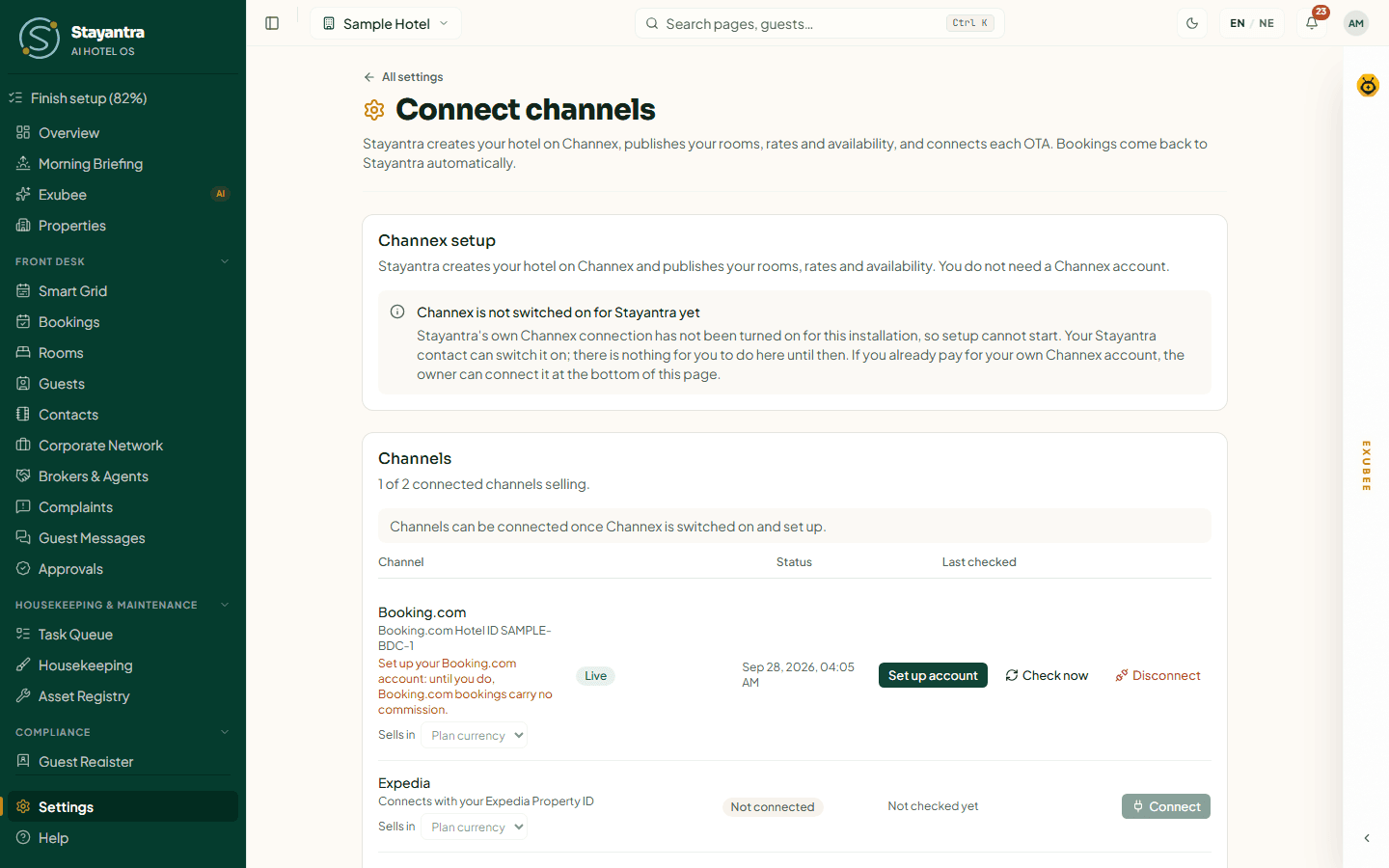
The setup card's status is one of:
| Status | Meaning |
|---|---|
| Not set up | Setup has not started. |
| Starting / Setting up | Setup is running. Each step shows Done, In progress, Waiting, Skipped or Failed. |
| Needs attention | A step failed. The step says why. Fix it (usually a room type or rate plan) and click Retry setup. |
| Ready | Your hotel is on Channex and the first rates and availability have been sent. |
| Paused | Syncing is paused. Your OTAs keep the last rates and availability they received. |
Once it is Ready, Test connection & sync now checks the connection and resends your rates and availability.
[!IMPORTANT] Stayantra turns this on. If the card says "Channex is not switched on for Stayantra yet", setup cannot start until Stayantra switches on its Channex connection for you. Ask for it from Help → Open a support ticket.
Step 2: Connect each OTA
The Channels card lists every OTA you can connect, with its Status and when it was Last checked. Channels can be connected once Channex setup is Ready.
How you connect depends on the OTA:
| OTA | How it connects |
|---|---|
| Booking.com, Expedia, Agoda | You accept Channex in the OTA's extranet, then type your property ID in Stayantra. |
| Airbnb | You sign in to Airbnb from Stayantra and authorise it. |
| Trip.com, Hostelworld | You do the OTA's side; Stayantra finishes the connection in Channex for you. |
Confirm the OTA's commission first
The first time you connect an OTA, Stayantra asks Your … account so every booking from it carries the right commission. The channel shows "Set up your … account: until you do, … bookings carry no commission." until you do.
| Field | What to choose |
|---|---|
| Commission | Percentage of the stay, or Flat amount per room-night, and the Rate (%) or Amount per room-night. |
| Guest price on … | Pass the commission on (the OTA shows a higher price, and you net your direct price), or Absorb the commission (the OTA shows your direct price). Many OTA contracts require rate parity, so check yours. |
| Who takes the guest's money | The hotel (the OTA invoices its commission), or the OTA (it pays you out, less its commission). |
| … sends amounts | As the guest paid (gross), or After its commission (net). |
| Commission charged on | The amount including tax, or The amount before tax. |
Tick Charge …'s commission on cancellation / no-show fees if your contract says so, then click Confirm and continue.
The OTA pricing card below the channels shows what each OTA is sent for a room you sell at a given direct price, so you can check your choice.
Booking.com, Expedia and Agoda
Accept Channex in the OTA's extranet
Click Connect on the OTA's row. The dialog lists what to do on the OTA first, under Do this on … first, with an Open … link:
- Booking.com: sign in to the extranet, open Account, then Connectivity provider, search for "Channex", choose it and accept the XML agreement. Booking.com then asks Channex to accept the request.
- Expedia: sign in to Partner Central, open Rooms and rates, then Connectivity settings, choose Channex as the provider for both connectivity and bookings, and save.
- Agoda: sign in to YCS, open Settings, Property settings, then Optional settings, turn on channel manager mode and select Channex.
Enter your property ID
Type the OTA's ID (Booking.com Hotel ID, Expedia Property ID or Agoda Property ID) and click Find my property. Stayantra finds your property on the OTA and lists its rooms and rates.
Match the rooms and rates
For each OTA room and rate, choose under Sells as which of your rate plans it sells, or Don't sell on … to keep it closed. The footer says how many will sell. Choosing a rate plan here adds the OTA to the channels that plan sells on.
Connect
Click Connect …. The dialog checks with Channex every 30 seconds while it is open. When the OTA accepts, it says "… is connected. Your rates and availability now go to …, and its bookings come back to Stayantra on their own." Click Done.
Booking.com can take a while to accept: the channel shows Waiting for approval until then. You can close the dialog; Stayantra keeps checking and the channel turns Live on its own. If the OTA refuses, the dialog says "… has not accepted Channex yet. Check these steps on …, then try again."
If you have no rate plans yet, the dialog says "You have no rate plans yet. Add one under Rates first, then come back to connect."
Airbnb
- If another channel manager is connected to your Airbnb account, disconnect it on Airbnb first.
- Click Connect on the Airbnb row, then Connect Airbnb, and sign in with the Airbnb account that owns the listing.
- Authorise Stayantra, come back, and click I've authorized — continue.
- Match each Airbnb listing and rate to one of your rate plans, then connect.
Trip.com and Hostelworld
First do the OTA's side of the connection:
- Trip.com: sign in to Trip.com eBooking, open Rates & Availability, then Connectivity Settings, choose Channex and press Connect.
- Hostelworld: email Hostelworld support and ask them to connect your property to Channex. They reply with a property ID.
[!IMPORTANT] Stayantra turns this on. For now the Stayantra team adds Trip.com and Hostelworld in Channex and maps your rooms for you, instead of you using the Channex screen yourself. Ask for it from Help → Open a support ticket, with the OTA's property ID. The channel then appears in your list on its own, which can take a few minutes after the team connects it.
Channel statuses
| Status | Meaning |
|---|---|
| Not connected | Nothing set up for this OTA yet. |
| Choosing rooms | You started connecting but have not finished matching rooms. Click Continue. |
| Connecting | Stayantra is creating the channel on Channex. |
| Waiting for approval | The OTA has not accepted Channex yet. |
| Live | Channex has confirmed it. Rates and availability are flowing and bookings come back. |
| Needs attention | Something failed. Click Fix or See steps. |
| Paused | Syncing is paused for this channel. |
| Disconnected | You disconnected it. |
Check now asks Channex for the channel's current state straight away. Manage in Channex opens the channel in the Channex screen.
What stays in sync
| What | Direction | When |
|---|---|---|
| Availability | Stayantra → OTAs | Whenever a booking is made, changed or cancelled, or a room is taken out of service. |
| Rates | Stayantra → OTAs | Whenever a rate plan's price changes, or Exubee's dynamic price changes. |
| Restrictions | Stayantra → OTAs | Stop-sell, minimum and maximum stay, closed to arrival and closed to departure, per rate plan and date. Set them in Revenue → Restrictions. |
| Bookings | OTAs → Stayantra | New, changed and cancelled OTA bookings arrive on their own. |
| Guest messages and reviews | OTAs → Stayantra | Turned on during setup, for the OTAs that support it. |
Stayantra sends the next 180 days. Each connected channel can sell in its own currency: choose it under Sells in on its row (the default is Plan currency).
An OTA booking that cannot be placed in a room (for example, a room type that no longer exists) is never dropped: it goes to the OTA worklist for you to place by hand. See OTA sync.
Stayantra stops selling on every OTA (stop-sell) when your business is not yet verified, when your subscription is frozen or paused, or when the Channel Manager module is removed from your plan. Sync resumes on its own when that is resolved.
Disconnect an OTA
Click Disconnect on the OTA's row and confirm. The OTA stops receiving your rates and availability from Stayantra. Rooms it already shows stay on sale at the last prices it received, so close them on the OTA too if you do not want new bookings there. Bookings already in Stayantra are not affected.
Already paying Channex yourself?
At the bottom of the page, the owner can open Use your own Channex account instead. Fill in Channex API Key, Webhook Secret (optional), Channex Property ID and the Room Type Mapping (JSON) and Rate Plan Mapping (JSON), then click Connect. Copy the Webhook URL it shows into your Channex webhook settings. This is for hotels that already have a Channex contract; everyone else should use the Stayantra connection above.
If something goes wrong
| What you see | What to do |
|---|---|
| "Enter a contact email and a phone number (digits, spaces and + - ( ) only)." | Fix the contact details and click Set up Channex again. |
| Needs attention on the setup card | Read the failed step, fix it, click Retry setup. |
| "Channex no longer has this hotel. Ask Stayantra support to set it up again." | Open a support ticket. |
| "That does not look like a … Hotel ID." | Copy the ID again from the OTA's extranet. |
| Waiting for approval for more than two days | Check the steps on the OTA again, then click Check now. |
| "Your role cannot connect channels. Ask the hotel owner." | Staff cannot connect channels. Ask an owner or manager. |
| "Channel Manager is not on your plan. Add it from Billing to switch it on." | Add the module in Finance → Plan & Billing. |
Rather have someone do it? OTA connection and New OTA listing are services in Setup help and prices.
Install the apps
How staff get the Stayantra Connect app and guests the Stayantra Go app on Android today, how to use Stayantra in a browser, and which devices a hotel needs.
Booking widget and website
Take direct bookings on your own website with the Stayantra booking widget, link a Book now button to your marketplace page, or have Stayantra build your hotel website.