
Integrations for developers
This page is for hotels that have a developer, or a web agency, working on their website or their own systems. It covers every way another system can talk to Stayantra: API keys, the booking and chat widgets, the availability API, connected AI assistants and webhooks. If you only want OTA channels, start with Connect your channel manager.
Where to find it: Settings → Connections. Who can use it: API keys are owner-only. Webhooks and connected assistants are open to owners and managers.
[!IMPORTANT] Online bookings through the widget, the API and AI assistants only work once your business is verified. Until then these return a "not live yet" answer. See Business verification.
What connects to Stayantra
| You want to… | Use | Guide |
|---|---|---|
| Sell rooms on Booking.com, Expedia, Agoda and other OTAs | Channel manager (Channex) | Connect your channel manager, OTA sync |
| Let guests book on your own website | Booking widget + publishable key | Booking widget |
| Answer guest questions on your website | Chat widget + publishable key | Chat widget |
| Show live availability and prices in your own system | Availability API + secret key | Availability API |
| Get told when bookings, payments or rooms change | Webhooks | Webhooks |
| Ask Claude or ChatGPT about your hotel, or let it propose changes | Connected assistants | Connected assistants |
| Let guests' own AI assistants book with you | Nothing to set up | Guests' AI assistants |
API keys
Settings → Connections → API Keys → Manage API Keys opens the API Keys page. It lists your Active Keys and any Revoked Keys. Each key shows its type (SK_LIVE or PK_LIVE), its last four characters, its label, its scopes, its allowed origins, and when it was created and last used.
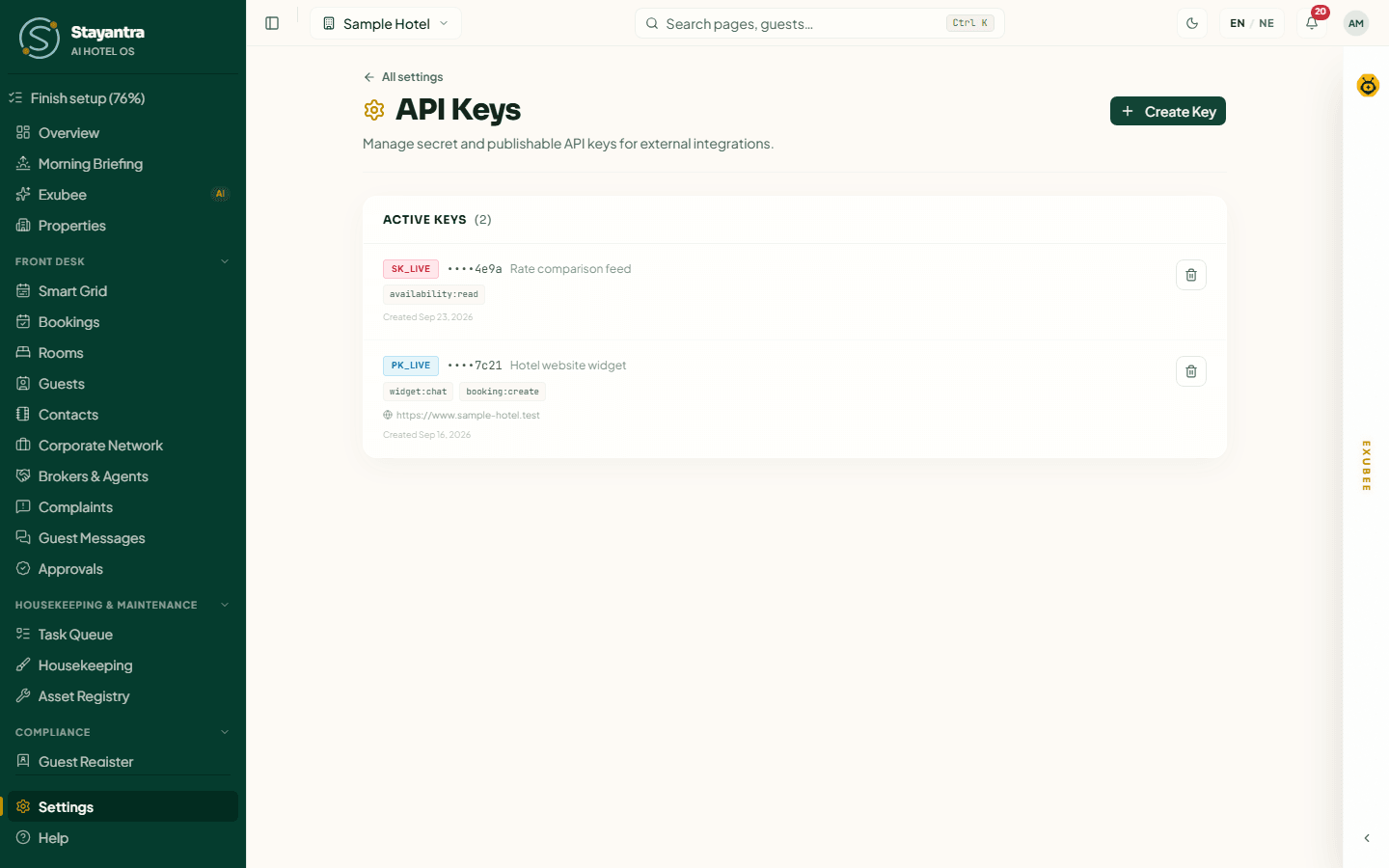
There are two kinds of key:
Secret key (sk_live_…) | Publishable key (pk_live_…) | |
|---|---|---|
| Used from | Your server only | Your website, in the visitor's browser |
| Scope | availability:read (always, fixed) | widget:chat, booking:create (you choose) |
| What it unlocks | The availability API | The chat widget and the booking widget |
| Allowed origins | Not used | Required: only these websites may use the key |
| Keep secret? | Yes. Never put it in web pages or apps. | It is visible in your page source; the origin lock protects it. |
Publishable key scopes
| Scope | Title on screen | What it does |
|---|---|---|
widget:chat | Widget chat (Exubee concierge) | Lets the embedded concierge answer guest questions on your site. |
booking:create | Booking widget (creates real bookings) | Guests can book straight from your site. Bookings are real and use live inventory. |
A key with booking:create must have at least one allowed origin, and the * wildcard is not accepted.
Create a key
Open the form
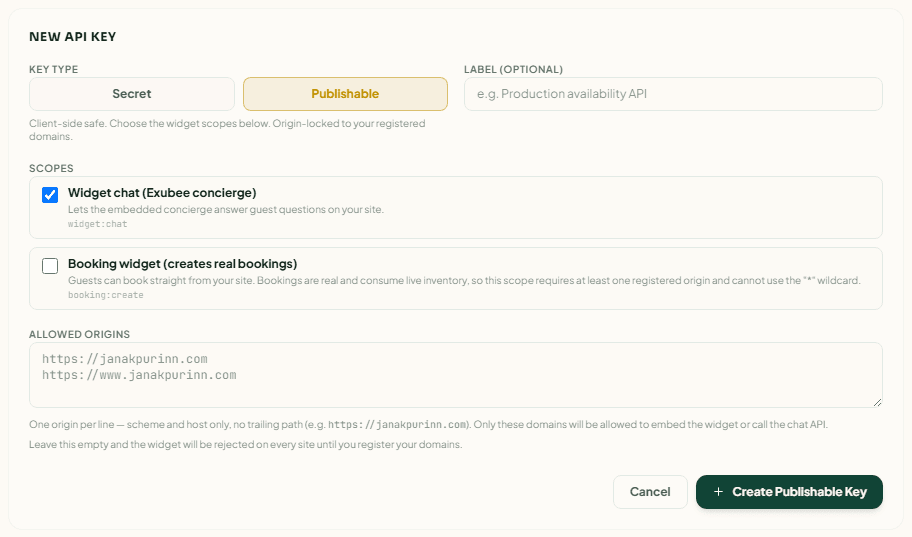
On API Keys, click Create Key. The New API Key form opens.
Choose the type
Under Key Type, click Secret or Publishable.
Label it
Type a Label (optional), for example "Hotel website widget", so you can tell keys apart later.
Choose scopes and origins (publishable only)
Tick the Scopes you need. In Allowed Origins, put one website address per line, scheme and host only, with no path — for example https://www.samplehotel.com and https://samplehotel.com.
Create and copy
Click Create Secret Key or Create Publishable Key. The banner Key Created — Copy it now. It will not be shown again. shows the full key. Click the copy button and store it safely. For a publishable key, the banner also shows the Install snippet for each widget you chose.
[!WARNING] Stayantra keeps only a fingerprint of the key. If you lose it, revoke it and create a new one.
A publishable key with no allowed origins is created with a warning: the widget is refused on every website until you add your domains.
Revoke a key
Click the bin icon on the key's row, then Revoke key. Anything using the key stops working at once. Revoked keys move to Revoked Keys.
The booking widget
The booking widget puts a small Exubee button in the bottom-right corner of your website. A guest clicks it, and a booking window opens on your own page.
Install it
- Create a publishable key with the Booking widget scope and your website in Allowed Origins.
- Copy the install snippet from the key banner. It looks like this:
<script src="https://app.stayantra.com/widget/v1/booking-loader.js" data-key="pk_live_…"></script>- Paste it just before the closing
</body>tag on every page where you want the button.
What the guest sees
- Select Your Stay — check-in, check-out and guests (at least 1 adult, at most 30 nights).
- Rooms — available room types and rates for those dates. With several rooms they can book more than one.
- Details — full name, email and phone, and a tick box: "I agree to the hotel's cancellation terms … and Stayantra's Terms of Service".
- Complete Booking — if your hotel accepts pay at hotel, the booking is made there and then ("No payment required now — pay at the hotel"). If the rate must be paid in advance, or you do not take payment at the desk, the guest is sent to your Stayantra page to pay (Pay online on Stayantra or Continue on Stayantra) with the room, rate and dates carried over.
- Booking Confirmed! — with the Booking Reference (or Reservation Reference for several rooms).
The booking appears in Stayantra at once, like any other booking. See Bookings and folios.
If the widget shows Not available right now or Not available here, the key is missing its scope, online booking is not switched on for your hotel yet, or the page is not on one of the key's allowed origins. For a no-code alternative, see Booking widget and website.
The chat widget
The chat widget puts Exubee on your website as a concierge. It answers guest questions from your hotel's public information and house knowledge, and can point guests to booking.
Create a publishable key with Widget chat (Exubee concierge) and your website in Allowed Origins, then paste the snippet from the key banner:
<script src="https://app.stayantra.com/widget/v1/loader.js" data-key="pk_live_…"></script>You can use one key with both scopes and install both snippets.
The availability API
A secret key reads live availability and prices, for example to show them in your own system or on a partner's site.
curl "https://app.stayantra.com/api/public/v1/availability?from=2026-10-12&to=2026-10-14" \
-H "Authorization: Bearer sk_live_…"| Parameter | Required | Meaning |
|---|---|---|
from | Yes | Check-in date, YYYY-MM-DD |
to | Yes | Check-out date, YYYY-MM-DD, after from |
roomTypeId | No | Only this room type |
The answer lists each room type with id, name, description, basePrice, price, capacity, amenities, availableCount and ratePlans, plus your hotel's currency.
| Response | Meaning |
|---|---|
| 401 | Missing, wrong or revoked key, or not a secret key |
| 403 | The key lacks availability:read, or it is a publishable key |
| 400 | Dates missing or not valid |
| 429 | More than 120 requests a minute; wait for Retry-After seconds |
Connected assistants
Connected assistants let you use an outside AI assistant — Claude, ChatGPT or another that supports MCP connectors — to ask about your hotel, or to propose changes. It connects through Stayantra Connect with its own token.
Where to find it: Settings → Connections → Connected assistants → Manage assistants. Who can use it: owners and managers. Each person manages the assistants they connected. The owner sees and can revoke every assistant at the hotel.
[!NOTE] An assistant can only do what you can do, and never more. One that may propose changes cannot make them: every change it asks for waits in Approvals for a person, who sees exactly what it wants and why.
Connect an assistant
Start
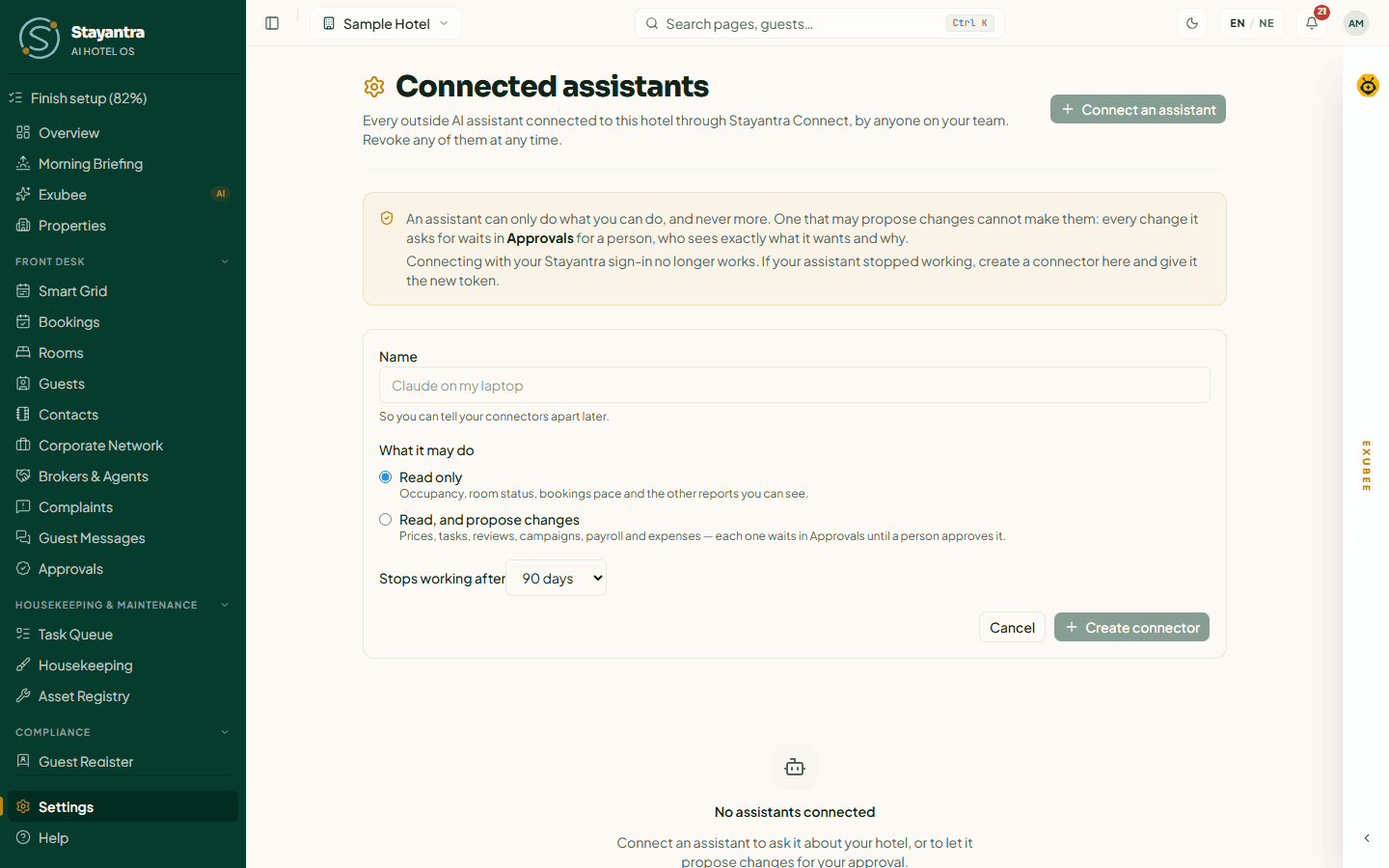
Click Connect an assistant.
Name it
Type a Name, for example "Claude on my laptop".
Choose what it may do
Under What it may do, pick Read only (occupancy, room status, booking pace and the other reports you can see) or Read, and propose changes (prices, tasks, reviews, campaigns, payroll and expenses — each waits in Approvals).
Choose how long it lasts
Pick Stops working after: 30 days, 90 days, 180 days or 1 year.
Create and copy the token
Click Create connector. Copy the token now: it is shown only this once. The box also shows the Address of the Stayantra Connect server.
Add it to your assistant
In your assistant's connector settings, add a connector with that address and the token as the Bearer token.
What a connected assistant can do
Read: booking pace, room status, occupancy, local events, pricing, operations and marketing summaries, group requests and blocks, your contacts, your house knowledge, staff payroll details (if you can see them), and whether a proposal it made has been approved.
Propose (read-and-propose only): a room price change, a task for staff, quarantining or publishing a review reply, a marketing campaign or poster, a payroll run, an expense from a receipt, and group block changes. Each one appears in Approvals like any Exubee proposal. See Exubee approvals.
Revoke an assistant
Click Revoke next to it, then confirm. It stops working at once; to connect it again, create a new connector. Expired and revoked connectors move to Revoked or expired.
[!NOTE] Connecting an assistant with your Stayantra email and password no longer works. If an assistant stopped working, create a connector here and give it the new token.
Guests' AI assistants
Guests can ask their own AI assistant, such as ChatGPT or Claude, to find and book a stay with you. There is nothing for you to set up: once your hotel is verified and listed on Stayantra, guests' assistants can reach it.
A guest's assistant connects to Stayantra's guest service (at marketplace.stayantra.com/api/mcp, with the usual discovery files under /.well-known/) and signs in with the guest's own Stayantra account. It can then:
- search hotels by city or near a place, and read a hotel's details;
- check availability and prices, including rate plans;
- preview a booking — cancellation terms, payment and total — and book it once the guest agrees;
- send a group request, or ask for an event hall quote;
- look up, change or cancel the guest's booking, always showing the guest the new total, fee or refund first;
- during a stay, read the bill summary, ask for housekeeping or maintenance, book a wake-up call, or file a complaint;
- suggest places nearby.
What protects you and the guest:
- Every booking, change and cancellation is two steps: the assistant shows the guest a preview, and only commits after the guest agrees. A preview is good for 15 minutes.
- Bookings are made in the guest's own name and email.
- The assistant never takes payment itself. When online payment is on, the guest pays on a Stayantra payment page; otherwise the guest pays at the hotel. Non-refundable rates must be prepaid.
- Only hotels that are listed, finished setup and passed business verification can be booked.
- Your own limits apply: the most rooms and nights per online booking and your change rules on Settings → Hotel Profile → Stay rules.
- If you switch on the AI kill switch on Autonomy, guests' assistants cannot book or change bookings at your hotel. Guests can still cancel.
Bookings from guests' assistants arrive like any other online booking.
Webhooks
To get a message in your own system when something happens — a booking, a check-in, a payment, a room status change — use webhooks. See Webhooks.