
Restaurant and kitchen printers
This guide sets up your restaurant, bar and room service so staff can take orders, the kitchen sees them on a screen, and each kitchen order ticket (KOT) prints on a thermal printer by itself. Do the steps in the order below: each one uses the one before it.
Where to find it: Food, Events & Services → F&B Restaurant. The Kitchen screen and the Kitchen printers card are behind the Kitchen screen button at the top of that page. Who can use it: owners and managers set everything up. Staff with the kitchen, bar or service skill use the Kitchen screen. The restaurant needs the Restaurant & POS module on your plan; without it the page says "Menus, orders and KOT printing are part of the F&B module."
How to take orders, bill them and post them to a room is in Restaurant and F&B. This page is only the setup.
The setup order
- Stations are where tickets are made and printed: the kitchen, the bar.
- Outlets are where orders are taken: the restaurant, the bar, room service. Each outlet sends its tickets to a default station.
- Menu categories and items are what guests order.
- Tables let staff raise an order against a table instead of a room.
- The Kitchen screen shows each station's tickets on a tablet at the pass.
- The print bridge is a small program on a kitchen PC that prints every ticket.
Every new hotel already has one station, Kitchen Station (tickets prefixed KOT), and one outlet, Main Restaurant, that sends its tickets there. If that is all you have, rename them and go to Build the menu.
1. Add your stations
Open Outlets & Stations
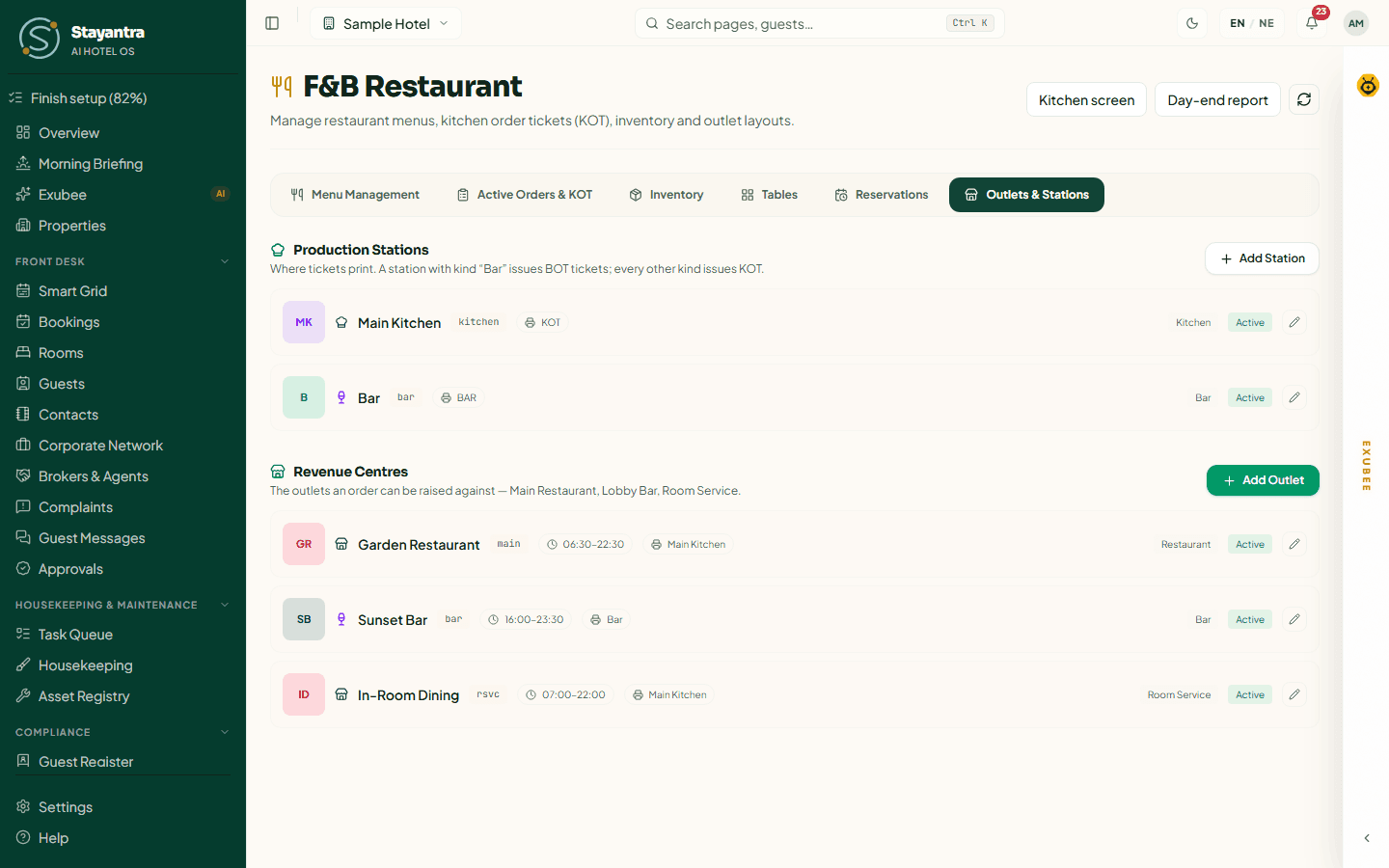
Open F&B Restaurant and click the Outlets & Stations tab.
Add a station
Under Production Stations, click Add Station.
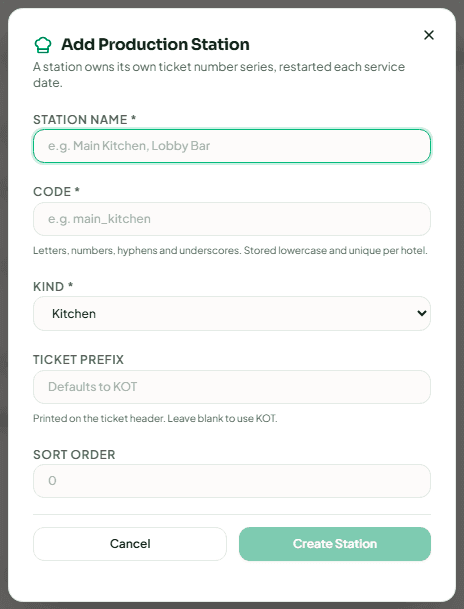
Fill in the station
| Field | What to enter |
|---|---|
| Station Name (required) | What your staff call it, for example "Main Kitchen" or "Lobby Bar". |
| Code (required) | A short code with letters, numbers, hyphens and underscores, for example main_kitchen. It cannot be changed later. |
| Kind (required) | Kitchen, Bar or Other. A Bar station issues BOT (bar order ticket) numbers; the others issue KOT numbers. Creating your first bar station switches BOT ticketing on. |
| Ticket Prefix | What is printed at the top of the ticket. Leave it blank for KOT (or BOT for a bar). Up to 8 characters. |
| Sort Order | Where it appears in lists. Lower comes first. |
Save
Click Create Station. Each station numbers its own tickets, starting again every service day.
2. Add your outlets
On the same tab, under Revenue Centres, click Add Outlet.
| Field | What to enter |
|---|---|
| Outlet Name (required) | For example "Garden Restaurant", "Sunset Bar", "In-Room Dining". |
| Code (required) | As for stations, for example garden_restaurant. |
| Kind (required) | Restaurant, Bar, Room Service, Banquet, Poolside or Other. |
| Default Station | Where this outlet's tickets print. Choose the kitchen for the restaurant and room service, and the bar station for the bar. |
| Opens At / Closes At | The outlet's hours. |
| Sort Order | Where it appears in lists. |
Click Create Outlet. To change an outlet or station later, click the pencil next to it, change it and click Save Outlet or Save Station.
[!NOTE] A ticket prints at its outlet's Default Station. If an outlet has none, it prints at the kitchen. So an order taken in the restaurant prints in the kitchen, even for a drink. If drinks must print at the bar, take them against your bar outlet.
Only owners and managers can change outlets and stations. Others see "Read-only: You do not have permission to manage outlets or stations."
Spa, laundry, minibar and shop counters are not set up here. They are Service Outlets in the sidebar, covered in Restaurant and F&B.
3. Build the menu
Add categories first
On the Menu Management tab, click Add Category. Enter a Category Name such as "Breakfast", "Mains" or "Beverages", and click Create Category. Add all your categories before your items: an item cannot be added without one.
Then add items
Open the item form
Click Add Menu Item.
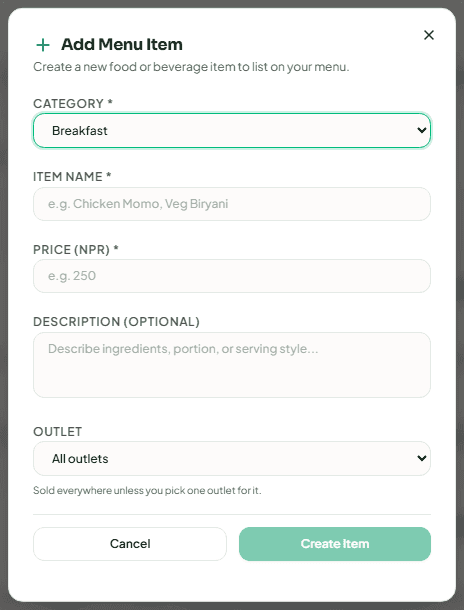
Fill in the item
| Field | What to enter |
|---|---|
| Category (required) | Pick one of your categories. |
| Item Name (required) | The dish as staff and guests see it. Use English or romanised names: the kitchen printer cannot print Devanagari (see troubleshooting). |
| Price (required) | The price in your hotel's currency, for example 450. |
| Description (Optional) | Ingredients, portion or serving style. |
| Outlet | Shown only when you have more than one outlet. Keep All outlets, or pick the one outlet that sells it. |
Save
Click Create Item. It can be ordered straight away.
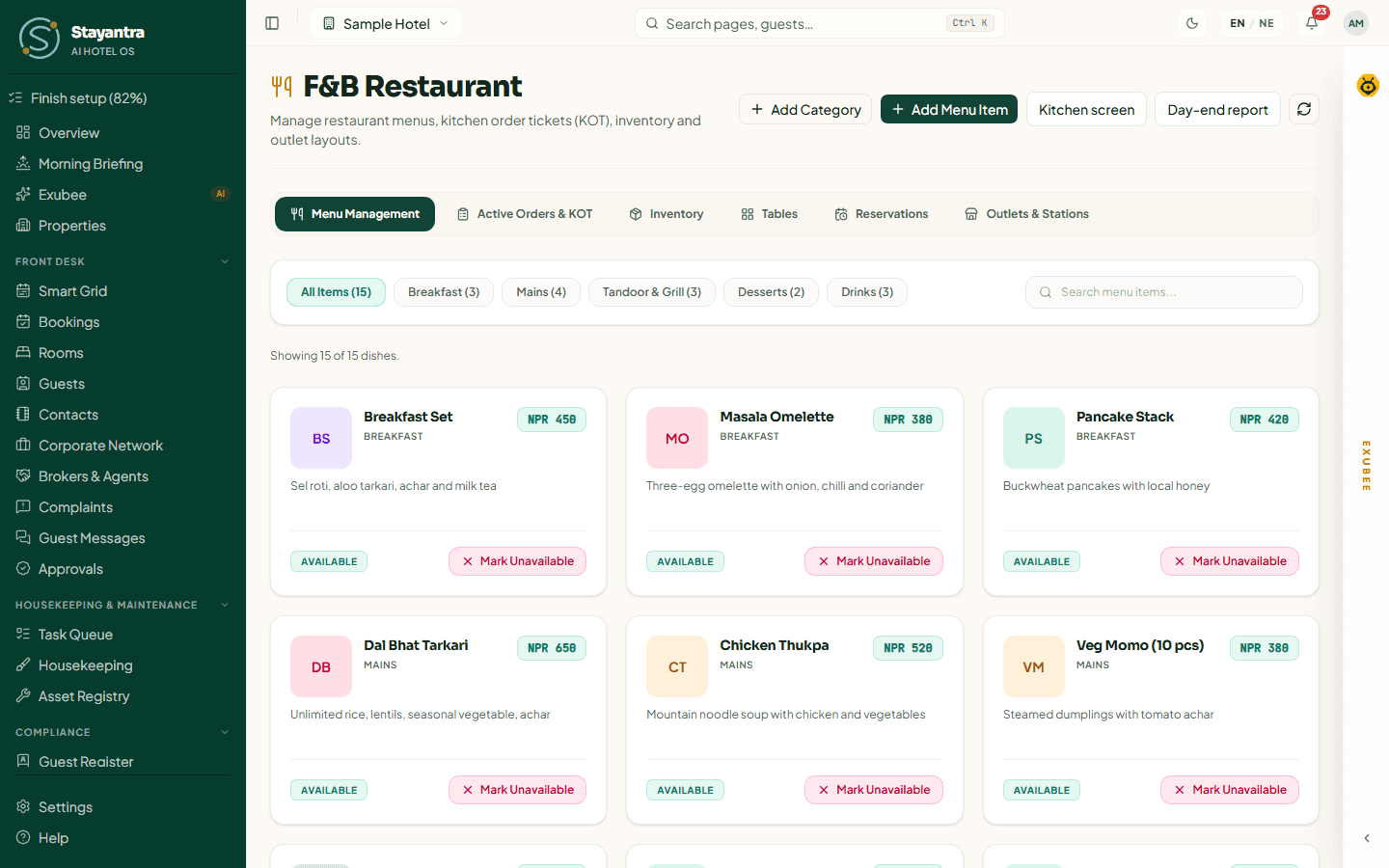
The menu tab lists every item, with All Items and one chip per category, and a Search menu items... box. Mark Unavailable takes a dish off sale for now, for example when the kitchen runs out. With a photo, a dish also shows to in-house guests in the Stayantra Go app.
[!TIP] A long menu takes time to type. If you would rather not, Restaurant setup from Setup help enters it for you (150 items per outlet included).
4. Add your tables
On the Tables tab, type the table's name in Table label... (for example "T1" or "Garden 4"), the number of Seats (1 to 50, optional), and click Add (or press Enter). Repeat for each table.
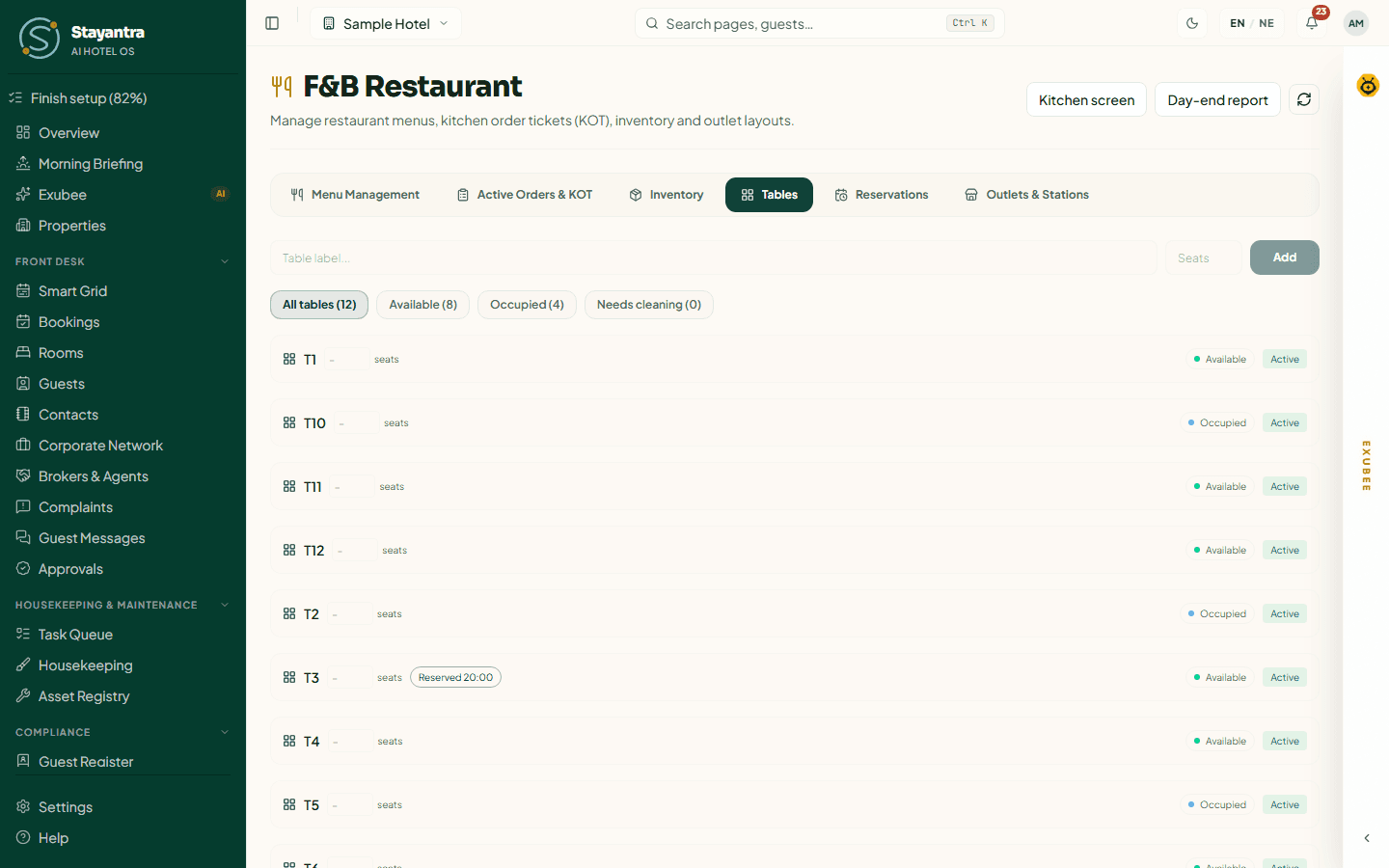
Tables are a list, not a floor plan. The chips All tables, Available, Occupied and Needs cleaning filter them, and Mark clean frees a table after guests leave.
5. Put the Kitchen screen on a tablet
The Kitchen screen shows each station's tickets as they are fired, oldest first. The cook taps Ready when a ticket is cooked.
Open it
On F&B Restaurant, click Kitchen screen. On the kitchen tablet, sign in as the cook and open app.stayantra.com/dashboard/fnb/kds, then add it to the home screen or bookmark it. Kitchen and bar staff do not have F&B Restaurant in their sidebar, so the bookmark is how they get back to it.
Choose the station
Tap the station's name at the top. The tablet remembers it.
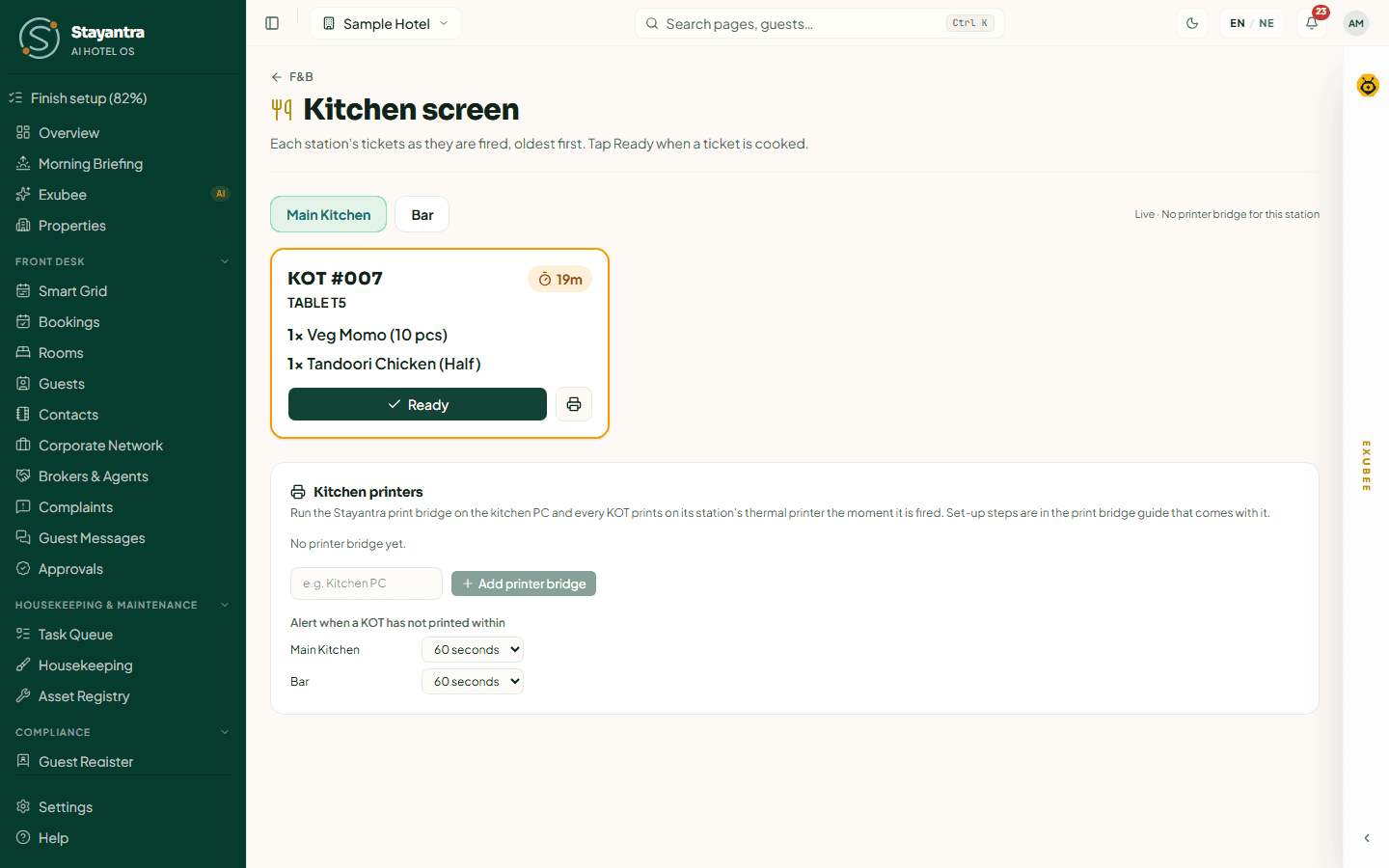
What the screen shows:
- Live (or Refreshing every 15 s), then either KOTs print automatically or No printer bridge for this station.
- One card per ticket with a timer. The card turns amber at 10 minutes and red at 20.
- Not printed — check the printer. when a ticket has not printed in time.
- Ready moves a ticket to Ready — waiting for service. Recall brings it back.
- The printer button reprints a ticket. With a print bridge it goes to the printer ("… sent to the printer."); without one it opens the browser's print window.
- Nothing to cook right now. when the station is clear.
Staff with the kitchen, bar or service skill can use the Kitchen screen. Everyone else sees "You don't have access to this".
6. Install the kitchen print bridge
The print bridge is a small program that runs on a PC in or near the kitchen. Every few seconds it collects the station's new tickets from Stayantra and prints them on your thermal printer. Nothing else on the PC changes.
What you need
- A Windows 10 or 11 PC (or any Linux computer) that stays on during service, on the same network as the printer if it is a network printer.
- Node.js 18 or newer on that PC. You install it in step B.
- An ESC/POS thermal receipt printer, 58 mm or 80 mm. Epson TM-T82 and TM-T20, Xprinter, Rongta and Sewoo all work.
- The printer's address:
- Network printer: its IP address, for example
192.168.1.50. Switch the printer on while holding FEED to print a self-test page that shows it. The print port is9100. - USB printer on Windows: its share path, for example
\\localhost\KOT. You set it up in step D. - USB printer on Linux:
/dev/usb/lp0.
- Network printer: its IP address, for example
A. Add the bridge in Stayantra
Only owners and managers see the Kitchen printers card.
Open Kitchen printers
Open F&B Restaurant → Kitchen screen and scroll to Kitchen printers.
Name the bridge
Type a name for the PC, for example "Kitchen PC", and click Add printer bridge.
Copy the device token
A green box says "Copy this device token into the print bridge now — it is shown only once." Click Copy and paste the token (it starts with sypb_) into a Notepad file for a moment. Then click I have copied it. If you lose it, click Remove on the bridge and add a new one.
Choose stations and the printer
On the new bridge's row:
- A new bridge prints for every station. Untick the stations this printer should not print for. Changes save straight away.
- Under Printer, choose Network (IP:port) or USB / local port.
- Type the address:
192.168.1.50:9100for a network printer, or\\localhost\KOTfor a shared USB printer on Windows. It saves when you click away.
Set the alert time
Under Alert when a KOT has not printed within, keep 60 seconds or choose 30 seconds to 10 minutes for each station. If a ticket has not printed by then, the kitchen, the managers and the owner are alerted.
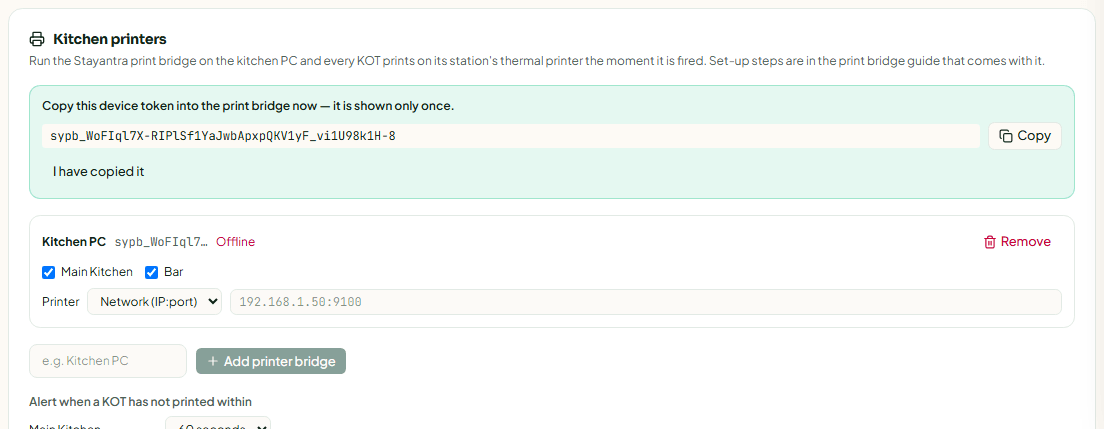
[!WARNING] Keep the token private. Anyone holding it can read this station's tickets. If it leaks, click Remove on the bridge: the token stops working at once.
B. Install Node.js on the kitchen PC (Windows)
- On the kitchen PC, open nodejs.org and download the LTS version for Windows (the
.msiinstaller). - Run the installer and keep every default option. Click Next until Install, then Finish.
- Check it worked: press the Windows key, type
cmd, open Command Prompt, typenode -vand press Enter. You should see a version number such asv22.x.x. Anything fromv18up works.
C. Download and unzip the bridge
- On the kitchen PC, download the print bridge: stayantra-print-bridge.zip.
- Right-click the downloaded file, choose Extract All…, and type
C:\as the destination. Click Extract. - You now have a folder
C:\stayantra-print-bridgewith six files:README.md,package.json,print-bridge.mjs,escpos.mjs,printer.mjsandconfig.example.json.
D. Share a USB printer (USB printers only)
Skip this for a network printer.
- Install the printer's Windows driver from the maker's website, and print a Windows test page to check it works.
- Open Settings → Bluetooth & devices → Printers & scanners, click the printer, then Printer properties.
- On the Sharing tab, tick Share this printer and type the share name
KOT. Click OK. - The printer's address is now
\\localhost\KOT. Type it in the bridge's address field in Stayantra (step A), or inconfig.jsonbelow.
A serial printer can use its port instead, for example COM3.
E. Create config.json
- Open the folder
C:\stayantra-print-bridge. Right-clickconfig.example.jsonand choose Open with → Notepad. - You see:
{ "STAYANTRA_URL": "https://app.stayantra.com", "STAYANTRA_PRINT_TOKEN": "sypb_paste-the-token-from-the-kitchen-printers-screen" } - Replace
sypb_paste-the-token-from-the-kitchen-printers-screenwith your token. Keep the quotation marks. - Click File → Save As…. Set Save as type to All files (*.*), File name to
config.json, and Encoding to UTF-8. Click Save.
The folder must now contain config.json (not config.json.txt). If Windows hides file extensions, turn them on in File Explorer under View → Show → File name extensions.
config.json can also hold these optional settings. You rarely need them, because the printer type and address set in Stayantra are used by default:
| Setting | What it does |
|---|---|
PRINTER_KIND | network or usb. Overrides the setting in Stayantra. |
PRINTER_ADDRESS | For example 192.168.1.50:9100 or \\\\localhost\\KOT (in JSON, each backslash is written twice). Overrides the address in Stayantra. |
PRINTER_COLUMNS | Characters per line: 42 for 80 mm paper (the default), 32 for 58 mm paper. |
POLL_SECONDS | How often it checks for tickets. Default 3. |
For a 58 mm printer, the file looks like this:
{
  "STAYANTRA_URL": "https://app.stayantra.com",
  "STAYANTRA_PRINT_TOKEN": "sypb_your-token-here",
  "PRINTER_COLUMNS": 32
}
F. Run it and test
- Open Command Prompt and type:
cd C:\stayantra-print-bridge node print-bridge.mjs - It prints
[print-bridge 1.0.0] polling https://app.stayantra.com every 3s. Leave the window open. - In Stayantra, the bridge's row on Kitchen printers turns Online · printer ready within a minute.
- Fire a test order (see Restaurant and F&B). The ticket prints within a few seconds, and the window says
[print-bridge] printed 1 ticket(s).
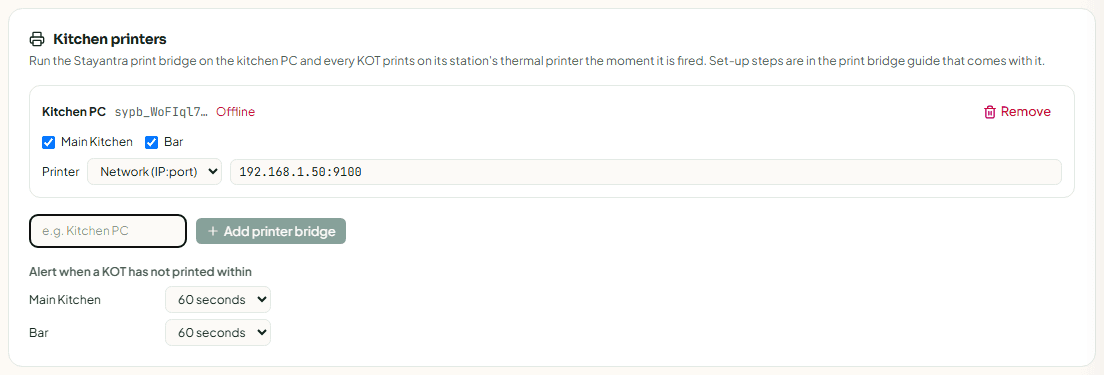
The bridge's row shows one of:
| Status | Meaning |
|---|---|
| Online · printer ready | The bridge checked in during the last 2 minutes and the printer answered. |
| Online · printer not answering | The bridge is running but cannot reach the printer. Check it is on, has paper, and the address is right. |
| Offline | The bridge has not checked in for 2 minutes. The PC is off, asleep, offline, or the program was closed. |
It also shows last seen and, when the bridge reports a problem, Bridge says: ….
G. Start it automatically with Windows
Closing the Command Prompt window stops the bridge. Make Windows start it by itself, so it survives restarts and power cuts. Use either NSSM or Task Scheduler.
NSSM runs the bridge as a Windows service and restarts it if it stops.
- Download NSSM from nssm.cc/download and unzip it. Copy
nssm.exefrom itswin64folder intoC:\stayantra-print-bridge. - Close any Command Prompt window running the bridge.
- Press the Windows key, type
cmd, right-click Command Prompt and choose Run as administrator. - Run these three commands, one at a time:
cd C:\stayantra-print-bridge nssm install StayantraPrintBridge "C:\Program Files\nodejs\node.exe" "C:\stayantra-print-bridge\print-bridge.mjs" nssm set StayantraPrintBridge AppDirectory C:\stayantra-print-bridge nssm start StayantraPrintBridge - Check Stayantra shows Online · printer ready.
To stop it later: nssm stop StayantraPrintBridge. To remove it: nssm remove StayantraPrintBridge confirm.
- Press the Windows key, type Task Scheduler and open it.
- Click Create Task… (not "Create Basic Task").
- General tab: name it
Stayantra print bridge. Choose Run whether user is logged on or not. - Triggers tab: New…, Begin the task: At startup, OK.
- Actions tab: New…, Start a program.
- Program/script:
C:\Program Files\nodejs\node.exe - Add arguments:
print-bridge.mjs - Start in:
C:\stayantra-print-bridge
- Program/script:
- Settings tab: tick If the task fails, restart every 1 minute, and untick Stop the task if it runs longer than.
- Click OK and enter the Windows password when asked. Restart the PC and check Stayantra shows Online.
Also set the PC never to sleep: Settings → System → Power (or Power & battery), set When plugged in, put my device to sleep after to Never.
Linux instead of Windows
Install Node.js 18 or newer, unzip the bridge to /opt/stayantra-print-bridge, create config.json there, and add a systemd service. Create /etc/systemd/system/stayantra-print-bridge.service:
[Unit]
Description=Stayantra KOT print bridge
After=network-online.target

[Service]
WorkingDirectory=/opt/stayantra-print-bridge
ExecStart=/usr/bin/node /opt/stayantra-print-bridge/print-bridge.mjs
Restart=always
RestartSec=5
User=lp

[Install]
WantedBy=multi-user.target
Then run sudo systemctl enable --now stayantra-print-bridge. The service user needs write access to the USB printer (/dev/usb/lp0), which the lp group has. See its output with journalctl -u stayantra-print-bridge -f.
How the bridge behaves
- Each ticket prints once. If the connection drops between printing and reporting back, the ticket is not printed twice.
- Printer off or out of paper: the ticket is retried, up to 5 times. After the station's alert time, the kitchen, managers and owner are alerted and the ticket shows Not printed on the Kitchen screen.
- Bridge offline: its tickets are handed out again after 45 seconds, so a second bridge for the same station can take over. The card shows Offline after 2 minutes.
- Reprints from the Kitchen screen print with
** REPRINT **at the top.
Troubleshooting
| The bridge says, or you see | What to do |
|---|---|
The device token was refused. Issue a new one on the Kitchen printers screen. | The bridge was removed in Stayantra, or the token was pasted wrongly. Add a new bridge, copy its token into config.json, and start the bridge again. |
Set STAYANTRA_PRINT_TOKEN to the device token from the Kitchen printers screen | config.json has no token, or it does not start with sypb_. Check the file, and that it is named config.json, not config.json.txt. |
config.json … is not valid JSON | A quotation mark or comma is missing. Compare the file with the example above. |
No answer from 192.168.1.50:9100 | The printer is off, on another network, or its IP changed. Print its self-test page and compare the IP. Ask whoever runs your network to give the printer a fixed IP. |
No printer address is set | Type the address on the Kitchen printers card, or set PRINTER_ADDRESS in config.json. |
EACCES /dev/usb/lp0 (Linux) | Add the service user to the lp group. |
'node' is not recognized as an internal or external command | Node.js is not installed, or Command Prompt was open during the install. Install it (step B), then open a new Command Prompt. |
Dish names print as ? | The printer cannot print Devanagari. Give each dish an English or romanised name. |
| Lines wrap or are cut off | Set PRINTER_COLUMNS to 32 for 58 mm paper, or 42 for 80 mm. |
| Offline after a restart | The bridge is not set to start with Windows. Do step G. |
| Tickets print at the wrong station's printer | Check which stations are ticked on each bridge, and each outlet's Default Station. |
Still stuck? Open a support ticket with the bridge's name, what the Kitchen printers card says, the printer model and address, and the last lines of the bridge window.
Booking widget and website
Take direct bookings on your own website with the Stayantra booking widget, link a Book now button to your marketplace page, or have Stayantra build your hotel website.
Teach Exubee about your hotel
Give Exubee the facts and rules it needs, see why it starts in Co-Pilot where every action waits for your approval, and tick the last items on your setup checklist.