
Payments and payouts
This page sets up the money side of a new hotel: which payment methods guests see when they book online, whether they pay a deposit, and the bank account Stayantra pays the hotel into. Payments at the front desk (cash, card machine, QR) work from day one and are covered in Bookings and folios.
Where to find it: Settings → Hotel profile → Payments for guest payment methods and rules; Finance → Pay with Stayantra for payouts. Who can use it: the owner. A manager can see the payment methods but cannot save them, and does not see the payment details or payouts.
[!NOTE] Online guest payments start only after your business verification is approved. You can set everything up before that.
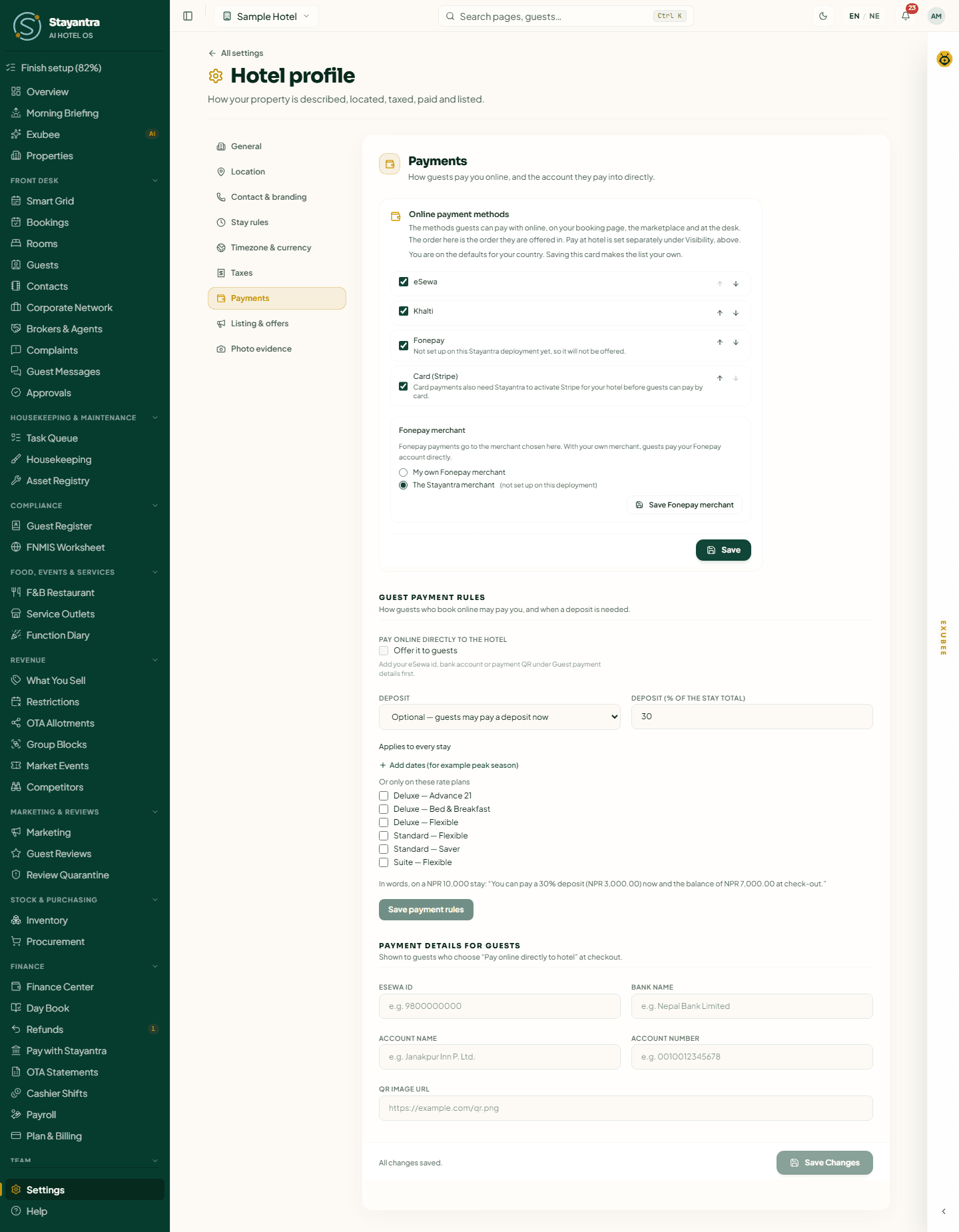
The ways a guest can pay
| Method | Who collects the money | Who switches it on |
|---|---|---|
| eSewa | Stayantra's merchant account, paid on to you weekly | You, on this page |
| Khalti | Stayantra's merchant account, paid on to you weekly | You, on this page |
| Fonepay | Your own Fonepay merchant (straight to you), or Stayantra's (paid on to you weekly) | You, on this page |
| Card (Stripe) | Stayantra, paid on to you weekly | Stayantra, on request |
| Pay at hotel | You, at check-in | You, in Listing & offers |
| Pay online directly to the hotel | You: the guest transfers to your own eSewa, bank account or QR | You, on this page |
eSewa, Khalti and Fonepay settle in rupees only, so they are offered only while your base currency is NPR.
Choose the online payment methods
Open Settings → Hotel profile → Payments
The first card is Online payment methods. Until you save it, it says "You are on the defaults for your country."
Tick the methods to offer
Tick eSewa, Khalti, Fonepay and Card (Stripe) as you wish. A note under a method explains when it will not be offered yet, for example "Card payments also need Stayantra to activate Stripe for your hotel before guests can pay by card."
Put them in order
Use the up and down arrows. Guests see the methods in this order on your booking page, the marketplace and at the desk.
If you untick everything, the card warns "With every method off, guests cannot pay online. They can still book if Pay at hotel is on."
Fonepay: your own merchant or Stayantra's
Under Fonepay merchant, choose:
- My own Fonepay merchant: guests pay your Fonepay account directly. Enter your Merchant code, Secret key, and the QR API username and QR API password (these are for the desk QR). Saved secrets show "(saved; leave blank to keep)".
- The Stayantra merchant: Stayantra collects the money and pays it to you with the weekly payout.
Click Save Fonepay merchant.
Card payments
[!IMPORTANT] Stayantra turns this on. Card payments need Stayantra to activate Stripe for your hotel before guests can pay by card. Ask for it from Help → Open a support ticket.
Set the guest payment rules
The Guest payment rules card is owner-only.
-
Pay online directly to the hotel: tick Offer it to guests to let guests transfer the total to your own eSewa, bank account or QR. Staff then mark the transfer as received on the booking. You must first fill in Payment details for guests below. Set the Transfer deadline (hours after booking): if the transfer has not arrived by then, you get a proposal to release the room. Nothing is released on its own.
-
Deposit:
- Off — no deposit is offered
- Optional — guests may pay a deposit now
- Required — every booking must pay the deposit
Set Deposit (% of the stay total). For Required, set Deposit due (hours after booking) for bookings that cannot pay at once, such as those made at the desk; if it is not paid by then you get a proposal to release the room. By default the deposit applies to every stay. Use Add dates (for example peak season) or tick rate plans under Or only on these rate plans to limit it.
A line starting "In words" shows what guests read, for example "You can pay a 30% deposit (NPR 3,000.00) now and the balance of NPR 7,000.00 at check-out." Click Save payment rules.
Payment details for guests
Owner-only. These are shown to guests who choose "Pay online directly to hotel" at checkout:
| Field | Example |
|---|---|
| eSewa ID | 9800000000 |
| Bank Name | Nepal Bank Limited |
| Account Name | Sample Hotel Pvt. Ltd. |
| Account Number | 0010012345678 |
| QR Image URL | An https:// link to your payment QR image |
Click Save Changes.
Tell Stayantra where to pay you
When guests pay through Stayantra (eSewa, Khalti, card, or Fonepay on Stayantra's merchant), Stayantra collects the money for you and pays it to your bank account every week, less refunds sent through Stayantra, lost chargebacks and payment provider fees. It cannot pay you until your payout account is verified.
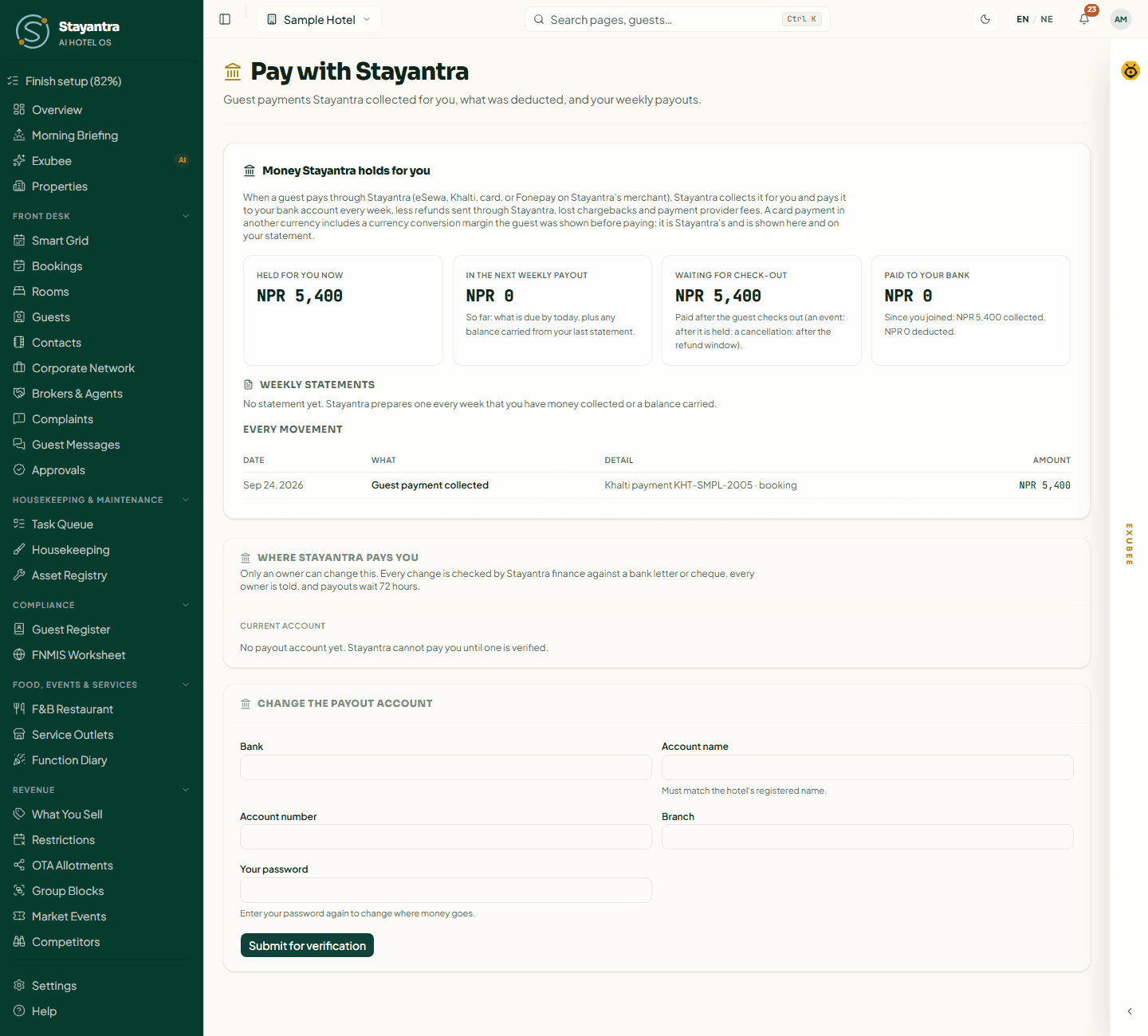
Open Finance → Pay with Stayantra
Scroll to Where Stayantra pays you. With no account yet it says "No payout account yet. Stayantra cannot pay you until one is verified."
Fill in Change the payout account
Bank, Account name (it must match the hotel's registered name), Account number and Branch. Enter Your password again to confirm it is you.
Click Submit for verification
Stayantra finance checks the account against a bank letter or cheque. Every owner is told, and payouts wait 72 hours after a change.
Only an owner can change the payout account. The account shows Awaiting verification, then Verified (or Rejected).
Pay with Stayantra, in one paragraph
Money guests pay through Stayantra is held for you until the guest checks out (for an event, until after it is held; for a cancellation, until after the refund window). Each week Stayantra prepares a statement of what it collected, what it deducted and why, and pays the rest to your verified account. Finance → Pay with Stayantra shows the money held for you now, the next weekly payout, money waiting for check-out, what has been paid to your bank, every movement, and each weekly statement. Details are in Finance.
Next
Invite your team: Staff and owners.