
Settings
Settings is where you describe your hotel, choose your own alerts, connect outside services, and set the money limits your team works within. This page is a map of every settings screen. Where a screen has its own guide, the section links to it.
Where to find it: click Settings at the bottom of the sidebar. Who can use it: everyone opens Settings, but each person sees only the tabs their role allows (see the table below).
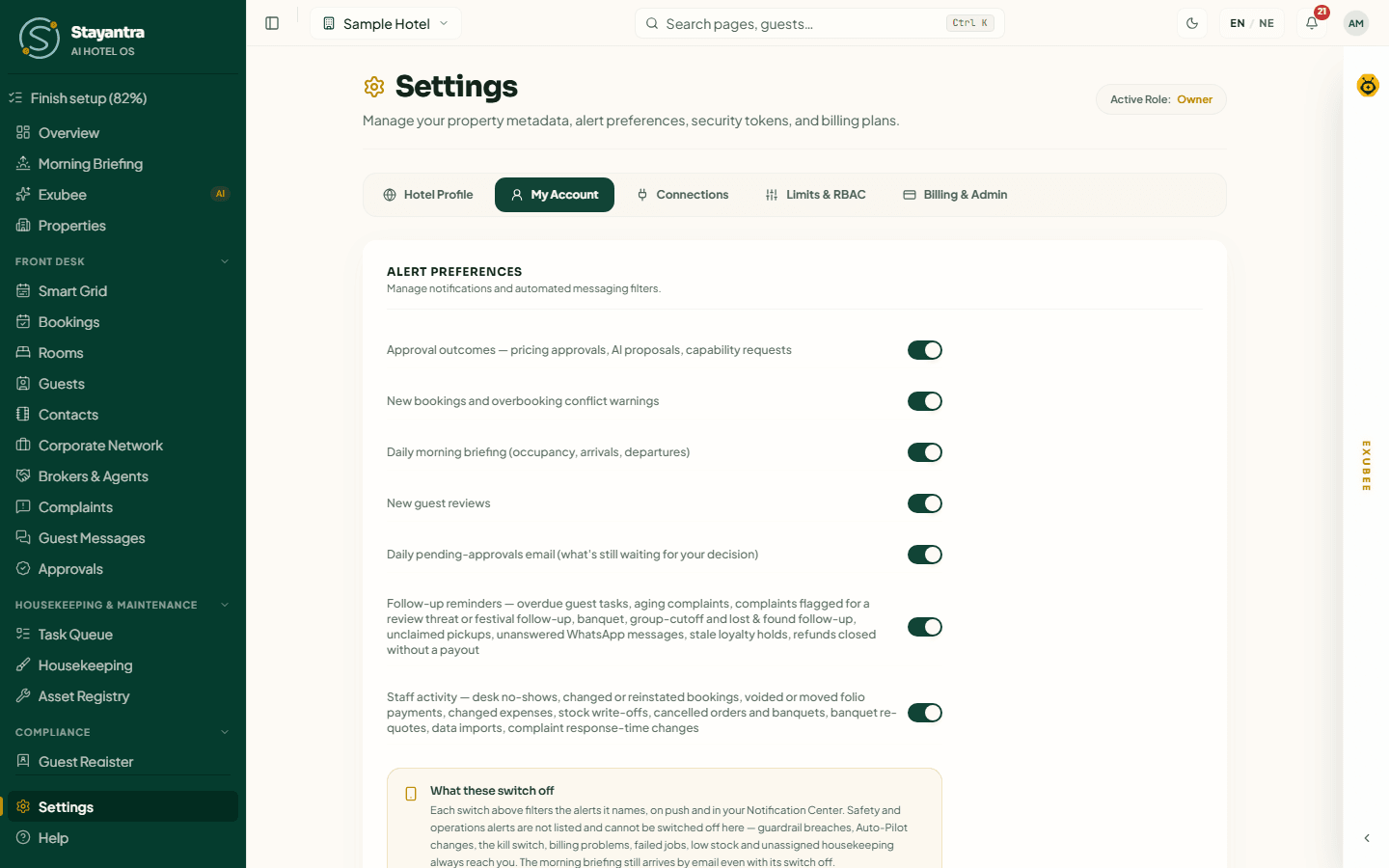
The five tabs
Settings has five tabs. Hotel Profile is the first tab for owners and managers. It opens its own set of pages, so clicking it takes you there. The other four tabs open on the Settings page itself.
| Tab | What is on it | Owner | Manager | Staff |
|---|---|---|---|---|
| Hotel Profile | Name, location, contact, stay rules, taxes, payments, listing, photo evidence | Yes | Yes (some parts read-only) | No |
| My Account | Your own alert switches, and the role and permissions you hold | Yes | Yes | Yes |
| Connections | Channel manager, social accounts, WhatsApp, webhooks, API keys, connected assistants, Stayantra marketing | Every card | Channel Manager, Webhooks, Connected assistants | No |
| Limits & RBAC | Refund rules, purchase rules, discount ceilings | Edits everything | Sees the rules; edits discount ceilings | No |
| Billing & Admin | Your plan, the Auto-Pilot card, Outlet pricing, Data Migration | Yes | Yes | No |
The small pill at the top right, Active Role, shows the role you are signed in with at this hotel. If you work at two properties, the tabs follow your role at the property you have open.
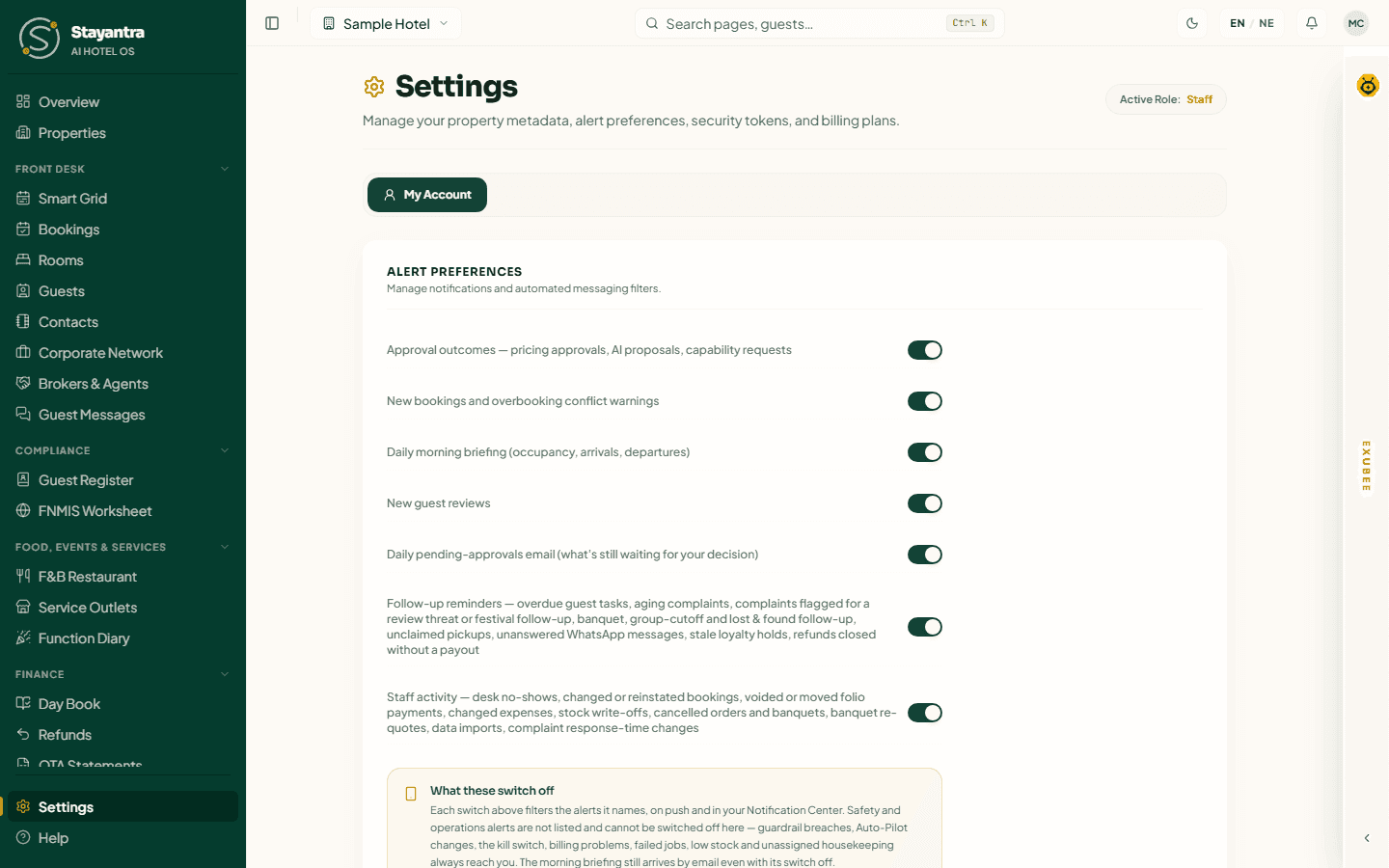
[!NOTE] Staff open Settings straight onto My Account. The other tabs are hidden because staff cannot change hotel settings.
Hotel Profile
Settings → Hotel Profile opens a page with its own menu on the left. Each item is a separate page with its own Save button. A dot in the menu means that page has changes you have not saved yet. The full walkthrough, field by field, is in Hotel profile.
| Page | What you set there |
|---|---|
| General | Hotel name, star rating, tagline, description, cover photo, amenities, and the Wi-Fi name and password. For the owner, the Owner's Settings card sits at the top of this page. |
| Location | Address, city, neighbourhood, postcode, country and map position. The map on your public listing uses this. |
| Contact & branding | Public phone, WhatsApp number and email, your logo, website and brand colour for guest emails. |
| Stay rules | Check-in and check-out times, free-cancellation window, cancellation policy, and the booking, guest-change, timing and operations rules. |
| Timezone & currency | Your business day and the currency money is recorded in. |
| Taxes | VAT, tourist tax and service charge. The IRD registration (tax identity) is owner-only. |
| Payments | Which online payment methods guests can use (eSewa, Khalti, Fonepay, card), and the account guests pay into directly (owner-only). See Payments and payouts. |
| Listing & offers | Whether guests can find and book you, pay-at-hotel, table requests, the birthday and anniversary offer, the offer-code report and sponsored placement. |
| Photo evidence | Which staff tasks need a photo before they can be marked done. |
To go back to the other tabs, click All settings at the top of any Hotel Profile page.
My Account
My Account holds two things that belong to you, not to the hotel: your alerts and your access.
Alert Preferences
Each switch turns one group of alerts on or off for you only. A change saves as soon as you flip the switch, and you see Notification preferences saved.
| Switch | What it controls |
|---|---|
| Approval outcomes | Results of pricing approvals, AI proposals and capability requests |
| New bookings and overbooking conflict warnings | A booking arrives, or two bookings clash |
| Daily morning briefing | Occupancy, arrivals and departures each morning |
| New guest reviews | A review comes in |
| Daily pending-approvals email | One email a day listing what still waits for your decision |
| Follow-up reminders | Overdue guest tasks, ageing complaints, banquet and group follow-ups, lost and found, unclaimed pickups, unanswered WhatsApp messages, stale loyalty holds, refunds closed without a payout |
| Staff activity | Desk no-shows, changed or reinstated bookings, voided or moved payments, changed expenses, stock write-offs, cancelled orders and banquets, data imports, complaint response-time changes |
[!IMPORTANT] Some alerts cannot be switched off: guardrail breaches, Auto-Pilot changes, the kill switch, billing problems, failed jobs, low stock and unassigned housekeeping always reach you. The morning briefing still arrives by email even with its switch off.
Security & Access Tokens
This section shows the email you are signed in with (Logged In As), your role, and Assigned RBAC Capability Codes — the exact list of permissions you hold, such as booking:checkin or refund:process. Use it when you need to tell Stayantra support exactly what you can and cannot do. You cannot edit your own permissions here. An owner or manager changes a person's role and skills on Team.
To change your password, click your name at the top right and choose Edit profile.
Connections
Connections is a grid of cards. Each card opens its own page.
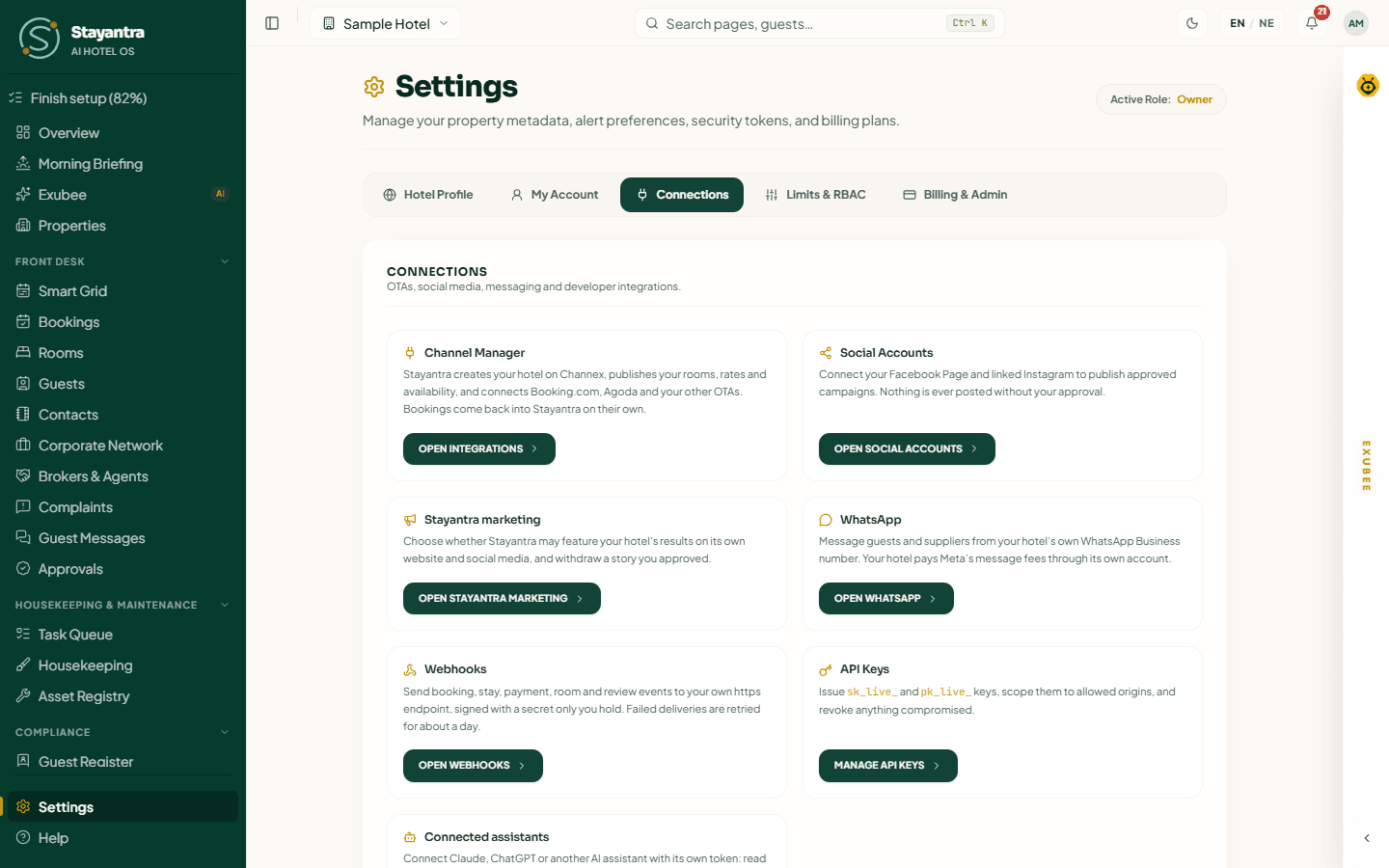
| Card | Button | Who sees it |
|---|---|---|
| Channel Manager | Open Integrations | Owner, manager |
| Social Accounts | Open Social Accounts | Owner |
| Stayantra marketing | Open Stayantra marketing | Owner |
| Open WhatsApp | Owner | |
| Webhooks | Open Webhooks | Owner, manager |
| API Keys | Manage API Keys | Owner |
| Connected assistants | Manage assistants | Owner, manager |
Channel Manager (Integrations)
The Connect channels page links your hotel to Booking.com, Expedia, Agoda and other online travel agencies through Channex. Stayantra creates your hotel on Channex, publishes your rooms, rates and availability, and brings OTA bookings back into Stayantra. It needs the Channel Manager module on your plan. Setting it up, step by step, is in Connect your channel manager. Day-to-day sync is in OTA sync.
Social Accounts
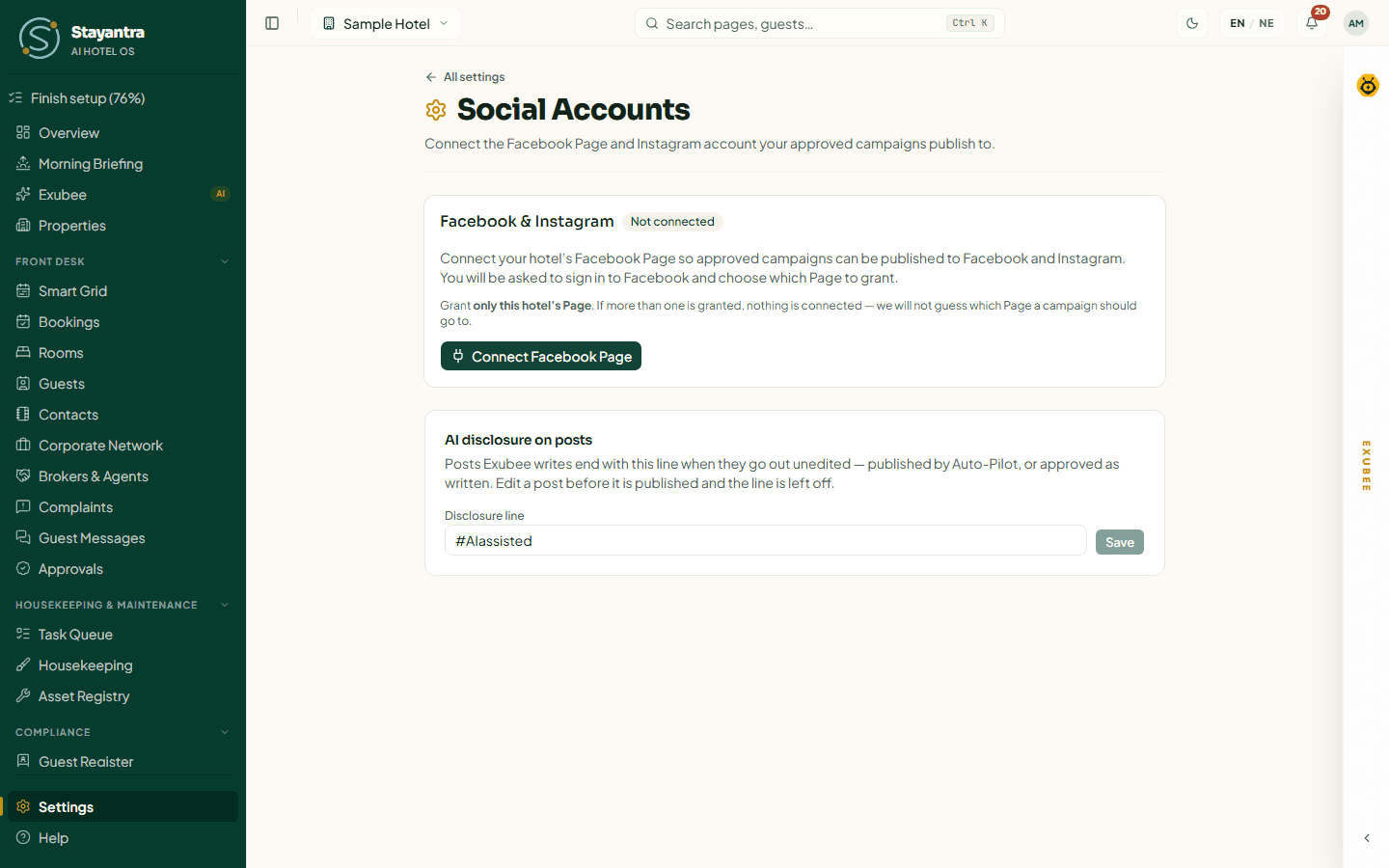
Social Accounts connects the Facebook Page (and the Instagram account linked to it) that approved marketing campaigns publish to. Nothing is posted without an approval.
Connect the Page
Click Connect Facebook Page, sign in to Facebook and choose which Page to grant.
Grant one Page only
Grant only this hotel's Page. If you grant more than one, nothing is connected, because Stayantra will not guess which Page a campaign should go to.
Check the status
The card shows Connected, with the Facebook Page and Instagram account it found. If it later shows Needs reconnecting, Facebook stopped Stayantra's access (access removed, password changed, or access expired). Click Reconnect Facebook Page.
Below the connection is AI disclosure on posts. Posts that Exubee writes end with this line when they go out unedited. If you edit a post before it is published, the line is left off. Only the owner can change the line; when they save it, every owner is told.
Stayantra marketing
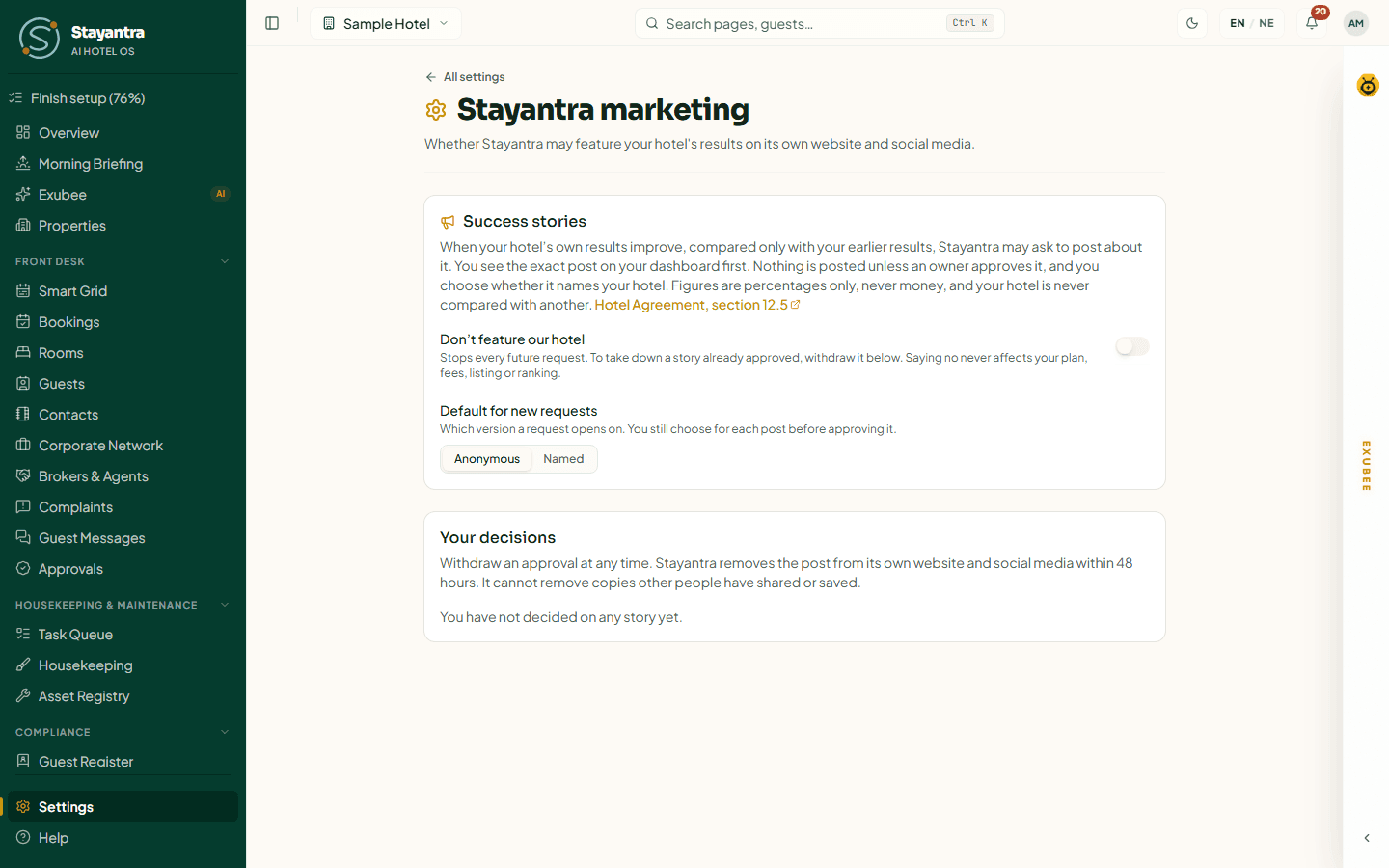
When your hotel's own results improve, Stayantra may ask to feature them on its own website and social media. This page is where owners decide.
- Don't feature our hotel stops every future request. Saying no never affects your plan, fees, listing or ranking.
- Default for new requests sets whether a request opens as Anonymous or Named. You still choose for each post before approving it.
- Your decisions lists every story you decided on, with its status: Approved · named, Approved · anonymous, Declined or Withdrawn. Click Withdraw on an approved story, then confirm, and Stayantra removes it from its channels within 48 hours.
Figures in a story are percentages only, never money, and your hotel is never compared with another.
WhatsApp lets your team message guests and suppliers from your hotel's own WhatsApp Business number inside Stayantra, and lets guests who agree get booking confirmations there. It is an add-on: if it is not on your plan, the card shows Add-on not active and a See add-ons in Billing button. Your hotel pays Meta's per-message fees directly, through its own WhatsApp account.
[!IMPORTANT] Waiting on Meta's approval. Connecting a WhatsApp number is not available yet: Stayantra's WhatsApp sign-up is still with Meta for approval, so the page says sign-up is not configured. Ask for news from Help → Open a support ticket.
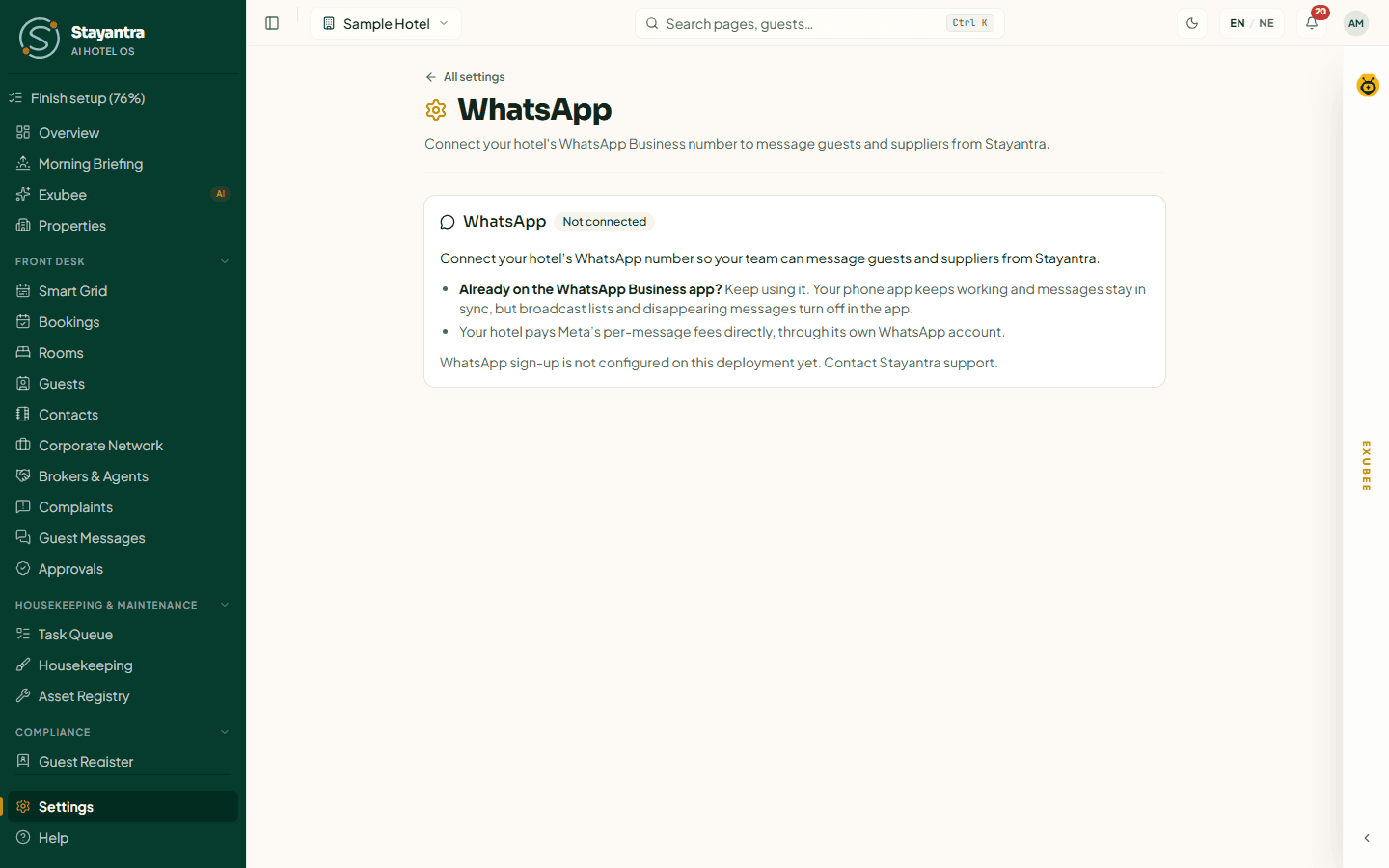
When sign-up opens, you will choose Use my existing WhatsApp Business number (your phone app keeps working and messages stay in sync, but broadcast lists and disappearing messages turn off in the app) or Register a new number.
Webhooks
Webhooks send booking, stay, payment, room and review events to a system of your own as they happen. See Webhooks for the developer guide.
API Keys
API keys let your website or your developer's system talk to Stayantra: a publishable key for the booking widget and chat on your website, and a secret key for reading availability from a server. Only the owner can create or revoke keys. See Integrations.
Connected assistants
Connect an outside AI assistant, such as Claude or ChatGPT, to your hotel with its own token. It can read your reports, or propose changes that wait in Approvals. See Integrations.
Limits & RBAC
Limits & RBAC holds the money rules everyone works within. The refund and purchase rules belong to the owner. Below them are the discount ceilings for roles and skills.
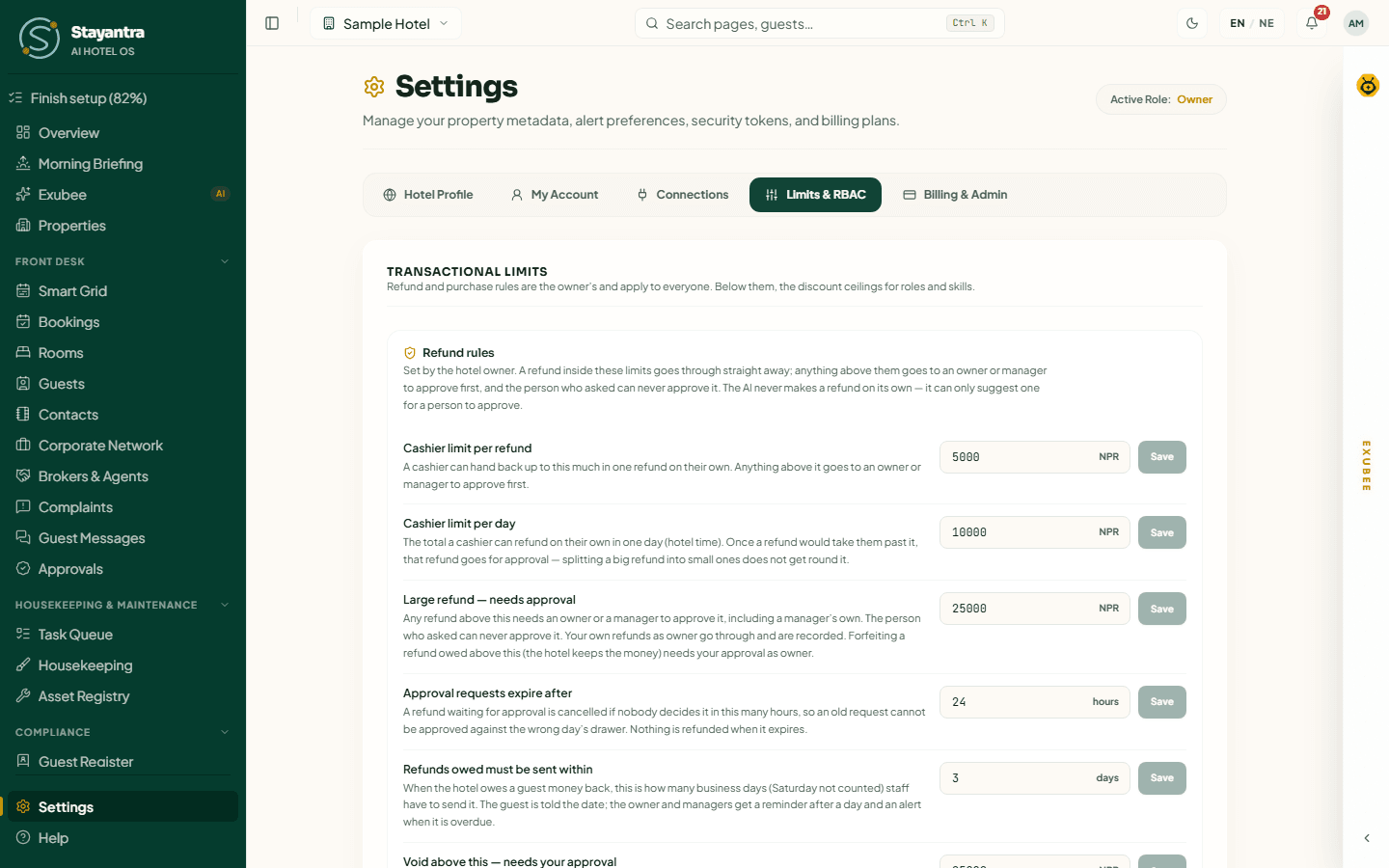
Refund rules
Set by the owner. A refund inside these limits goes through straight away. Anything above goes to an owner or manager to approve first, and the person who asked can never approve their own request. Exubee never makes a refund on its own. A manager sees the figures with the note Only the hotel owner can change these. They apply to you as well.
| Rule | What it means |
|---|---|
| Cashier limit per refund | The most a cashier can refund in one go without approval. |
| Cashier limit per day | The total a cashier can refund in one day (hotel time). Splitting a big refund into small ones does not get round it. |
| Large refund — needs approval | Any refund above this needs an owner or manager, including a manager's own. The owner's own refunds go through and are recorded. |
| Approval requests expire after | A refund waiting for approval is cancelled after this many hours (1–48). Nothing is refunded when it expires. |
| Refunds owed must be sent within | Business days (Saturday not counted) to send a refund the hotel owes. The guest is told the date; owners and managers get a reminder and an overdue alert. |
| Void above this — needs your approval | Voiding a bill line above this, or any line on a checked-out stay, needs the owner. |
| Write-offs per person per day | The total one person can write off in a day without the owner. |
| Charges after checkout — up to | The largest single charge a manager may add to a checked-out stay, with a reason. Above it only the owner can. |
| Charges added by hand — up to | The largest hand-entered charge anyone but the owner may post. |
| Charges the AI may propose — up to | The largest charge Exubee may suggest in one line. Set it low to catch typing mistakes such as 12,000 for 1,200. |
Every change is listed under the rules with who changed it, when, and the old and new values. For how refunds work day to day, see Payments.
Purchase rules
Also set by the owner. They decide which purchases wait for approval.
| Rule | What it means |
|---|---|
| Owner approval above | Purchase orders above this wait for the owner, and so do supplier bills with no purchase order. Every purchase order is sent to the owner as a notice. |
| Bill price tolerance | A supplier bill priced more than this percentage above its purchase order needs approval. |
| Stock write-off approval above | A write-off worth more than this, and any stock added by hand, needs a second person's approval. |
| Market purchase without approval up to | A cash purchase at the market up to this amount is recorded in one step. |
| One supplier, seven days, without approval up to | Catches spending split across several days with one supplier. Leave it empty to check only each day's total. |
See Procurement for purchase orders and supplier bills.
Discount ceilings (capability limits)
A capability is one thing a person is allowed to do, such as discount:apply (give a discount). A capability limit caps how far they can go with it. Here you set the Max Discount Percent for four groups:
- Cashier Skill Limits — anyone with the cashier skill
- Front Desk Skill Limits — anyone with the front desk skill
- Staff Role Limits — everyone with the staff role
- Manager Role Limits — everyone with the manager role
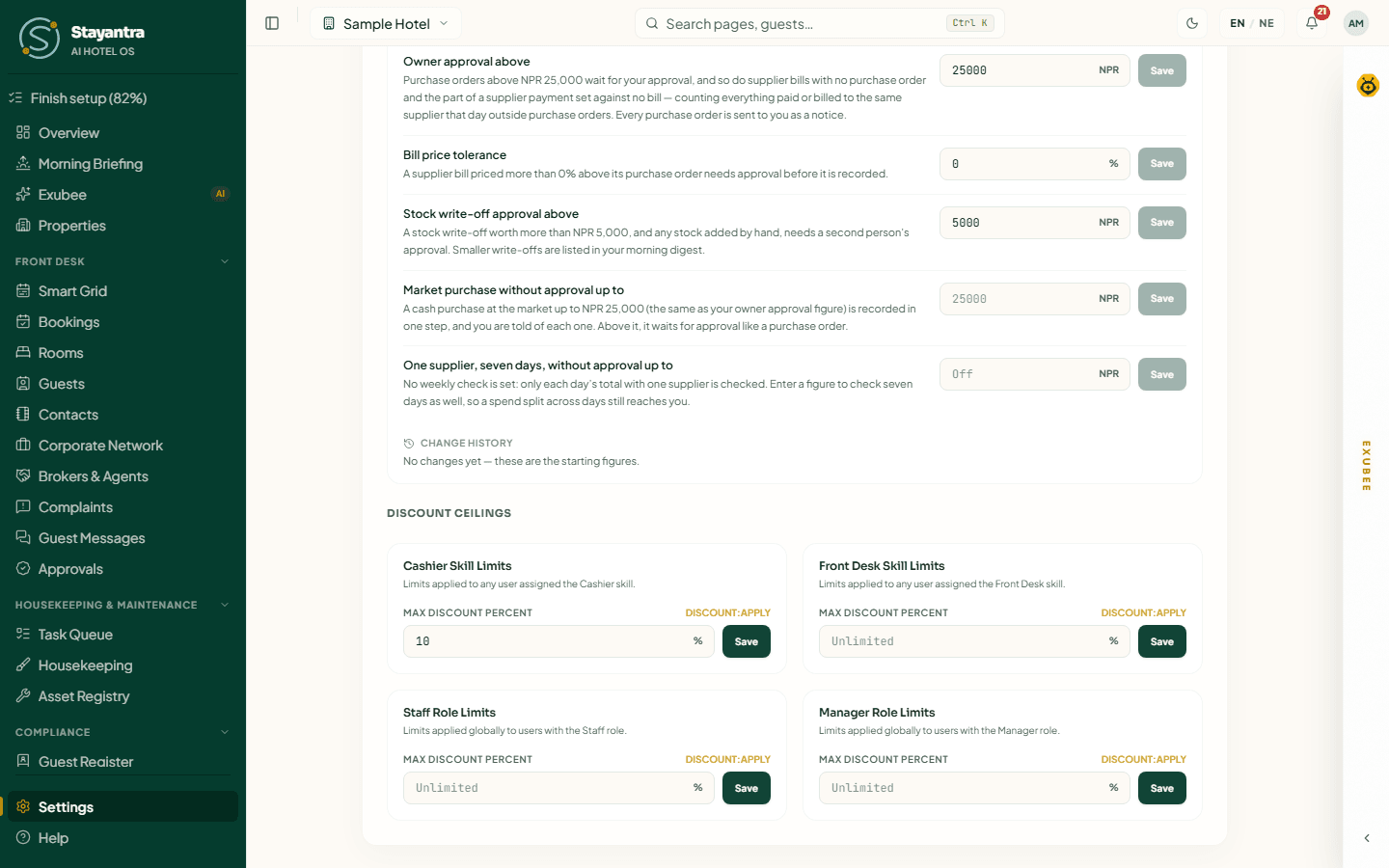
Type a percentage (0–100) and click Save. Leave the field empty for no ceiling; it shows Unlimited. A discount above the ceiling is not refused: it becomes a request that an owner or manager approves.
Who edits them: owners and managers. Only someone who can approve discounts may set a ceiling, because raising a ceiling removes the approval step.
Billing & Admin
Billing & Admin shows your plan and opens two admin pages.
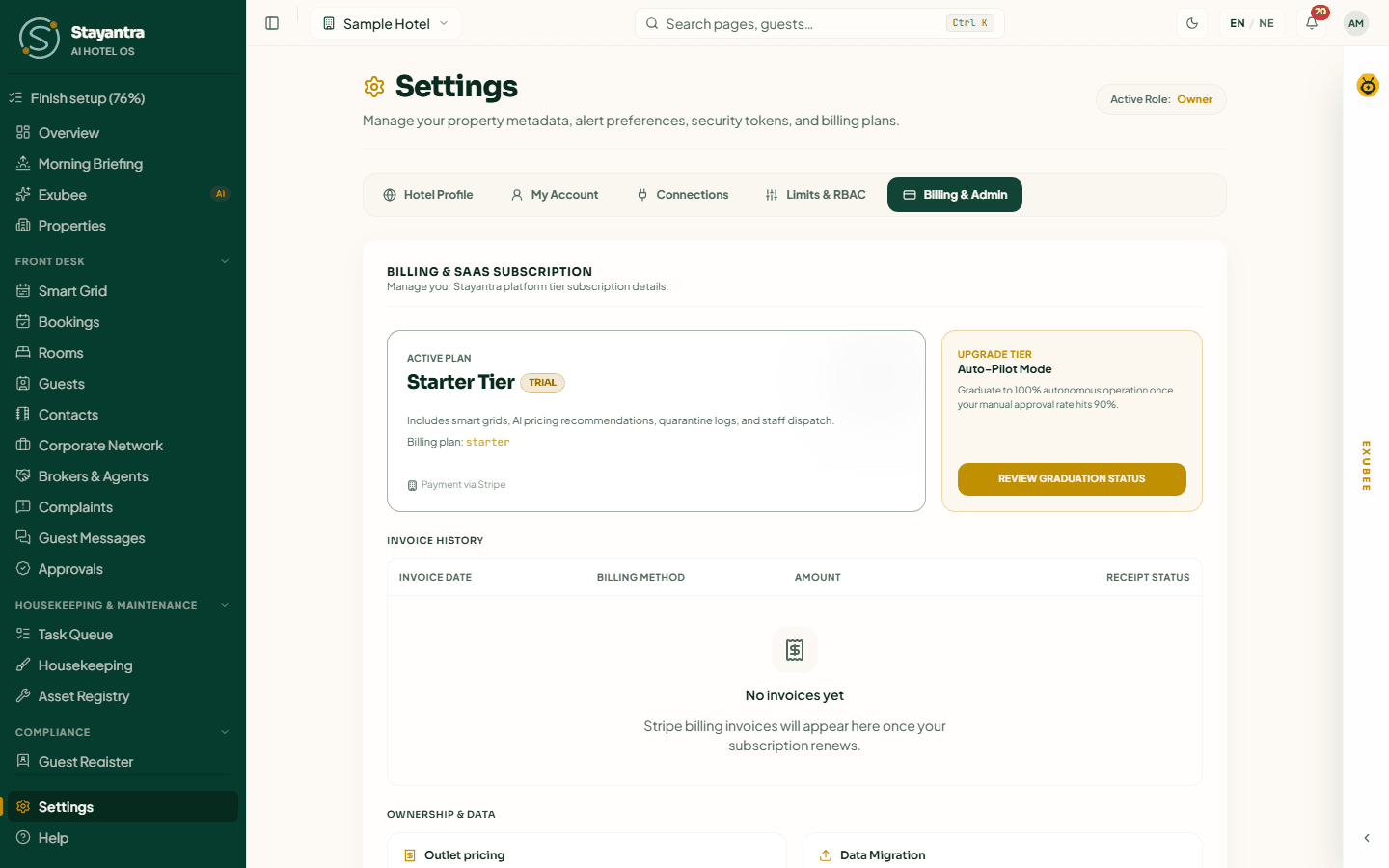
- Active Plan shows your tier (Starter Tier, Co-Pilot Tier or Auto-Pilot Tier) and its status.
- Auto-Pilot Mode explains that an AI stream can graduate to acting on its own once its approval record is good enough. Review Graduation Status opens the Autonomy page. See Exubee approvals.
- Invoice History does not list invoices here. Your invoices, payments and add-ons are on Finance → Plan & Billing. See Plans and billing.
Under Ownership & Data are two cards:
Outlet pricing
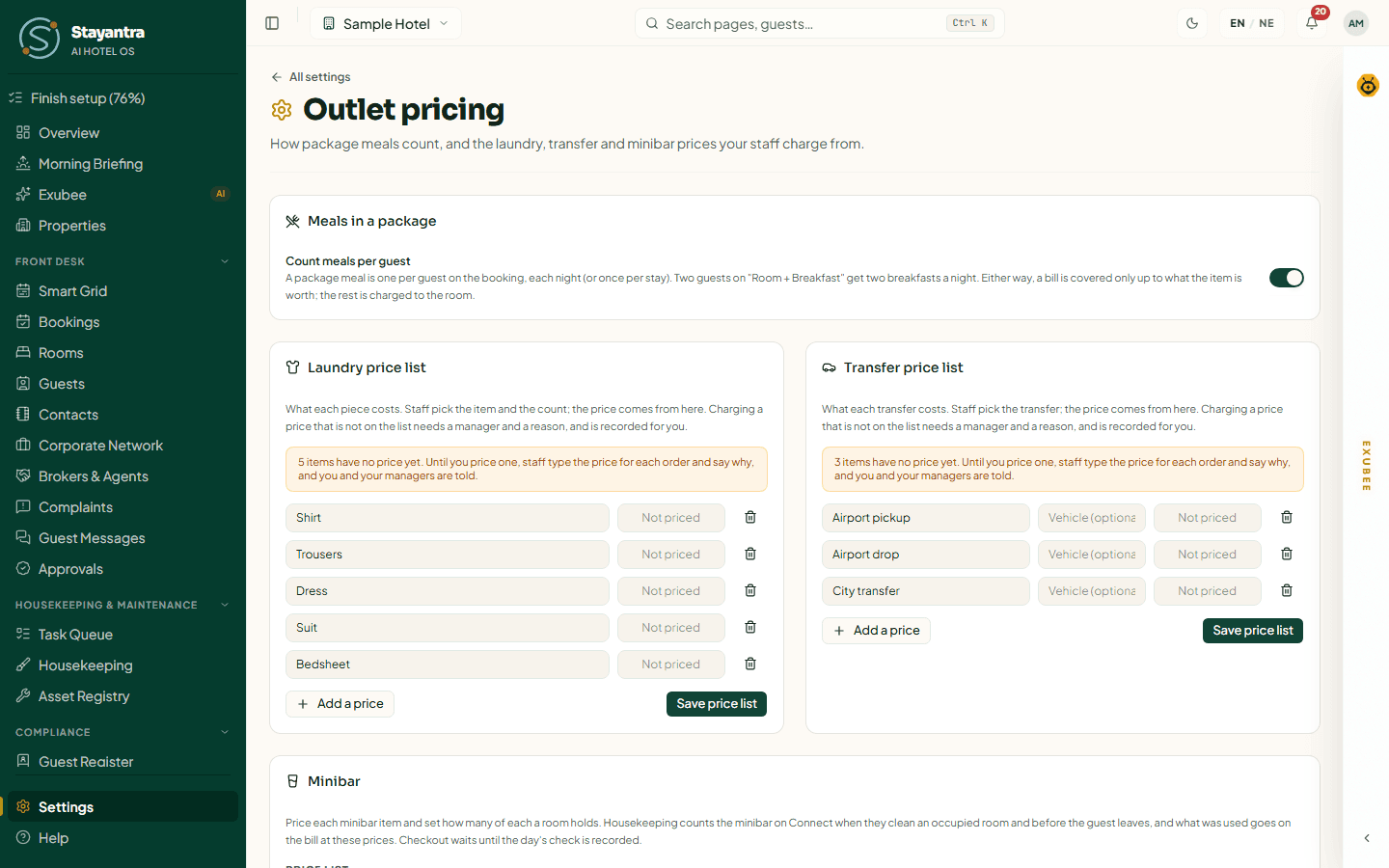
Open Outlet pricing sets what the hotel charges outside the room rate, once, instead of staff typing a price per order. The owner edits; managers can look.
| Card | What you set |
|---|---|
| Meals in a package | Count meals per guest on or off. On: two guests on "Room + Breakfast" get two breakfasts a night. Off: one per room. A bill is covered only up to what the item is worth; the rest goes on the room. |
| Laundry price list | What each piece costs. Staff pick the item and count; the price comes from here. |
| Transfer price list | What each transfer costs, and the vehicle. |
| Minibar | The Price list (item, price, and optionally the stock item it draws from; Add an item, Save price list) and Par per room (how many of each item a room holds; Save this room or Use for every room). Housekeeping counts the minibar in Stayantra Connect, and what was used goes on the bill at these prices. |
Charging a price that is not on a list needs a manager and a reason, and is recorded. Until a list has prices, staff type the price of each order and give a reason, and you and your managers are told.
Data Migration
Open Migration Dashboard opens Import your data, where you bring rooms, rates, guests and bookings over from your old system. See Import your data.
Owner's Settings
Only owners see the Owner's Settings card, at the top of Hotel Profile → General. Manage Owners opens the list of owners, pending co-owner invites and ownership transfer. See Owners and co-owners.
If something goes wrong
| What you see | What it means | What to do |
|---|---|---|
| Hotel profile unavailable with a retry button | The hotel profile did not load. | Click retry. If it keeps failing, open a support ticket. |
| A card you expected is missing on Connections | Your role does not include it (for example, API Keys and WhatsApp are owner-only). | Ask the owner. |
| You don't have access to this on a settings page | The page needs a role you do not have. | Ask an owner or manager. |
| Error: Failed to update limit | You do not hold the approve-discounts permission, or the value is outside 0–100. | Check the value, or ask the owner. |
| A module-locked message on Connect channels | The Channel Manager module is not on your plan. | Add it on Finance → Plan & Billing. |
Team, rosters, attendance, leave and payroll
Add staff and give them skills, plan the shift roster, track attendance with location and selfie, handle leave, and run monthly payroll with SSF and TDS.
Owners and co-owners
Add a co-owner, hand your ownership to someone else, and understand the safety checks around both.