
Corporate Network
NGOs, banks, government offices and businesses send their staff to your hotel and want the company, not the traveller, to pay. In Stayantra this runs through the Stayantra Corporate Network. A company registers once with Stayantra and can then be billed at any hotel on the network. Stayantra sits in the middle: it bills the company, and it pays you.
Where to find it: Front Desk → Corporate Network. Company billing for a single stay is done on the booking page. Who can use it: everyone can see the Companies tab and bill a stay to a company at the desk. Managers and owners set the rate and terms, and handle payables and corrections. Only the owner sees the payout account.
[!IMPORTANT] Stayantra turns this on. The Corporate Network is switched on for the whole platform by Stayantra; while it is off, the page says "The corporate network is switched off on Stayantra. Your settings are kept and take effect when it opens." Ask about it from Help → Open a support ticket.
How it works
- The company and its staff join Stayantra, not your hotel. The company registers at Stayantra for Business with its PAN and registration documents; Stayantra checks it and sets its credit limit. Employees join from their own Stayantra profile.
- The company sets its travel policy — which charges it pays for (for example the room and its taxes, or the room and meals) and, if it likes, a nightly cap on the room price.
- You set one corporate rate and your group terms on the Corporate Network page.
- A stay is billed to the company — online, when the employee books on Stayantra with Bill to my company, or at your desk. Anything the policy does not cover stays on the guest's own bill.
- At check-out Stayantra settles the company's bill. It collects from the company, and pays you your share, less Stayantra's commission, once you have entered your own IRD bill number.
[!NOTE] Earlier versions let each hotel keep its own list of company accounts. That is retired: companies now register once with Stayantra. To let a company you bill yourself pay later, use Bill to a company on credit on the booking page — see Bill a company.
The tabs
| Tab | What it is for | Who sees it |
|---|---|---|
| Corporate rate | The rate network companies pay. | Managers, owners |
| Group & event terms | Terms for group blocks you quote to companies. | Managers, owners |
| Payables | What Stayantra owes you, and your IRD bill numbers. | Managers, owners |
| Payout account | The bank account Stayantra pays into. | Owner |
| Corrections | Change what a company was charged for a settled item. | Managers, owners |
| Companies | Network companies that have stayed with you. | Everyone |
Notices at the top tell you if Stayantra has frozen your hotel on the network or put your payouts on hold, with the reason.
Set your corporate rate
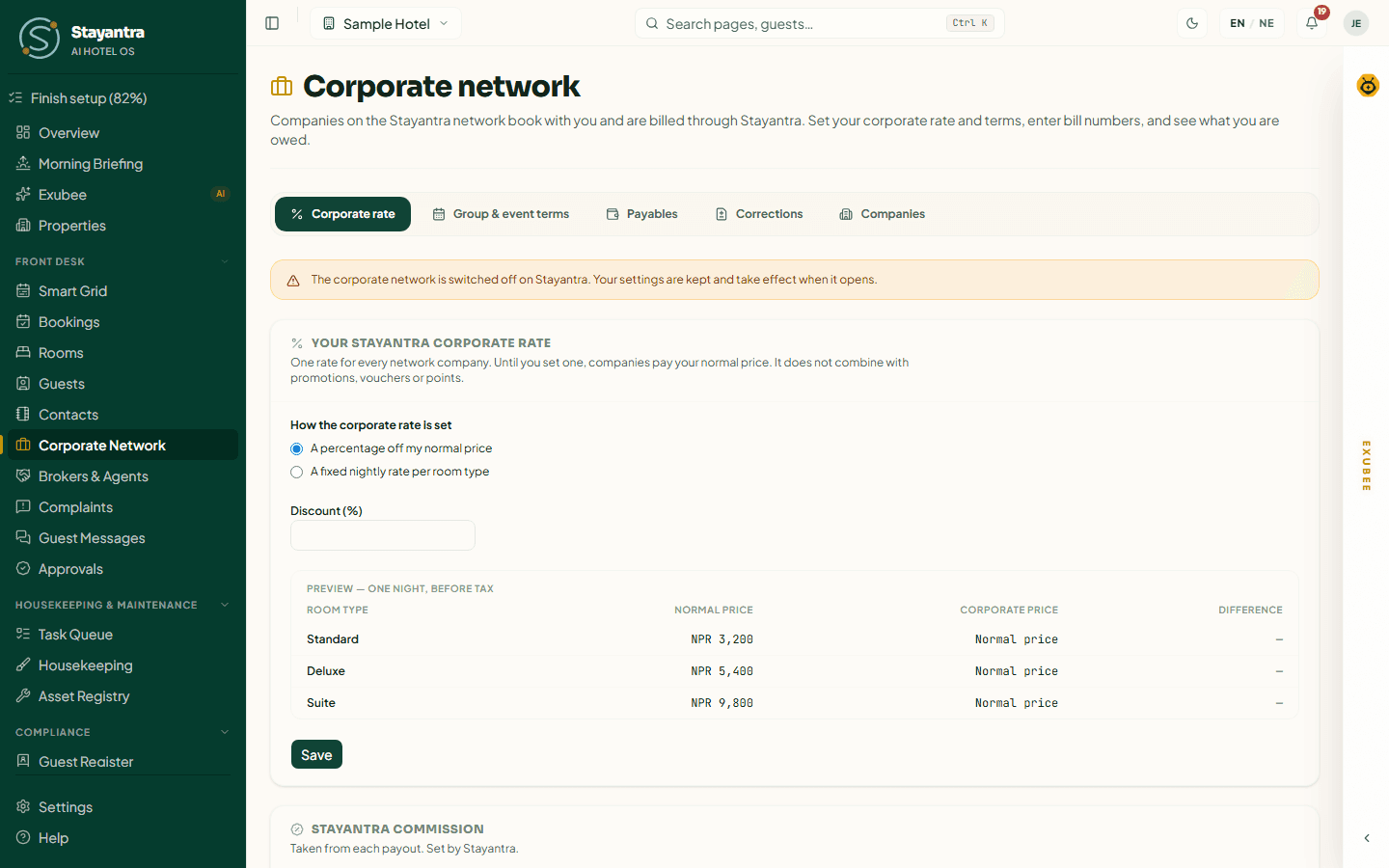
Under How the corporate rate is set, choose one:
- A percentage off my normal price — enter the Discount (%), above 0 and below 100.
- A fixed nightly rate per room type — enter the Corporate rate for each room type.
The Preview — one night, before tax table shows each room type's normal price, corporate price and the difference. Click Save.
One rate applies to every company on the network. Until you set one, companies pay your normal price. The corporate rate does not combine with promotions, vouchers or Stayantra Rewards points.
The Stayantra commission panel shows the commission Stayantra takes from each payout. Stayantra sets it; until it does, it reads "Not set yet".
Set your group terms
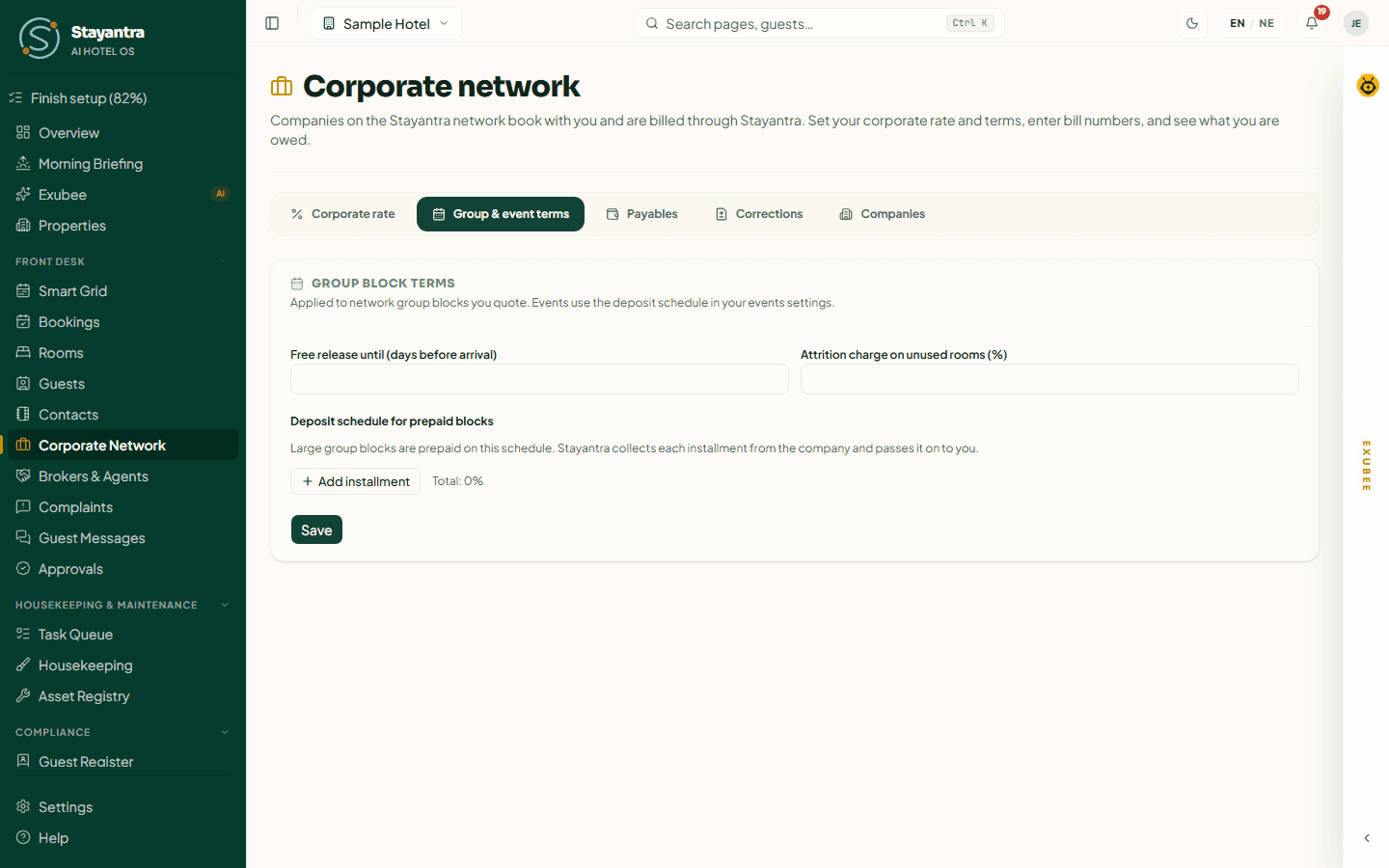
These apply to group blocks you quote to network companies (see Requests from companies):
- Free release until (days before arrival) — until then, the company can release rooms at no charge.
- Attrition charge on unused rooms (%) — what it pays for rooms left unused after that.
- Deposit schedule for prepaid blocks — large blocks are prepaid in installments: each is a percentage, due When the company accepts or a number of days before arrival. Add installment for more. Together they cannot pass 100%.
Stayantra collects each installment from the company and passes it on to you. Events use the deposit schedule in your events settings — see Events and banquets.
Bill a stay to a company
Make the booking
Book the stay as usual. See Make a booking.
Ask the guest to confirm
If the guest is a verified employee of a network company, the booking confirmation and the booking page's billing section say so: "{Guest} belongs to a company on the Stayantra network…". Click Ask {guest} to confirm. A single-use link goes to the guest's own email and lasts 24 hours; the guest can also confirm under My company in the Stayantra app. The desk never sees where people work until the guest has been asked.
Bill the company
The line next to the company changes from Waiting for the guest to confirm to Confirmed. Click Bill {company}. The bill now reads "Billed to Stayantra for {company}", and the charges the company's policy covers move to the company's bill.
If the link expired or the guest declined, click Send the link again or bill the guest as usual.
During the stay and at check-out
- The booking page shows the guest's bill and the company's bill side by side. The company's bill is read-only: "Stayantra settles this bill at check-out and collects it from {company}. No cash or refunds are taken on it at the desk."
- If the company caps the room price per night, the part above the cap goes to the guest's bill.
- Check-in, and any change to the stay, re-checks the company. If it can no longer cover the stay (it has been blocked, or has no credit left), company billing is removed and the guest pays.
- At check-out the guest pays their own bill; Stayantra settles the company's. There is no credit override at the desk.
- A no-show on a company-billed stay is settled through Stayantra the same way.
The guest sees the company bill in the Stayantra Go app as "Billed to {company}". They cannot pay or split it.
When company billing is refused
| What the desk sees | What to do |
|---|---|
| "{Company} has no Stayantra credit left for this stay." | Bill the guest instead. |
| The stay is outside the company's travel policy | Bill the guest, or change the stay to fit the policy. |
| "A stay sold through a broker cannot also be billed to a company." | A stay has a broker or a company, not both. |
| The company is blocked, suspended or not yet active | Bill the guest instead. |
| Network billing is switched off, or paused for your hotel | Bill the guest, and contact Stayantra if it is paused. |
Get paid — Payables
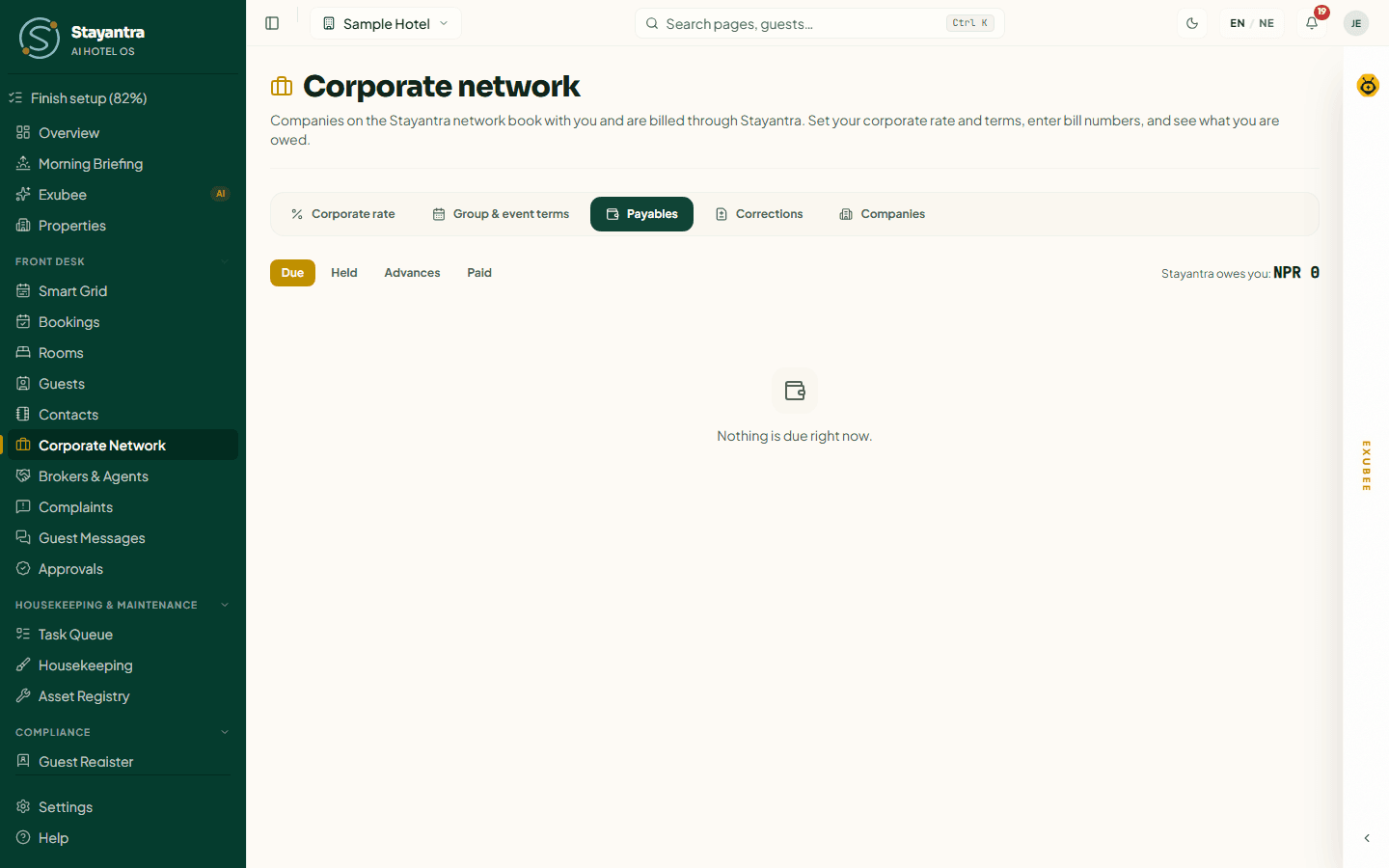
Payables shows what Stayantra owes you. Use Due, Held, Advances and Paid. The total line reads "Stayantra owes you: NPR …".
Each item shows what it is For (Room stay, No-show, Event, Group attrition), the Company, the Reference, what is Payable to you, when the Payout is due, your IRD bill no. and the Status.
Issue the VAT invoice
Issue the tax invoice to the company from your IRD-approved billing software, under the company's PAN (the Companies tab shows it).
Enter its number
Type the bill number in IRD bill no. on the item and click Save. The payout is released only once the bill number is in.
Stayantra pays your share, less its commission, about 15 days after the stay is settled — as long as the item is not held and you have a verified payout account.
| Status | What to do |
|---|---|
| Ready for the next payout | Nothing — it is paid in the next payout. |
| Needs your IRD bill number | Enter the bill number. |
| Held — waiting for the company to confirm | The charge was well above what the company authorised. It clears on its own after 7 days unless the company disputes it. |
| Disputed by the company | Stayantra resolves it with the company. |
| Payouts on hold | Contact Stayantra from Help → Open a support ticket. |
| Payout account not verified | The owner sets up the payout account and waits for Stayantra to verify it. |
Advances are installments Stayantra has collected from a company for a prepaid event or group block (Awaiting the company, Received by Stayantra, Applied, Refunded). Enter your Receipt no. for each. On Paid, the Payouts list shows every payout with its bank reference and a Payout advice.
[!IMPORTANT] Stayantra is not an IRD billing system. You always issue the VAT invoice to the company yourself, from your own billing software. Stayantra's statements say "not a tax invoice".
The payout account (owner)
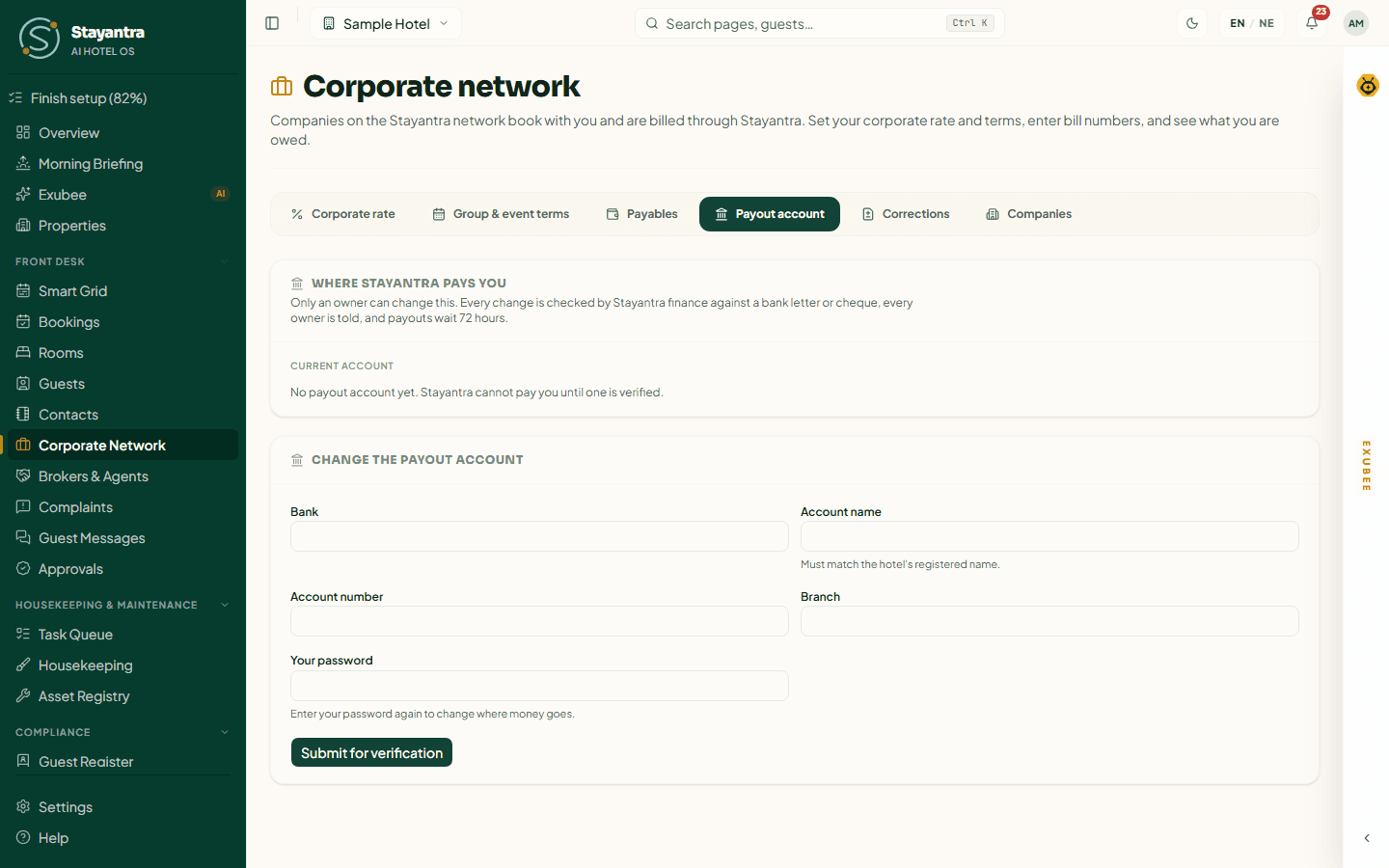
Where Stayantra pays you shows the Current account — bank, account name, masked number, branch — and its status: Awaiting verification, Verified, Rejected or Replaced.
To change it, fill in Change the payout account: Bank, Account name (it must match the hotel's registered name), Account number, Branch and Your password, then click Submit for verification. Stayantra finance checks every change against a bank letter or cheque, every owner is told, and payouts wait 72 hours after a change.
Corrections
If a company was charged the wrong amount for a settled item, open Corrections.
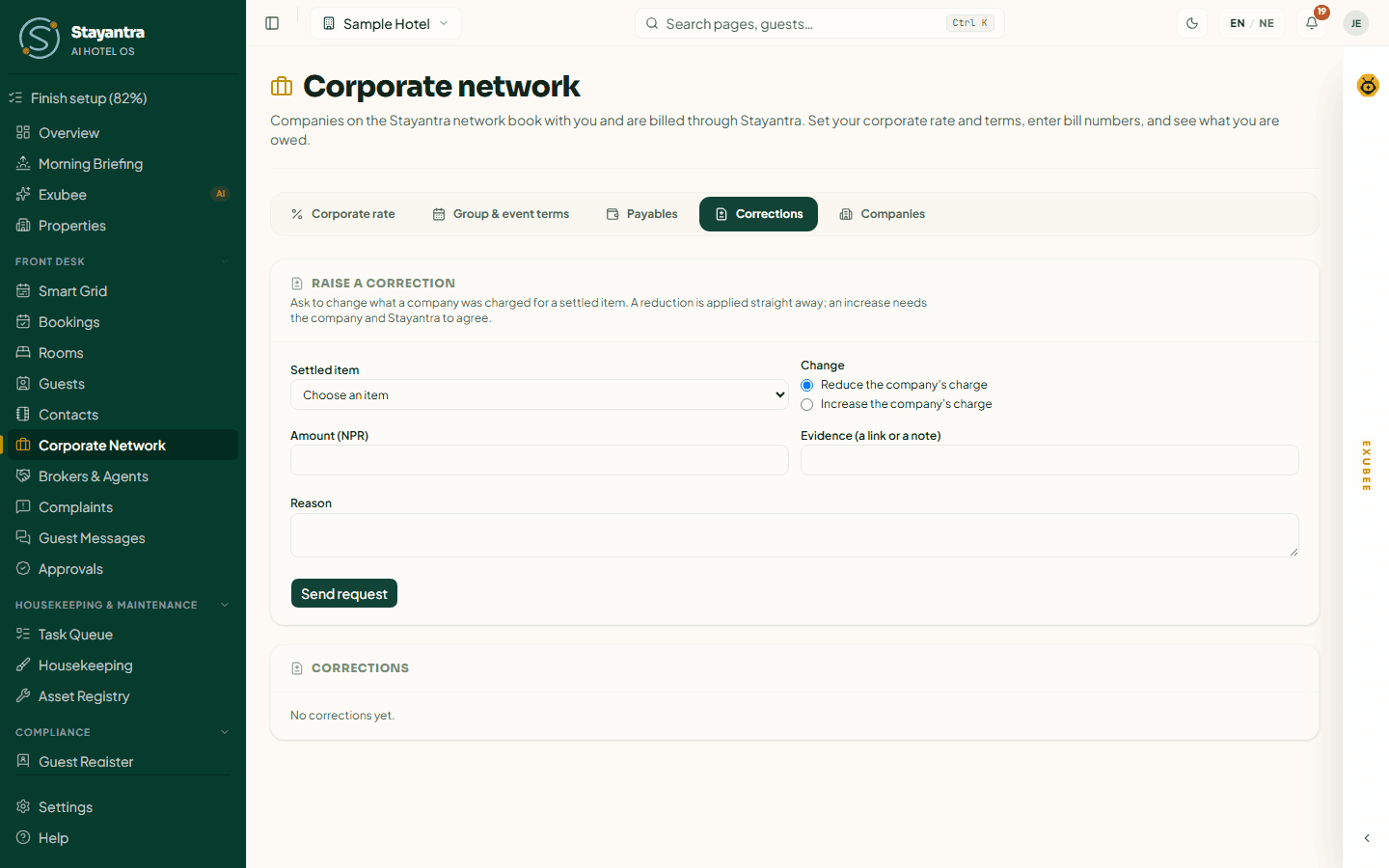
Under Raise a correction, choose the Settled item, the Change (Reduce the company's charge or Increase the company's charge), the Amount (NPR), Evidence (a link or a note) and the Reason. Click Send request.
- A reduction is applied straight away.
- An increase waits for the company to agree, then for Stayantra.
The list shows each request's status: Waiting for the company, Waiting for Stayantra, Applied or Rejected. An applied correction changes what Stayantra owes you in a later payout.
Companies
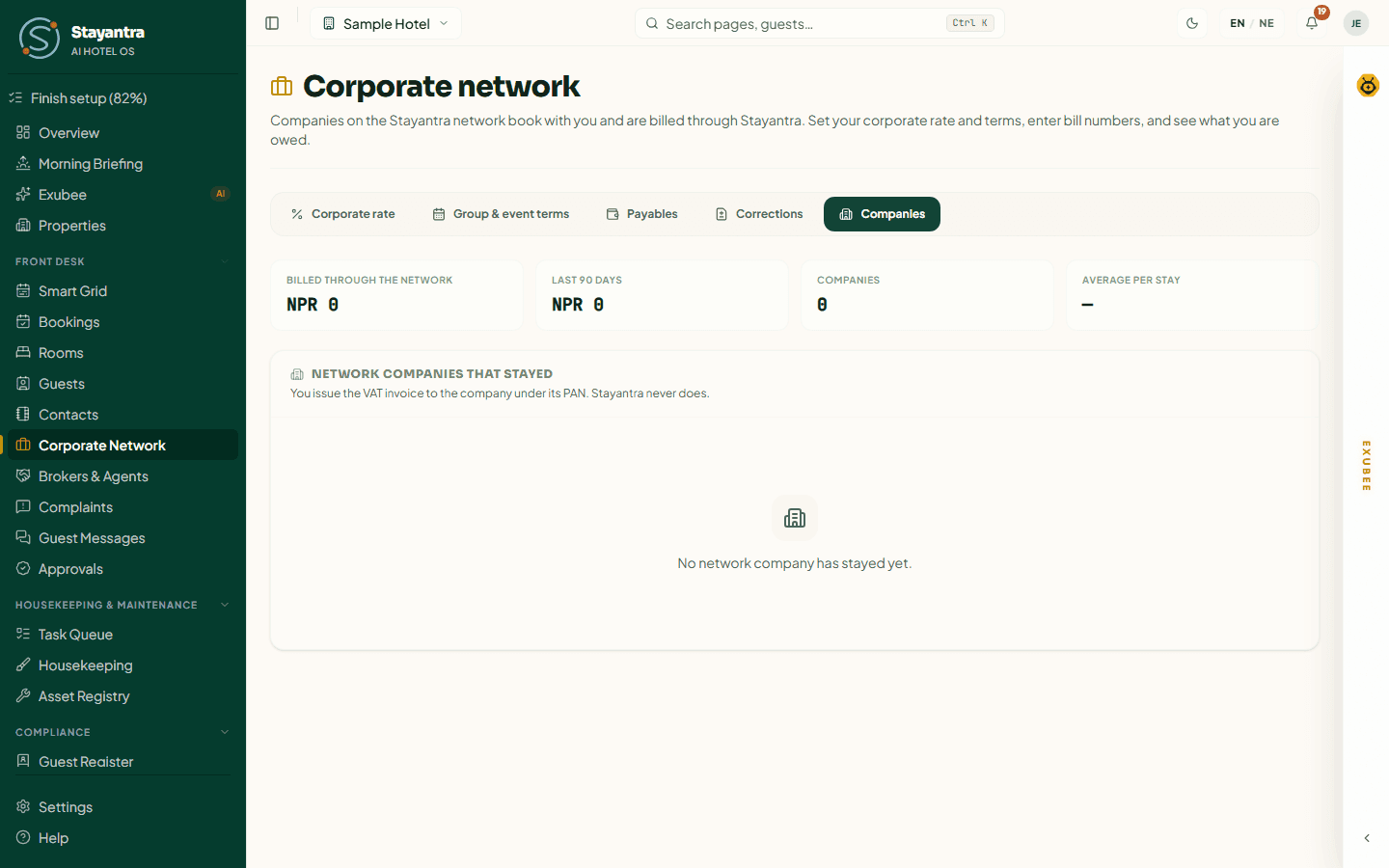
Companies lists every network company that has stayed with you: its legal name, its PAN (with "VAT registered (self-declared)" or not, and a Check on IRD link), and its stays, events, groups, what was billed and when it was last settled. The tiles show what was billed through the network in the last 90 days, the number of companies and the average per stay.
Who can do what
| Action | Owner | Manager | Front desk |
|---|---|---|---|
| See the Companies tab | Yes | Yes | Yes |
| Ask a guest to confirm and bill the stay to the company | Yes | Yes | Yes |
| Set the corporate rate and group terms | Yes | Yes | No |
| Payables, IRD bill and receipt numbers, corrections | Yes | Yes | No |
| See and change the payout account | Yes | No | No |
Contacts
The hotel's own phone book — suppliers, technicians, doctors and emergency numbers, with documents, call history and a printable emergency sheet.
Brokers and agents
Record the brokers, travel agencies and OTAs that sell your rooms — their commission terms, who collects the money, TDS, and the running account of who owes whom.