
Revenue management
The Revenue part of the sidebar is where you decide what a night costs and when it can be sold. You set up your rates and packages once on What You Sell; Stayantra sends them to your website, the marketplace and your OTAs. Exubee then suggests price changes from occupancy, local events and competitor rates, and a manager approves them.
Where to find it: the Revenue group in the sidebar: What You Sell, Restrictions, OTA Allotments, Group Blocks, Market Events and Competitors. Who can use it: owners and managers. Staff do not see these pages. Some parts are owner-only; they are marked below.
| Page | What it is for | Plan module |
|---|---|---|
| What You Sell | Every rate and package, and Stayantra Rewards | Included in every plan |
| Restrictions | Stop-sell, minimum stay, closed to arrival or departure, one-day prices | Channel Manager |
| OTA Allotments | Rooms held back for an OTA | Channel Manager |
| Group Blocks | Rooms held for a group | Brokers & Agents |
| Market Events | Festivals and local events that move demand | Included |
| Competitors | Nearby hotels and their prices | Included |
A page whose module is not on your plan appears dimmed with a padlock in the sidebar, and opens to "… isn't on your plan" with an Open Plan & Billing button.
[!NOTE] The old Promotional Packages page is gone. A package is now simply a rate that includes something — you make it on What You Sell. Old links to the packages page open What You Sell.
What You Sell: rates and packages
What You Sell lists every offer your hotel sells. An offer with nothing included is a room-only rate. Add inclusions — breakfast, an airport pickup, a spa session — and it becomes a package.
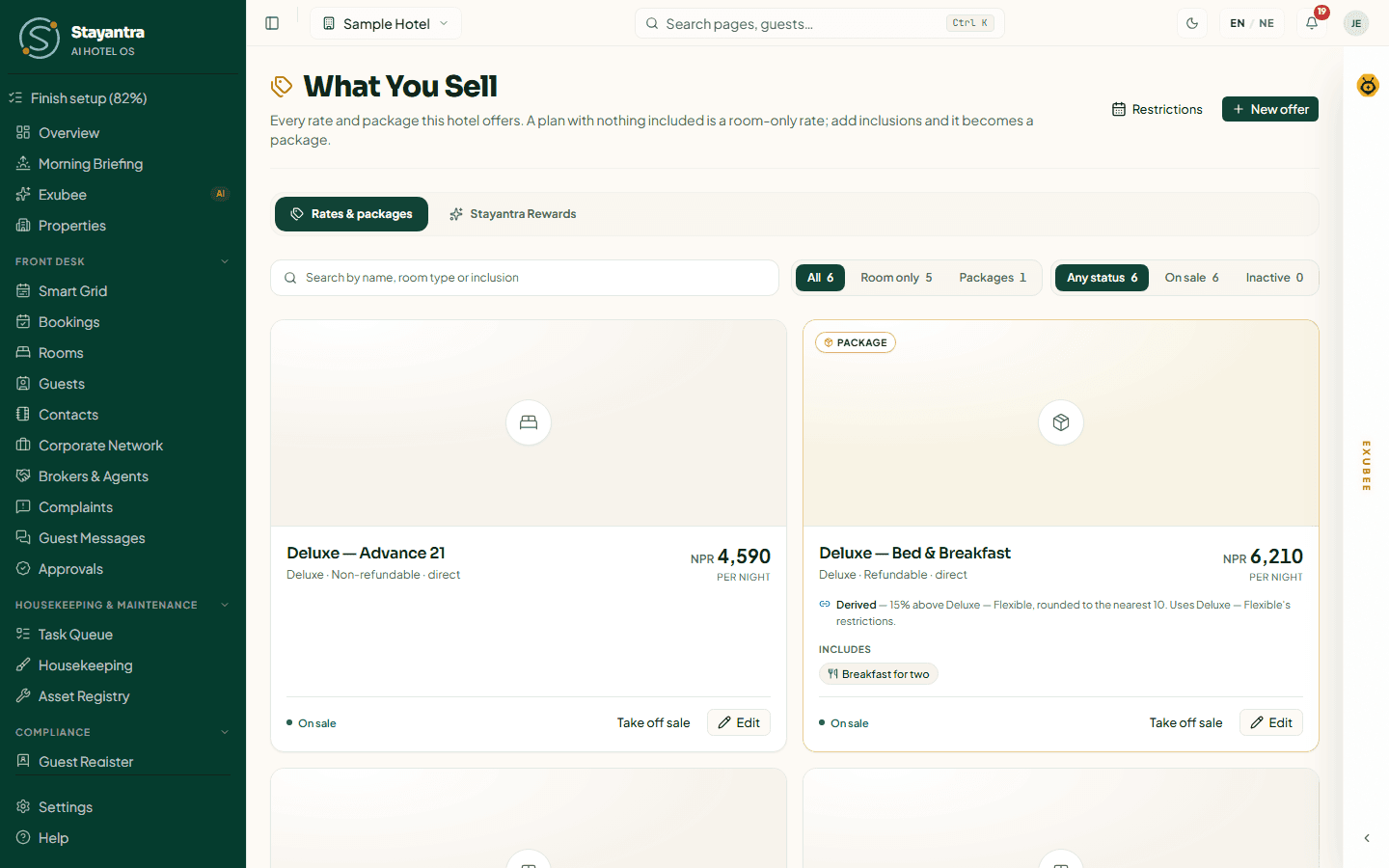
The page has two tabs: Rates & packages and Stayantra Rewards.
Read the list
- Search by name, room type or inclusion. Filter by All, Room only or Packages, and by Any status, On sale or Inactive. Offers on sale are listed first.
- Each card shows the room type, Refundable or Non-refundable, the price per night, what is included, any pricing rules, and the status: On sale or Inactive — not offered.
- A card with Derived takes its price from another plan, for example "10% above Standard — Flexible". A plan other plans follow says "N plans take their price from this one".
- Packages carry a Package badge. Rewards badges such as 2× points appear when the plan gives extra Stayantra Rewards points.
Create a rate or package
You need at least one room type first. If you have none, the page says "Add a room type first — a rate plan prices one." See Rooms and rates.
Open the editor
Press New offer. The dialog is called Something new to sell.
1 · The room, and what a night costs
Fill Name (for example "Standard — Flexible" or "Half Board"), pick the Room type, enter the Nightly rate (NPR), and choose Refundable or Non-refundable under Cancellation. Optionally add a photo — it shows on the offer card guests see.
Choose how it is priced
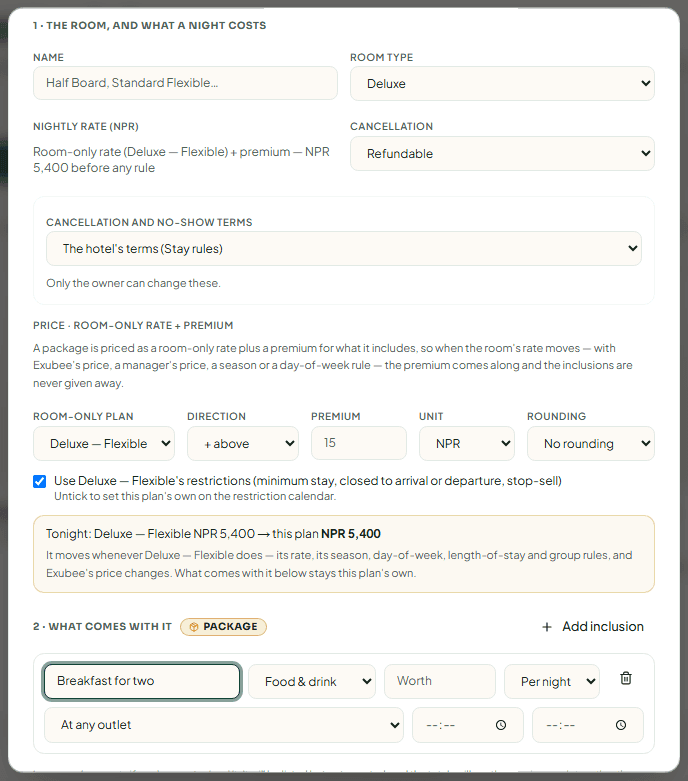
Set my own gives the plan its own price. Derived from another plan makes it follow another plan of the same room type: choose Follows, + above or − below, the amount (% or NPR) and Rounding. A preview shows tonight's price, for example "Tonight: Standard — Flexible NPR 4,000 → this plan NPR 4,400".
2 · What comes with it
Leave this empty for a room-only rate, or press Add inclusion to make a package (see Inclusions).
3 · When the price changes
Add rules that raise or lower the price (see Pricing rules). Check the What a guest pays example to see the result for a sample stay.
Save
Press Create. If the button is greyed out, the reason is shown next to it, for example "Give the plan a name to save it."
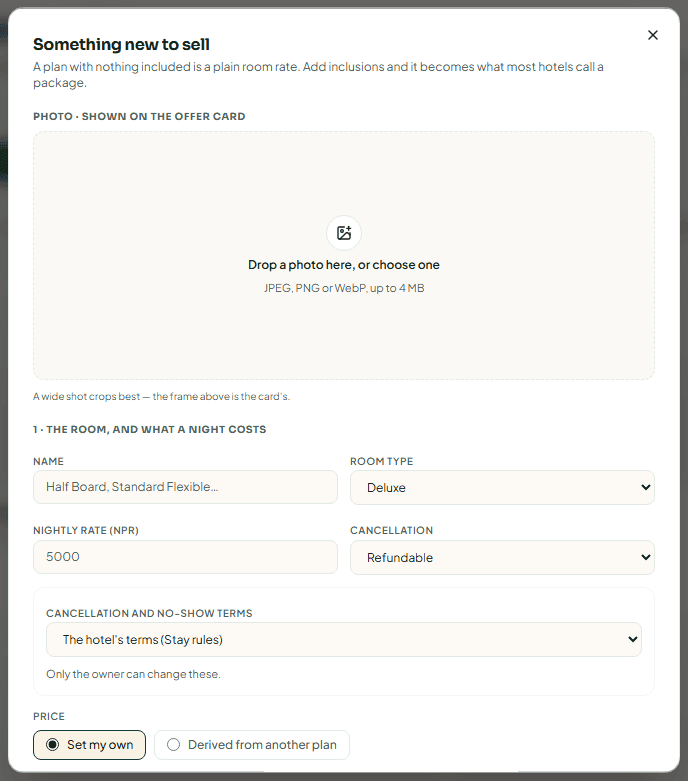
To change an offer, press Edit on its card (the dialog is called Edit what you sell). If other plans take their price from it, a warning says that changing its rate or rules changes theirs too.
A new plan is sold on your direct channels (your website, the booking widget, the marketplace and the Go app). Which OTAs sell it is chosen when you connect each OTA — see OTA sync.
Cancellation and no-show terms
Each plan either uses The hotel's terms (Stay rules) or This plan's own terms: Free cancel (hours before), Late cancel (% of paid), No-show fee (%), and whether the no-show fee is a share of The first night's room rate or The whole stay's room rate. The preview shows the sentence guests read.
Only the owner can change these; managers see them read-only. A booking keeps the terms it was made under, even if you change them later. The owner is notified whenever a plan's terms change.
Inclusions
An inclusion is something the price covers. Each row has:
| Field | What to enter |
|---|---|
| Label | What the guest reads, for example "Breakfast for two". |
| Department | Food & drink, Transport, Laundry, Spa or Other. |
| Worth | What it is worth in NPR. Leave empty if you have not priced it — it is listed, but cannot pay for anything. |
| Frequency | Per night (one use each night) or Per stay (one use in total). |
| Outlet and times | Food & drink only: At any outlet or one outlet (restaurant, room service, bar, poolside, banquet), and the meal period it is served in. |
How an inclusion is honoured at the hotel. When staff bill a restaurant, laundry or transport order to a guest's room, they choose from the Guest's package list: Charge to the room or Included in package: Breakfast for two. The package pays up to the inclusion's worth, and anything above that is charged to the room. The folio line reads, for example, "Included in package (Breakfast ×2): covered NPR 1,600 of 2,300". Food & drink is counted per guest by default.
Each booking keeps a copy of what it included when it was made, so later edits to the package do not change what a guest already bought.
How a package is priced
A package is always priced as the room-only rate plus a premium. When you add the first inclusion, the pricing switches to Price · room-only rate + premium: choose the Room-only plan it follows (by default, the room type's room-only plan with the same refundability) and the Premium. So when Exubee or a manager changes the room price, every package on that room follows.
If there is no room-only plan for that room type, the editor says "Create a room-only plan for this room type first (one with nothing included, on sale) — a package is priced as that rate plus a premium."
Pricing rules
Rules change the price for some stays. They apply in this order: Season, Day of week, Length of stay, Rooms or guests.
| Rule | Fields | Example |
|---|---|---|
| Season | From, To | +20% over the autumn festivals |
| Day of week | Arriving on | +10% on Friday and Saturday |
| Length of stay | From this many nights | −10% from 7 nights. Only the longest tier the stay reaches applies; tiers never stack. |
| Rooms or guests | From this many rooms / Or this many guests | −5% from 3 rooms |
Each rule sets Adjust the rate by % (from −99 to +500). A derived plan has no rules of its own — it takes them from the plan it follows.
Take an offer off sale
Press Take off sale on the card. It stops being sold straight away (there is no confirmation) and is closed on your OTAs. Press Put on sale to bring it back. Offers are never deleted.
If other plans take their price from it, the card says it "cannot come off sale on its own" and offers Take all N off sale or Keep them on sale.
Price floor and ceiling
At the foot of the page, Price floor and ceiling sets the lowest and highest nightly price Exubee may set for each room type. Exubee's prices always stay between 70% and 300% of the base price; a Floor (NPR) or Ceiling (NPR) narrows that further. Leave a box blank for no bound and press Save. Prices you type yourself are not limited by these.
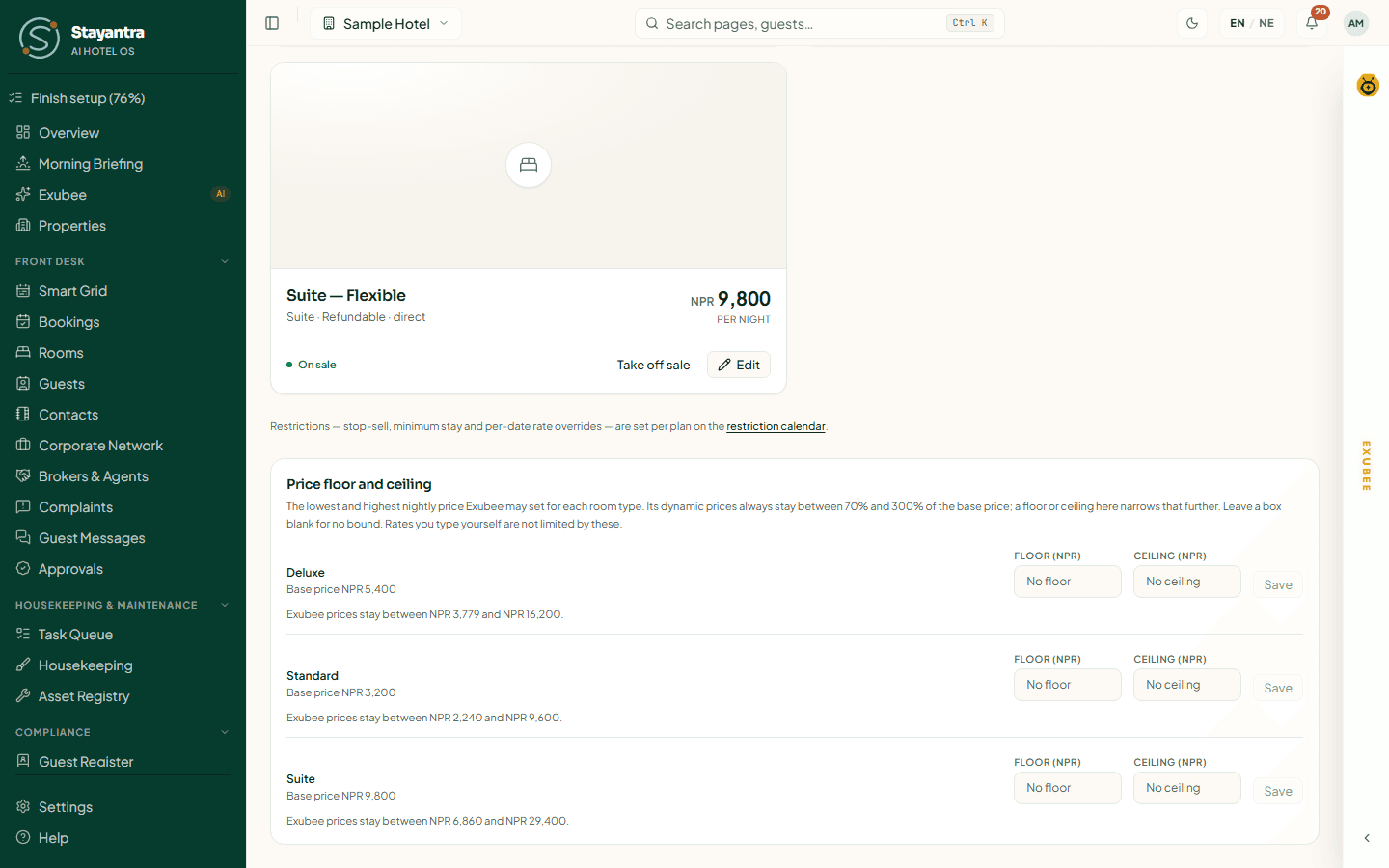
Owners and managers see this panel once at least one room type exists.
The Stayantra Rewards tab
Stayantra Rewards is the points network guests earn in at one hotel and spend at any other. On this tab an owner or manager can Join Stayantra Rewards, see the hotel's points wallet (Buy points; wallet points never expire), set How your programme works (how many points guests earn and how much of a bill they may pay with points), and create Points offers that guests buy with points. Rewards works for hotels that sell in Nepali rupees and needs the Loyalty module.
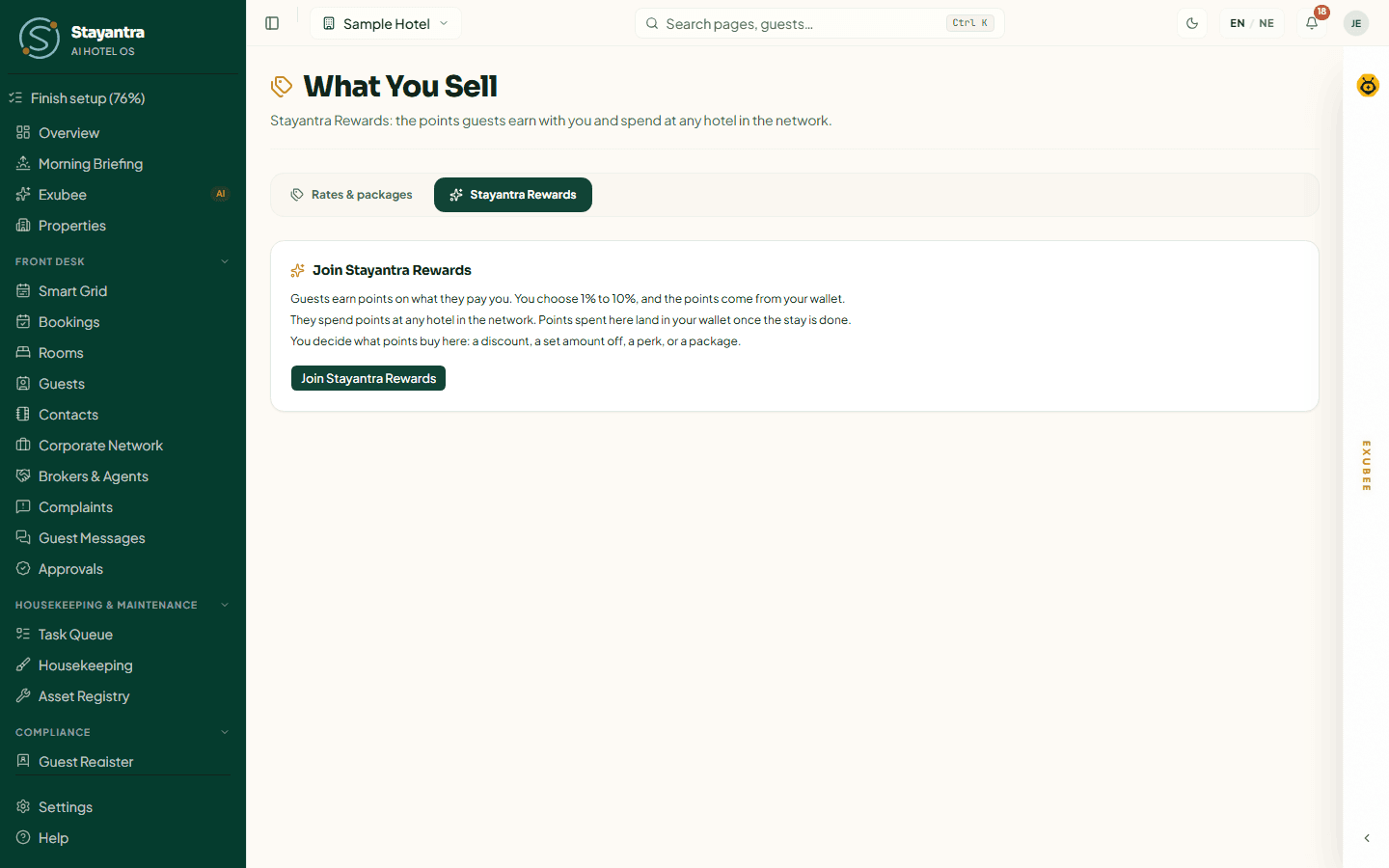
A rate plan can also give extra points: in the editor, section 4 · Stayantra Rewards sets a Bonus multiplier, Bonus points per stay and Points per night (points + cash). How guests see the programme is covered in Rewards and referrals.
Restrictions
Restrictions decides which dates can be sold, and on what terms, for one rate plan at a time. The rules apply on your booking engine and are sent to your OTAs.
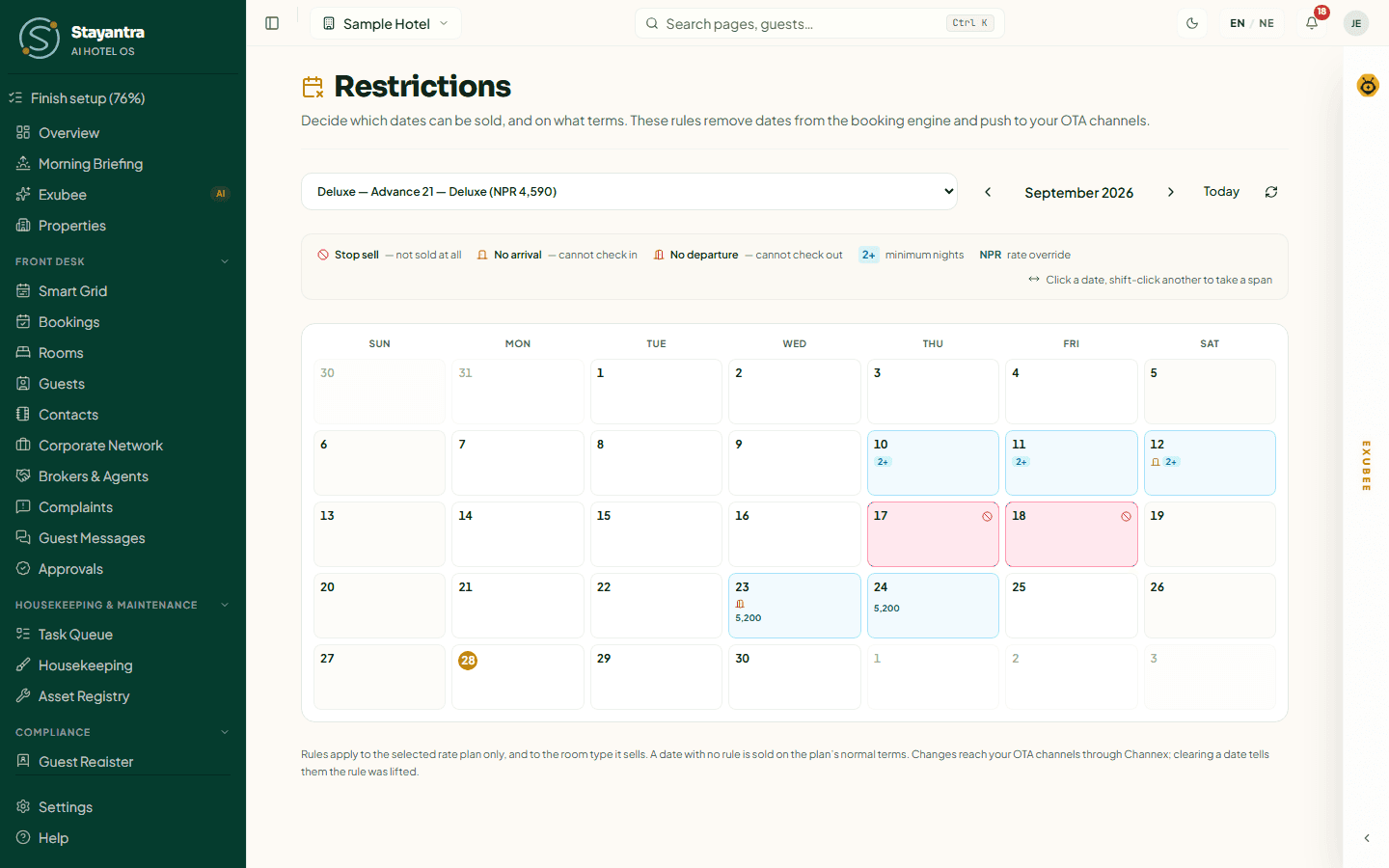
Where to find it: Revenue → Restrictions, or the Restrictions link on What You Sell. Needs: the Channel Manager module.
Read the calendar
Pick the plan in the Rate plan list (only plans on sale are listed). Move between months with the arrows or Today. Each date shows its rules:
| Mark | Rule | Meaning |
|---|---|---|
| Stop sell | Stop sell | Not sold at all. No stay may include this night, from any channel. |
| No arrival | Closed to arrival | Guests already staying may stay through it, but nobody may check in on it. |
| No departure | Closed to departure | Nobody may check out on it, so stays must run past it. |
| 2+ | Minimum stay | A stay that checks in on this date must be at least this many nights. |
| NPR | Rate override | A different base price for this date. |
A date with no rule is sold on the plan's normal terms.
Set restrictions
Pick the dates
Click a date. To take a span, click the first date and shift-click the last. The bar below shows "N dates selected".
Open the editor
Press Set restrictions.
Set the rules
Switch on Stop sell, Closed to arrival or Closed to departure, and fill Minimum stay, Maximum stay or Rate override as needed. Leave a box empty for no rule.
Apply
Press Apply to this date (or Apply to N dates). To remove every rule from the dates, press Clear these dates, then Confirm — remove all rules.
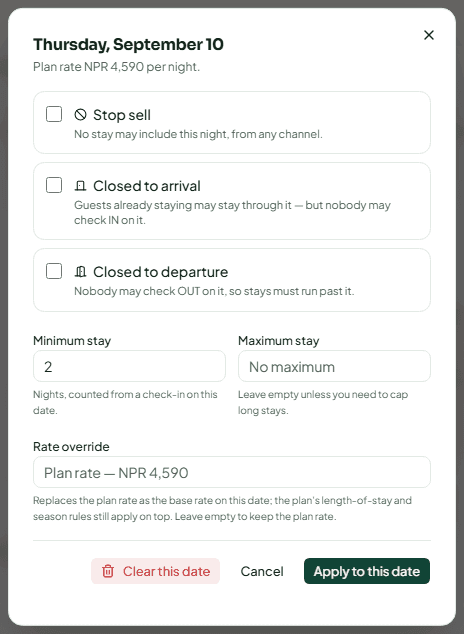
[!WARNING] When you select several dates whose rules differ, fields show Mixed. Saving writes the same values to every selected date: a Mixed switch you leave alone is saved as off, and a Mixed box you leave empty is cleared. Set every field you want to keep before you apply.
A Rate override replaces the plan's price as the base price on those dates; season and length-of-stay rules still apply on top. It cannot be below the room type's minimum price.
If a plan is derived and uses its parent's restrictions, set them on the parent. The page tells you which plan to open. To give a derived plan its own restrictions, untick Use … restrictions in its pricing on What You Sell.
Changes reach your OTAs through the channel manager within a few minutes. Clearing a date tells the OTAs the rule was lifted.
OTA Allotments
An allotment holds some rooms of a room type back from direct sale for one OTA, so your own website cannot sell the rooms you promised to that OTA.
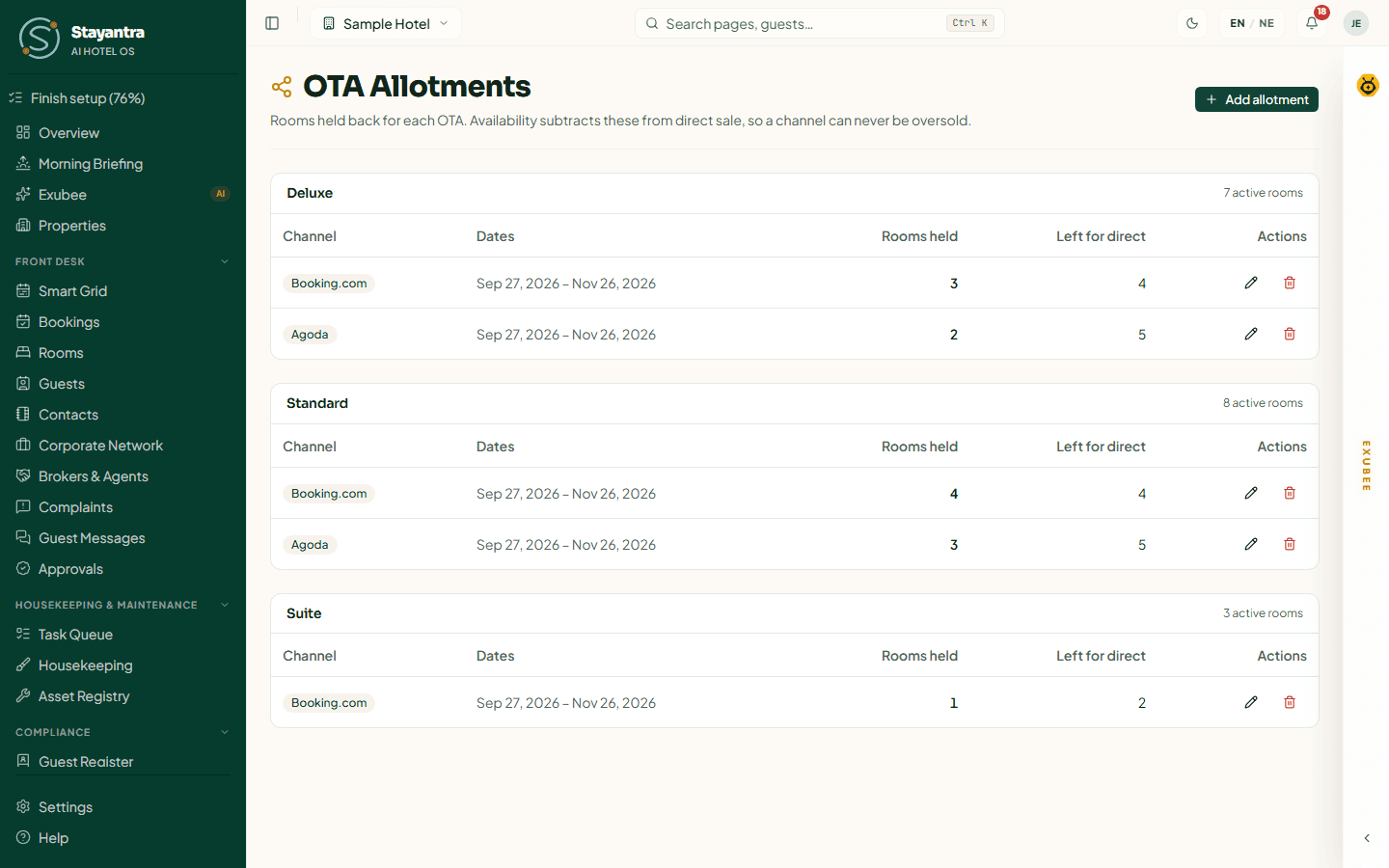
Needs: the Channel Manager module. Allotments can be set for Booking.com, Agoda and Expedia.
Add an allotment
Press Add allotment.
Fill it in
Choose the Room type and Channel, enter Rooms held, and set From and To (both dates included). Leave the dates empty for an allotment with no end.
Save
Press Save. The table shows Rooms held and Left for direct for each window.
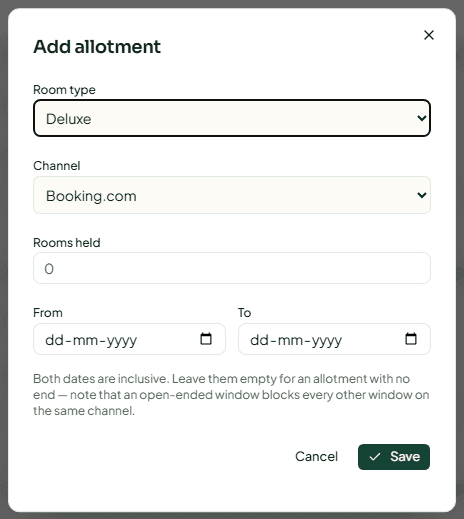
- Editing an allotment changes only the room count. To move the dates or change the channel, remove it and add it again.
- Two windows for the same channel and room type cannot cover the same night. An open-ended window blocks every other window on that channel.
- To remove one, press the bin icon, then Release rooms. The rooms go back to direct sale.
[!NOTE] An allotment only reduces what your direct channels can sell. It is not sent to the OTA as a separate count: the OTAs keep receiving your normal availability.
Group Blocks
Group Blocks holds a number of rooms for a wedding, tour or conference, with a release date and optional contract terms (attrition, deposit). It also lists group requests guests send from the marketplace. See Multi-room bookings and groups for the full guide.
Market Events
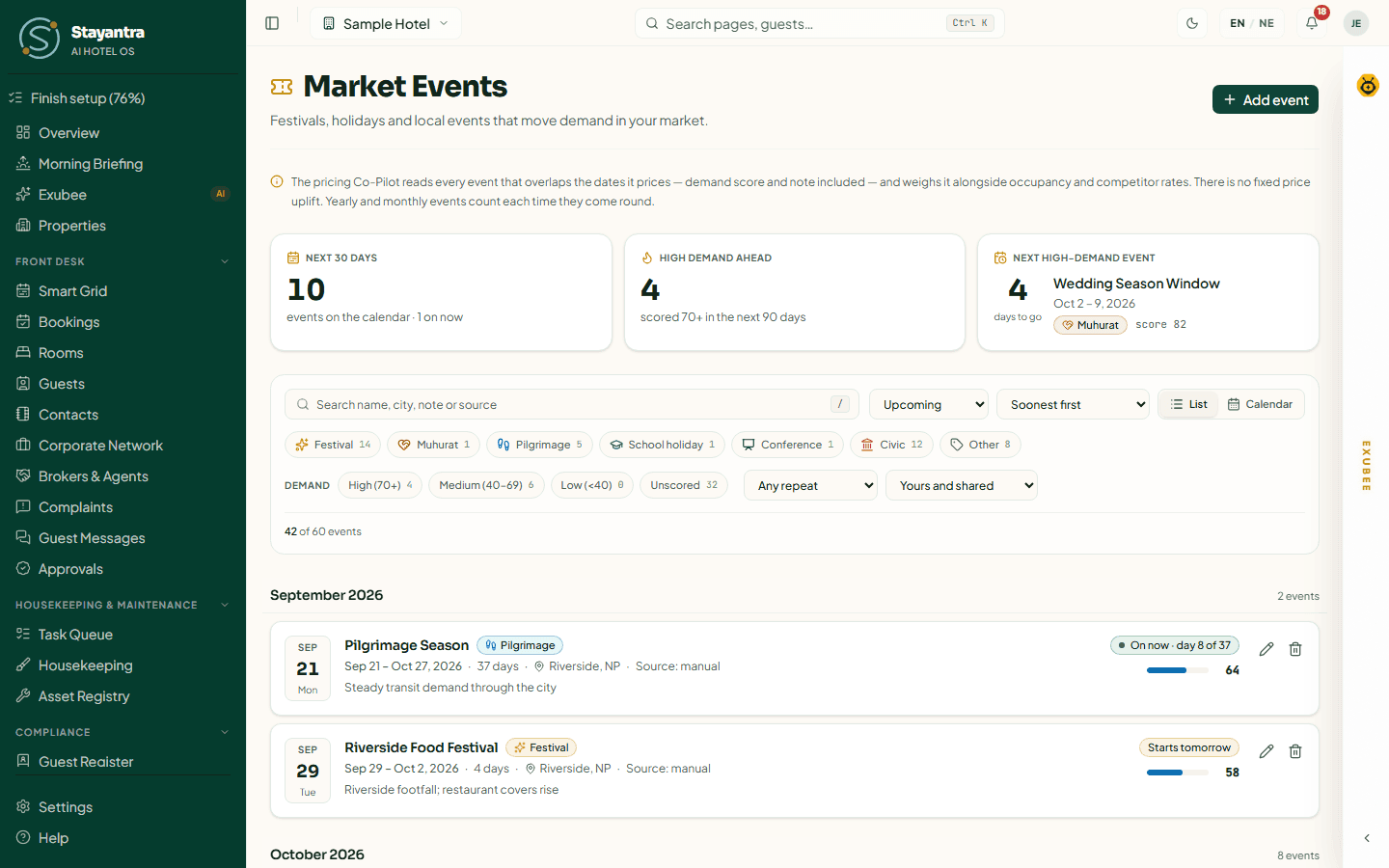
Market Events is your calendar of festivals, holidays and local events that change demand in your area. Exubee reads every event that overlaps the dates it prices — its demand score and your note — and weighs it with occupancy and competitor rates.
What you see
- Next 30 days, High demand ahead (events scored 70 or more in the next 90 days) and the Next high-demand event.
- The list, or the Calendar view. Filter by type, by demand (High (70+), Medium (40–69), Low (<40), Unscored), by repeat, and by origin: Yours and shared, Added by your hotel or Shared calendar. Press / to jump to the search box.
- Events from the shared national calendar (for example Dashain and Tihar) carry a lock badge. You cannot edit them, but Exubee still uses them.
Add an event
Open the form
Press Add event.
Describe it
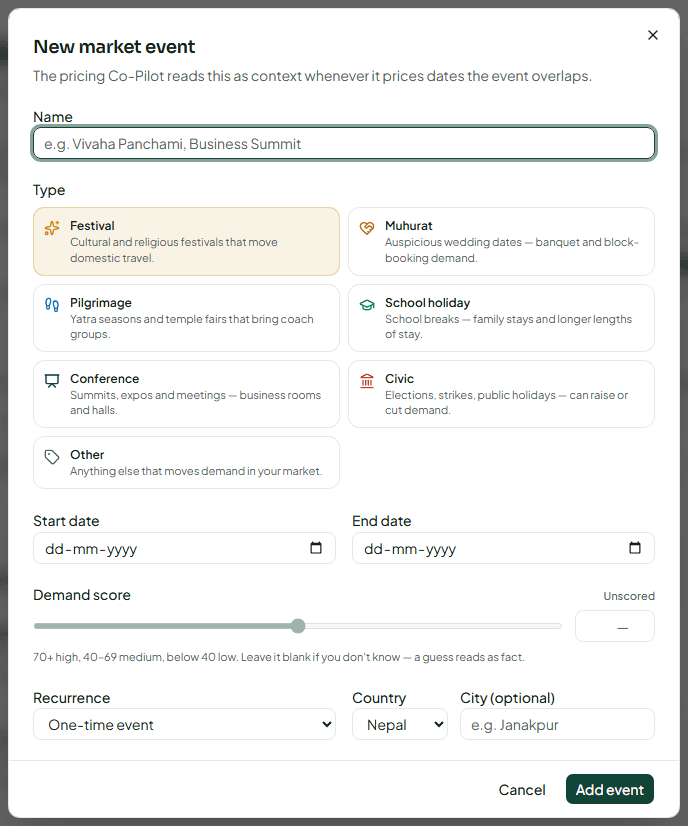
Fill Name (for example "Vivaha Panchami" or "Business Summit") and choose the Type: Festival, Muhurat, Pilgrimage, School holiday, Conference, Civic or Other. Set the Start date and End date.
Score the demand
Set Demand score from 0 to 100: 70 and above is high, 40–69 medium, below 40 low. If you do not know, leave it Unscored — a guess reads as fact.
Repeat, place and notes
Choose One-time event, Repeats every year or Repeats every month. Add the Country, an optional City, and any Notes & extra considerations (for example "Temple road closed; guests arrive the evening before").
Save
Press Add event.
Edit or delete your own events with the icons on each row.
How events affect prices. An event never changes a price on its own, and there is no fixed uplift. Each night Stayantra scores your events against your own booking history and passes the result to Exubee as one input. Any price change still comes as a suggestion you approve (see Dynamic pricing with Exubee).
Competitors
Competitors keeps a list of hotels you compare yourself with, and the prices they charge. Exubee uses the middle of your competitors' prices (from the last 21 days) when it suggests a price.
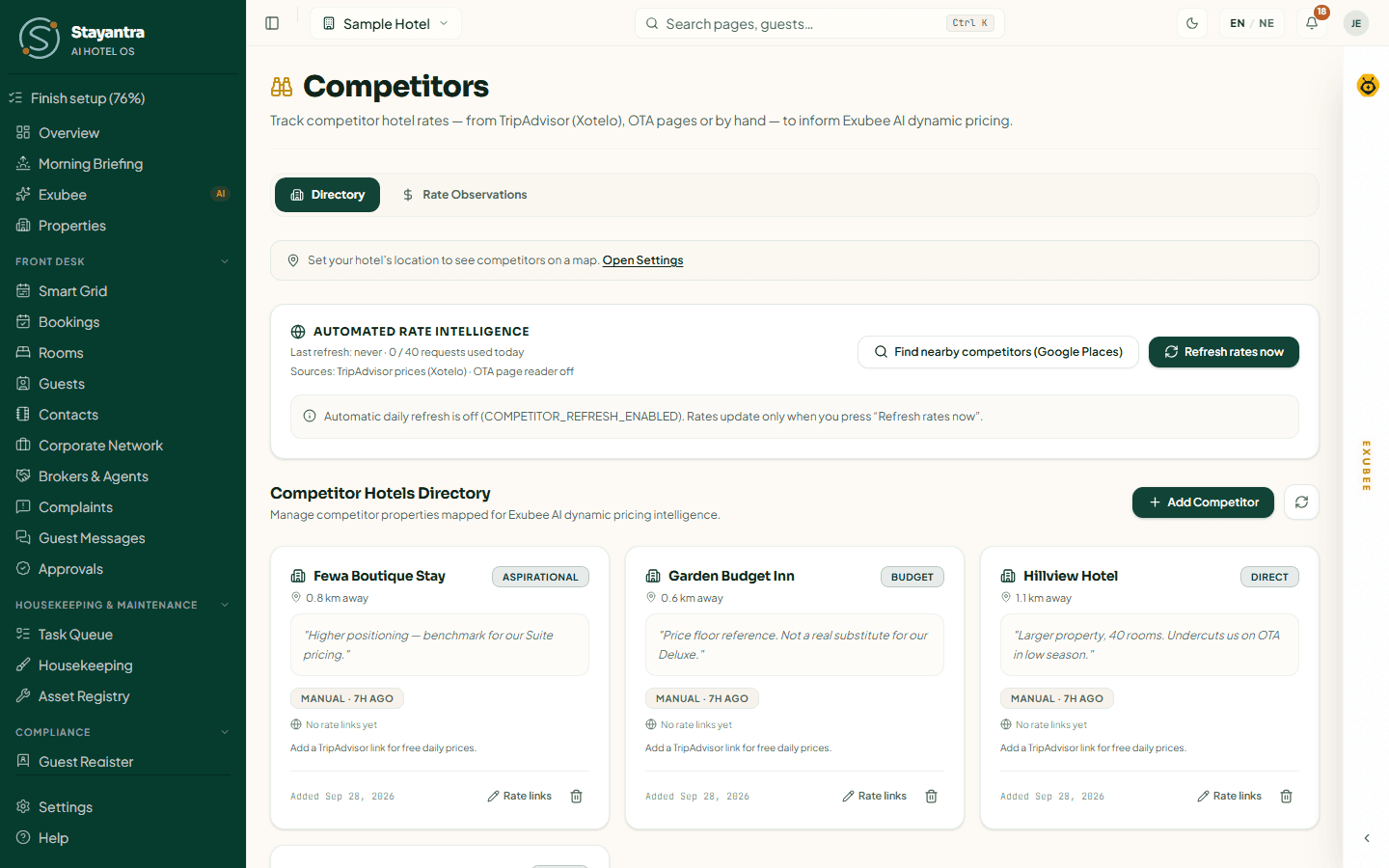
The page has the tabs Directory, Rate Observations and, when your hotel's map location is set, Map.
Add a competitor
Press Add Competitor and fill Hotel Name, Category / Tier (budget, direct, aspirational), Proximity Distance (km) and Notes & Market Context. Optionally paste the hotel's TripAdvisor Link — that enables free daily prices — and its Booking.com URL or Agoda URL. Press Add Competitor.
Find nearby competitors (Google Places) suggests hotels near you under Suggested Nearby Competitors. A suggestion is not used until you press Confirm; Dismiss removes it.
To stop tracking a hotel, press the bin icon on its card. It is removed at once.
Record prices
Prices reach Stayantra in two ways:
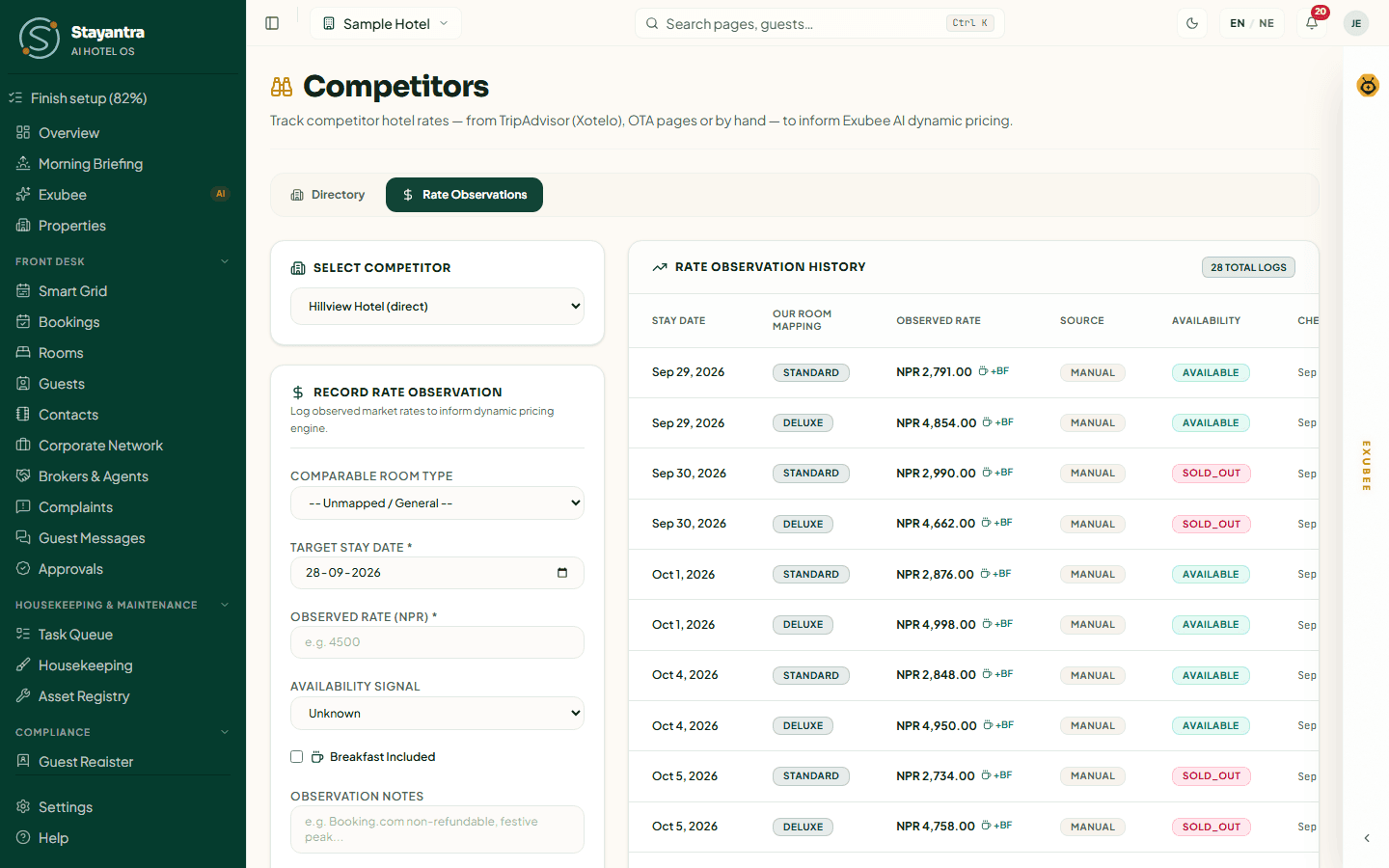
- By hand. Open Rate Observations, choose the hotel under Select Competitor, and fill Record Rate Observation: Comparable Room Type, Target Stay Date, Observed Rate (NPR), Availability Signal (Unknown, Available, Limited Inventory, Sold Out), Breakfast Included and notes. Press Log Observation. Everything recorded is listed under Rate Observation History.
- Automatically. For hotels with a TripAdvisor link, Refresh rates now fetches prices for the next two weeks. The Automated Rate Intelligence panel shows the last refresh and how many of the day's requests are used (up to 40 a day; you can refresh again after 10 minutes).
[!IMPORTANT] Stayantra turns this on. The daily automatic price refresh, and reading prices from Booking.com and Agoda pages, are switched on by Stayantra. Until then prices update only when you press Refresh rates now or record them by hand. Ask for it from Help → Open a support ticket.
Dynamic pricing with Exubee
Exubee suggests new room prices; a manager or owner decides. Nothing changes until someone approves, unless the owner has moved pricing to Auto-Pilot.
Where suggestions come from
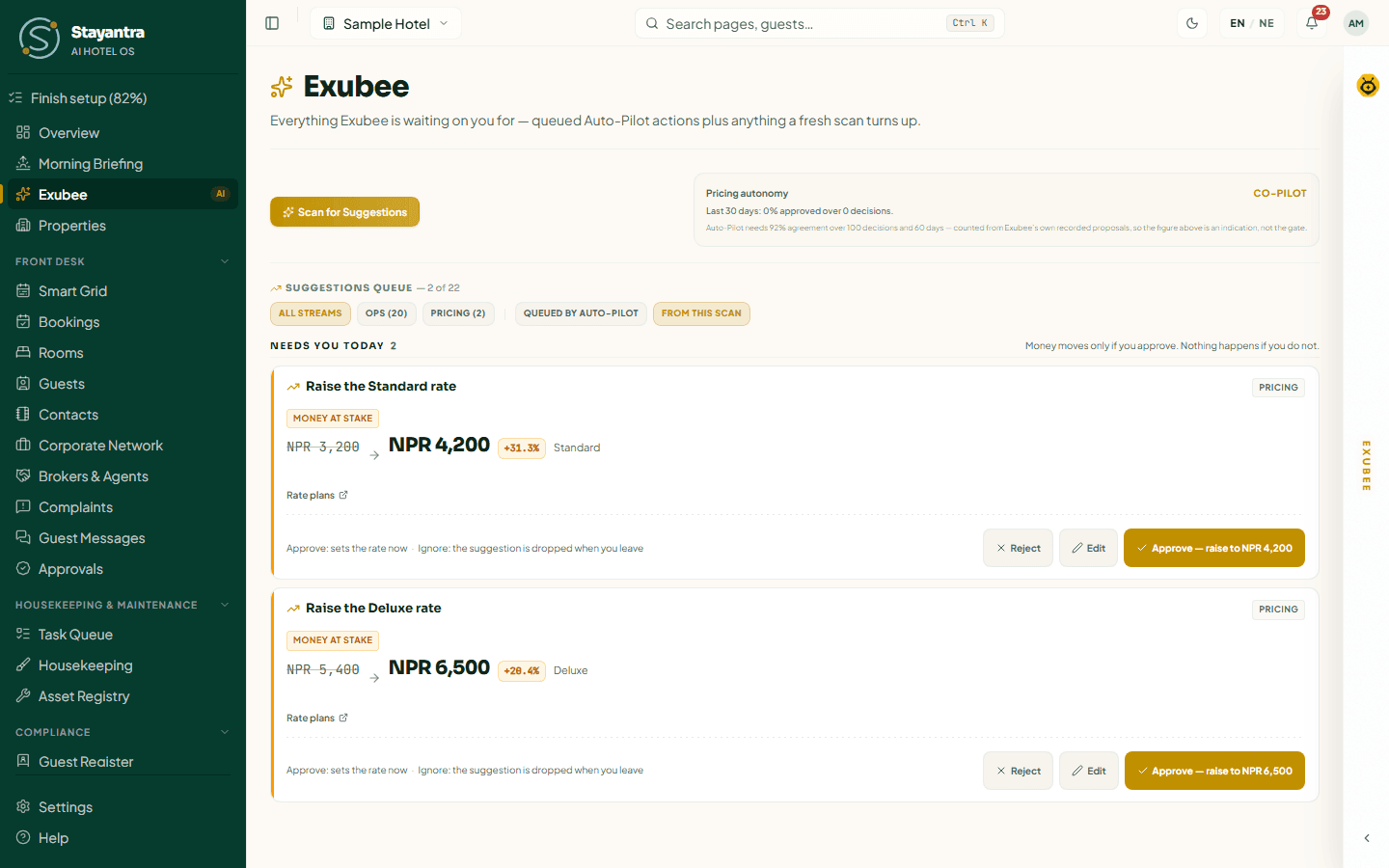
- When you ask. On the Exubee page, Scan for Suggestions asks Exubee to price the next 30 nights for each room type, using occupancy, market events and competitor prices. Each room type it would change becomes a card, for example "Raise the Deluxe rate".
- On their own. When an OTA booking arrives or changes, Exubee re-checks prices and files any change it wants as a suggestion in the same queue.
Approve, change or reject
On each card:
- Approve — raise to NPR 4,200 (the button names the result) sets the new price straight away.
- Edit opens Change this before approving: enter New price in NPR and say why (Why are you changing this?), then Save & Approve.
- Reject asks Why are you rejecting this? — Too Aggressive, Wrong Timing, Wrong Target, Factually Wrong or Other.
Your reasons and edits teach Exubee: over time they become policies.
Suggestions from a scan stay only while the page is open ("Ignore: the suggestion is dropped when you leave"). Suggestions Exubee filed on its own expire after 24 hours if nobody decides.
What happens after you approve
- The room type's price changes. Every plan and package priced from it follows.
- The new prices go to your website, the marketplace and every connected OTA within a few minutes.
- Owners and managers get a Pricing approval executed (or edited) notification.
To undo an approved price, set the rate back yourself on What You Sell or with a new suggestion.
Limits that always apply
- Exubee's prices stay between 70% and 300% of the room type's base price.
- The owner's Price floor and ceiling narrows that range further.
- A price may move at most 15% in a day in total. The owner can tighten this (never loosen it) in Autonomy → Your Auto-Pilot Limits → How far a room price may move in a day.
- Confirmed policies, such as "never drop Deluxe below NPR 4,200 at the weekend", are checked before a price is set.
A suggestion outside these limits is refused when you approve it, with the reason.
Auto-Pilot for pricing
The Pricing autonomy box on the Exubee page shows whether pricing is on Co-Pilot (you approve each change), Eligible, or Auto-Pilot. Pricing can move to Auto-Pilot only after Exubee's suggestions have matched your decisions at least 92% of the time over 100 decisions and 60 days, and only when the owner signs it on. See Co-Pilot and Auto-Pilot.
Troubleshooting
| What you see | What to do |
|---|---|
| New offer is greyed out | Add a room type first. |
| "A rate plan with this name already exists for this room type" | Choose another name. |
| A package will not save | Create a room-only plan for that room type (nothing included, on sale) first. |
| "This plan follows … restrictions" | Set the restrictions on the parent plan, or give the plan its own restrictions on What You Sell. |
| "The rate override must be at least …" | The override is below the room type's minimum price. |
| "That window overlaps an existing … allotment" | Change or remove the existing allotment first. |
| "Cannot allot N rooms" | You asked for more rooms than the room type has. |
| Competitor prices never update | Add a TripAdvisor link to the competitor, then press Refresh rates now. |
| "This month's AI tokens for suggestions are used up" | The owner can buy a top-up in Plan & Billing. |
| A price suggestion is refused on approve | It is outside the floor, ceiling, daily limit or a confirmed policy. Edit it to a price inside the limits. |
Related
- OTA sync — how rates and restrictions reach the OTAs
- Using Exubee — suggestions, approvals, Auto-Pilot and policies
- Reports and analytics — occupancy, ADR and RevPAR
- Marketing — promote a rate or package
Events and banquets
Take hall enquiries, hold dates, send quotes, collect the deposit and instalments, and settle weddings, conferences and parties in the Function Diary.
OTA sync
Daily life with the channel manager — what Stayantra sends to Booking.com, Agoda, Expedia and the rest, how OTA bookings arrive, and what to do when a sync fails.