
Getting help
When a guide does not answer your question, ask the Stayantra team. You do it from the Help page inside Stayantra, with a support ticket. The team replies on the ticket, and you reply back, like an email thread that stays with your hotel.
Where to find it: Help at the bottom of the sidebar. Who can use it: everyone who signs in to your hotel: owners, managers and staff. Every ticket your hotel opens is visible to everyone at your hotel who opens Help.
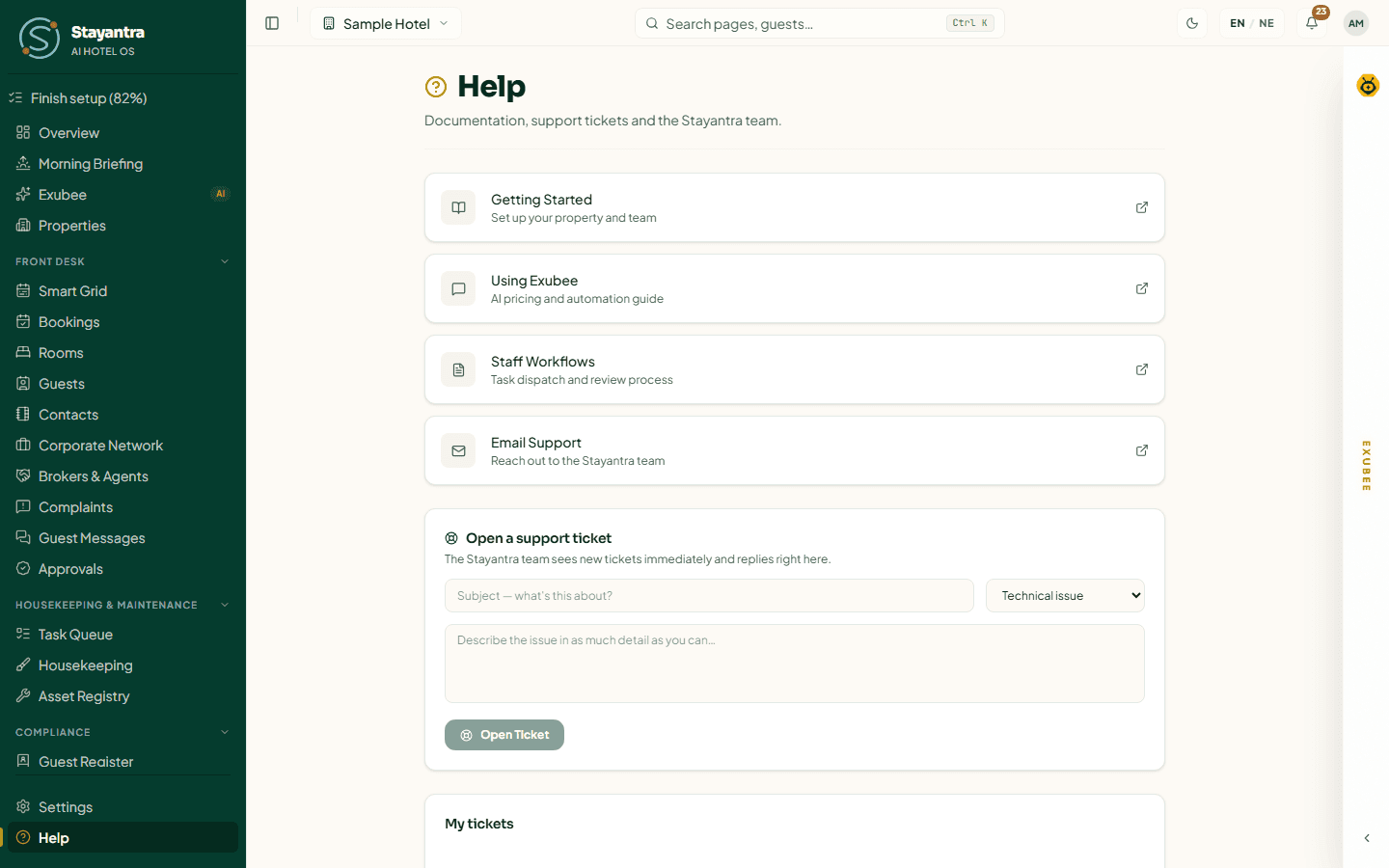
What is on the Help page
- Guides. Four cards: Getting Started (opens Getting started), Using Exubee (opens Co-Pilot and approvals), Staff Workflows (opens Operations) and Email Support, which opens an email to support@stayantra.com.
- Open a support ticket. The form below.
- My tickets. Every ticket your hotel has opened, newest first.
There is no live chat. Tickets and email are the two ways to reach the team.
[!TIP] Before you open a ticket, try the search at the top of these docs (press Ctrl K, or ⌘ K on a Mac). Most setup questions are answered in the Self-installation guide.
Open a support ticket
Open Help
In the sidebar, click Help.
Write a subject
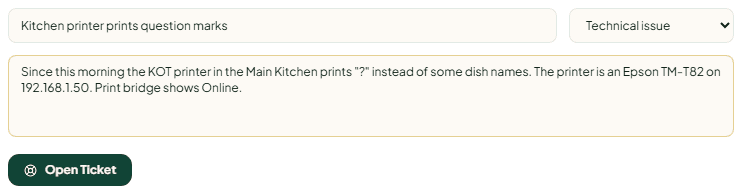
In Subject — what's this about?, write one line that names the problem, for example "Kitchen printer prints question marks". Use 3 to 200 characters.
Choose a category
Pick the one that fits best:
| Category | Use it for |
|---|---|
| Technical issue | Something does not work, shows an error, or behaves differently from these docs. This is the default. |
| Billing & subscription | Your plan, invoices, payments to Stayantra, setup help you bought. |
| Onboarding help | Setting up your hotel, business verification, importing data, a step Stayantra has to switch on. |
| Feature request | Something you wish Stayantra did. |
| Other | Anything else. |
Describe the problem
In Describe the issue in as much detail as you can…, write at least 5 characters and up to 5,000. See What to include below.
Send it
Click Open Ticket. The form clears and says "Ticket opened — we'll reply here". The new ticket appears at the top of My tickets.
When a ticket is opened, the hotel's owners and managers get a New support ticket notification on the bell.
The form has no file attachment and no priority choice. If a screenshot would help, describe what it shows, or send it to support@stayantra.com with the ticket's subject.
What to include
A ticket the team can act on straight away says:
- What you were trying to do, and on which page (for example "checking in room 204 from the Smart Grid").
- What happened, with the exact words of any error message. Copy them rather than paraphrasing.
- What you expected to happen instead.
- When it happened, and whether it happens every time.
- Who it happened to: your role, or the staff member's name and role.
- The booking, guest, room or order involved: a booking reference, room number or table.
- What you have already tried.
- For printers and devices: the device name, the printer model and address, and what the Kitchen printers card says.
Never put passwords, card numbers or a guest's ID number in a ticket.
Follow a ticket and reply
Click a ticket in My tickets to open it. The page shows the subject, the category and when it was opened, the status, and the whole conversation. Replies from the team are marked Stayantra Support. Your own messages show your name.
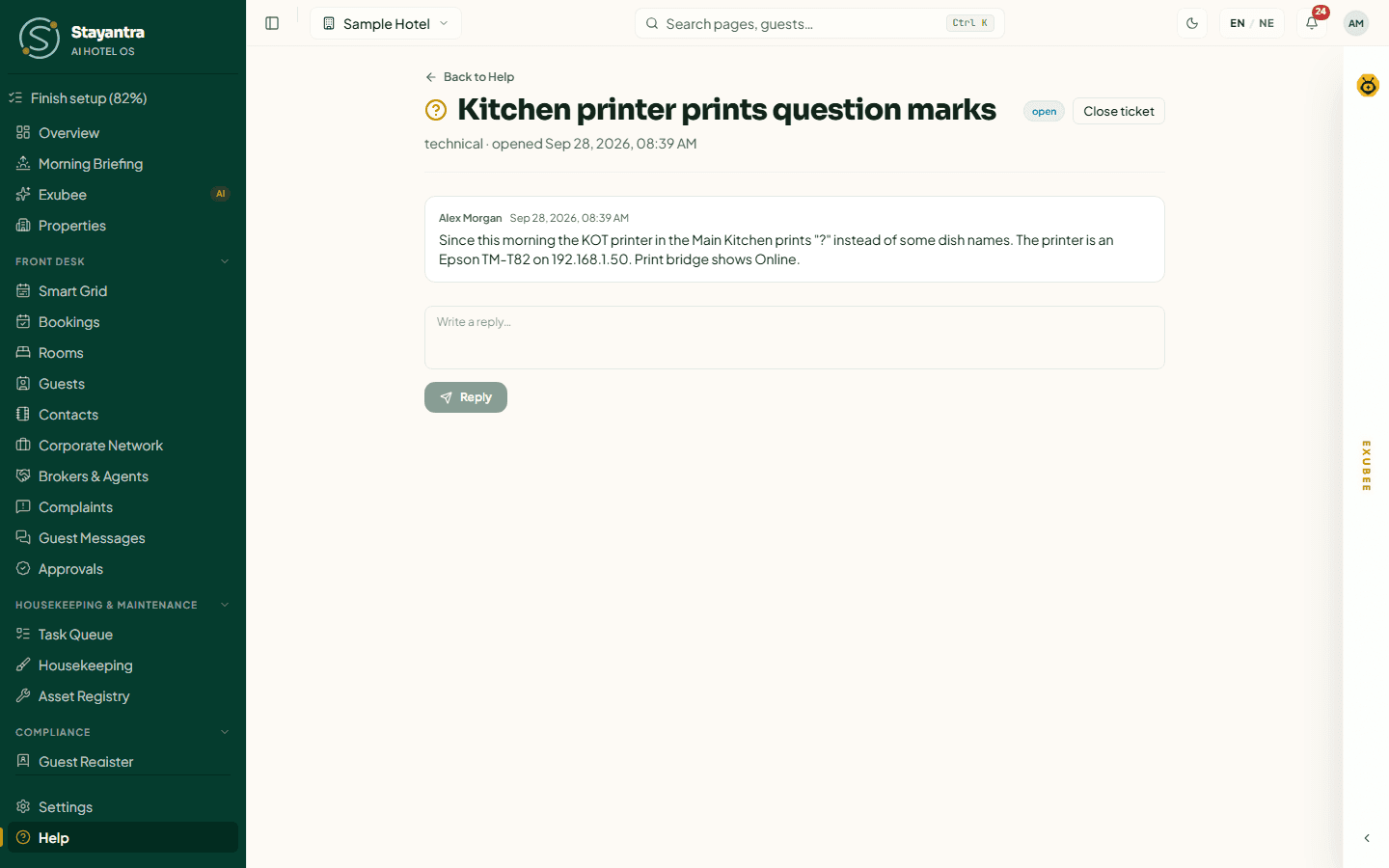
To reply, write in Write a reply… and click Reply. Anyone at your hotel can reply on any of its tickets. When someone else replies on a ticket you opened, you get a New reply on your support ticket notification.
[!NOTE] A reply from the Stayantra team does not send a notification or an email. Open Help and check your tickets' status to see whether the team has answered.
Ticket statuses
| Status | What it means | What you do |
|---|---|---|
| open | The ticket is waiting for the Stayantra team. New tickets start here. | Wait for a reply. |
| in progress | The team is working on it. | Nothing, unless they ask. |
| waiting on customer | The team has asked you something. | Reply. Your reply moves the ticket back to open. |
| resolved | The team believes the problem is fixed. | Check it. If it is not fixed, reply on the ticket. |
| closed | The ticket is finished. The reply box is hidden. | Click Reopen if the problem comes back. |
Close or reopen a ticket
When your problem is solved, click Close ticket on the ticket's page. If it comes back, open the ticket and click Reopen: the status goes back to open and you can reply again.
When you cannot sign in
The Help page is inside Stayantra, so you need to be signed in to use it.
- Forgot your password? Use Forgot? on the sign-in page. See Getting started.
- "You're not part of any hotel" means your account is not linked to a hotel. Ask your hotel's owner or manager to add you.
- Still locked out, or you are the owner and no one else can help: email support@stayantra.com from the address you sign in with, and say which hotel you belong to.
Problems with the Help page
| What you see | What to do |
|---|---|
| "Could not open the ticket — please try again." | Check your connection and click Open Ticket again. Your text is still in the form. |
| "You appear to be offline. Check your internet connection and try again." | Reconnect, then send again. |
| "Could not load your tickets." | Click the retry button on the error card. |
| "Could not send the reply — try again." | Click Reply again. |
| "Ticket not found." | The link is from another hotel, or the ticket no longer exists. Go back to Help. |
Setup help and prices
Set Stayantra up yourself for free, or pay the Stayantra team to do it remotely or on site. What each service and package costs, and how to book or upgrade.
Overview, briefing and properties
The first screen you see each day, the Morning Briefing, and how to switch between or add hotels.