
Finish setup and go live
The Finish setup page tells you what your hotel still needs before it is fully set up, and whether it may take online bookings yet. Use it as your to-do list during setup, and run the pre-opening checks at the end of this page before your first real guest.
Where to find it: Finish setup (N%) at the top of the sidebar, or See all on the Finish setting up your hotel card on the Overview. Who can use it: owners and managers. Only the owner can mark a task Not for us, and only the owner submits business verification. Staff do not see it.
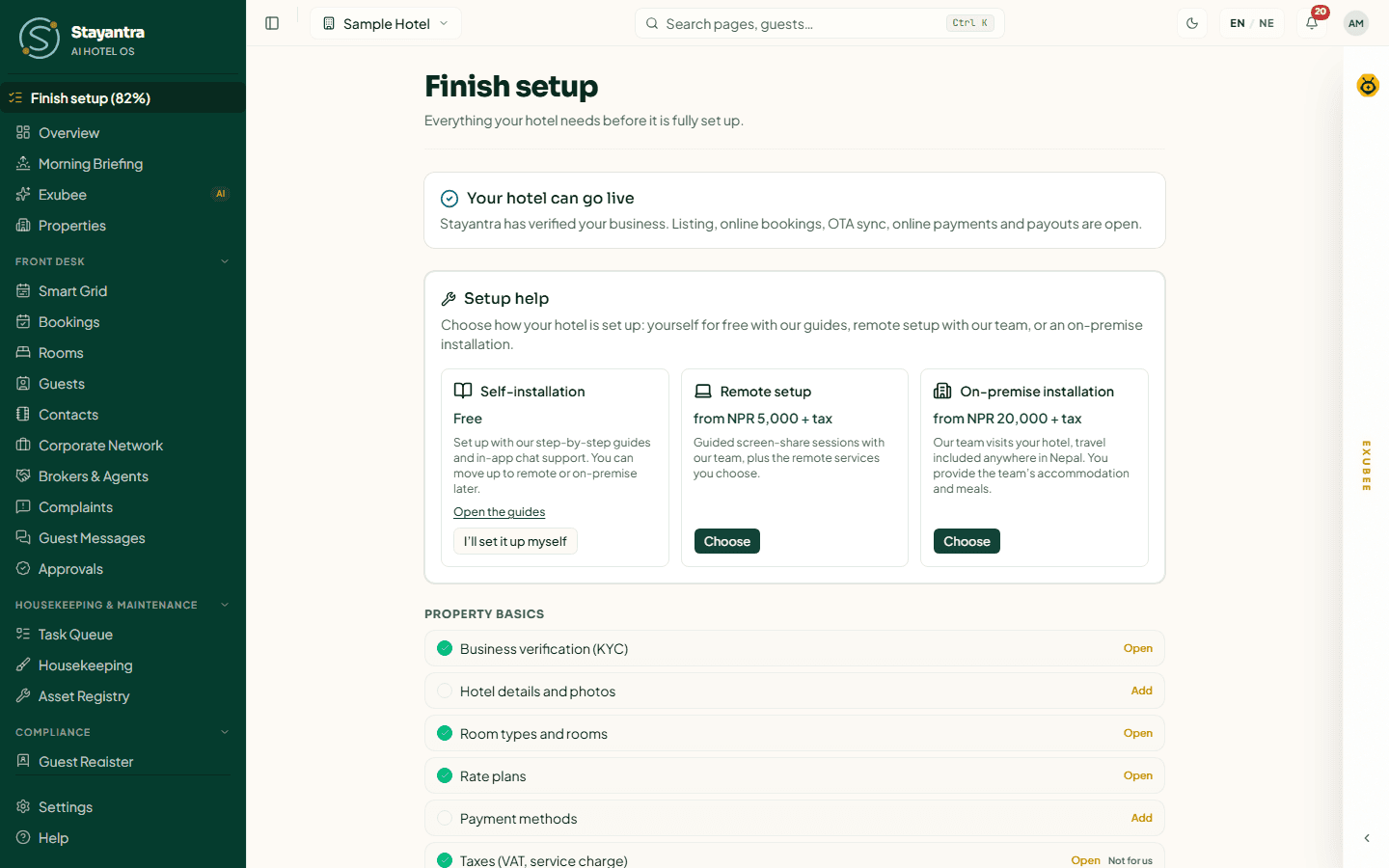
What is on the page
The page has three cards, top to bottom:
- The go-live card says whether your hotel may go live, and what stays off until it can.
- Setup help lets you choose to set up yourself or book the Stayantra team. See Setup help and prices.
- The checklist lists every setup task, grouped under Property basics, Revenue and distribution, Operations and Guest and AI.
The sidebar item shows your progress as a percentage, for example Finish setup (62%). The Overview shows the same progress in the Finish setting up your hotel card, with N of M done and a Next: link to the first task that is still open.
Going live: business verification
You can set up everything during your trial, but some things stay off until Stayantra has verified your business (KYC). The go-live card shows one of these:
| Card title | What it means |
|---|---|
| Not live yet: business verification needed | Stayantra has not verified your business yet. The items below stay off. |
| Live on a grace period | Your hotel is live until the date shown. Submit your business verification (or a renewed operating licence) before then, or the items below pause. |
| Paused: your operating licence expired | Your licence expired more than 30 days ago. Submit the renewed licence to go live again. |
| Your hotel can go live | Stayantra has verified your business. Everything is open. |
Until your business is verified, these stay off:
- Listing and search on the Stayantra marketplace and the Go app
- Online bookings: booking engine, website widget, public API and AI assistants
- OTA sync through the channel manager
- Online guest payments
- Payouts of money Stayantra collects for you
- Choosing a paid plan
Walk-in bookings, the front desk, housekeeping, the restaurant and everything else inside the hotel work from day one.
The owner sees Open Business verification and the current status: Not started, Submitted, waiting for review, In review at Stayantra, More needed, Verified, Not approved, Not needed (existing hotel) or Verification needed. A manager sees "Business verification is in progress. The hotel owner submits the documents." How to submit the documents is in Business verification.
[!IMPORTANT] Stayantra turns this on. Only Stayantra staff can verify your business, so online bookings, OTA sync and online payments wait for that review. Ask for it from Help → Open a support ticket if your review is taking longer than you expected.
The checklist
Each task is ticked automatically when Stayantra finds the thing it asks for. Click Add next to an open task to go to the right page, or Open on a finished one.
| Section | Task | Required | Ticked when | Guide |
|---|---|---|---|---|
| Property basics | Business verification (KYC) | Yes | Stayantra has verified your business (or it is not needed for your hotel). | Business verification |
| Property basics | Hotel details and photos | Yes | Your hotel has a name, location, city and at least one photo. | Hotel profile |
| Property basics | Room types and rooms | Yes | At least one room type and one active room exist. | Rooms and rates |
| Property basics | Rate plans | Yes | At least one active rate plan exists. | Rooms and rates |
| Property basics | Payment methods | Yes | At least one payment method is switched on. | Payments and payouts |
| Property basics | Taxes (VAT, service charge) | Optional | A tax profile is saved. | Hotel profile |
| Revenue and distribution | Competitors | Yes | At least one active competitor is tracked. | Revenue management |
| Revenue and distribution | Channel manager / OTAs | Optional | Channex setup has finished, or an OTA channel is live. | Channel manager |
| Revenue and distribution | Listed for online booking | Optional | Your hotel is listed on the marketplace. | Hotel profile |
| Operations | Inventory items | Optional | At least one active stock item exists. | Procurement |
| Operations | Assets | Optional | At least one active asset is registered. | Operations |
| Operations | Staff accounts | Yes | At least one active manager or staff member exists (the owner does not count). | Staff and owners |
| Operations | Housekeeping checklist | Optional | At least one active housekeeping SOP item exists. | Operations |
| Guest and AI | Hotel knowledge | Yes | Your hotel has local knowledge saved (see the note below). | Teach Exubee |
| Guest and AI | AI Co-Pilot settings | Yes | The owner clicks I've reviewed these settings on the Autonomy page. | Teach Exubee |
| Guest and AI | Event spaces | Optional | At least one active event space exists. | Events and banquets |
| Guest and AI | F&B | Optional | At least one restaurant table or menu item exists. | Restaurant and printers |
A task that belongs to a module your plan does not include (Channel manager, Inventory, F&B) is not shown, and does not count towards your percentage.
[!NOTE] Hotel knowledge is ticked by the local knowledge saved during setup: the Local Attractions & Transport step of the setup wizard, or the same facts given to Exubee in the setup chat. Adding a note on the House knowledge page does not tick it. If you skipped that step and the task stays open, ask the Stayantra team from Help → Open a support ticket.
Mark an optional task "Not for us"
If an optional task does not apply to your hotel (you have no restaurant, say), the owner can click Not for us on its row. The task is struck through and no longer counts towards your percentage. Click Undo to bring it back.
Required tasks have no Not for us. If you try, the page says "Every hotel needs this step, so … cannot be marked "Not for us"."
When the checklist is complete
When every counted task is done, the page says All set — your hotel is fully set up., and the Finish setup item leaves the sidebar. This is recorded once: the checklist stays complete even if you later remove something it checked.
Setup help stays available after that on Finance → Plan & Billing.
Before your first real guest
The checklist tells you the hotel is configured. These checks tell you it works. Do them a day or two before opening.
Make a test booking
Open your hotel's page on the marketplace, or your website with the booking widget, and book one night the way a guest would. Check that it appears in Front Desk → Bookings and on the Smart Grid, and that the confirmation email arrives. Then cancel it from the booking. See Bookings and folios.
Take a test payment
On a test booking, take a small payment with each method you switched on (eSewa, Khalti, Fonepay, card). Check that each one lands on the folio. Then refund it by hand, as described in Payments.
Check every staff member can sign in
Ask each person to sign in to the web app or to Stayantra Connect on their phone, and check they see their own work. Anyone who says "You're not part of any hotel" has not been added yet. See Staff and owners and Install the apps.
Print a kitchen ticket
If you run a restaurant, fire one order and check the ticket prints at the right station, and that the Kitchen printers card shows Online · printer ready. See Restaurant and printers.
Check OTA sync is on
If you sell on OTAs, open Settings → Connections → Open Integrations and check that Channex setup says Ready and each channel says Live. Open the OTA's extranet and compare one date's price and availability with Stayantra. See Channel manager.
Review Exubee's settings
Open Insights & AI → Autonomy. Every stream should read Exubee (every action waits for your approval). Click I've reviewed these settings. See Teach Exubee.
Confirm the go-live card
Back on Finish setup, the top card should say Your hotel can go live.
If something goes wrong
| What you see | What to do |
|---|---|
| "Could not load your setup checklist. Check your connection and try again." | Click Try again. If it keeps failing, reload the page. |
| A task stays open after you did it | The task checks for a specific thing (see the table above): for example Room types and rooms needs an active room, and Staff accounts needs someone other than the owner. |
| Finish setup is missing from the sidebar | Either you are signed in as staff (only owners and managers see it), or setup is complete. |
| The go-live card is missing | Only owners and managers see it. |
Import your data
When to bring rooms, rates, guests and bookings over from your old system, which files Stayantra reads, and where the full import guide is.
Setup help and prices
Set Stayantra up yourself for free, or pay the Stayantra team to do it remotely or on site. What each service and package costs, and how to book or upgrade.