
Rooms and rates
Guests book a room type at a rate plan, and the front desk puts them in a room. The setup wizard created your first room types and rooms; this page shows how to check and complete them, and how to create the rate plans that make them sellable. For pricing strategy, seasons and Exubee's price suggestions, see Revenue management.
Where to find it: Front Desk → Rooms for room types and rooms; Revenue → What You Sell for rate plans and packages. Who can use it: the owner and managers.
The three things fit together like this:
| Thing | Example | Where |
|---|---|---|
| Room type (category) | Deluxe, base price NPR 5,400 a night, sleeps 2 | Rooms → Room Categories |
| Room | Room 201, floor 2, a Deluxe | Rooms → Add Room |
| Rate plan | "Deluxe — Flexible", refundable, NPR 5,400 | What You Sell → New offer |
| Package | "Bed and Breakfast": a rate plan with breakfast included | What You Sell → New offer + Add inclusion |
The Rooms page
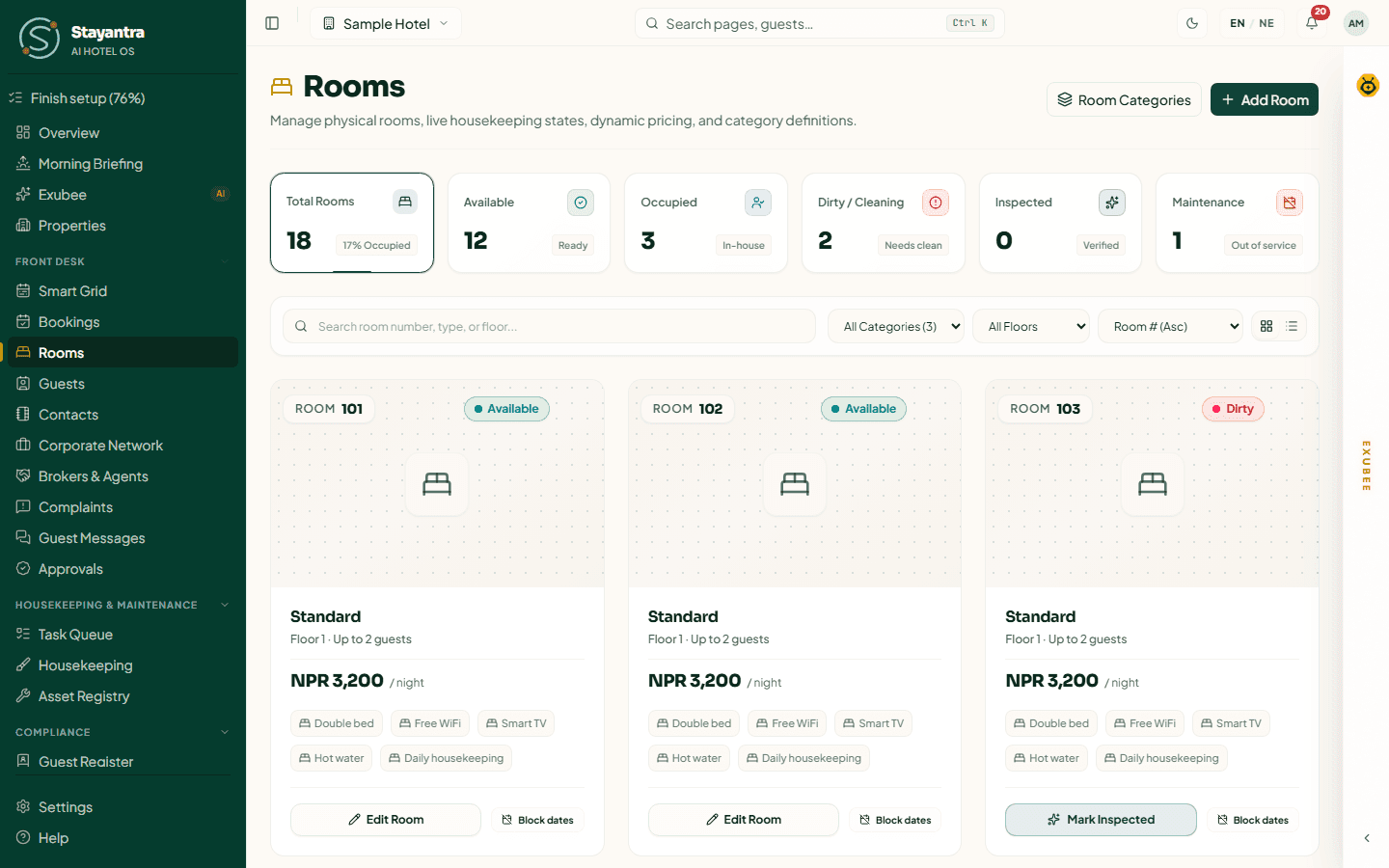
Across the top: Total Rooms, Available, Occupied, Dirty / Cleaning, Inspected and Maintenance. Below, filter by category and floor, sort by room number, price or floor, and switch between the card view and a table view. Each room card shows its status, type, floor, guests it sleeps, price and amenities, with Edit Room and Block dates.
Add or change a room type
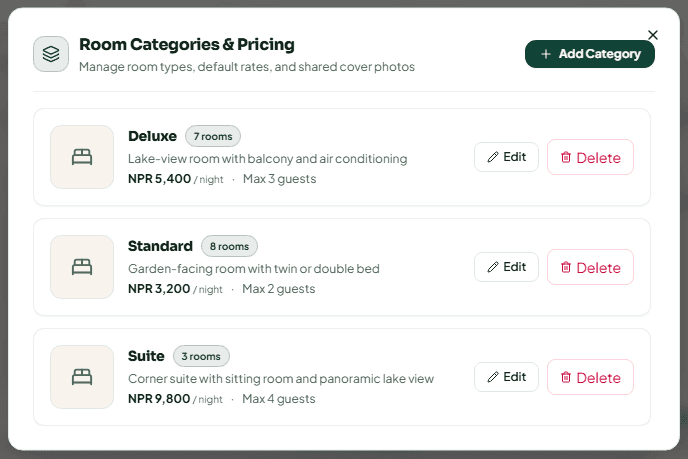
Open Room Categories
On Front Desk → Rooms, click Room Categories. Room Categories & Pricing lists each type with its room count, price per night and maximum guests.
Click Add Category (or Edit on an existing one)
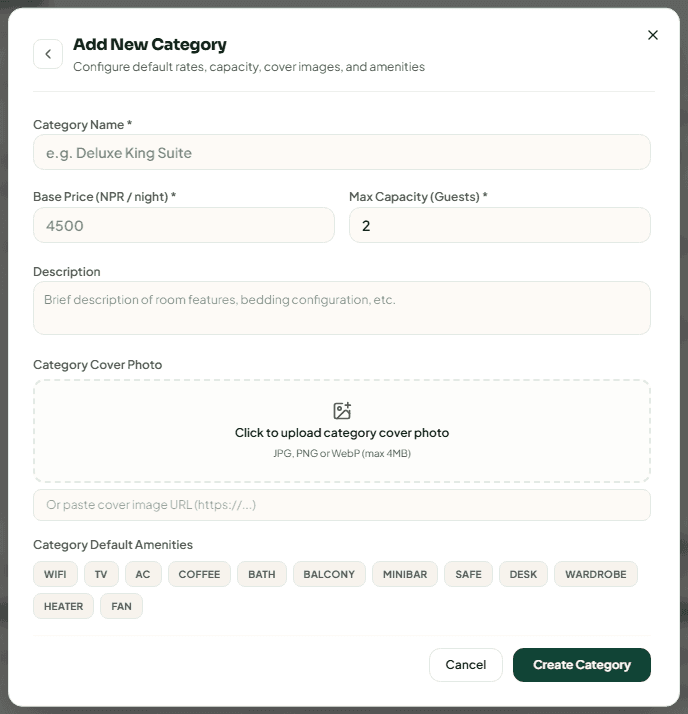
| Field | Required | What it is |
|---|---|---|
| Category Name | Yes | For example "Deluxe King Suite". Guests see it. |
| Base Price (NPR / night) | Yes | The normal nightly price. Rate plans start from it, and Exubee's price suggestions stay between 70% and 300% of it. |
| Max Capacity (Guests) | Yes | How many people the room type sleeps. Guests above it pay the extra-person charge from Stay rules. |
| Description | No | Bedding, view, size. |
| Category Cover Photo | No | JPG, PNG or WebP up to 4 MB, or paste an image link. Shown on the room type in your listing. |
| Category Default Amenities | No | wifi, tv, ac, coffee, bath, balcony, minibar, safe, desk, wardrobe, heater, fan. |
Delete removes a category after you confirm: rooms in it lose their category and its shared price and photos. This cannot be undone, so move rooms to another category first.
Add or change a room
Click Add Room
On Front Desk → Rooms, click Add Room (top right). To change a room, click Edit Room on its card.
Fill in the room
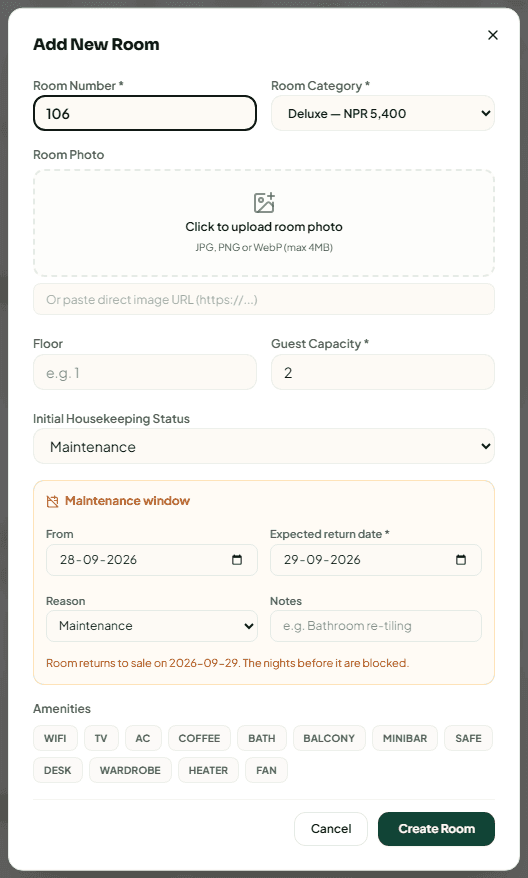
| Field | Required | What it is |
|---|---|---|
| Room Number | Yes | As on the door, for example "101". Must be unique. |
| Room Category | Yes | Its room type, shown with the price. |
| Room Photo | No | JPG, PNG or WebP up to 4 MB, or an image link. |
| Floor | No | Used for housekeeping floors and filters. |
| Guest Capacity | Yes | Normally the room type's capacity. |
| Initial Housekeeping Status | No | available, occupied, dirty, inspected or maintenance. |
| Amenities | No | Extras this room has beyond its category. |
| Room is active and bookable | When editing | Untick to retire a room without deleting its history. |
Take a room out of service
There are two ways, for two different situations.
The room is out of order from today. Edit the room and set Initial Housekeeping Status to maintenance. A Maintenance window appears: pick From, the Expected return date, a Reason (Maintenance, Renovation, Deep clean, Owner use, Other) and Notes. The room returns to sale on the return date; the nights before it are blocked.
The room will be out of order on future dates. Click Block dates on the room's card.
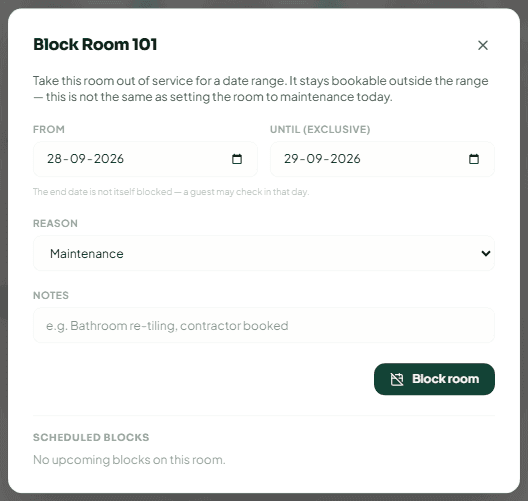
Pick From and Until (exclusive). The end date itself is not blocked, so a guest may check in that day. Choose a Reason, add Notes, and click Block room. The room stays bookable outside the range. If guests are already booked into those nights, the dialog lists them so you can move them first. Upcoming blocks are listed in the same dialog, where you can release one.
A blocked room shows "Out of service" on its card, and its blocked nights cannot be sold.
Create your rate plans
Guests book a room type at a rate plan, so create at least one plan for every room type you sell. The setup checklist marks Rate plans as required.
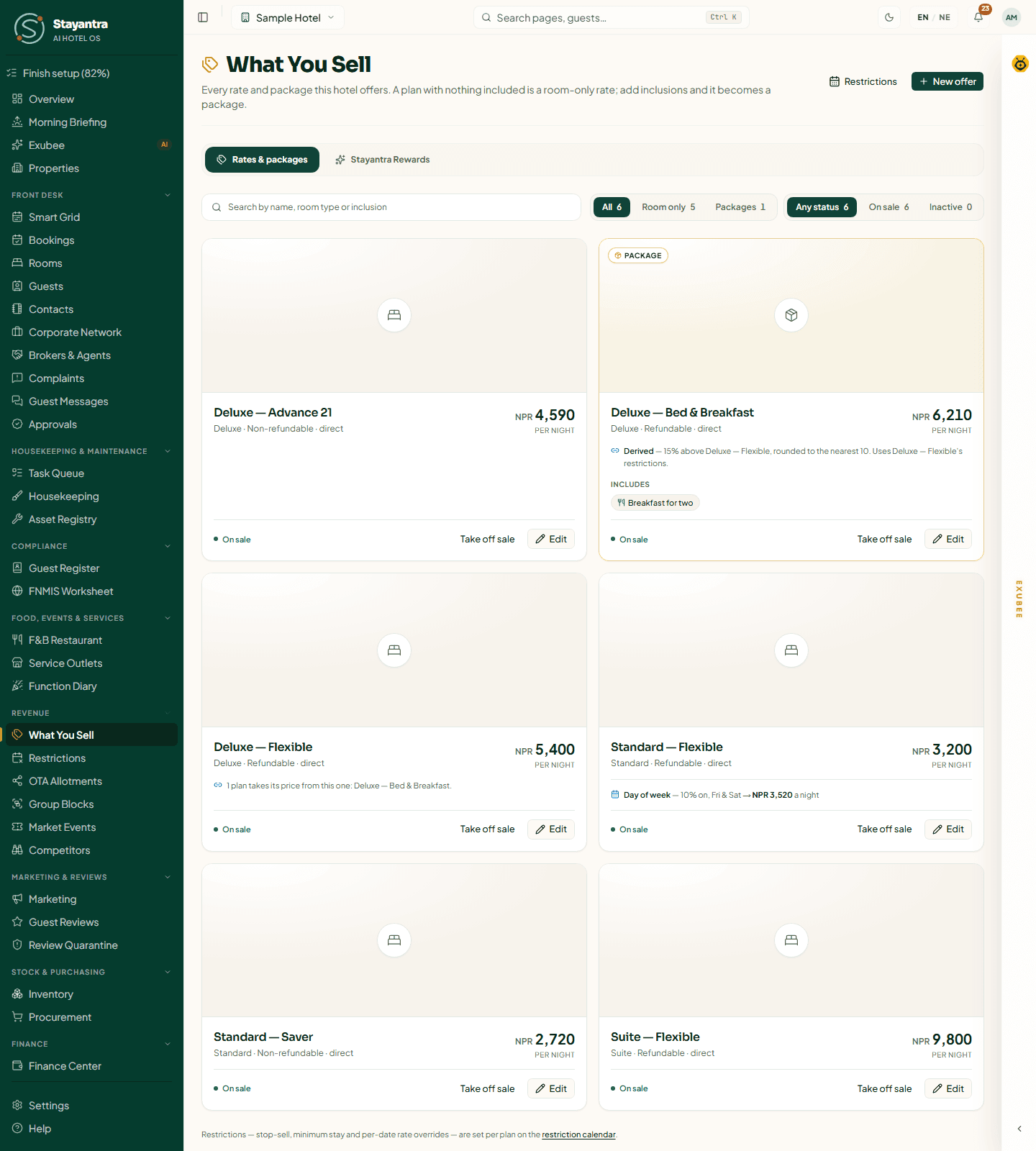
Open What You Sell
In the sidebar, open Revenue → What You Sell and stay on the Rates & packages tab. If you see "Nothing to sell yet", create a plan with New rate plan; if it says "Add a room type first", do that on the Rooms page.
Click New offer
The dialog is Something new to sell.
Fill in section 1, the room and what a night costs
| Field | What to enter |
|---|---|
| Photo | Optional. Shown on the offer card. |
| Name | For example "Standard — Flexible" or "Half Board". |
| Room type | The room type this plan prices. |
| Nightly rate (NPR) | The price for one night. |
| Cancellation | Refundable or Non-refundable. |
| Cancellation and no-show terms | Leave it on the hotel's terms from Stay rules, or give this plan its own. |
| Price | Set my own, or Derived from another plan to follow another plan's price up or down by an amount or a percentage (for example a non-refundable "Saver" 15% below "Flexible"). |
Add pricing rules (optional)
Below, add season, day-of-week, length-of-stay and group rules to move the nightly price. A worked example shows what a sample stay would cost. Details are in Revenue management.
Click Create
The plan is on sale straight away. Take off sale on its card stops selling it without deleting it.
A good starting set is one refundable "Flexible" plan per room type, and optionally a cheaper non-refundable plan derived from it.
Turn a rate plan into a package
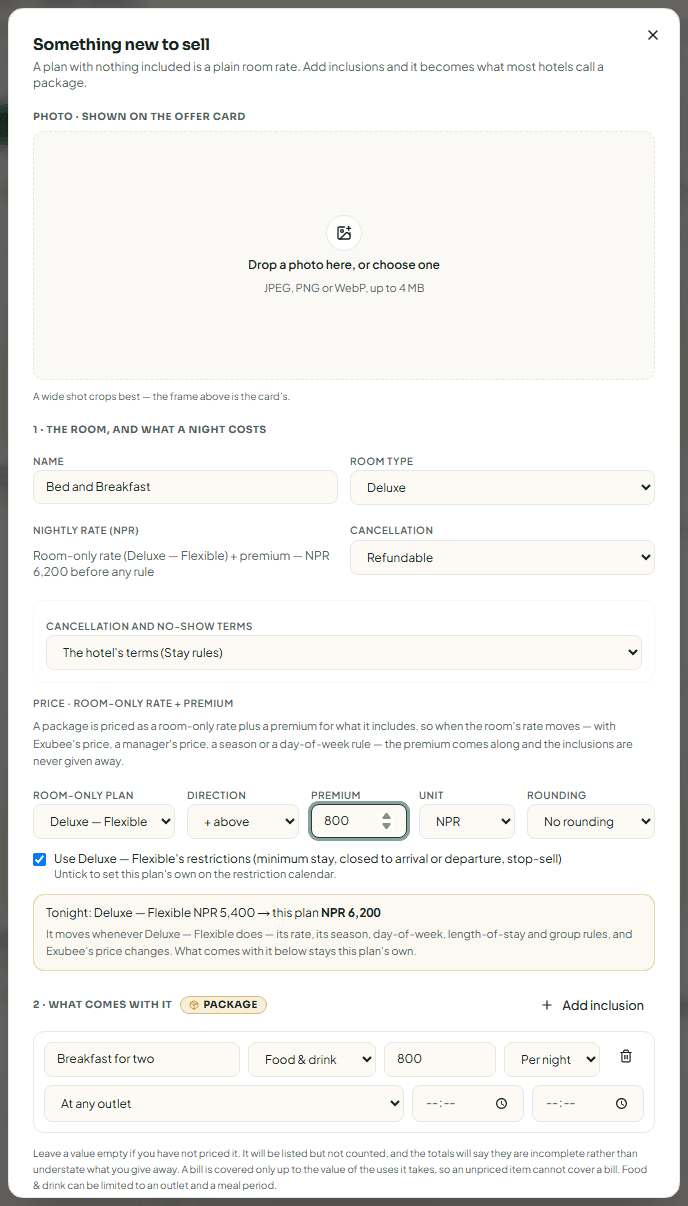
A plan with nothing included is a room-only rate. Add an inclusion and it becomes a package, marked with a Package badge.
- Create the room type's room-only plan first (nothing included, on sale). A package is always priced as that room-only rate plus a premium, so when the room's price moves, the premium comes along and the inclusions are never given away.
- Click New offer, name it (for example "Bed and Breakfast") and pick the room type.
- Under 2 · What comes with it, click Add inclusion. For each: a label ("Breakfast for two"), the department (Food & drink, Transport, Laundry, Spa, Other), what it is worth, and Per night or Per stay. Food and drink can be limited to one outlet and a serving time.
- Under the price, choose the Room-only plan it follows and set the Premium.
- Click Create.
Staff then honour inclusions at the restaurant, laundry and transport desks, and the bill shows them as covered. Leave an inclusion's value empty only if you have not priced it; the totals then say they are incomplete.
Restrictions and price limits
- Restrictions (top of What You Sell, or Revenue → Restrictions): stop-sell, minimum stay, closed to arrival or departure, and per-date prices, set per plan on a calendar.
- Price floor and ceiling (bottom of What You Sell): the lowest and highest nightly price Exubee may set for each room type. Prices you type yourself are not limited by them.
Both are explained in Revenue management.
Next
Decide how guests pay you: Payments and payouts.
Fill in your hotel profile
A walk through every Hotel profile page a new hotel must complete, field by field, and why each field matters for guests, bills and your listing.
Payments and payouts
Choose how guests pay you online (eSewa, Khalti, Fonepay, cards, pay at hotel or a direct transfer), set deposits, and tell Stayantra where to pay you.