
Import your data
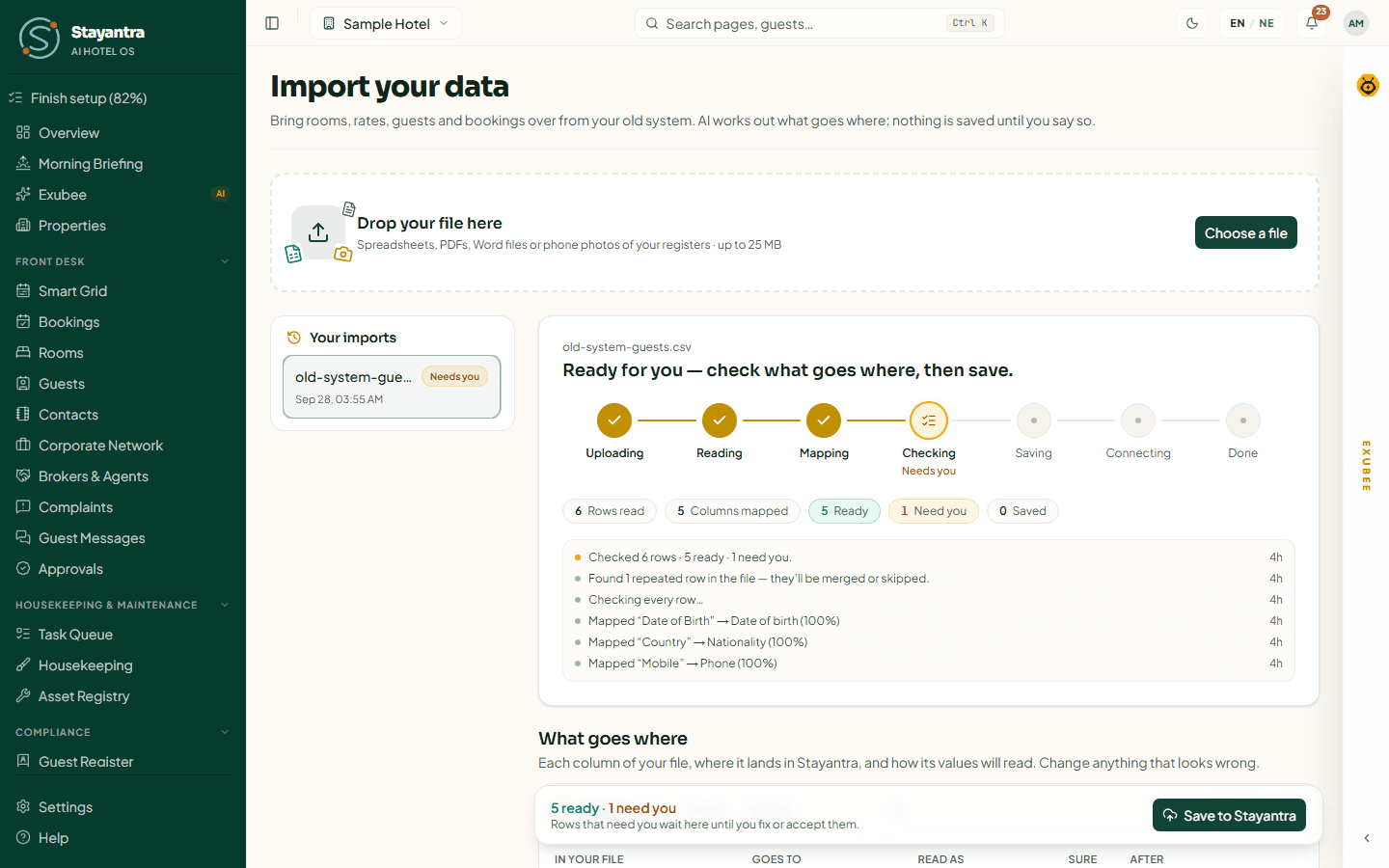
If you are moving from another hotel system, a spreadsheet or a paper register, you do not have to type everything again. Stayantra reads your files, shows you what goes where, and saves nothing until you say so.
Where to find it: Settings → Billing & Admin → Data Migration → Open Migration Dashboard. During the setup wizard, the room steps also offer to read a room list or tariff sheet for you. Who can use it: owners and managers.
When to import
Import after your room types and rooms exist and before you take your first real booking in Stayantra:
- Finish the setup wizard, so your hotel, room types and rooms exist. See Setup wizard.
- Import your future bookings, guests and rates. Future bookings matter most: they block the rooms your guests already hold.
- Check the Smart Grid against your old system for the next few weeks.
- Only then connect your OTAs, so Stayantra sends availability that already counts every booking. See Channel manager.
If you import after you have started taking bookings in Stayantra, check every imported booking for double-booked rooms.
What you can import
| Data | Examples |
|---|---|
| Room types and rooms | A room list, a tariff card |
| Rates | A rate sheet |
| Guests | A guest list exported from your old system |
| Bookings | Future reservations; booking history |
| Event bookings | Banquet and function bookings |
| Staff | A staff list |
| Hotel profile details | Your hotel's facts from an old brochure or website export |
Files Stayantra reads
- Spreadsheets: CSV, TSV, Excel (XLS, XLSX)
- PDF and Word (DOCX)
- Plain text and JSON
- Phone photos of paper registers: JPG, PNG, WebP
Files can be up to 25 MB; photos up to 10 MB. Drop one file at a time. If you drop a file you imported before, Stayantra says so and lets you View that import or Import again.
How it works, in short
- Drop a file on Drop your file here (or click Choose a file).
- Stayantra reads it and proposes where each column goes.
- You review the mapping, fix values it could not match, and check the rows.
- You save. Every owner is notified when an import is saved.
- If something went wrong, you can roll the whole import back.
The full walk-through, with every screen and what to do when a row will not match, is in Onboarding and data import.
[!TIP] Not sure your data is clean enough? Stayantra's Data migration service moves it for you, with a verification report. See Setup help and prices.
Teach Exubee about your hotel
Give Exubee the facts and rules it needs, see why it starts in Co-Pilot where every action waits for your approval, and tick the last items on your setup checklist.
Finish setup and go live
Work through the Finish setup checklist, understand what stays off until your business is verified, and run the last checks before your first real guest.