
OTA sync
Once your hotel is connected to the channel manager, you run your OTAs from Stayantra. You change a price, close a date or take a booking here, and every connected OTA follows within minutes. Bookings, changes and cancellations made on an OTA come straight onto your Smart Grid. Nothing is typed twice.
Stayantra uses Channex as its channel manager. You do not need a Channex account of your own.
Where to find it: Settings → Channel Manager → Open Integrations (the Connect channels page). Failed syncs and OTA bookings that need a person are on Insights & AI → Ops Health. Who can use it: owners and managers. It is part of the Channel Manager module.
[!NOTE] Setting up the channel manager and connecting each OTA is covered in Connect your OTAs. This page is about running it day to day.
[!IMPORTANT] Stayantra turns this on. OTA sync starts only after Stayantra approves your business verification; until then your dates stay closed (stop-sell) on every OTA, even if the connection is set up, and the first sync after approval opens them. Submit your documents in Business verification.
Check your channels
The Channels card on Connect channels lists every OTA with its status and when Stayantra last checked it with Channex.
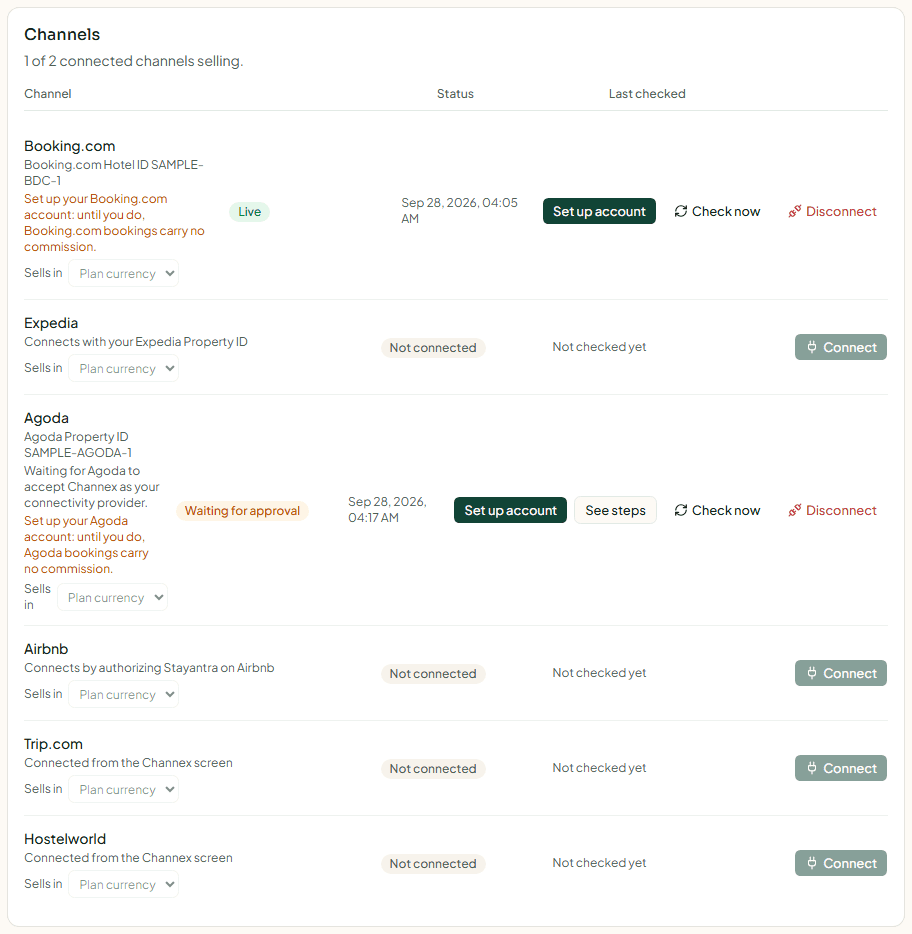
The line at the top sums it up, for example "1 of 2 connected channels selling. 1 needs attention."
| Status | Meaning | What to do |
|---|---|---|
| Not connected | Not set up. | Press Connect when you want to sell there. |
| Choosing rooms | You are matching your rooms and rates to the OTA's. | Press Continue to finish. |
| Connecting | Stayantra is creating the connection. | Wait; press See steps to follow along. |
| Waiting for approval | The OTA has not accepted Channex as your connection yet. | Accept Channex in the OTA's extranet (for Booking.com, the XML agreement). Stayantra keeps checking. |
| Live | Channex reports the channel active: the OTA is selling your rooms. | Nothing. |
| Needs attention | Something failed. The line under the status says what. | Press Fix. |
| Paused | It was live, and was switched off at Channex or at the OTA. | Switch it back on there, or connect it again. Stayantra never reactivates it by itself. |
| Disconnected | You stopped selling there. | Connect it again if you want. |
Check now asks Channex about one OTA immediately. A channel waiting for approval is checked on its own — every 2 minutes in the first hour, then less often.
Owners and managers get a notification when an OTA goes live, stops syncing, disconnects, or refuses an update (for example "Booking.com did not take an update").
The Channex setup card
Above the channels, the Channex setup card shows the setup status (Ready when all is well). Test connection & sync now checks the connection and sends your full calendar again — use it if you think an OTA is out of step. If the card says Paused, syncing is stopped and your OTAs keep the last rates and availability they received.
What syncs, and when
| When this changes in Stayantra | The OTAs receive |
|---|---|
| A booking is made, moved, extended or cancelled; a room goes out of service or comes back; a group block is added | Rooms left to sell, per room type, per night |
| A rate plan's price, a pricing rule, or a price approved from Exubee | The new price on every OTA that sells that plan. Packages and derived plans follow automatically. |
| A restriction — stop sell, minimum or maximum stay, closed to arrival or departure — is set or cleared | The same rule on every OTA that sells that plan, or its removal |
| A rate plan is taken off sale | That plan closes on the OTAs |
| A room type or rate plan is added or renamed | It is created or renamed at Channex |
- Changes go out within a few minutes. Several changes close together are sent as one update.
- Each update sends the whole next 180 days, so an OTA always matches Stayantra even after a missed update. Once a day Stayantra also sends the full calendar, which opens one more day at the far end.
- Only plans you chose to sell on an OTA go to it. Which plans an OTA sells is chosen when you connect it (Continue or Fix on its row to change it).
- Each OTA row has a Sells in currency. Plan currency sends your prices as they are.
Where prices and restrictions are set: Revenue management.
Pricing on each OTA
Your direct price is what the OTAs receive. If an OTA is set up to pass on its commission (in Set up account on its row — commission rate, pass-on or absorb, and who collects the money), Stayantra raises that OTA's price so you still take home your direct price after its commission. Each OTA can have its own commission, so Booking.com and Agoda can show different prices for the same room. The OTA pricing card on Connect channels previews what each OTA will sell a room at.
If an OTA's account is not set up, its row warns "Set up your Booking.com account: until you do, Booking.com bookings carry no commission."
OTA bookings in Stayantra
New bookings
A booking made on an OTA reaches Stayantra within seconds. It gets a guest profile, a folio and a room, and appears on the Smart Grid and in Front Desk → Bookings. Owners and managers get a New OTA booking notification, for example "Oct 12 → Oct 14 · NPR 11,800 · OTA ref 4410237".
On the booking you can see where it came from:
| Field | Shows |
|---|---|
| Source | The OTA, for example "booking com" or "agoda". |
| Booked via | OTA / channel manager. |
| OTA reservation number | The OTA's own reference — quote it when you talk to the OTA. |
If Channex's message is ever delayed, Stayantra also reads Channex's booking list every few minutes and picks up anything missing.
Changes and cancellations
- A change on the OTA (new dates, another room type) updates the same booking in Stayantra.
- A cancellation on the OTA cancels the booking and puts the room back on sale. You get an OTA booking cancelled notification.
- A cancellation for a guest who is already checked in is refused, so the stay and its bill are kept: "OTA cancellation refused: guest is checked in … Contact the OTA to align the reservation."
Cancelling or marking a no-show yourself
An OTA booking can only be cancelled by the OTA. On the booking, Stayantra says: "This booking was made on an OTA, so only the OTA can cancel it. Ask the guest to cancel it with the OTA — the room stays held until that cancellation arrives." If you cannot wait, send it to a manager for approval with a reason: The OTA already shows it cancelled, or (Booking.com only) the guest's card is invalid.
A no-show on an OTA booking also goes to a manager for approval. It is then reported to the OTA so the OTA does not charge you commission for a stay that did not happen. See No-shows to report.
When there is no room for an OTA guest
Stayantra never refuses an OTA booking. If no room of that type is free — or another booking took the room while it was being saved — the booking is kept and a card opens on Ops Health under OTA guests who need you. While the card is open, one room of that type stays closed on every OTA and on your website, so you do not sell it twice more. Owners and managers are told straight away (for example "OTA guest has no room at Sample Hotel"); this notice cannot be muted.
On the card, choose what happened:
| Button | Use it when |
|---|---|
| Place in a room | A room has come free. Choose it and press Place guest. |
| Relocate the guest | You moved the guest to another property. Record where, what you paid, transport, any goodwill payment and any charge from the OTA, then Record relocation. |
| Reinstate from OTA | The stay should stand as the OTA sent it. Say why and press Reinstate stay. |
| Close card | It was settled another way. Say how, then Close card. |
Cards arriving today or tomorrow are marked urgent.
No-shows to report
Until an OTA hears of a no-show, it bills its full commission. Under OTA no-shows to report on Ops Health, each card shows the OTA, the room and "Report by (date)". Mark the no-show on the OTA's extranet before that date, then press Marked on the extranet — the commission on that stay is cancelled in Stayantra. If the OTA charged anyway, press The OTA charged its commission — it is recorded as an expense.
When a sync fails
Updates that did not go out
Stayantra retries a failed update three times on its own. If it still fails, a card appears on Ops Health under Need attention, and owners and managers get a notification such as OTA rate sync failed.
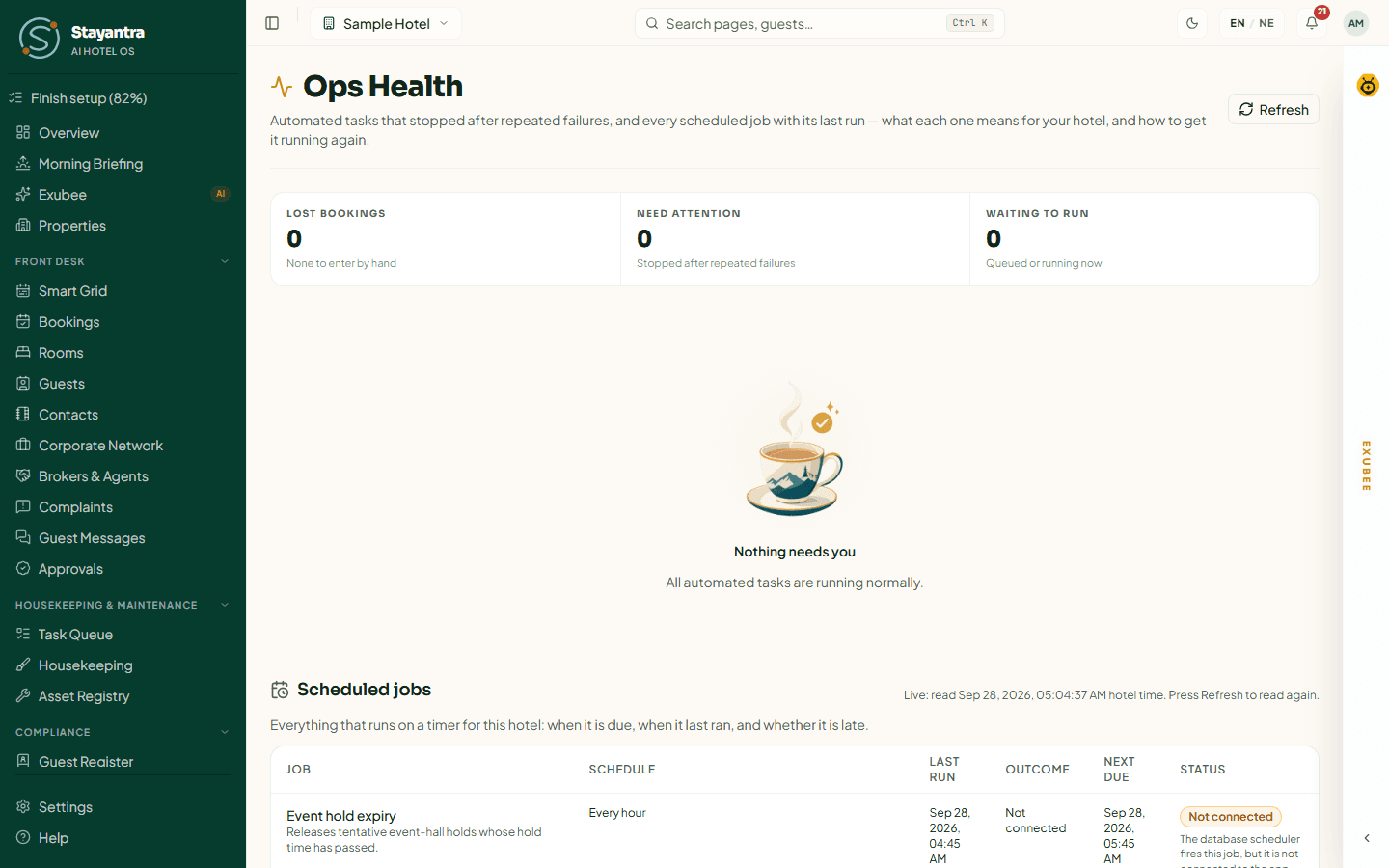
| Card | What it means | What to do |
|---|---|---|
| Room rates to Booking.com & Agoda (Urgent) | The OTAs are still selling your previous rates. | Check the connection on Connect channels, then press Retry on the card. |
| Room availability to Booking.com & Agoda (Urgent) | The OTAs may sell rooms you no longer have. | Same. Close the dates on the extranet by hand if a sell-out is close. |
| Setting your hotel up on Channex | Setup stopped. | Open Connect channels to see which step stopped, then retry. |
| Checking your OTA connections (Low impact) | A status check failed. Nothing stopped selling. | Press Check now on the channel. |
These cards name Booking.com and Agoda, but they cover every connected OTA.
Retry queues the task again: "Queued. It will run within a few minutes." Technical details shows the error if you need to pass it to Stayantra support.
Bookings that didn't reach Stayantra
If an OTA sent a booking that Stayantra could not save, it is never thrown away. It waits on Ops Health under Bookings that didn't reach Stayantra, and owners and managers get a Channel delivery failed notification. Until you deal with it, the room is sold on the OTA but still free in Stayantra — so act quickly. The Lost bookings tile at the top counts them.
Each card shows the OTA reference, when it failed and why, for example "The OTA sent an incomplete reservation."
| Button | What it does |
|---|---|
| Replay | Creates or updates the booking exactly as the OTA sent it ("Replay this reservation?" → Replay booking). |
| Mark as handled | Use after you entered the booking by hand, or it turned out to be already in Stayantra. |
Replay is greyed out when it would do harm, and the card says why — for example "A newer update for this booking arrived after this one, so this one is out of date. Mark it as handled." or "The OTA sent an incomplete reservation. Enter it by hand from the OTA extranet."
If a replay "did not finish", check Bookings for the OTA reference before entering it by hand — it may already be saved.
OTA allotments
An allotment holds some rooms back from your direct sale for one OTA (Booking.com, Agoda or Expedia). It lowers what your website and the marketplace can sell; it does not change the count the OTAs receive. Set allotments in Revenue → OTA Allotments — see OTA Allotments.
OTA reviews and statements
- Reviews. Booking.com, Airbnb and Expedia reviews come in through the channel manager, and you can reply to them from Stayantra. See Guest reviews.
- Commission statements. Each month, import the OTA's commission invoice or payout statement in Finance → OTA Statements and Stayantra checks it against the commission it recorded for each booking. See Finance.
Stop selling on an OTA
- One date, everywhere: set a stop sell on that date in Restrictions.
- One rate plan: take it off sale on What You Sell. It closes on every OTA.
- One OTA, entirely: press Disconnect on its row. The OTA stops receiving your rates and availability, but rooms it already shows stay on sale at the last prices it received — close them on the OTA's extranet too. Bookings already in Stayantra are not affected.
Troubleshooting
| What you see | What to do |
|---|---|
| An OTA shows old prices | Check the rate plan's price and that the plan is sold on that OTA. Press Test connection & sync now. Look on Ops Health for a failed Room rates card. |
| An OTA sells a date you closed | Check the restriction is on the plan that OTA sells. Look on Ops Health for a failed card. |
| Every date is closed on the OTAs | Your business verification is not approved yet, the Channel Manager module is not on your plan, or the hotel's subscription is frozen. |
| An OTA booking is missing | Check Ops Health → Bookings that didn't reach Stayantra. |
| An OTA guest has no room | Ops Health → OTA guests who need you. |
| Stuck on Waiting for approval | The OTA has not accepted Channex. Finish the step in the OTA's extranet. |
| Paused | The channel was switched off at Channex or the OTA. Switch it back on there, or connect again. |
| "Channex is not switched on for Stayantra yet" | Stayantra's side is not ready. Open a ticket from Help → Open a support ticket. |
Related
- Connect your OTAs — first-time setup
- Revenue management — rates, restrictions and allotments
- Smart Grid — where OTA bookings appear
- Reports and analytics — the rest of Ops Health
Revenue management
Set up what you sell — rates, packages and what they include — then control dates with restrictions, hold rooms for OTAs, track events and competitors, and approve Exubee's price suggestions.
Your marketplace listing
How your hotel appears on the Stayantra marketplace and in the Stayantra Go app, what it shows, how hotels are ordered, and how direct bookings reach you with no commission.