
Guest register and compliance
These screens cover the records a hotel must keep about the people staying in it: who is in the building right now, the register the police or a tourism inspector can ask to see, and the foreign-guest report Nepal's Department of Immigration requires. The last section explains what happens when someone asks for their account to be deleted.
Where to find it: in the sidebar, Compliance → Guest Register and Compliance → FNMIS Worksheet.
Who can use it:
| Screen | Owner | Manager | Staff |
|---|---|---|---|
| Guest Register — Emergency headcount | Yes | Yes | Yes, every staff member |
| Guest Register — Full register | Yes | Yes | No |
| FNMIS Worksheet | Yes | Yes | Yes |
| Account deletion | Yes | Yes | No |
Print an emergency headcount
In a fire, an earthquake or any evacuation, you need a list of everyone in the building, by floor and room, that you can hand to whoever is doing the roll call.
Open the Guest Register
In the sidebar, open Compliance → Guest Register. Everyone lands on the Emergency headcount tab.
Check the numbers
The tiles show Guests in house, Rooms occupied and Floors. The table below, Guests in house, by floor, lists each guest's name and room, grouped by floor.
Print it
Click Print headcount. Click Refresh first if people have checked in or out in the last few minutes.
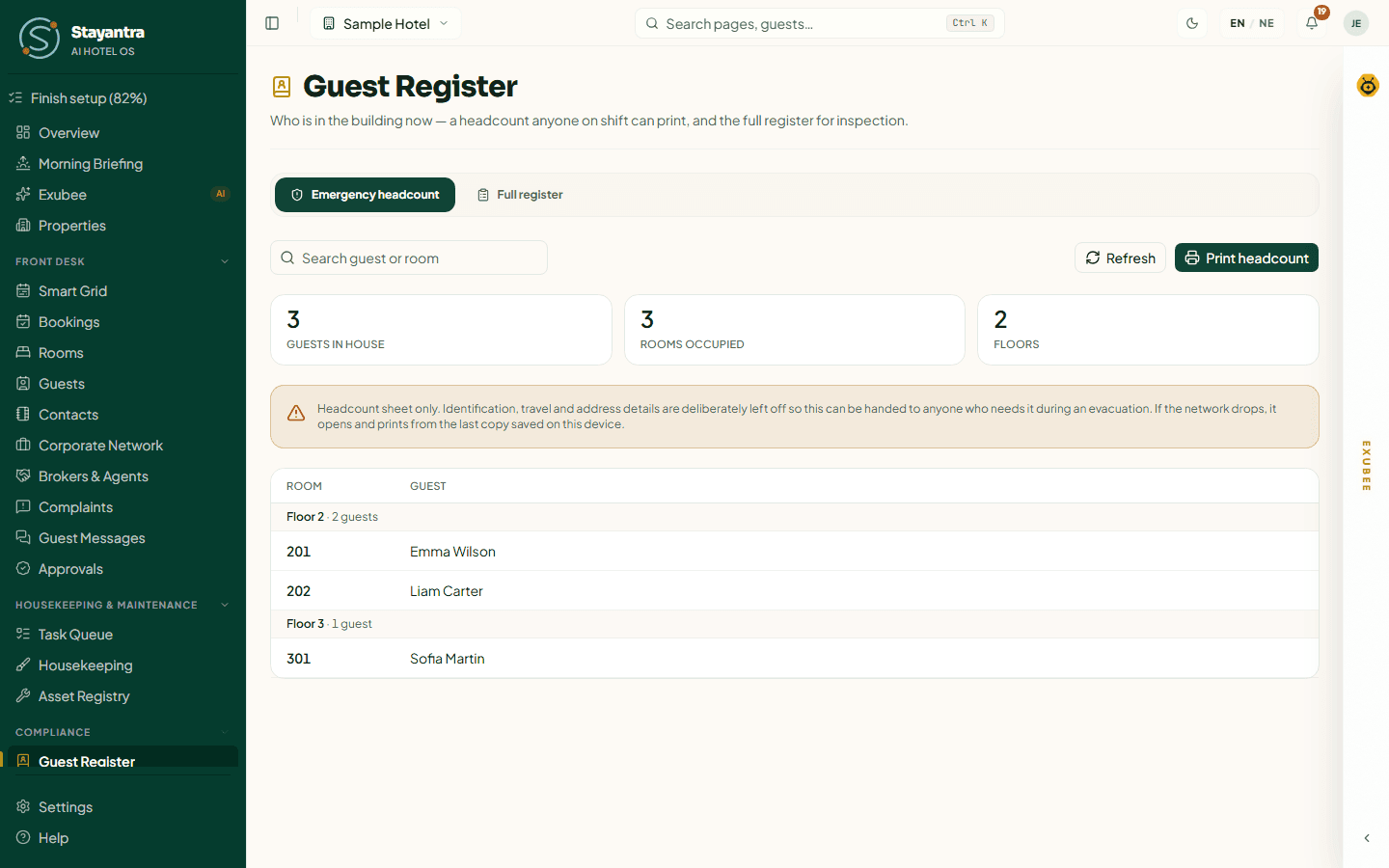
The headcount only lists names, rooms and floors — no passport numbers, visas or addresses — so it is safe to hand to anyone during an evacuation.
[!TIP] The headcount works without the internet. Each device that opens it keeps a copy, and if the network goes down it still opens and prints from that copy. The page then says Offline copy — cached with the time: anyone who checked in or out after that time is not on it. Open the Guest Register on the front-desk computer at least once a shift so its copy stays fresh.
The list counts guests with a checked-in booking — not guests who are merely due to arrive today. If it says No guests are currently checked in, nobody has been checked in on the system.
Keep the full guest register
The Full register tab is the hotel's own record of its guests, for inspection on request. Only owners and managers see this tab.
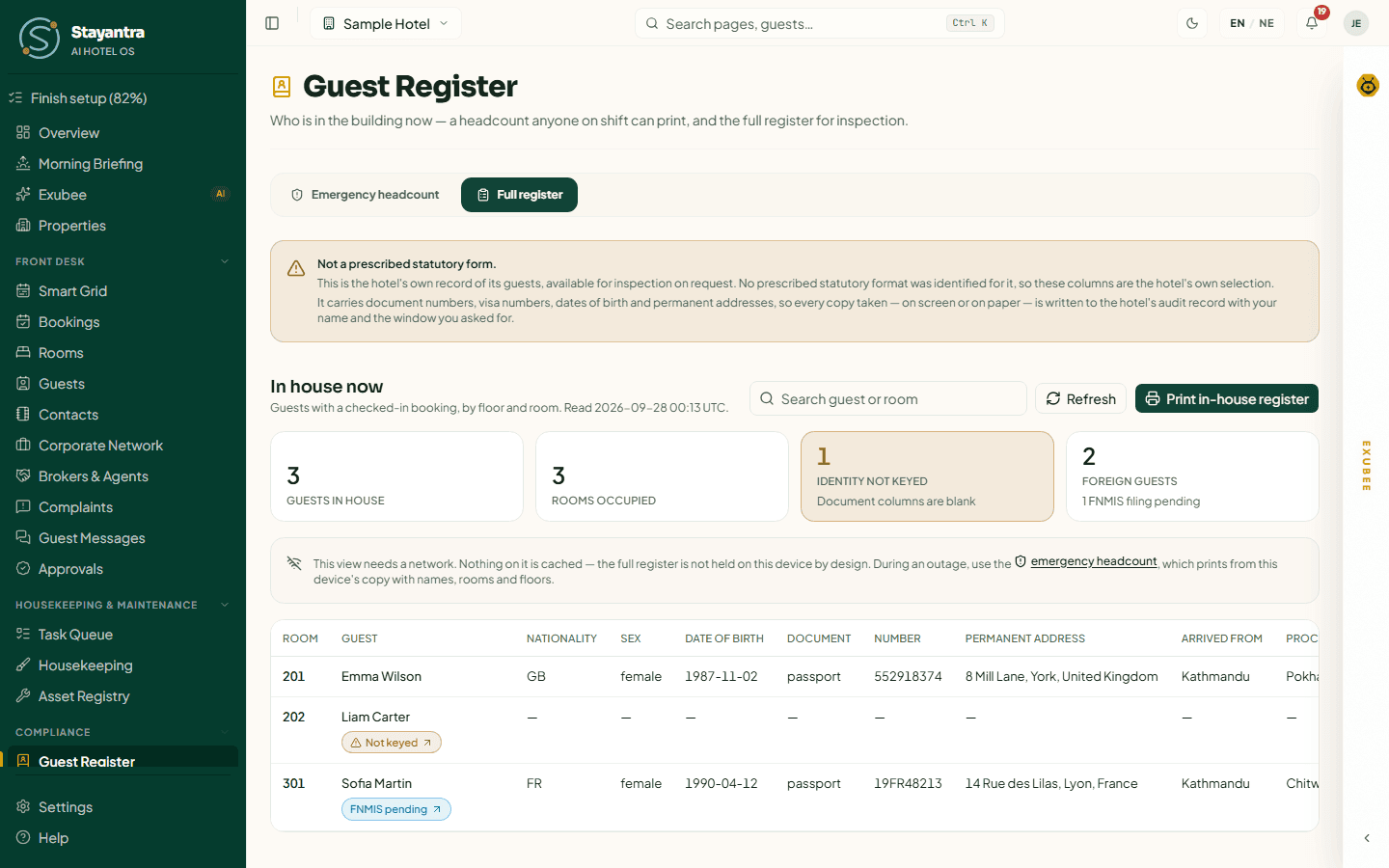
[!WARNING] The full register shows document numbers, visa numbers, dates of birth and permanent addresses. Every time someone opens it or prints it, Stayantra records who did it and which dates they asked for. Open it only when you need it.
In house now
The tiles show Guests in house, Rooms occupied, Identity not keyed (guests with no identity details recorded — their document, visa and address columns are blank) and Foreign guests (with how many FNMIS filings are pending).
Each row is one guest in their room, with Nationality, Sex, Date of birth, Document, Number, Permanent address, Arrived from, Proceeding to, Purpose, Visa, Visa number, Visa expiry, Check in and Check out. A guest marked FNMIS pending is a foreign guest not yet reported to immigration.
Search by guest name or room, click Refresh to reload, or Print in-house register for a paper copy.
Over a date range
To see everyone who arrived or left between two dates — for example, for last month's inspection — set From and To (up to 366 days), then click Show register. Print this range prints it. Cancelled and no-show bookings are never register entries.
[!NOTE] Nepal has no prescribed format for this register, so the columns are Stayantra's selection. The page says so on screen: Not a prescribed statutory form.
The full register needs an internet connection — nothing on it is saved on the device. During an outage, use the Emergency headcount.
Report foreign guests on FNMIS
Nepal requires hotels to enter every adult foreign guest, companions included, on the Department of Immigration's FNMIS portal soon after check-in. The FNMIS Worksheet lays out each foreign guest's details so the desk can copy them into the portal quickly, then records who reported whom and when.
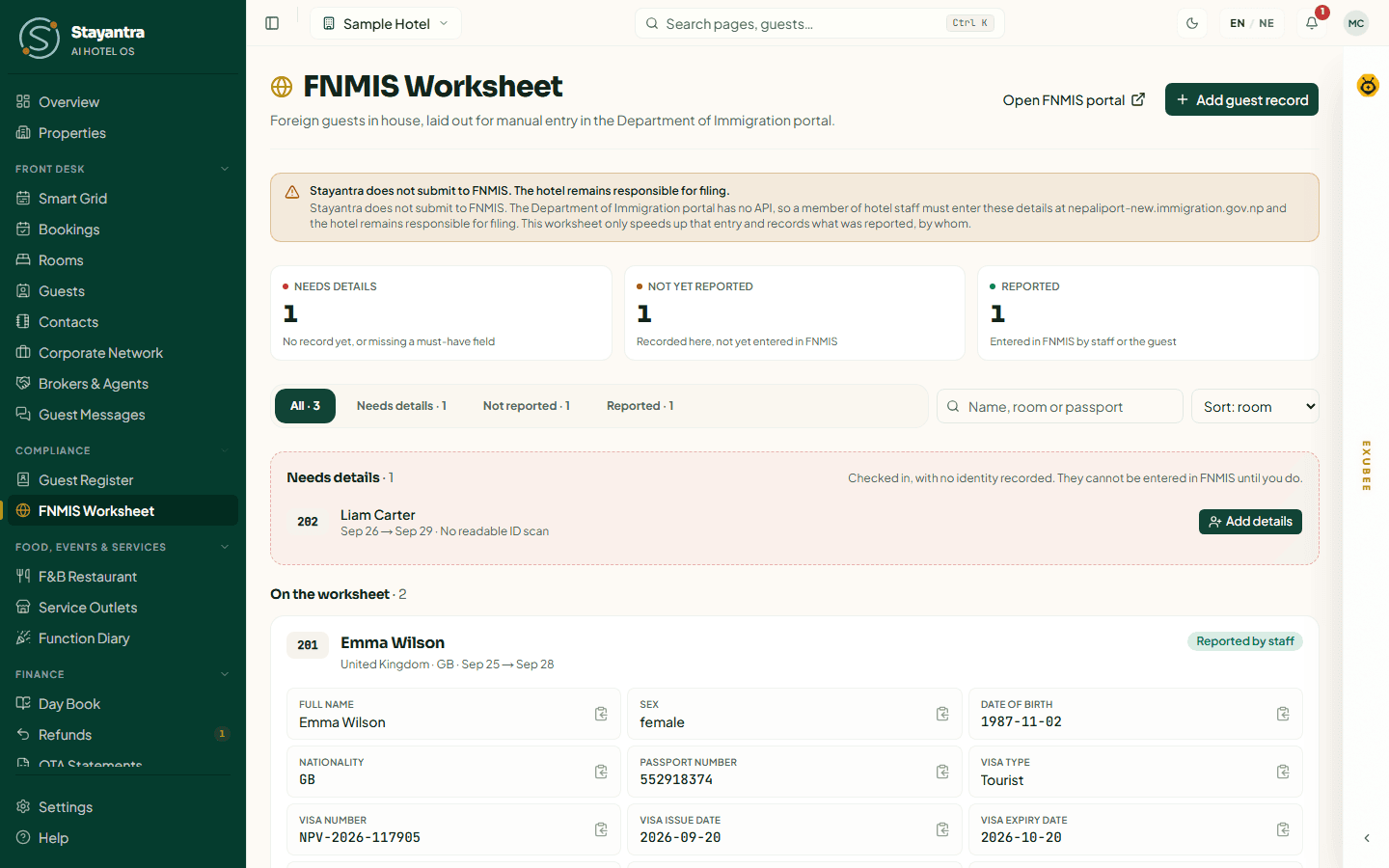
[!IMPORTANT] Stayantra does not submit anything to FNMIS — the Department of Immigration portal has no way to connect to it. A member of your staff must enter each guest on the portal. The hotel remains responsible for filing.
The worksheet only appears for hotels in Nepal. Nepali citizens are never listed, because they are not reported on FNMIS.
Check who needs reporting
Open Compliance → FNMIS Worksheet. The tiles at the top count:
| Tile | Meaning |
|---|---|
| Needs details | Checked-in guests with no identity record yet, or a record missing a must-have field. |
| Not yet reported | Details recorded here, not yet entered on FNMIS. |
| Reported | Entered on FNMIS by staff, or by the guest themselves. |
Use the view chips (All, Needs details, Not reported, Reported), the search box (name, room or passport) and Sort: room or Sort: check-in to find a guest.
Add a guest's identity details
A guest checked in at the desk may not have identity details yet. Under Needs details, each guest shows whether their ID scan was read (ID scan read — confirm it) or not (No readable ID scan).
Open the form
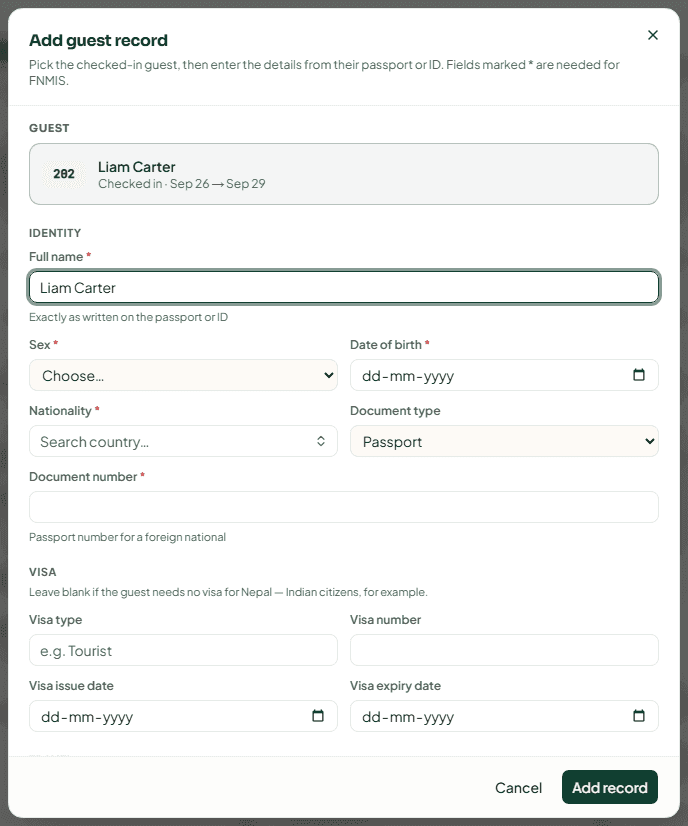
Click Add details on the guest, or Add guest record at the top and pick the checked-in guest.
Copy from the passport
Fill in Full name (exactly as on the passport), Sex, Date of birth, Nationality, Document type and Document number (the passport number for a foreign national). Fields marked * are needed for FNMIS. If you have them, add Visa type, Visa number, Visa issue date, Visa expiry date, Arrived from, Proceeding to, Purpose of visit and Permanent address.
Save
Click Add record. The guest moves to Not yet reported.
To correct a record later, click Edit details on the guest's card and then Save changes. Every correction is kept with your name.
Enter the guest on FNMIS and record it
Open the portal
Click Open FNMIS portal. It opens the Department of Immigration's site in a new tab. Sign in with your hotel's FNMIS account.
Copy each field
On the guest's card, click a field to copy it, then paste it into the portal. Copy all fields copies everything at once. A must-have field that is empty shows Missing.
Record that you entered them
Once the portal has accepted the entry, type the FNMIS reference (optional) and click I entered this guest in FNMIS. Confirm with Yes, I entered them. This stamps the record with your name and the time. It is the hotel's evidence that the guest was reported and cannot be undone here.
A guest who registered themselves in the Department of Immigration's app shows Guest self-registered and needs nothing from you.
You can also see and record each booking's FNMIS status, and add companions, in the Guest registration (FNMIS) section of the booking itself. See Bookings and folios.
Reminders
Stayantra reminds the front desk about foreign guests not yet reported. By default the desk is reminded 12 hours after check-in, and the owner is told if a guest is still unregistered at 24 hours. The owner changes the deadline in Settings → Hotel profile → Stay rules, under FNMIS registration deadline (hours after check-in) (1 to 168 hours; the desk reminder comes at half of it), then clicks Save these rules.
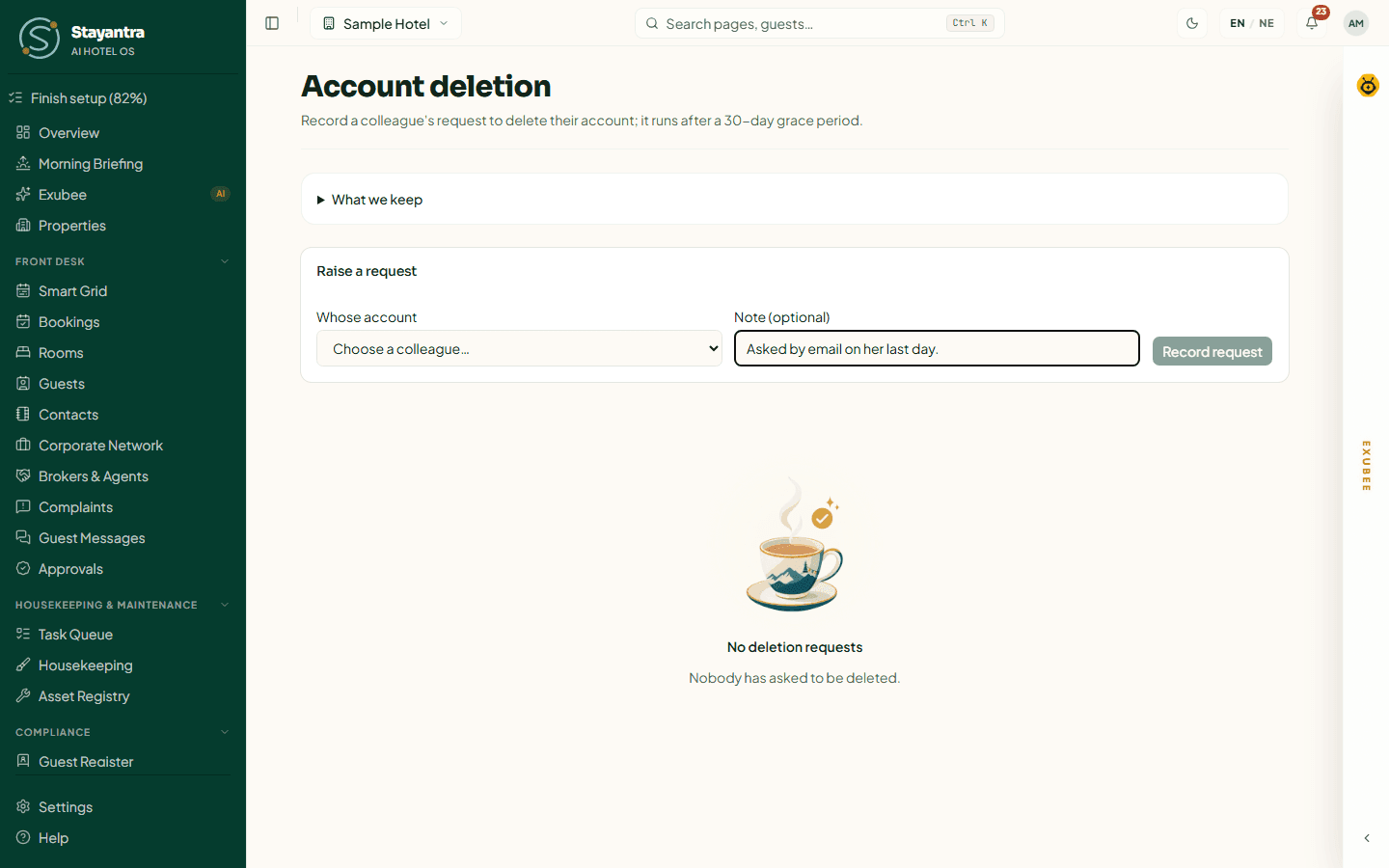
Handle a staff account-deletion request
When a colleague — a staff member, a manager or a co-owner — asks for their Stayantra account to be deleted, an owner or manager records the request. It then waits a 30-day grace period before it runs.
Where: this page has no sidebar entry. Open it from the notification Stayantra sends when a request is raised, or go to /dashboard/compliance/erasure in the web app.
Raise the request
Under Raise a request, choose the colleague in Whose account, add a Note (optional) saying how the request reached you, and click Record request.
Wait out the grace period
The request shows In the grace period. Every owner and manager is told. Until the 30 days pass, the person who raised it, or an owner, can click Cancel this request.
Stayantra runs it
After the grace period, Stayantra deletes the account overnight. The request shows Deleted and the date.
| Status | Meaning |
|---|---|
| In the grace period | Waiting out the 30 days. Can still be cancelled. |
| Running | Being deleted now. |
| Deleted | Done. |
| Refused | Could not be done; the reason is shown (for example, the person still works at another hotel). |
| Did not run | Something went wrong. Open a support ticket from Help → Open a support ticket. |
| Cancelled | Cancelled before the grace period ended. |
What is kept. Payroll, cashier and audit records stay, with the person's name removed, because Nepal's tax rules require them. Their devices, sessions, mail trail, notifications and Exubee conversations are deleted, and the account is closed. If the person also stayed somewhere as a guest, their guest records need a separate request, and the page says so.
Guest data and deletion
Guests control their own data from their profile on the Stayantra booking site and in the Go app. A guest can download their data, or choose Close my account: their booking history, points and referral code are erased 30 days after the request, and they can change their mind until then. The hotel does not need to do anything. See Your privacy and data.
Tasks, housekeeping and maintenance
Dispatch and follow staff tasks, run housekeeping, keep linen and lost property in order, look after equipment and run daily SOP checklists.
Restaurant, bar and service outlets
Run your menu, take orders to tables, rooms and walk-ins, send tickets to the kitchen, bill and close the day — plus laundry, transport and event charges.