
Marketing
Marketing is where your hotel's posts are decided, published and measured. You can write a post yourself, or ask Exubee to draft one for a festival or a slow week. Nothing goes out until a person approves it and publishes it. Posts go to your Facebook Page, the Instagram account linked to it, and by email to past guests who agreed to hear from you.
Where to find it: Marketing & Reviews → Marketing. Who can use it: owners and managers. Connecting Facebook and changing the daily promotion budget are owner-only. The page is part of the Reviews & Marketing module; without it the page shows a padlock and an Open Plan & Billing button.
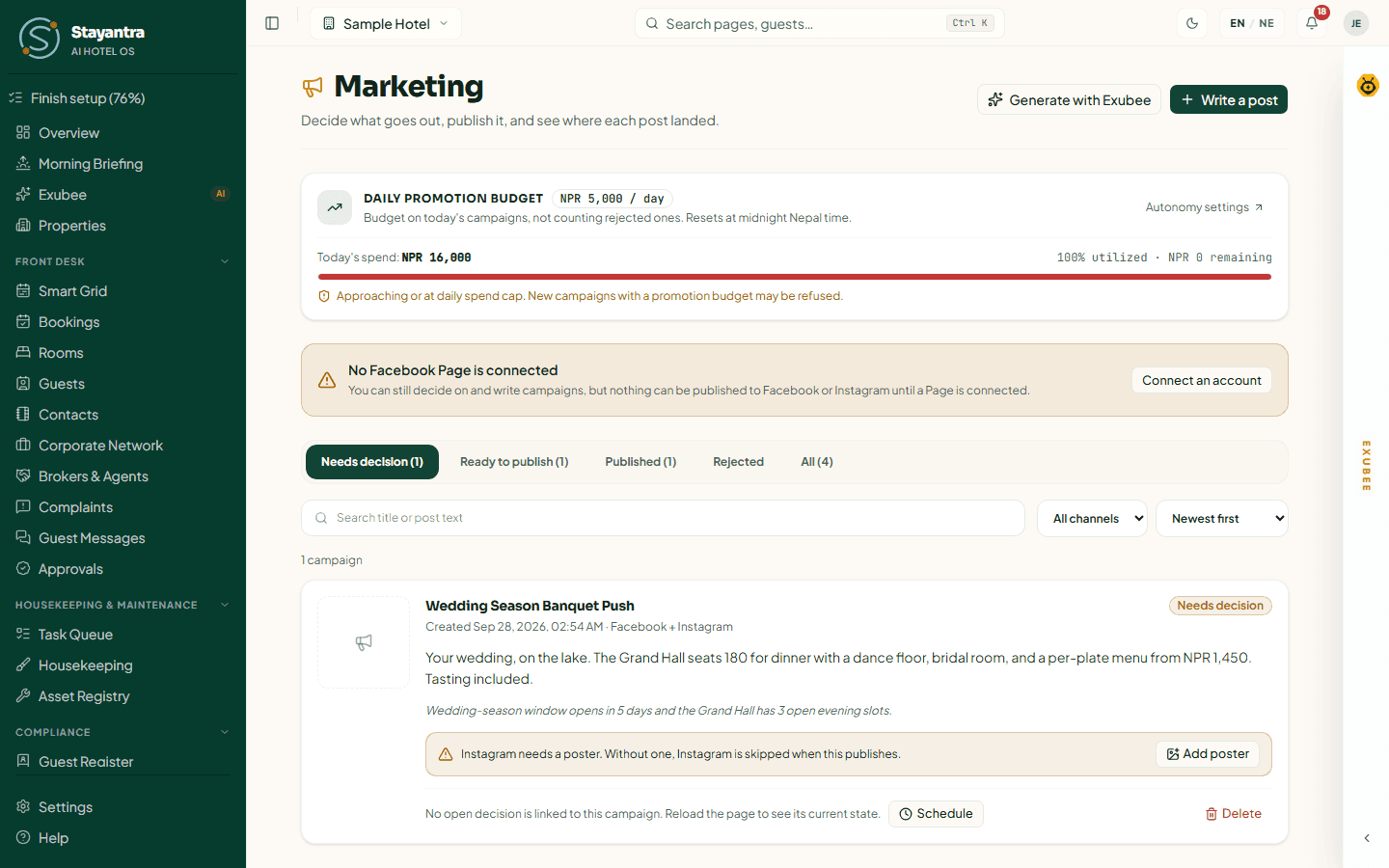
How a post moves
A post in Stayantra is called a campaign: a title for your own reference, the post text, an optional image (a poster), the channels it goes to, and optionally a promotion budget and a time.
The tabs follow the same order. Each tab shows a count.
| Tab | What is in it |
|---|---|
| Needs decision | Campaigns Exubee drafted, waiting for you to approve or reject. The page opens here. |
| Ready to publish | Approved campaigns and posts you wrote yourself. You can still edit them. |
| Published | Campaigns that went out, with where each one landed. |
| Rejected | Campaigns you turned down, kept for the record. |
| All | Everything. |
Under the tabs you can search by title or post text, filter to Facebook, Instagram or Email, and sort by Newest first, Oldest first or Scheduled time.
Before you start: connect Facebook
Until a Facebook Page is connected, the page shows No Facebook Page is connected. You can still write and decide on campaigns, but nothing can be published to Facebook or Instagram. Email works without it.
Open Social Accounts
Press Connect an account on the notice, or go to Settings → Connections → Social Accounts → Open Social Accounts. Only the owner sees this card.
Connect the Page
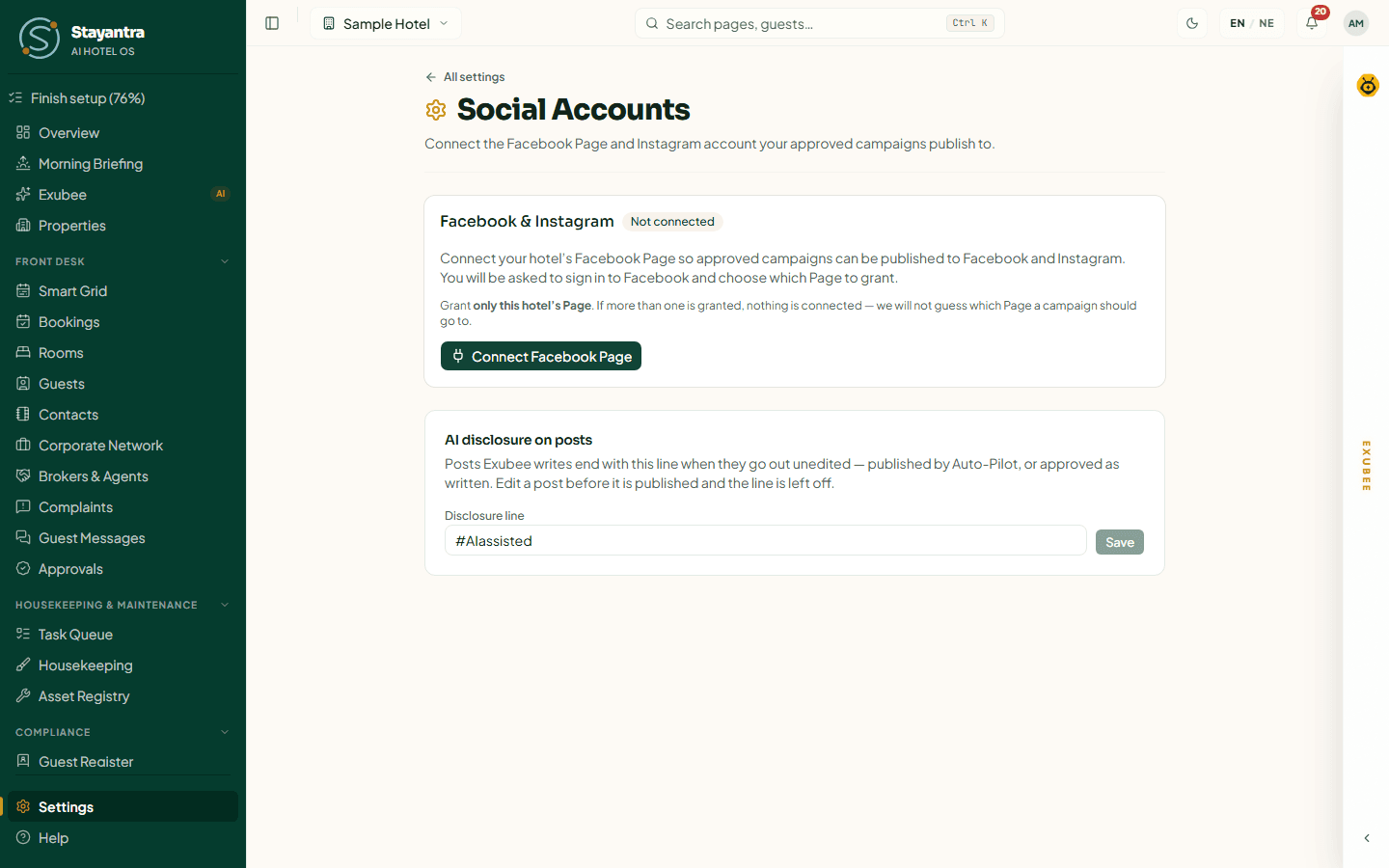
Press Connect Facebook Page and sign in to Facebook. Grant only this hotel's Page — if you grant more than one, nothing is connected. Keep every permission switched on in Facebook's dialog: posting is required, and Instagram and post numbers need their permissions too.
Check the result
The card shows Connected, the Page name, and the Instagram account "Linked to this Page".
You need a Facebook account that can create posts on the Page. For Instagram, the Page must have an Instagram professional account linked to it.
| Card status | Meaning |
|---|---|
| Not connected | Nothing is connected yet. |
| Connected | Approved campaigns can publish to the Page and its Instagram account. Last verified shows when Stayantra last checked. |
| Needs reconnecting | Facebook no longer accepts the connection (for example, a password change). Press Reconnect Facebook Page. Stayantra checks every day and tells you when this happens. |
If the card warns "No Instagram professional account is linked to this Page", link one in Facebook first. If it says publishing to Instagram wasn't granted, press Reconnect to allow Instagram.
Disconnect stops approved campaigns publishing to Facebook and Instagram. Posts already published stay up.
[!NOTE] If Connect Facebook Page shows an error instead of Facebook's sign-in, the Facebook connection is not switched on for Stayantra's side yet. Open a ticket from Help → Open a support ticket.
The AI disclosure line
Also on Social Accounts, AI disclosure on posts sets the line added to the end of posts Exubee
wrote, when they go out unedited. It is #AIassisted unless you change it (1 to 60 characters). If you
edit a post before publishing, the line is left off. Only the owner can change it.
Ask Exubee to draft a campaign
Open the dialog
Press Generate with Exubee at the top of the page.
Say what it is for
Pick a Theme or occasion (for example Dashain Celebration, Tihar Festival of Lights, Weekend Getaway or Flash Sale (Low Occupancy)), and fill Event or festival name.
Choose an offer, or none
Offer to promote lists your live rates and packages. Leave it at No offer — no prices or discounts in the copy and the post will not mention a price. Exubee can only promise an offer that a live rate or package on What You Sell actually honours.
Pick channels and a poster
Tick Channels. With Instagram ticked, Create a poster with AI is on: Exubee also makes an image. It adds up to a minute and counts toward your AI poster allowance.
Add highlights and generate
Under Highlights or instructions (optional) add what matters, for example "free rooftop breakfast, quiet river view". Press Generate campaign.
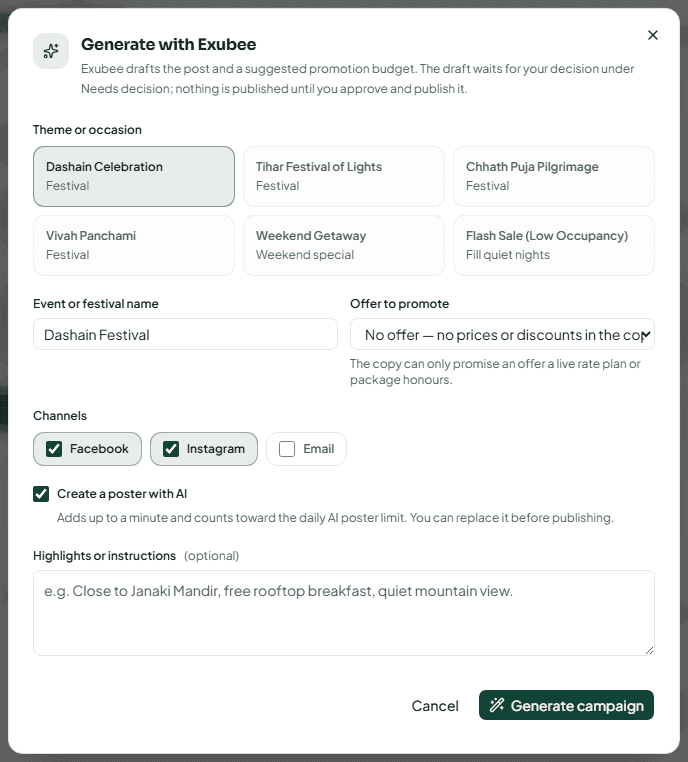
The draft lands under Needs decision with a suggested promotion budget. Nothing is published. If the poster could not be made, the draft still arrives and you can add a poster from its card.
Write a post yourself
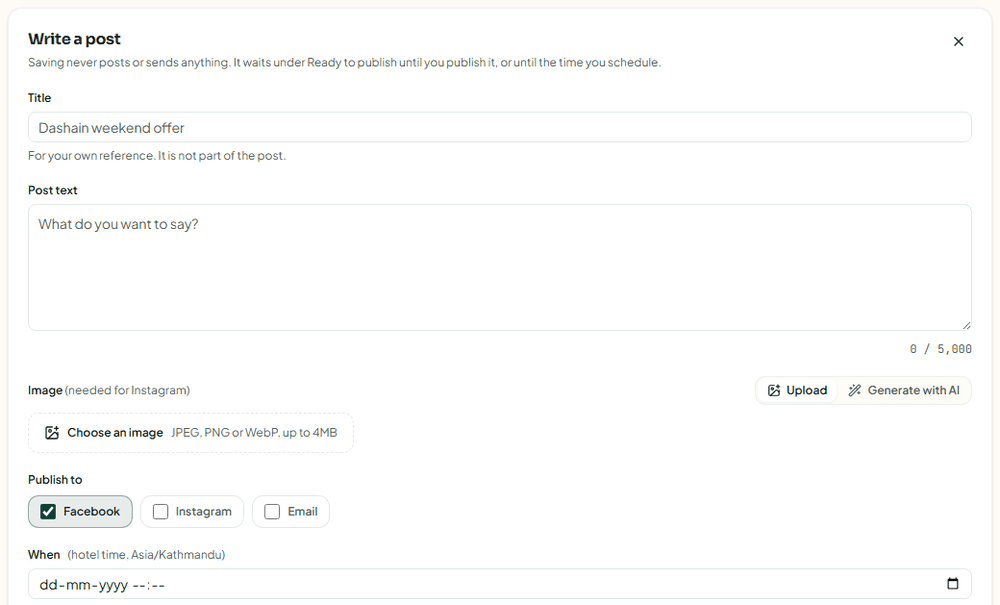
Press Write a post. Saving never posts or sends anything.
| Field | What to enter |
|---|---|
| Title | For your own reference, for example "Dashain weekend offer". It is not part of the post (for email it can be the subject). |
| Post text | What the post says. Up to 2,200 characters for Instagram, 5,000 otherwise. |
| Image (needed for Instagram) | Upload a JPEG, PNG or WebP up to 4 MB, or Generate with AI from a short description. |
| Publish to | Facebook, Instagram, Email. Facebook is ticked to start. |
| Promotion budget (NPR) | Leave blank for an ordinary (organic) post. |
| When | A time in hotel time to publish on its own. Leave empty to publish by hand later. |
When Email is ticked, more fields appear:
| Field | What it does |
|---|---|
| Email subject (optional) | Left blank, the title is the subject. |
| Who gets it | All past guests who opted in to offers, or Guests with at least N stays. |
| More filters | Total spent at least, Stayed in room type, Booked through (your website, Stayantra app, walk-in, phone, email, Booking.com, Agoda, Expedia). |
A live count shows how many opted-in guests the email will reach. Guests who already got a marketing email from your hotel in the last 7 days are skipped.
Press Save post (or Schedule post if you set a time). A post you write yourself goes straight to Ready to publish — it does not need approval.
Decide on a campaign
Each card under Needs decision shows the post text, the channels, an AI-generated badge when Exubee made the image, and chips such as the promotion budget and when the decision expires.
- Approve opens "Approve this campaign?". Approving publishes nothing: the campaign moves to Ready to publish, where you can edit, schedule or publish it.
- Reject opens "Reject this campaign?" and asks why: Too Aggressive, Wrong Timing, Wrong Target, Factually Wrong or Other (Other needs a note). Exubee learns from the reason.
- Schedule sets the time it will publish once approved.
To change the words of an Exubee draft, approve it first, then use Edit before publishing.
[!NOTE] An Exubee draft you do not decide on expires after 24 hours. The card shows when.
Publish
On a Ready to publish card:
- Publish now asks "Publish this campaign now?". A post can be taken down later, but people may already have seen it. Emails cannot be recalled.
- Edit changes the title, text, channels, time and email settings.
- Add poster / Change poster adds or replaces the image. Generate poster makes one with AI from a description; pictures only, no words — the post text carries those.
- Send me a test (email campaigns) sends the email to you first.
- Delete removes a campaign that has not been sent.
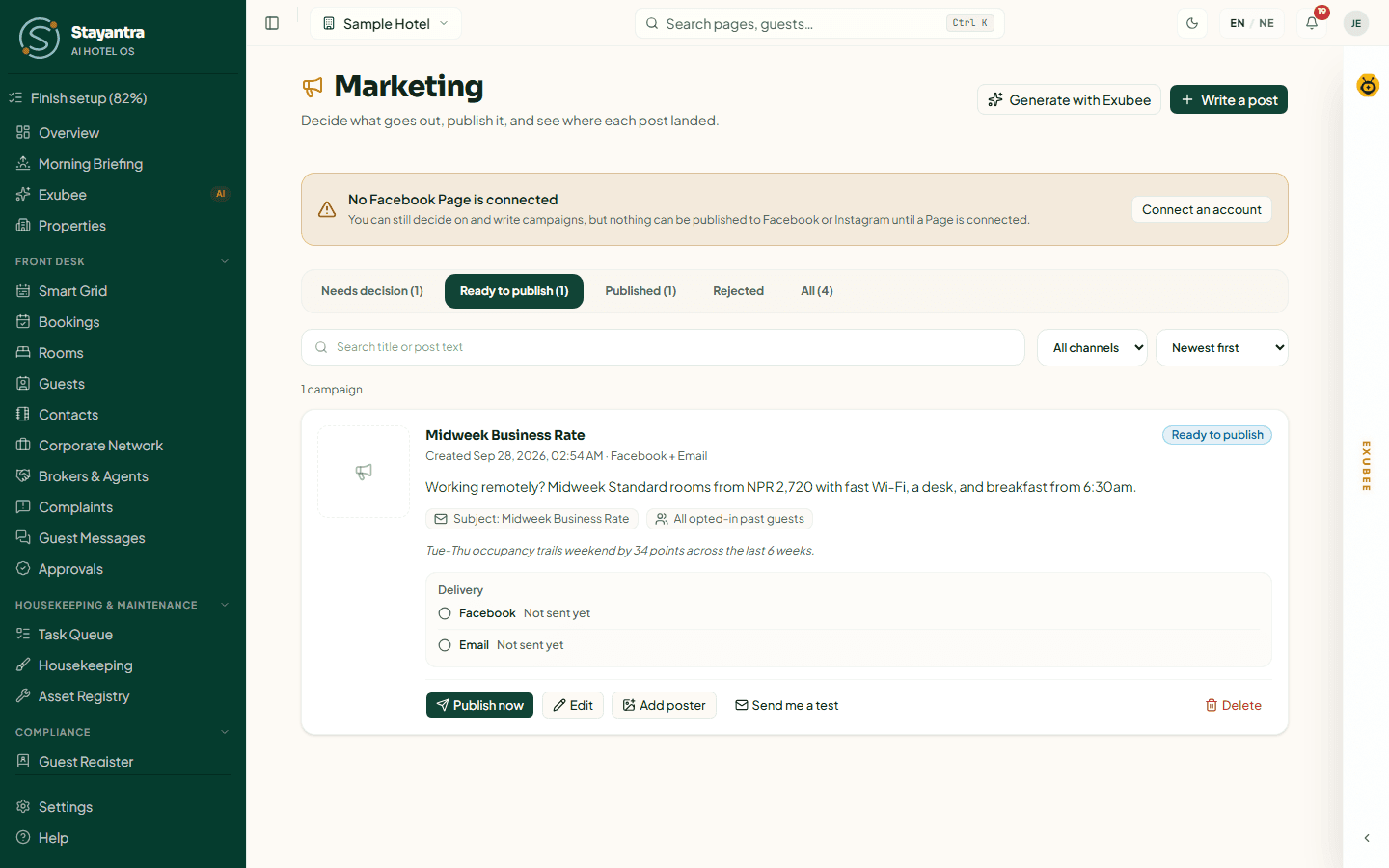
A scheduled campaign publishes itself at its time (the scheduler runs every 5 minutes). If that fails, the card shows Publish failed and a person retries it.
Instagram rules
Instagram needs an image. Without one, the card warns "Instagram needs a poster. Without one, Instagram is skipped when this publishes." Instagram also refuses images that are not JPEG, more than 30 hashtags, and more than 20 @mentions.
Campaign statuses
| Status | Meaning |
|---|---|
| Needs decision | Waiting for approve or reject. |
| Ready to publish | Approved or written by you; not out yet. |
| Scheduled | Will publish itself at its time. |
| Publishing… | Going out now. |
| Published | Out on every channel. |
| Partly published | Out on some channels, not others. Open Delivery to see which. |
| Publish failed | Nothing went out. Use the retry button, which names the channels. |
| Not confirmed | Sent, but the channel has not confirmed it yet. |
| Taken down | Removed after publishing. |
| Rejected | Turned down. |
See where a post landed
A published card has a Delivery row for each channel: Live, Sent, Failed, Skipped, Removed and so on, with a fix button when something went wrong — Reconnect Facebook, Add poster, Edit text.
Take down removes a Facebook post (and an Instagram post, if Facebook granted that permission). Emails cannot be taken down.
The post numbers — Reach, Engagement, Clicks (Facebook) or Saves (Instagram), likes, comments — appear a few hours after posting. Press Refresh numbers to update them.
The daily promotion budget
The Daily Promotion Budget card adds up the promotion budgets on today's campaigns (rejected ones do not count) against the daily cap, and resets at midnight in the hotel's timezone. At 90% it warns that new campaigns with a promotion budget may be refused.
The default cap is NPR 5,000 a day. The owner can press Adjust spend cap and set New daily spend limit (NPR) up to NPR 50,000, then Save limit.
When Exubee may publish on its own
By default every campaign waits for a person. If the owner has moved marketing to Auto-Pilot on Autonomy, Exubee's social-only posts can publish themselves after a hold of at least one hour, unless someone rejects them first. Email campaigns, and posts that promise an offer no live rate or package honours, always need a person.
AI posters
Stayantra makes posters with an image AI. Each AI poster counts toward a monthly allowance (30 a month by default; more can be bought) and a safety limit of 20 a day. A poster made by Stayantra's AI shows an AI-generated badge, and publishing adds "Image created with AI." to the caption.
Stayantra featuring your results
Separately from your own campaigns, Stayantra may ask to feature your hotel's results — for example "occupancy up 18% on last year" — on Stayantra's own website and social media. This is set in Settings → Connections → Stayantra marketing, by owners and co-owners only.
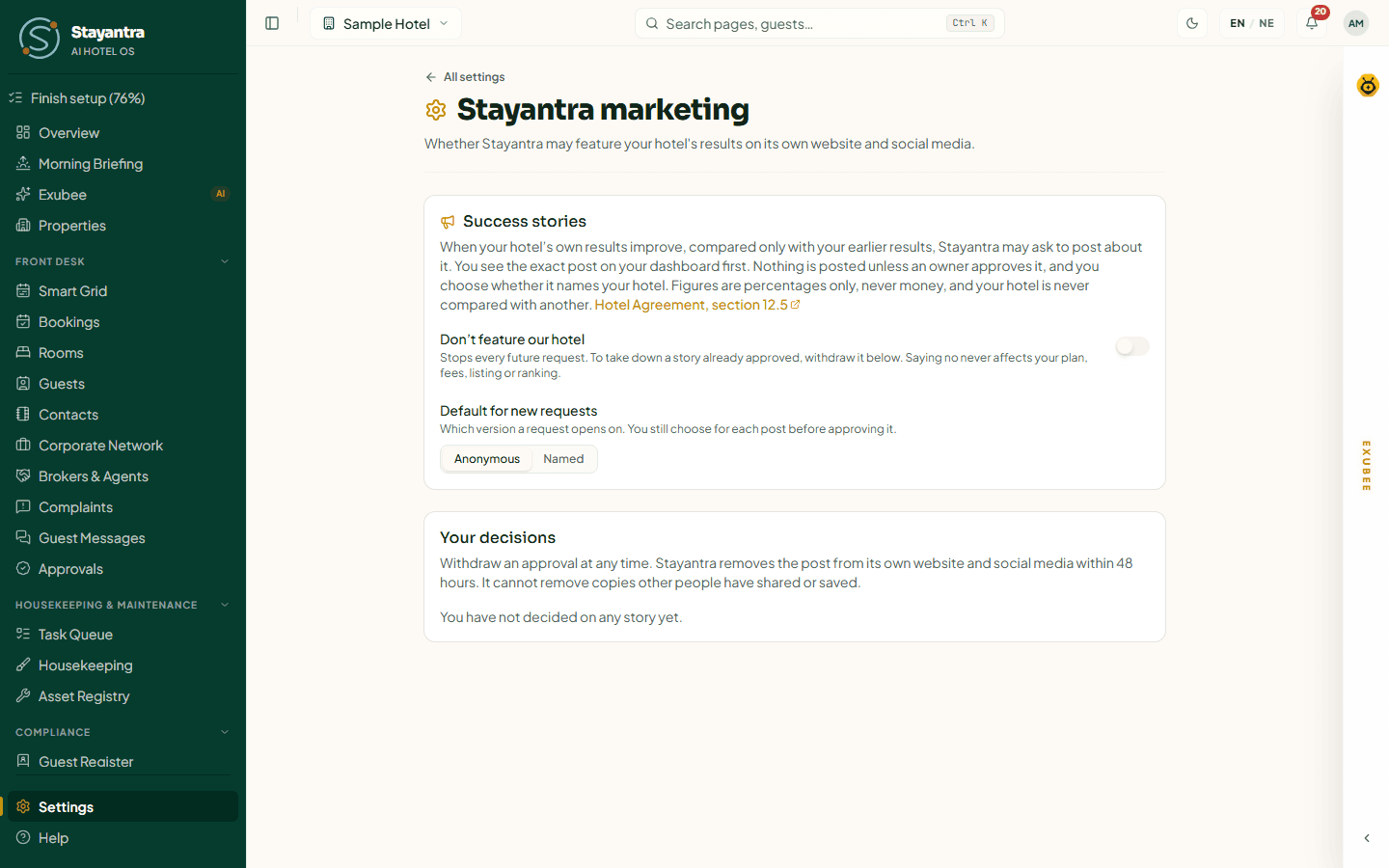
- You see the exact post on your dashboard first, in a card "Stayantra would like to feature your results". Nothing is posted unless an owner approves it, and you choose Approve anonymously or Approve with our name. Decline is final for that story.
- Figures are percentages only, never money, and your hotel is never compared with another.
- Don't feature our hotel stops every future request. Saying no never affects your plan, fees, listing or ranking.
- Default for new requests sets whether a request opens as Anonymous or Named.
- Under Your decisions you can Withdraw an approval at any time. Stayantra removes the post from its own channels within 48 hours.
Troubleshooting
| What you see | What to do |
|---|---|
| "No Facebook Page is connected" | The owner connects it on Settings → Social Accounts. |
| Needs reconnecting | Press Reconnect Facebook Page and sign in again. |
| Instagram was skipped | The campaign had no poster, or the image was not a JPEG. Add a poster and retry Instagram. |
| "A campaign like this has already been drafted" | Exubee already made that draft. Look under Needs decision. |
| New campaigns are refused | Today's promotion budget is used up. Wait until midnight or ask the owner to raise the cap. |
| An Exubee draft disappeared | It expired after 24 hours without a decision. Generate it again. |
Related
- Guest reviews
- Revenue management — the rates and packages campaigns can promote
- Using Exubee
Your marketplace listing
How your hotel appears on the Stayantra marketplace and in the Stayantra Go app, what it shows, how hotels are ordered, and how direct bookings reach you with no commission.
Guest reviews
Read every review your guests leave, reply to it, pull in Booking.com, Airbnb and Expedia reviews, and handle low ratings in Review Quarantine.