
Restaurant, bar and service outlets
The F&B Restaurant console runs your restaurant, bar and room service: the menu, orders and kitchen tickets (KOTs), tables, table reservations and outlets. Service Outlets charges guests for laundry, transport and small events. This page covers both.
Where to find it: in the sidebar, Food, Events & Services → F&B Restaurant and Food, Events & Services → Service Outlets. F&B Restaurant needs the F&B module on your plan.
Who does what:
| Task | Who |
|---|---|
| Add categories and dishes, set up tables, outlets and stations | Owner, manager |
| Mark a dish unavailable | Owner, manager, kitchen staff |
| Take an order at a table or counter, fire it to the kitchen, mark it served | Staff with the service skill (waiters) |
| Order food for a room guest | Also front desk staff, managers and owners |
| Mark a ticket ready on the kitchen screen | Kitchen staff |
| Bill an order | Waiters, cashiers, managers, owners |
| Take eSewa, Khalti, Fonepay or card payment | Cashiers, managers, owners |
| Give a discount or comp | Cashiers, managers, owners, up to their limit |
| Cancel an order the kitchen already has, void a bill | Manager, owner |
| Table reservations | Owner, manager, waiters |
| Day-end report | Owner, manager |
Staff do most of this on a tablet or phone. Waiters and cooks can also use the Connect app — see Kitchen and service staff.
Set up before your first service
Work through these once, in this order:
- Outlets and stations — where orders are raised and where tickets print. See Set up outlets and stations.
- Menu — categories and dishes. See Build your menu.
- Tables — see Set up tables.
- Kitchen printers (optional) — see Restaurant and printers.
- Taxes — the service charge and VAT added to every bill come from Settings → Hotel profile → Taxes.
Build your menu
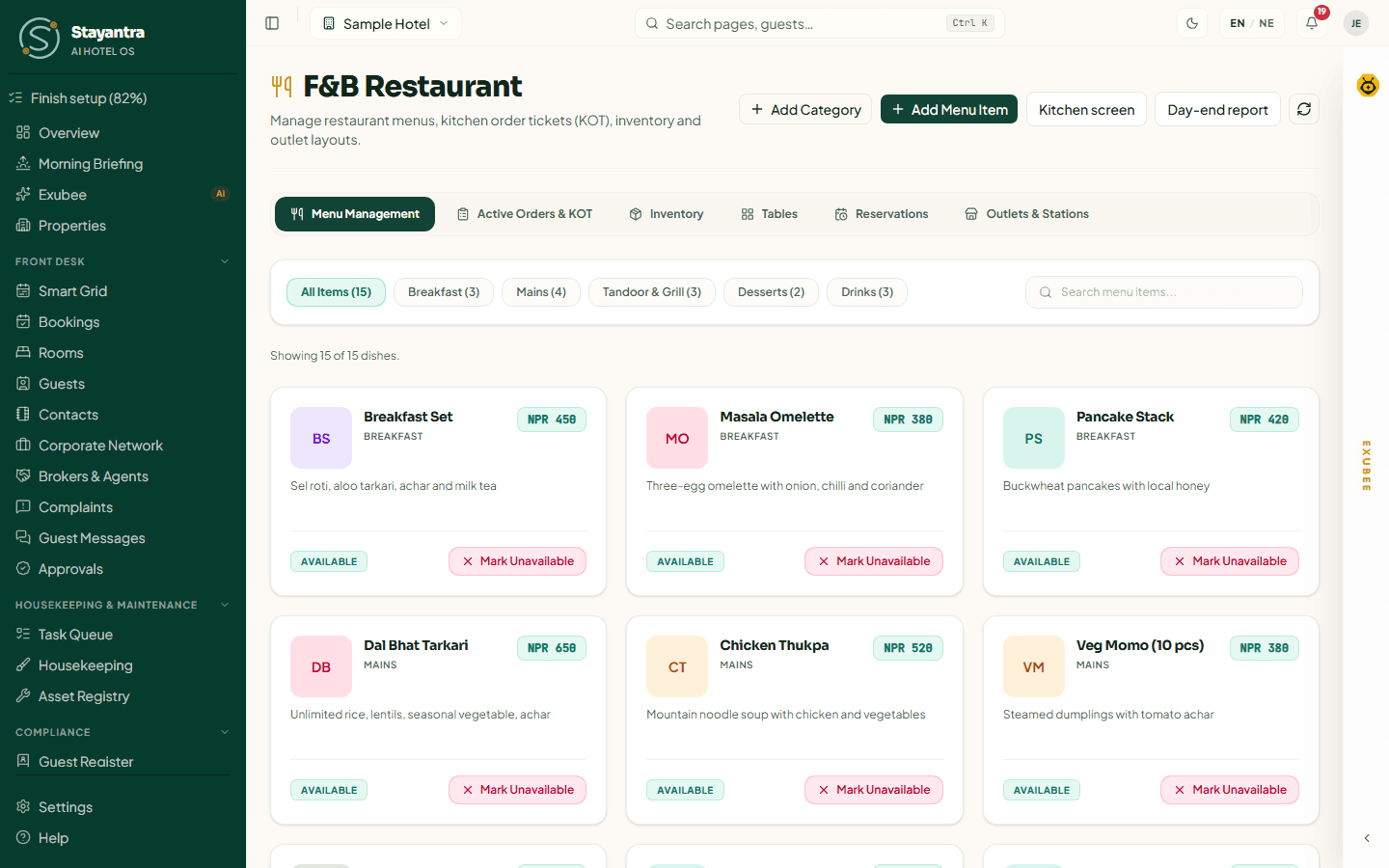
The Menu Management tab shows every dish as a card with its photo, category, price, description and whether it is Available.
Add a category
Click Add Category, enter a Category Name (for example Appetizers, Main Course, Beverages) and click Create Category. You need at least one category before you can add dishes.
Add a dish
Open the dialog
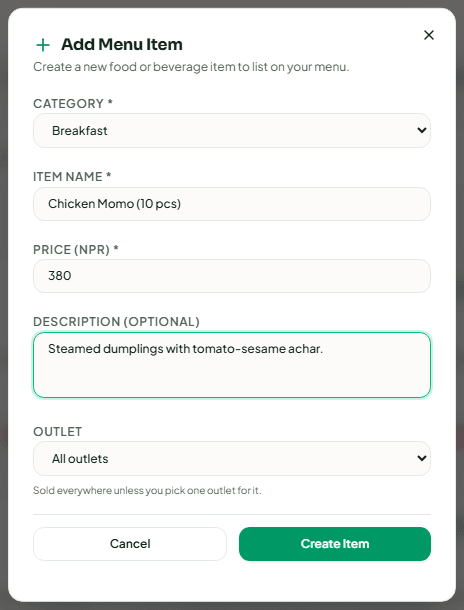
On Menu Management, click Add Menu Item.
Describe the dish
- Category — where it appears on the menu.
- Item Name — for example "Chicken Momo".
- Price — in your hotel currency, before service charge and VAT.
- Description (Optional) — ingredients, portion, serving style.
- Outlet — All outlets, or one outlet if only that outlet sells it (for example cocktails only at the bar).
Save and add a photo
Click Create Item. Then click the photo area on the dish card to upload a picture. Guests see the same photo when they order from the Stayantra Go app.
Take a dish off the menu for today
When the kitchen runs out, click Mark Unavailable on the dish ("86 it"). It disappears from ordering for staff and guests. Click Mark Available to bring it back. Kitchen staff can do this too.
Use the category chips (All Items and one per category, each with its count) and Search menu items... to find a dish.
Take an order
Orders come from waiters on the console, from the front desk for room guests, and from guests ordering room service in the Go app. They all appear in Active Orders & KOT.
Start the order
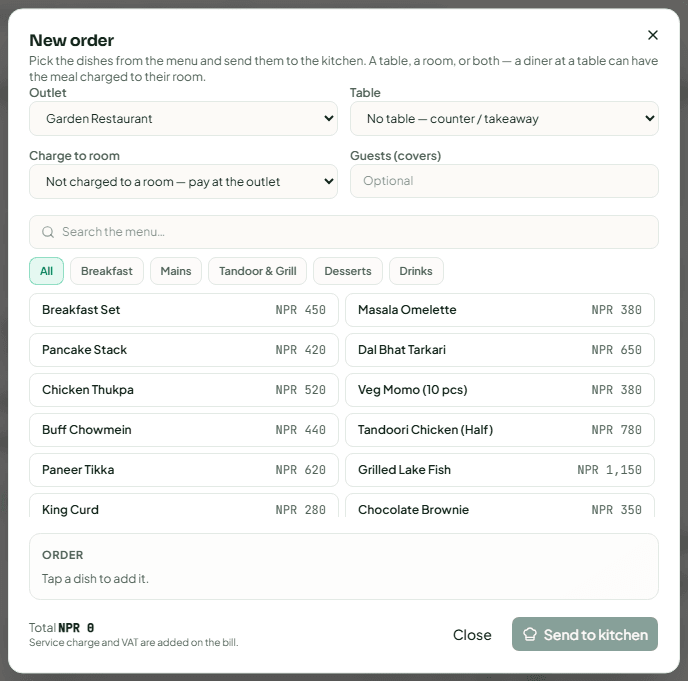
On Active Orders & KOT, click New order.
Say where it goes
- Outlet — the restaurant, bar or room service.
- Table — pick the table, or No table — counter / takeaway for a walk-in.
- Charge to room — pick the in-house guest's room to put the meal on their bill, or Not charged to a room — pay at the outlet. A diner at a table can have the meal charged to their room.
- Guests (covers) — optional.
Add the dishes
Tap dishes to add them (search the menu or pick a category). Use the plus and minus buttons for quantity. For each line you can choose options, a seat, and a Note to the kitchen, e.g. no chilli.
Send it
Click Send to kitchen. The order is created and fired: a KOT goes to the kitchen screen and, if you have one, the kitchen printer.
Front desk staff, managers and owners can only order for a room guest ("Pick the guest's room — the front desk orders for room guests"). A charge to a guest who has already checked out asks a manager Why is this charged after checkout?; the guest and the owner are told.
Follow orders through the kitchen
Active Orders & KOT shows live orders as cards: where the order is (Table 5, Room Service or Counter), a Walk-in tag if it is not linked to a room, how long ago it was placed, each dish with its options and seat, and the Total Amount. Filter with Live, All and the status chips, or search by table or dish.
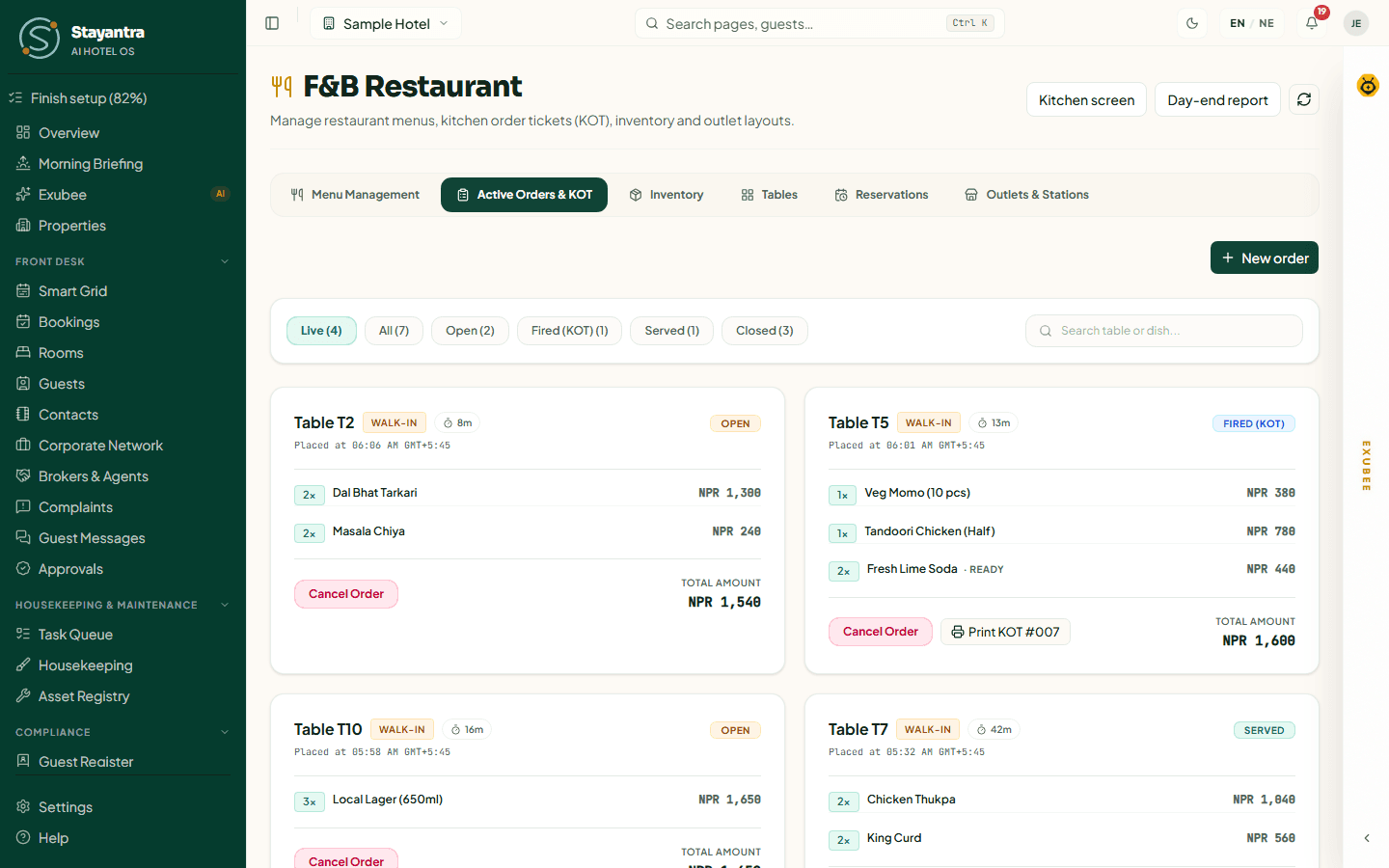
| Status | Meaning | Next button |
|---|---|---|
| Open | Taken, not yet sent to the kitchen. | Fire (KOT) (waiter) |
| Fired (KOT) | The kitchen has the ticket. | Mark Ready (kitchen) |
| Ready | Cooked, waiting to be served. | Mark Served (waiter) |
| Served | On the table. | Generate Bill |
| Billed | Bill raised. For a walk-in paying online, waiting for the payment. | Take payment if the payment was not finished |
| Closed | Paid, or on the guest's room bill. | — |
| Cancelled | Cancelled. | — |
On a live order you can also:
- Add dishes or Add a round (repeat the last round). New dishes wait until you fire them.
- Split the bill By dish, By seat or into Equal parts.
- Merge another table's bill into this one.
- Move table.
- Print the ticket again (Print KOT #001) or Print Bill (an 80 mm receipt).
Cancel an order
Click Cancel Order and confirm Cancel order. Before the kitchen has the ticket, the waiter can cancel. After it has been fired, only a manager or the owner can cancel, with a Reason (required — the owner is told), for example "Guest sent the dish back".
Bill an order
Click Generate Bill on a served (or ready) order.
Room guest. The bill goes to the guest's room folio. If the guest's package includes food — "Room + Breakfast", for example — the Bill to the room dialog lets you choose Included in package for the meal it covers, and how many guests it covers, then click Bill with the Package. The package covers up to what the item is worth; anything above is charged to the room. Otherwise click Charge to the Room.
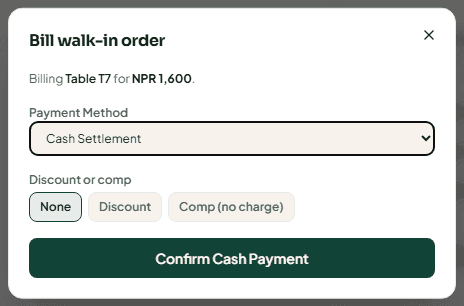
Walk-in. The Bill walk-in order dialog asks for the Payment Method:
| Method | What happens |
|---|---|
| Cash Settlement | Click Confirm Cash Payment. The bill closes. |
| eSewa, Khalti, Fonepay, card | Click Generate Bill & Take Payment. The bill is posted as unpaid and the next screen hands the diner a payment. It closes itself when the payment is confirmed. |
| Fonepay QR | Shows a QR code on this screen for the diner to scan. |
| Already paid — QR standee or card terminal | The diner already paid with your own QR standee or card machine. Choose Paid by (Fonepay QR standee, eSewa QR standee, Khalti QR standee or Card terminal), type the Reference, and click Record the Payment. |
Only the online methods your hotel has switched on are offered. Staff who cannot record payments see cash only ("Wallet payments need the payment-recording permission").
If the diner walks away before paying online, the order stays Billed with a Take payment button — use it to start the payment again.
Discounts and comps
Staff allowed to give discounts see Discount or comp on the bill:
- Discount — a percentage or an amount, with Why the discount (required).
- Comp (no charge) — with a reason: Service recovery (complaint), Food or drink quality, Owner's guest, Staff meal or Goodwill / VIP, and an optional note.
Each person has a limit. Above it, the bill is sent to a manager to approve ("The discount or comp is above your limit…") in Approvals.
Void a bill
A manager or owner can click Void bill on a billed or closed order to correct it. The order goes back to be billed again. Voids show on the day-end report.
Rewards perks
If a guest paid for a food or drink perk with Stayantra Rewards points, Rewards food & drink perks owed at the top of the orders tab lists it by room, so the restaurant serves it instead of billing it.
Use the kitchen screen
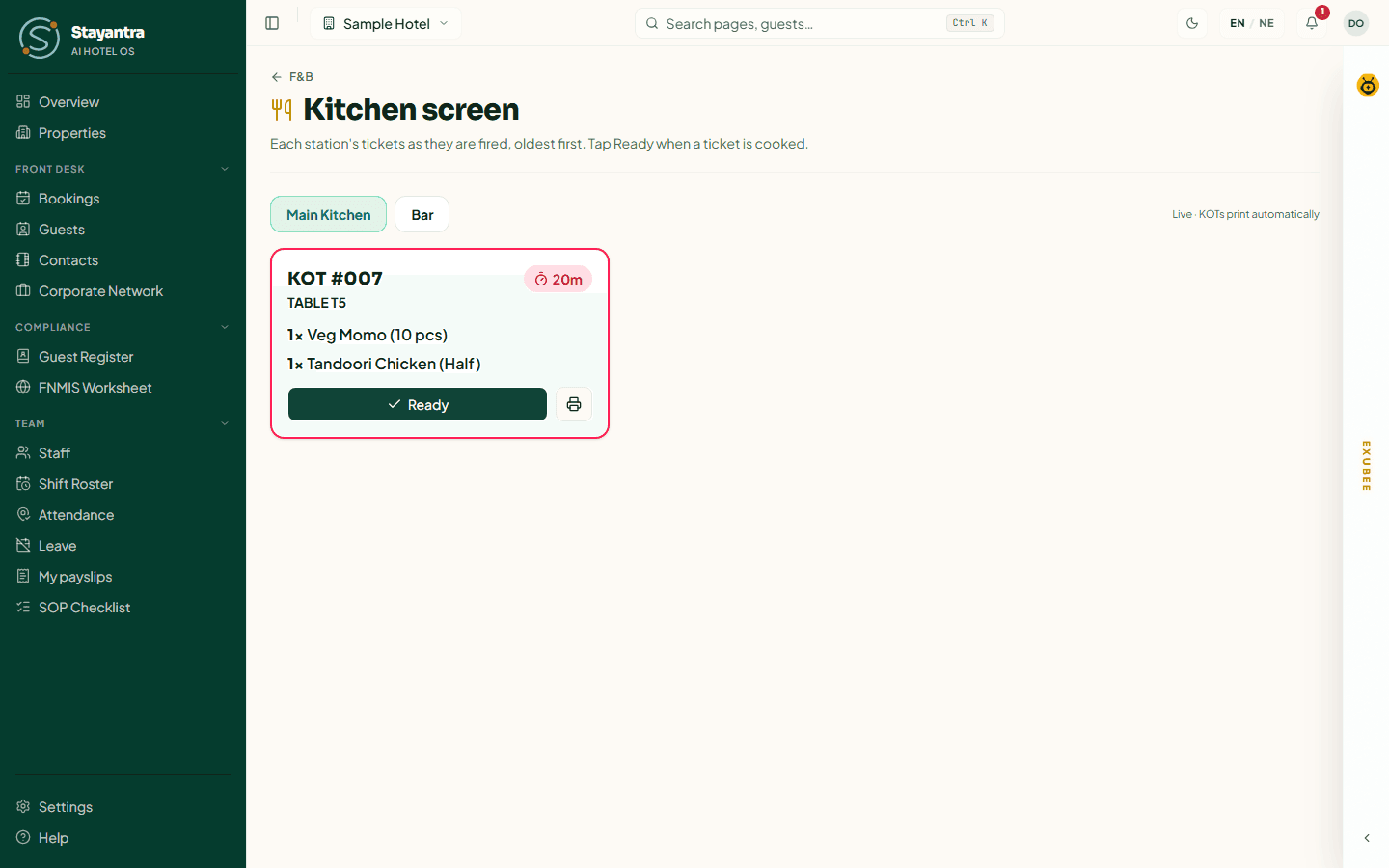
The kitchen screen is for a tablet at the pass. It shows one station's tickets live, oldest first.
Where: on F&B Restaurant, click Kitchen screen.
Pick your station
Choose the station (for example Main Kitchen or Bar). The tablet remembers it. The line under it says Live and whether KOTs print automatically or there is No printer bridge for this station.
Cook from the tickets
Each ticket shows its number, where the food goes (table or room), the dishes with their notes, and a timer that turns amber, then red, the longer it waits. Not printed — check the printer. appears when a ticket should have printed but has not.
Bump it
Tap Ready when the ticket is cooked. It moves to Ready — waiting for service and the waiter sees it as Ready. Tap Recall if you bumped it by mistake.
Below the tickets, owners and managers see Kitchen printers, where you connect thermal printers through the Stayantra print bridge: Add printer bridge, copy the device token (shown only once), set each printer's address, and choose Alert when a KOT has not printed within. The full setup is in Restaurant and printers.
Set up tables
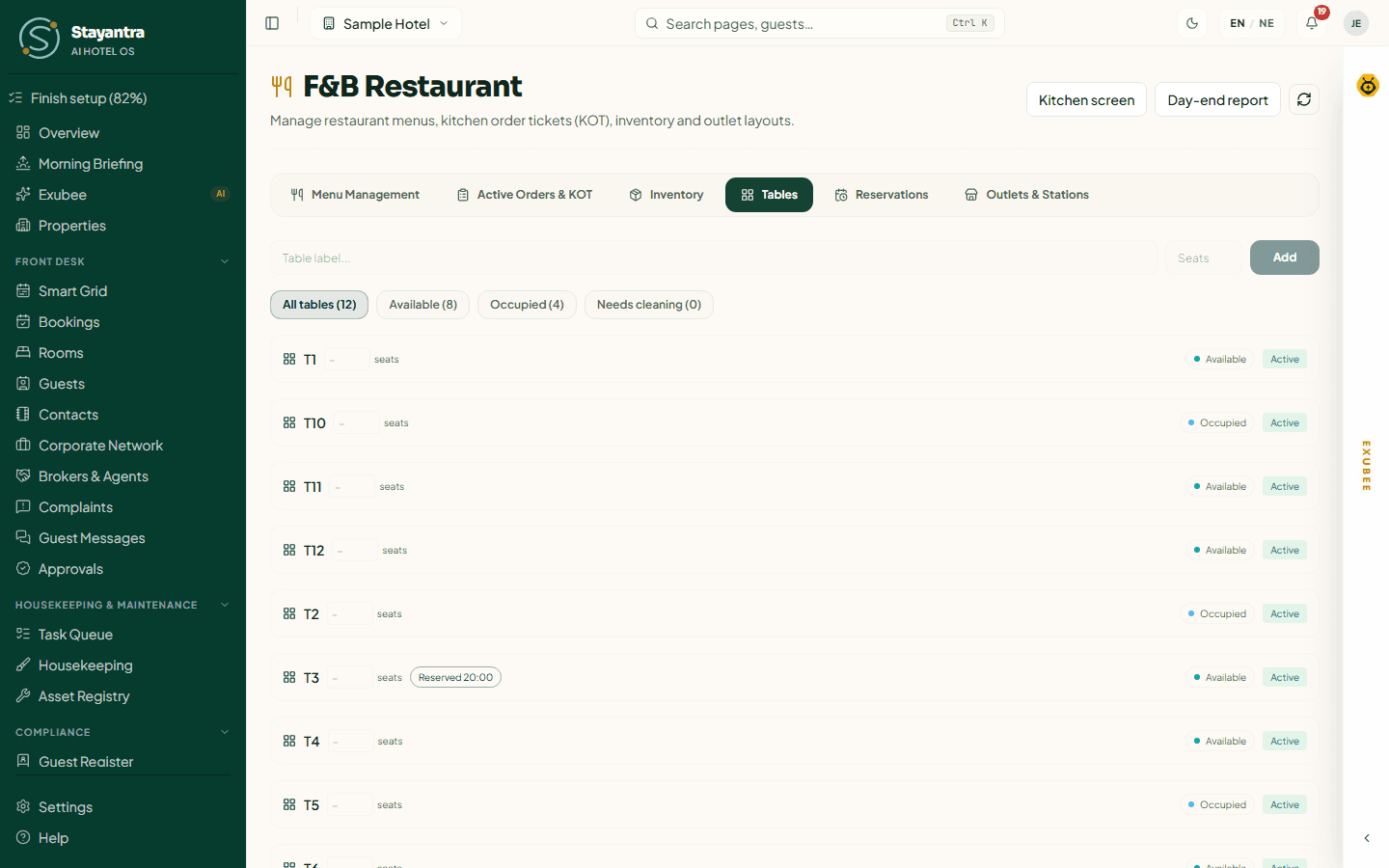
The Tables tab lists your tables with their seats and turnover status: Available, Occupied or Needs cleaning.
- To add a table, type its label (for example "T5" or "Terrace 2") and the seats, then click Add.
- Change the seats on a table by editing its number.
- When a table has been cleared, click Mark clean. Waiters can do this.
- A table shows Reserved and the time when a reservation is coming.
Take table reservations
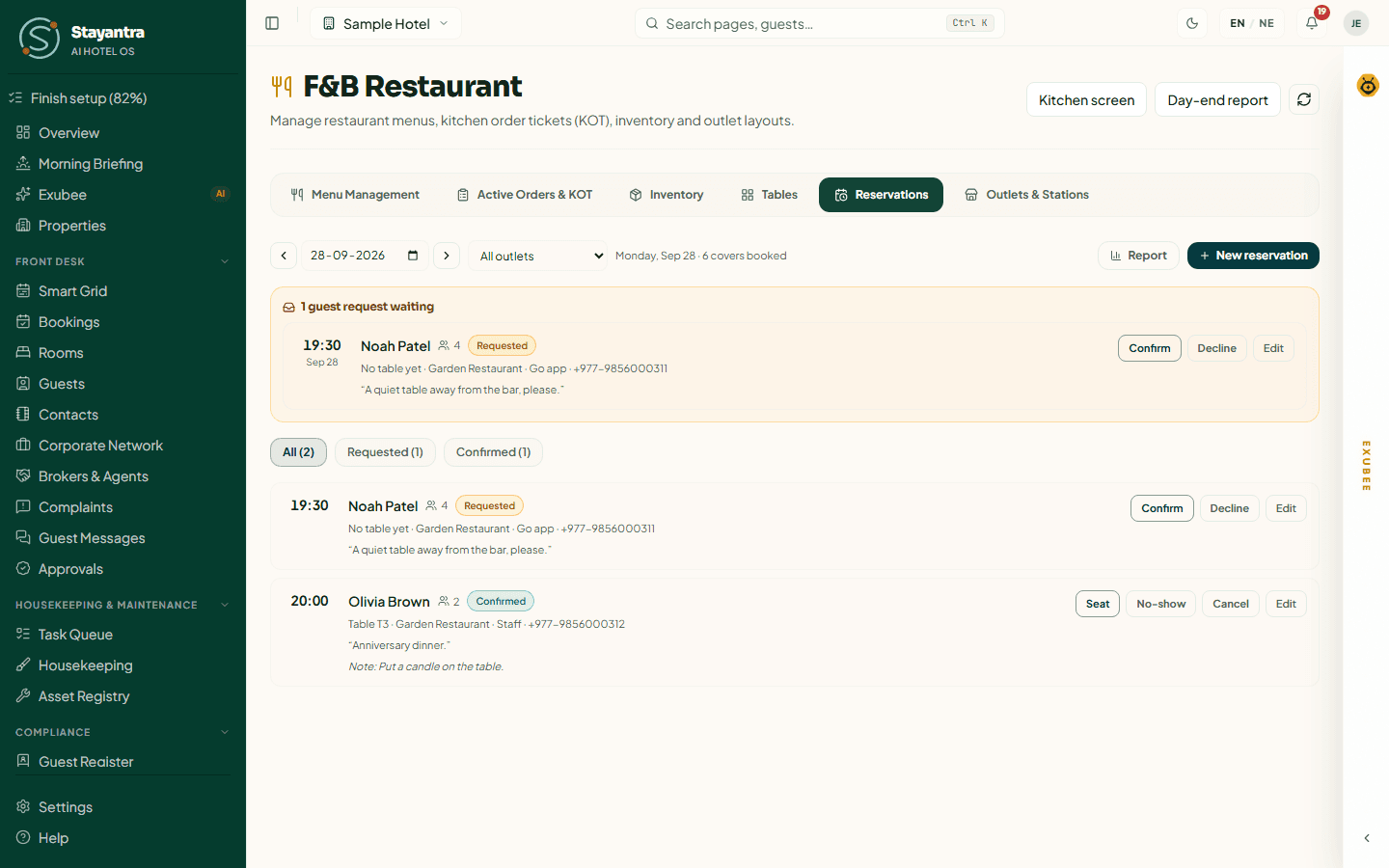
The Reservations tab shows one day's table bookings. Owners and managers first switch it on in Settings → Hotel profile → Listing & offers → Allow table reservations. Guests can then also request a table from your website and the Stayantra app.
Book a table
Click New reservation. Enter the Guest name, Phone, Email (sends a confirmation), Date, Time, Party size, how long to Hold the table for, the Outlet, a table (or No table yet), Guest requests (for example "Window seat, birthday cake") and a Staff note (not shown to the guest). Click Book table.
Answer guest requests
Requests from guests wait under Requests waiting for an answer. Click Confirm (the guest is emailed that the table is confirmed) or Decline (with an optional Note to the guest).
On the night
Click Seat and choose their table when the party arrives, Finish when they leave, or No-show if they never came. Cancel releases the table and tells the guest if they gave an email.
| Status | Meaning |
|---|---|
| Requested | A guest asked; waiting for you. |
| Confirmed | Booked. |
| Seated | At the table. |
| Finished | They have left. |
| Cancelled, Declined | Not happening. |
| No-show | They did not arrive. |
Each reservation shows where it came from: Staff, Hotel website, Stayantra or Go app. Click Report for covers booked and seated and the no-show rate over a date range.
See kitchen stock
The Inventory tab lists your food and drink stock read-only. To add items or change stock, click Manage in Inventory — see Inventory and procurement. Only items whose department is F&B appear here.
Set up outlets and stations
The Outlets & Stations tab has two lists. Only owners and managers can change them.
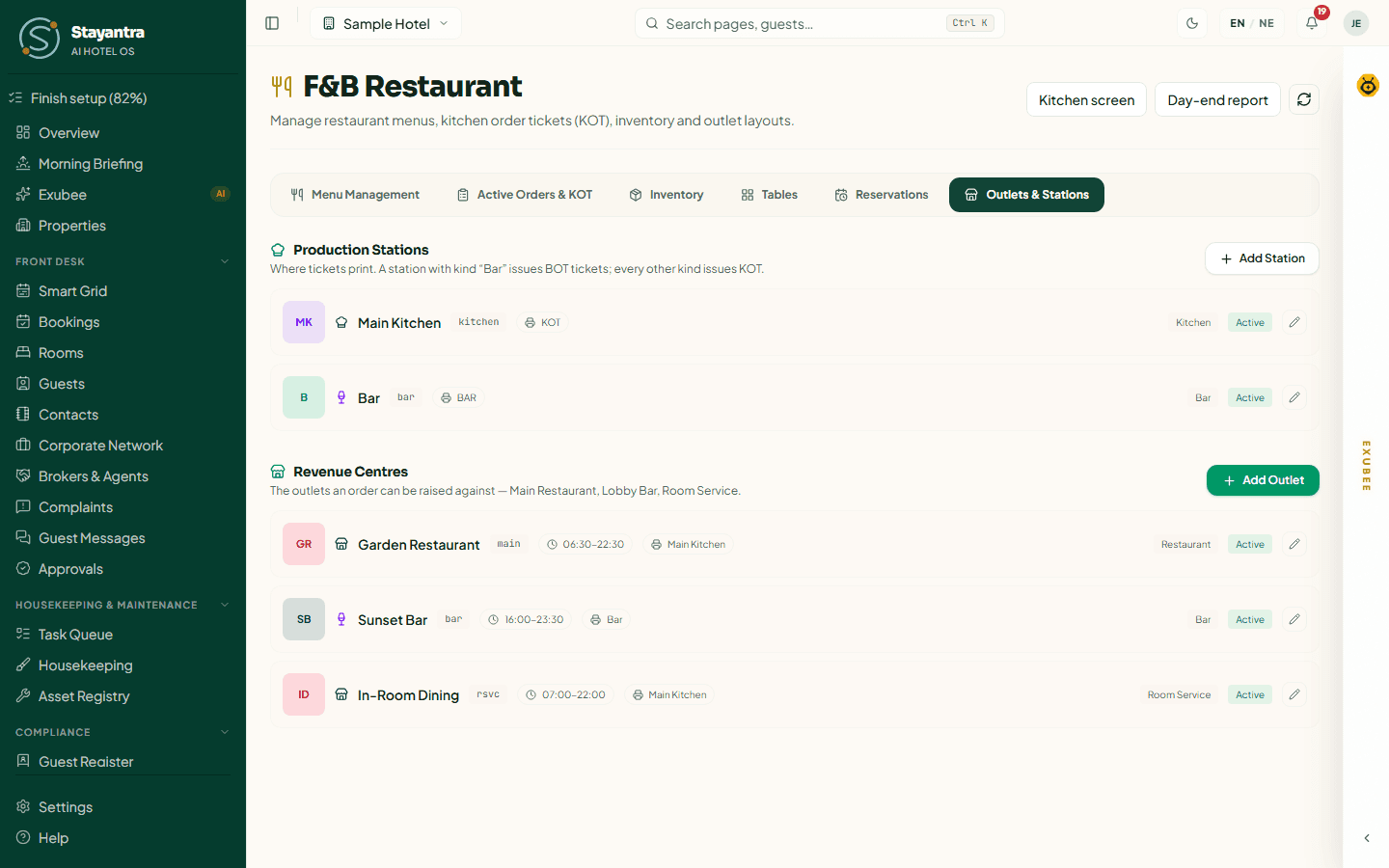
Production Stations are where tickets print. A station of kind Bar issues BOT tickets (bar order tickets); every other kind issues KOTs. Click Add Station and fill in Station Name (for example "Main Kitchen"), Code (letters, numbers, hyphens and underscores — it cannot change later), Kind (Kitchen, Bar or Other), Ticket Prefix and Sort Order. Click Create Station.
Revenue Centres are the outlets orders are raised against — Main Restaurant, Lobby Bar, Room Service. Click Add Outlet and fill in Outlet Name, Code, Kind (Restaurant, Bar, Room Service, Banquet, Poolside or Other), Default Station (where its tickets print when the dish's category names none), Opens At, Closes At and Sort Order. Click Create Outlet.
Close the day
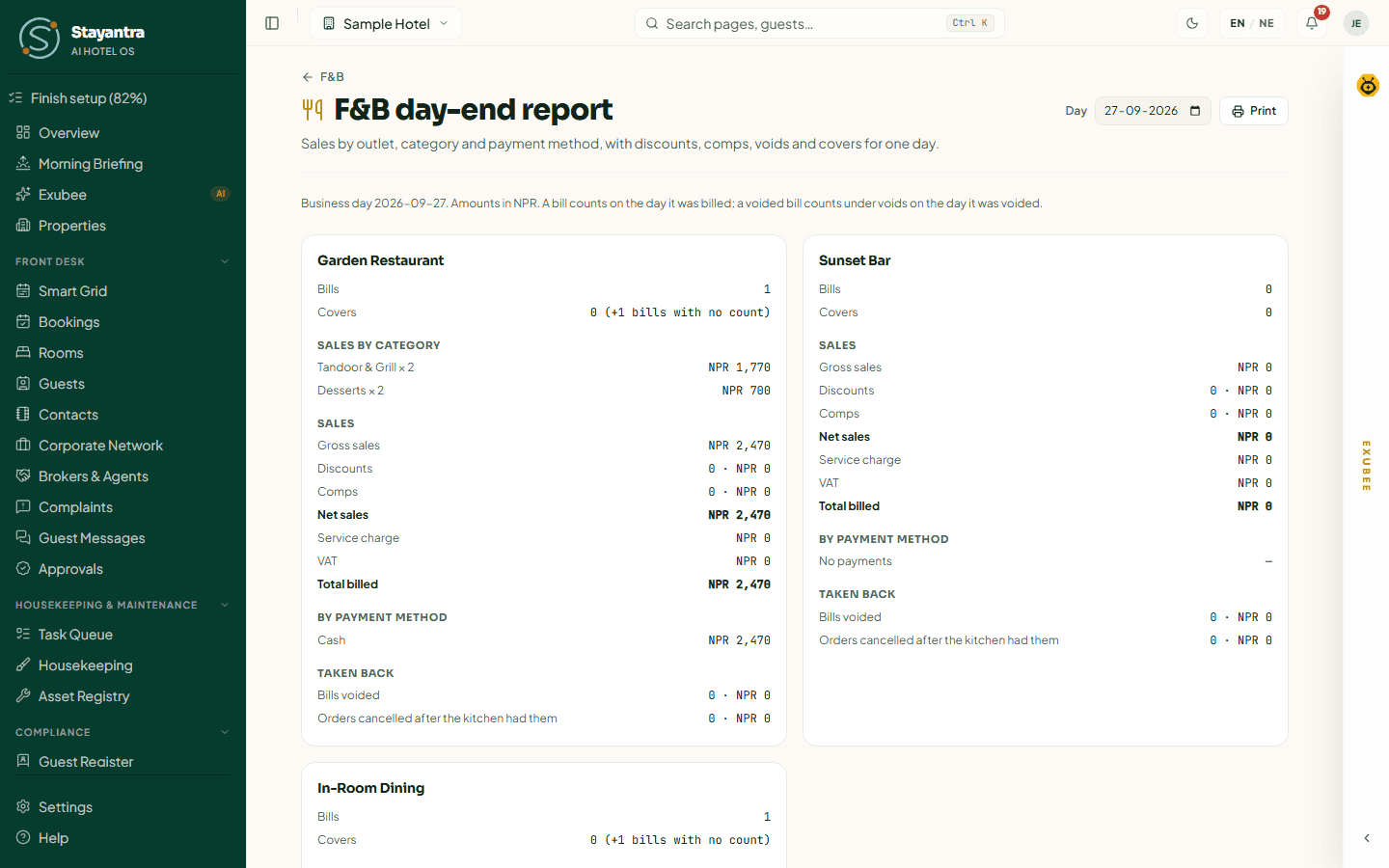
The F&B day-end report (a Z report) shows one business day's sales for all outlets together and for each outlet.
Where: on F&B Restaurant, click Day-end report. Pick the date and click Print to print it.
For each outlet it shows Bills and Covers, Sales by category, Sales (Gross sales, Discounts, Comps by reason, Net sales, Service charge, VAT, Total billed), By payment method, and Taken back (Bills voided, Orders cancelled after the kitchen had them). A bill counts on the day it was billed; a voided bill counts under voids on the day it was voided.
For the whole hotel's money for the day, including cash drawers, see the Day Book.
Charge laundry, transport and event services
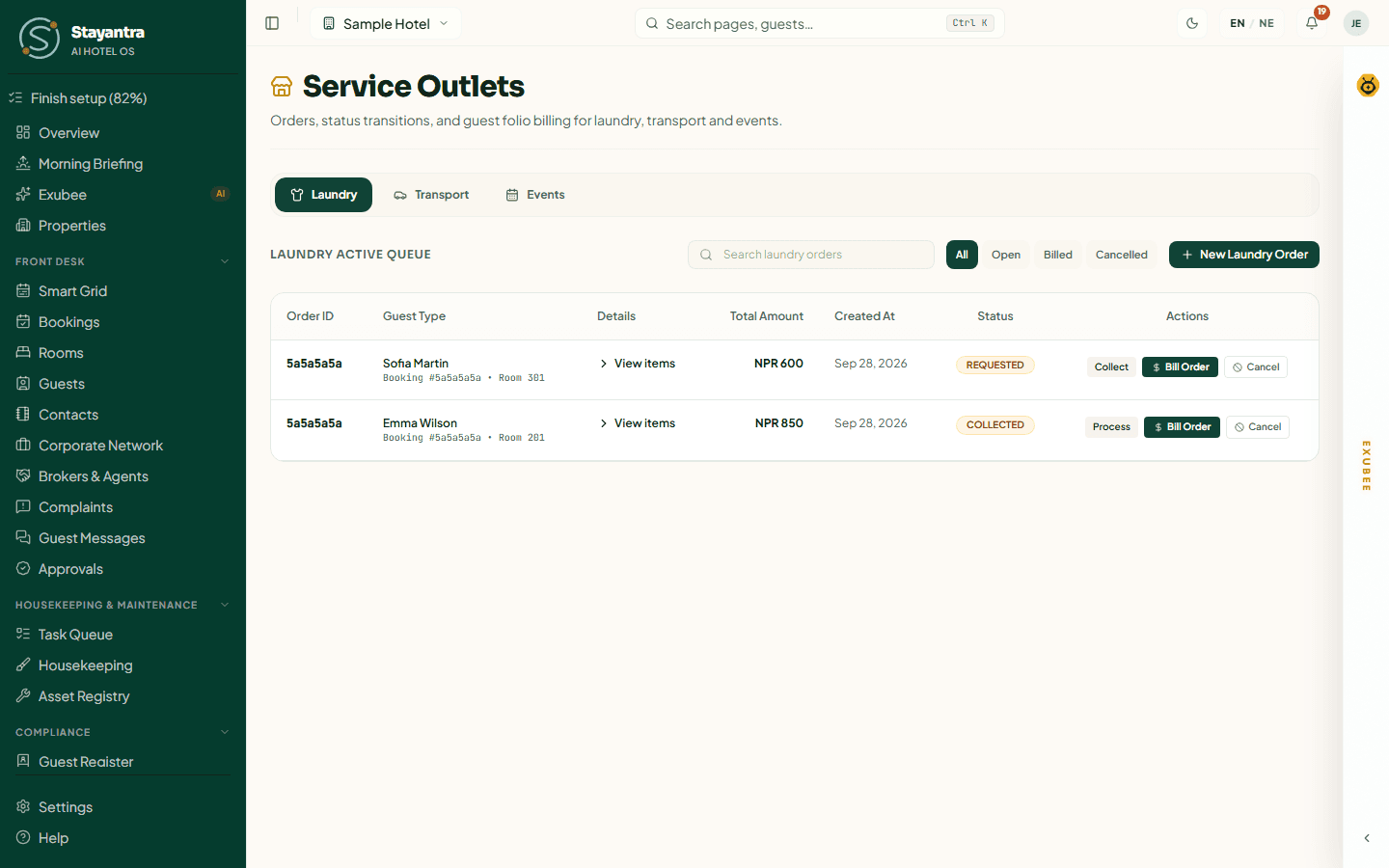
Service Outlets takes orders for the hotel's other services and charges them to a room or settles them on the spot. It has three tabs: Laundry, Transport and Events. Front desk staff, managers and owners can use it.
Raise an order
Open the form
On the tab you need, click New Laundry Order (or New Transport Order, New Events Order).
Choose who pays
Under Select Booking (Optional), pick the in-house guest to charge their room, or leave Walk-In (Direct Settlement) for someone paying now.
Fill in the details
- Laundry — under Order Items, pick each item from the laundry price list (for example "Shirt") and the count.
- Transport — Pickup Location, Dropoff Location, Pickup Time, the transfer from the price list, and optionally Driver Name and Vehicle Info.
- Events — Event / Purpose, Event Date, Headcount and the items.
Save
Click Register POS Order.
If an item is not on the price list, a manager can choose Other price (not on the price list) and type the price with a reason; the owner is told.
Move it along and bill it
Each order shows its Order ID, Guest Type (the guest or Walk-In), Details, Total Amount, Created At and Status, with one button for the next step:
| Queue | Steps |
|---|---|
| Laundry | requested → Collect → collected → Process → in progress → Ready → ready → Deliver → delivered |
| Transport | requested → Assign → assigned → Start trip → in progress → Complete → completed |
| Events | requested → Confirm → confirmed → Start → in progress → Complete → completed |
Click Bill Order to open Post POS Bill. For a room guest, the charge goes to their folio (their package pays up to what the item is worth, if it covers it) — click Confirm Bill Payment. For a walk-in, choose Cash Settlement, an online method, Fonepay QR — show on this screen, or Already paid another way — enter the reference.
Cancel cancels an unbilled order. A manager or owner can Void bill on a billed order.
Set outlet prices
Laundry, transfer and minibar prices come from price lists, so staff charge the same every time.
Where: Settings → Billing & Admin → Outlet pricing. Only the owner can change these; managers see them read-only.
- Meals in a package — Count meals per guest (on: two guests on "Room + Breakfast" get two breakfasts a night; off: one per room). Either way a bill is covered only up to what the item is worth.
- Laundry price list — what each piece costs. Until you price an item, staff type the price for each order and say why, and you are told.
- Transfer price list — each transfer (for example "Airport to hotel"), with an optional vehicle, and its price.
- Minibar — the Price list (each item, its price and, optionally, the stock item it draws down) and Par per room (how many of each every room holds). Housekeeping's minibar check in the Connect app and the checkout prompt at the desk charge from it.
Click Save price list on each card.
Guest register and compliance
Print an emergency headcount, keep the guest register for inspection, report foreign guests on FNMIS and handle account-deletion requests.
Events and banquets
Take hall enquiries, hold dates, send quotes, collect the deposit and instalments, and settle weddings, conferences and parties in the Function Diary.