
Owners and co-owners
A hotel can have more than one owner. A co-owner has the same full control as you: they see and manage everything at the hotel. Because that is a lot of power, adding an owner and handing over ownership both need extra proof that it really is you.
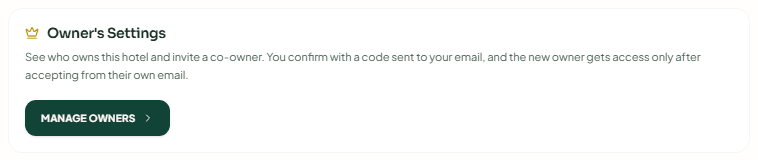
Where to find it: Settings → Hotel Profile → General, then Manage Owners on the Owner's Settings card at the top of the page. The page is called Owner's Settings. Who can use it: owners only. Managers and staff do not see the card, and opening the page directly shows You don't have access to this.
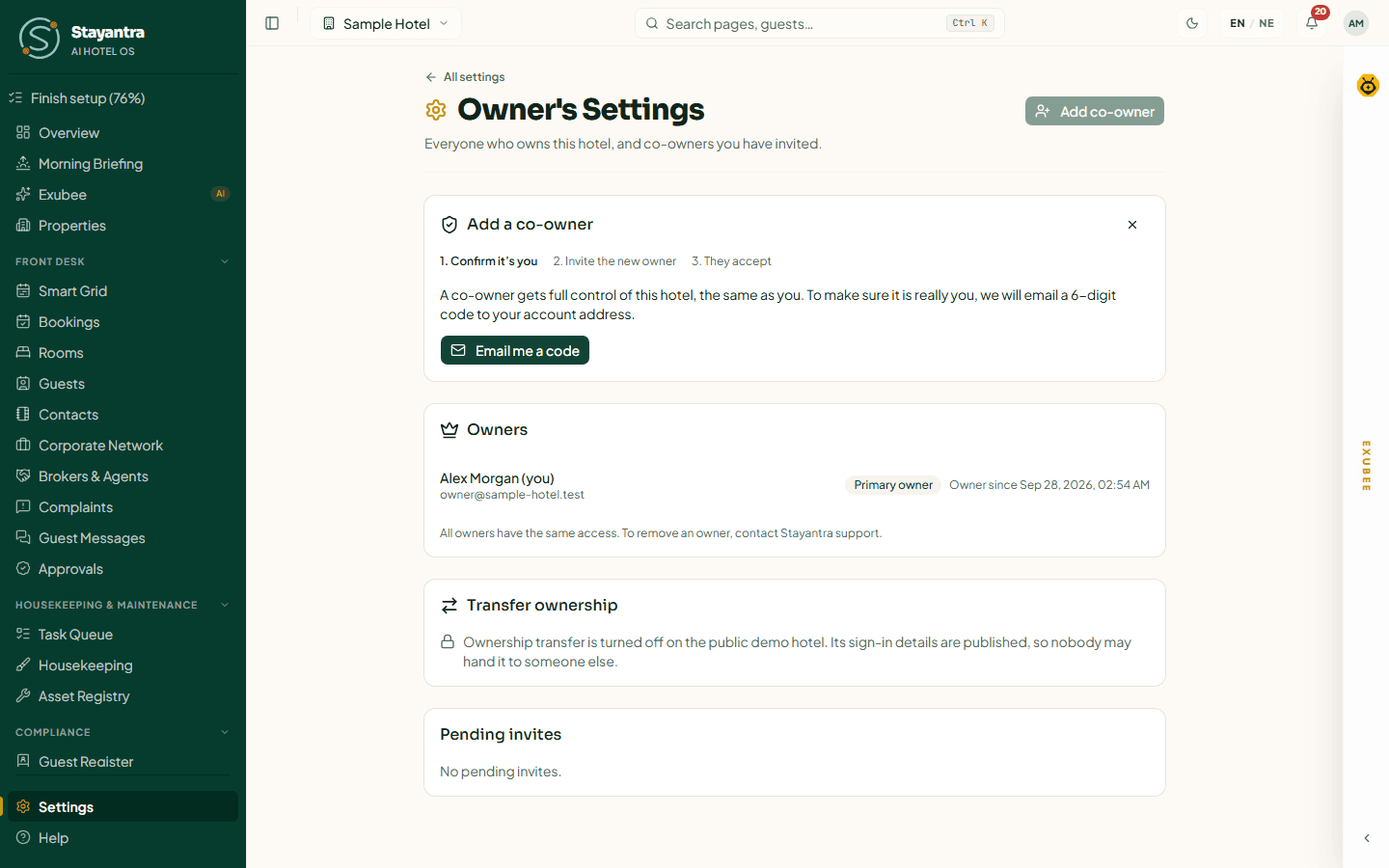
The Owner's Settings page
 The Sample Hotel is a demo hotel, so its Transfer ownership card is locked. On your hotel the card has a Transfer ownership button.
The page has three parts:
- Owners — everyone who owns the hotel, with their email and the date they became an owner (Owner since). The person who created the hotel, or who took over as primary owner, carries a Primary owner badge. Your own line ends with (you).
- Transfer ownership — hand your place to someone else (see below).
- Pending invites — co-owner invites sent but not yet accepted, each with who sent it and when it expires. When there are none it says No pending invites.
What a co-owner can do
All owners have the same access. A co-owner can do everything the primary owner can, including the owner-only screens: API keys, social accounts, WhatsApp, Stayantra marketing, the guest payment account, tax identity, refund and purchase rules, business verification, and this Owner's Settings page. Every owner also receives every notice and alert a manager gets.
The only difference is the Primary owner badge, which marks the account Stayantra treats as the main contact.
Add a co-owner
Adding a co-owner takes three steps: you confirm it is you, you invite the new owner, and they accept from their own email. They have no access until they accept.
Start
On Owner's Settings, click Add co-owner. A card called Add a co-owner opens, showing the three steps: 1. Confirm it's you, 2. Invite the new owner, 3. They accept.
Get a confirmation code
Click Email me a code. Stayantra emails a 6-digit code to the address on your account. The card says where it went and that it expires in 10 minutes.
Enter the code
Type the code in Code and click Confirm. If it does not arrive, wait a minute and click Send a new code.
Invite the new owner
Within 10 minutes, fill in New owner's email and, if you like, Their name (optional), then click Send invite.
The email must not already belong to a staff, manager or guest account. Use an address that is new to Stayantra, or one that already owns another hotel.
Wait for them to accept
You see Invite sent to … and every owner is told. The invite appears under Pending invites and expires after 72 hours.
How the new owner accepts
The new owner opens the link in their invite email. The page is titled Co-own followed by your hotel's name, and says who invited them.
- No Stayantra account yet: they fill in Your full name, Choose a password and Confirm password (at least 8 characters), then click Create account and accept.
- Already an owner elsewhere and signed in: they click Accept and become a co-owner.
- Already an owner but signed out, or signed in as someone else: they click Sign in to accept (or Sign out and continue) and sign in with the invited email.
Once they accept, they appear under Owners.
Revoke an invite
Under Pending invites, click Revoke next to the invite, then Revoke invite. The link stops working. You can invite the same person again later.
Confirmation codes
The emailed code is the safety check for both adding an owner and transferring ownership.
| Rule | Limit |
|---|---|
| Code length | 6 digits |
| Code expires | 10 minutes after it is sent |
| Wrong guesses | 5. After that you see Too many wrong codes. Ask for a new one. |
| New code | Available 60 seconds after the last one |
| Codes you can ask for | 3 in 15 minutes. After that: Too many codes asked for. Wait 15 minutes, then try again. |
| After confirming | You have 10 minutes to send the invite or the transfer request |
A code works only for the task it was sent for. A code sent for a co-owner invite cannot be used for a transfer.
If the email could not be sent, the card says so. Ask for a new code in a minute, or open a support ticket if it keeps failing.
Transfer ownership
Use this when the hotel changes hands, for example after a sale or a family handover. The new owner takes your place, and you lose access to this hotel once they accept. Other hotels you own are not affected.
If you are the primary owner, the new owner becomes the primary owner. If you are a co-owner, the primary owner stays as they are.
Before you start
- Revoke any pending co-owner invite. A transfer cannot start while one is open.
- Only one transfer can be open at a time.
- While a transfer is open, nobody can add a co-owner.
- The new owner's email must not belong to a staff, manager or guest account.
Request the transfer
Open the card
On Owner's Settings, find Transfer ownership and click Transfer ownership.
Email code
Click Email me a code, enter the 6-digit code, and click Confirm.
Password
Type Your password and click Continue. If you sign in with Google only, there is no password step; Stayantra's phone call then counts as the second check.
New owner
Fill in New owner's email, New owner's full name, New owner's phone (optional), and Why is the hotel changing hands? (at least 10 characters, for example "The hotel has been sold to …"). Click Request transfer.
You see Transfer requested. Every owner is alerted by notice and email.
What happens next: the waiting period
Nothing changes for 72 hours (the cooling-off period), and not before Stayantra has called you on the phone number on your account.
While it is open, the card shows the status and how much of the cooling-off period is left:
| Status | Meaning |
|---|---|
| Waiting for Stayantra to verify | Stayantra has not yet called you to confirm the request. |
| Verified — waiting for Stayantra's approval | The call is done. A second person at Stayantra must approve it, not before Earliest approval. |
| Approved — waiting for the new owner to accept | The new owner has been sent an invite. Invite expires shows its deadline (72 hours). |
The new owner's invite page is titled Take over followed by the hotel name. They accept with Accept and become an owner (or create an account first). At that moment they gain access and you lose it, in one step.
[!WARNING] If you did not agree to a transfer you see on this card, click Cancel transfer straight away and open a support ticket. Any owner can cancel, at any point before the new owner accepts. Cancelling stops the transfer and any invite already sent. Nothing changes at the hotel.
Stayantra can also reject a request after its checks. Either way, every owner is told.
[!NOTE] Ownership transfer is turned off on the public demo hotel. Its sign-in details are published, so nobody may hand it to someone else.
Remove an owner
There is no button to remove an owner. The page says All owners have the same access. To remove an owner, contact Stayantra support.
[!IMPORTANT] Stayantra turns this on. Removing a co-owner is done by Stayantra after checking the request with the owners. Ask for it from Help → Open a support ticket.
To leave a hotel yourself because it has been sold, use Transfer ownership instead.
If something goes wrong
| Message | What to do |
|---|---|
| Confirm it's you again before requesting a transfer. | The 10 minutes after your code ran out. Start again with Email me a code. |
| An ownership transfer is already in progress for this hotel. | Only one transfer can be open. Cancel the open one first if it is wrong. |
| This hotel has a pending co-owner invite. Revoke it before requesting a transfer. | Revoke the invite under Pending invites. |
| Invite created for …, but the email could not be sent. | Revoke it and try again later. |
| Add co-owner is greyed out | A transfer is open. No co-owner can be added until it finishes or is cancelled. |
| The new owner says the link does not work | The invite expired (72 hours) or was revoked. Send a new one. |
See also Staff and owners for setting up your team, and Team for staff roles.