
Multi-room bookings and groups
Stayantra handles parties of more than one room in two ways. A multi-room reservation is one guest booking up to 20 rooms for the same dates — a family, a small office trip. A group block holds a number of rooms for a group over some dates; its members then book those rooms with a group code, and whatever is not booked by the release date goes back on sale. Groups usually start as a group request from a guest.
Where to find it: multi-room reservations are made in Front Desk → Bookings → New Booking. Group blocks and requests are in Revenue → Group Blocks. Who can use it: front desk staff, managers and owners make multi-room reservations. Group Blocks is for managers and owners, and needs the Sales & Partners module of your plan.
Multi-room reservations
Book several rooms at once
Start a booking
In Bookings, click New Booking and enter the dates. See Make a booking.
Add the rooms
On step 2, choose the first room and its guests, then click Add room. Each added room (Room 2, Room 3…) has its own room, Guests and Rate plan, and shows its price. The line under the rooms adds up the rooms, guests and total before tax. Remove a room with its ×.
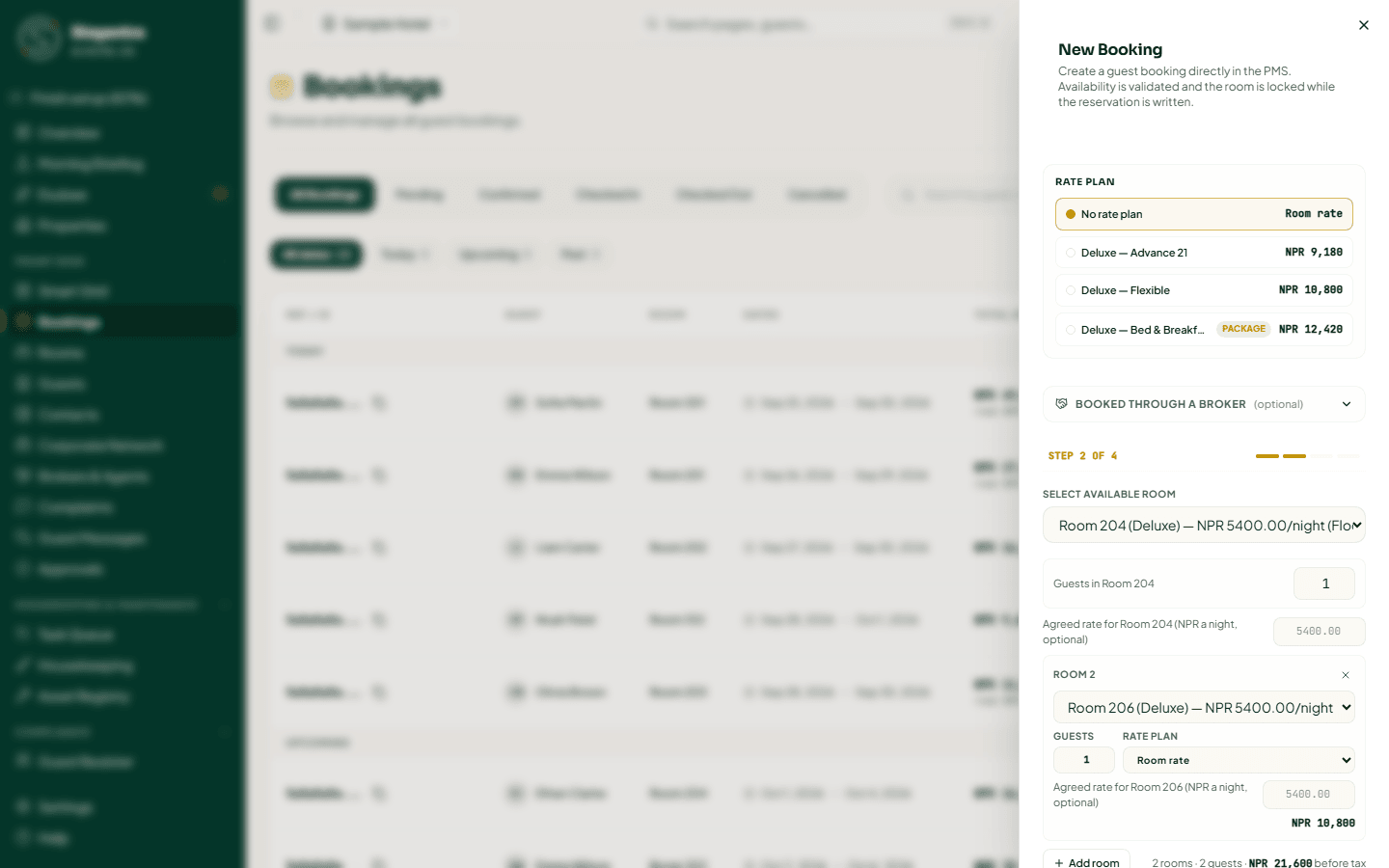
One desk reservation can hold up to 20 rooms. Beyond that, use a group block.
Finish as usual
Enter the guest (one lead guest for the whole reservation) and confirm. The confirmation says "All rooms are booked under reservation {reference}". Open booking opens the first room.
All rooms are booked or none are — if one room is taken while you save, nothing is booked and you are told which room. A broker booking prices every room through the broker. Multi-room reservations need a connection; you cannot take one offline.
The reservation page
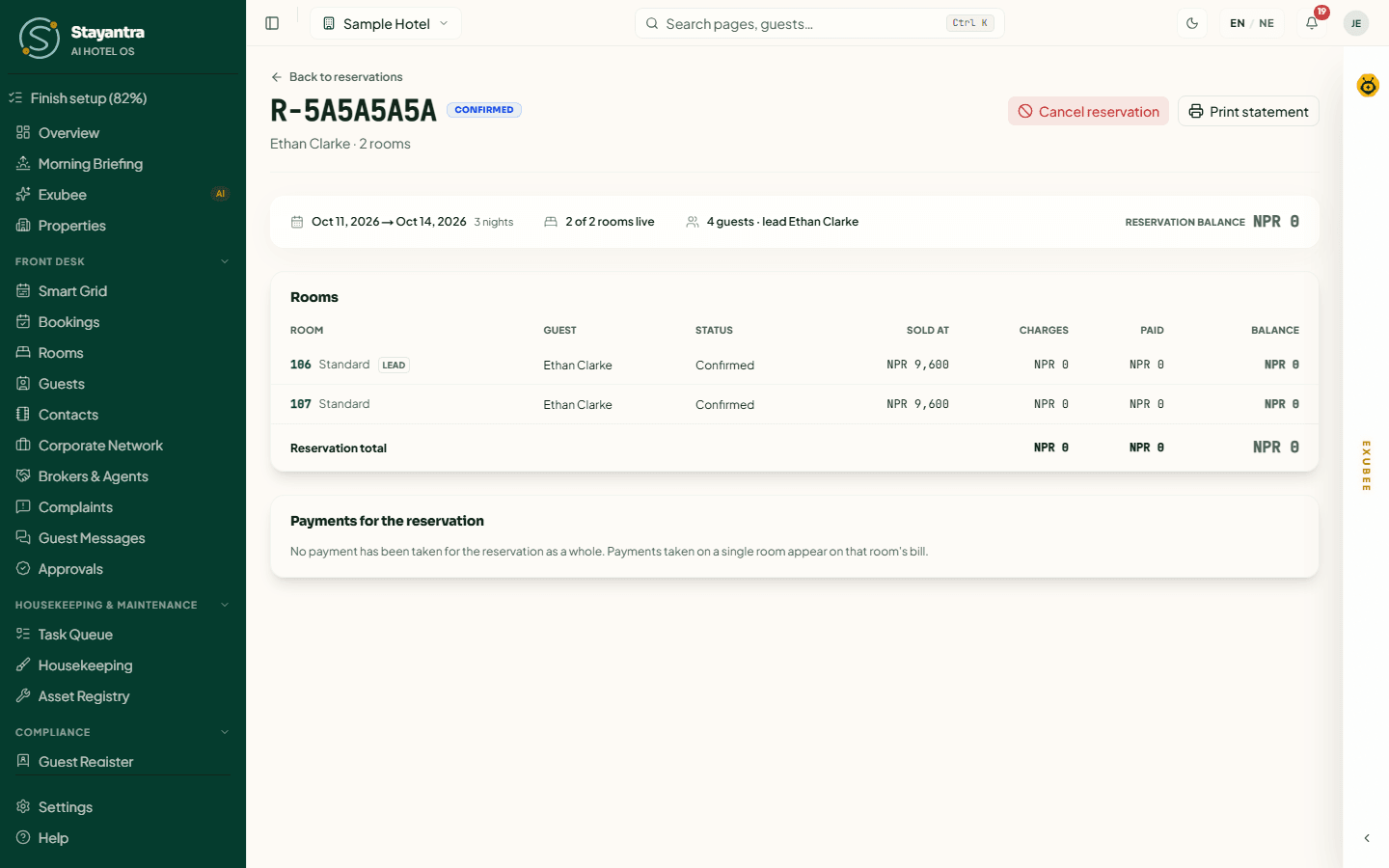
Each room is still its own booking, with its own bill, check-in and check-out. The reservation page is where you see them together. Open it from the reservation reference on the Bookings list, or from "Room 1 of 2 · {reference}" at the top of any of its bookings.
-
The header shows the status, the lead guest and the number of rooms.
Status Meaning Pending Waiting for payment. Confirmed The rooms are held. In house At least one room has checked in. Completed Every room has checked out. Cancelled Every room was cancelled. -
Reservation balance — what the whole party still owes. Money taken for the whole reservation is held on one room's bill, so that room can read "in credit" while another owes; the combined balance is the figure to act on.
-
Rooms — each room with its guest, status, the price it was sold at, and its Charges, Paid and Balance (all of its bills added up). The lead room is marked Lead. Reservation total adds them up.
-
Payments for the reservation — payments taken for the reservation as a whole and how they were split across the rooms. Payments taken on a single room appear on that room's booking.
Print statement prints a statement of the whole reservation for the guest. It is not a tax invoice.
Check in, change or cancel
- Check in and out each room from its own booking page.
- Cancel one room from that room's booking page. The other rooms stay booked.
- Cancel the whole reservation: click Cancel reservation on the reservation page. The dialog Cancel the whole reservation? lists every room still booked and the Refund due in total, worked out from what each room paid less any fee its terms keep. Enter the Reason for cancelling and click Cancel every room. This cannot be undone.
Group blocks
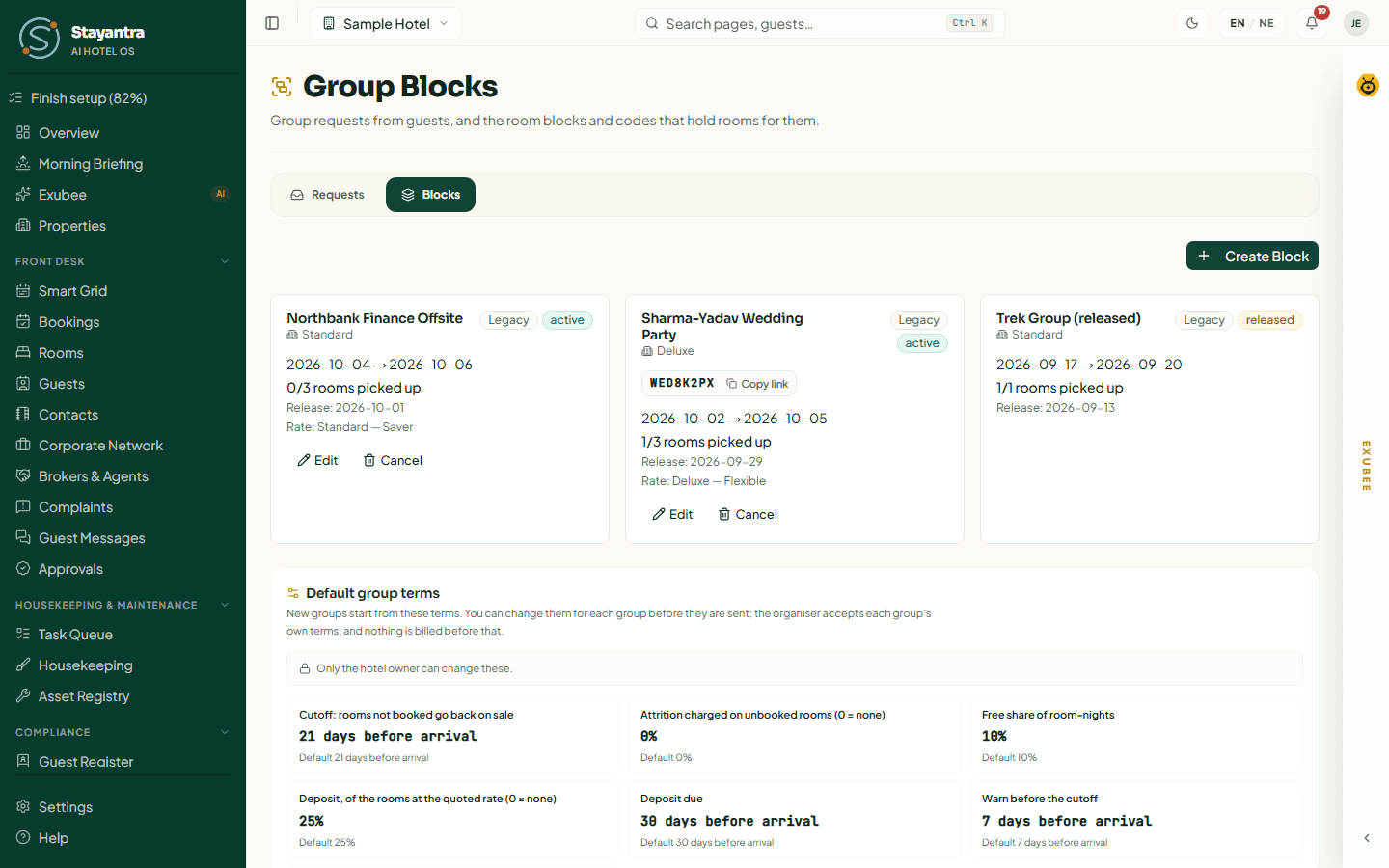
A group block says: "hold 10 Deluxe rooms from 2 to 5 October for the Sharma wedding, at this rate, until 11 September." The rooms stop being sold to anyone else. The group's members book against the block, and each booking picks up one room.
Create a block
In Group Blocks, open the Blocks tab and click Create Block.
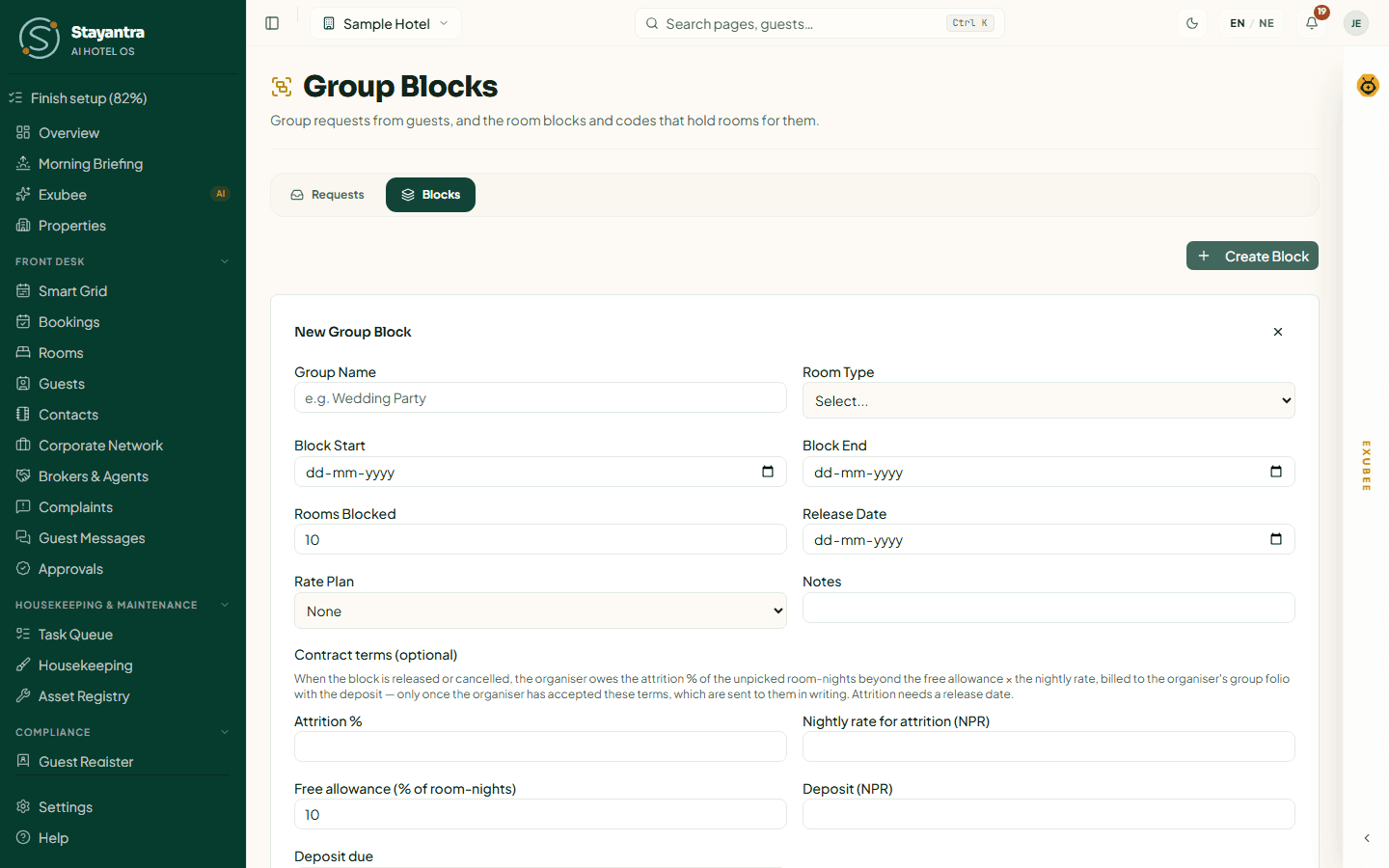
| Field | What to enter |
|---|---|
| Group Name | For example "Sharma wedding". |
| Room Type | The type of room held. One block holds one room type — make a second block for a second type. |
| Block Start / Block End | The group's arrival and departure dates. |
| Rooms Blocked | How many rooms to hold. |
| Rooms Picked Up | Only on older blocks; new blocks count pickups from the bookings themselves. |
| Release Date | The cutoff: rooms not booked by this date go back on sale. |
| Rate Plan | The rate the group's rooms are sold at, or None. |
| Notes | Anything the team should know. |
Contract terms (optional) — what the organiser owes if the group books fewer rooms than it held:
| Field | Meaning |
|---|---|
| Attrition % | The share of unused room-nights the organiser pays for. 0 means none. Attrition needs a release date. |
| Nightly rate for attrition | The rate those unused nights are charged at. |
| Free allowance (% of room-nights) | Unused nights that are free, for example 10%. |
| Deposit / Deposit due | The amount the organiser pays in advance, and by when. |
Organiser (optional) — Name, Email and Phone of the person who pays the attrition and deposit. Named here, they are sent the terms to accept. Nothing is billed to them before they accept.
Click Create. If there are not enough free rooms, the form says how many are short. To hold them anyway, say why ("Rooms coming back from maintenance on the 9th"); it is recorded and the owner is told.
The group code
A new block gets a group code — eight letters and numbers, like WED8K2PX. Give it to the organiser. Guests enter it when they book on your Stayantra booking page, and the code chip's Copy link copies a booking link with the code already in it. At the desk, choose the block under Group block in the New Booking form: every room is picked up from the block at its rate, and must be of the block's room type.
Follow and change a block
Each block card shows its dates, "{picked up}/{blocked} rooms picked up", the release date, the rate plan and its terms. Pickups lists the bookings made against it. A Tracked badge means pickups are counted from bookings; Legacy means an older block counted by hand.
- Edit changes the block while it is active. Lowering the terms after the organiser accepted them needs a reason.
- Cancel ends the block ("Cancel this group block?"). If the organiser accepted terms, the attrition owed is billed to the organiser's group bill; a manager can waive it after.
- Waive attrition (with a reason) cancels an attrition charge.
- Move credit to a guest's room bill moves money the organiser paid (the deposit left over after attrition) onto one of the group's room bills.
What happens at the release date
Every night, at about 02:00 hotel time, Stayantra checks every block:
- Seven days before the release date, owners and managers are warned, and the organiser is emailed.
- On the release date, rooms still not booked go back on sale everywhere, including the OTAs.
- Attrition is billed to the organiser's group bill: unused room-nights beyond the free allowance × the nightly rate × the attrition %. It is billed only if the organiser accepted the terms; the deposit they paid counts towards it first.
- An unpaid deposit is flagged. Exubee puts a proposal to release the block in Approvals — it never releases a block on its own.
Default group terms
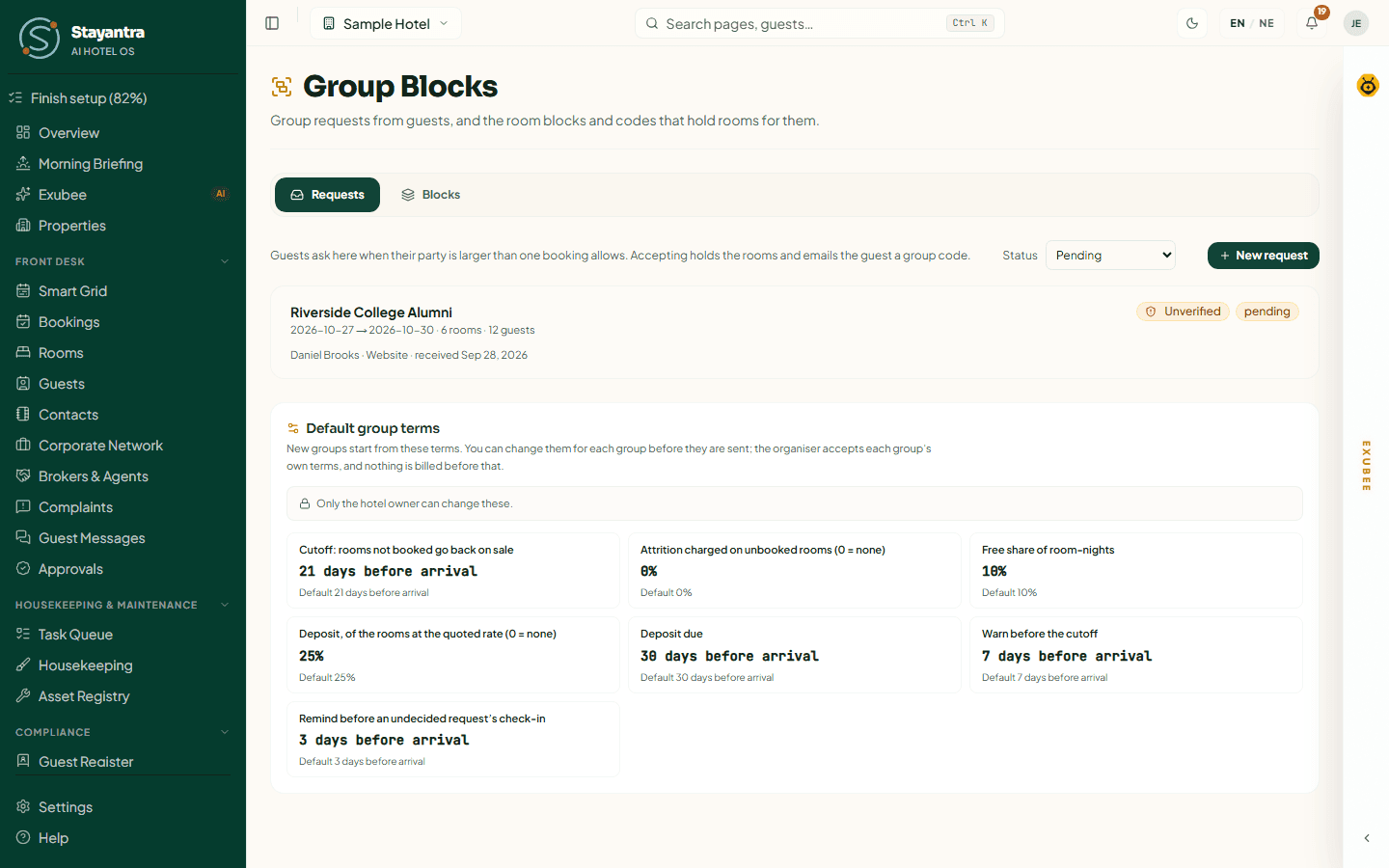
The Default group terms card below the tabs sets the terms every new group starts with. Only the owner can change them; managers see them read-only.
| Setting | Starts at |
|---|---|
| Cutoff: rooms not booked go back on sale | 21 days before arrival |
| Attrition charged on unbooked rooms (0 = none) | 0% |
| Free share of room-nights | 10% |
| Deposit, of the rooms at the quoted rate (0 = none) | 25% |
| Deposit due | 30 days before arrival |
| Warn before the cutoff | 7 days |
| Remind before an undecided request's check-in | 3 days |
Click Save default terms.
Group requests
How a guest asks
One online booking holds at most 5 rooms or 10 guests (the owner can change this in Settings → Hotel profile → Stay rules, up to 20 rooms). For a bigger party, your booking page shows "Send a group request". The guest fills in:
- Check-in and Check-out;
- the Room type and Rooms wanted (or Any room type), for up to 10 room types;
- Number of guests, the Purpose (wedding, conference, tour group, pilgrimage, sports team, company), a Group name;
- who to reply to — Full name, Email address, Phone — and any notes.
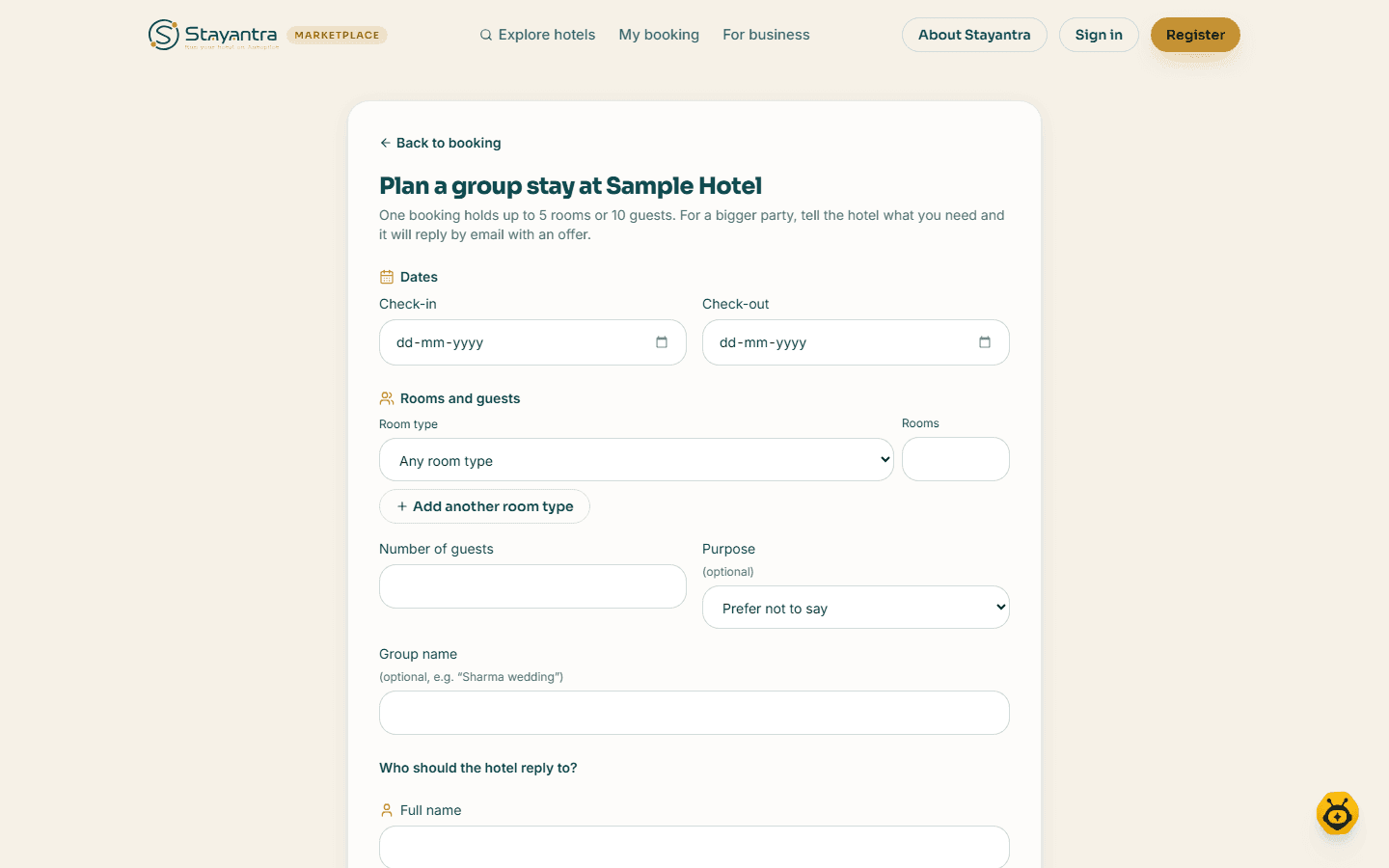
After Send group request, the guest is told no rooms are held until the hotel agrees, and gets an email with a link to view or withdraw the request. Requests also arrive from the Stayantra Go app and from AI assistants. Owners and managers get a New group request notification.
Answer a request
Open it
In Group Blocks, the Requests tab lists requests, Pending first. Use Status to see Quoted (network), Accepted, Declined, Expired, Spam, Withdrawn or All. An Unverified badge means the person was not signed in, so their contact details are not confirmed.
Read it
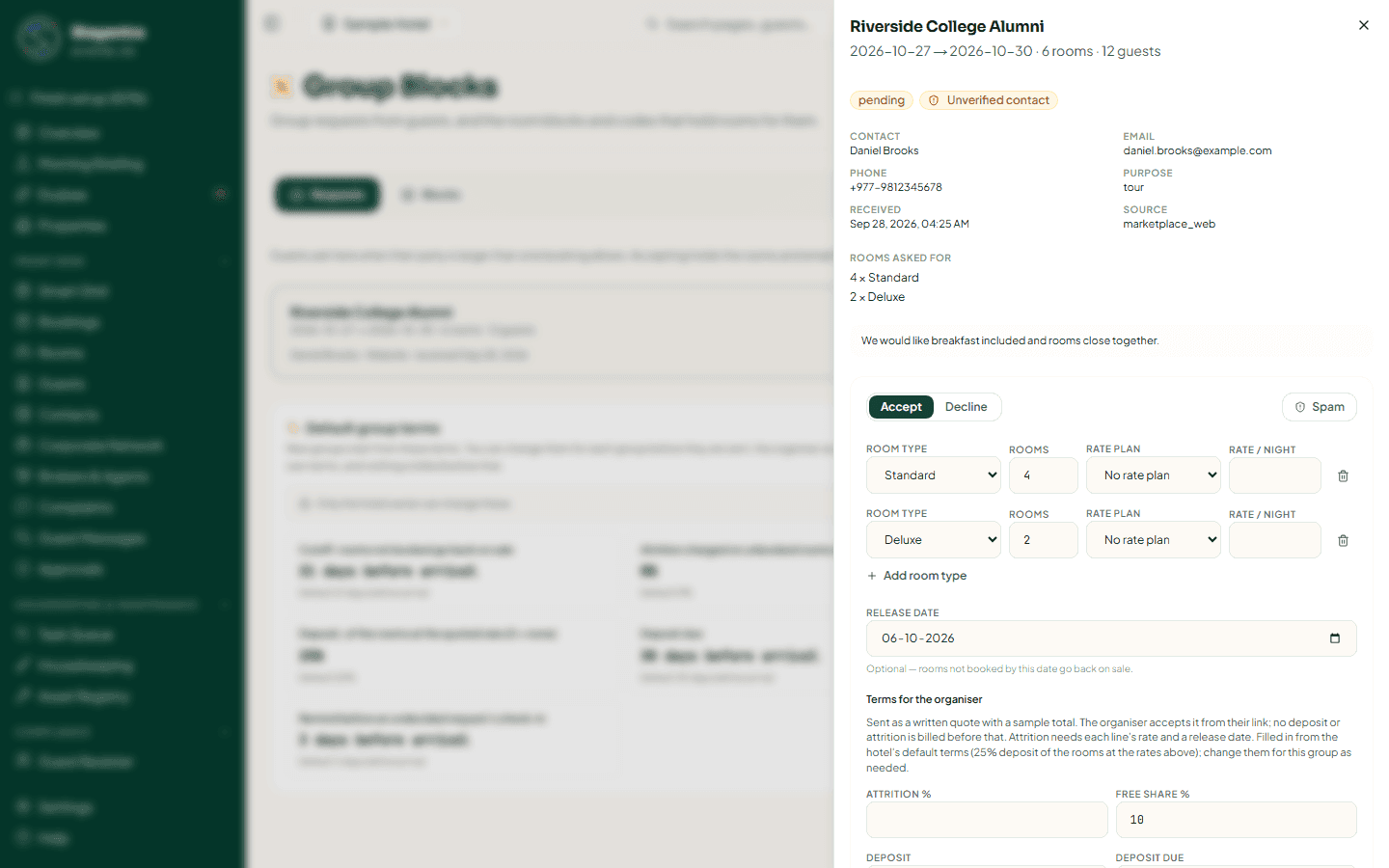
Click the request. The drawer shows the contact, purpose, dates, Rooms asked for and the guest's notes.
Accept, decline or mark as spam
- Accept — for each room type, set the Room type, Rooms, Rate plan and Rate / night (Add room type for more). Set the Release date and the Terms for the organiser (Attrition %, Free share %, Deposit, Deposit due) — pre-filled from your default terms. Add a Message to the guest if you like, and click Accept and hold rooms. Stayantra creates a block for each line, all with one group code, and emails the organiser the code and the terms to accept.
- Decline — write a Message to the guest (required; it is emailed) and click Decline request.
- Spam — removes it from the queue. No email is sent.
If there are not enough free rooms, the drawer shows how many are short: "Not enough free rooms: Deluxe: 6 asked, 4 free". Accept fewer rooms, or create the block from the Blocks tab, which lets you hold rooms anyway with a reason.
After accepting, the drawer shows whether the organiser has accepted the terms ("Version 1 accepted by the organiser on…"). Send terms to the organiser sends them again if they changed. If the organiser withdraws, click The organiser withdrew this request.
A request nobody decides is marked Expired once its check-in date passes. Stayantra reminds owners and managers 3 days before.
Record a request taken by phone
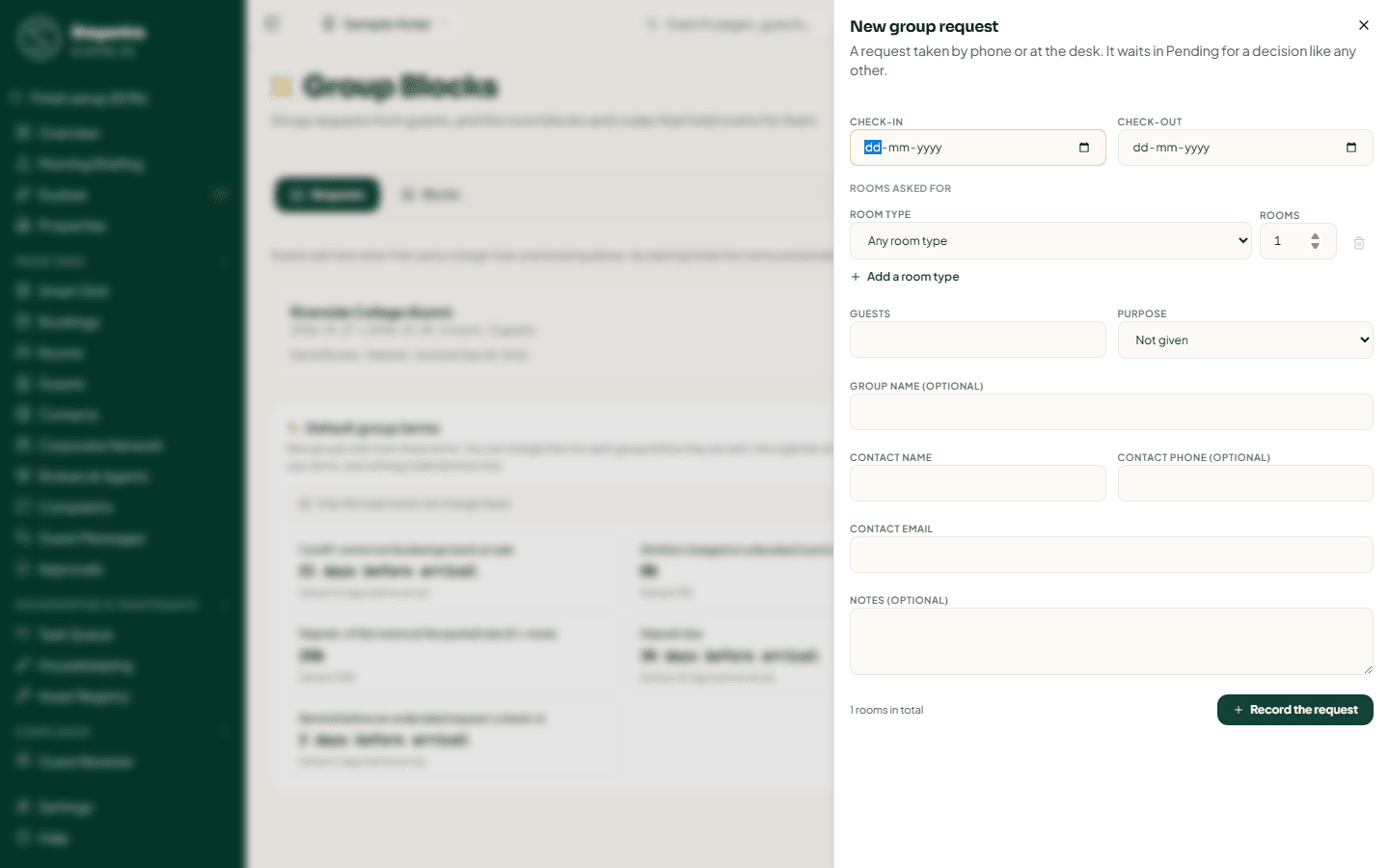
Click New request. Fill in the dates, Rooms asked for, Guests, Purpose, Group name, Contact name, Contact phone, Contact email and Notes, then Record the request. It waits in Pending like any other.
Requests from companies on the Stayantra network
A request marked Stayantra network comes from a company registered on Stayantra. You do not accept it here — you send a quote: Nightly rate, Attrition %, Cutoff (unused rooms released), Quote valid until, a deposit schedule and a Note to the company, then Send quote. The company accepts the quote in its portal and is billed through Stayantra. See Corporate Network.
When something goes wrong
| What you see | What to do |
|---|---|
| "That group block cannot take this stay." | The block is full, the code is wrong, or the room is not the block's type. |
| "Not enough free rooms" | Offer fewer rooms, other dates, or hold them anyway from the Blocks tab with a reason. |
| "Attrition needs a release date." | Set a Release Date before adding attrition. |
| "A deposit needs an amount and a due date." | Fill in both. |
| The block says no organiser, so nothing was billed | Click Name organiser on the block and add who pays. |