
Finance
The Finance section of the sidebar holds the hotel's own money: what came in and went out, the cash drawers, refunds owed to guests, the payouts Stayantra makes to you, and your OTA commission statements. (Your Stayantra subscription is separate — see Plan and billing.)
Where to find it: in the sidebar under Finance: Finance Center, Day Book, Refunds, Pay with Stayantra, OTA Statements, Cashier Shifts, Payroll and Plan & Billing. Payroll is covered in Team.
Who can use it:
| Screen | Owner | Manager | Cashier | Front desk |
|---|---|---|---|---|
| Finance Center | Everything | Open balances, IRD bill numbers and the sales register only | No | No |
| Day Book | Whole hotel | Whole hotel | Their own shift | No |
| Refunds | Yes | Yes | Yes, up to their limit | No |
| Pay with Stayantra | Yes | No | No | No |
| OTA Statements | Yes | Yes | No | Yes |
| Cashier Shifts | Yes | Yes | Yes | No |
"Cashier" means a staff member with the cashier skill.
Finance Center
The owner's view of the hotel's money.
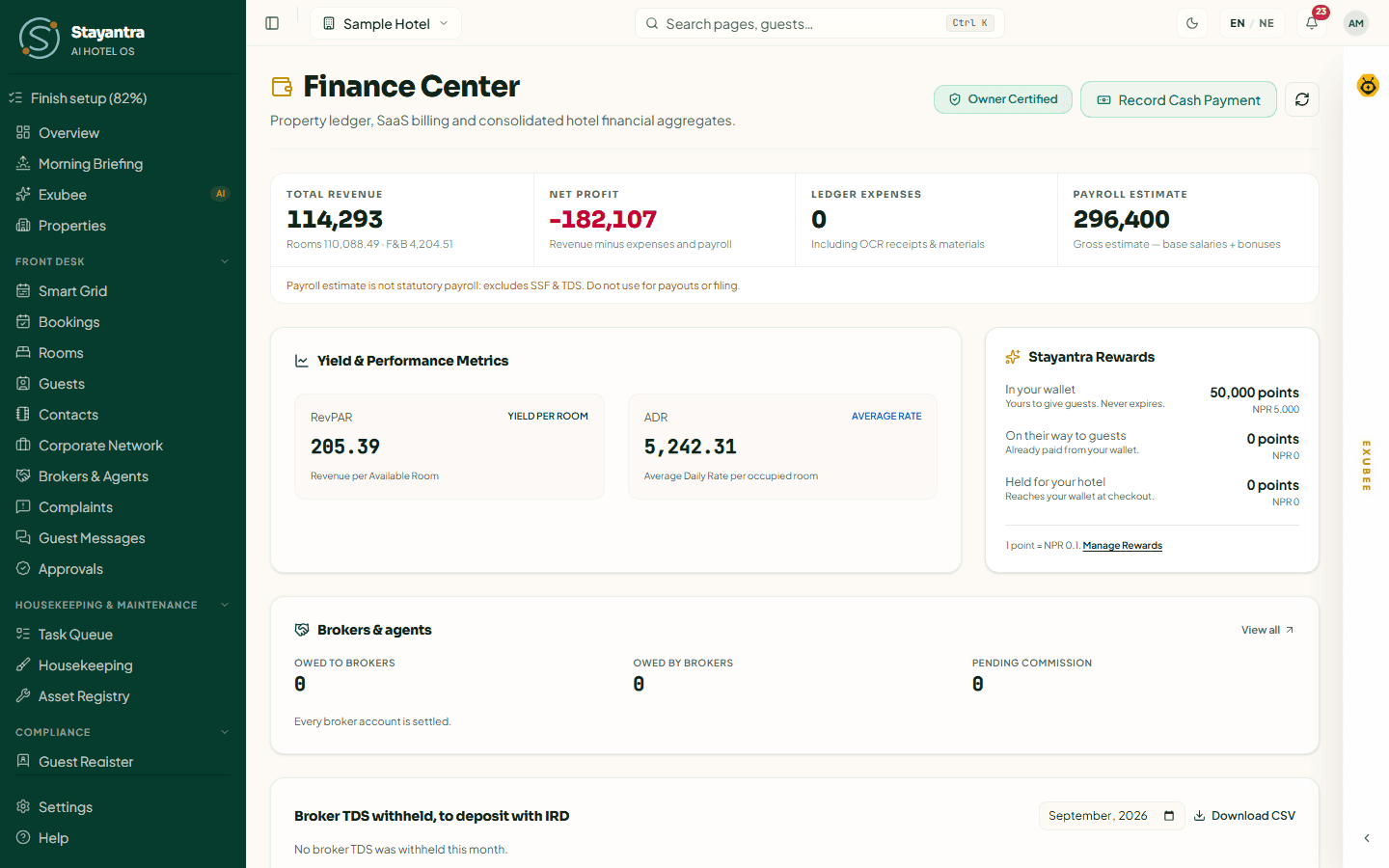
At the top:
- Total Revenue — rooms and F&B.
- Net Profit — revenue minus expenses and payroll.
- Ledger Expenses — including receipts you have recorded.
- Payroll Estimate — base salaries and bonuses only. It is not statutory payroll: it leaves out SSF and TDS, so never use it for payouts or filing. Use Payroll for that.
- Yield & Performance Metrics — RevPAR (revenue per available room) and ADR (average daily rate per occupied room).
Below come cards for Stayantra Rewards (if you are in the network), broker balances and broker TDS, then these working cards:
Open balances
Open balances — departed & no-show stays lists guests who have left (or never arrived) still owing money, with the Balance and its Age. Open the folio to chase it, or click Write off to clear an amount you will never collect. A write-off above your limit goes to the owner.
IRD invoice numbers
Stayantra's bills are not IRD tax invoices. Your hotel issues each VAT tax invoice from its own IRD-certified billing system. Bills missing an IRD invoice number lists every closed bill without one: type the IRD invoice no. and click Record, so the two records match.
The Sales register lists every closed bill in IRD sales-book order — Date, IRD invoice no., Buyer, Total, Exempt, Taxable and VAT — for any From and To dates. Click Download CSV for your accountant.
Record expenses from receipts
- OCR Receipt & Expense — click Upload Receipt Image, check what was read (Vendor, Date paid, Category, amount), correct anything wrong, then click Record expense. It counts in your profit and loss once another person verifies it.
- AI Receipt Inbox — Photograph a receipt to queue it; Exubee proposes an entry. Each receipt can be Verify, Amend or Void (with a reason).
Record a cash payment from here
Record Cash Payment at the top of the page finds any open folio by guest name or booking reference and records cash against it — the same as on the booking. See Taking payments.
Check the Day Book
The Day Book is one business day's money: what came in and went out, by method, by source and by cashier shift, checked against the drawers.
Where: Finance → Day Book. It opens on today; pick another Business date to look back.
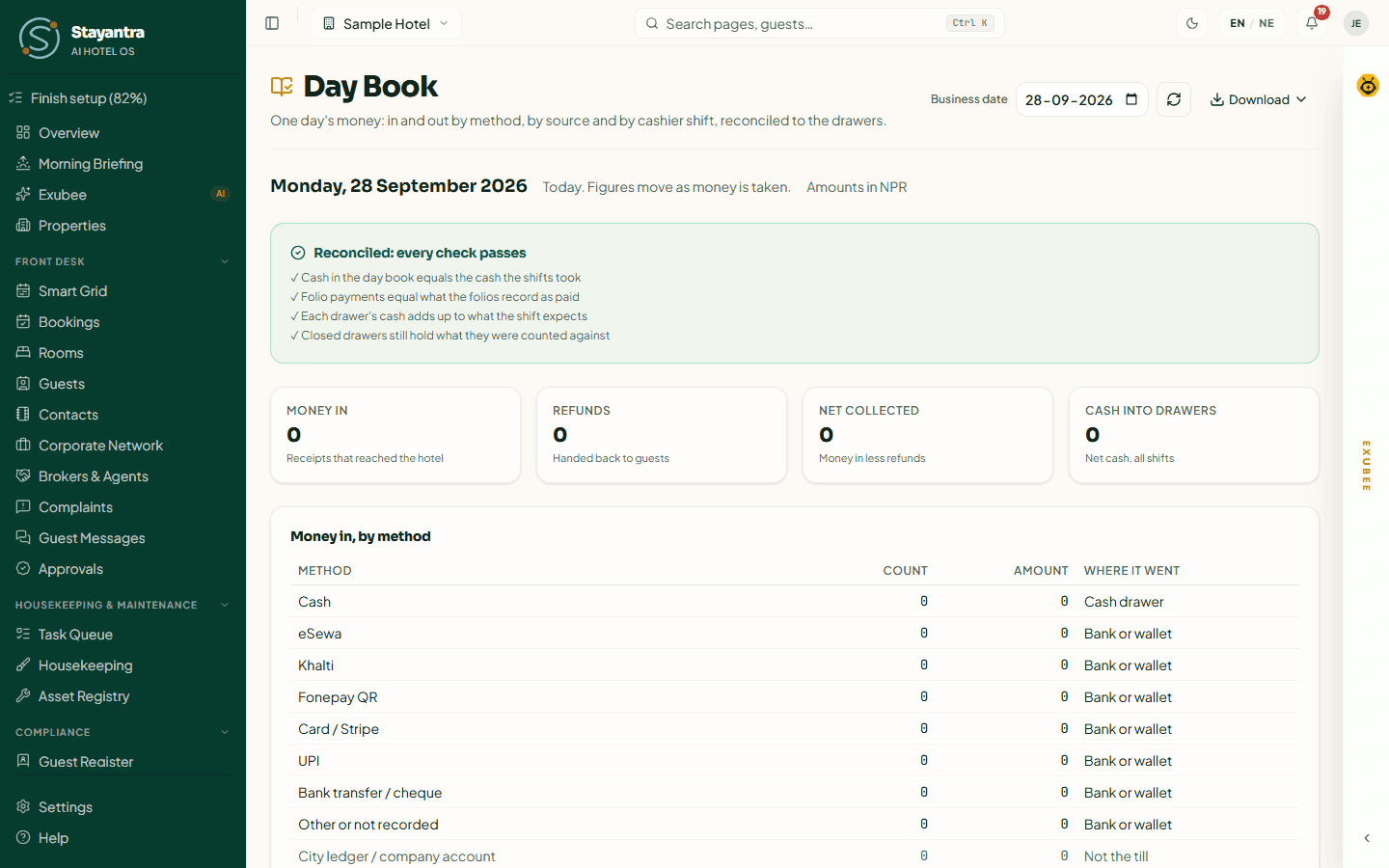
It shows:
- Money in (receipts that reached the hotel), Refunds, Net collected, Cash into drawers and Paid-outs.
- Money in, by method — cash drawer, bank or wallet.
- Money out — refunds and paid-outs.
- Sales by source — rooms, restaurant and so on, with Sales, Service charge, Revenue (ex VAT) and Gross. VAT and tourist tax are collected for the government and are never revenue; the service charge is. There is a link to the restaurant's day-end report.
- Cashier shifts — each shift's Cashier, Opened, Closed, Float, Cash this day, Expected, Counted, Variance and Status.
- Every movement of money — each payment with its time, method, what it was for, amount and drawer. Lines marked Not the till settled a bill without money reaching the hotel (a company, Stayantra or a broker holds it); they are never counted as collected.
- Reconciliation — Reconciled: every check passes, or the checks that failed ("Treat this as urgent. Find the lines below before the day is signed off.") with the lines behind each.
Stayantra closes each business day overnight. After that the day reads as a record: "Closed … by the nightly close." A cashier sees only their own shift ("You are seeing your own shift only").
Run a cashier shift
Cash in Stayantra always belongs to a drawer. A cashier — or a manager taking cash — opens a shift before taking any cash, and closes it by counting the drawer.
[!IMPORTANT] Without an open shift, taking or handing back cash is refused: "Open your cashier shift before taking or handing back cash." This applies everywhere — the desk, the restaurant, laundry, transport, events, market purchases and refunds. Only the owner can take cash with no shift; that cash is flagged to the owner in the morning briefing.
Open a shift
Go to Cashier Shifts
Open Finance → Cashier Shifts. If you have no shift, it says Shift is Closed.
Count the drawer
If someone closed the last shift, the page tells you what they left in the drawer. Count it and enter Cash you counted in the drawer. Count any foreign notes too. If your count differs from what was left, say Why is it different? — the owner and managers are told.
Open
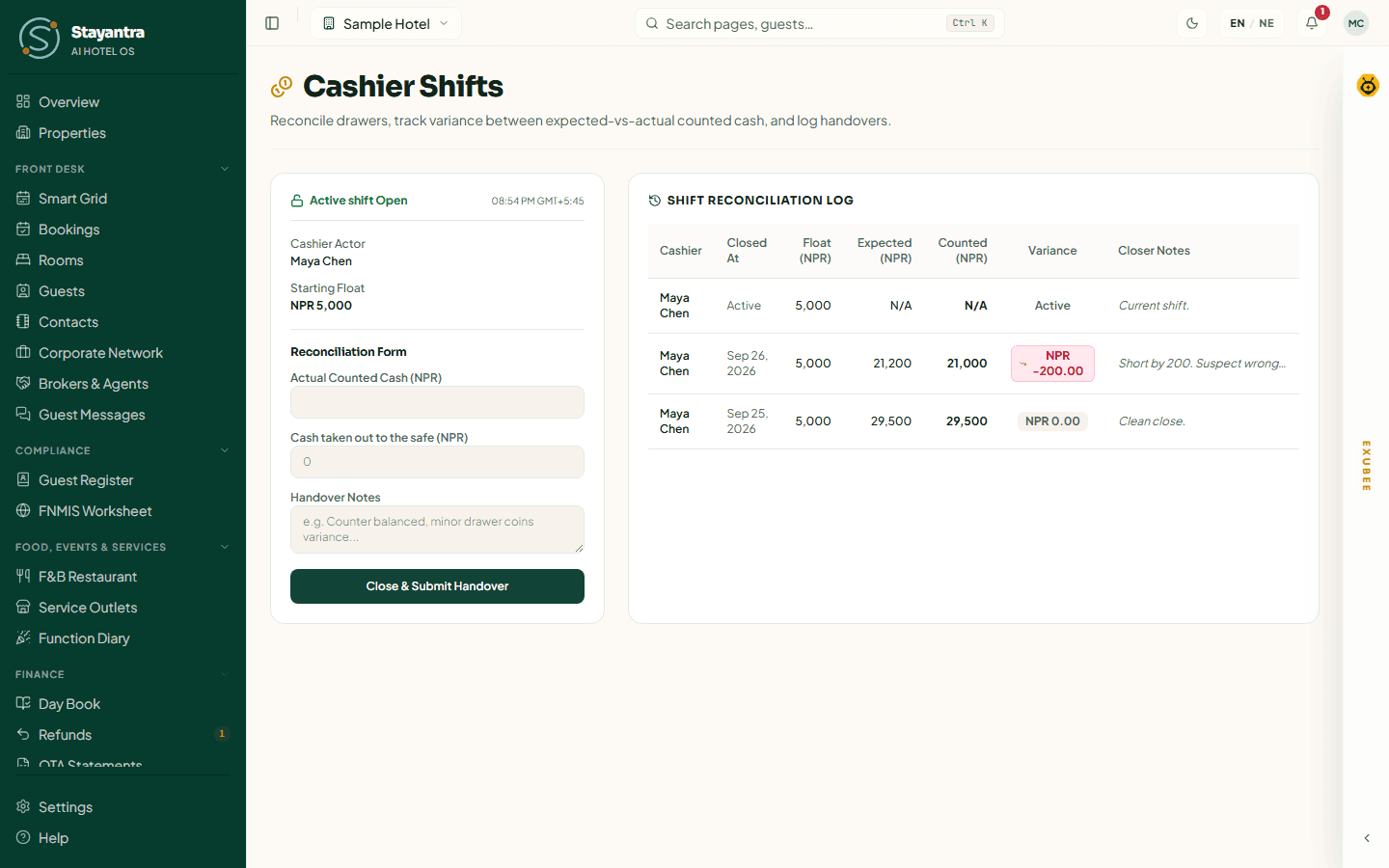
Click Open Cashier Shift. The page shows Active shift Open with your name and Starting Float.
Close a shift
Count the cash
In the Reconciliation Form, enter the Actual Counted Cash, and Cash taken out to the safe if you drop some. The page shows what is Left in the drawer for the next shift. Count foreign notes per currency (Counted and To the safe).
Hand over
Write Handover Notes (for example "Counter balanced, minor coins variance"). Click Close & Submit Handover.
Stayantra compares your count with what the drawer should hold. Any difference is the shift's Variance, and the owner and managers get a Cash variance at shift close alert. The Shift Reconciliation Log lists every closed shift with its Cashier, Closed At, Variance and Closer Notes.
A manager or owner can close someone else's shift, with a reason; the cashier and the owner are told.
Pay back refunds you owe
When the hotel owes a guest money back — a cancellation, an overpayment, a payment on a booking that did not happen — it appears on Finance → Refunds. The sidebar shows how many are open.
[!NOTE] Refunds are always done by a person. Exubee never refunds on its own — it can only suggest one for a person to approve.
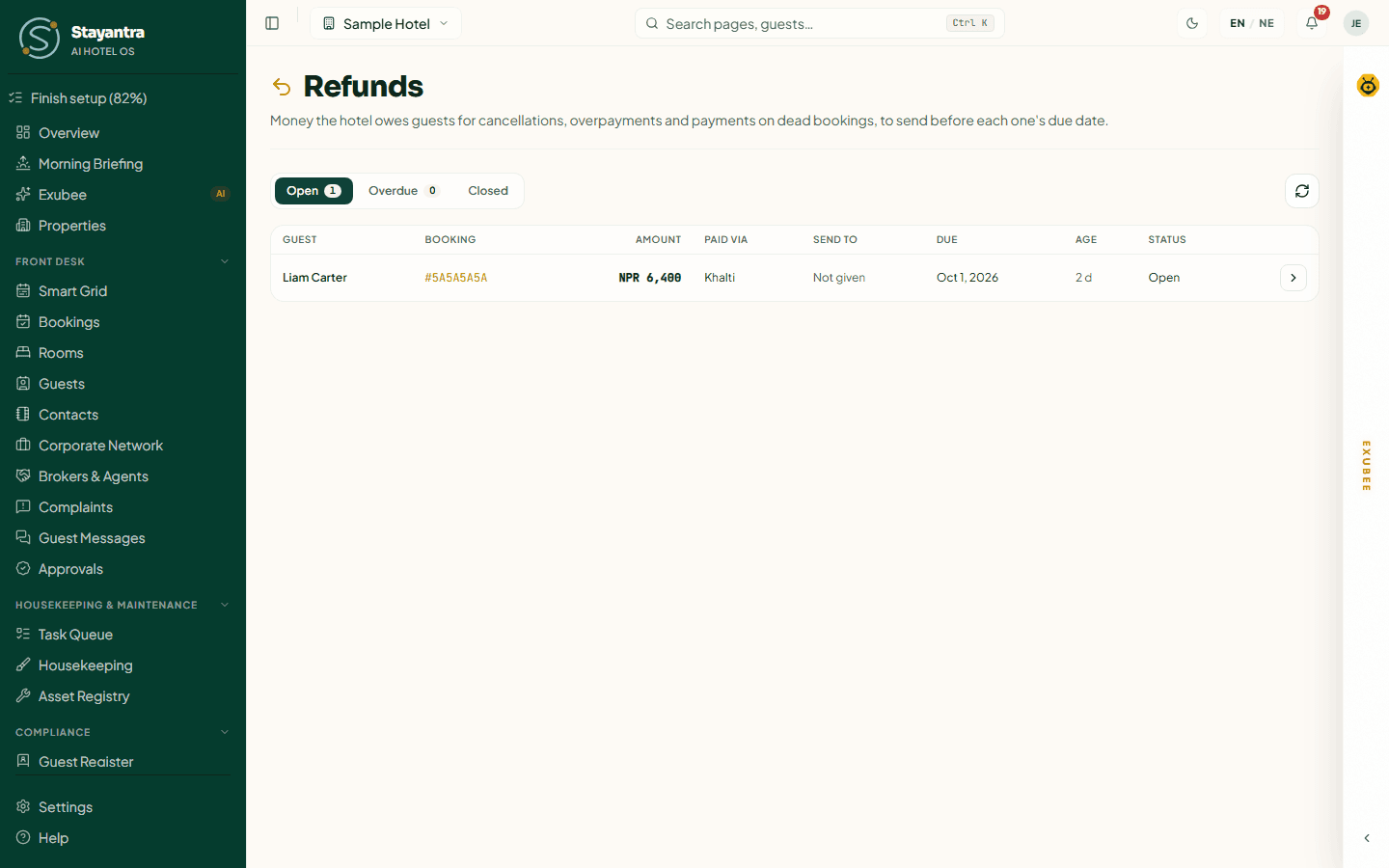
Use the Open, Overdue and Closed tabs. Each row shows the Guest, Booking, Amount, Paid via, Send to (the guest's refund details, or Not given), Due, Age and Status. Overdue marks one past its due date. The owner sets how many business days you have ("Refunds owed must be sent within", Saturdays not counted) in Settings → Limits & RBAC → Refund rules. The guest is told the date; the owner and managers get a reminder after a day and an alert when it is overdue.
Send a refund
Open it
Click the refund. The Refund owed panel shows how the guest paid, the Due by date, and where to send it. Use Copy account number and Copy holder name for a bank transfer.
Send the money
- Paid by card: click Refund to card. Stripe sends it back to the guest's card.
- Paid through Khalti: click Refund through Khalti.
- Anything else: send it yourself (bank transfer, wallet, cash), then choose how you sent it, type the Bank transfer reference, Receipt number or Wallet transaction ID, and click Mark as sent.
A refund above your limit is Sent for approval — an owner or manager approves it, and you cannot approve your own request. Nothing is refunded until then, and the request expires if nobody decides in time.
If the guest agreed to keep the money as credit for their next stay, or the booking's terms keep it, click Close without a refund and choose The guest took a credit instead or Forfeit it, with a reason. Forfeiting a large amount needs the owner.
You can also refund from a booking's bill with Refund — choose How it goes back: Cash from the drawer, Refund to the card through Stripe, or Sent from the Fonepay Business app. See Taking payments.
Pay with Stayantra
When a guest pays online through Stayantra — eSewa, Khalti, card, or Fonepay on Stayantra's merchant account — Stayantra collects the money for you and pays it into your bank account every week. This page shows that money. Only the owner sees it.
Where: Finance → Pay with Stayantra.
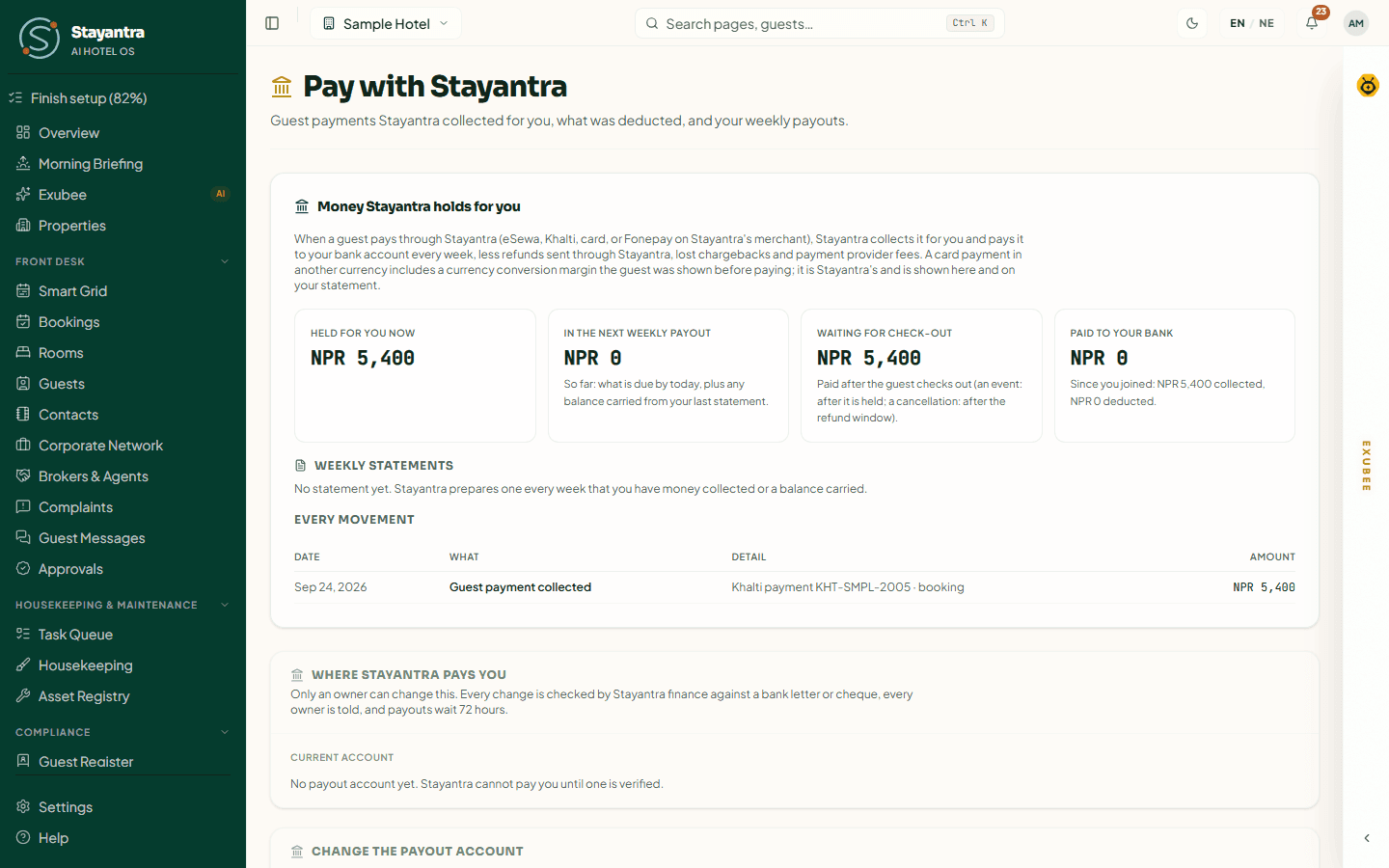
- Money Stayantra holds for you — Held for you now, In the next weekly payout, and Waiting for check-out (money for stays not yet checked out, which is paid after the guest leaves).
- Weekly statements — one for every week you had money collected or a balance carried. Each shows the Opening balance, Guest payments collected, Credits, Deductions, Paid to your bank and Closing balance. Click Print on a statement.
- Every movement — the ledger, with each payout's state: Paid to your bank, Being paid, Transfer came back or Nothing paid.
What is deducted: refunds sent through Stayantra, lost chargebacks and the payment provider's fees. A card payment in another currency includes a currency conversion margin the guest was shown before paying; it is Stayantra's and appears on your statement. If you owe Stayantra money, it comes off your next payout.
The owner sets the bank account for payouts on this page. Stayantra verifies it before paying into it, and a changed account waits 72 hours before it is used. See Payments and payouts.
[!IMPORTANT] Stayantra turns this on. Online guest payments and payouts start only after your business verification is approved. See Business verification, or ask from Help → Open a support ticket.
Check OTA statements
Each month, OTAs send you a commission invoice or a payout statement. This page checks each line against the booking and the commission Stayantra tracked for it, so you only pay what you owe.
Where: Finance → OTA Statements.
Download the statement
In the OTA's extranet, download the month's commission invoice or payout statement as CSV (under 5 MB — one month at a time).
Import it
Under Import an OTA statement, choose the OTA (Booking.com, Expedia, Agoda, Airbnb, Trip.com, MakeMyTrip or Hostelworld), the Statement type (Commission invoice, Payout statement or Reservation statement) and the CSV file.
Map the columns
Match each field — OTA reservation number, Guest name, Check-in, Check-out, Status, Stay amount, Commission, Payout, Currency — to a column, checking against the Sample rows. Stayantra remembers the mapping for next month. Click Import and match.
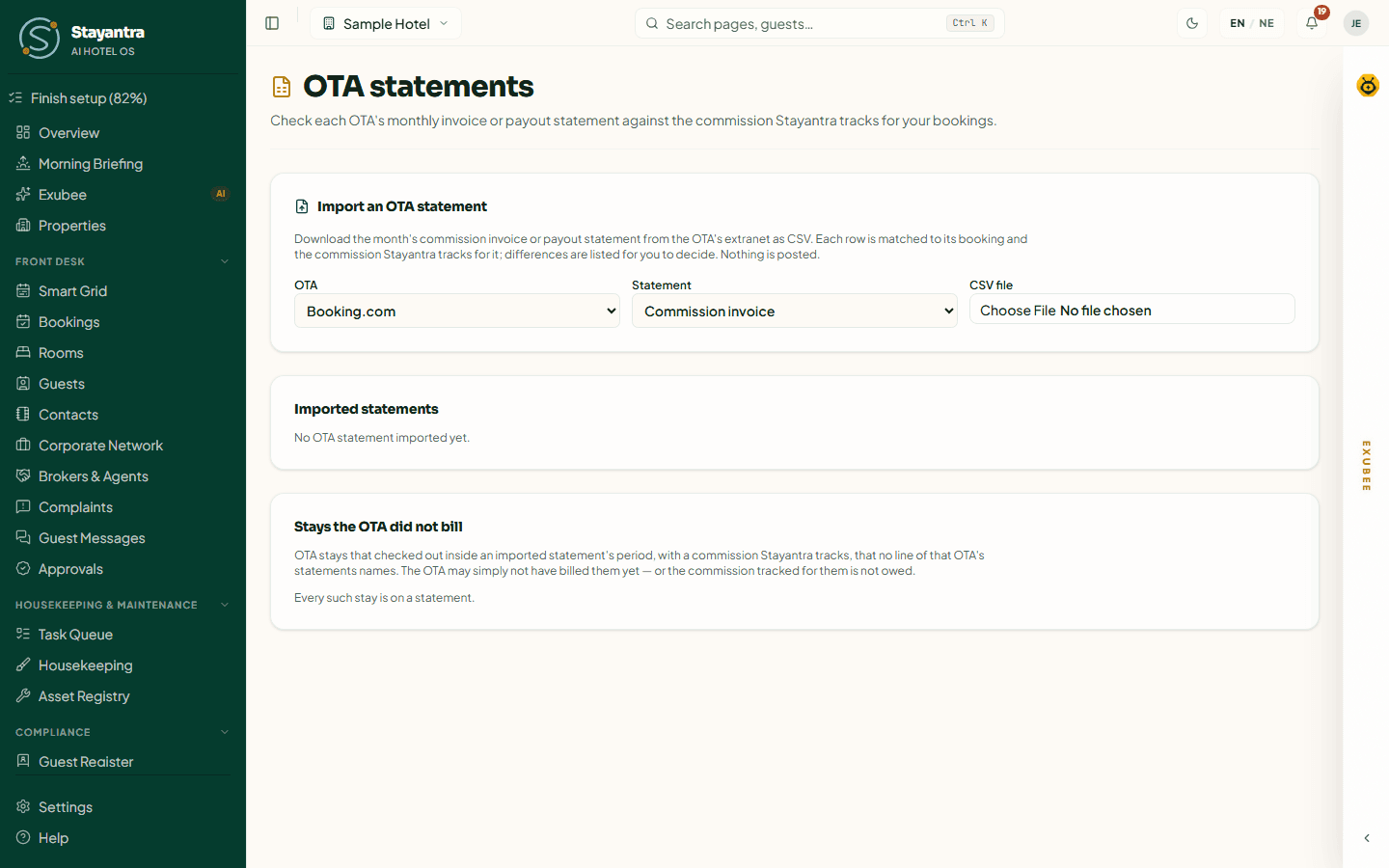
Nothing is posted. Open an imported statement to see each line with OTA says, Stayantra and the Result:
| Result | Meaning |
|---|---|
| Matches | Booking and commission agree. |
| Commission differs, Amount differs | The OTA's figure is different from Stayantra's. |
| No booking found | Link the line to the right booking. |
| Charged on a cancelled / no-show stay | Check whether you owe it. |
| No commission tracked | Stayantra has no commission for this booking. |
| Several bookings fit | Choose the booking. |
For each line to review, click Decide and choose Accepted, Disputed with the OTA, Adjusted in the broker ledger or Ignored, with a note (a ticket number or reason). Match again re-runs the matching; Void import discards an import done by mistake.
Stays the OTA did not bill lists OTA stays that checked out within an imported period, with tracked commission, that no statement line names. The OTA may not have billed them yet — or the commission is not owed.
OTA commissions are kept in each OTA's account under Brokers and agents.
Inventory and procurement
Track stock in your stores, count it, and buy what you need — purchase requests, vendor quotes, purchase orders, deliveries, market purchases and supplier bills.
Taking payments
Take guest payments at the desk in cash or online, handle foreign notes, verify bank transfers, split bills, print statements and give money back.