
Teach Exubee about your hotel
Exubee is the AI assistant inside Stayantra. It drafts price changes, dispatches tasks, writes marketing copy and answers questions, but only as well as it knows your hotel. This page shows the four places you teach it, and how much it is allowed to do on its own.
Where to find it: the sidebar group Insights & AI: House knowledge, Policies and Autonomy. Guest-facing facts live in Settings → Hotel Profile → Stay rules. Who can use it: owners and managers edit House knowledge and Policies. Managers can see Autonomy; only the owner changes it.
The four places Exubee learns from
| Where | What you put there | Who reads it |
|---|---|---|
| Hotel profile (Stay rules, description, amenities) and the local knowledge saved during setup | Facts for guests: check-in and check-out times, cancellation terms, what is nearby, how to get there. | Exubee when it talks to guests (on the marketplace, in the Go app and in the chat widget on your website), and Exubee inside the dashboard. |
| House knowledge | Short notes a new manager would have to be told on day one. | Exubee's staff-side assistants only. Guests never see these notes. |
| Policies | Operating rules: price floors, refund limits, discount rules. Most are learned from your approvals; you can also write your own. | Exubee's staff-side assistants. A confirmed rule is enforced. |
| Autonomy | How much each area of Exubee may do without asking. | Everything Exubee does. |
Facts for guests: your hotel profile
Guest-facing Exubee answers questions like "What time is check-in?" or "Can I cancel for free?" from your hotel profile. Keep it accurate:
- Settings → Hotel Profile → Stay rules: Check-in Time, Check-out Time, Additional notes for guests, and the Cancellation and no-show terms.
- Settings → Hotel Profile → General: your description, amenities and photos.
How to fill these in is in Hotel profile.
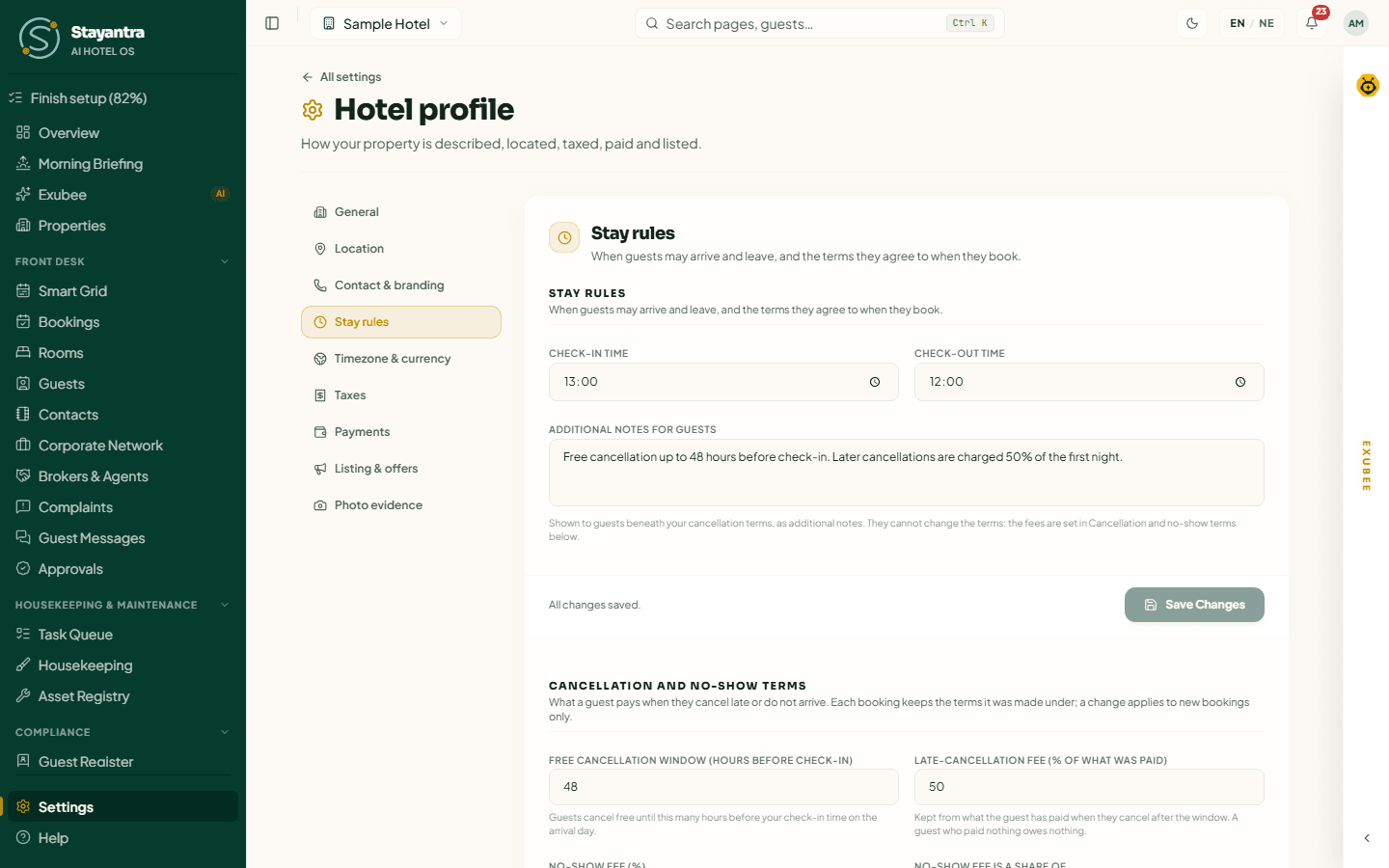
The local knowledge (attractions, transport, events nearby) comes from the Local Attractions & Transport step of the setup wizard, or from what you told Exubee in the setup chat. See Setup wizard.
House knowledge: notes for Exubee
House knowledge holds what Exubee should know about your hotel that is not in any data: "The Grand Hall generator runs loud during events — warn guests in rooms 210 to 214 at check-in", or "Never move a guest out of a Suite without asking the owner".
Every staff-side part of Exubee reads these notes at the start of every run. Guests never see them.
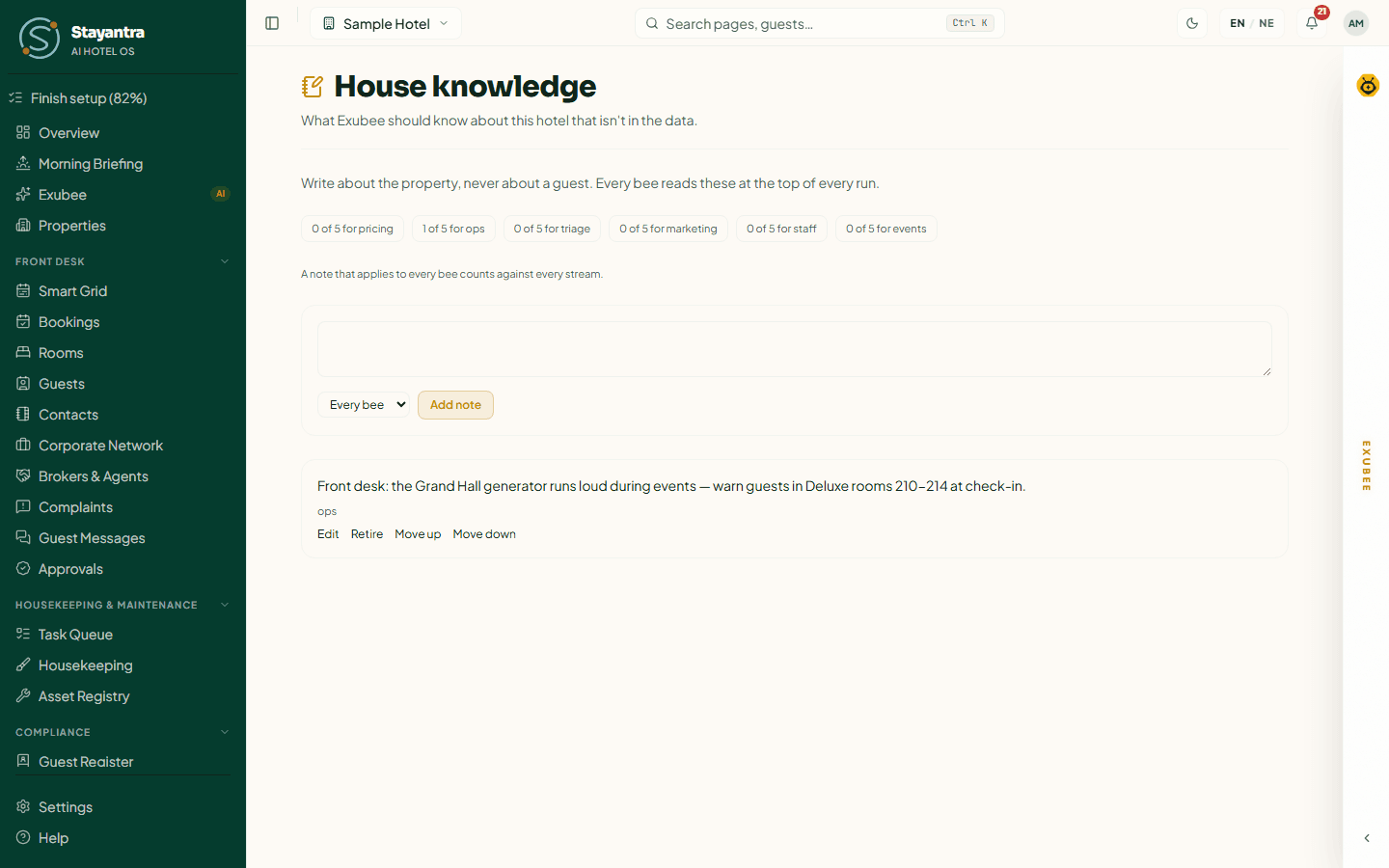
Add a note
Open House knowledge
In the sidebar, open Insights & AI → House knowledge.
Write the note
In the New note box, write one sentence of 10 to 280 characters. Write about the property, never about a guest.
Choose who it applies to
In Applies to, keep Every bee for a note every part of Exubee should know, or choose one area: pricing, ops, triage, marketing, staff or events.
Save
Click Add note.
Rules for notes:
- Each area holds at most 5 active notes. A note for Every bee takes a place in every area. The chips at the top show how many are used, for example "2 of 5 for pricing".
- Order matters. When an area has more than 5 notes, the first 5 are used. Use Move up and Move down to order them.
- Notes are checked before they are saved. You see why a note was refused: "Too short — say the whole thing in one sentence.", "Too long — keep it under 280 characters.", "Remove the email address: …", "Remove what looks like a phone or ID number: …", or "All 5 … notes are in use — retire one to add this."
Change or retire a note
- Edit saves a new version. Click Save new wording. The old wording is kept: the note shows "edited N× — see previous wording", and you can open the earlier versions.
- Retire takes the note out of use. Retired notes leave the list.
When the page is empty it says No house notes yet — "Start with the one thing a new manager would have to be told on their first day." That is good advice for your first note.
Policies: rules Exubee must follow
Policies are operating rules for Exubee: a price floor, a refund limit, a discount rule. Most are learned. Every week, Stayantra looks at how you approved, edited or rejected Exubee's suggestions and proposes rules from them. You confirm the ones you agree with.
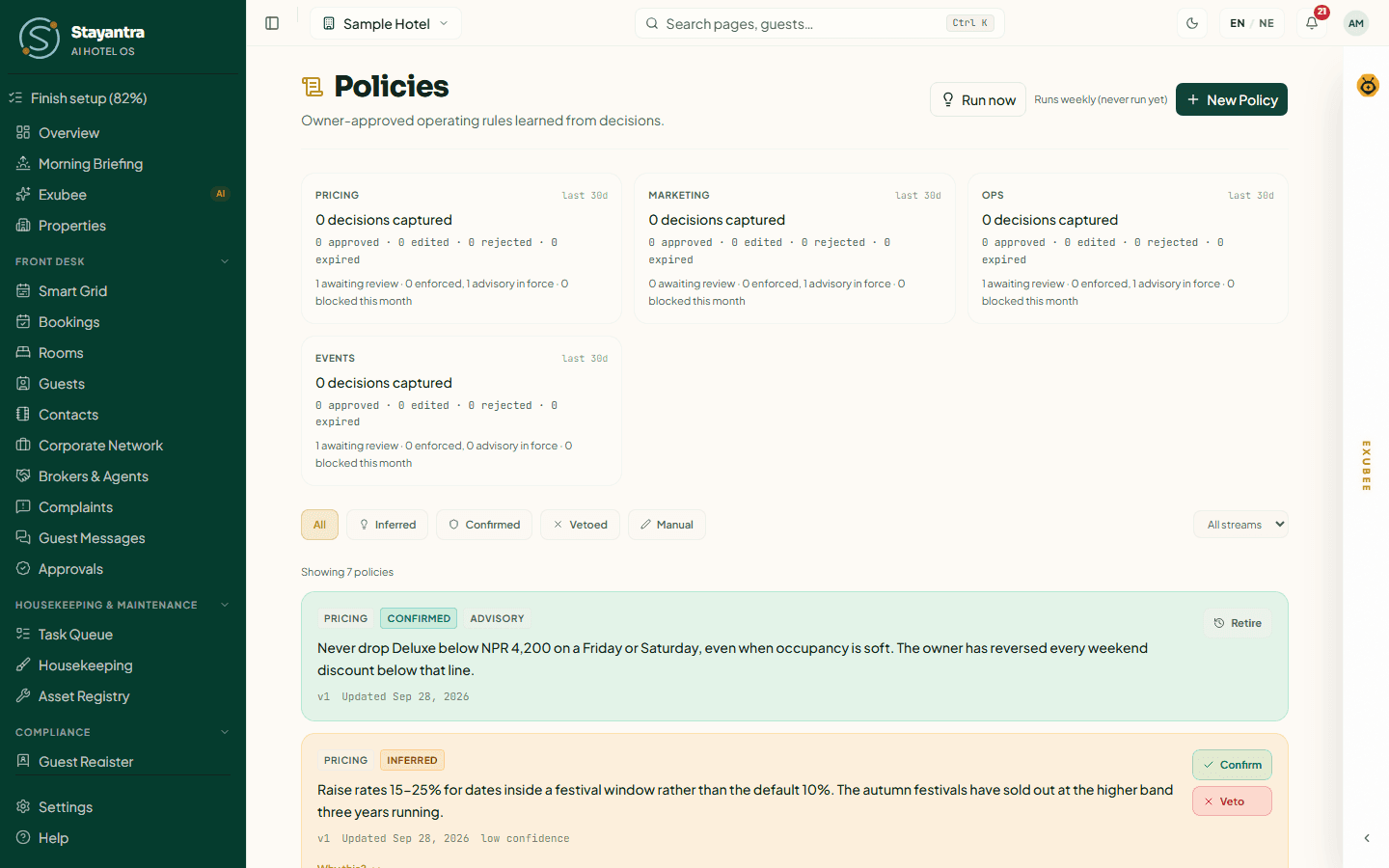
On a new hotel the page says No policies yet — "As your team makes decisions on AI suggestions, policies will be learned and appear here." That is expected. You can also write rules yourself from day one.
Write your own rule
- Open Insights & AI → Policies and click New Policy.
- Choose the area: Pricing, Operations, Marketing, Reviews, Staff / Payroll, Triage, Events, Procurement or Finance.
- In Write the policy rule in plain language..., write the rule, for example "Never price a Deluxe room below NPR 4,000."
- Click Create.
Review learned rules
Each rule shows its status and whether it is enforced:
| Status | Meaning |
|---|---|
| inferred | Learned from your decisions and waiting for you. Click Confirm or Veto. Why this? shows the decisions it came from. |
| confirmed | You agreed. It is in force. Click Retire to stop it. |
| manual | You wrote it. |
| vetoed | You rejected it. It stays on the list so you can see it was considered. |
| superseded | Retired or replaced. Kept for the record. |
Enforced means Exubee refuses an action that breaks the rule. Advisory means it is guidance. Needs attention means the rule cannot be read as written, and actions in that area are refused until you retire or restate it.
Click Run now to learn from the latest decisions without waiting for the weekly run.
Autonomy: why Exubee starts in Co-Pilot
Every hotel starts in Co-Pilot: Exubee proposes, and a person approves. Nothing it suggests changes a price, dispatches a task or sends a message until someone clicks approve. On the Autonomy page this mode is shown as Exubee, and on the Overview as Co-Pilot · every action approved.
That is on purpose. Exubee has to earn the right to act alone, one area at a time, by agreeing with your team's decisions over a long enough period. Until then, your approvals and edits are how it learns what your hotel wants.
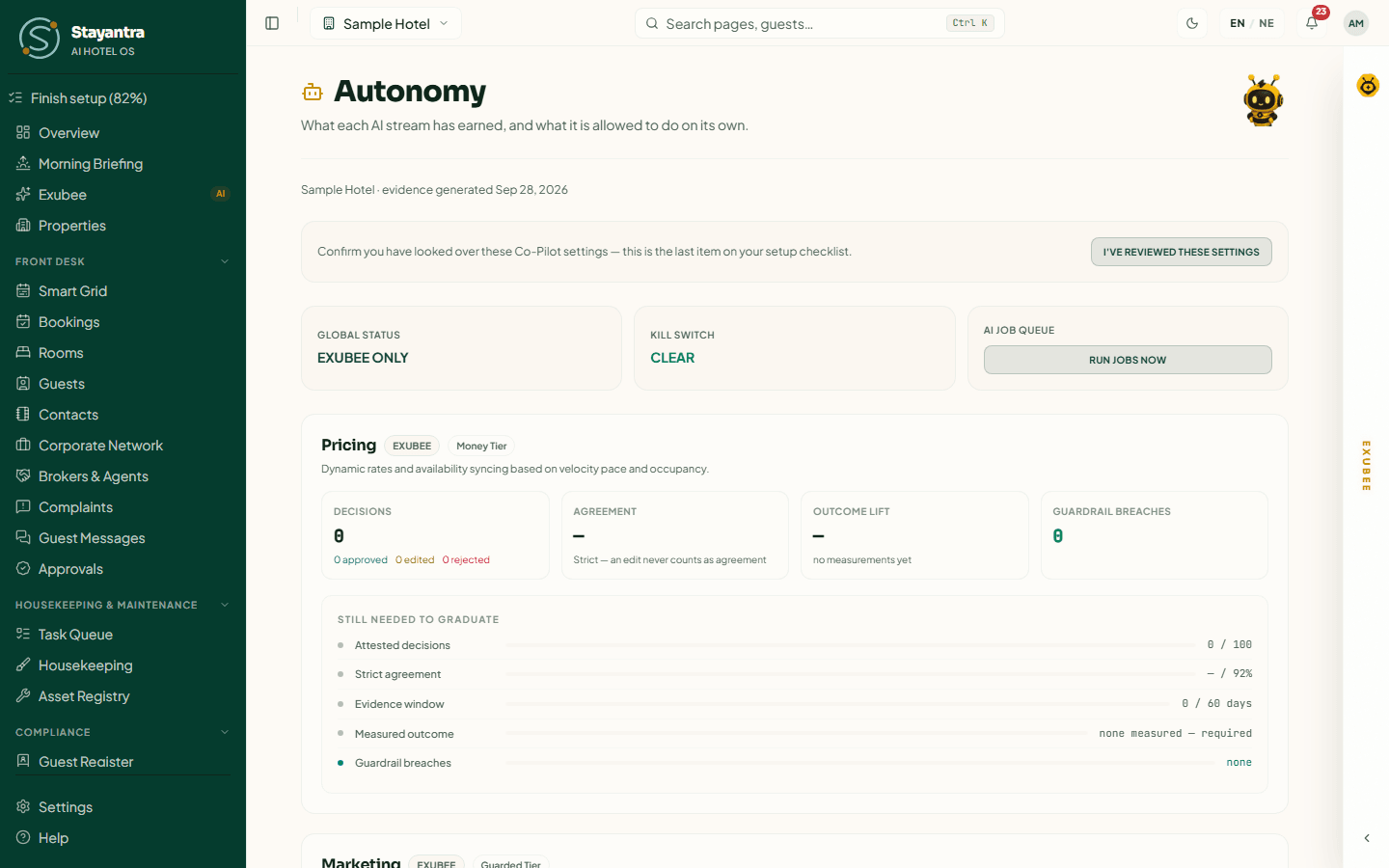
Open Insights & AI → Autonomy. The page shows one card per area (Pricing, Marketing, Staff, Operations, Triage, Events, Reviews, Finance), each in one of three states:
| State | Meaning |
|---|---|
| Exubee | Co-Pilot. Every action waits for approval. Every area starts here. |
| Ready to graduate | The area has met every threshold. The owner may switch it to Auto-Pilot, or reject the recommendation. |
| Auto-Pilot | Exubee acts on its own in this area, inside your limits. |
Each card shows the evidence: Decisions, Agreement (strict: an edit never counts as agreement), Outcome lift and Guardrail breaches (must be zero), and a Still needed to graduate list.
An area can only become Ready to graduate after enough decisions over enough time:
| Areas | Agreement | Decisions | Time |
|---|---|---|---|
| Operations, Triage, Reviews | 85% | 30 | 30 days |
| Marketing, Events | 90% | 20 | 45 days |
| Pricing | 92% | 100 | 60 days |
| Finance | 92% | 60 | 60 days |
| Staff (payroll) | 92% | 45 | 90 days |
Nobody can skip this: an owner cannot switch an area to Auto-Pilot before it is ready. When it is, the owner clicks Activate Auto-Pilot, reads the concept form, ticks the consent (an area on Auto-Pilot is billed monthly at the Auto-Pilot price in your plan; there is no activation fee), types their name in Authorized digital signature and clicks Sign & activate. An area on Auto-Pilot can be sent back with Revert to Exubee at any time, and it demotes itself if its quality falls below 80%.
Further down the page, the owner can tighten Exubee further:
- Money This Hotel Can Approve: the most your hotel can approve in each period.
- Your Auto-Pilot Limits: stricter daily limits (for example Tasks dispatched per day, Social posts per day), a longer Time to stop an action (never less than 1 hour), and Your rules. You can never loosen Stayantra's own limits.
- History: every change to autonomy.
The kill switch that stops all Auto-Pilot at once is on the Overview, not here: Activate Kill Switch in the owner's action bar. The Autonomy page only shows whether it is Halted or Clear. See Co-Pilot and approvals.
Tick "AI Co-Pilot settings" on your checklist
The last setup task, AI Co-Pilot settings, is ticked by hand. As the owner, open Insights & AI → Autonomy, read the page, then click I've reviewed these settings in the box that says "Confirm you have looked over these Co-Pilot settings — this is the last item on your setup checklist." A manager does not see this button.
Talk to Exubee
If your plan includes the Co-Pilot add-on, Exubee has a chat panel on the right of every dashboard page. Click the EXUBEE strip to open it. Its tabs depend on your role: Assistant for everyone, plus Pricing, Marketing and Events for those allowed. Type in Ask Exubee..., record a voice note, or attach a document or photo. See Getting started.
Without the add-on, Exubee's suggestions and the approval queue still work on the Exubee page in the sidebar.
If something goes wrong
| What you see | What to do |
|---|---|
| "You don't have access to this" on House knowledge or Policies | These pages are for owners and managers. |
| "You are seeing this page read-only" on Autonomy | You are a manager. Only the owner can change autonomy. |
| Hotel knowledge stays open on the setup checklist after you added house notes | That task is ticked by the local knowledge saved during setup, not by house notes. See Finish setup and go live. |
| No autonomy evidence yet | Normal on a new hotel. Evidence starts the first time Exubee proposes something for you to approve. |
Restaurant and kitchen printers
Set up your restaurant in the right order (stations, outlets, menu, tables, the Kitchen screen) and install the print bridge so every kitchen order ticket prints by itself.
Import your data
When to bring rooms, rates, guests and bookings over from your old system, which files Stayantra reads, and where the full import guide is.