
Guest messages
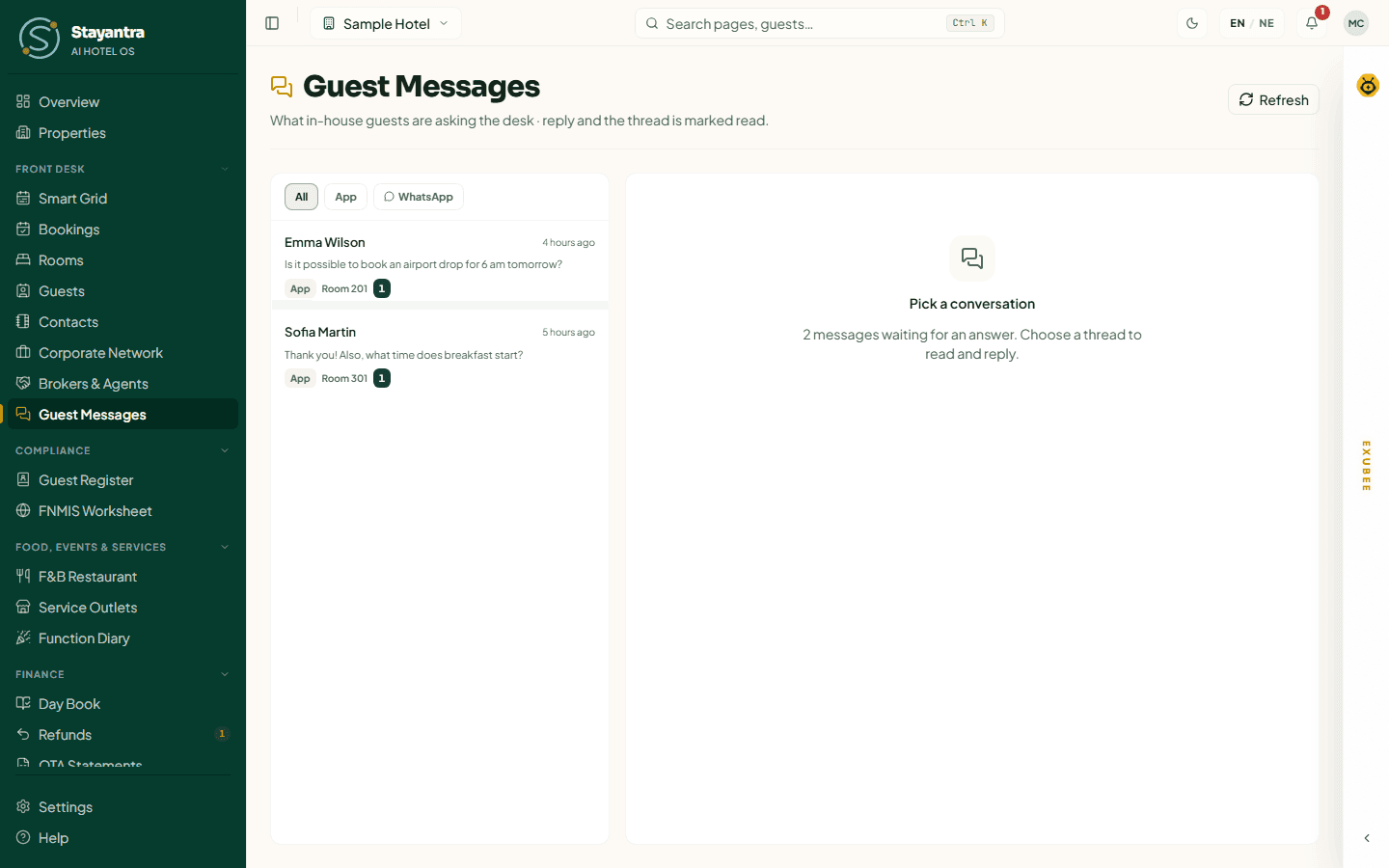
Guest Messages is the chat inbox for your guests. When a guest with a booking writes to the hotel — from the in-stay chat in the Stayantra Go app, or with Talk to hotel staff on your Stayantra booking page — the message lands here, and the desk replies from the same screen. The guest gets the reply on their phone.
Where to find it: Front Desk → Guest Messages. Who can use it: owners, managers and staff with the front desk skill.
How messages arrive
- A conversation belongs to a booking. The inbox lists guests whose booking is confirmed or checked in, plus any older booking that still has an unread message.
- Every new guest message sends a New guest message notification — in the bell and as a push to the Stayantra Connect app — to everyone who can read the inbox.
- The inbox checks for new messages by itself every few seconds while it is open. Refresh checks straight away.
Read and reply
Pick a conversation
The list on the left shows each guest's name, their room ("Room 201"), how long ago they last wrote, the start of the last message ("You: …" when the desk wrote last) and a number for unread messages. Click a guest.
Read the thread
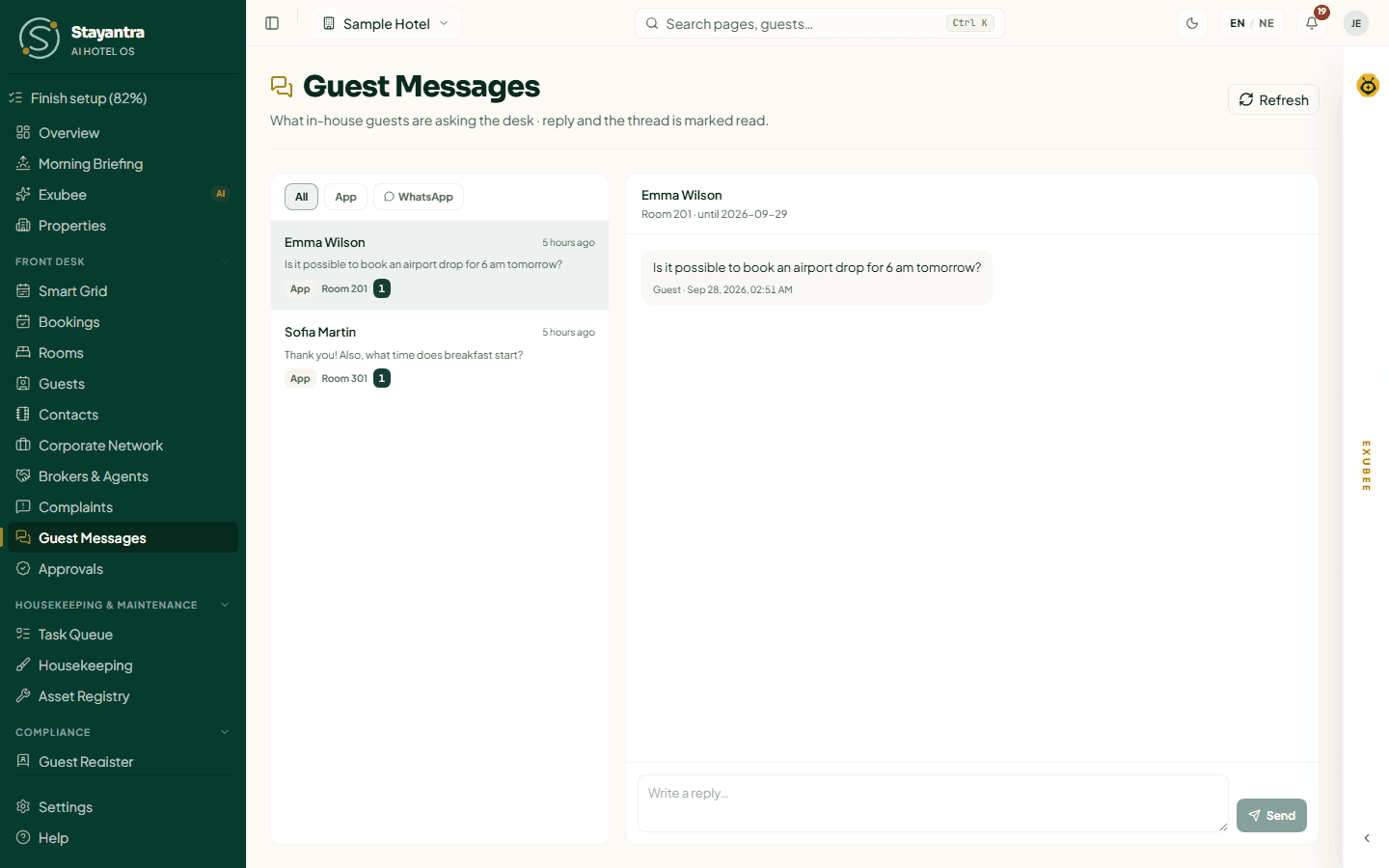
The header shows the guest, the room and the check-out date ("Room 201 · until Sep 29"). Messages are marked Guest or Desk with the time, in hotel time. Load earlier shows older messages.
Reply
Type in Write a reply… (up to 2,000 characters) and click Send. Your message shows "Desk · sending…" and then "sent". The guest gets a notification titled "Message from {your hotel}".
Read status: a conversation stays unread until someone replies. Replying marks every guest message in that thread as read. Opening a thread without replying leaves it unread, so a colleague can still see it needs an answer.
[!WARNING] Never ask for or send card numbers in chat. A message that looks like a card number is blocked: "Credit card numbers or sensitive payment info cannot be shared in chat." Take payments on the booking page instead — see Take a payment.
The chat is text only: there are no attachments or ready-made replies.
What to do with a request
A message is often a request — more towels, a taxi, a problem with the room. Reply to the guest, then act on it where the work is done:
- a service or item for the bill — add it on the booking page (Add a charge);
- a job for housekeeping or maintenance — Assign Task on the Overview or the Task Queue (Housekeeping and operations);
- a complaint — guests file these from the Go app's concierge, and they appear in Complaints.
Stayantra can also bring messages sent to your hotel's own WhatsApp Business number into this inbox, with filters for App and WhatsApp conversations.
[!IMPORTANT] Waiting on Meta's approval. Connecting a WhatsApp number is not available yet; until it is, the inbox shows Stayantra Go and booking-page messages only. See Integrations for the WhatsApp settings page.
When a guest makes a booking at the desk you can already tick Send booking updates to this number on WhatsApp for them — see Make a booking.
When something goes wrong
| What you see | What to do |
|---|---|
| "No guest conversations" | No guest with a current booking has written in yet. |
| "Could not send the reply" | Check your connection. Only owners, managers and front desk staff can reply — ask one of them. |
| A guest says they did not get your reply | They may have notifications switched off. Their reply still appears in the Go app when they open it. |