
Reports and analytics
Four pages tell you how the hotel is doing. Reports is the revenue and occupancy report for any period up to a year, ready to download or print. Analytics shows live operational figures. Health score grades each part of the hotel from 0 to 100 and names what is dragging it down. Ops Health shows the background jobs that keep Stayantra running, and anything that got stuck.
Where to find them: Insights & AI → Reports, Analytics, Health score and Ops Health. Who can use them: owners and managers. The money figures on Analytics → Financials are owner-only.
Reports
The report covers occupancy, average daily rate (ADR), revenue per available room (RevPAR), pickup, booking channels and room types.
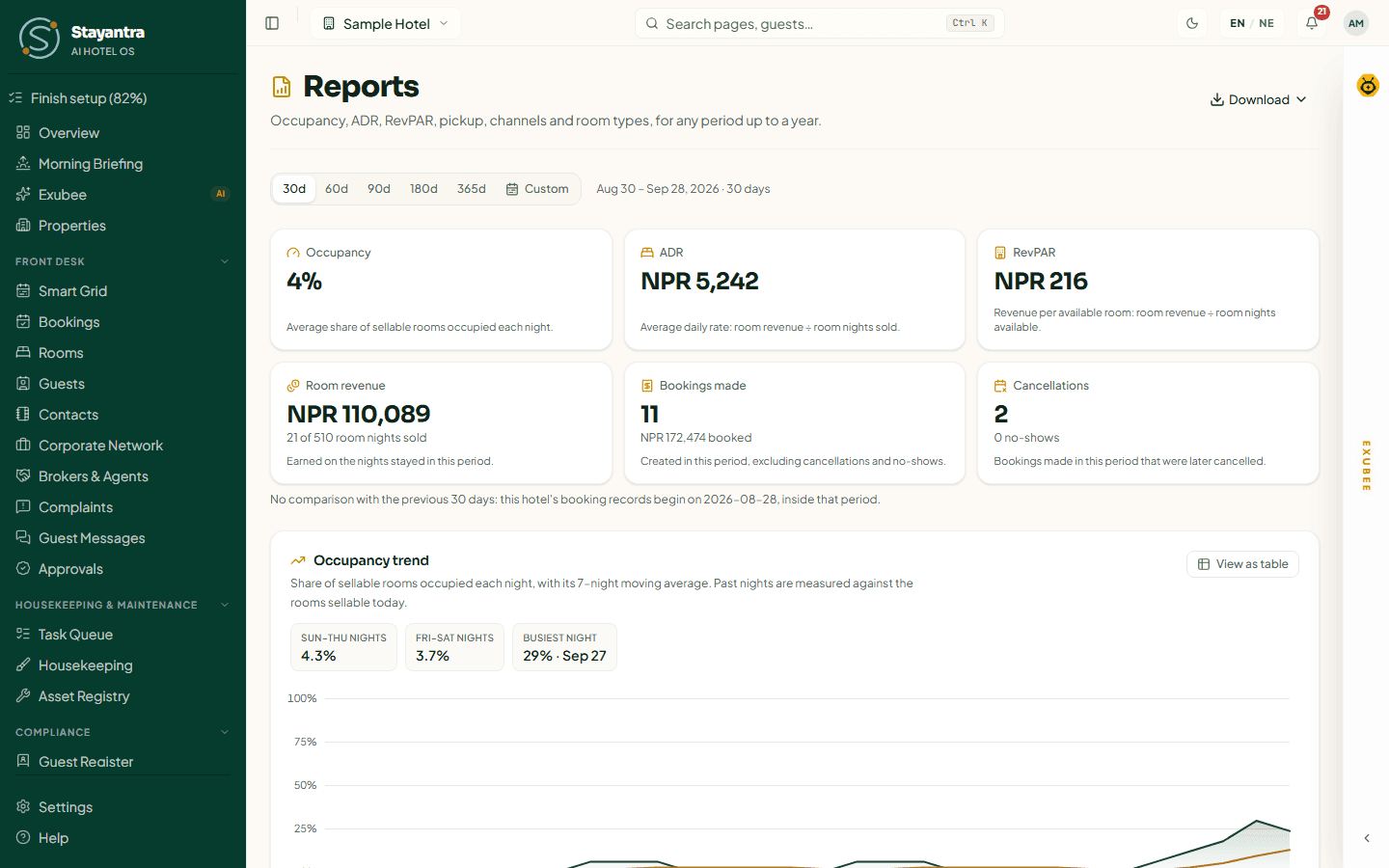
Needs: the Revenue & Insights module (called Advanced Reports on older plans). Without it the page says "Reports isn't on your plan" with an Open Plan & Billing button. Reports need an internet connection; they do not work offline.
Choose the period
Press 30d, 60d, 90d (the default), 180d or 365d for the days up to today. For other dates press Custom, fill From and To, and press Apply. A report covers at most 365 days and cannot end after today. The period is shown next to the buttons, for example "Jul 1 – Sep 28, 2026 · 90 days". Dates are in your hotel's local timezone.
The headline figures
All revenue figures leave out VAT and tourist tax; service charge is included.
| Figure | What it means |
|---|---|
| Occupancy | The average share of sellable rooms occupied each night. |
| ADR | Average daily rate: room revenue ÷ room nights sold. |
| RevPAR | Revenue per available room: room revenue ÷ room nights available. |
| Room revenue | Earned on the nights stayed in this period, with "N of M room nights sold". |
| Bookings made | Bookings created in the period, leaving out cancellations and no-shows, and their value. |
| Cancellations | Bookings made in the period that were later cancelled, and the number of no-shows. |
| Commission | Broker and OTA commission on the nights stayed. Shown only if you have brokers or OTAs. |
| Net room revenue | Room revenue less that commission. |
Each figure is compared with the previous period of the same length, for example "+3.2 pts vs previous 30 days". If your records do not go back that far, the page says so instead of comparing.
Occupancy is always measured against the rooms that are sellable today — active and not out of service.
The charts
Every chart has View as table to see the numbers behind it.
| Chart | What it shows |
|---|---|
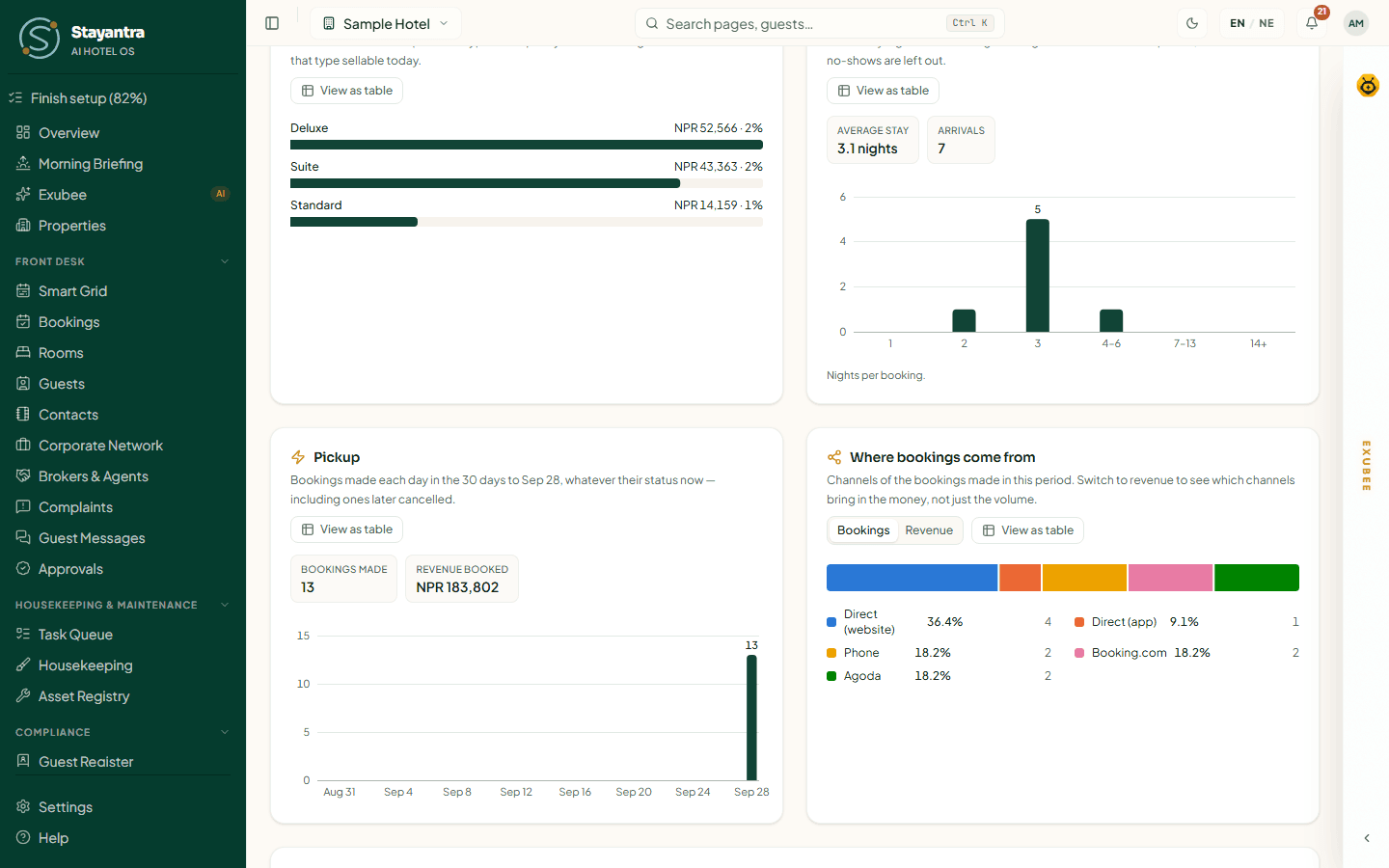
| Occupancy trend | Each night's occupancy and its 7-night average, with Sun–Thu nights, Fri–Sat nights and Busiest night. |
| Occupancy by day of week | A square per night, darker when fuller, so you can compare the same weekday week after week. |
| Room revenue, ADR and RevPAR by month | Revenue earned each month, and ADR and RevPAR side by side. A partial month is marked. |
| Room types | Revenue, nights sold, occupancy and ADR per room type. |
| Length of stay | How many nights each arriving booking was for, and the Average stay. |
| Pickup | Bookings made each day in the last 30 days, whatever happened to them later. |
| Where bookings come from | Bookings or revenue (switch between them) by channel: your website, the app, walk-in, phone, email, Booking.com, Agoda, Expedia and others, with commission and net. |
| By broker / agent | Bookings each broker, travel agency or OTA sold: revenue, commission (and how much is still pending) and what you keep. |
Download or print
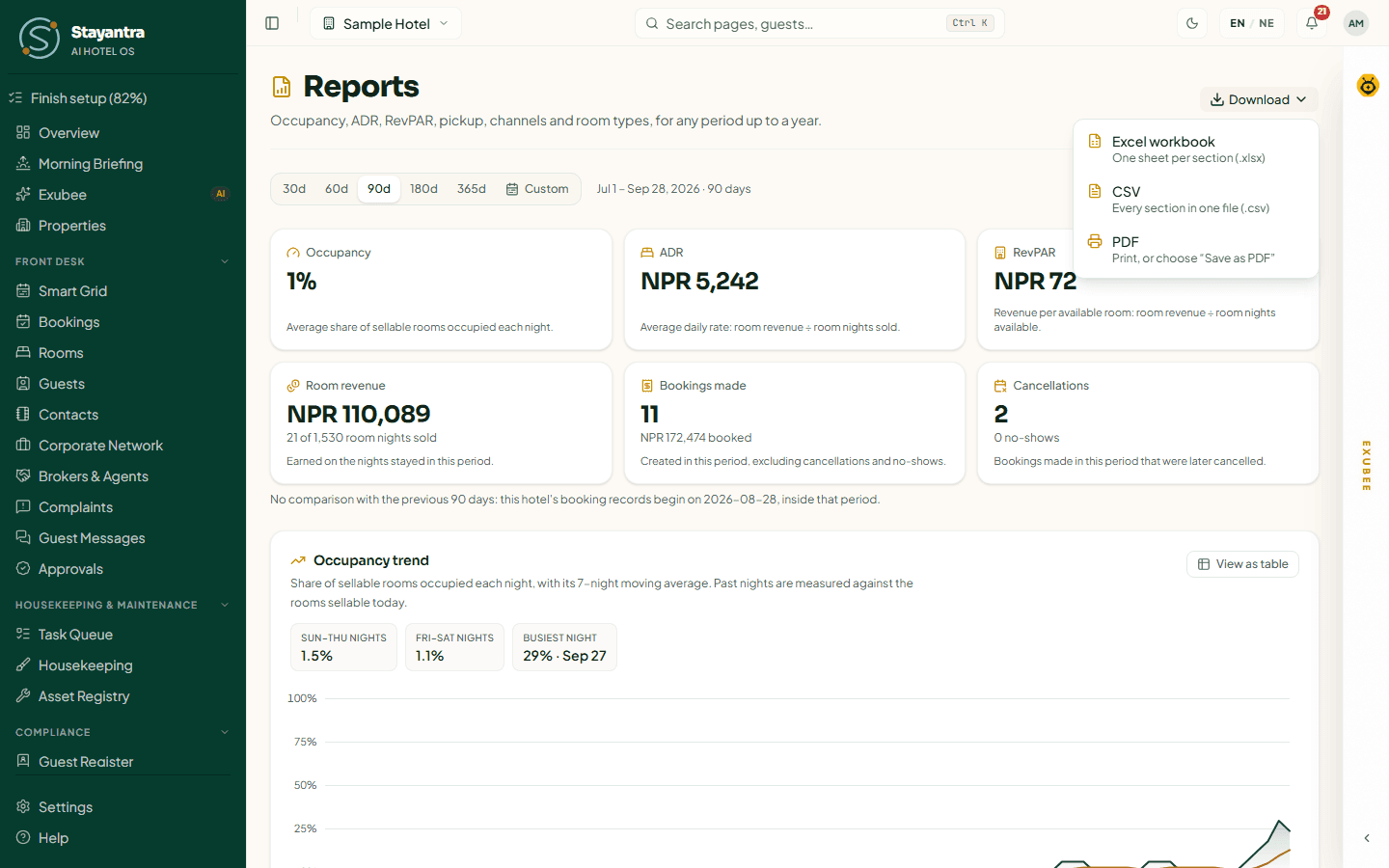
Press Download and choose:
| Option | What you get |
|---|---|
| Excel workbook | One sheet per section (.xlsx): Summary, Occupancy, Revenue by month, Pickup, By source, By broker, Room types, Length of stay, Booked by month. |
| CSV | Every section in one file (.csv). |
| Opens your browser's print window: print it, or choose Save as PDF. Each section starts on a new A4 page. |
The file is named after your hotel and the dates, for example
stayantra-report-sample-hotel-2026-08-30_2026-09-28.xlsx. Figures are plain numbers, ready for a
spreadsheet; an unknown value is left blank, never 0.
Reports are not emailed on a schedule. The owner's morning briefing email arrives each day at 07:00 hotel time.
AI Insights
Below the report, AI Insights has three tabs:
- Pulse — today so far: in house, rooms sold tonight, occupancy tonight, money collected today, bookings taken today, waiting for approval, rooms to clean.
- Briefing — tonight: arrivals, departures, open tasks, events coming up.
- Night Audit — cashier shifts still open, folios with a balance, bookings awaiting confirmation, money owed by the Stayantra network.
Analytics
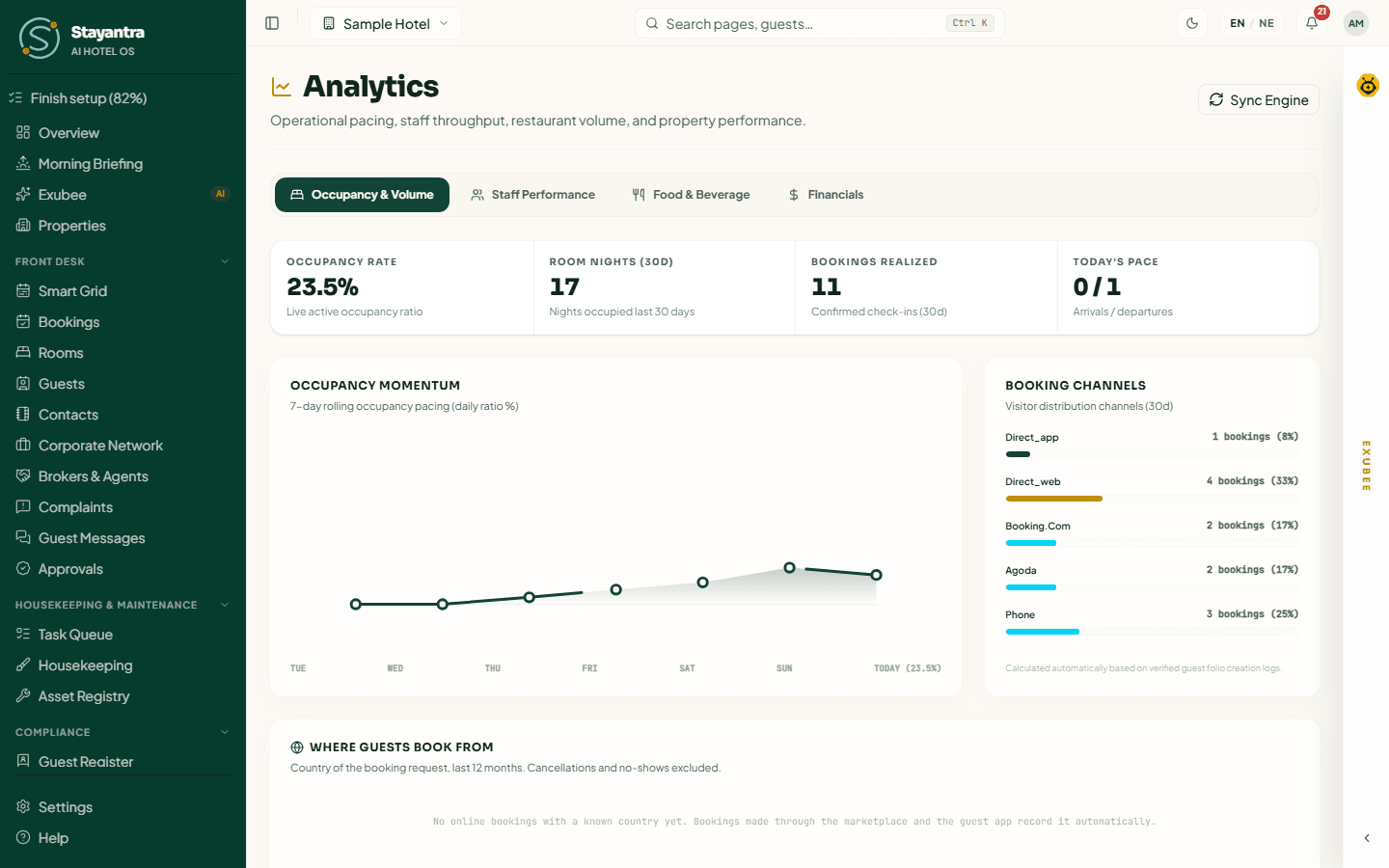
Analytics shows live operational figures in four tabs. There is no date picker: each figure says the period it covers. Sync Engine reloads the page's data.
Occupancy & Volume
- Occupancy rate — rooms sold ÷ sellable rooms, today.
- Room nights (30d), Bookings realized (confirmed check-ins in the last 30 days) and Today's pace (arrivals / departures).
- Occupancy Momentum — the last seven days' occupancy.
- Booking Channels — bookings by channel in the last 30 days.
- Where Guests Book From — the country of each online booking in the last 12 months, and the share of international bookings. Bookings through the marketplace and the Go app record it automatically.
Staff Performance
Completed tasks (30d), Average completion speed, and a table of staff with their department, tasks finished and average time. Search by name or department.
Food & Beverage
Restaurant covers (30d) (guests served), Kitchen items sold (30d), and the Top Culinary Sellers.
Financials (owner)
The last 30 nights, without VAT and tourist tax:
- Net operating profit (30d) — revenue less payroll and expenses.
- Average daily rate (ADR) and Revenue per available room.
- Net Margin Waterfall — gross revenue (rooms and F&B), payroll and operating expenses as a share of revenue, and the profit margin. Only verified expenses count.
- Stayantra Rewards — your points wallet, if you have joined.
Managers see a padlock on this tab.
Health score
Health score grades six parts of the hotel from the records Stayantra already keeps. Nothing is estimated or made up by AI.
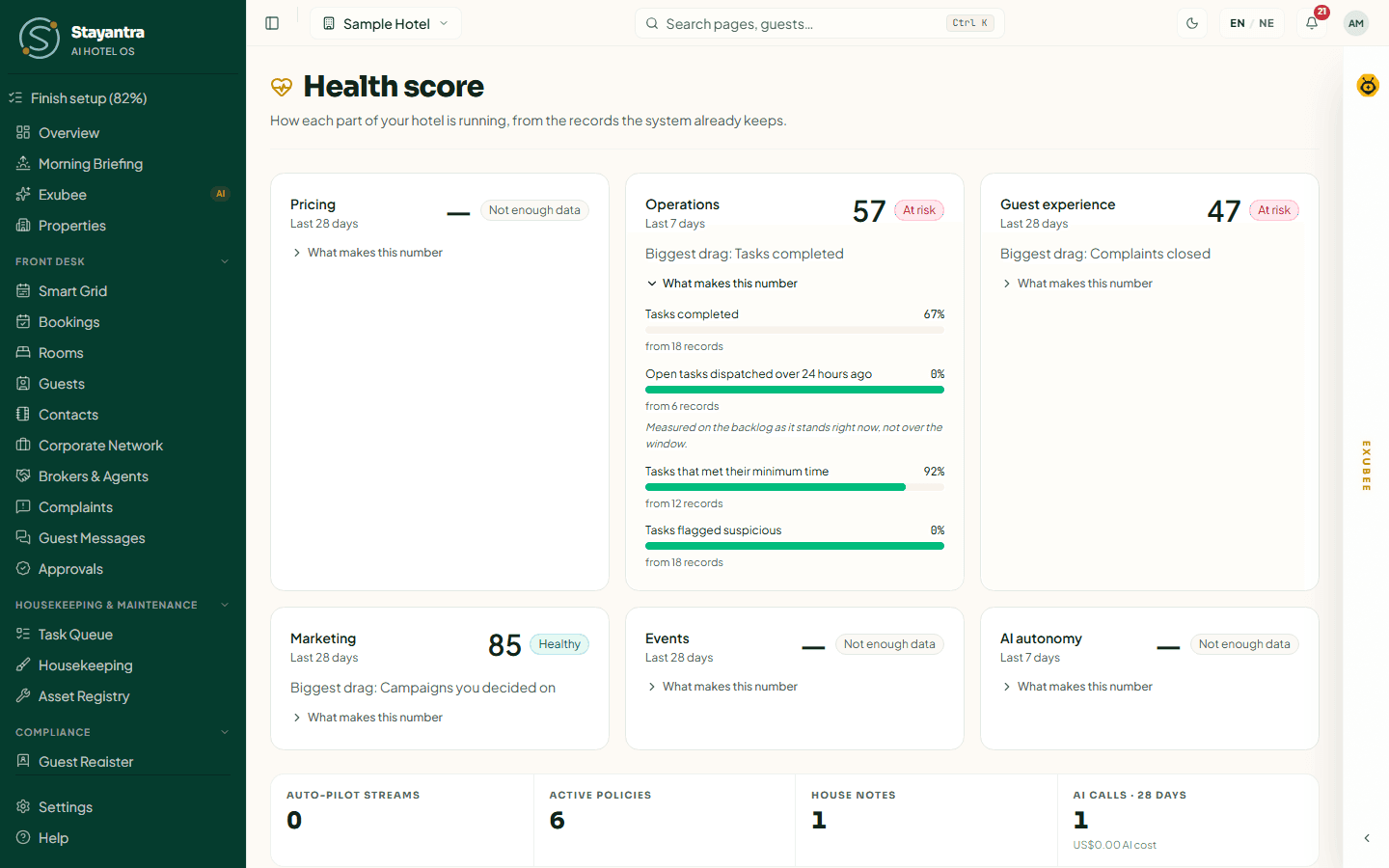
Each card shows a score from 0 to 100 and a grade:
| Grade | Score |
|---|---|
| Healthy | 85 or more |
| Watch | 70 to 84 |
| At risk | Below 70 |
| Not enough data | Too few records to score yet (shown as —, never 0) |
"Biggest drag" names the measure pulling the score down most. Open What makes this number to see every measure, its value and how many records it is based on. Click the area's name to go to the page where you fix it.
| Area | Period | Measures |
|---|---|---|
| Pricing | 28 days | How often Exubee's price suggestions match your decisions, how quickly you decide them, pricing guardrail breaches, days where price changes did worse |
| Operations | 7 days | Tasks completed, tasks open for over 24 hours, tasks that met their minimum time, tasks flagged as suspicious |
| Guest experience | 28 days | Average guest rating during stays, ratings of two stars or fewer, complaints closed, time to close a complaint |
| Marketing | 28 days | Campaigns you decided on, approved campaigns that published, how long campaigns wait for you |
| Events | 28 days | Enquiries that became bookings, holds that lapsed, enquiries open over 72 hours |
| AI autonomy | 7 days | Background jobs that succeeded, jobs that gave up, AI calls that failed, suggestions rejected or edited, suggestions that expired |
Below the cards: Auto-Pilot streams, Active policies, House notes and AI calls · 28 days (with the AI cost). These do not affect the score.
The scores update every hour ("updates hourly, not live"). If an area stays below 70 for two days in a row, owners and managers get a notification: "A part of your hotel needs attention".
At the foot, stuck payments counts guest payments Stayantra could not match up automatically. If it is above 0, open a ticket from Help → Open a support ticket.
Ops Health
Ops Health is where you see the automated work behind Stayantra — syncing your OTAs, the night audit, reminder emails — and fix anything that stopped.
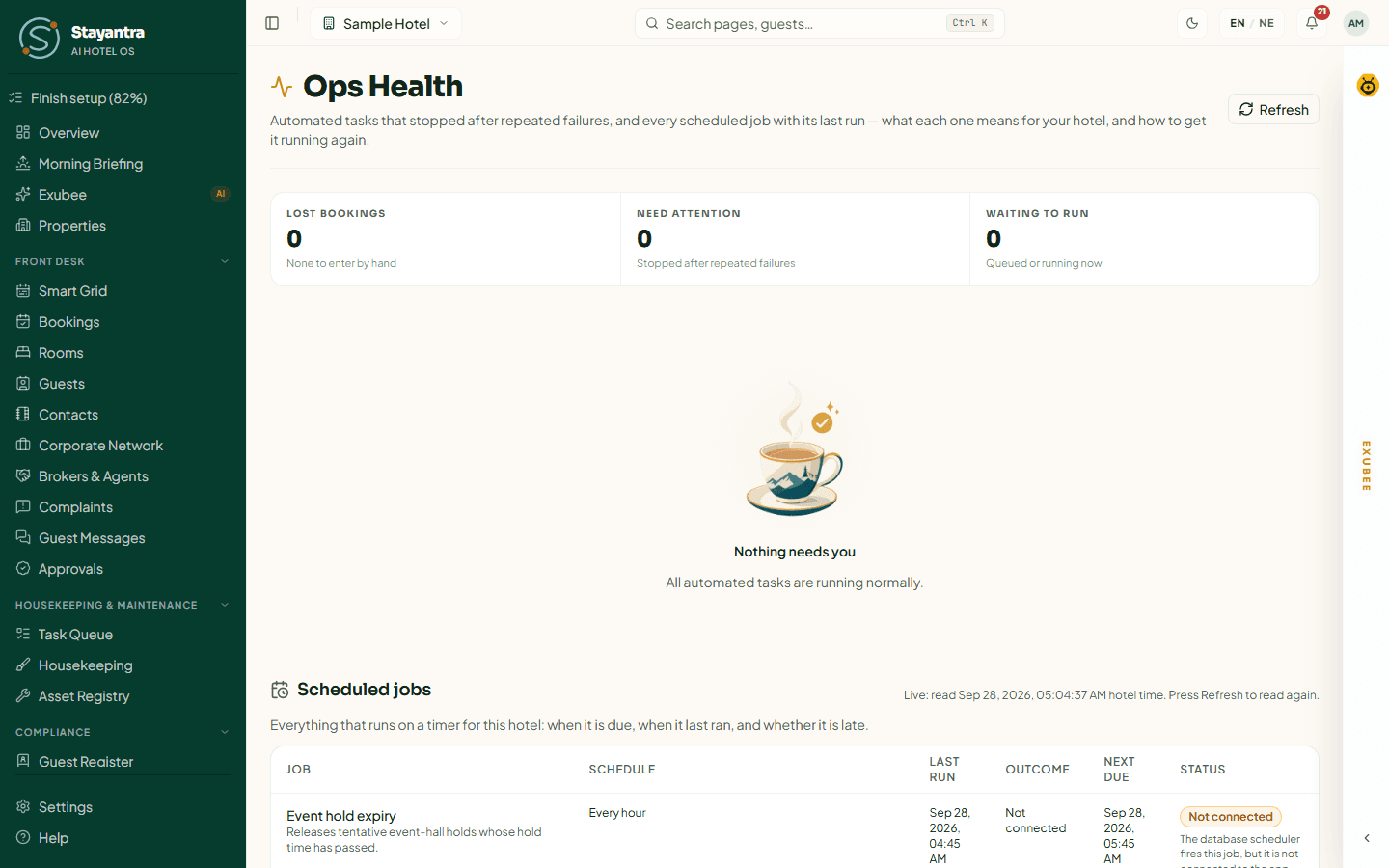
The tiles
| Tile | Meaning |
|---|---|
| Lost bookings | OTA bookings that did not reach Stayantra and must be replayed or entered by hand. |
| Need attention | Automated tasks that stopped after repeated failures. |
| Waiting to run | Tasks queued or running now. |
"Nothing needs you — All automated tasks are running normally." means all is well.
Tasks that need attention
Stayantra retries a failed task three times on its own. After that it shows a card with:
- the task's name and how urgent it is: Urgent, Check soon, Low impact or Paused by kill switch;
- What this means for your hotel and What to do, with a link;
- Technical details — the error, for Stayantra support.
Fix the cause, then press Retry: "Queued. It will run within a few minutes." For example, Night audit (day close) is "Check soon"; Room rates to Booking.com & Agoda is "Urgent". A card marked Paused by kill switch says "Nothing is broken": turn the kill switch off, then retry — see the kill switch.
OTA work
Bookings that didn't reach Stayantra, OTA guests who need you and OTA no-shows to report also appear here when there is something to do. They are explained in OTA sync.
Scheduled jobs
Everything that runs on a timer for your hotel, with when it last ran and when it is due next.
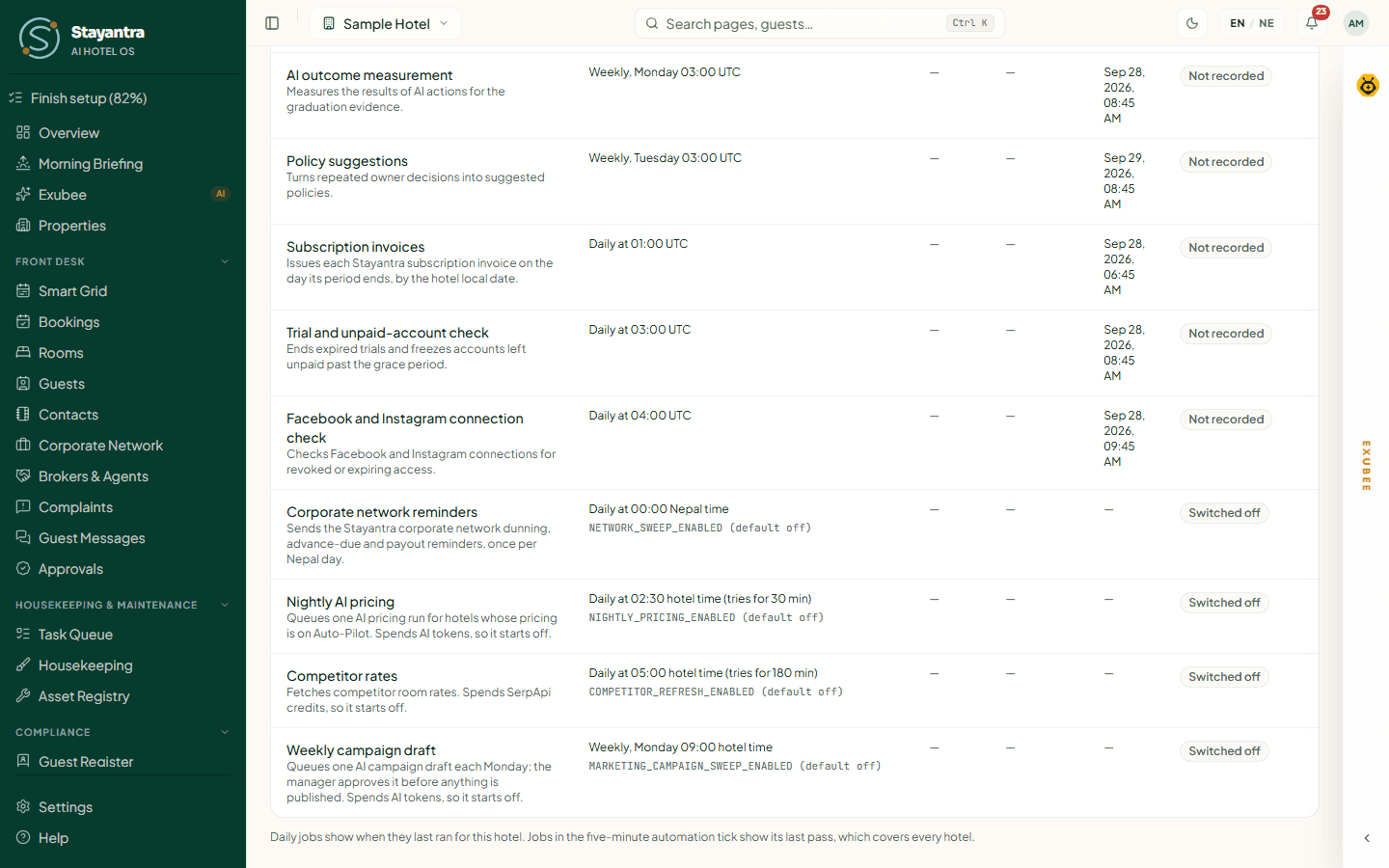
| Status | Meaning |
|---|---|
| On time | Running as expected. |
| OVERDUE | It has missed at least one run. If it stays overdue, open a support ticket. |
| No run yet | It has not had its first run. |
| Not connected | The scheduler is not connected on this server, so nothing runs. On the live service, contact Stayantra support. |
| Switched off | The job is switched off, so it does not run. |
| Not recorded | The job runs, but its run history is not kept here, so no last run is shown. |
Problem rows are listed first. Press Refresh to read the table again.
Troubleshooting
| What you see | What to do |
|---|---|
| "Reports isn't on your plan" | Add the Revenue & Insights module in Plan & Billing. |
| "No comparison with the previous … days" | Your booking records start inside that earlier period. |
| Occupancy looks low for past months | It is measured against the rooms sellable today. |
| "Could not load the report" | Check your connection and press a period again. |
| A Health score shows Not enough data | There are too few records in that period yet. |
| A job shows OVERDUE for more than a day | Open a ticket from Help → Open a support ticket. |
Related
- Revenue management
- OTA sync
- Using Exubee
- Finance — day book, refunds and payouts
- Morning briefing
Using Exubee
How Exubee suggests and you decide — the suggestions queue, the chat panel, Approvals, Co-Pilot and Auto-Pilot, the kill switch, policies and house knowledge.
Tasks, housekeeping and maintenance
Dispatch and follow staff tasks, run housekeeping, keep linen and lost property in order, look after equipment and run daily SOP checklists.