
Overview, briefing and properties
The Overview is the home screen of the Stayantra web app. It shows tonight's house, what is still unfinished, and — for the owner — tonight's money. The Morning Briefing is a written summary of last night and today. Properties lists every hotel you work at and is where an owner adds a new one.
Where to find it: the top of the sidebar — Overview, Morning Briefing, Properties. Who can use it: everyone sees an Overview, but each role sees a different one. The Morning Briefing is for owners and managers. Properties is open to everyone; only an owner can add a hotel.
The top bar
The same bar sits above every page of the web app. From left to right:
| Control | What it does |
|---|---|
| Sidebar button | Folds the sidebar away or brings it back. |
| Hotel name (building icon) | Opens Switch Property: a list of your hotels, with a check mark on the one you are in. Owners also see Add property here. |
| Search pages, guests… | Opens the search box. The shortcut is Ctrl K on Windows (⌘ K on a Mac), from any page. |
| Sun / moon | Switches between the light and dark theme. |
| EN / NE | Switches the app between English and Nepali. |
| Bell | Your notifications. A red number shows how many are unread; Mark all as read clears them. |
| Your picture | Edit profile and Sign out. It also shows your role at this hotel, for example "manager at this property". |
If the hotel has the Exubee chat add-on, a narrow EXUBEE strip runs down the right-hand edge. Click it to open the chat. See Exubee and approvals.
Search and quick actions
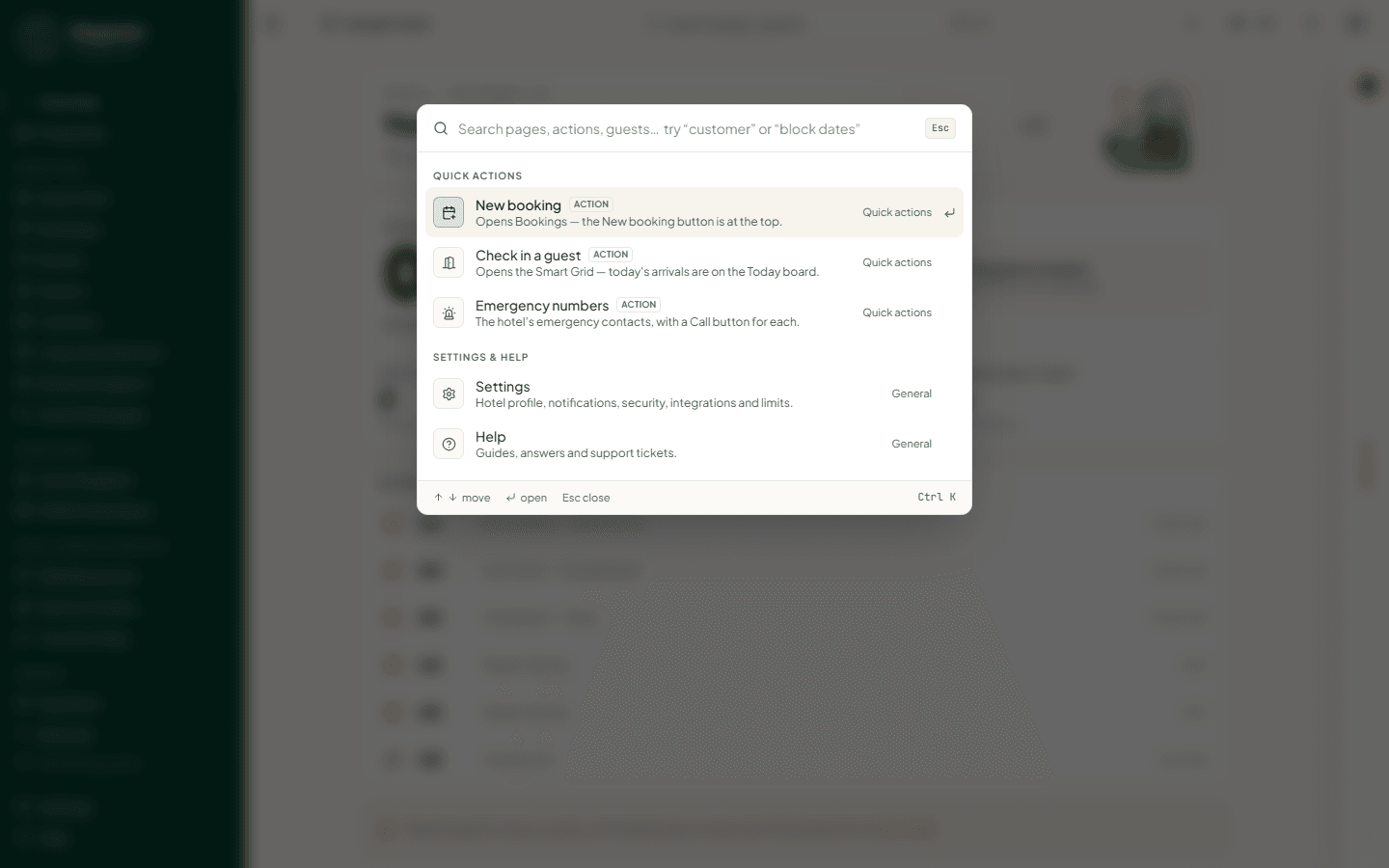
Press Ctrl K (or click the search box) and type what you want in plain words — "customer", "cleaning", "block dates", "Dashain". The search finds pages, actions and, if you may see guests, guests by name.
With nothing typed, it shows:
- Recent — pages you opened lately (once you have some).
- Quick actions — New booking, Check in a guest, Add a room, Add a guest profile, Add a contact, Emergency numbers. You only see the ones your role allows.
- Settings & help.
A page your plan does not include shows an Upgrade tag.
The Overview
Open Overview in the sidebar. The page picks its layout from your role at this hotel: the owner sees the Owner overview, a manager sees the Operations centre, and every staff member (front desk, housekeeping, cashier and the rest) sees Your shift. The page refreshes itself every minute while it is open.
Owner overview
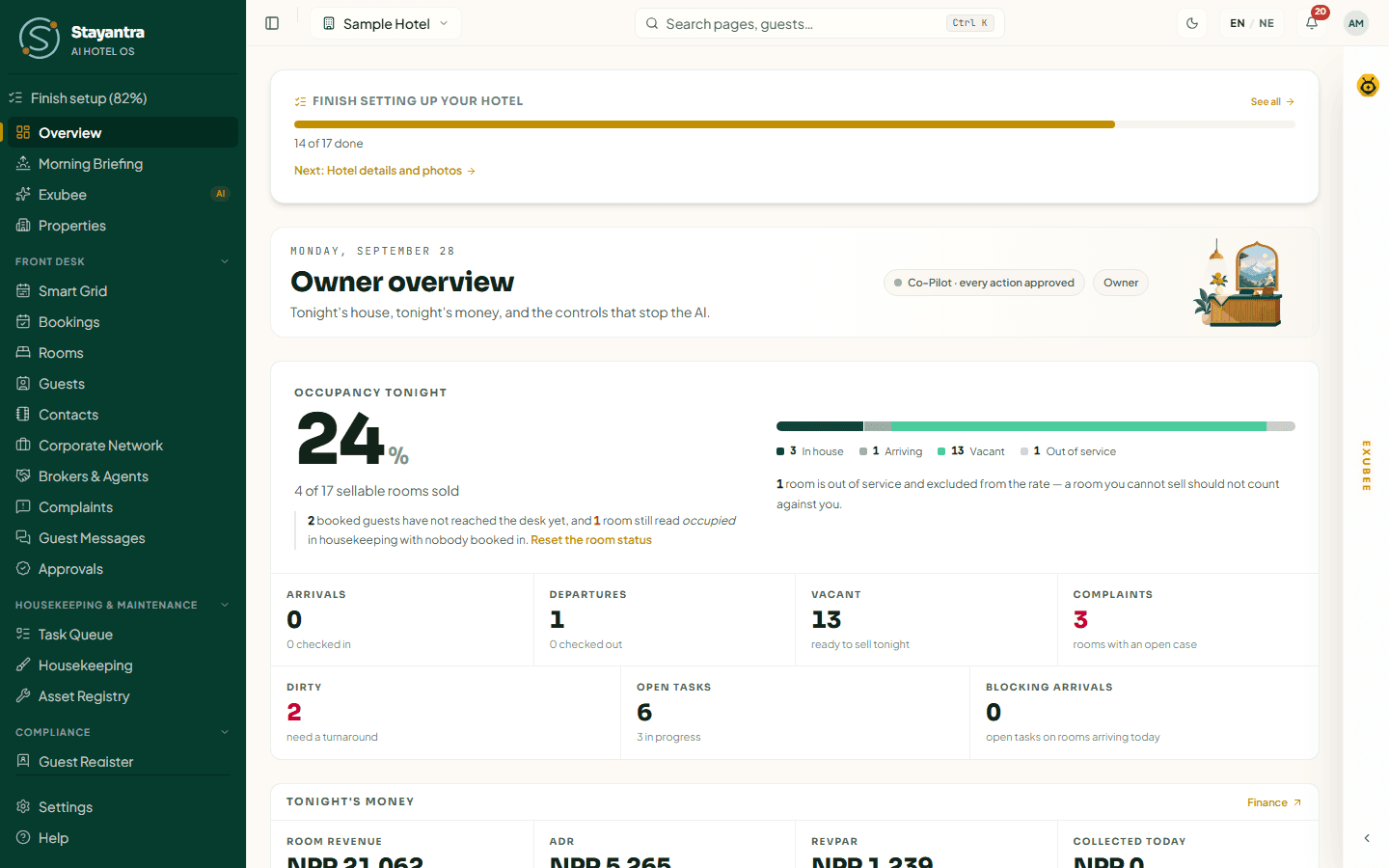
From top to bottom:
-
Finish setting up your hotel — while the setup checklist is not complete: a progress bar, "{done} of {total} done", a Next: link to the next task and See all. It goes away when setup is finished. See Self-installation.
-
The pill at the top right says who is in charge of the AI: "Co-Pilot · every action approved" (nothing happens without a person approving it), "Auto-Pilot · 2 of 8" (some areas run on their own), or "Auto-Pilot paused" (the kill switch is on).
-
Occupancy tonight — the percentage sold, "{sold} of {sellable} sellable rooms sold", and a bar split into In house, Arriving, Vacant and Out of service. The line under it explains the number, for example "3 of those guests are already in the building; 2 are booked for tonight but have not reached the desk."
-
Stat tiles — each one is a link:
Tile What it counts Opens Arrivals Guests due today, and how many have checked in Smart Grid Departures Guests due out today, and how many have left Smart Grid Vacant Rooms ready to sell tonight Rooms Complaints Rooms with an open complaint (red when there are any) Complaints Dirty Rooms that need a turnaround Housekeeping Open tasks Open jobs, and how many are in progress Task Queue Blocking arrivals Open jobs on rooms a guest checks into today Task Queue -
Tonight's money — Room revenue (earned for tonight), ADR (average rate per sold room), RevPAR (room revenue per sellable room) and Collected today (payments less refunds). If guests leaving today still owe money, a line says how much. The Finance link opens Finance.
-
Operations Actions Console — buttons for quick jobs:
- Book a Room opens the same four-step booking form as New Booking on the Bookings page (see Bookings and folios).
- Assign Task sends a job to staff: pick the Task Type (Room Cleaning, Room Inspection, Maintenance, Room Service, Luggage Service, Other), the Target Room, the person under Assign Staff (or leave "Auto-assign (skill, shift & floor)"), a Priority from 1 to 10 and Instructions / Notes, then Dispatch Task.
- Override Price sets a room type's price by hand: pick the Room Type, enter the New Price and a Reason for Override, then Apply Price Override. The price holds until the next automatic pricing run.
- Activate Kill Switch stops every action the AI would take on its own. Its arrow opens Halt one area, which stops one area at a time (Pricing, Marketing, Payroll, Housekeeping & tasks, Complaint routing, Events & banquets, Guest reviews, Expenses). Exubee keeps making suggestions; they wait for you instead of running. Only the owner has this button.
-
Waiting on you — the suggestions Exubee is holding for your approval. Scan for Suggestions asks Exubee to look for new pricing ideas now. See Exubee and approvals.
-
Needs attention tonight — up to 12 rooms that need a person, most urgent first: an overstay (a guest past their check-out date), a complaint, an unpaid departure, a room due out, a blocked room, a dirty room. Click a row to open that room on the Smart Grid, or the complaint. When nothing is wrong it says "Nothing needs attention tonight." Lines under the list tell you about refunds owed to guests (Send) and laundry or transfer prices you have not set yet (Set prices).
-
Health score — coloured chips for each area of the hotel. See all opens the full score.
-
Audit & operations feed — two read-only columns: Hotel actions (what staff and the hotel's own scheduled jobs did) and AI actions (what Exubee did or queued).
[!NOTE] A box headed Stayantra would like to feature your results appears only when Stayantra asks to post a success story about your hotel. Nothing is posted unless you approve that exact post, and you can choose to stay anonymous.
Operations centre (managers)
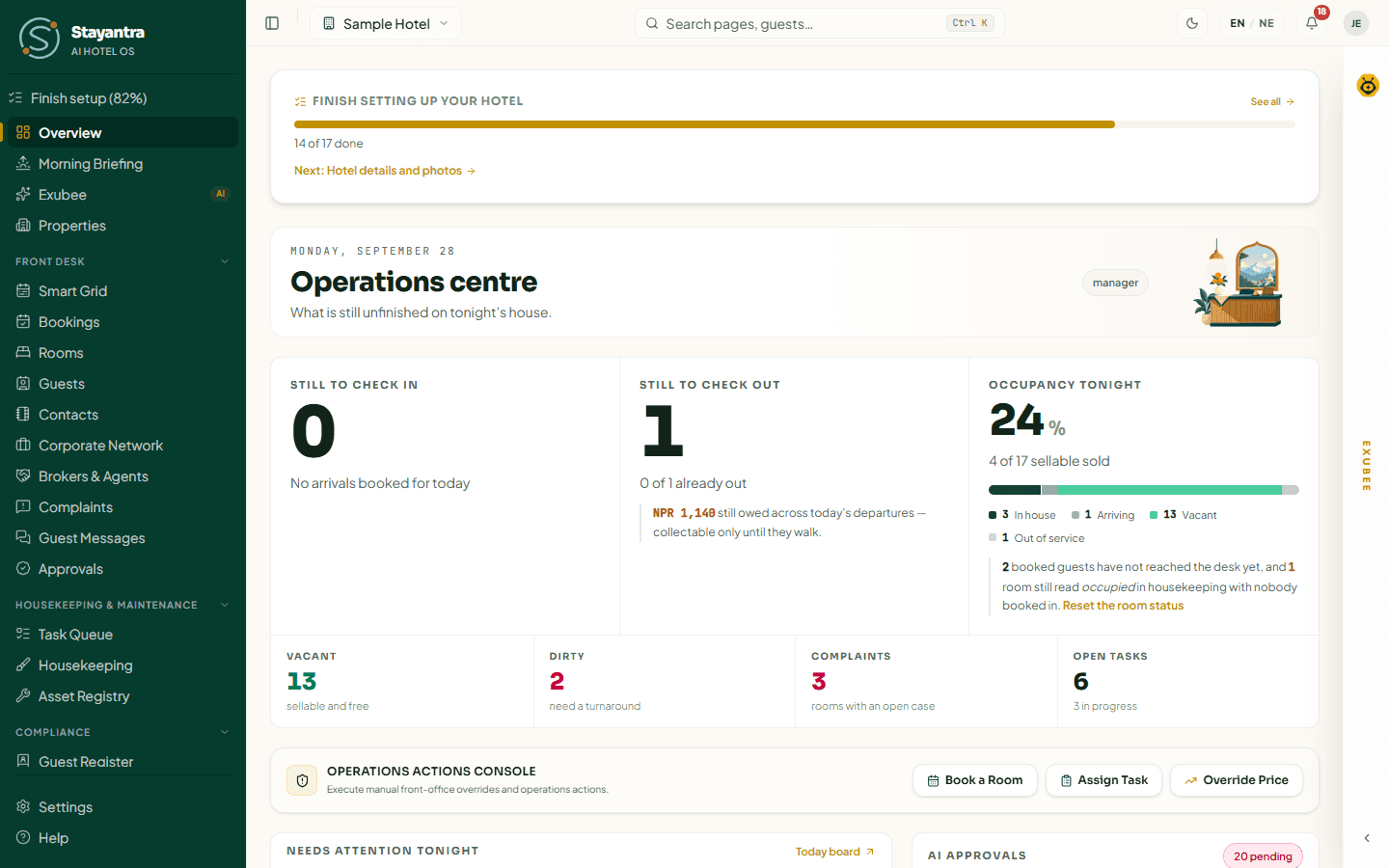
A manager's Overview answers "what is still unfinished tonight":
- Still to check in — "{done} of {total} arrivals already in", and how many open jobs sit on a room someone checks into today.
- Still to check out — "{done} of {total} already out", and how much today's departures still owe ("collectable only until they walk").
- Occupancy tonight — the same bar as the owner's.
- Tiles for Vacant, Dirty, Complaints and Open tasks.
- The Operations Actions Console with Book a Room, Assign Task and Override Price (no kill switch — that is the owner's).
- Needs attention tonight, AI approvals, Jump to links (Smart Grid, Bookings, Housekeeping, Review suggestions) and the Audit & operations feed.
Managers do not see hotel money totals unless the owner has given them that permission.
Your shift (staff)
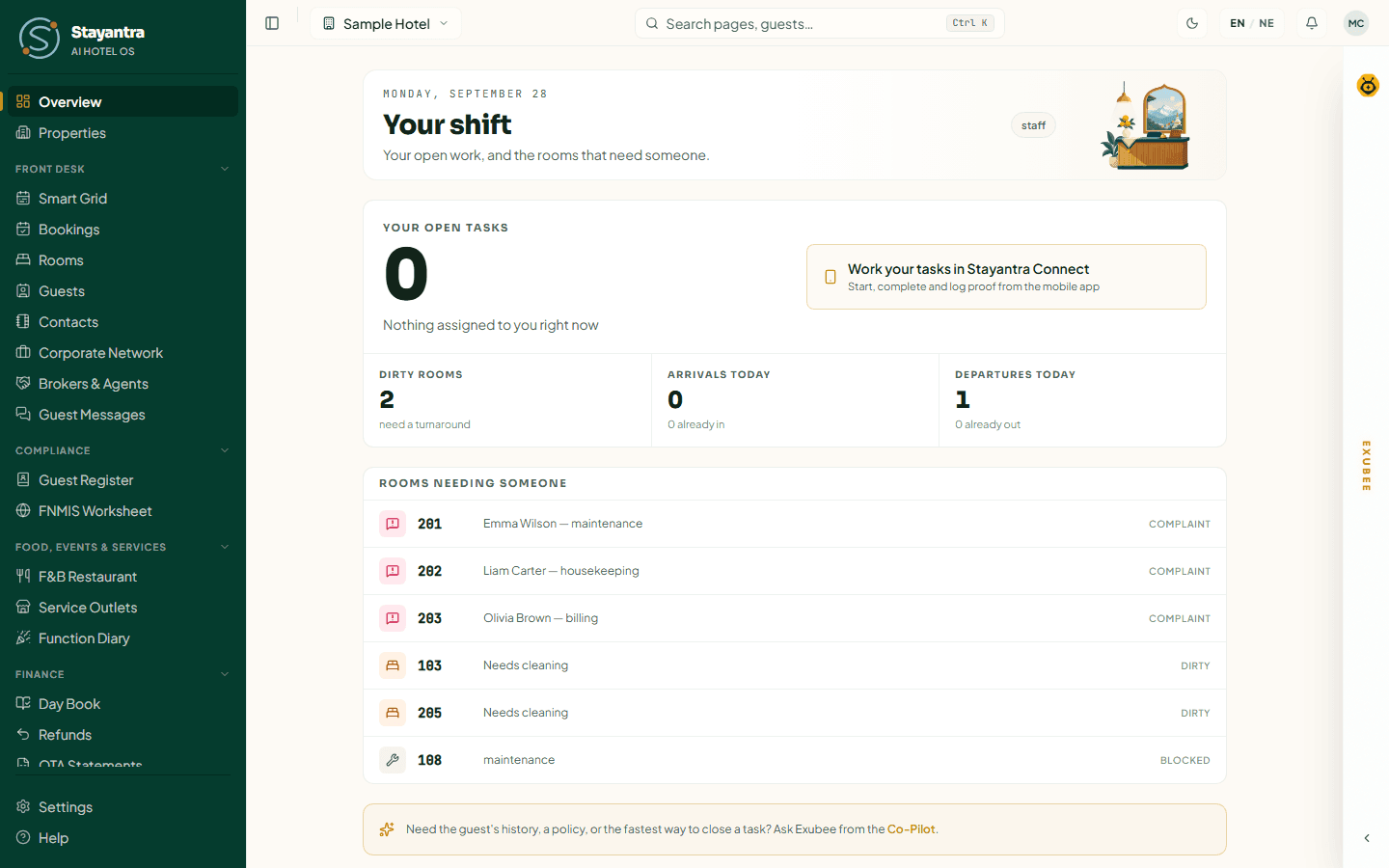
Staff see only their own work:
- Your open tasks — jobs assigned to you, and how many of them are on a room with a guest arriving today ("do those first").
- A reminder to work your tasks in Stayantra Connect, the staff phone app. See Mobile apps.
- Dirty rooms, Arrivals today and Departures today.
- Rooms needing someone — the same list as the owner's. When the floor is clear it says "Every room is clean and accounted for."
The Morning Briefing
The Morning Briefing is last night's numbers and today's plan on one page. Open Morning Briefing in the sidebar, or tap the morning notification.
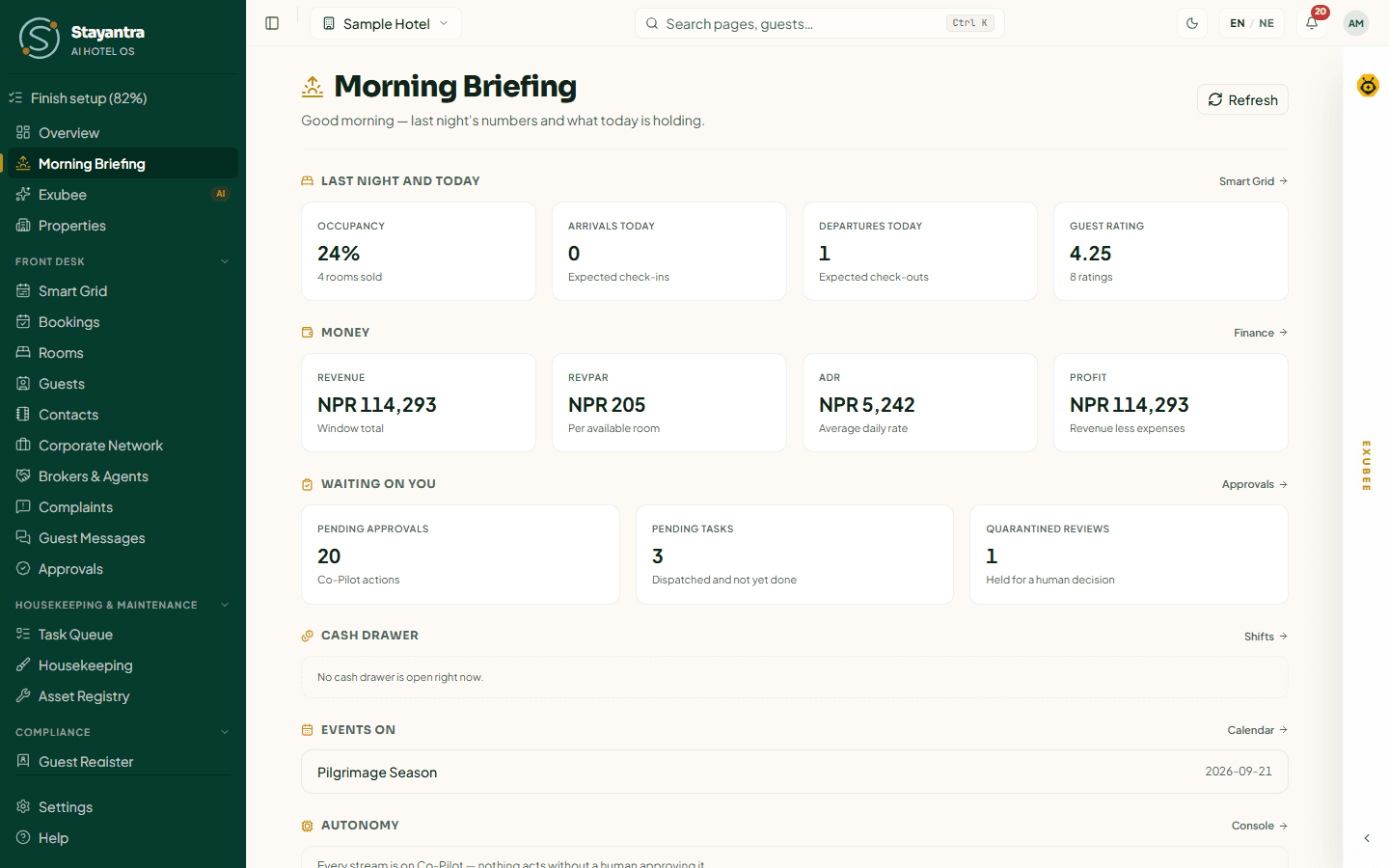
Who can use it: owners and managers. Staff who open it see "Your role doesn't include the morning briefing."
When it arrives
Every morning between 07:00 and 07:30, hotel time, Stayantra sends:
- an email to the hotel's owners — subject "{Hotel} — morning briefing for {date}";
- a notification (bell and phone) to owners and managers — for example "82% occupancy last night · 4 arrivals, 3 departures today". Tapping it opens this page.
The page itself is not a stored report: it reads the figures live each time you open it, and the footer says when ("Read at 08:15"). Press Refresh to read them again.
To stop the notification, turn off Daily morning briefing in your notification settings. The owner's email still arrives.
What it shows
| Section | What is in it | Who sees it |
|---|---|---|
| Last night and today | Occupancy, arrivals today, departures today, guest rating | Owners and managers |
| Money | Revenue, RevPAR, ADR, and profit (revenue less expenses) | Owner. Managers see "Your role does not include this section." |
| Waiting on you | Approvals waiting, jobs dispatched and not done, reviews held for a decision | Owners and managers |
| Cash drawer | The cashier, when the drawer was opened, and what should be in it — for the drawer you have open | Anyone with a drawer open |
| Events on | Festivals and local events from your market calendar | When there are any |
| Autonomy | Whether the AI is acting on its own anywhere | Owner |
A figure that cannot be read shows as "—", never as 0. If one section fails, the rest still load.
[!NOTE] Arrivals, departures, pending jobs and events come from the hotel's reports. If your plan does not include Reports, those tiles show "—".
Properties
Properties shows every hotel you work at, side by side.
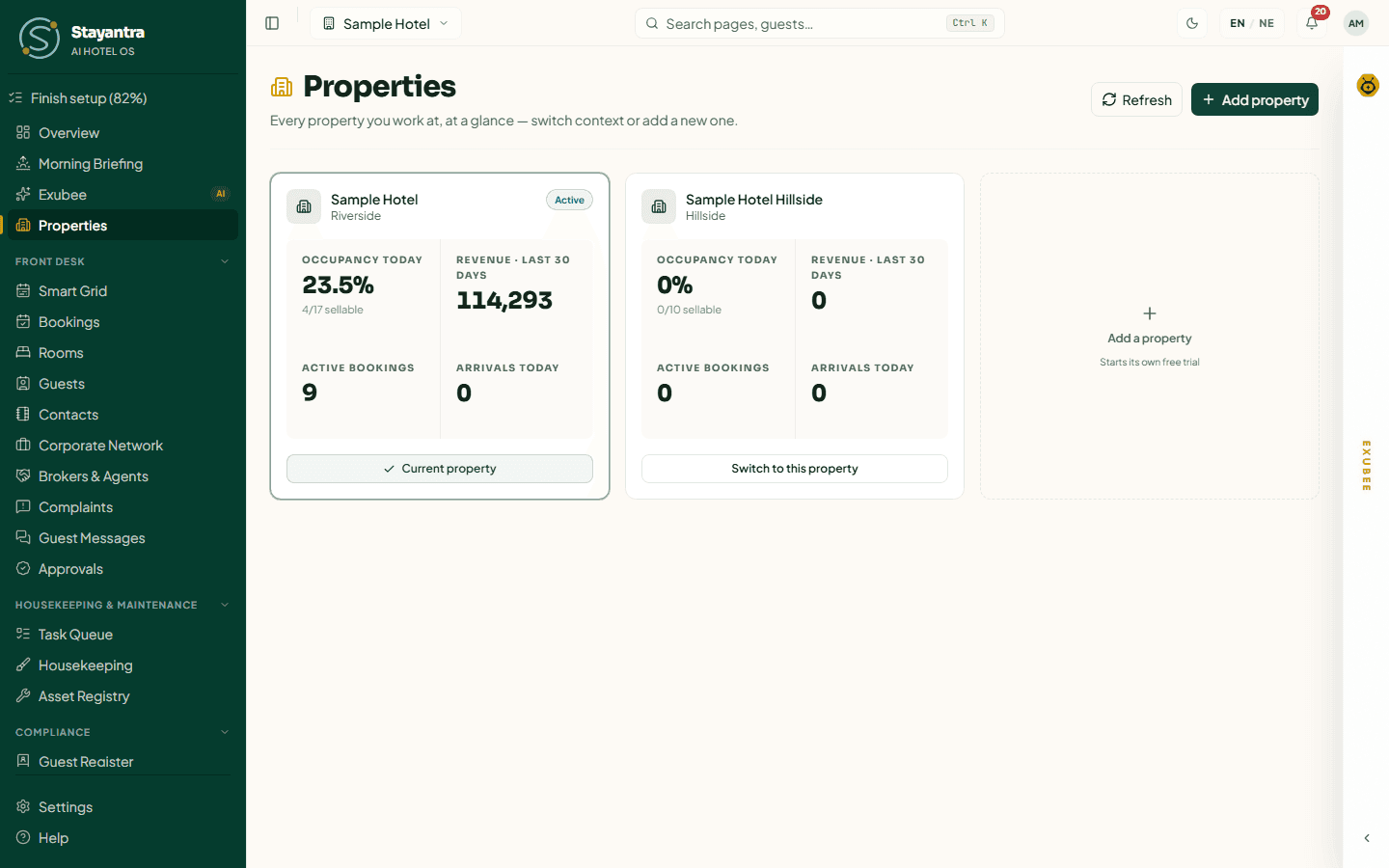
Each card shows the hotel's name and city, its subscription (trial, active, past due, paused or cancelled), Setup incomplete if it has not finished setup, and four figures: Occupancy today, Revenue · last 30 days, Active bookings and Arrivals today. You only see a hotel's revenue if your role at that hotel includes money totals; otherwise the tile says "Not included in your role here".
Switch to another hotel
You can switch from two places:
- From the top bar: click the hotel name, then pick a hotel under Switch Property. If you have unsaved changes, Stayantra asks before it leaves the page. A "Switching to…" screen shows while the other hotel loads.
- From Properties: click Switch to this property on the hotel's card.
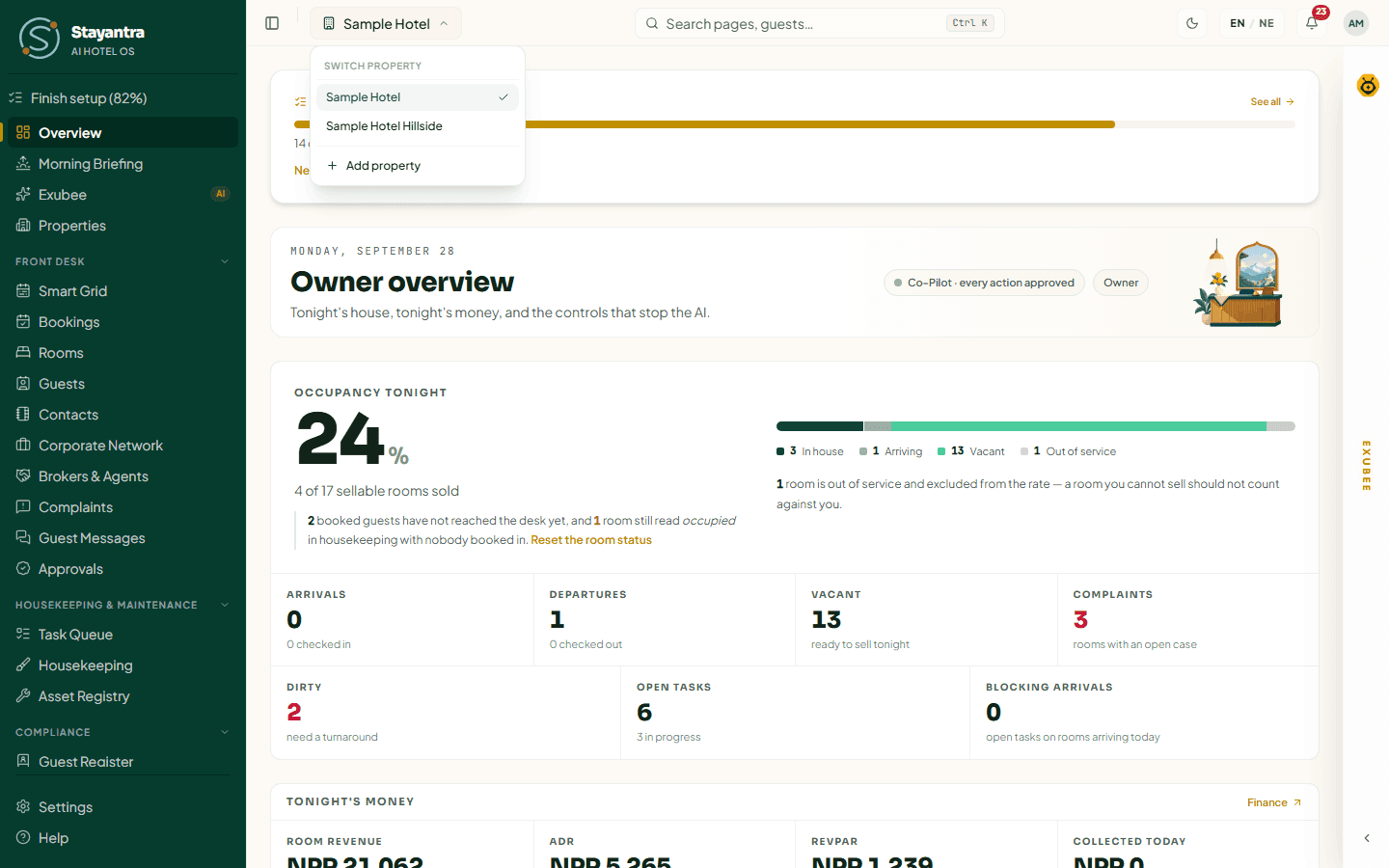
After the switch, every page shows the other hotel's data, and you act with your role at that hotel — a person can be the owner of one hotel and a manager at another.
Add a property
Only an owner can add a hotel.
Open the form
In Properties, click Add property (or the dashed Add a property tile). You can also choose Add property from the hotel menu in the top bar.
Fill in the hotel's details
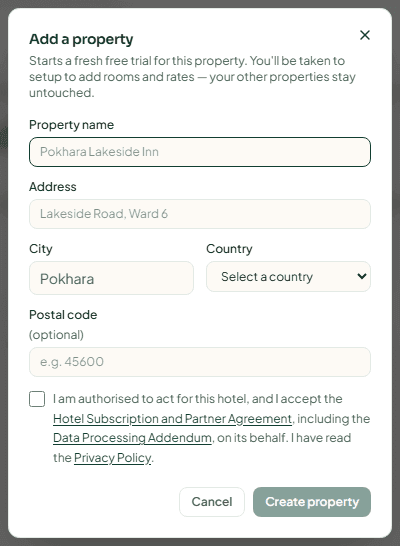
| Field | What to enter |
|---|---|
| Property name | The hotel's name, at least 2 characters. |
| Address | Street and ward, for example "Lakeside Road, Ward 6". |
| City | The city or town. |
| Country | Pick from the list. |
| Postal code | Optional. |
Tick the box that says you are authorised to act for this hotel and accept the Hotel Subscription and Partner Agreement. Create property stays grey until you do.
Set it up
Click Create property. Stayantra creates the hotel with you as its owner, starts a new free trial for it, switches you into it and opens setup. Add its rooms and rates as you did for your first hotel — see the setup wizard.
Each hotel has its own subscription and its own trial, and each one must pass business verification before it can take online bookings. Your other hotels are not changed.
When something goes wrong
| What you see | What to do |
|---|---|
| "Could not load the dashboard overview." | Check your connection and reload the page. |
| The Overview shows "Guest" instead of names | Your role does not include guest details. Ask a manager. |
| A tile shows "—" | That figure could not be read, or your role or plan does not include it. |
| "Only an owner can add a property." | Ask the hotel's owner to add it. |
| The switch did not happen | Reload the page and try again. You must be assigned to the other hotel. |