
Staff and owners
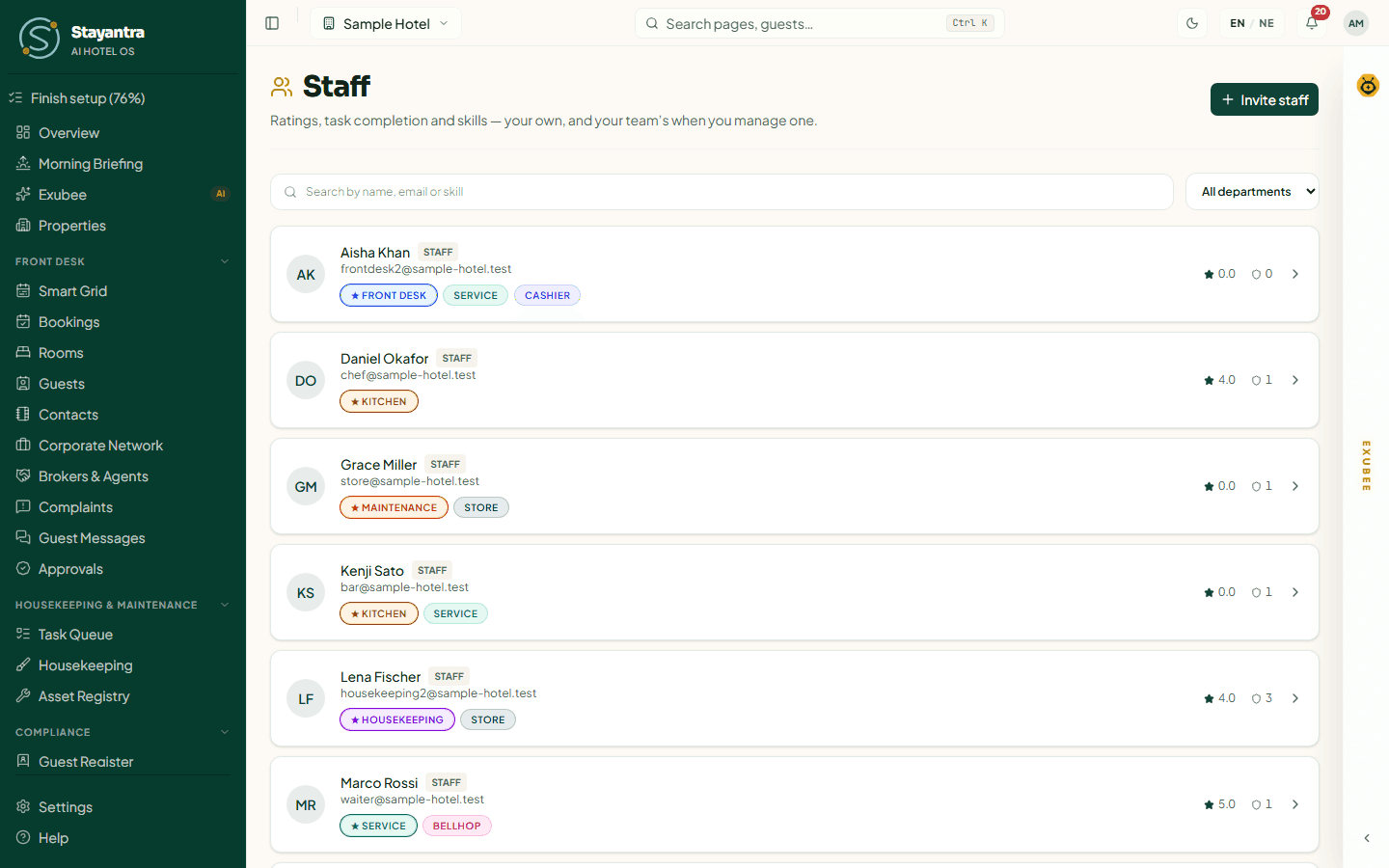
Everyone who works in Stayantra has their own login. You invite each person by email, give them a role, and give staff their skills, which decide which tasks Exubee and the dispatcher send them. Co-owners are added separately, from the owner's settings.
Where to find it: Team → Staff for managers and staff; Settings → Hotel profile → General → Manage Owners (or /dashboard/settings/owners) for co-owners. Who can use it: the owner and managers invite and manage staff; only an owner adds co-owners.
Roles in Stayantra
| Role | What they can do |
|---|---|
| Owner | Everything, including money, payouts, business verification, the owner-only stay and payment rules, and co-owners. A hotel can have several owners; all have the same access. |
| Manager | Runs the hotel day to day: bookings, rooms, rates, staff, settings. Not payouts, the payout account or business-verification documents. |
| Staff | Their own work, decided by their skills: front desk, cashier, housekeeping, maintenance, kitchen, service, bellhop, security, store. |
Invite a staff member
Fill in Invite a staff member
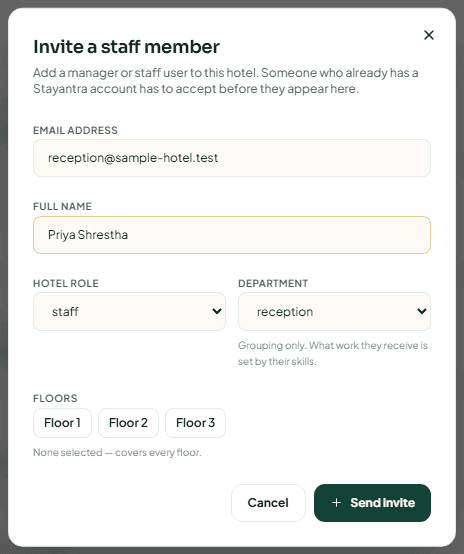
| Field | What to enter |
|---|---|
| Email address | The person's own email. They sign in with it. |
| Full name | As colleagues and guests should see it. |
| Hotel role | staff or manager. |
| Department | housekeeping, maintenance, reception, restaurant or security. This is for grouping only; the work they receive is set by their skills. |
| Floors | For housekeeping and maintenance: the floors they cover first. None selected covers every floor. |
Click Send invite
The dialog says Email sent. The person then appears in the list (or, if they already had a Stayantra account, once they accept).
Give them their skills
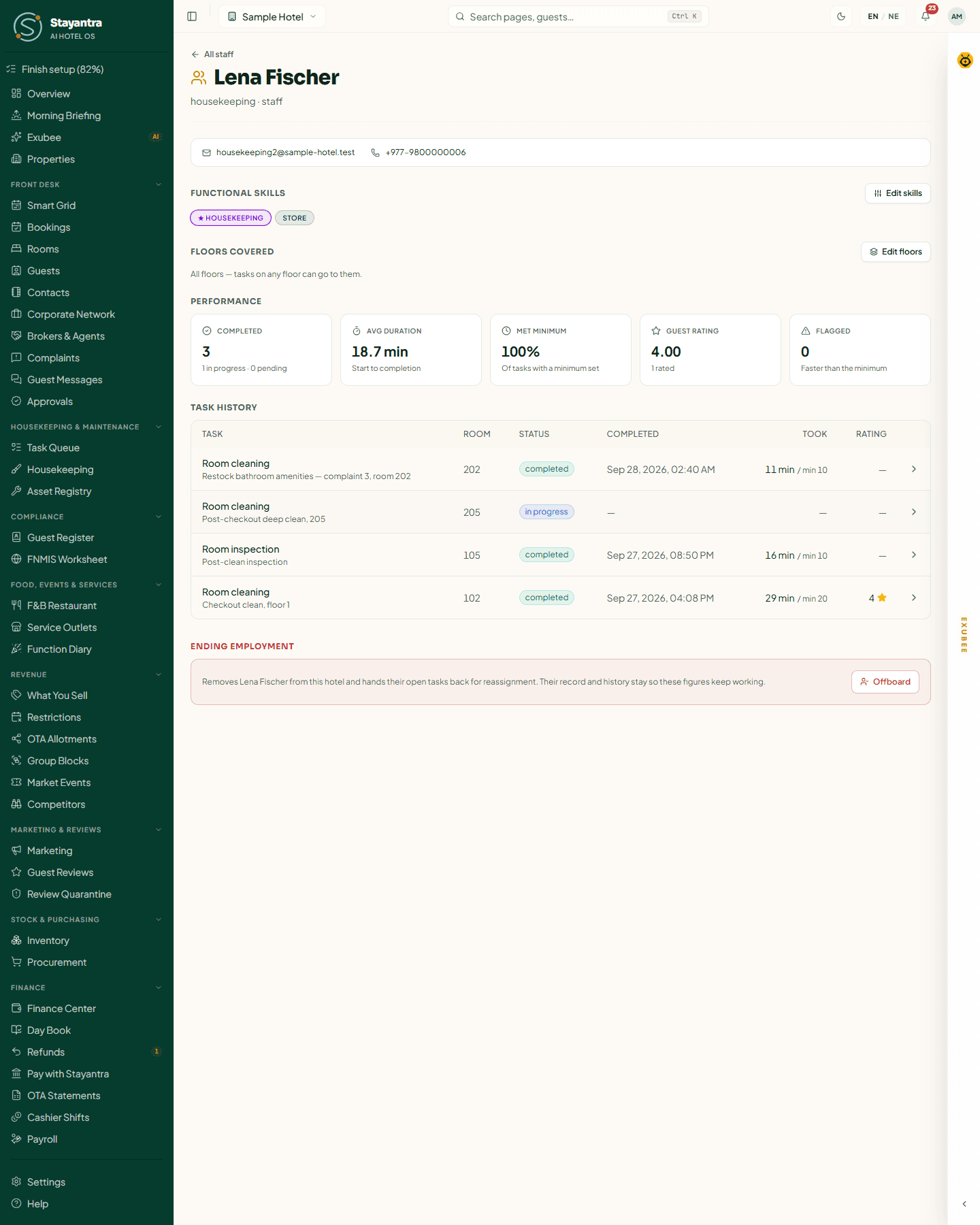
Click the person in the list, then Edit skills under Functional skills. Choose their jobs and put them in order: the first is their Primary job. A person with no skills is never picked for a task ("No skills assigned — task dispatch will never select this person.").
What the invited person receives
Someone new to Stayantra gets an email, "You have been added to Sample Hotel on Stayantra", with their role and a Set your password button. The link works once and lasts 72 hours. After setting a password they sign in on the web at the login page, or in the Stayantra Connect app on their phone (see Install the apps).
Someone who already has a Stayantra account (for example they work at another hotel too) gets an invitation instead. The link opens Join Sample Hotel? with Accept and join Sample Hotel or Decline. They must be signed in as the invited email. After accepting, your hotel appears when they switch properties. An invitation not accepted within 72 hours expires, and you are told; send a new one if you still need them.
If the email belongs to an account that cannot be staff (for example a guest account), the dialog says "This email already belongs to an account that can't be added as staff — use a different email."
When someone cannot sign in
- The set-password link expired or was lost: they click Forgot? on the sign-in page and enter their email; a new link arrives, valid for 1 hour. See Create your account.
- They signed up with Google: they use Continue with Google; there is no password to reset.
- "This account isn't part of any hotel": they are signing in with a different email from the one you invited, or their access was ended. Check the email on their staff page, or invite them again.
Managers and owners cannot see or set another person's password.
Change a staff member's work
On the person's page (Team → Staff, click their name):
- Edit skills: the jobs they do, in order.
- Edit floors: the floors they get work from first.
- Their performance (tasks completed, average time, guest rating, flagged tasks) and every task they have been handed.
Offboard someone who leaves
Click Offboard
The dialog explains what happens: they lose access to this hotel immediately; their open tasks go back for reassignment; an open attendance session is closed and future shifts cancelled; they are marked for a final settlement on the next payroll; their record and task history stay for the reports.
Type their full name to confirm
If they still have an open cash drawer, you must close the shift first (Close the shift takes you there).
Offboarding cannot be undone from this page. To bring someone back, invite them again. Owners cannot be offboarded here.
Add a co-owner
A co-owner has exactly the same access as you, including money and verification. Add one only for a real business partner.
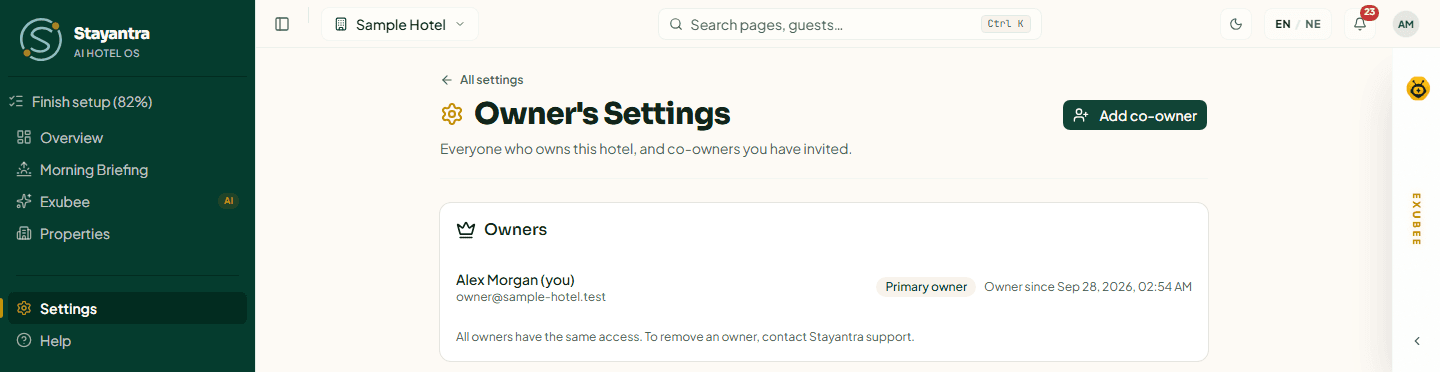
Open Owner's Settings
Settings → Hotel profile → General → Manage Owners. Click Add co-owner.
Confirm it is you
Click Email me a code, enter the 6-digit Code from your email and click Confirm.
Invite them
Enter the New owner's email and Their name (optional), then Send invite. They get access only after accepting from their own email. The invite shows under Pending invites until then, where you can revoke it.
To remove an owner, contact Stayantra support. Handing the whole hotel to a new owner is an ownership transfer, which needs business verification again. Both are explained in Owners.
Next
Get your team onto their phones: Install the apps.
Payments and payouts
Choose how guests pay you online (eSewa, Khalti, Fonepay, cards, pay at hotel or a direct transfer), set deposits, and tell Stayantra where to pay you.
Install the apps
How staff get the Stayantra Connect app and guests the Stayantra Go app on Android today, how to use Stayantra in a browser, and which devices a hotel needs.