
The setup wizard
The setup wizard creates your hotel in Stayantra: its name and address, its story, room types and rooms, the package you expect to keep, and your setup-help route. The owner goes through it once, straight after creating the account. It takes 15 to 30 minutes with your room list and prices to hand.
Where to find it: you land on it after registering, at app.stayantra.com/onboarding. Signing in again before you launch brings you back to it. Who can use it: the hotel owner.
Before you start
Have these ready:
- The hotel's name, street address, city and country.
- Every room type you sell, with its price per night and how many guests it sleeps. A tariff card or a spreadsheet works too; the wizard can read it.
- Every room number, its floor and its type.
- A few good photos of the hotel (optional now, but needed before setup is complete).
- Your check-in and check-out times and your cancellation policy.
Choose chat or form
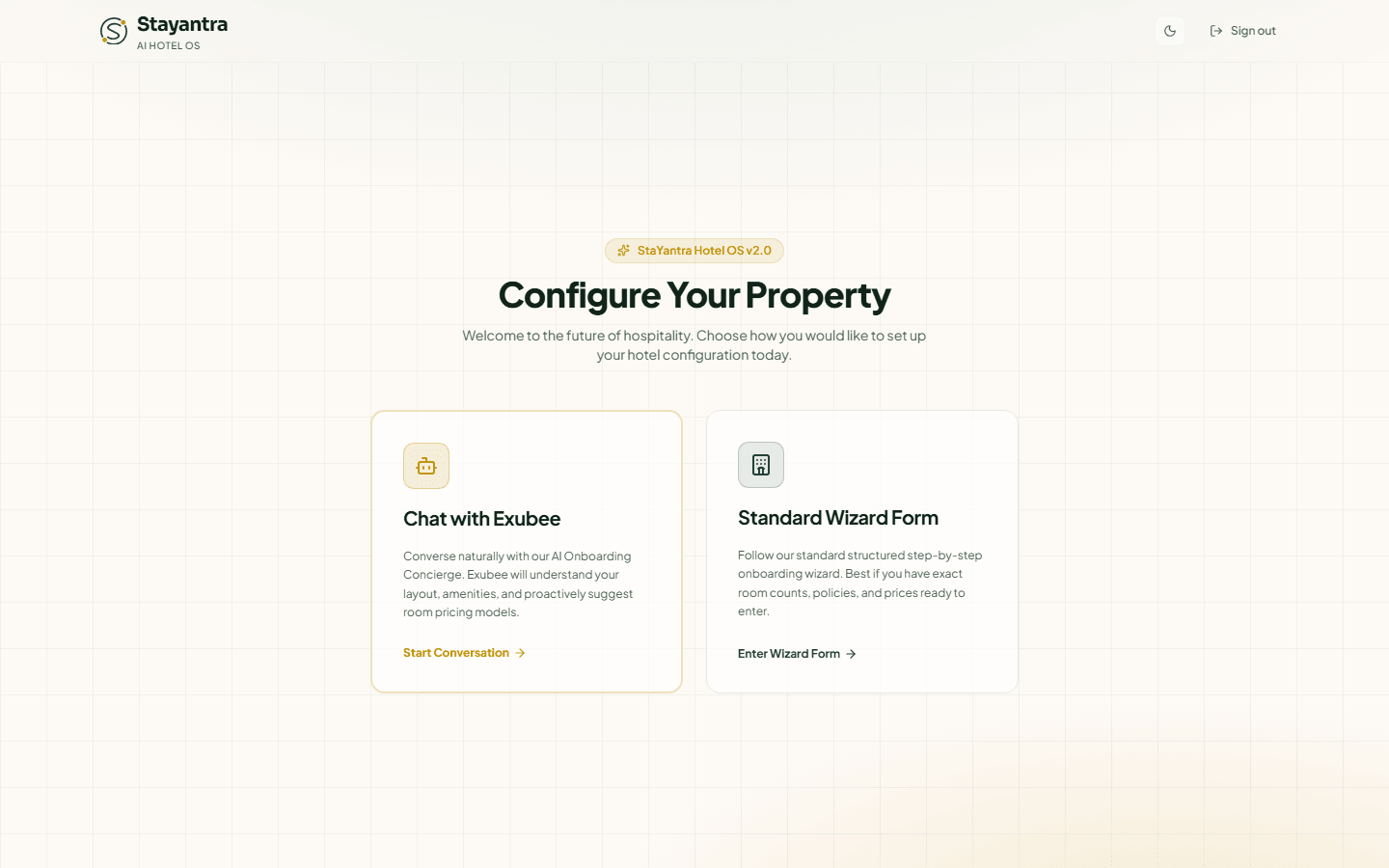
The first screen, Configure Your Property, offers two ways through the same setup:
| Card | Best when |
|---|---|
| Chat with Exubee (Start Conversation) | You would rather describe the hotel in your own words, by typing or speaking, or drop in a tariff card or old room list. |
| Standard Wizard Form (Enter Wizard Form) | You have exact room counts, policies and prices ready and want to type them into fields. |
You can switch at any time: the chat has a Switch to Form button, and everything already saved carries over.
Set up by chat with Exubee
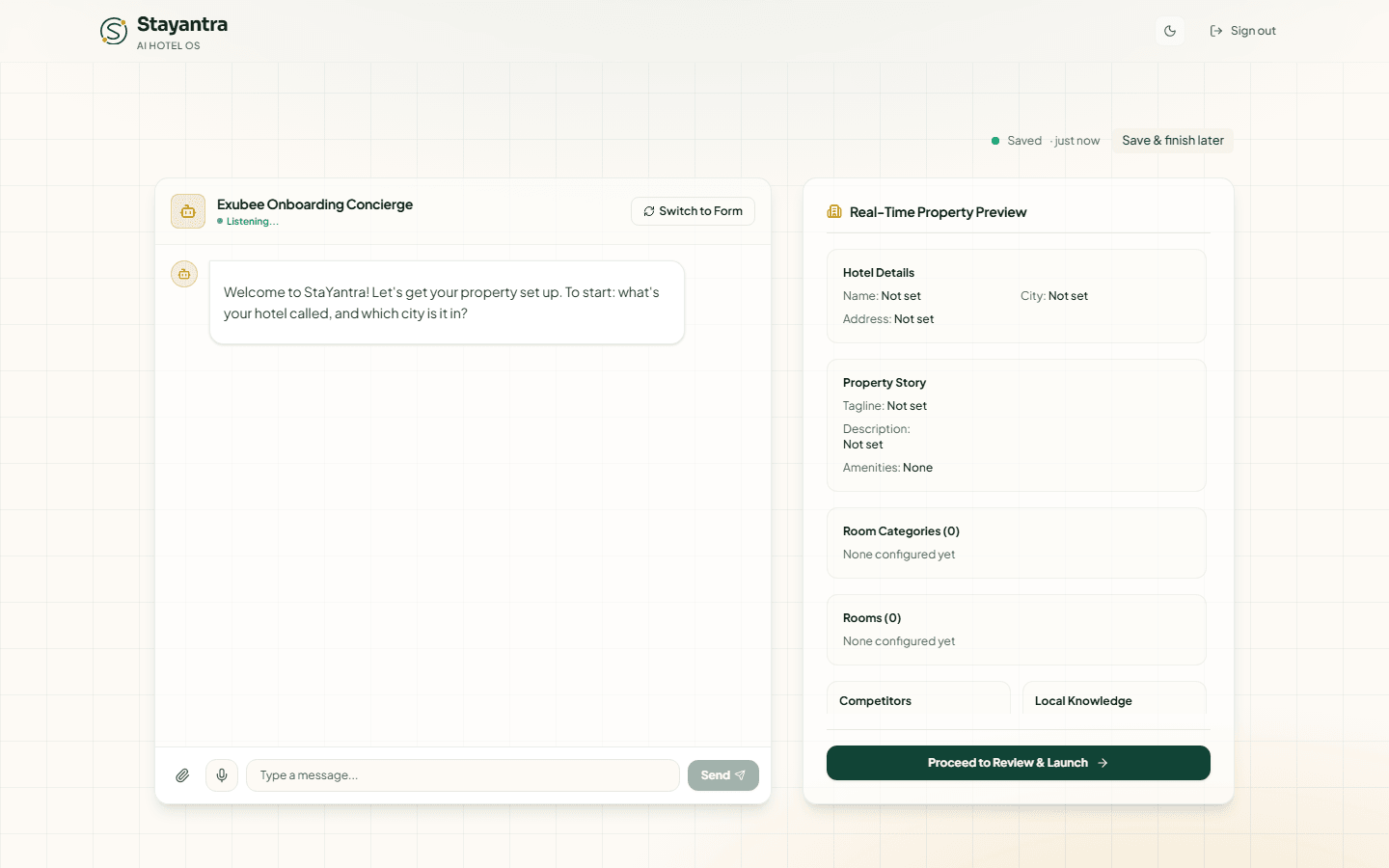
On the left is the conversation with the Exubee Onboarding Concierge. On the right, the Real-Time Property Preview fills in as Exubee saves things: Hotel Details, Property Story, Room Categories, Rooms, Competitors and Local Knowledge.
Answer Exubee's questions
Exubee starts by asking what the hotel is called and which city it is in. Answer in plain sentences, for example: "Sample Hotel in Riverside, Nepal, Lakeside Road, Ward 6." Exubee asks for the next thing it needs until the basics, story, room types and rooms are covered.
Speak instead of typing (optional)
Click the microphone, talk, then click it again to stop. Your words are turned into text in the message box, so you can check them before sending.
Attach your files (optional)
Click the paperclip to add a room list, tariff card, an export from your old system, or a photo of your register. Stayantra reads the file and shows an import panel above the message box with what it found; confirm it there. You need to have given the hotel's name first.
Check each saved card
Every time Exubee saves something, a card appears in the chat, for example "Saved hotel details: Riverside, Nepal" or "Saved room types". Click Edit on a card to open that step of the form and change it, or Undo to remove what it saved. A card that says "Not saved yet" means Exubee stopped part-way: type "continue".
Go to review
When the preview looks right, click Proceed to Review & Launch under it. That opens the same review and launch screen as the form (step 9 below).
[!NOTE] The chat route goes straight to review, so it skips the package step (7) and the event-spaces step (8). Choose your package later in Finance → Plan & Billing before the trial ends, and set up event halls in Food, Events & Services → Function Diary. The chat also cannot show the terms tick box of step 1, so the first time you open the dashboard it asks you to accept the terms there.
Set up by form, step by step
The form shows a progress bar of eight steps (Details, Story, Categories, Rooms, Competitors, Knowledge, Plan, Events), then a review screen. Back on each step returns to the previous one without losing what you typed.
Step 1: Hotel Basics
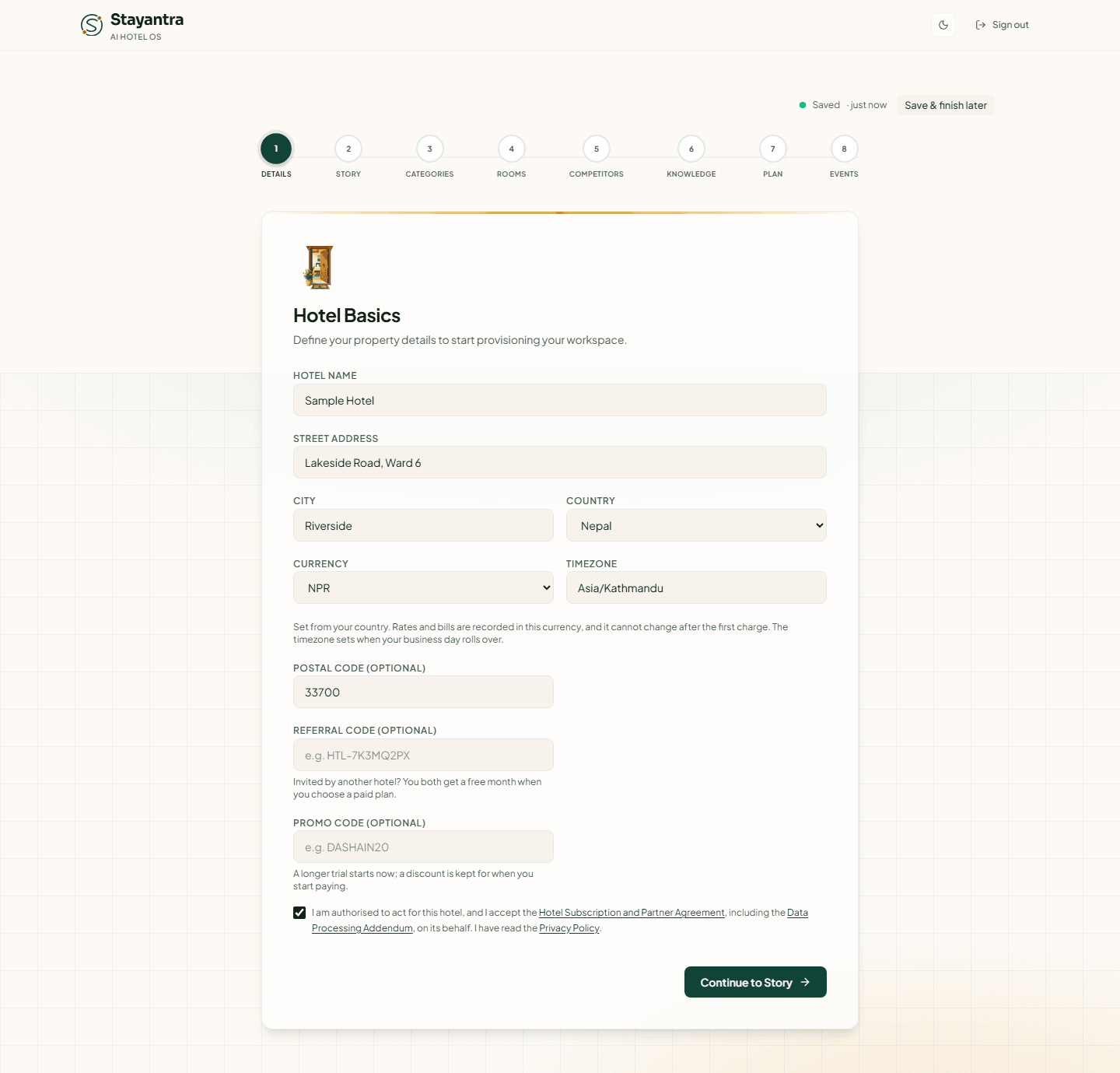
| Field | Required | What it is for |
|---|---|---|
| Hotel Name | Yes | Your hotel's public name. Used on the marketplace, guest emails and bills. |
| Street Address | Yes | For example "Station Road, Ward 4". Shown to guests and used for the map. |
| City | Yes | Start typing and pick your city from the list that appears, or just type it. |
| Country | Yes | Picking the country fills in the currency and timezone for you, and decides which documents business verification asks for. |
| Currency | Yes | The currency every rate and bill is recorded in (for Nepal, NPR). It cannot change after the first charge, so check it now. |
| Timezone | Yes | For Nepal, Asia/Kathmandu. It decides when your business day rolls over: night audit, booking dates and reports. |
| Postal Code (Optional) | No | Your postcode. |
| Referral Code (Optional) | No | A code from another hotel, for example HTL-7K3MQ2PX. You both get a free month when you choose a paid plan. |
| Promo Code (Optional) | No | A code such as DASHAIN20. A longer trial starts now, or a discount is kept for when you start paying. |
| Terms tick box | Yes | "I am authorised to act for this hotel, and I accept the Hotel Subscription and Partner Agreement, including the Data Processing Addendum, on its behalf. I have read the Privacy Policy." |
Click Continue to Story. This step creates your hotel: from now on it exists, your free trial has started (30 days, with every module switched on), and its business verification is "Not started".
Step 2: Property Story & Details
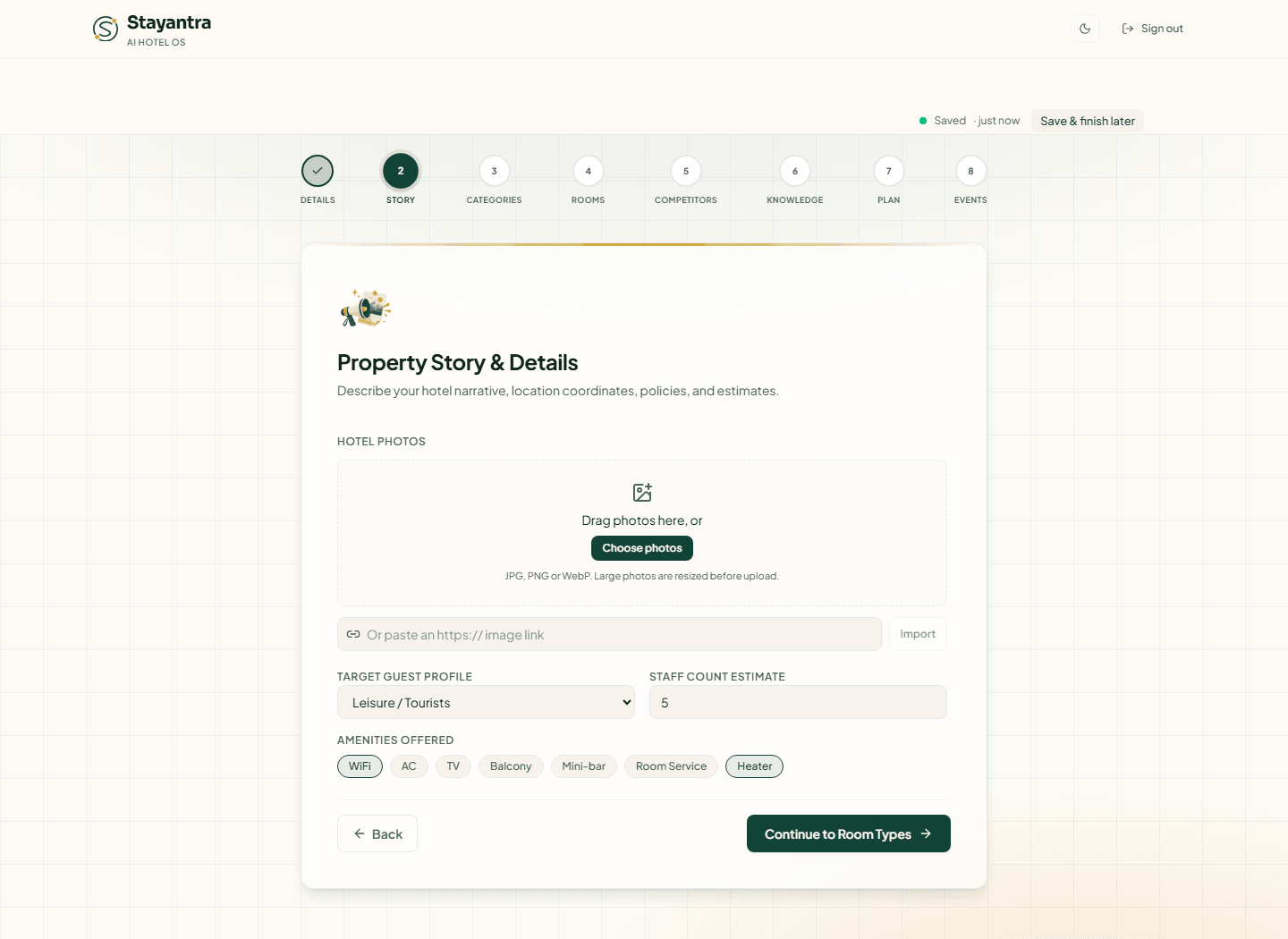
Everything on this step is optional, but it is what guests read on your listing and what Exubee uses to answer questions about the hotel.
| Field | What to enter |
|---|---|
| Tagline | One line, for example "A quiet stay by the river". |
| Description | A few sentences about the hotel. |
| Neighborhood | What is near you, for example "Lakeside, near the bus park". |
| Hotel Location | Search for your hotel and drag the pin to the entrance, or click Use current location while you are at the hotel. Leave it blank if you are not sure; you can set it later in Hotel profile → Location. |
| Check-in Time / Check-out Time | Start at 14:00 and 12:00. Change them if yours differ. |
| Cancellation Policy | A sentence for guests. The actual fees are set later in Stay rules. |
| Hotel Photos | Drag photos in or click to choose them (JPG, PNG or WebP, up to 20 MB each; large photos are resized), or paste an https:// image link. |
| Target Guest Profile | Business Travelers, Leisure / Tourists, Families, Backpackers / Budget or Event Attendees. |
| Staff Count Estimate | Roughly how many people work at the hotel. |
| Amenities Offered | Click each that applies: WiFi, AC, TV, Balcony, Mini-bar, Room Service, Heater. |
Click Continue to Room Types.
Step 3: Define Room Types
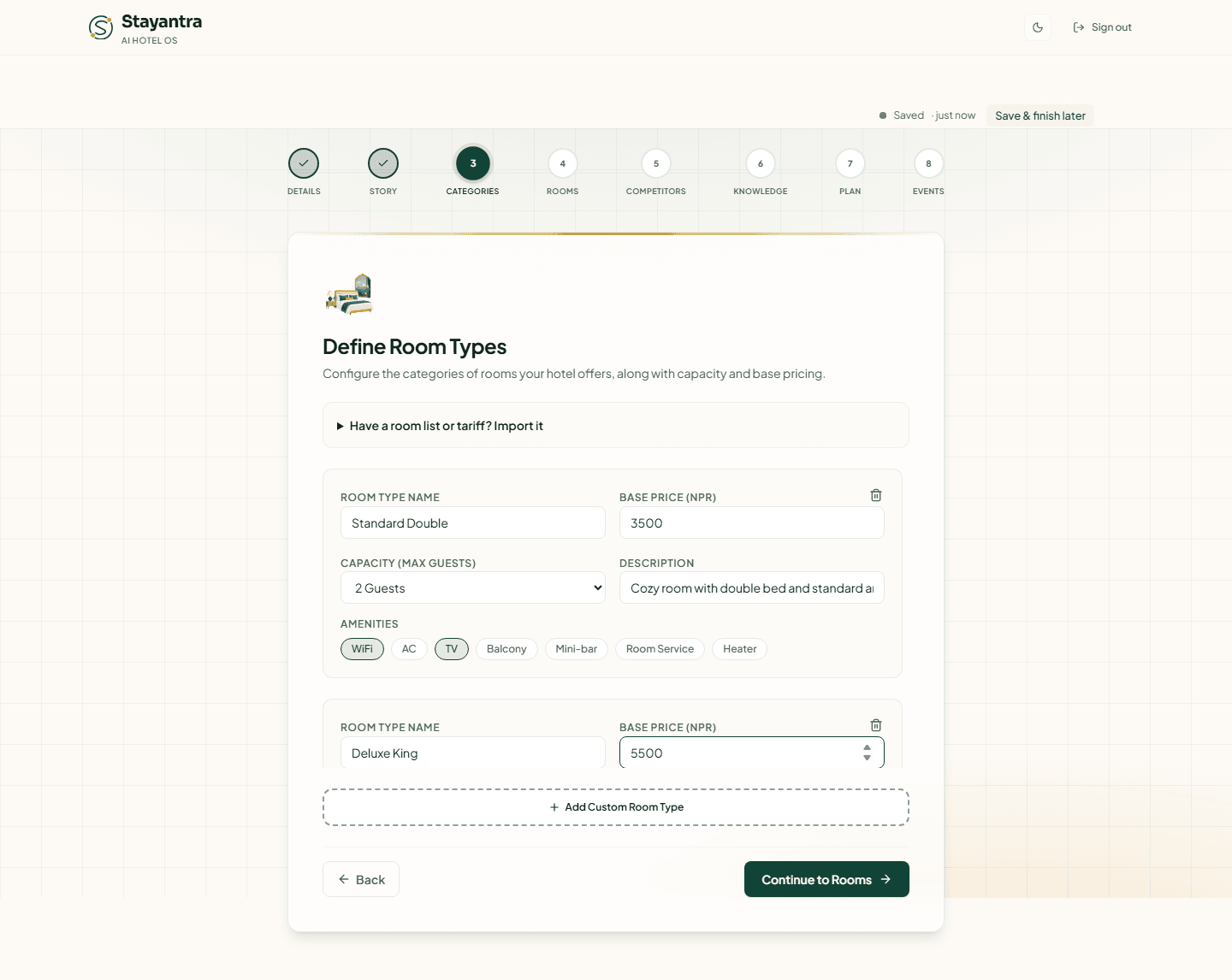
A room type (also called a category) is what you sell: "Standard Double", "Deluxe King". The step opens with two suggestions, Standard Room and Deluxe Room. Suggestions are not saved unless you edit them: change their name or price, or delete them with the bin icon and add your own with Add Custom Room Type.
| Field | Required | What it is |
|---|---|---|
| Room Type Name | Yes | For example "Deluxe King". |
| Base Price (NPR) | Yes | The normal price for one night, in your currency. Must be more than zero. |
| Capacity (Max guests) | Yes | 1 to 5+ guests. |
| Description | No | A short description. |
| Amenities | No | WiFi, AC, TV, Balcony, Mini-bar, Room Service, Heater. |
Have a room list or tariff? Import it opens an upload box. Drop in a spreadsheet, PDF or photo of your tariff card and Stayantra fills this step (and often the next) for you to check. See Import your data for what it reads.
Click Continue to Rooms. If you see "The room types shown are suggestions. Edit one or add your own before continuing.", you have not changed any suggestion yet.
Step 4: Configure Rooms
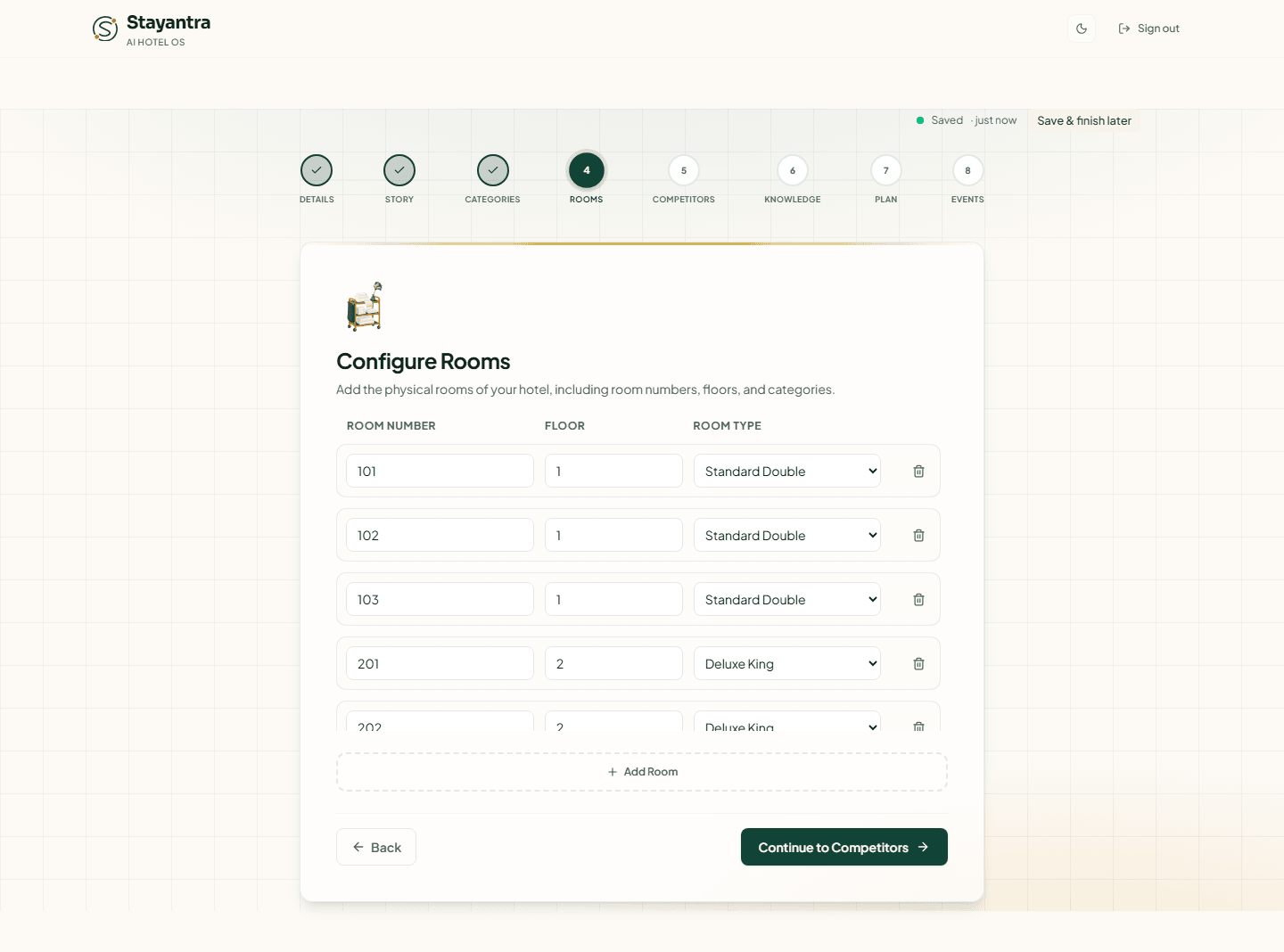
Now list every physical room: Room Number, Floor and Room Type. This step is required; you cannot launch without at least one room. The four suggested rooms (101, 102, 201, 202) are not saved unless you edit them. Add Room adds the next number on the same floor.
Room numbers must be unique. "Duplicate room number detected: 101" means two rows share a number.
Click Continue to Competitors.
Step 5: Add Competitor Tracking (Optional)
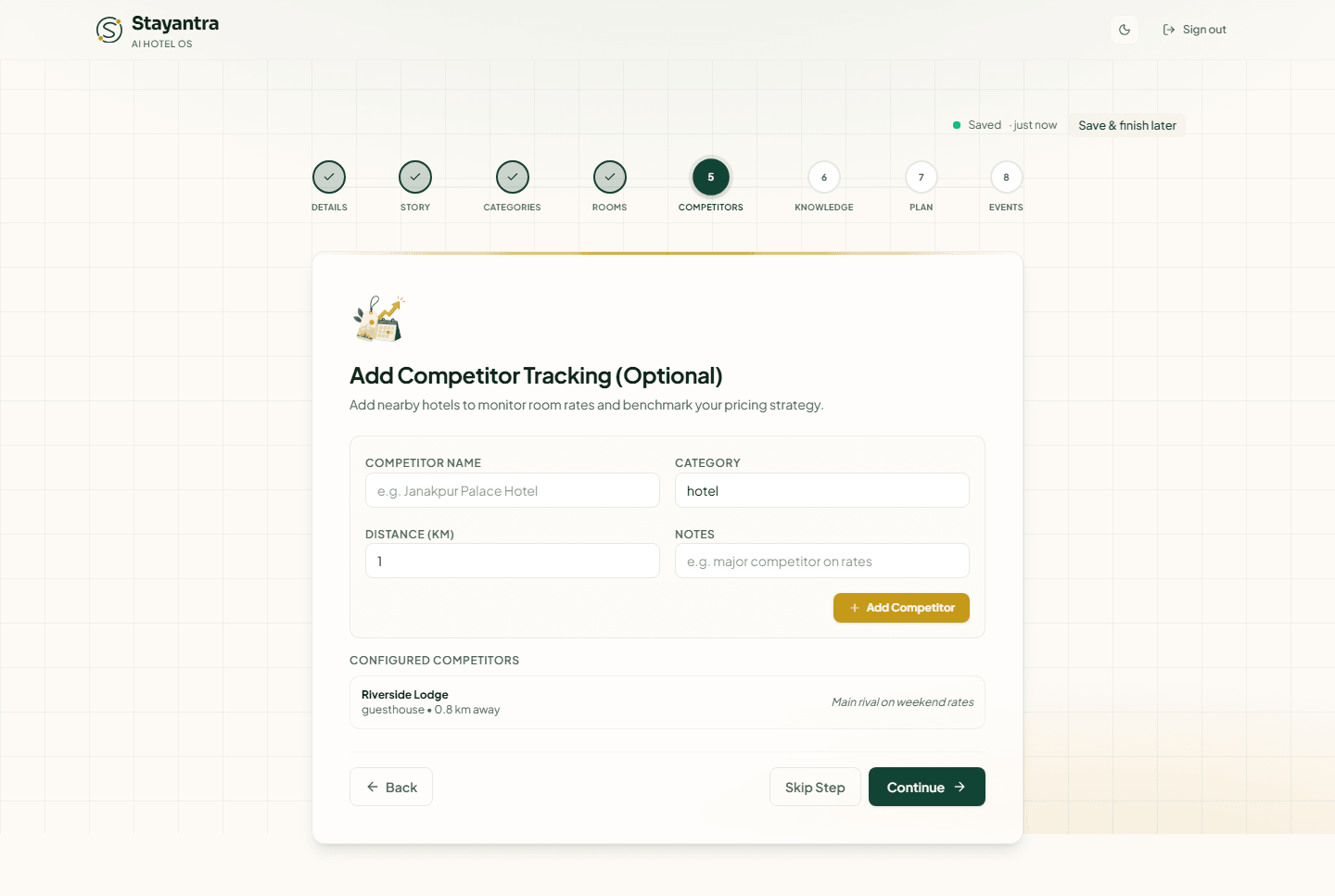
Add the nearby hotels you compare prices with. Exubee's pricing suggestions benchmark against them. For each, fill Competitor Name, Category (hotel, guesthouse, resort), Distance (km) and Notes, then click Add Competitor. It appears under Configured Competitors.
Click Continue, or Skip Step to add competitors later in Revenue → Competitors.
Step 6: Local Attractions & Transport (Optional)
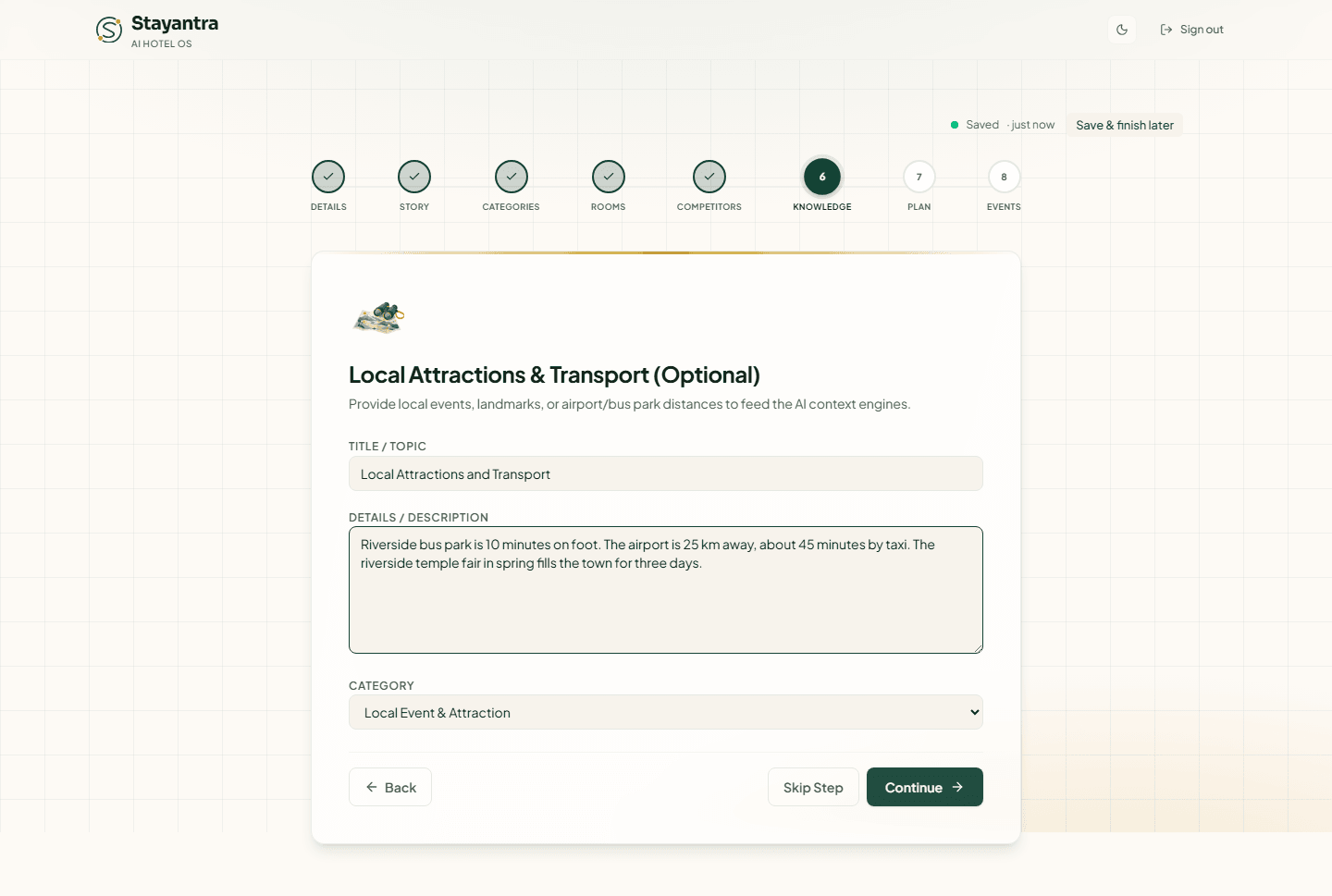
Write what a guest might ask about: how far the airport and bus park are, landmarks, local food, festivals. Exubee uses it to answer guests. Fill Title / Topic, Details / Description and Category (Local Event & Attraction, Operational Rule, Brand Guidelines), then click Continue. Leave the details empty, or click Skip Step, to add this later in Teach Exubee about your hotel.
Step 7: Choose Your Package
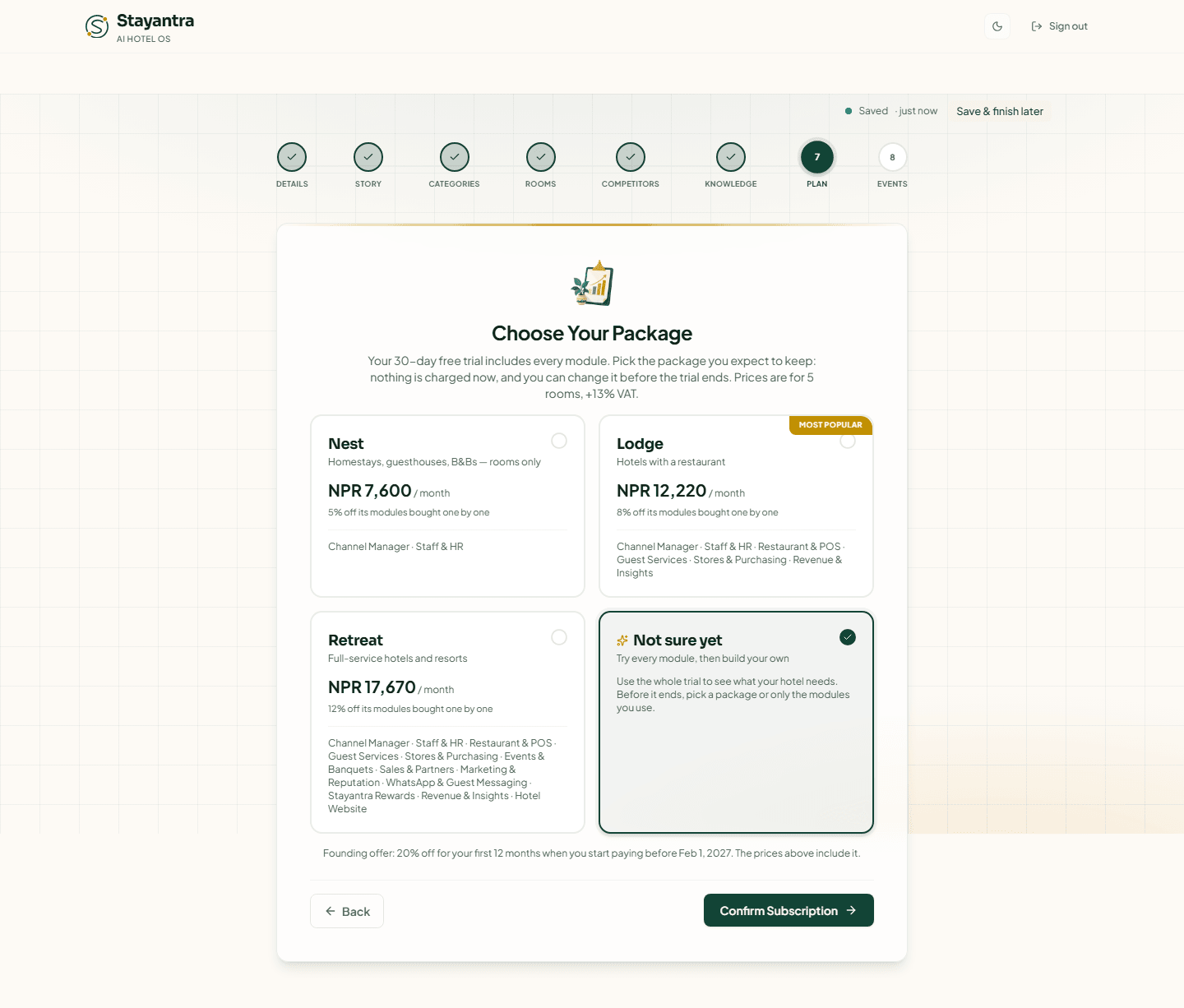
Your trial includes every module. Here you pick the package you expect to keep when it ends. Nothing is charged now, and you can change it before the trial ends in Finance → Plan & Billing. Each card shows its price per month for the number of rooms you entered, and the modules it includes.
Not sure? Choose Not sure yet ("Try every module, then build your own") and decide later. Click Confirm Subscription.
If your hotel has more rooms than the self-service limit, the cards say Talk to us instead of a price: Stayantra sets up your plan with you.
Step 7, continued: Setup Help
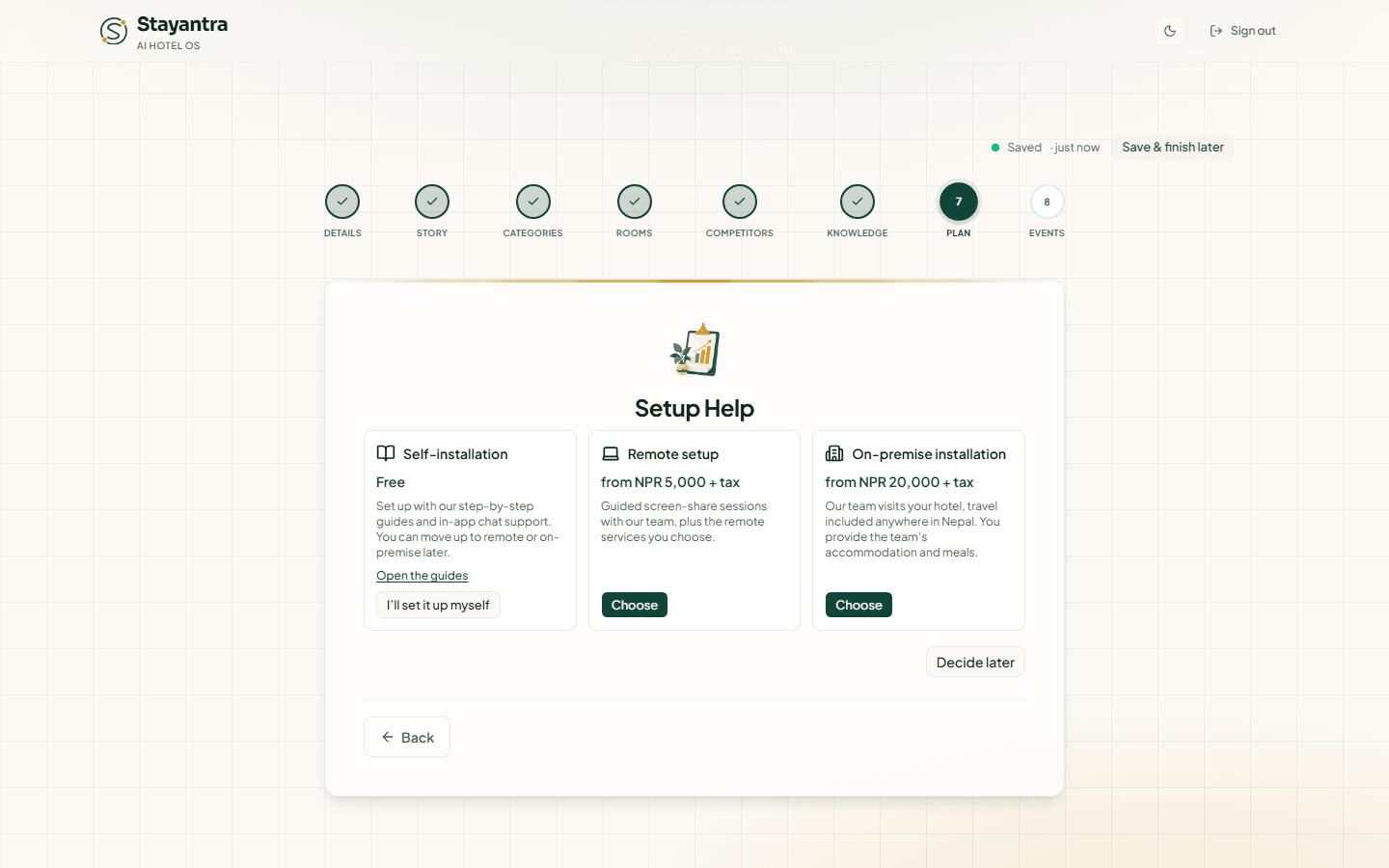
Choose who does the rest of the setup:
- Self-installation is free: you follow these guides. Click I'll set it up myself.
- Remote setup and On-premise installation are paid services from the Stayantra team. Click Choose to see the packages and price for your hotel. See Setup help and pricing.
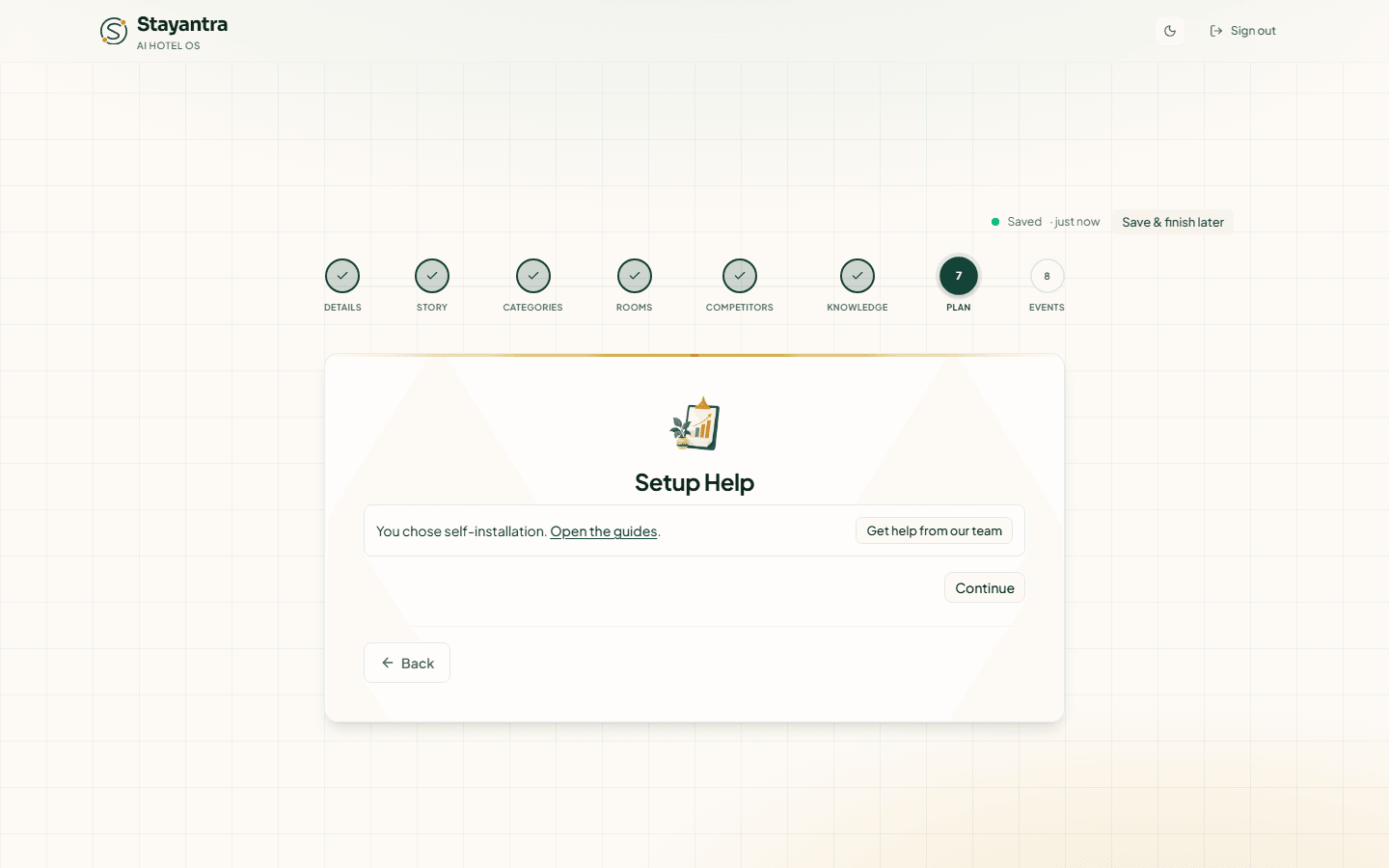
After you choose, the step shows your choice and a Continue button. Decide later skips it; you can choose any time from Finish setup.
Step 8: Event Spaces
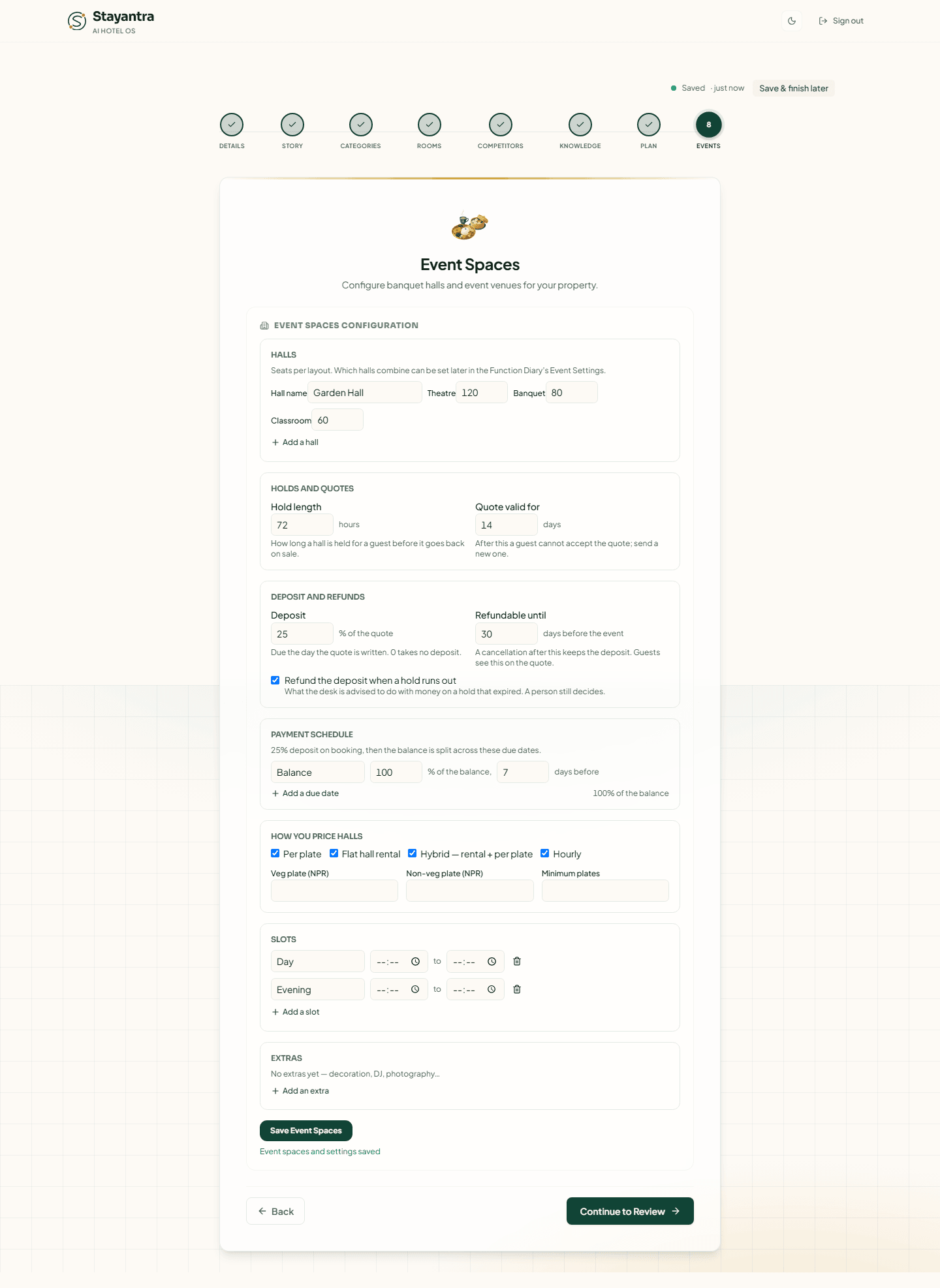
Only if you host weddings, conferences or parties. Under Halls, enter each Hall name and how many it seats in Theatre, Banquet and Classroom layouts (Add a hall for more). Below, the events settings start from sensible defaults: how long a hall is held for a guest and how long a quote is valid, the deposit and refund window, the payment schedule, and how you price halls. Click Save Event Spaces; it says "Event spaces and settings saved".
No halls? Just click Continue to Review. You can set them up later in Events and banquets.
Step 9: Review and launch
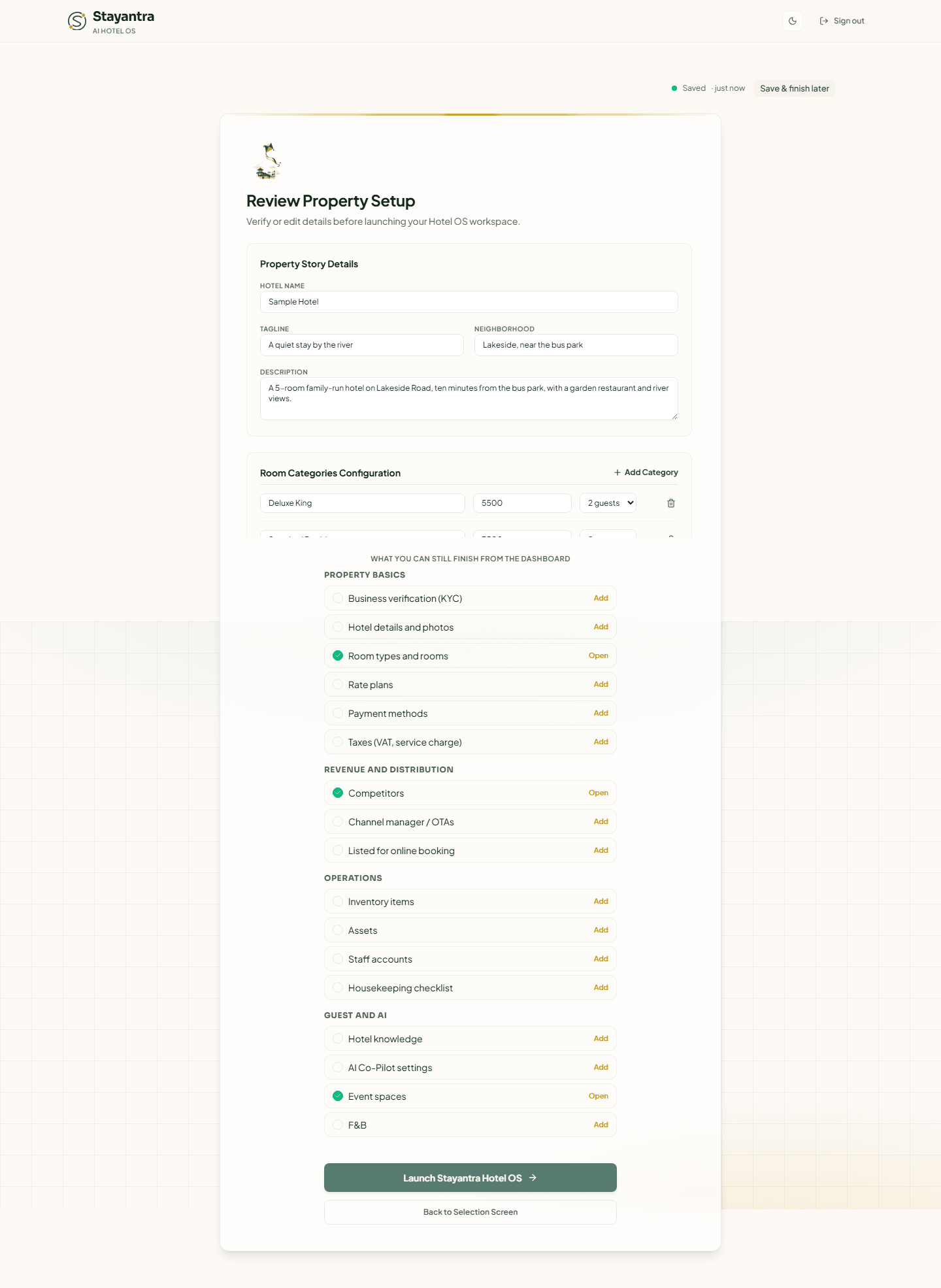
Review Property Setup shows everything in one place, and you can still edit it here: the hotel name, tagline, neighborhood and description; the room categories (Add Category); and the physical rooms (Add Room). The Provisioning Summary counts room categories, rooms and competitors and shows the plan you selected. Below it, What you can still finish from the dashboard lists the setup tasks still open.
Click Launch Stayantra Hotel OS. Back to Selection Screen returns to the chat-or-form choice without losing anything.
After you launch
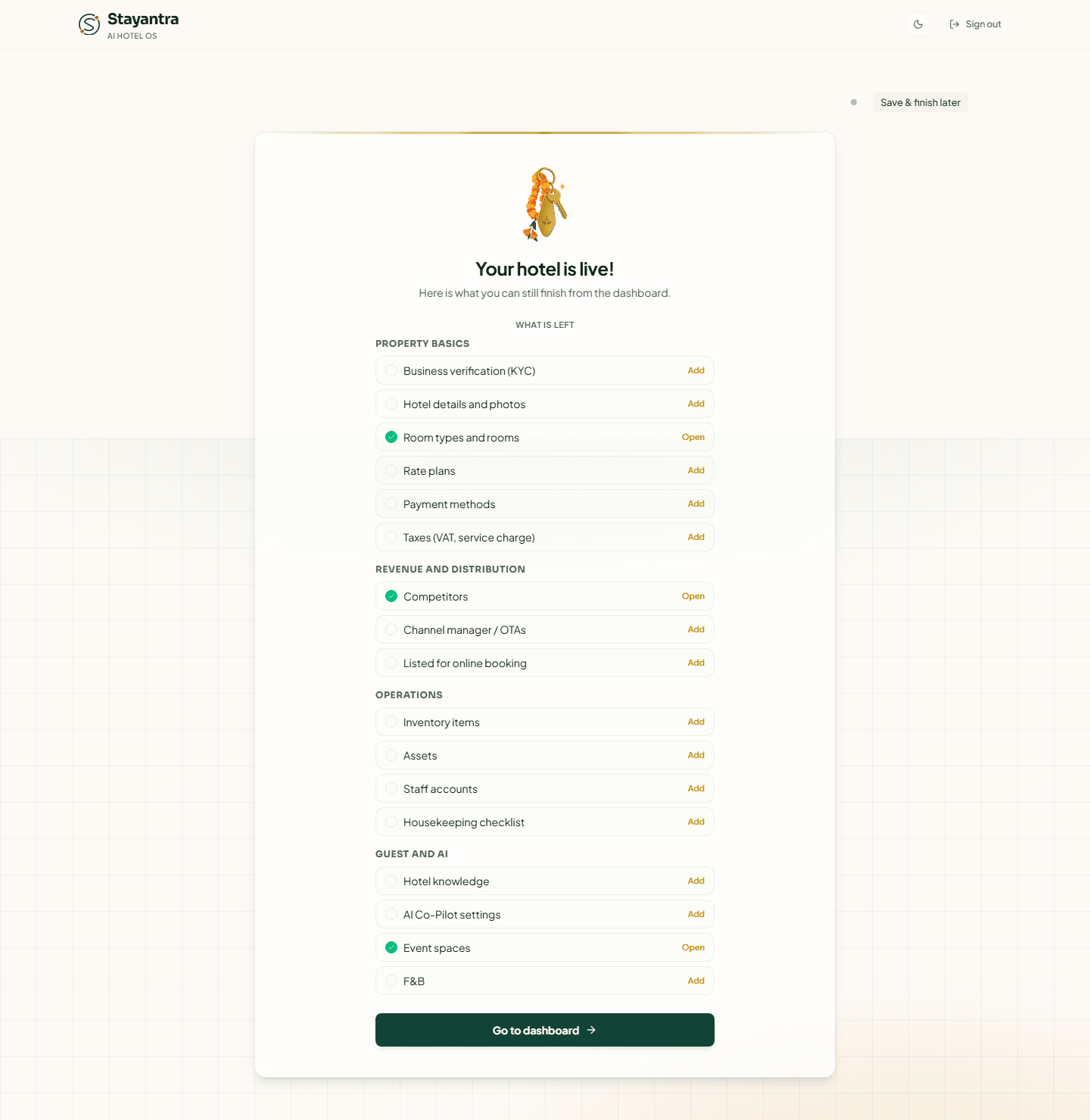
The screen says Your hotel is live! and lists what is left under What is left. Click Go to dashboard. If nothing is left, or the list does not load within a few seconds, you go straight to the dashboard.
From now on the sidebar shows Finish setup (NN%) until every setup task is done. Follow the self-installation checklist from there.
What "live" means before verification
"Your hotel is live" means your workspace is active: you and your staff can use everything inside Stayantra, take bookings at the desk, and set everything up on the trial. It does not yet mean guests can find or book you online.
Until Stayantra verifies your business, these stay off:
- Listing and search on the Stayantra marketplace and the Go app
- Online bookings: booking engine, website widget, public API and AI assistants
- OTA sync through the channel manager
- Online guest payments
- Payouts of money Stayantra collects for you
- Choosing a paid plan
Your choice to be listed is remembered and switched on automatically the moment you are verified. Submit your documents next: Business verification.
Saving and coming back later
The wizard saves as you go. The line at the top right shows Saving…, then Saved · just now. Each step you finish is also saved to the hotel itself.
- Save & finish later saves now and offers Log out or Keep going. Sign in later, from any device, and you continue where you stopped.
- Offline — we'll save when you're back means your connection dropped. Keep the tab open; it saves when you reconnect.
- Updated on another device means you changed the setup somewhere else. Click Load latest to bring in that version; it replaces what is on this screen.
- Your session ended — sign in again means you were signed out. Your answers are still on the screen; sign in again in another tab, then continue.
If something goes wrong
| What you see | What it means |
|---|---|
| The Continue to Story button is greyed out | Tick the terms box at the bottom of step 1. |
| "The room types shown are suggestions…" or "The rooms shown are suggestions…" | Edit at least one suggested row, or add your own, before continuing. |
| "Base price must be greater than zero." | A room type has an empty or zero price. |
| Launch sends you back to step 1, 3 or 4 | Something required is missing (the hotel, a room type or a room). Fix that step and launch again. |
| "We could not load your saved setup." with Try again | A connection problem. Click Try again. |
| "Something went wrong" after switching from the chat to the form | Reload the page. Everything you saved is kept, and the form opens where you were. |
Stuck? Open a support ticket from Help once you are in the dashboard, or see Getting help.
Create your account
Register as a hotel owner, sign in with email or Google, use a referral or promo link, and reset a forgotten password.
Business verification (KYC)
Upload your business documents so Stayantra can verify the hotel and switch on listing, online bookings, OTA sync, online payments and payouts.