
Kitchen and service
This page is for cooks, waiters and bar staff using Stayantra Connect, and for the managers who run the restaurant. Orders taken on the phone go straight to the kitchen board, and the bill goes to the guest's room or is settled at the table.
Where to find it: the Today tab: cooks see the Kitchen board and waiters the Waiter board. Also More → Kitchen Display, Waiter Terminal and Menu Management. Who can use it: staff with the kitchen job (the kitchen board) or the service job (the waiter board and table bookings); cashiers for billing; managers and owners. The hotel's plan must include the F&B module.
The menu, outlets, tables, stations and printers are set up in the web app under Food, Events & Services → F&B Restaurant. See Restaurant and F&B and Restaurant and printers.
The kitchen board
With the kitchen job, Today opens Kitchen. If the hotel has more than one outlet, choose it with Outlet ("Show only this outlet's tickets").
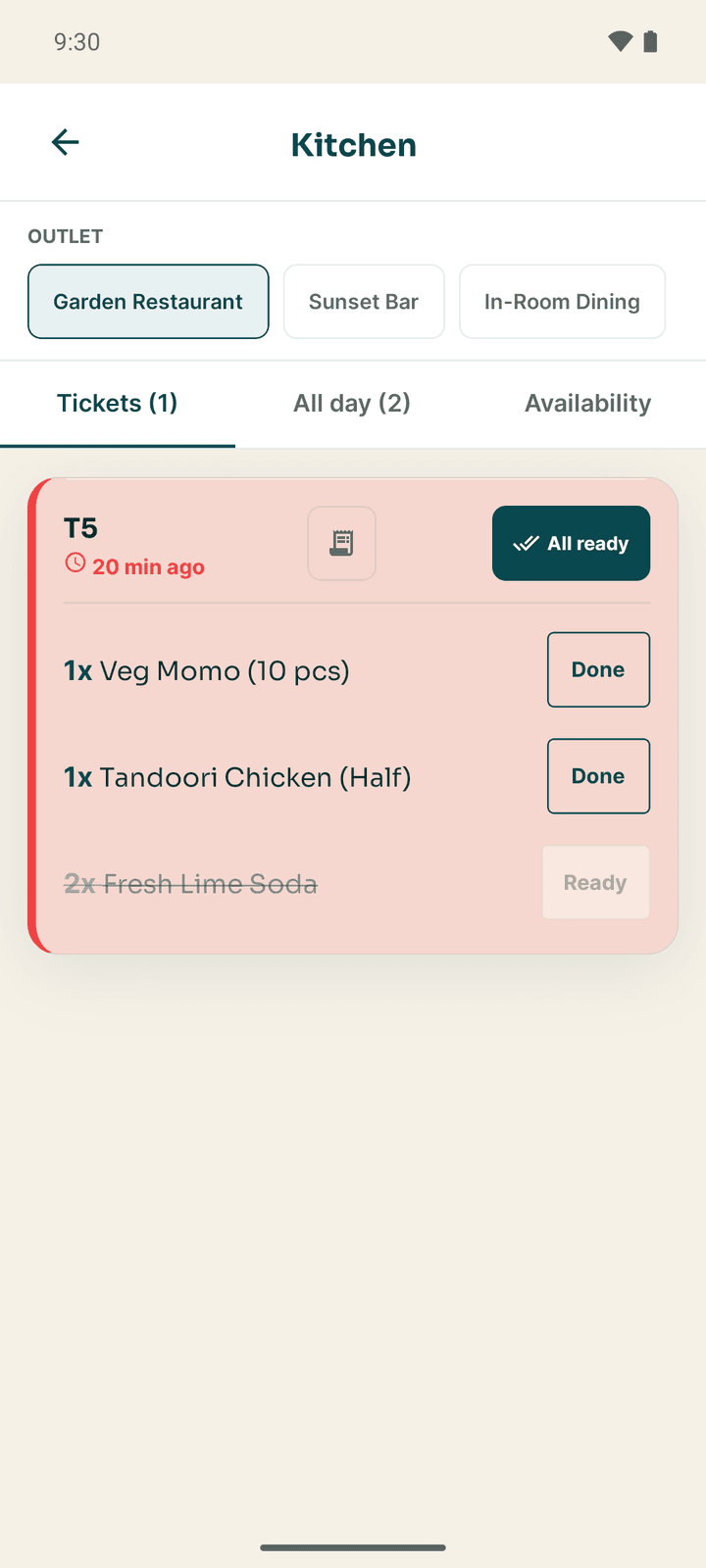
The board has three tabs:
| Tab | What it shows |
|---|---|
| Tickets | Every order the waiters have sent (fired). Each ticket shows the table, Room service or Order, and how many minutes ago it came in. A ticket that has waited 15 minutes or more is marked late. |
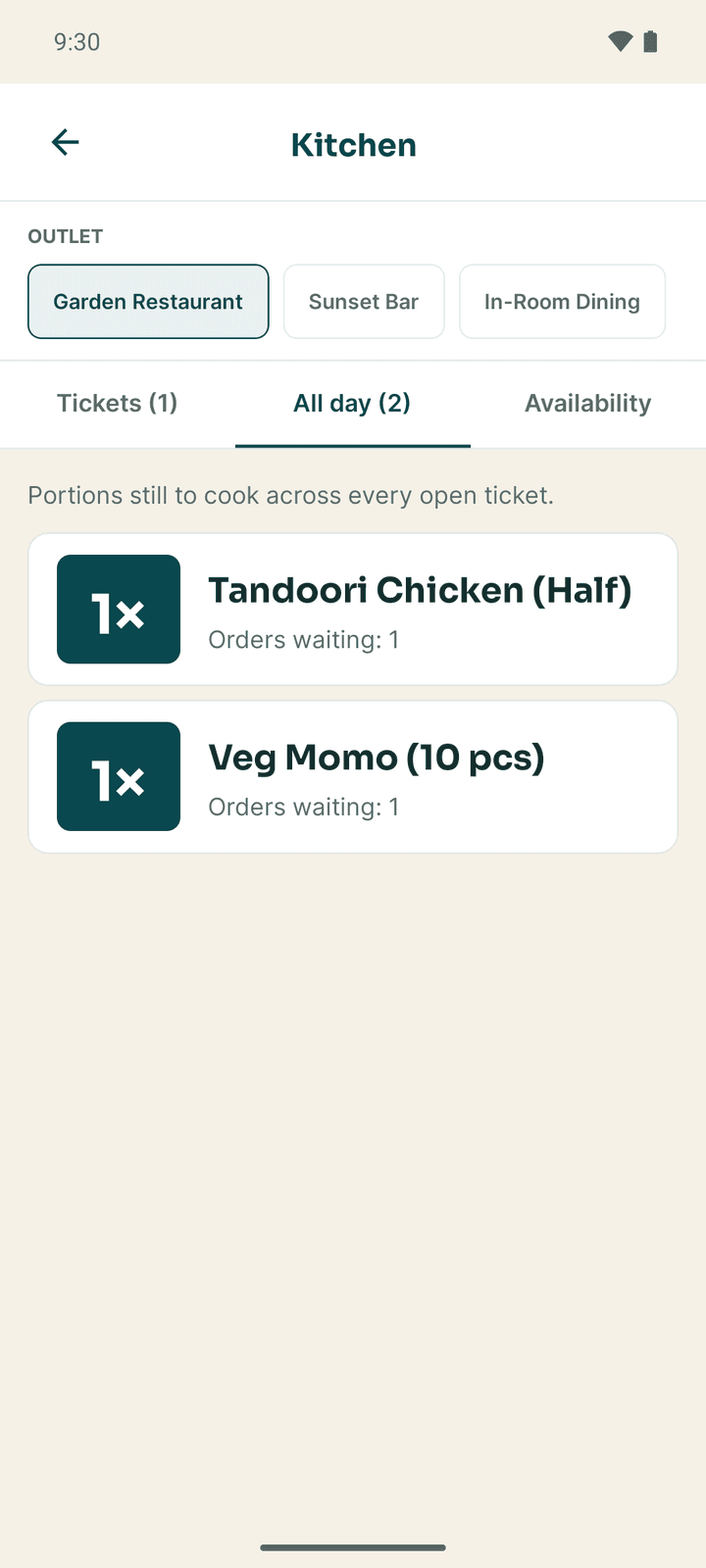
| All day | "Portions still to cook across every open ticket": the total of each dish still to make, and how many orders are waiting. |
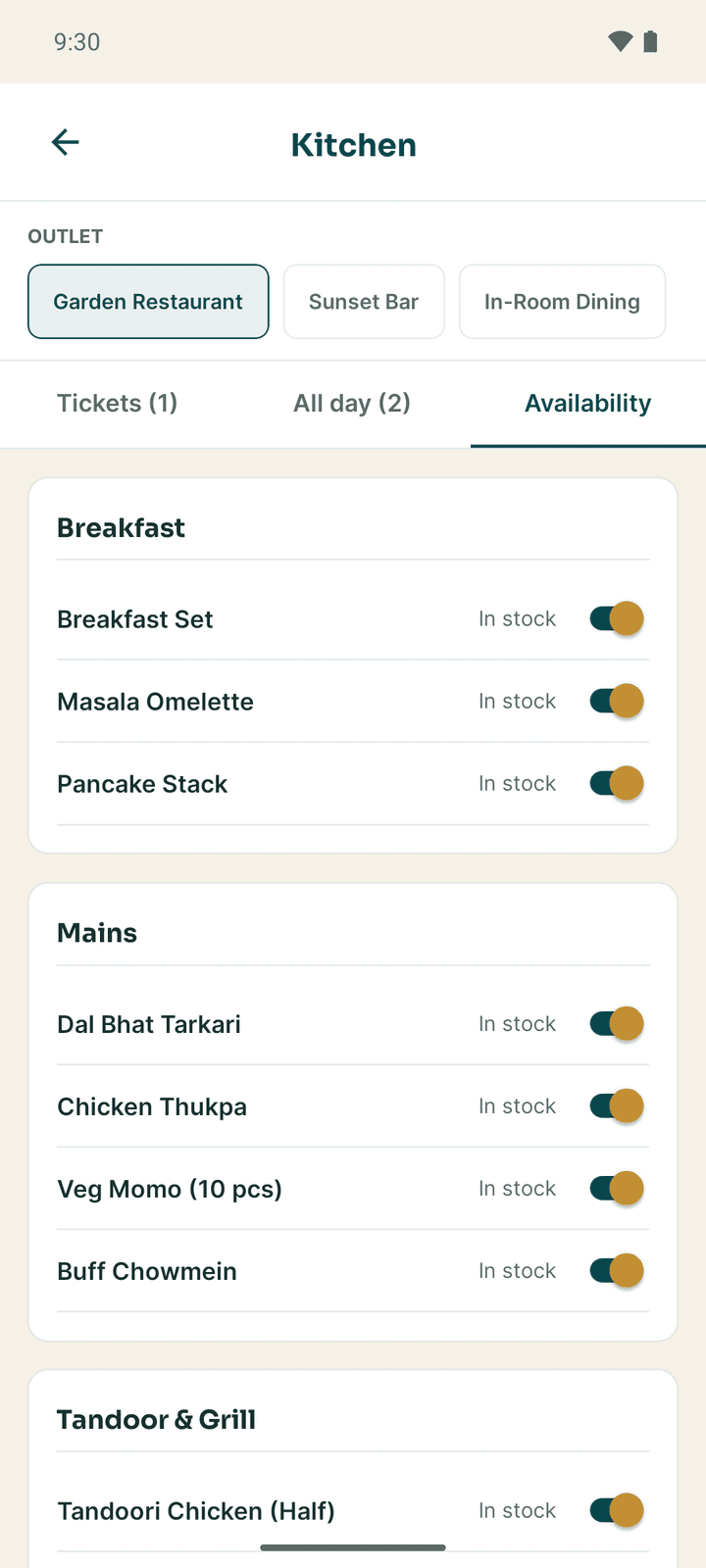
| Availability | Every menu item with an In stock / 86-ed switch. |
Cook and send out an order
- On Tickets, cook the items.
- Tap Ready beside each item as it is done, or All ready for the whole ticket.
- The waiter's board shows the order as Ready so it can be served.
Ticket prints the ticket on the kitchen printer. When dishes go to different stations (for example the bar and the kitchen), Which ticket? asks which station's ticket to print.
Mark a dish unavailable
On Availability, switch a dish off to 86-ed when you run out. Waiters can no longer order it. Switch it back to In stock when it is available again.
The waiter board
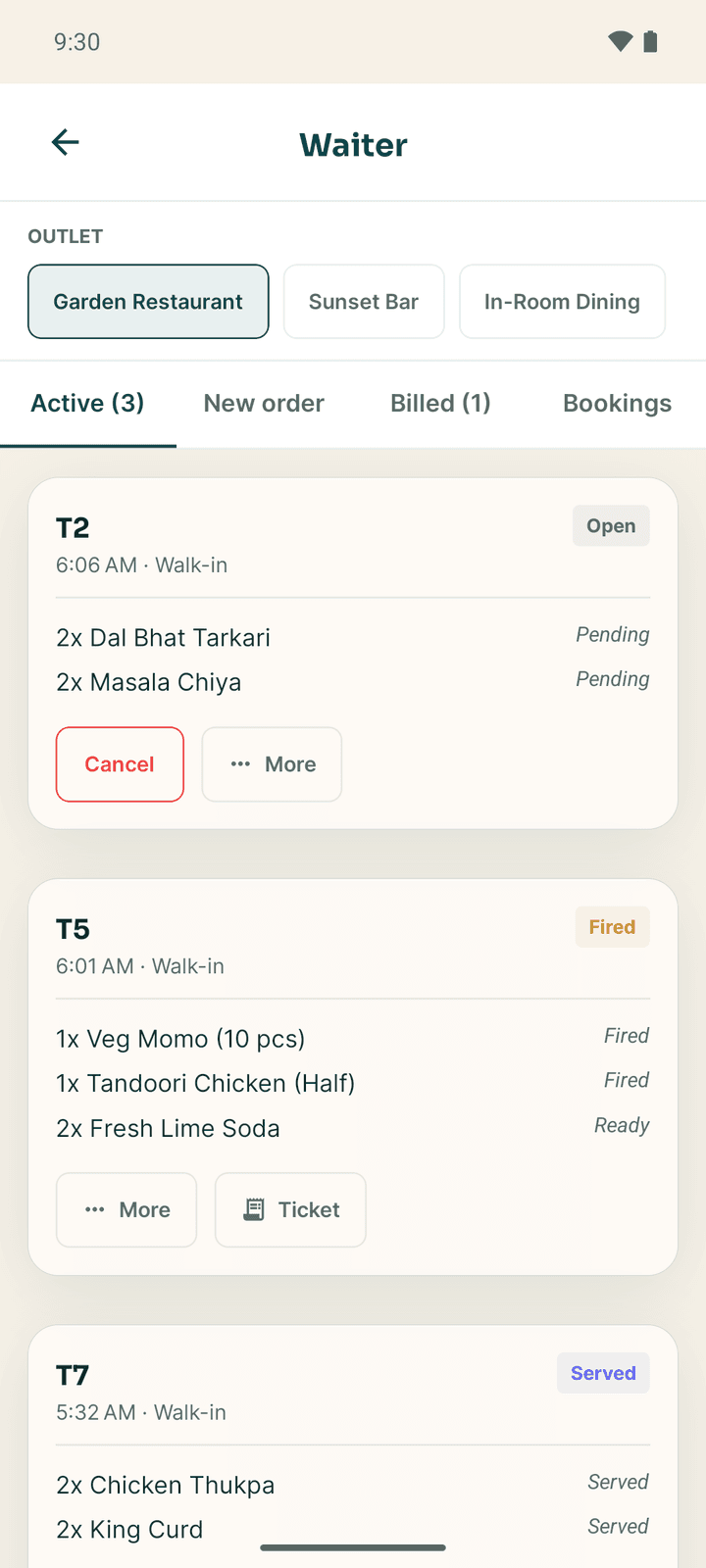
With the service job, Today opens Waiter. Choose the Outlet if there is more than one. The tabs are Active, New order, Billed (the last 12 hours) and Bookings (table bookings).
Take an order
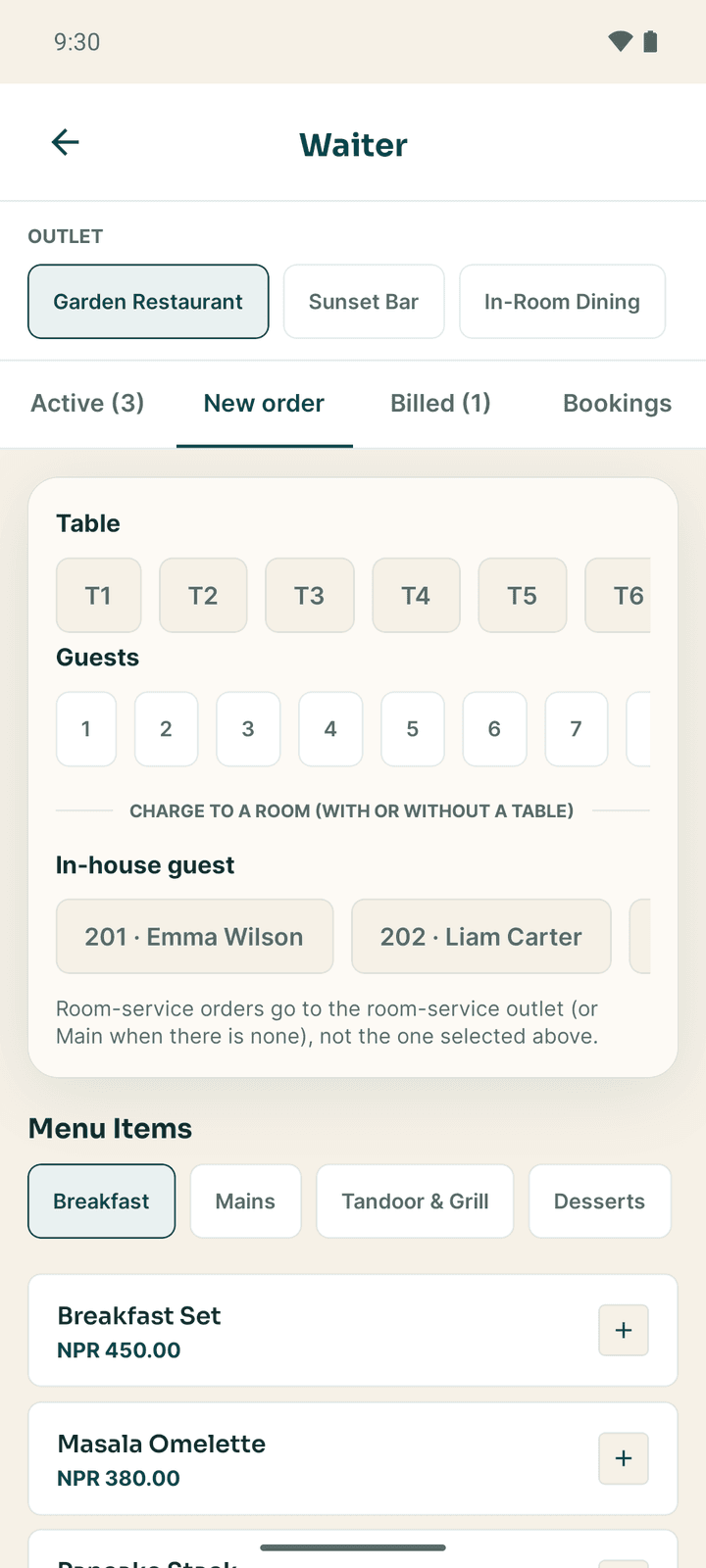
Choose the table or room
On New order, tap a Table and set the number of Guests. To charge the order to a room, pick the In-house guest under "Charge to a room (with or without a table)". Room service needs only the guest.
Add the dishes
Under Menu Items, pick a category and tap + on each dish. The Order summary shows the items and the Total. Clear all empties it.
Send it to the kitchen
Tap FIRE ORDER TO KITCHEN. The order appears on the kitchen board at once.
"Pick a table or an in-house guest first." or "Add at least one item." means something is missing.
Order statuses
| Status | Meaning |
|---|---|
| Open | Being taken; not yet sent to the kitchen |
| Fired | Sent to the kitchen |
| Ready | The kitchen has finished it |
| Served | On the table or delivered |
| Billed | The bill is made |
| Closed | Paid and finished |
| Cancelled | Cancelled |
Serve, bill and settle
- Mark served when a ready order is on the table.
- Bill on a served order opens Settle this order:
- An in-house guest: Charge to room. It goes on the guest's bill and is paid at check-out.
- A walk-in diner: Cash, or with the cashier job Already paid — QR or card (then How did the guest pay?: Fonepay QR standee, eSewa QR standee, Khalti QR standee or Card terminal, and the Payment reference), eSewa or Khalti.
- With permission to give discounts: Add a discount (percentage and reason) or Comp (no charge) with a reason (Service recovery, Food or drink quality, Owner's guest, Staff meal, Goodwill, VIP). A discount above your limit goes to a manager to approve; nothing is billed until they do.
- Send to cashier hands the served order to the cashier to settle. The card shows "With cashier" or "Waiting for a cashier", and Withdraw takes it back.
- More opens This bill: Add a round, Split equally (2 to 6 bills), Split by seat, Split off a dish, Merge a bill into this one and Move to another table.
- Bill and Ticket print buttons print on the outlet's printer.
A manager can Void a billed order (a reason and their fingerprint or PIN) and Cancel an order the kitchen already has.
Table bookings
The Bookings tab lists the day's table bookings, with Today and arrows to change the day. Bookings requested by guests from the Go app or the website appear under Guest requests waiting.
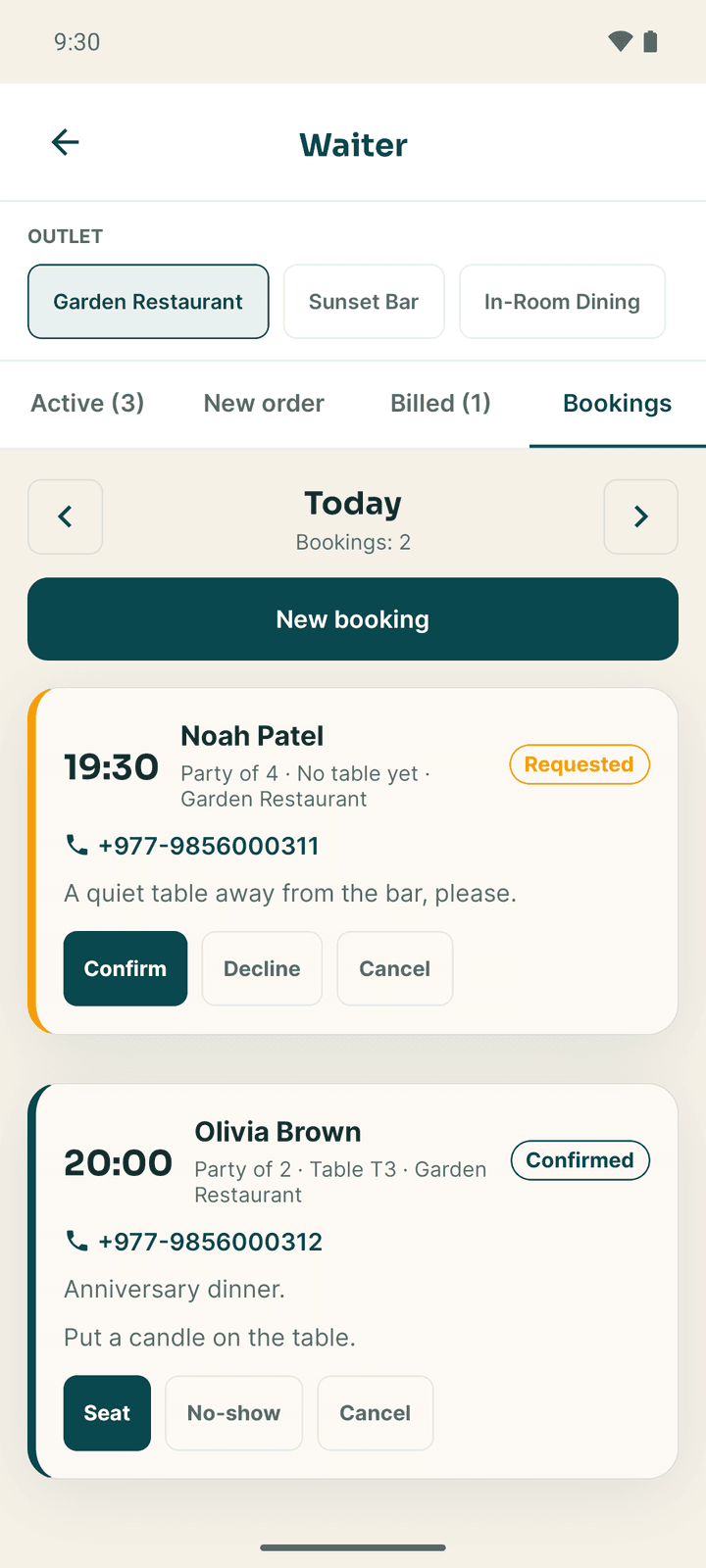
Add a booking: tap New booking, fill Guest name, Phone (optional), Guests, Time (24-hour, for example 19:30), Table (optional) and Notes (optional), then Save booking.
Work a booking:
| Booking is | Buttons |
|---|---|
| Requested (from a guest) | Confirm, Decline, Cancel |
| Confirmed | Seat (then Choose a table), No-show, Cancel |
| Seated | Done |
Decline, No-show and Cancel ask "Close this booking?" and cannot be undone.
If the hotel has not turned table bookings on, the tab says Table bookings are off.
The menu
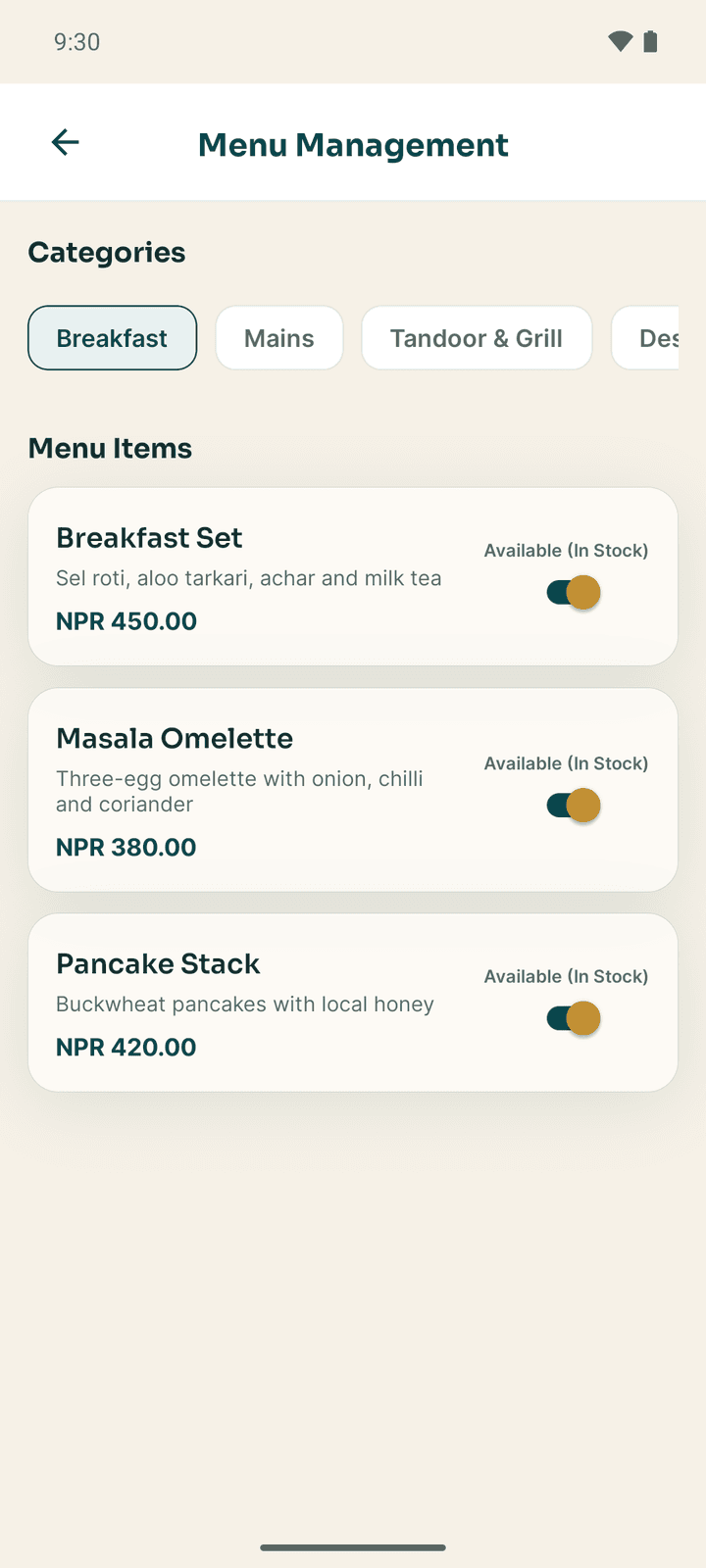
More → Menu Management shows the menu by category, each dish with its price and an availability switch (Available (In Stock) / 86-ed / Out of Stock). Managers with menu permission can Add Category, Add Menu Item, Edit and Delete. A dish has a name, description, Price (NPR), sort order, categories, the Station that makes it, the Outlet, and its ingredients. Others see the menu read-only.
The bar
There is no separate bar screen. A drink is a menu item whose Station is the bar: it prints on the bar's ticket and shows on the kitchen board with the other items. Bar staff use the Waiter board to take and bill orders.
If something goes wrong
| What you see | What to do |
|---|---|
| Read only: "You can see the pass but cannot mark items ready." | Your account does not have the kitchen job. |
| "Charging an order to a room needs order-taking access. Ask a manager." | Your account needs the service job. |
| The guest has checked out when charging a room | The guest has left. A manager can Charge the stay with a reason, or bill the diner directly. |
| "The discount or comp is above your limit…" | A manager approves it in Approvals. |
| A padlock on Kitchen Display or Waiter Terminal | The hotel's plan does not include F&B. The owner can add it in Plan & Billing. |
Maintenance and security
Work maintenance orders, record spare parts and after photos, look up assets and preventive schedules, and keep the security incident log in the Connect app.
Store and purchasing
Raise purchase requests, receive deliveries, record market purchases, issue stock to departments, count the store and scan expense receipts in the Connect app.