My work: attendance, leave and pay
This page covers what every staff member does for themselves in Stayantra Connect: clocking in and out, off-site work, leave, payslips, the roster, notifications, the SOP checklist, asking Exubee, and the app's settings. The last sections are for managers and owners who run attendance, leave and payroll.
Where to find it: the clock card on Today, and More → My attendance, Leave, My payslips, Shifts, SOP checklists, Ask Exubee. Who can use it: every staff member, manager and owner. Attendance, leave, the roster and payslips need the hotel's plan to include Staff & HR.
Clock in
If your hotel uses location-based attendance, a card at the top of Today says You are not clocked in: "Clock in when you arrive at the hotel. It needs your location and a selfie."
Tap Clock in
On the card, tap Clock in.
Agree the first time
The first time (and again if the rules change) you see Before you clock in. It explains that Connect records your location when you clock in; that while you are clocked in it uses your location in the background, even when the app is closed, only to notice when you leave the hotel; that each clock-in takes a selfie; and that your managers and the owner can see your times, locations and selfies. Tap I agree.
Allow location
Tap Allow location and allow it. Then tap Allow all the time and choose Allow all the time on the phone's screen. Connect cannot clock you in without it, because leaving the hotel is what clocks you out.
Check your location
Your location shows how accurate the phone's reading is and how far you are from the hotel ("About 40 m from the hotel (the limit is 150 m)"). If the reading is poor, move into the open and tap Refresh location.
Take a selfie
Tap Take selfie. The front camera opens: hold the phone at eye level, fit your face in the oval and tap the round button. Retake selfie if it is not clear.
Clock in
Tap Clock in. The card now reads Clocked in since 9:02 AM and how long you have been on shift.
Clocking in needs an internet connection.
| What you see | What it means |
|---|---|
| You are outside the hotel | You are further from the hotel than the hotel allows, and the hotel blocks clock-ins from outside. Go inside and try again. |
| Outside hotel / Needs review on your shift | The hotel accepts clock-ins from outside but a manager reviews them. |
| Location is not accurate enough | The phone's reading is too rough. Move away from thick walls and try again. |
| Selfie needed | Take the selfie again. |
| No staff profile | Your login is not linked to a staff profile. Ask your manager to add you. |
| Attendance is off | The hotel has not switched clock-in on. |
[!NOTE] A phone that reports a mock (fake) location always counts as outside the hotel.
Clock out
Tap Clock out on the card and confirm Clock out now?. No selfie is needed. Without a signal, the clock-out is saved on the phone and sent when you are back online.
Leaving the hotel clocks you out. When you leave the hotel's area, the card says "You left the hotel at 5:40 PM. Come back by 5:55 PM or you will be clocked out." If you do not come back within the hotel's grace period, you are clocked out and receive a notification. Approved off-site work (below) does not clock you out.
If you turn location off for Connect while clocked in, the card says so and your manager is told. Tap Open settings and choose Allow all the time again.
My attendance
More → My attendance shows the clock card, your Last 14 days of shifts and your Off-site work requests.
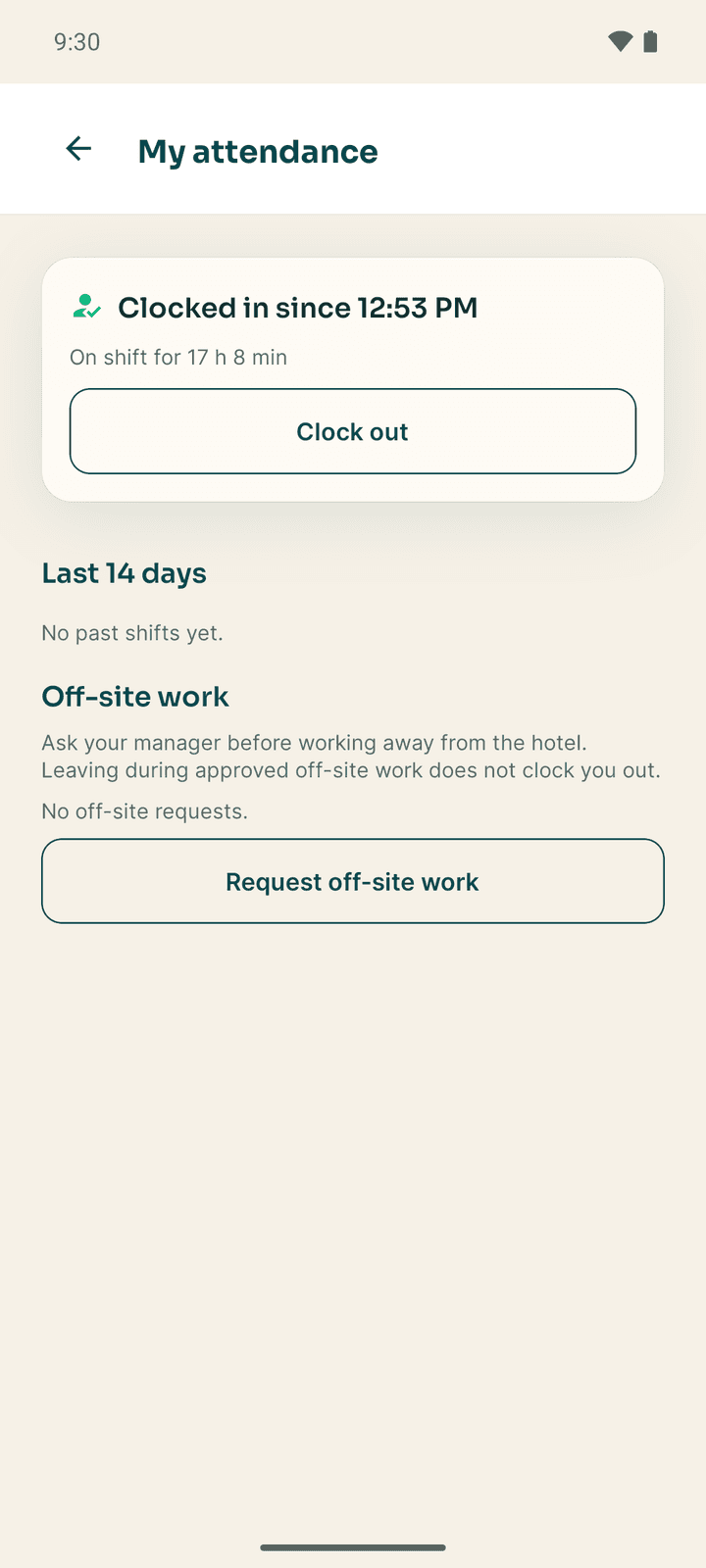
Each day shows the hours worked, the clock-in and clock-out times, and the rostered shift. Tags explain anything unusual:
| Tag | Meaning |
|---|---|
| Not clocked out | The shift was never closed |
| Needs review / Accepted / Rejected | A manager is checking, or has checked, this clock-in |
| N min late | Clocked in after the rostered start |
| Outside hotel / Mock location / Location off | The location at clock-in |
| Left, grace running / Left the hotel | You left the hotel's area |
| By manager / Corrected | A manager clocked you in or changed a time |
| Not rostered | There was no shift on the roster |
View selfie shows your clock-in photo, until the hotel deletes it under its retention rule.
Ask to work off-site
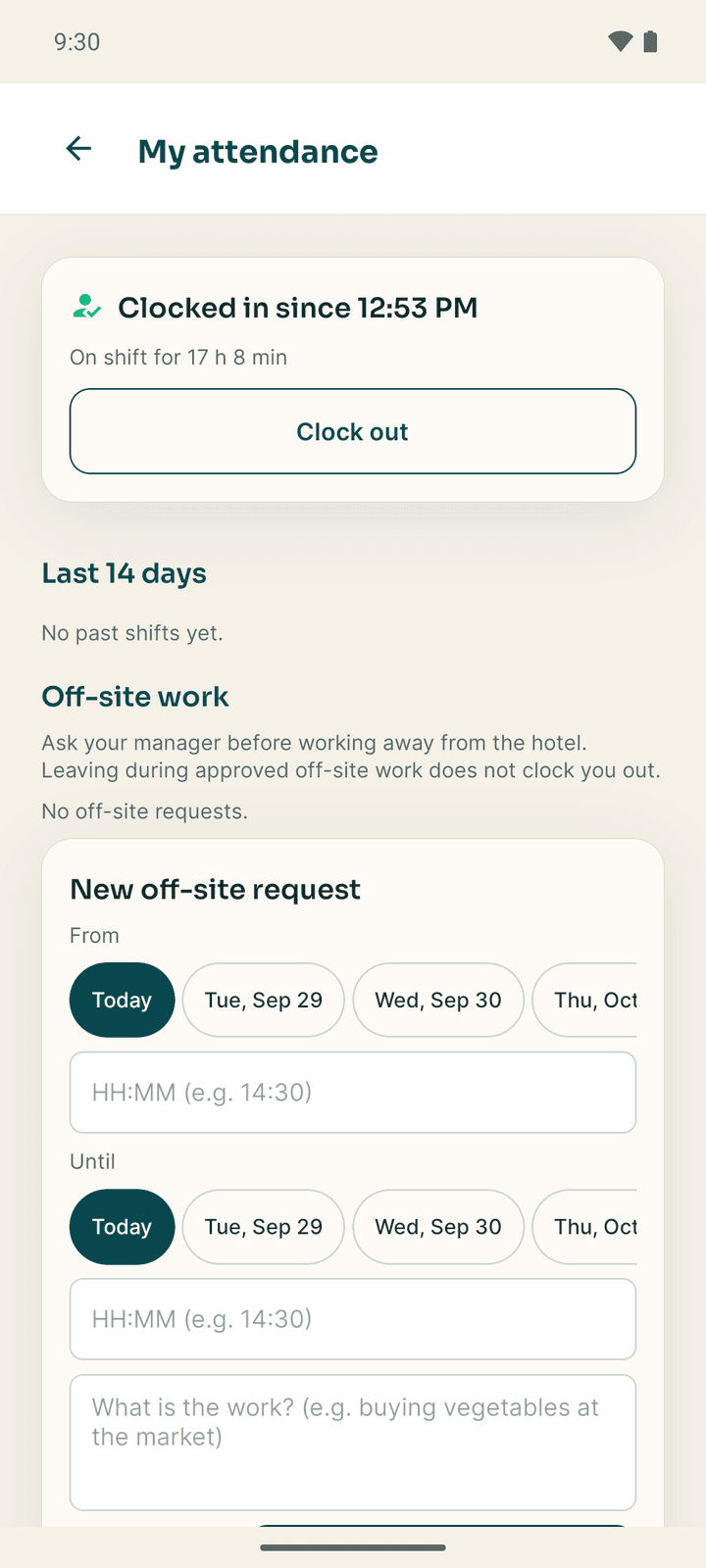
Before you leave to work elsewhere (buying vegetables at the market, a bank errand), ask your manager:
- Under Off-site work, tap Request off-site work.
- Choose From and Until (a day and a time, up to 7 days), and write what the work is.
- Tap Send request.
The request shows Waiting, then Approved or Declined. During approved off-site work, leaving the hotel does not clock you out. Cancel request withdraws it.
Leave
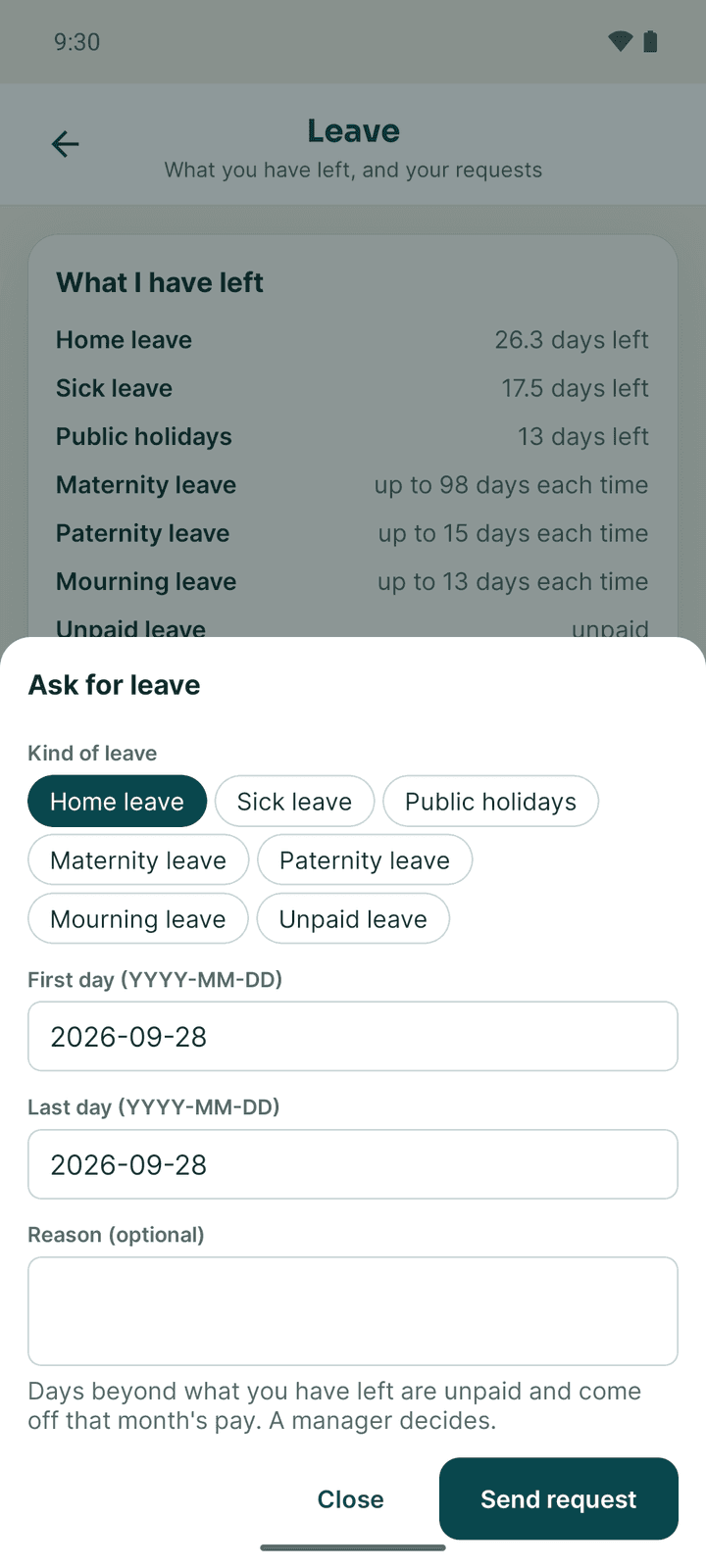
More → Leave ("What you have left, and your requests").
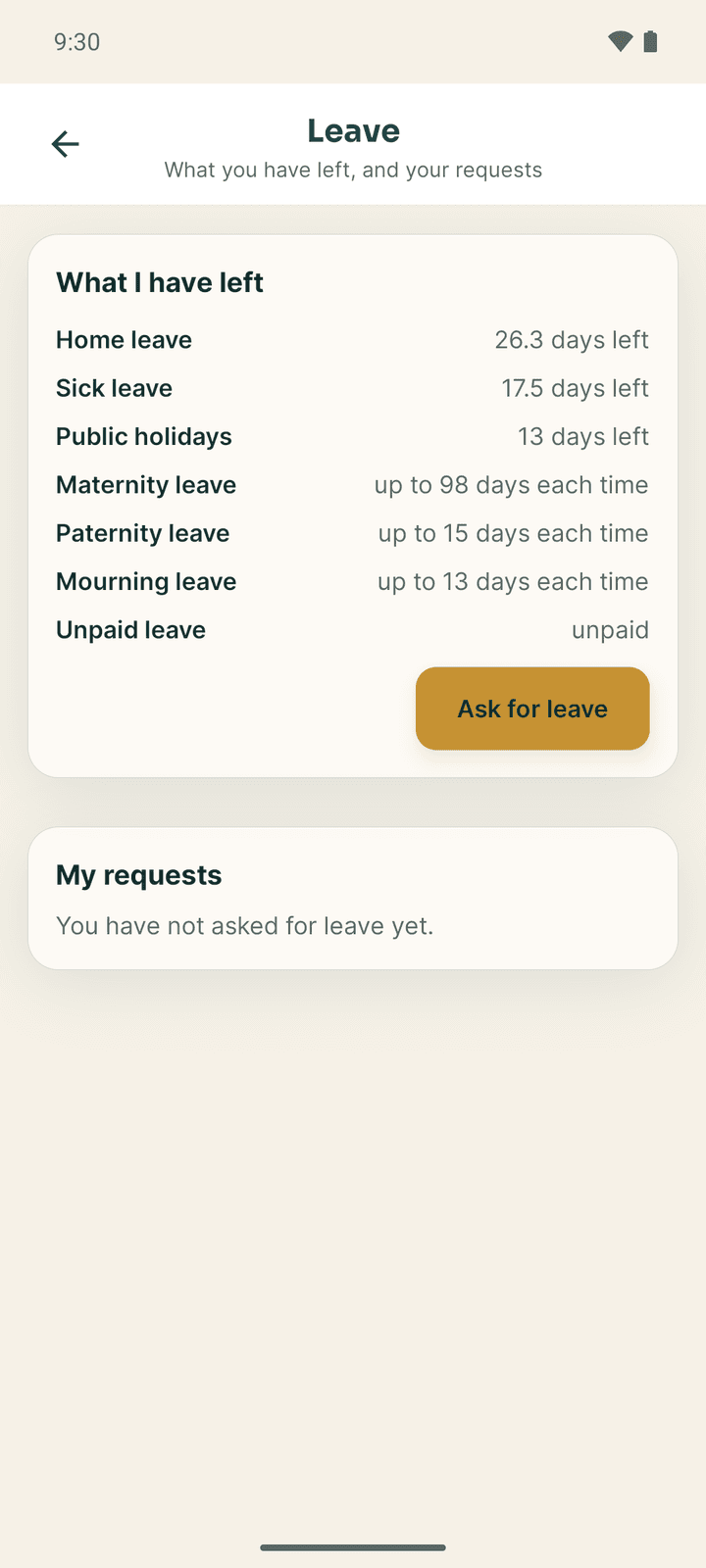
- What I have left shows each kind of leave with the days left ("12 days left", "up to 3 days each time", or "unpaid").
- My requests lists your requests: Waiting for a decision, Approved, Declined or Cancelled. Cancel withdraws a pending request, or an approved one that has not started.
Ask for leave
- Tap Ask for leave.
- Pick the Kind of leave.
- Type the First day and Last day as YYYY-MM-DD, for example 2026-10-15.
- Add a Reason (optional) and tap Send request.
Days beyond what you have left are unpaid and come off that month's pay. A manager decides, and you get a notification.
Payslips
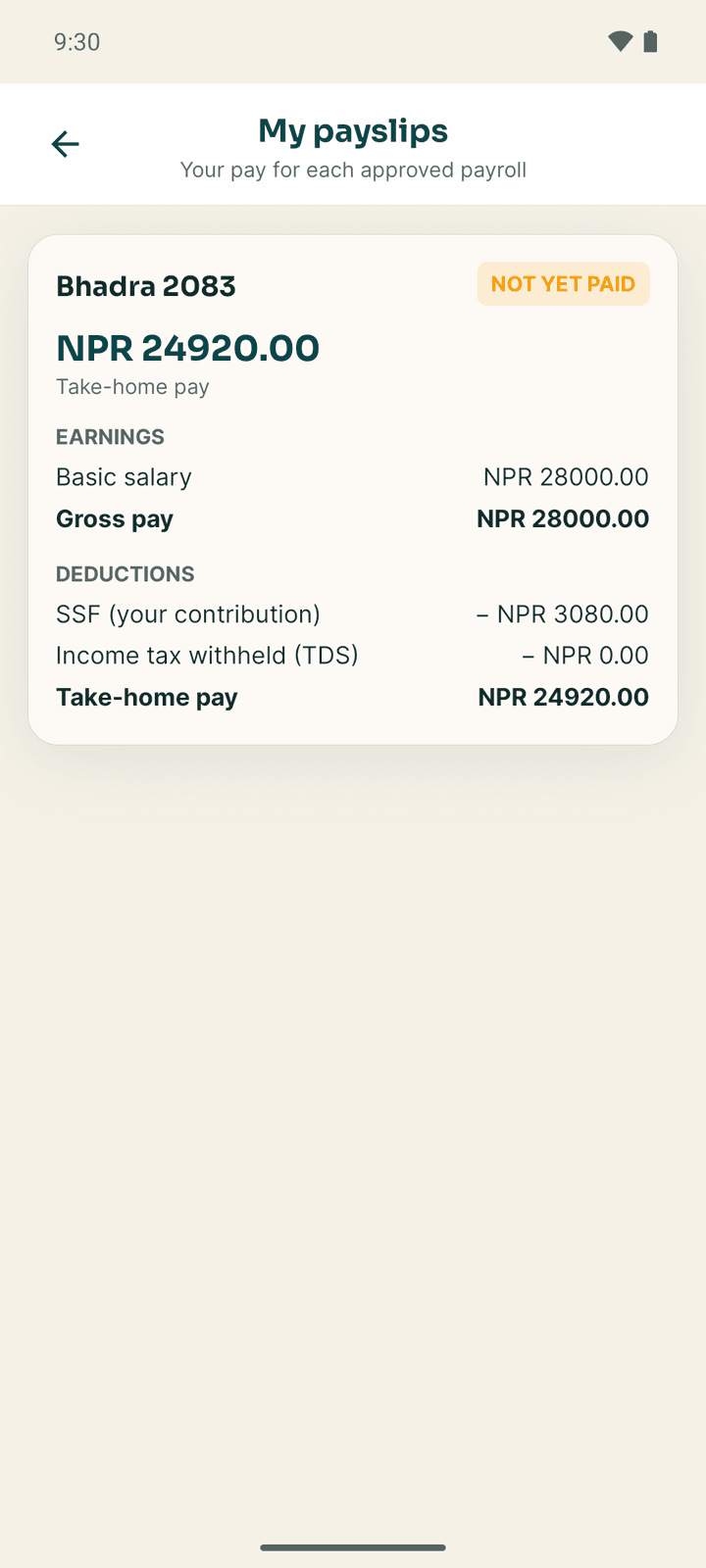
More → My payslips shows your pay for each approved payroll, by Nepali month (for example Bhadra 2083): Take-home pay in large figures, Paid with the date or Not yet paid, and the lines behind it: basic salary, allowances, incentive bonus, Gross pay, then deductions (advance instalments, SSF (your contribution), provident fund, Income tax withheld (TDS)). You get a notification when a new payslip is ready.
Until a payroll that includes you is approved, you see No payslips yet. To print or download a payslip, use Team → My payslips in the web app.
Your roster
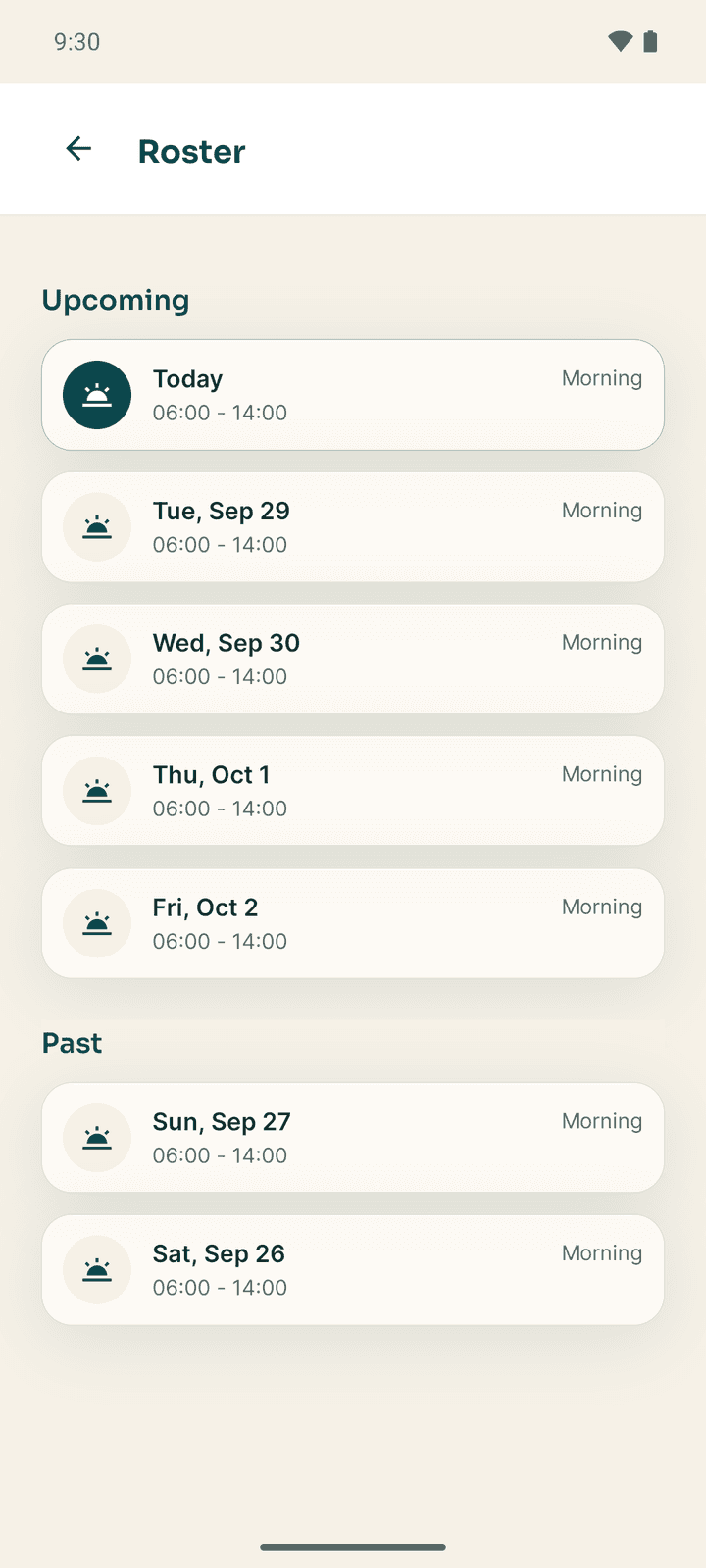
More → Shifts → View Roster lists your Upcoming and Past shifts: the day, the shift type (Morning, Day, Evening, Night), the times, and any handover notes. Managers also see a Hotel tab with everyone's shifts. The roster is read-only in the app; managers plan it in the web app under Team → Shift Roster.
SOP checklist
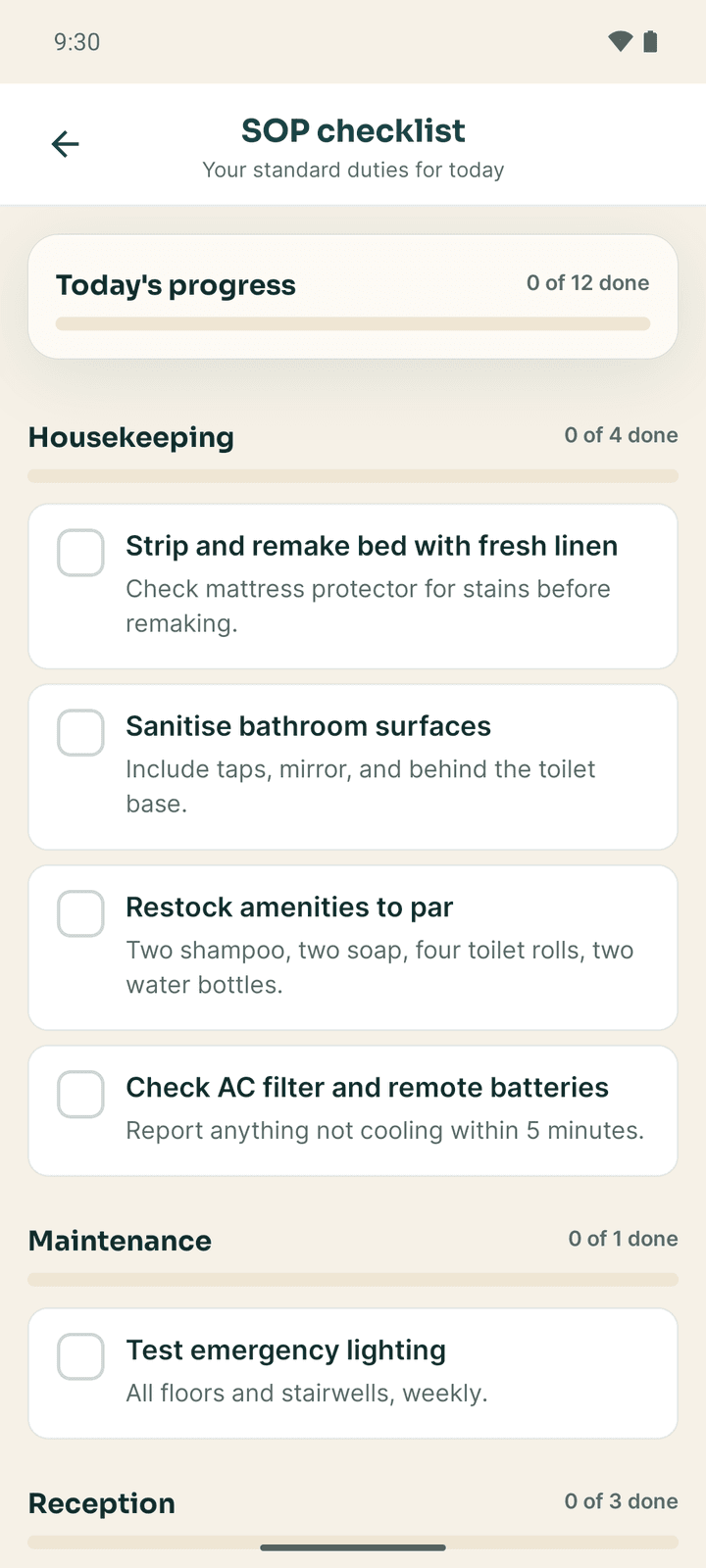
More → SOP checklists lists your standard duties for the day by department, with Today's progress. Tap an item to tick it, and tap again to untick. Ticks made offline show Queued and are sent later. If your manager has not published a checklist: No SOP items yet.
Notifications
The bell on Today opens Notifications. A dot marks unread ones; tap one to open the screen it is about. Mark all as read clears them. If you work at more than one hotel, This hotel and All hotels switch the list.
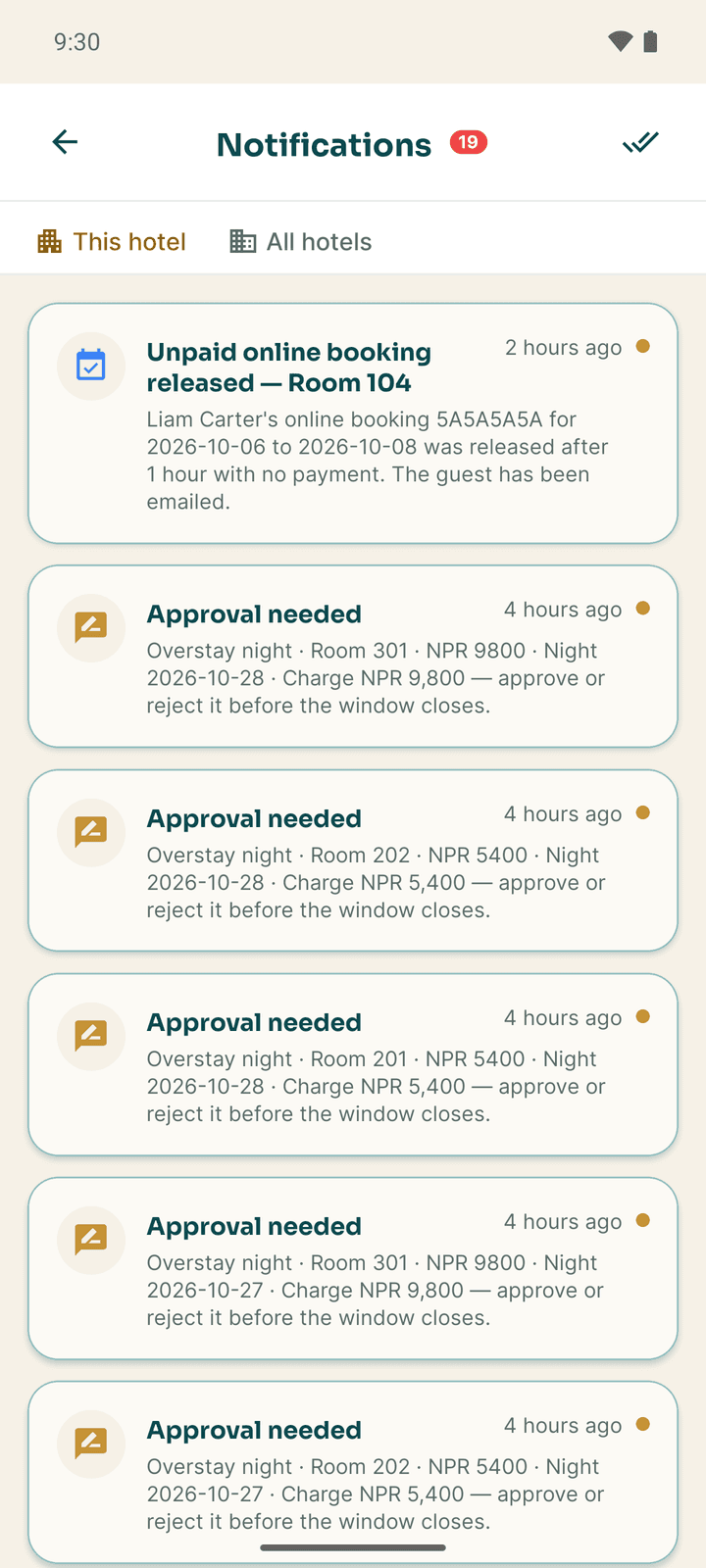
You are notified about new tasks, approvals, guest messages, bookings, your attendance (for example an automatic clock-out), leave decisions, new payslips, shift changes and kitchen orders. Notification titles come from the hotel and may be in English.
To stop or change notifications, use the phone's own settings for Stayantra Connect. The app's Push Notifications row in settings only shows that they are enabled.
Ask Exubee
More → Ask Exubee is a chat with Exubee, Stayantra's AI assistant. Ask about arrivals, bookings, guests, room status and your tasks.
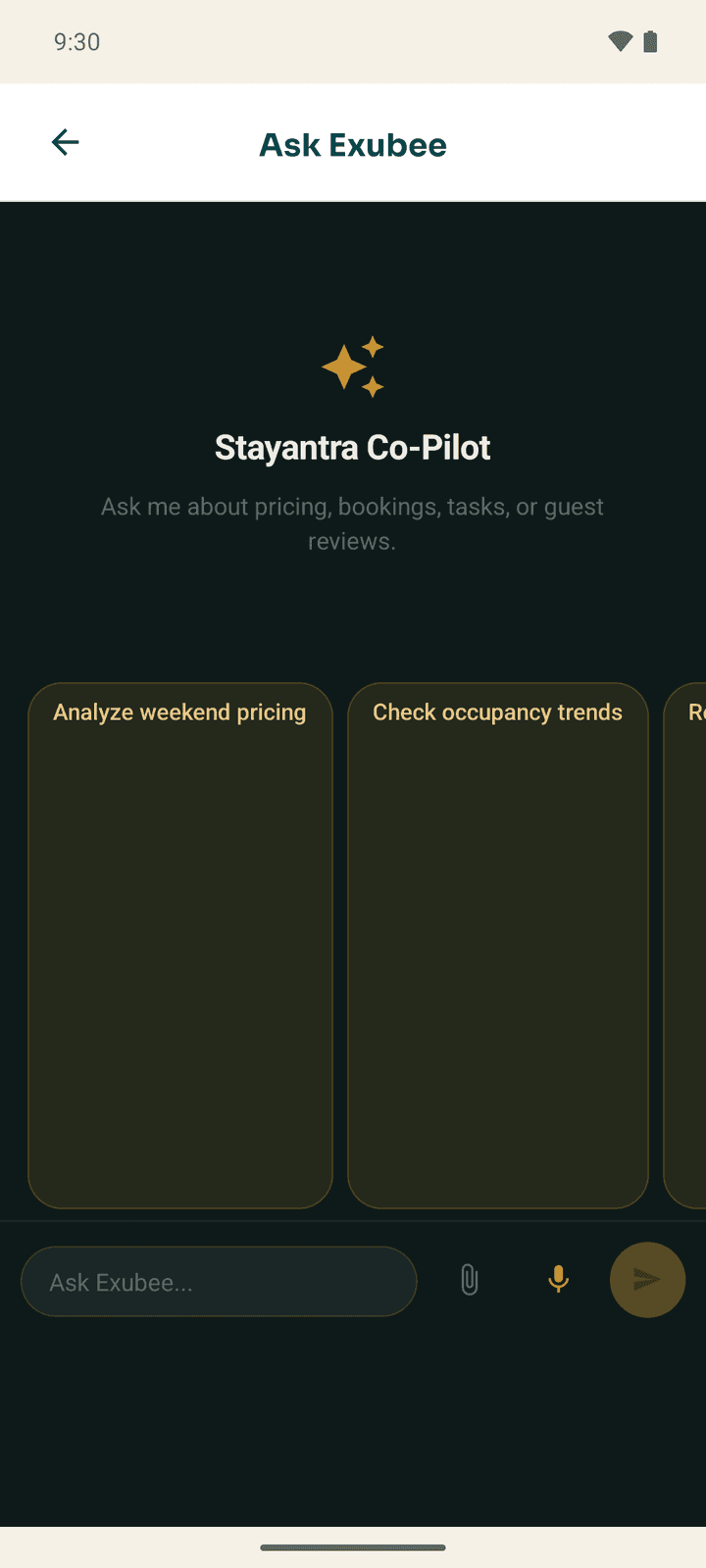
- Type in Ask Exubee... and tap send. Tap a suggestion to start.
- The microphone button records up to 60 seconds and turns your speech into text in the box (in the app's language), so you can check it before sending.
- The paperclip attaches a document (PDF, Word, Excel, CSV, text) or a photo.
- Staff can look things up. Managers and owners can also ask Exubee to change a price, dispatch a task or book a room; Exubee proposes it as a card with Approve and Reject.
Ask Exubee needs a connection and the hotel's Co-Pilot add-on. Without it you see "Exubee chat is part of the Co-Pilot add-on. Your hotel owner can add it in Plan & Billing." See Exubee and approvals.
Settings
Open More and scroll down.
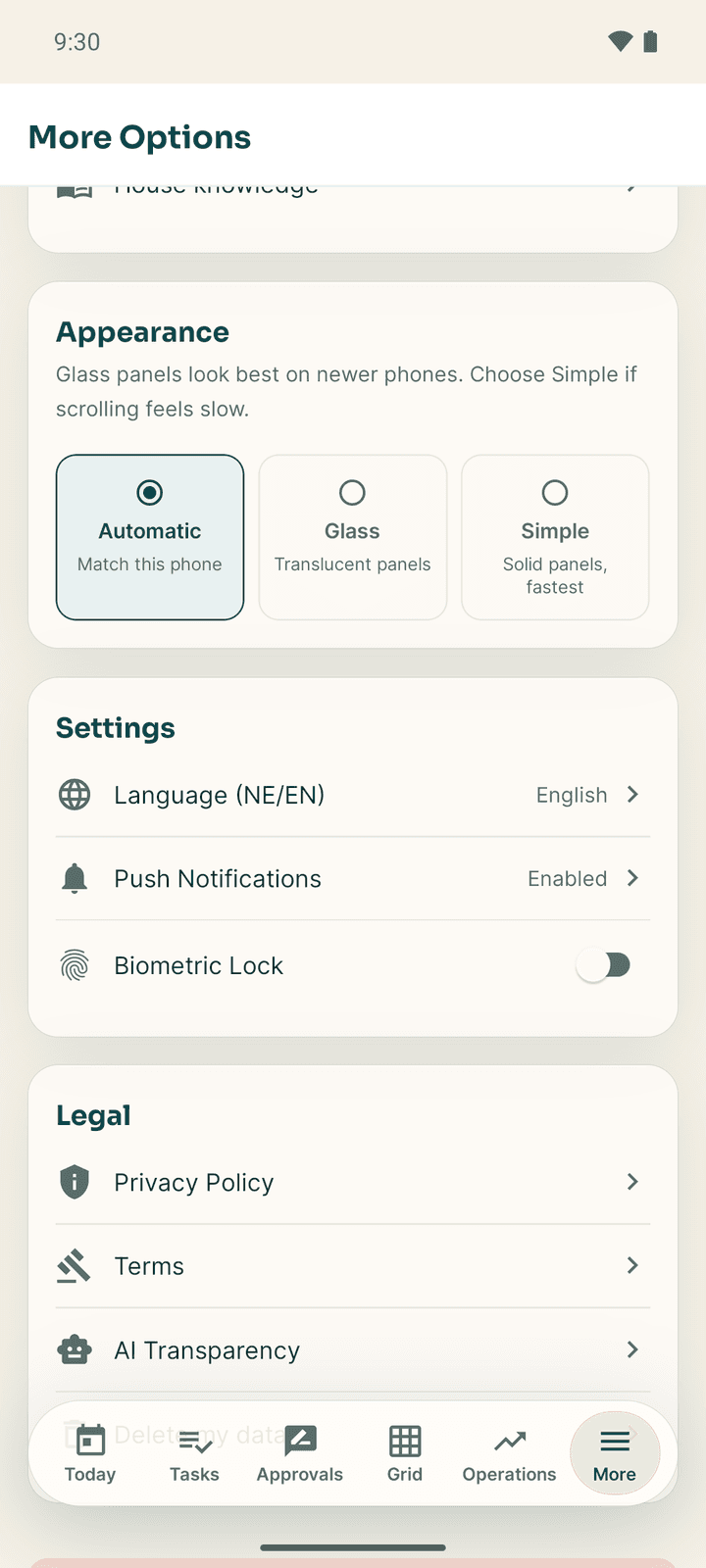
| Setting | What it does |
|---|---|
| Appearance | Automatic (match the phone), Glass (translucent panels) or Simple (solid panels, fastest on older phones) |
| Language (NE/EN) | Tap to switch the whole app between English and नेपाली (Nepali) |
| Push Notifications | Shows Enabled. Change notifications in the phone's settings. |
| Biometric Lock | When on, Connect asks for your fingerprint or face each time it opens, and after 5 minutes in the background. It only works on a phone with a fingerprint or face set up. Log Out on the lock screen signs you out. |
| Legal | Privacy Policy, Terms, AI Transparency and Delete my data open in the browser |
Your name, role (Original Role) and hotel are at the top of More. You cannot change your name or email in the app; ask your manager, or change them in the web app.
For managers: attendance, leave and payroll
Team attendance
More → Team attendance shows Clocked in now, sessions that Need review, Unclosed sessions, Monitoring lost (someone turned location off), Off-site requests and Active off-site work.
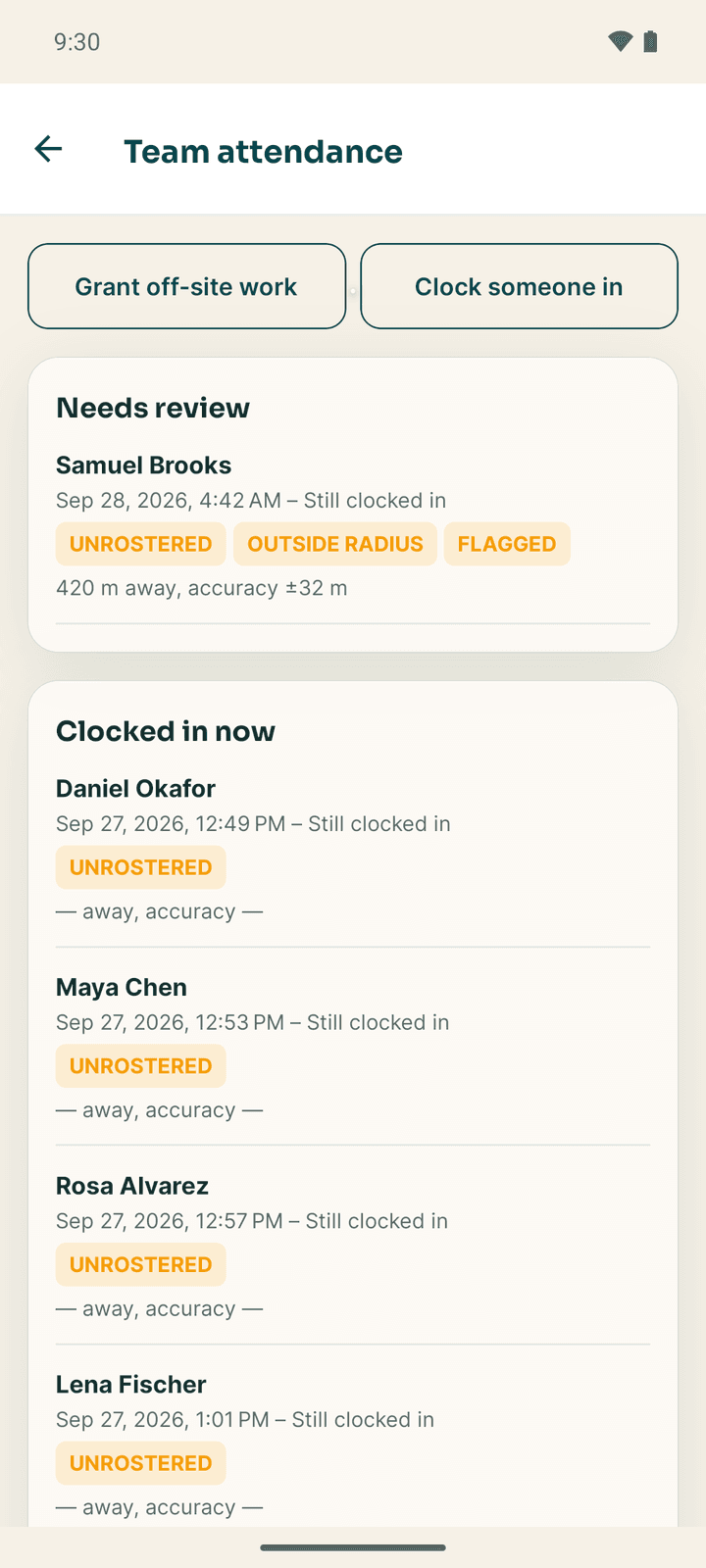
- Tap a session under Needs review to see the selfie, the distance from the hotel and the GPS accuracy, then Accept or Reject.
- Tap an unclosed or wrong session to correct a time. Give a reason; every correction is logged.
- Approve or Decline off-site requests. Grant off-site work lets someone go for 1 to 24 hours (or a custom length) with a reason.
- Clock someone in (if the hotel allows manual clock-in) is for a staff member whose GPS fails. It is logged with your name and the reason.
Attendance settings (owner)
More → Attendance settings. Only the owner can change them; others see them read-only.
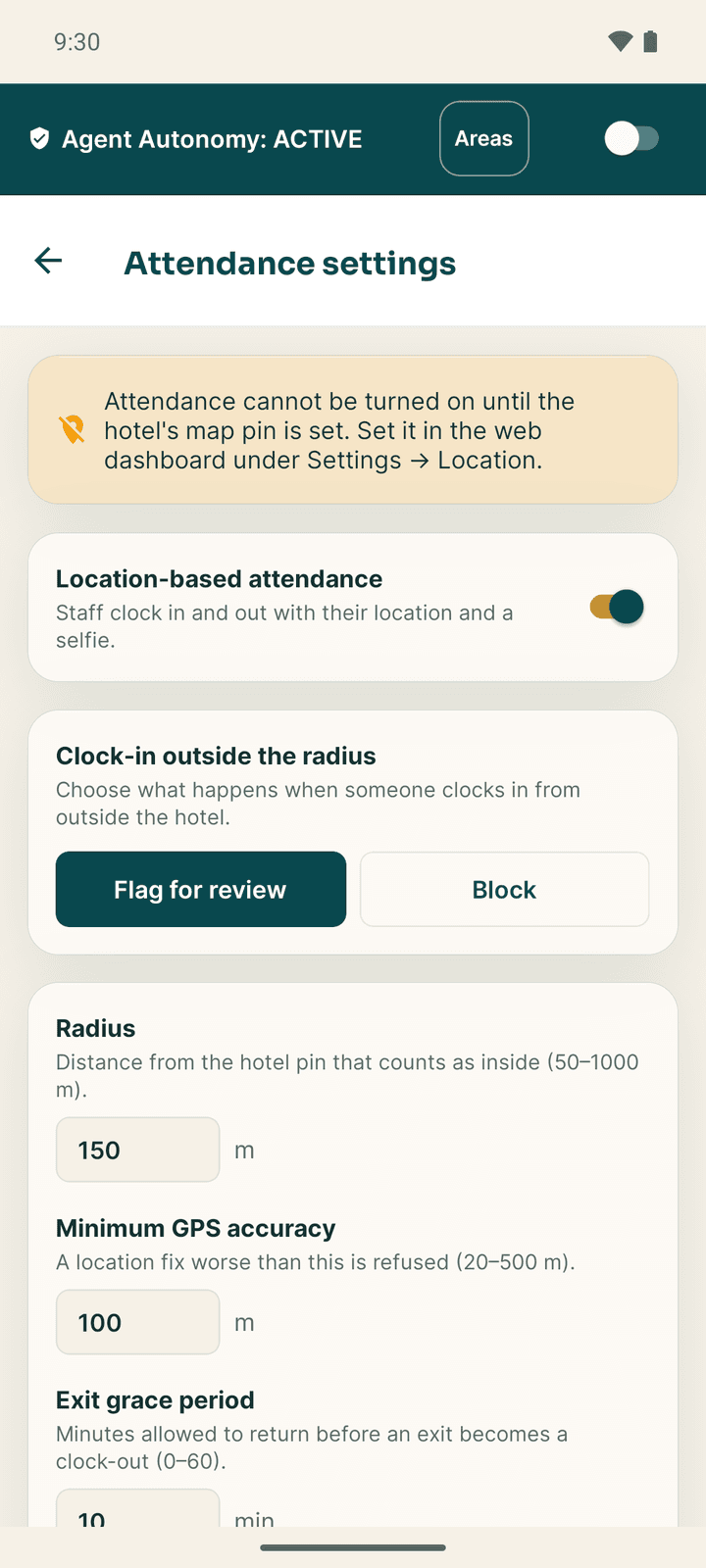
| Setting | What it controls |
|---|---|
| Location-based attendance | Turns clock-in with location and a selfie on or off. It needs the hotel's map pin, set in the web app under Settings → Location. |
| Clock-in outside the radius | Flag for review (accept it and mark it) or Block (refuse it) |
| Radius | How far from the hotel's pin counts as "at the hotel", 50 to 1,000 m |
| Minimum GPS accuracy | The roughest location reading accepted, 20 to 500 m |
| Exit grace period | Minutes someone may be outside before being clocked out, 0 to 60 |
| Clock out on exit | Whether leaving clocks the person out |
| Unclosed after a shift / Unclosed with no shift | When a session nobody closed is closed automatically |
| Selfie retention | Days before selfies are deleted, 7 to 365 |
| Allow manual clock-in | Lets managers clock someone in by hand |
Tap Save settings.
Decide leave
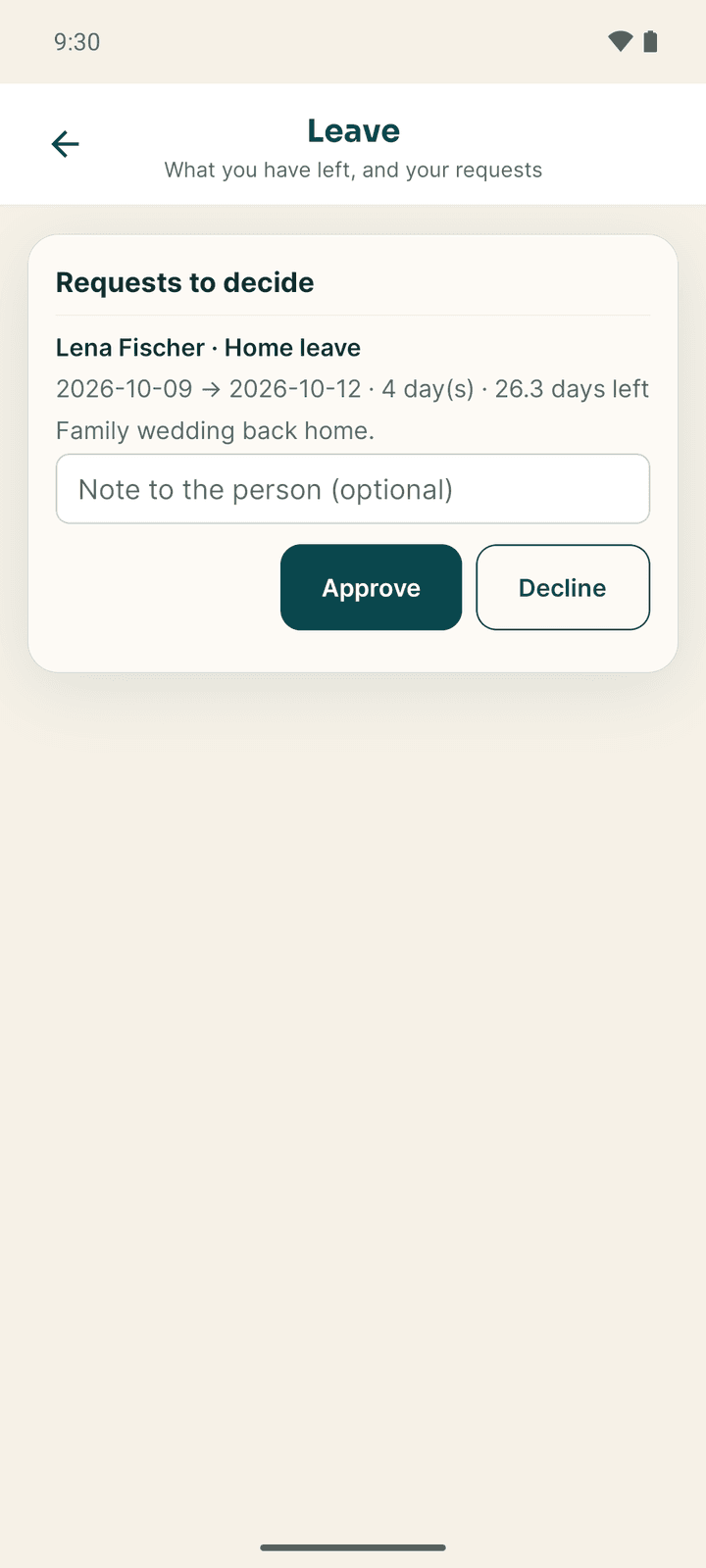
Managers and owners see Requests to decide at the top of More → Leave. Each request shows the person, the kind of leave, the dates, the days and their balance. Add a Note to the person (optional) and tap Approve or Decline.
Payroll (owner)
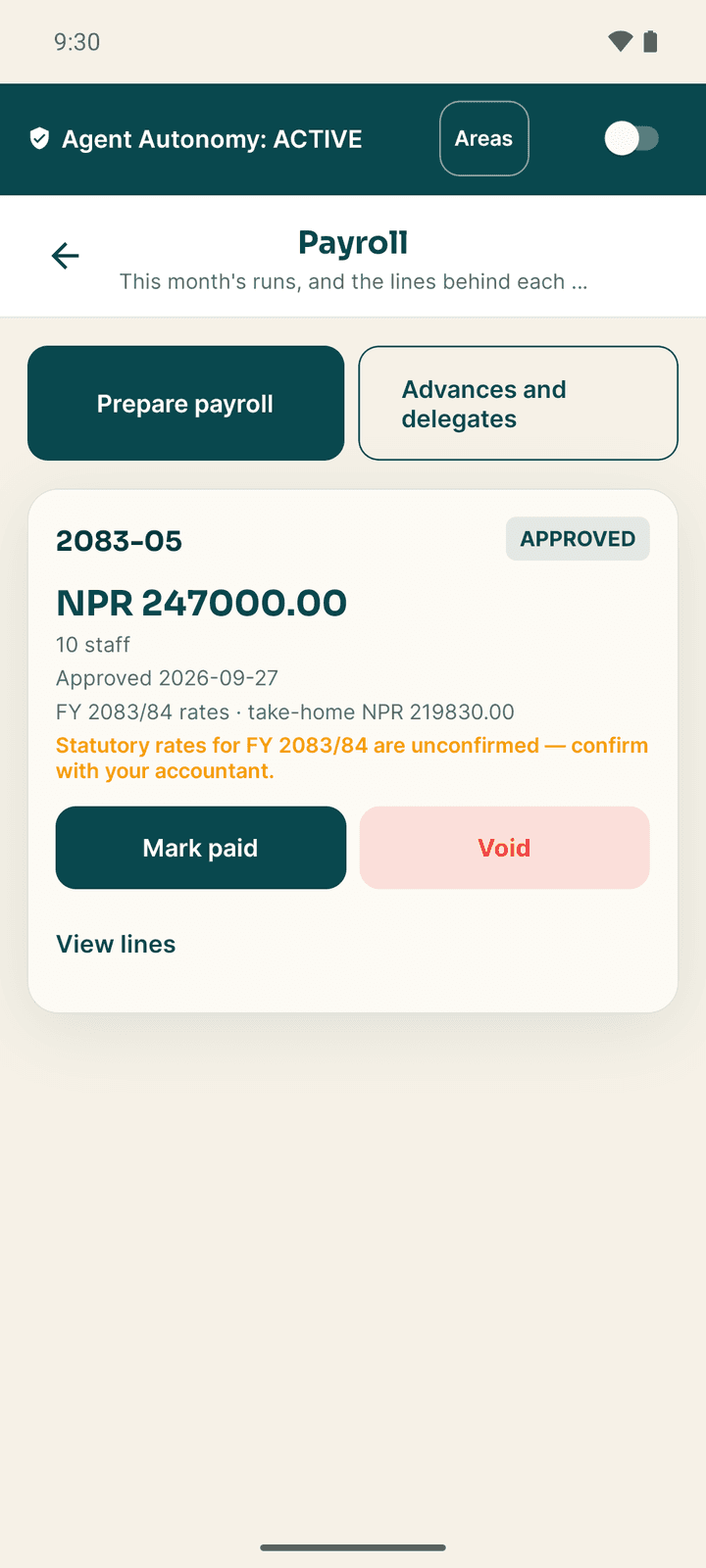
More → Payroll shows the month's payroll runs. Prepare payroll builds a run for a month (it can include overtime and unpaid absence from attendance, and a final settlement for someone who has left); the run waits in Approvals. An approved run can be marked Mark paid or Void, and each line can be adjusted with a reason. Advances and delegates records salary advances and loans, and lets the owner allow a manager to run payroll. Every payroll change asks for your fingerprint or PIN. See Team.
Staff
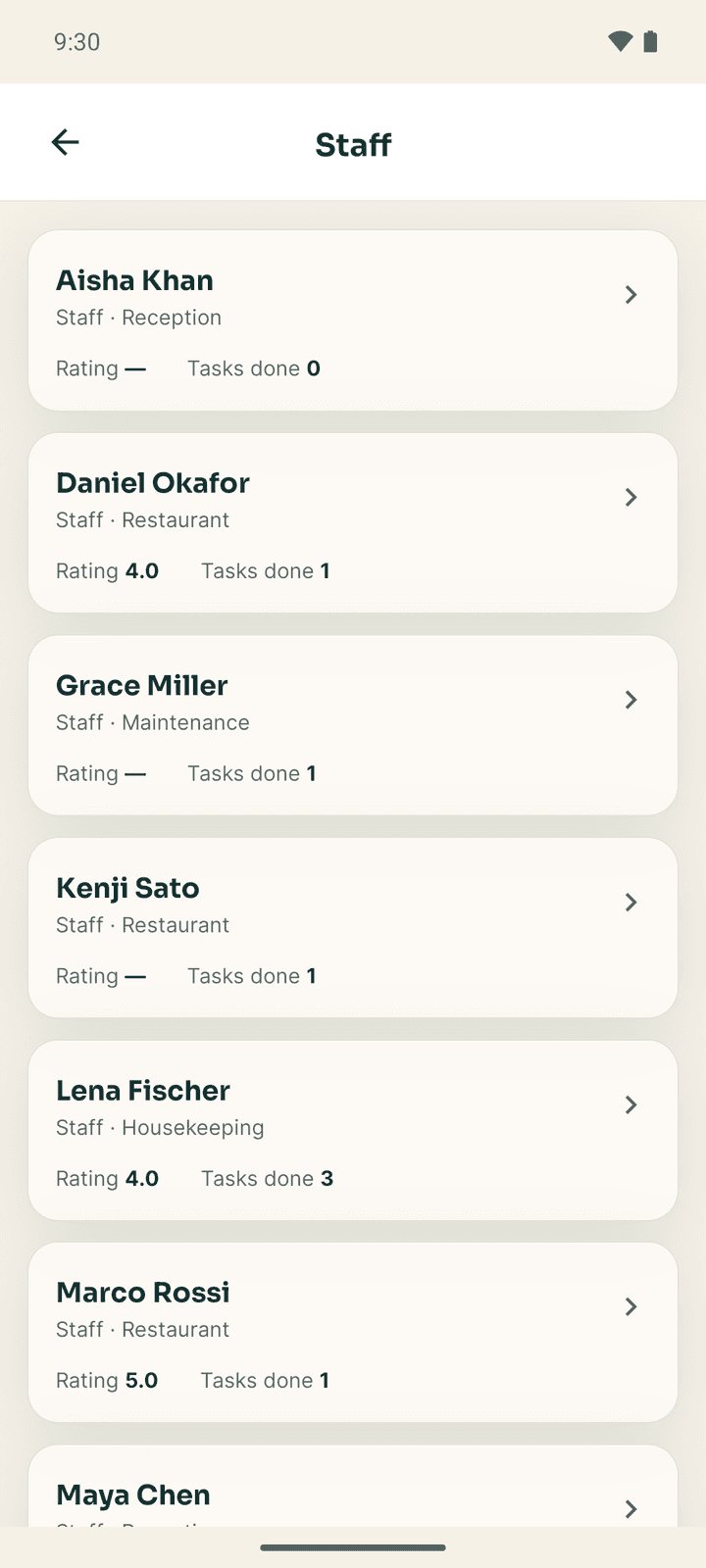
More → Staff lists everyone at the hotel with their rating and tasks done. Open a person to see their jobs (Change to reorder, add or remove jobs), their task figures and recent tasks. End employment signs them out, closes their attendance, cancels future shifts and marks a final settlement; close their cash drawer first. New staff are added in the web app.