
Getting started with Connect
Stayantra Connect is the phone app for hotel staff, managers and owners. It holds your work for the day: your tasks, the rooms, the kitchen tickets, the front desk, your attendance and your leave. It talks to the same hotel as the web app, so a change in one shows in the other.
Where to get it: Google Play, Android only, by invitation (see below). Who can use it: anyone with a Stayantra login at the hotel: owners, managers and staff.
Install Connect
Connect is in Google Play closed testing during launch. Google Play shows it only to people on its tester list, so it cannot be found by searching the Play Store. There is no iPhone app yet; staff with an iPhone use the web app in Safari.
[!IMPORTANT] Stayantra turns this on. Each person who needs Connect must be added to the app's tester list with the Google account on their Android phone. Ask for it from Help → Open a support ticket, listing each person's name and the Gmail address on their phone.
Get a Stayantra login
Your manager or owner adds you in the web app under Team → Staff. You receive an email to set your password. See Staff and owners.
Accept the tester invitation
Stayantra sends your hotel a Google Play link. Open it on your phone while signed in to the Google account that was added, and accept the invitation to test.
Install
Tap Install on the Play Store page for Stayantra Connect.
The full steps for the owner are in Install the apps.
Sign in
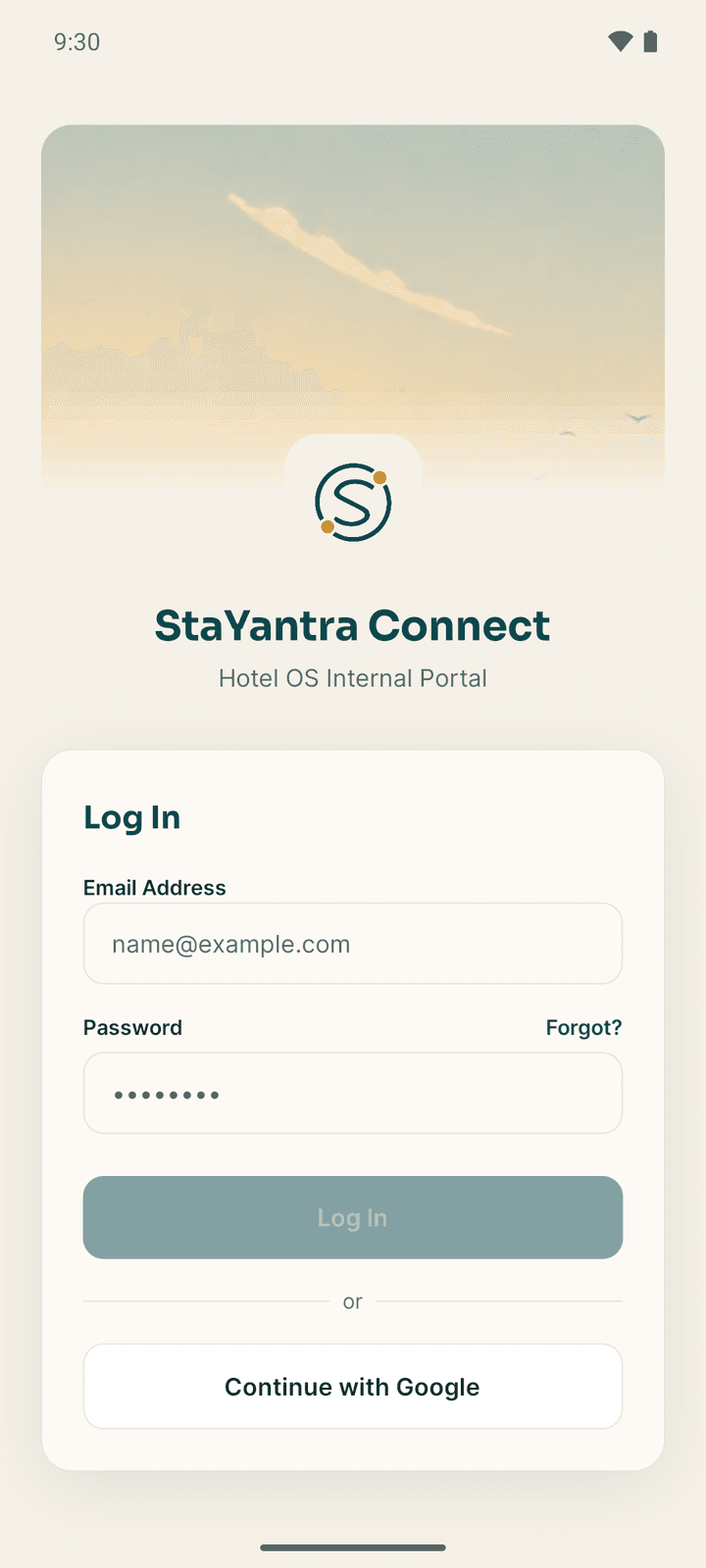
- Open Connect. The Log In card asks for your Email Address and Password.
- Type the same email and password you use for the web app, then tap Log In. The button stays grey until both fields are filled.
- If your account was made with Google, tap Continue with Google instead and pick the account.
There is no QR code, pairing step or phone-number code. If the details are wrong you see Login Failed.
Forgot your password
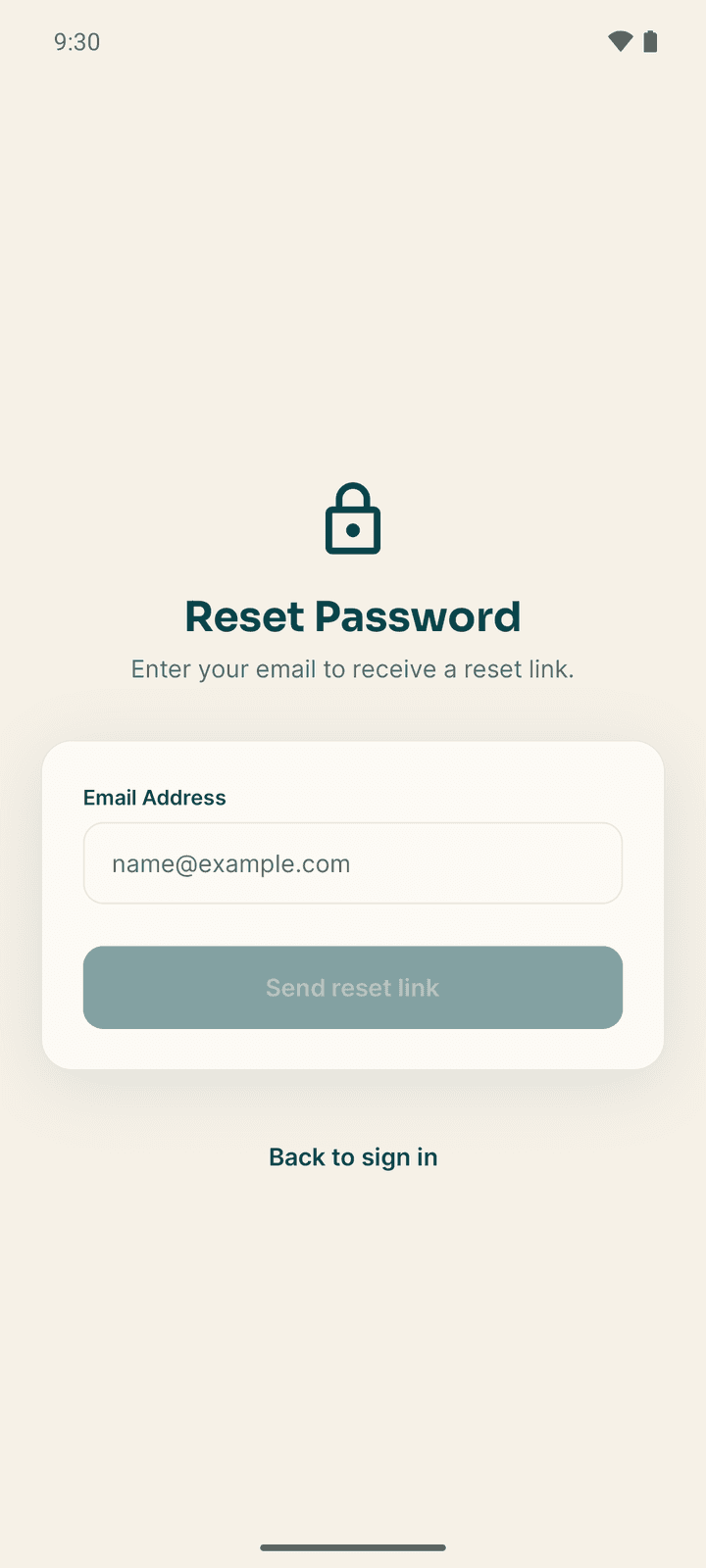
Tap Forgot? beside the password label. On Reset Password, type your Email Address and tap Send reset link. You see Email sent: if an account exists for that email, a reset link is on its way. Open the link from your email, set a new password, then come back and sign in. Back to sign in returns to the login screen.
If you work at more than one hotel
Your first hotel opens after sign-in. To change hotel, open More. Under your name, tap the hotel name (Switch Hotel Context:) and pick the other hotel. The app reloads for that hotel. The list only shows when your account is assigned to more than one hotel.
The tabs
The bar at the bottom of the screen changes with your role and your jobs.
| Tab | Who sees it | What it holds |
|---|---|---|
| Today | Everyone | Your home screen. Staff see the board for their job; managers and owners see a dashboard. |
| Tasks | Managers and owners; staff whose jobs receive tasks (housekeeping, front desk, maintenance, service, bellhop, cashier); anyone who has been given a task by hand | Your tasks for today, and open tasks you can take. Managers see every dispatched task. A number on the tab shows how many tasks you have waiting or in progress. |
| Approvals | Managers and owners | Exubee's proposals and requests that need a decision. See Exubee and approvals. |
| Grid | Front desk, managers and owners | The room grid for the next 14 days. |
| Operations or Financials | Managers see Operations; owners see Financials | Occupancy, bookings, staff throughput and, for owners, revenue and expenses. |
| More | Everyone | Every other screen you are allowed to open, your settings, and Log Out. |
Today: your job decides the board
A staff member's Today tab opens the board for their main job. If you have two jobs, two buttons at the top switch between them.
| Your job | Board on Today |
|---|---|
| Front desk | Today board: every room for the business date, with arrivals, departures and dirty rooms |
| Cashier | Cashier desk: your cash drawer and a search for guest bills |
| Housekeeping | Rooms: the room status board |
| Kitchen | Kitchen: the tickets to cook |
| Service (waiter) | Waiter: table orders and table bookings |
| Bellhop | Arrivals: who arrives and leaves today |
| Security | Security log |
| Any other job, for example maintenance | My tasks |
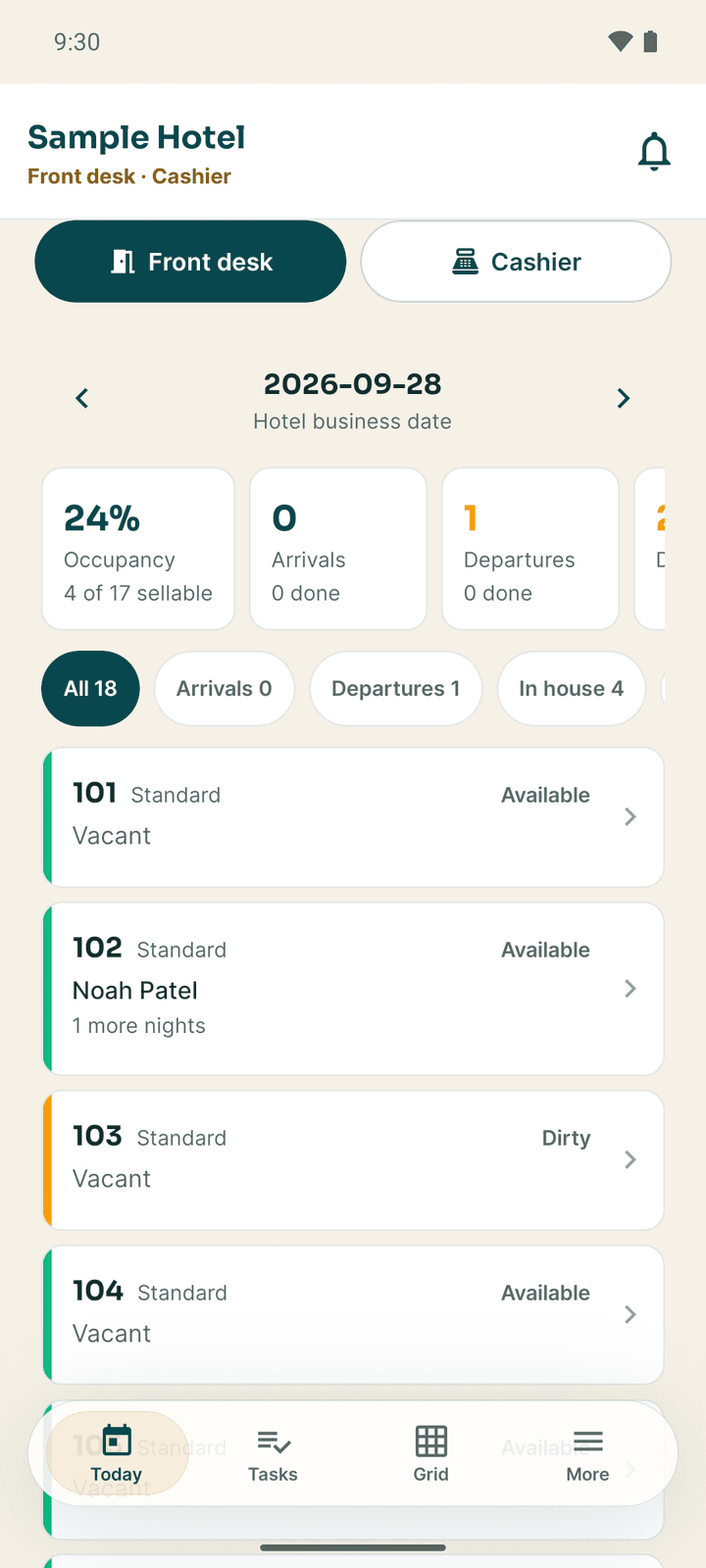
When you start a task, a Work screen for that task takes over Today until you finish it. Back to my board folds it into a bar that reads "Working on …".
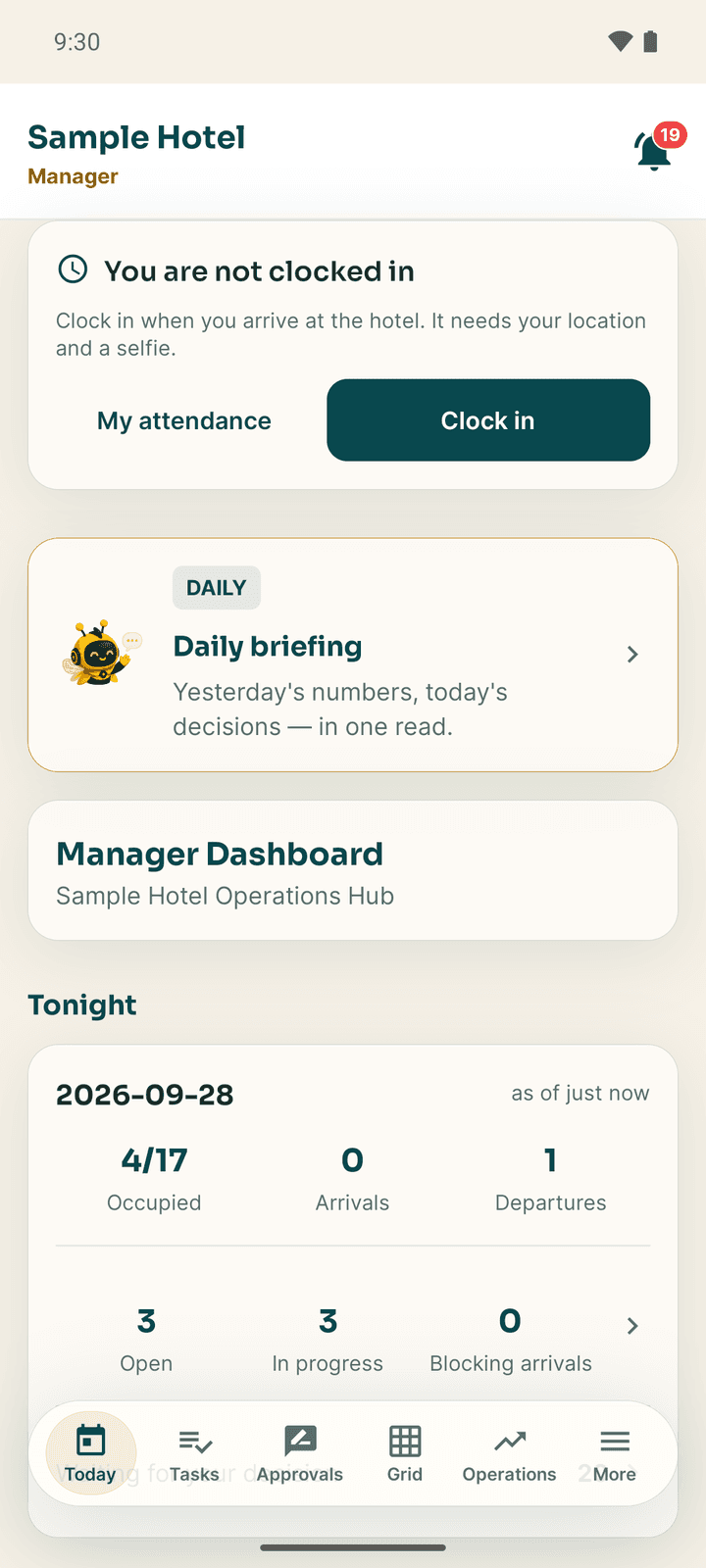
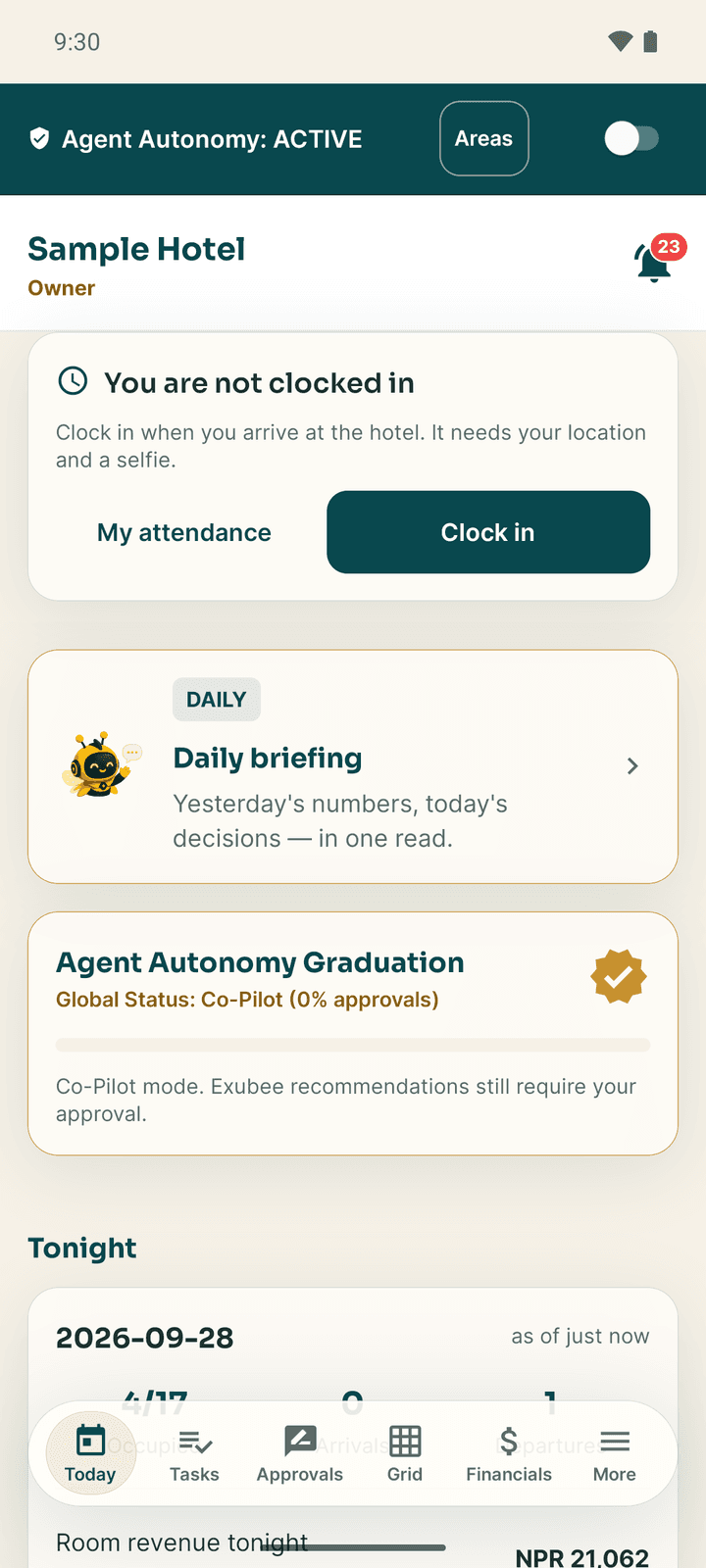
If the hotel uses attendance, a clock card sits at the top of Today: Clock in before you start, Clock out when you leave. See My work.
Managers and owners see the Manager Dashboard (tonight's occupancy, arrivals, departures, revenue and tasks) with a Daily briefing card and the Exubee actions waiting for approval.
Owners also see a bar across the top of every screen: Agent Autonomy: ACTIVE with a switch. The switch pauses every automatic action Exubee takes at the hotel ("Auto-Pilot paused — Exubee still chats and proposes"); switch it back to resume. Areas pauses one area only, for example pricing, while the others carry on. See Exubee and approvals.
More: everything else
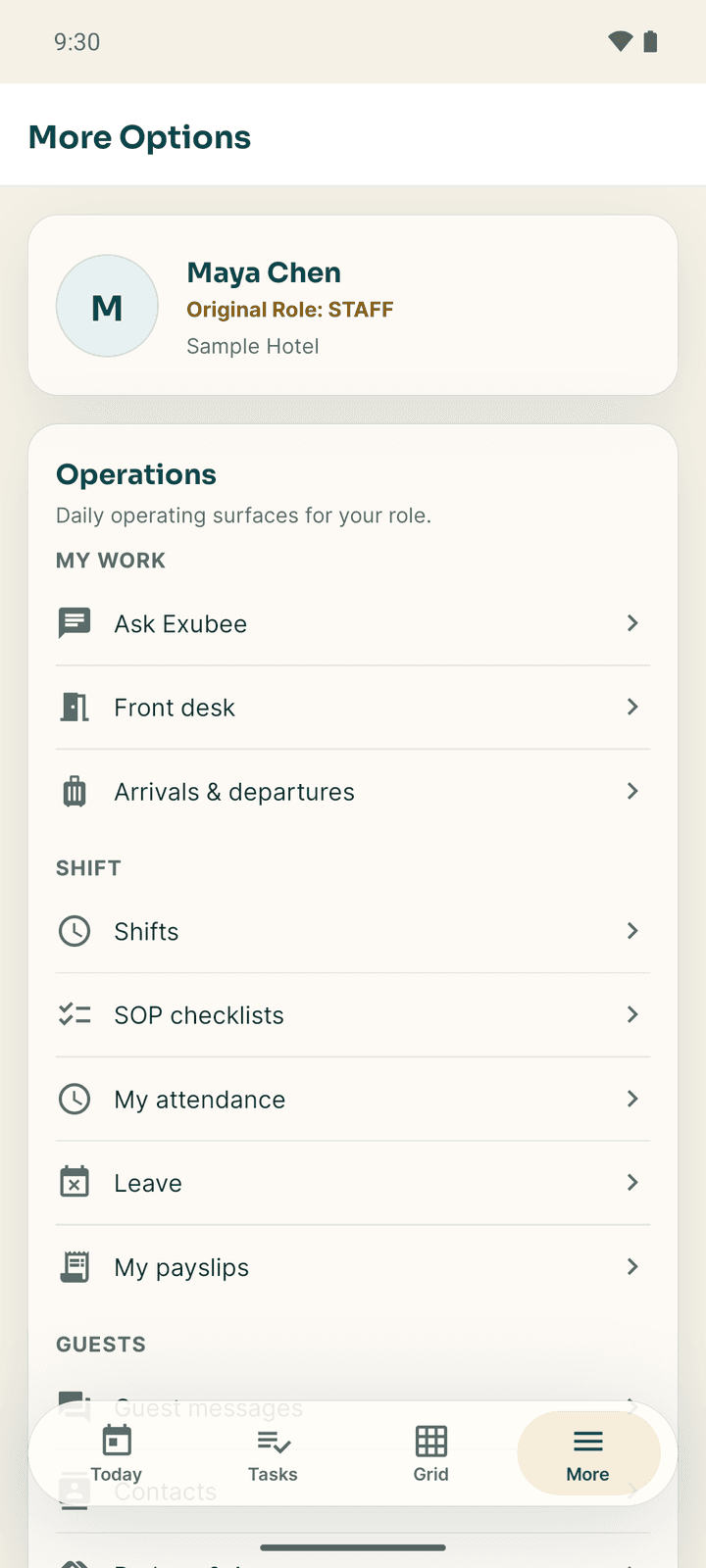
More (titled More Options) lists the screens your role may open, grouped under My work, Shift, Guests, Stock & purchasing, Money & people and Reports. A row you are not allowed to use is hidden. A row whose module is not in the hotel's plan shows a padlock; tapping it explains which plan includes it. A board that is already on your Today tab is not repeated here.
What you see depends on your role and jobs
Stayantra has three roles: owner, manager and staff. Staff also carry one or more jobs (the web app calls them skills): front desk, cashier, housekeeping, maintenance, kitchen, service, bellhop, security and store. Your manager sets them in the web app under Team → Staff.
| Job | What it opens in Connect |
|---|---|
| Front desk | Front desk, Today board, Grid, arrivals and departures, bookings, check-in and check-out, guest messages, brokers and agents |
| Cashier | Cashier desk, cash drawer shifts, recording payments, refunds owed, billing restaurant orders |
| Housekeeping | Room status board, cleaning tasks, linen, lost and found, minibar checks, fault reports |
| Maintenance | Work orders, the asset register, preventive schedules, fault reports |
| Kitchen | The kitchen ticket board and item availability |
| Service | The waiter board: table orders, bills and table bookings |
| Bellhop | Arrivals and departures, lost and found |
| Security | The security incident log |
| Store | Purchase requests, receiving goods, market purchases, issuing stock and stock counts |
Every staff member can also see their own tasks, the contacts directory and emergency numbers, the emergency manifest, SOP checklists, their attendance, leave and payslips, and Ask Exubee (when the hotel has the Co-Pilot add-on).
Managers and owners see everything their staff see, plus approvals, the team, payroll, reports and settings. An owner or manager can check what a staff job sees with More → Preview as. Actions are off while previewing.
The guides for each job:
- Front desk and cashier
- Housekeeping
- Maintenance and security
- Kitchen and service
- Store and purchasing
- My work: attendance, leave, pay and settings
For managers and owners
Connect carries the manager's side of the hotel too. Each screen matches its web-app page.
Approvals
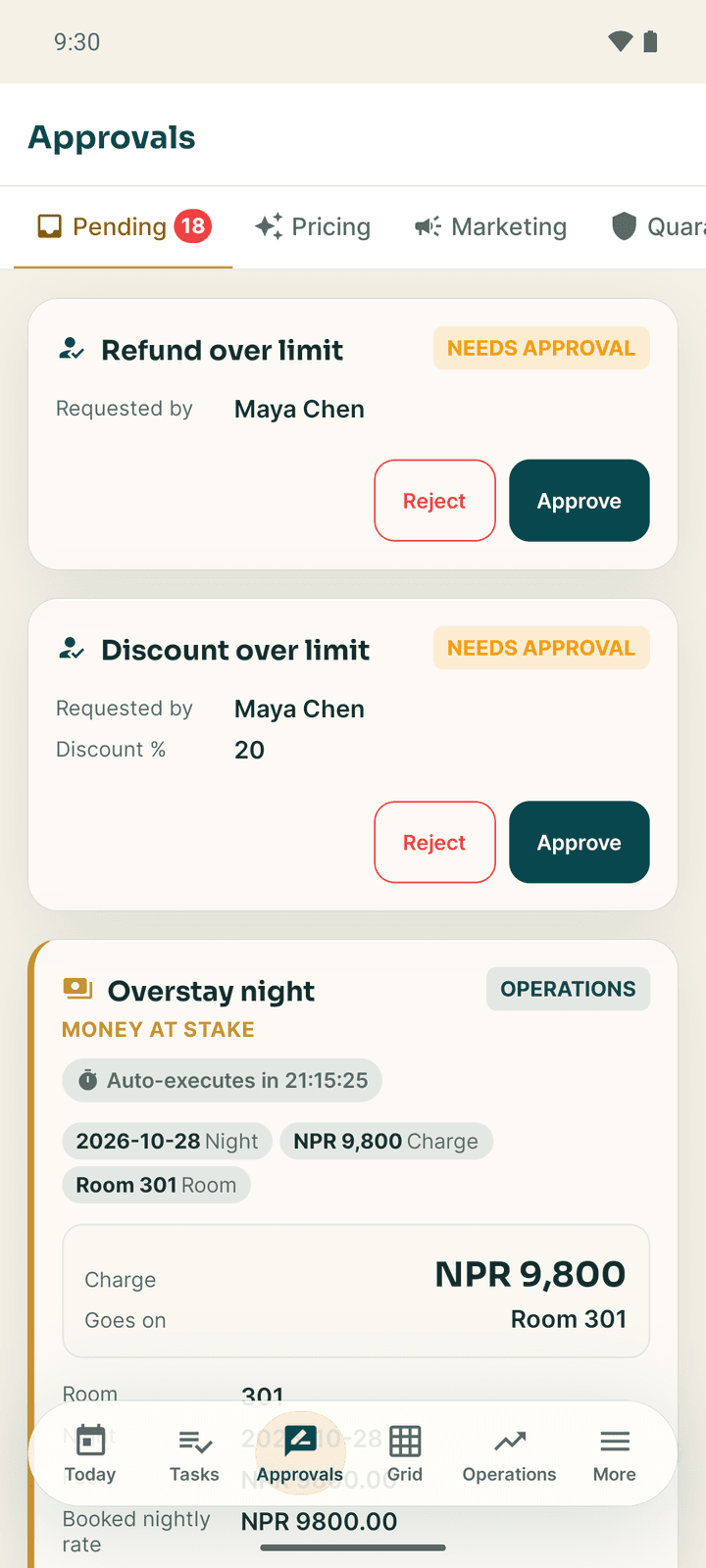
The Approvals tab lists what is waiting for a decision under Pending (the number on the tab): Exubee's proposals (a price change, an overstay night charge, a task dispatch, a campaign) and requests from staff that are over their limit (a discount, a refund, a purchase order). Each card shows what would happen and its value.
- Approve carries it out. Reject asks why (Too aggressive, Wrong timing, Wrong target, Factually wrong, Other reason). Edit changes it before it runs, with a note.
- "Auto-executes in …" means the proposal runs by itself at that time unless you decide first.
- Pricing and Marketing open a chat with Exubee about those proposals (Co-Pilot add-on). Quarantine holds low guest reviews for you to Publish Review or Report to Stayantra. Activity shows what Exubee did and what you decided.
Decisions made offline are sent when you are back online. See Exubee and approvals.
The daily briefing
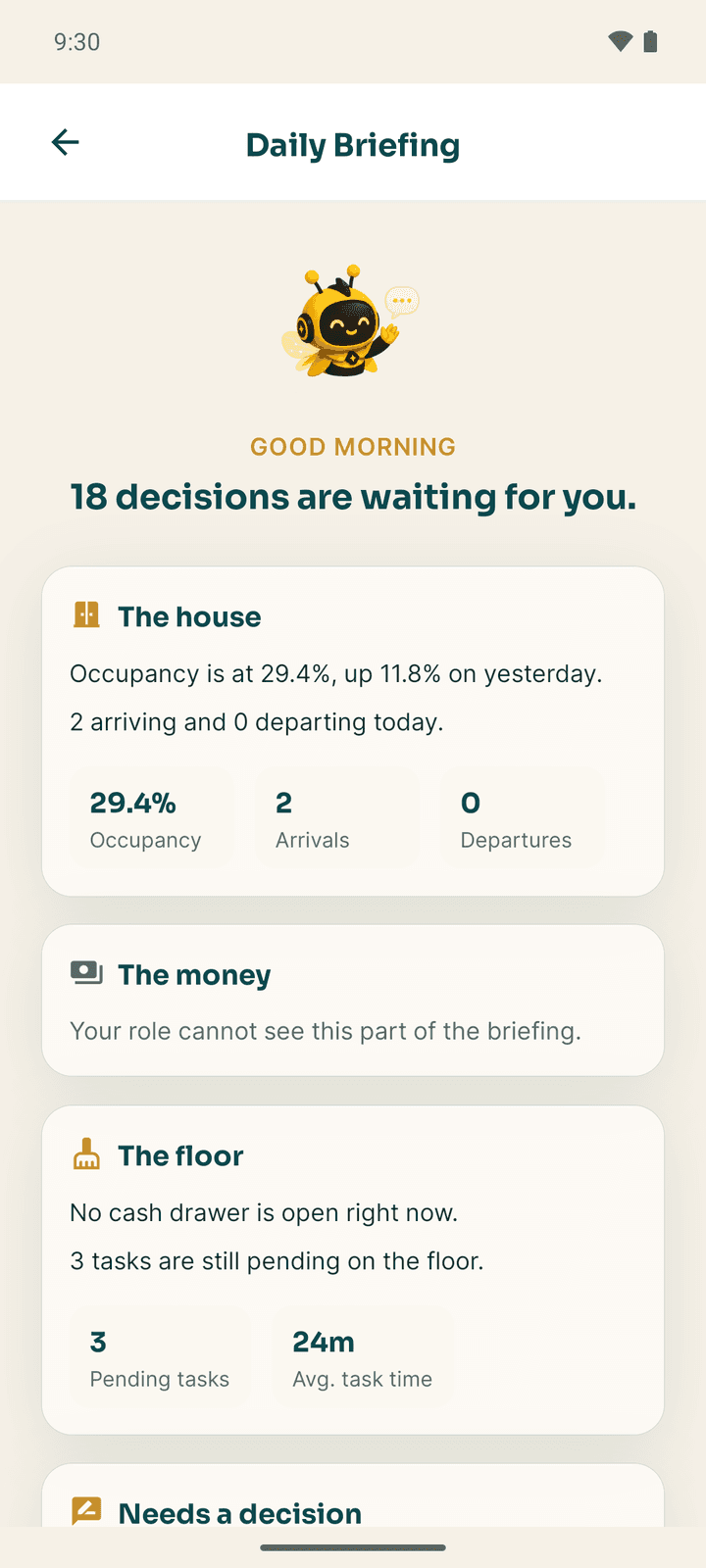
The Daily briefing card on Today (or More → Daily briefing) is Exubee's written summary: The house (occupancy, arrivals, departures), The money (owners only), The floor, Needs a decision, Exubee and What's on. Open the approval queue jumps to the decisions.
Tasks, complaints and the team
- Tasks (All Dispatched Tasks) shows every task in the hotel. Filter by status, type or staff member. Assign gives a waiting task to someone on shift. A Suspicious tag marks a task done faster than its minimum time; open it and Clear flag and complete if the work was done.
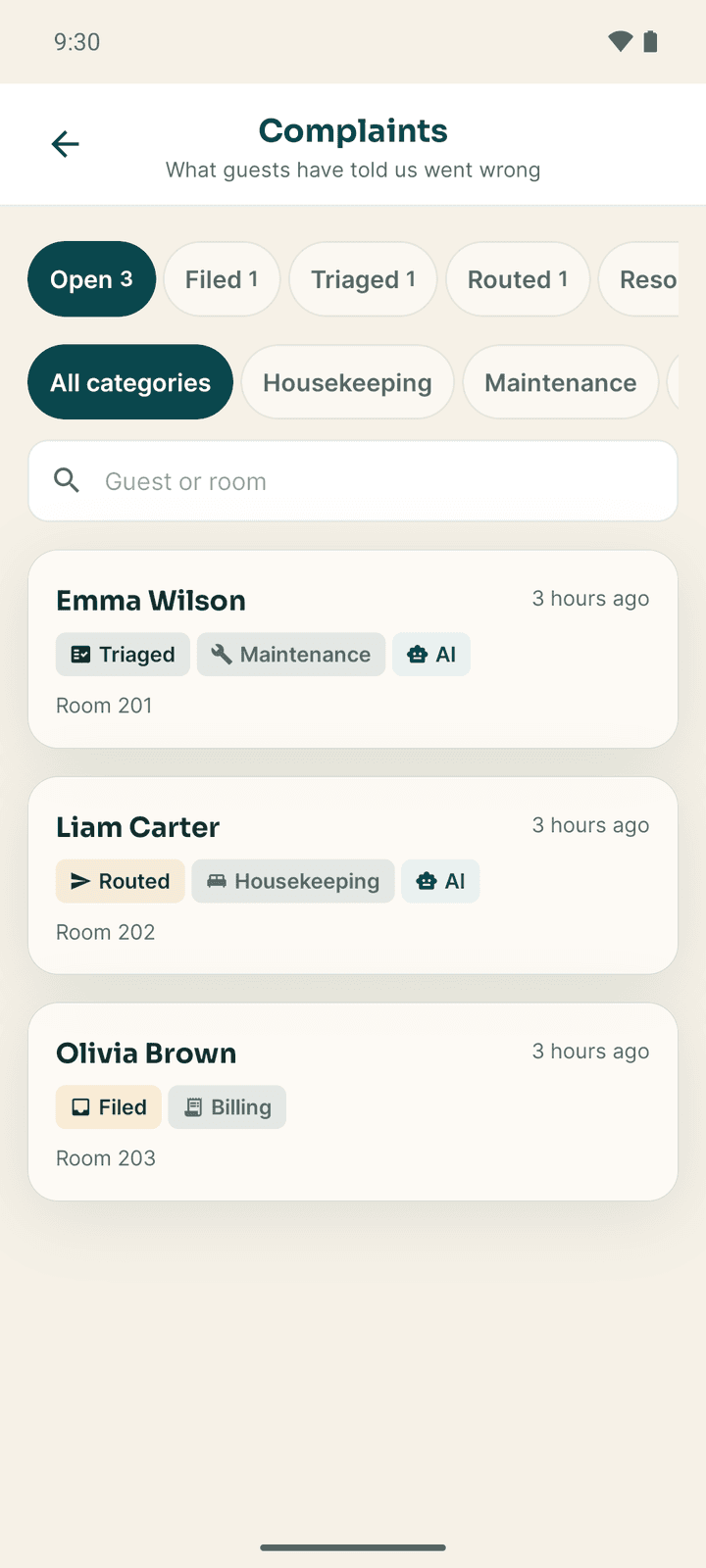
- More → Complaints lists what guests have said went wrong, by status (Filed, Triaged, Routed, Resolved, Dismissed) and category. Open one to read the guest's words and Exubee's recommendation, then move it on: Mark triaged, Mark routed, Mark resolved (say what was done; the guest gets a short message) or Dismiss. See Complaints.
- More → Staff, Team attendance, Leave and Payroll: see My work.
Reports and settings
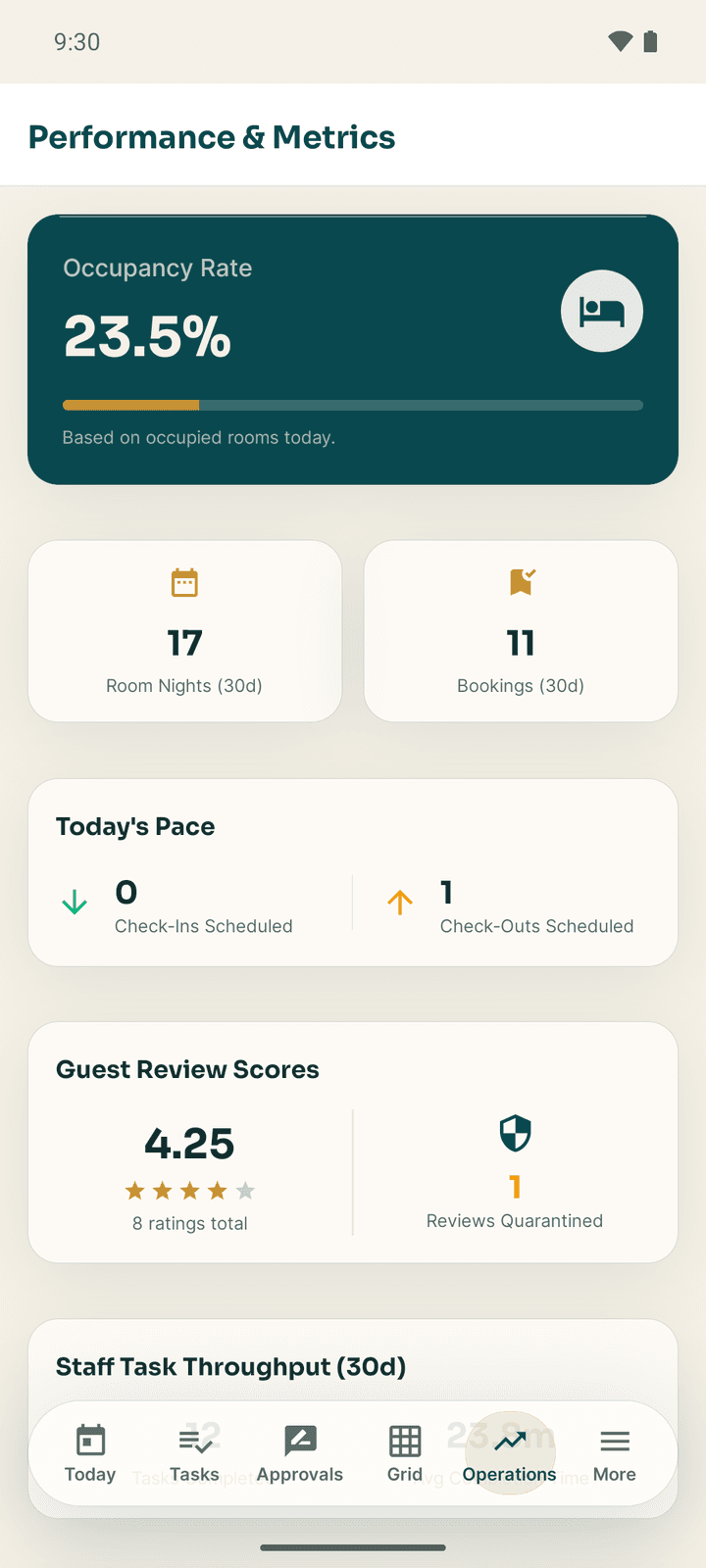
- Operations (managers) or Financials (owners) tab: occupancy, room nights, bookings, today's check-ins and check-outs, review scores, staff task throughput, F&B volume and the staff leaderboard. Owners also see estimated profit, revenue, RevPAR, ADR and expenses.
- More → Hotel health: six areas (Pricing, Operations, Guest experience, Marketing, Events, AI autonomy) graded Healthy, Watch, At risk or Unknown, with the facts behind each grade.
- More → Autonomy report card: how often you agree with Exubee in each area.
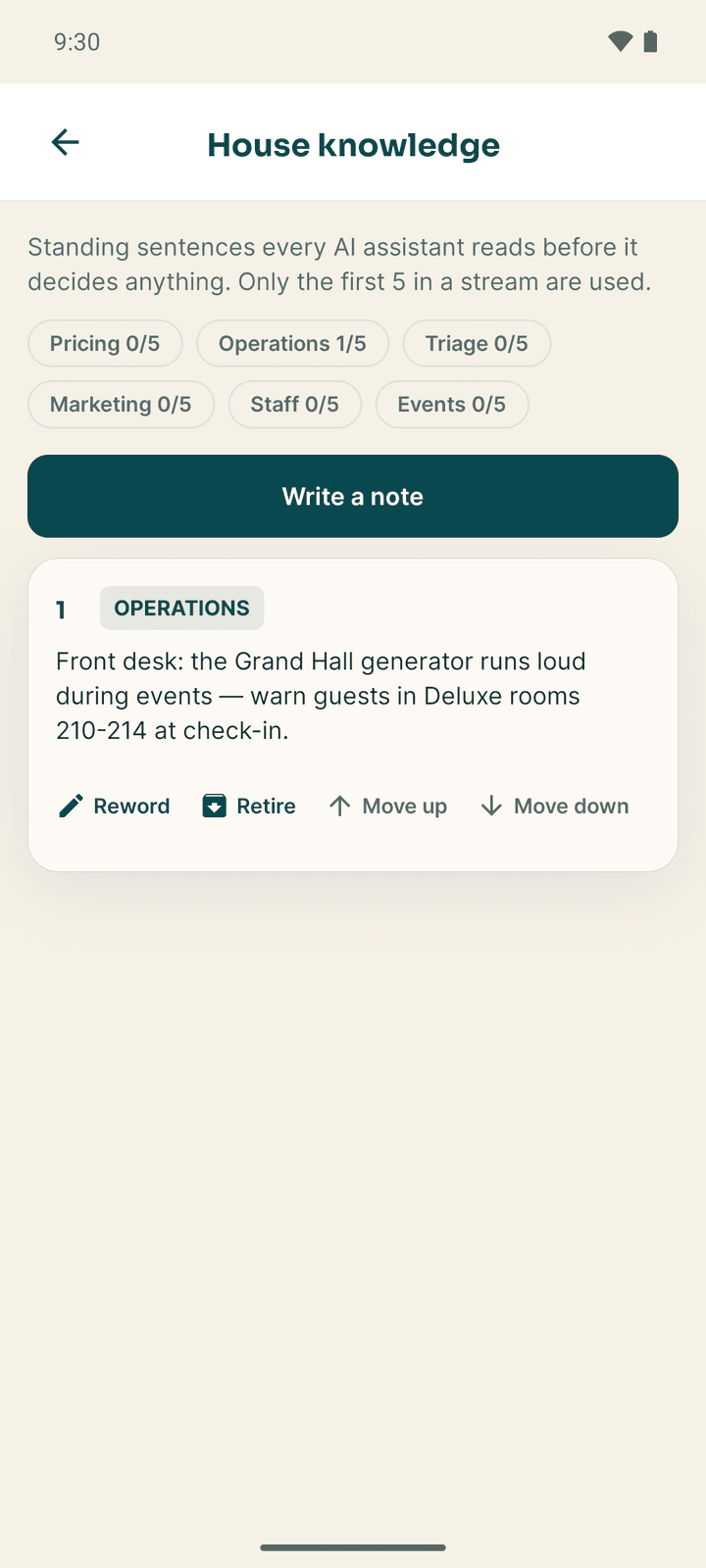
- More → House knowledge: short standing notes every Exubee assistant reads before deciding, such as "The generator only covers the ground floor." Write a note, Reword, Retire, or move one up or down. Only the first five in each area are used. Never write about a particular guest.
- More → Preview as shows Connect the way a manager or a staff job sees it. Actions are off while previewing.
Notifications
When you first open Today, a card asks you to turn on notifications: "Turn on notifications to hear about new tasks and approvals right away." Tap Enable and allow them. Not now hides the card until the next time you open the app.
Notifications arrive for new tasks, approvals, bookings, attendance and general alerts. A task notification has a Start button and an approval notification has Approve and Reject buttons, so you can act from the notification shade. Tapping a notification opens the right screen. The bell at the top of Today opens your Notifications list. See My work.
Working without a connection
Connect keeps working when the signal drops:
- Today, Tasks, Grid and Approvals show the last copy saved on the phone, with the notice Showing saved data.
- Starting and completing tasks, room status changes, approval decisions, SOP ticks and clocking out are saved on the phone and sent when you are back online. A Queued or Syncing... tag shows on the item until then.
- Clocking in, leave requests, payslips, payroll, the assistant and taking payments need a connection.
If something saved on the phone is refused when it is sent, a notice says how many actions could not be saved, so you can do them again.
[!WARNING] Log Out deletes anything still waiting to sync. Get back online and let it send before you log out.
Log out
Open More, scroll to the bottom and tap Log Out. Confirm with Log Out in the dialog.
The mobile apps
Stayantra Connect for hotel staff and Stayantra Go for guests. Who each app is for, how to get it, signing in, notifications, offline use, languages and the app lock.
Front desk and cashier
Check guests in and out, take walk-in bookings, record payments, run the cash drawer and answer guest messages from the Connect app.