
Housekeeping
This page is for housekeepers and housekeeping supervisors using Stayantra Connect. It covers the room status board, cleaning tasks, the photo proof a hotel can require, linen, lost and found, minibar checks and fault reports.
Where to find it: the Today tab (your Rooms board), the Tasks tab, and More → Housekeeping linen. Who can use it: staff with the housekeeping job. Managers and owners see the same screens for the whole hotel and inspect rooms.
The room status board
With the housekeeping job, Today opens Room status ("Mark rooms clean, inspected and ready"). Rooms are grouped in this order: Dirty, Inspected, Occupied, Maintenance, Ready. Each room shows its type and floor.
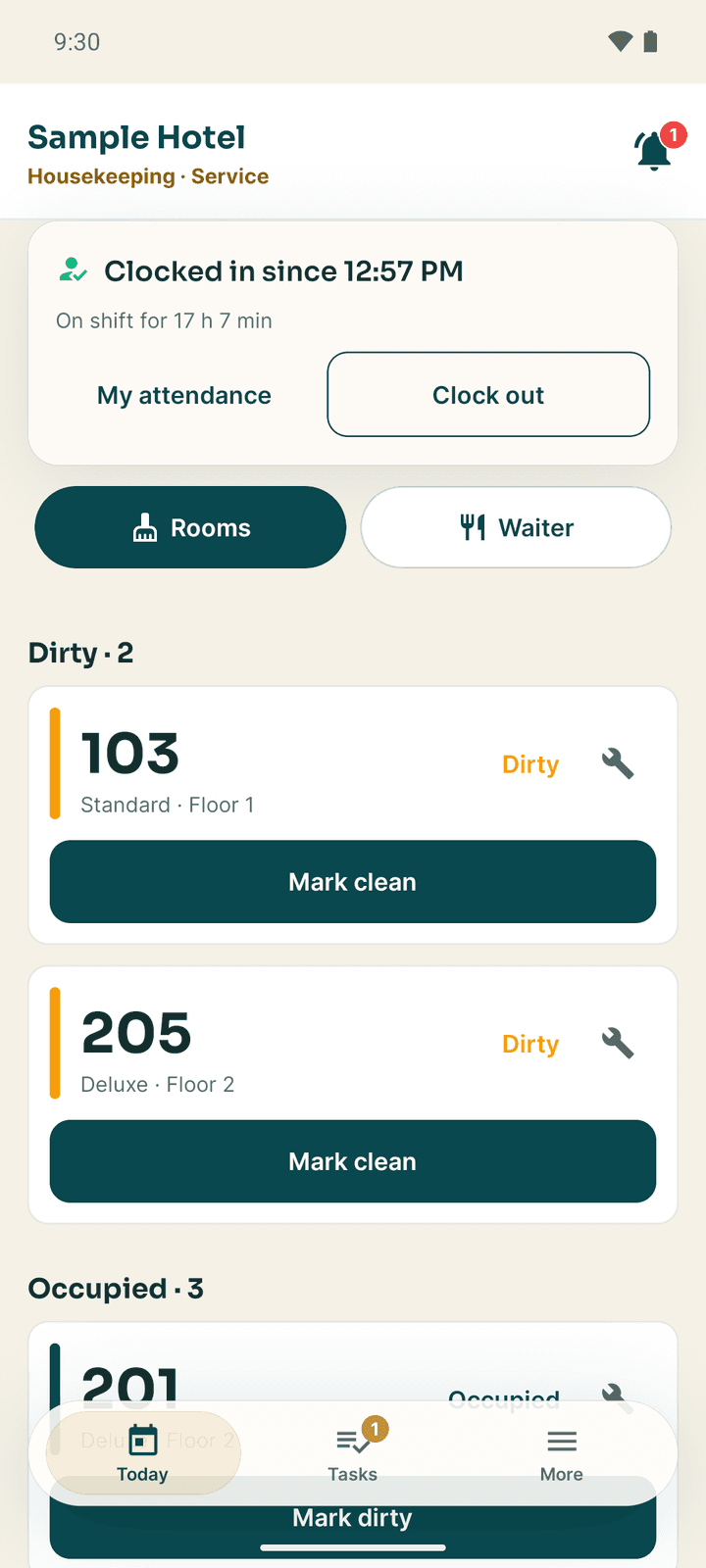
Each room has one button that moves it to the next status:
| Room is | Button | Room becomes |
|---|---|---|
| Dirty | Mark clean | Inspected |
| Inspected | Release for sale | Ready (the front desk can sell it) |
| Occupied | Mark dirty | Dirty |
| Maintenance | Back in service | Ready |
Without a signal the change is kept on the phone: "Saved on this phone", and a Queued tag on the room until it is sent.
When the hotel inspects after cleaning
Some hotels have a supervisor check every room after it is cleaned. Then a housekeeper sees Mark cleaned on a dirty room, and the room waits as Awaiting inspection. The supervisor (a manager or owner) taps Pass inspection, or Send back with a note under What must be redone ("Housekeeping gets one more clean with your note."). The room is not ready until it passes.
Your tasks
The Tasks tab (My Tasks for Today) lists the work dispatched to you: cleaning, inspections, room service, luggage and requests from guests. The number on the tab is how many are waiting or in progress.
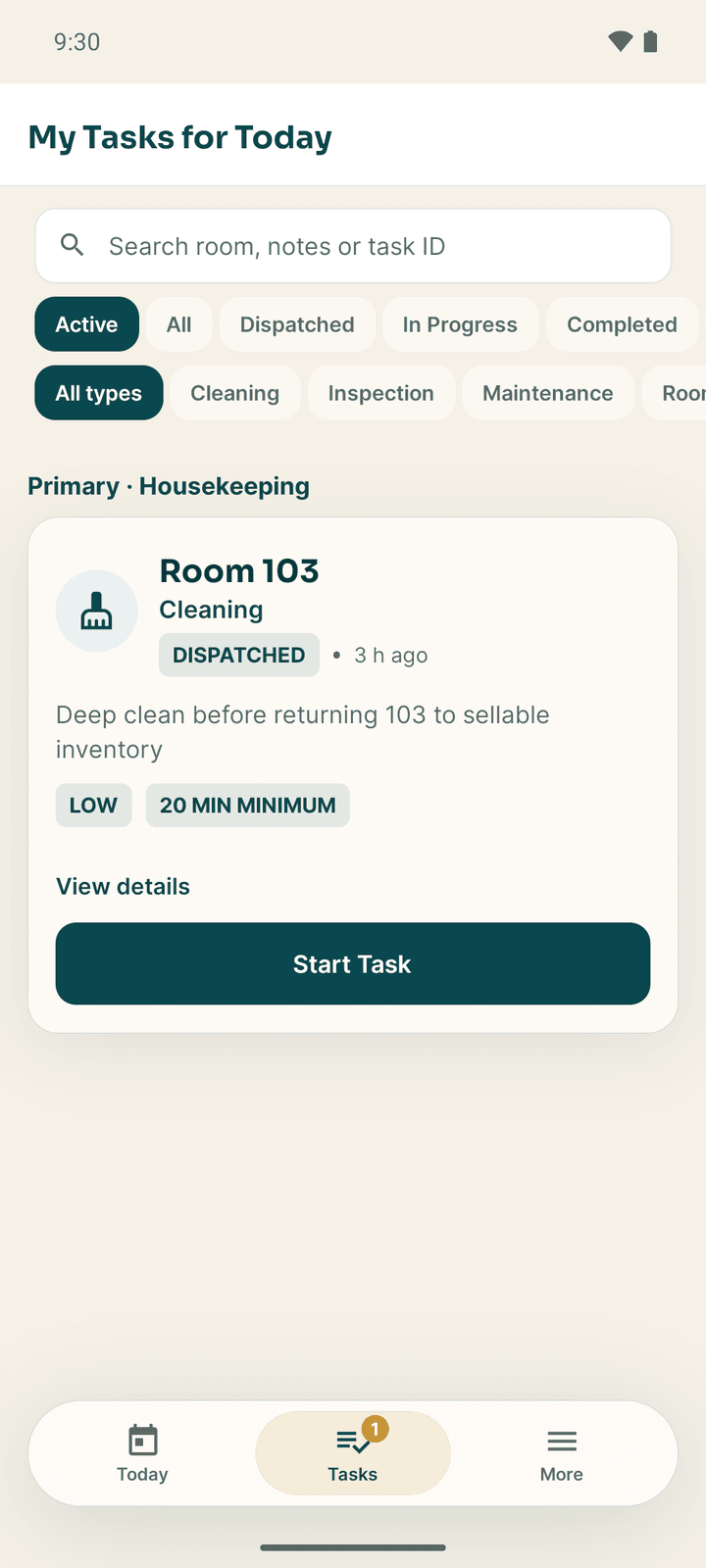
- Tasks are grouped by job. Under each job come your own tasks first, then open tasks anyone with that job can take. Tap Take this task to make one yours.
- The search box (Search room, notes or task ID) and the chips filter the list: Active, All, Dispatched, In Progress, Completed, Flagged, Cancelled, and the task types.
- Each card shows the type, Room 204, the status, the priority (High Priority, Medium, Low), the notes or the standard steps, and the minimum time the task should take.
| Status | Meaning |
|---|---|
| Dispatched | Waiting for you to start |
| In Progress | You have started it |
| Completed | Done |
| Flagged | Finished faster than the minimum time; a manager will look at it |
| Syncing... | Saved on the phone, waiting for a connection |
Do a task
Start it
Tap Start Task. For cleaning, inspection and maintenance, the camera opens for a Before photo — optional. Take the photo, or tap Skip & start. You can have only one task in progress at a time.
Work from the Work screen
Today now shows the task you are on. For a room clean it has:
- Linen log: tap an item to log linen taken to or from the room.
- Minibar check: record what the guest used.
- Report found item: log lost property found in the room.
- Report a fault: send a repair to maintenance.
Back to my board folds the task into a bar reading "Working on …".
Complete it with proof
Tap Complete Task (or Complete task on the Work screen). Under Completion Proof (Optional), tap Capture Photo Proof and photograph the finished room; Retake if it is not clear. Add Notes, for example "Linen swapped, bathroom sanitized. No issues found." Tap Submit Proof.
Some hotels require an after photo before a room can be closed. Then you see "An after photo is needed to close this task." Without it, a completion is refused when it syncs, and the card shows Not saved yet with Fix and send again.
A room inspection task shows Pass and Fail instead. Pass makes the room ready to sell; Fail sends it back for another clean and needs a short note.
Task details
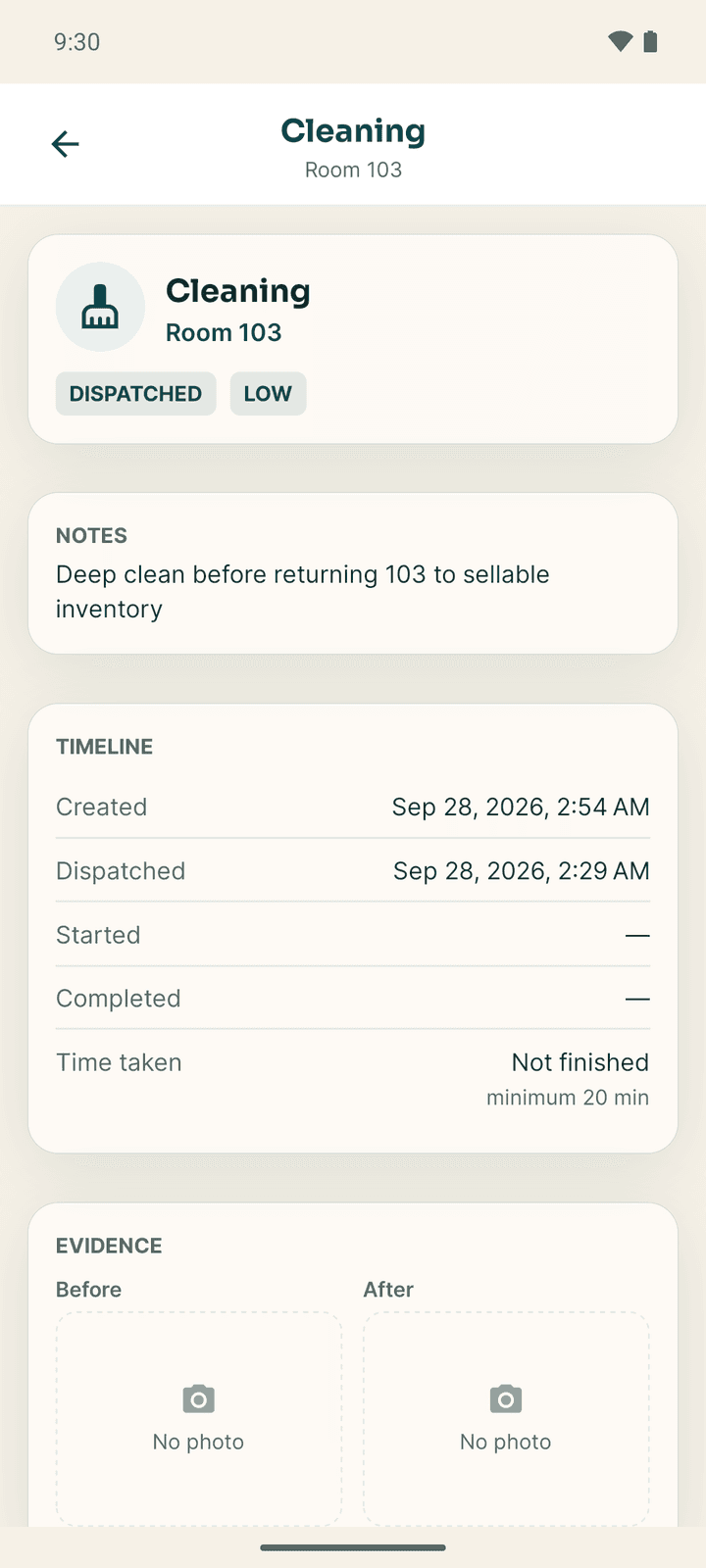
Tap View details on a card to see the notes, who it is assigned to, the Timeline (created, dispatched, started, completed, and the time taken against the minimum), the Before and After photos and, for managers, the guest's rating.
Linen
Open More → Housekeeping linen and choose Linen. Each item shows how many are Clean, In room, Soiled, at the Laundry, and the Par level. Below par marks items that need restocking.
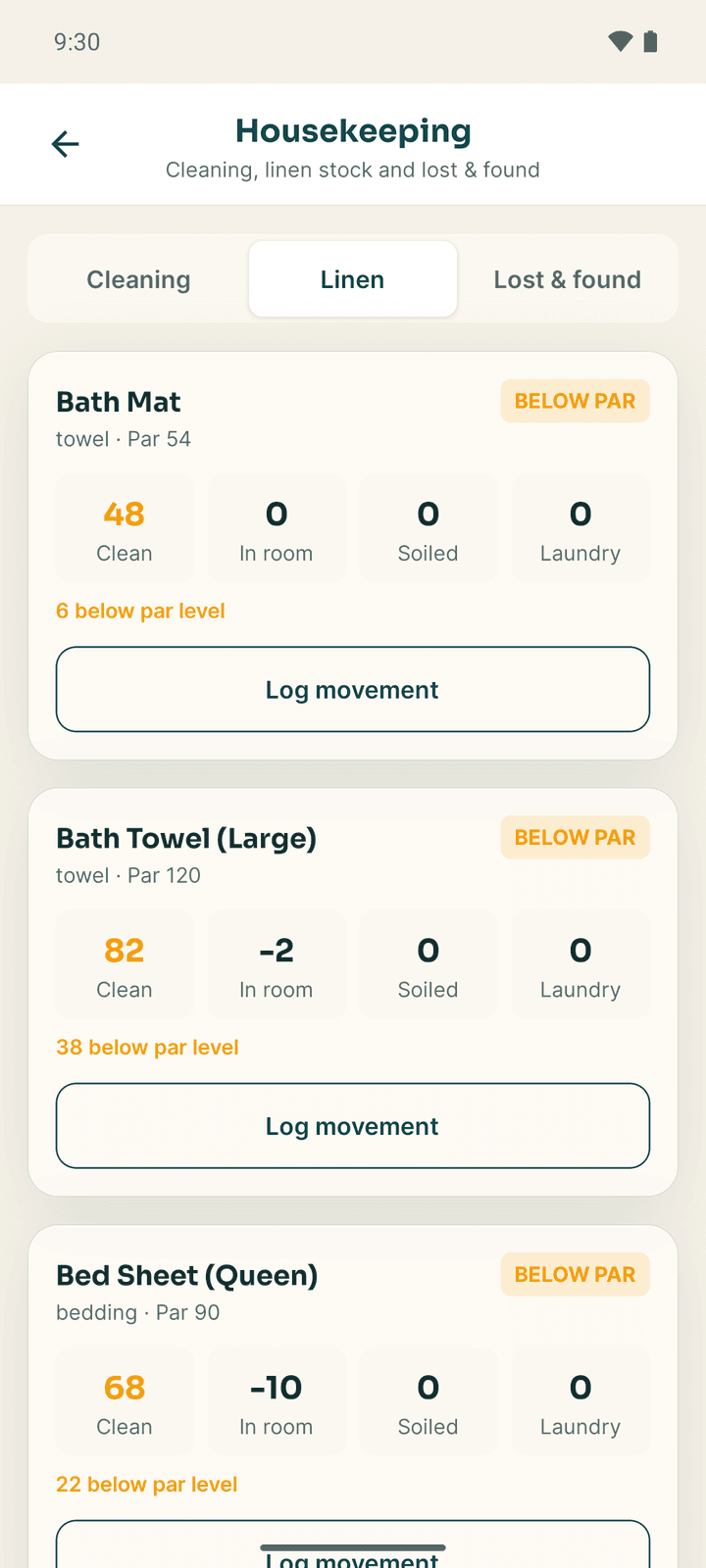
To record a movement, tap Log movement:
- Pick the Movement: Received into store, Issued clean to room, Returned soiled, Sent to laundry, Returned from laundry, Lost, Damaged or Written off.
- Pick where it Goes to: Clean closet, Room, Soiled closet or Laundry.
- Enter the Quantity (a whole number) and any Notes.
- Tap Save movement.
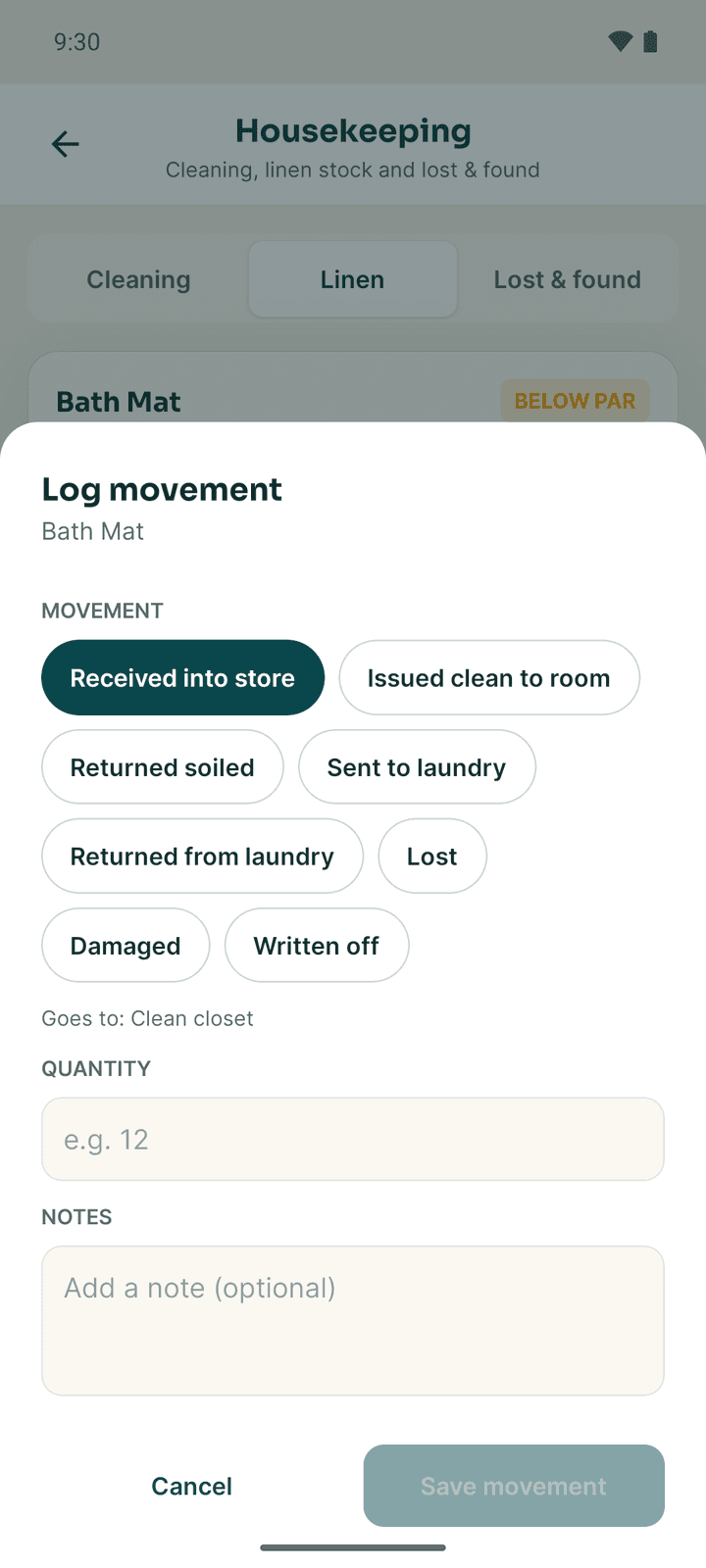
The Cleaning tab on the same screen lists the room-cleaning tasks waiting and in progress.
Lost and found
On More → Housekeeping linen, choose Lost & found. Each item shows its status, when and where it was found, and whether a photo is attached.
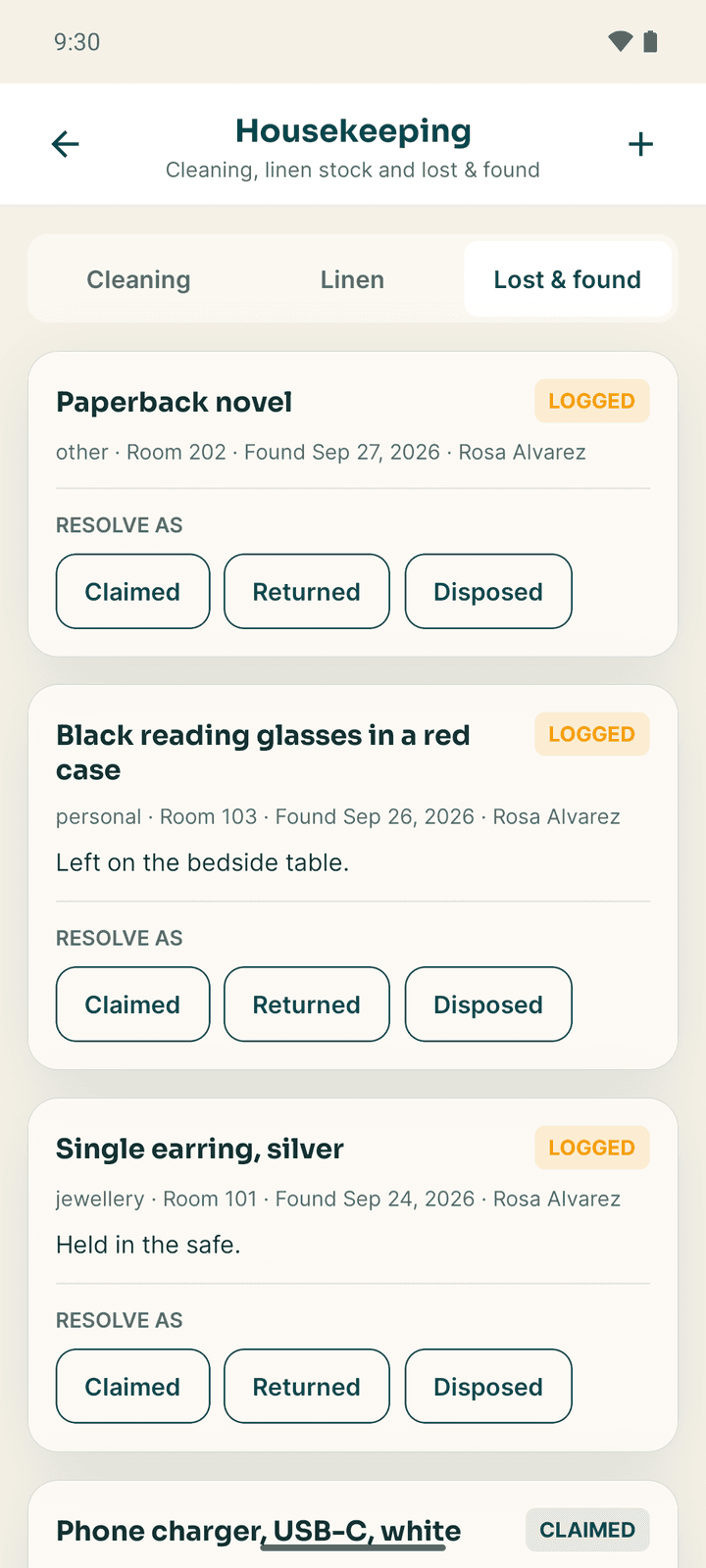
Record a found item: tap + (Report found item). Fill What was found and Category, choose the Room found in, add Notes, and Take photo or Choose photo. Tap Save item. You can also do this from the Work screen while cleaning a room.
Close an item: when it is collected, choose Resolve as Claimed, Returned or Disposed.
| Status | Meaning |
|---|---|
| Logged | Found and stored |
| Claimed | The owner has asked for it |
| Returned | Given back to the owner |
| Disposed | Thrown away or given away |
Minibar checks
A room with a stocked minibar shows Minibar check on the room board, or Minibar check due before checkout when the guest leaves today. The check also opens by itself after you mark an occupied room clean.
Enter how many of each item were used ("Leave 0 for anything untouched"). The total shows what goes on the guest's bill, plus tax. Tap Record the check. If nobody has checked the minibar that day, the front desk is asked to record the check when the guest checks out.
Report a fault
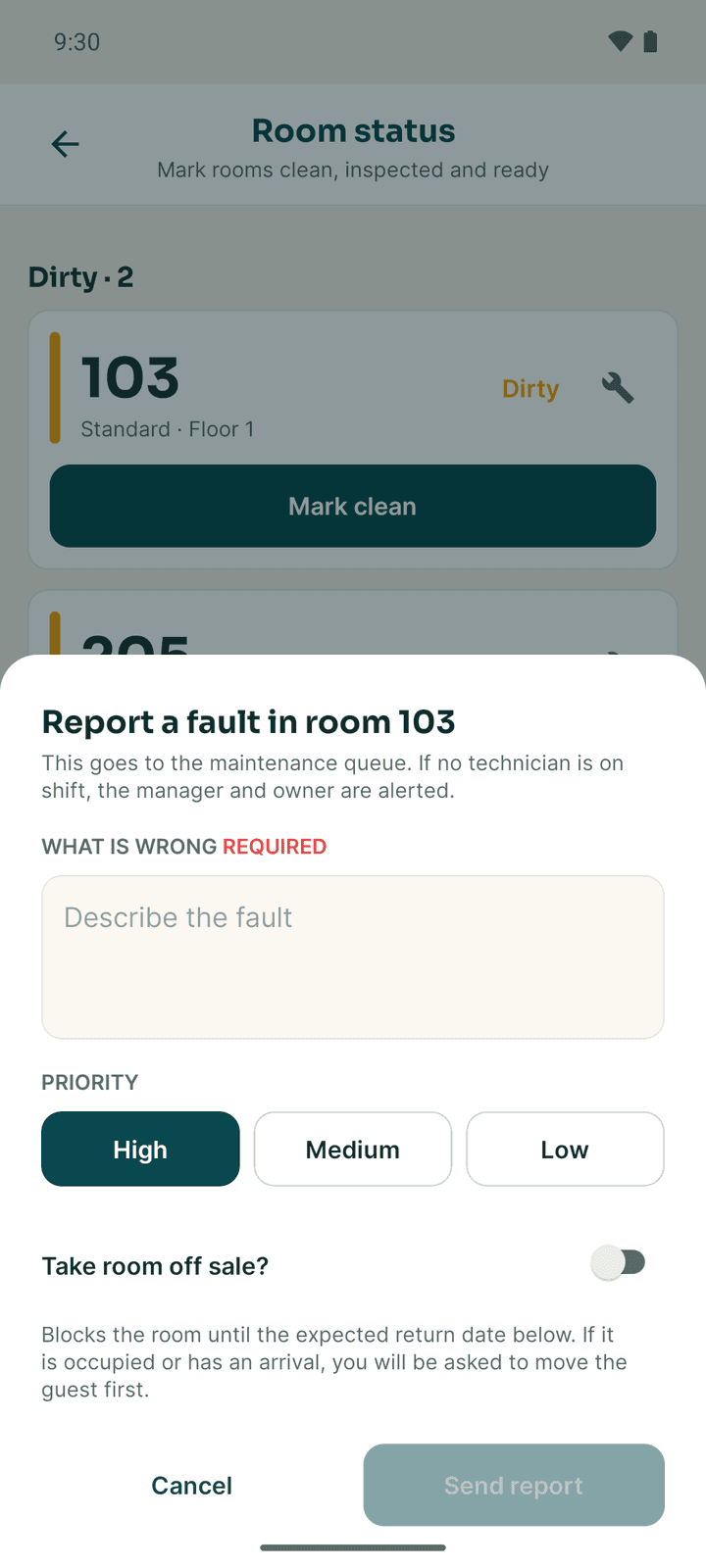
Tap Report a fault on the room board or the Work screen:
- What is wrong: describe the problem.
- Priority: High, Medium or Low.
- Switch on Take room off sale? if the room cannot be sold, and set the Expected return date.
- Tap Send report.
"This goes to the maintenance queue. If no technician is on shift, the manager and owner are alerted."
SOP checklist
More → SOP checklists lists your standard duties for the day, with Today's progress. Tap an item to tick it. Ticks made offline are kept and sent later. See My work.
If something goes wrong
| What you see | What to do |
|---|---|
| "Finish the task you're on first. Only one task can be in progress at a time." | Complete the task in progress, then start the next. |
| Someone else took this one first. | Another housekeeper took the open task. Pick another. |
| Not saved yet on a task card | The server refused the change when it synced. Read the reason, then Fix and send again. |
| Your role cannot change room status. | Your account does not have the housekeeping job. Ask a manager. |
| The camera does not open | Allow camera access for Connect in the phone's settings (Allow Camera Access). |
Front desk and cashier
Check guests in and out, take walk-in bookings, record payments, run the cash drawer and answer guest messages from the Connect app.
Maintenance and security
Work maintenance orders, record spare parts and after photos, look up assets and preventive schedules, and keep the security incident log in the Connect app.