
Front desk and cashier
This page is for front-desk staff and cashiers who work from the Stayantra Connect phone app, and for managers who cover the desk. Everything here also exists in the web app; the phone version is built for standing at the counter or walking a guest to their room.
Where to find it: the Today tab (your board), the Grid tab, and More → Front desk, Arrivals & departures, Cashier desk, Shifts, Guest messages, Brokers & Agents, Refunds owed. Who can use it: staff with the front desk job for bookings, check-in and the grid; staff with the cashier job for payments, the drawer and refunds; managers and owners for all of it.
Your Today board
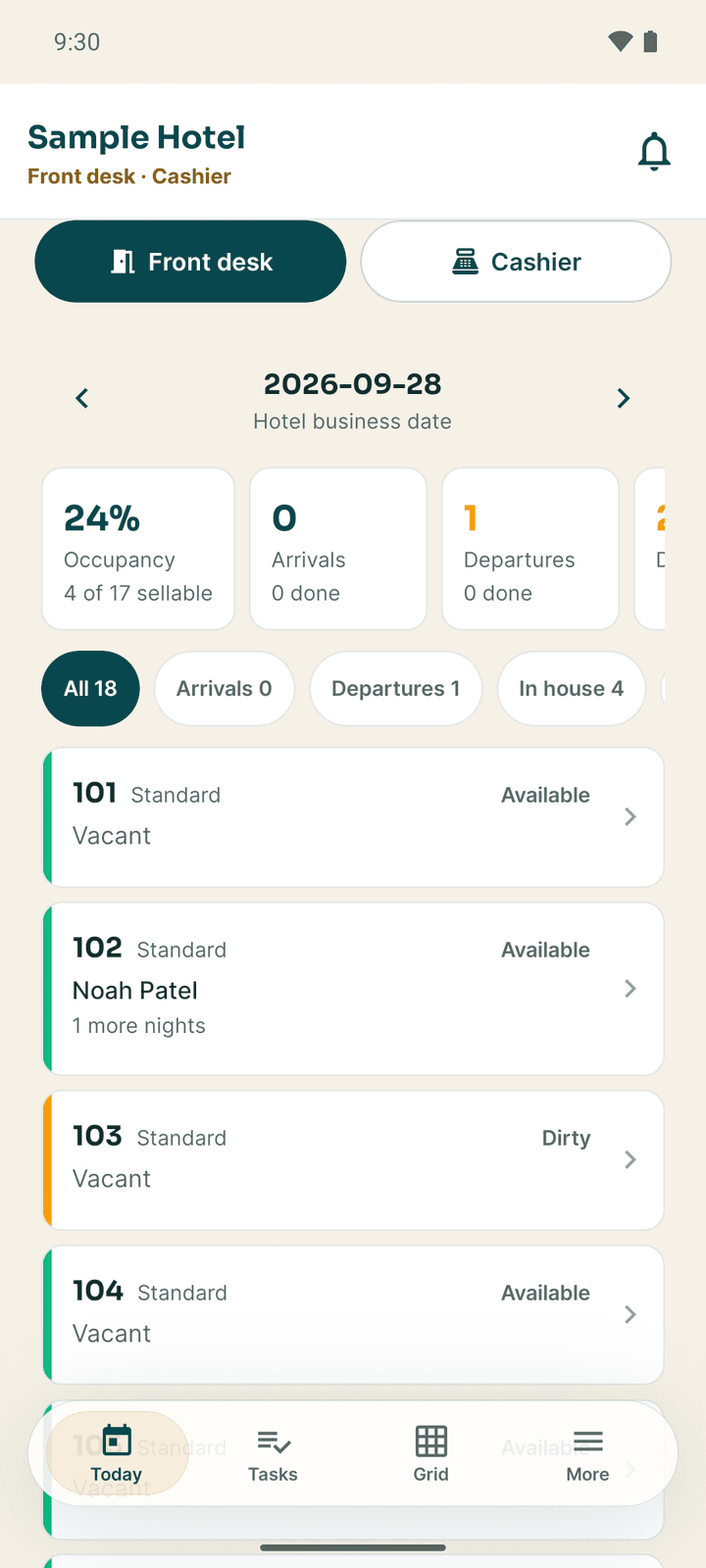
With the front-desk job, Today opens the Today board: every room for the hotel's business date. Use the arrows beside the date to look at another day, and Back to today to return.
- The strip across the top counts Occupancy ("4 of 17 sellable"), Arrivals and Departures (with how many are done), rooms Awaiting check-in, Dirty, Out of service, Vacant, To collect (money owed on today's departures) and Flagged (a room marked occupied with no booking).
- The filter chips narrow the list: All, Arrivals, Departures, In house, Dirty, Out of service, Vacant, Complaints, Unsettled.
- Each room shows its status (Available, Occupied, Dirty, Inspected, Maintenance), the guest, how many nights are left, and any open complaint.
- Tap a booked room to open the booking. Tap an empty room to block it.
If you also have the cashier job, the Front desk and Cashier buttons at the top switch between the two boards.
The Front desk screen
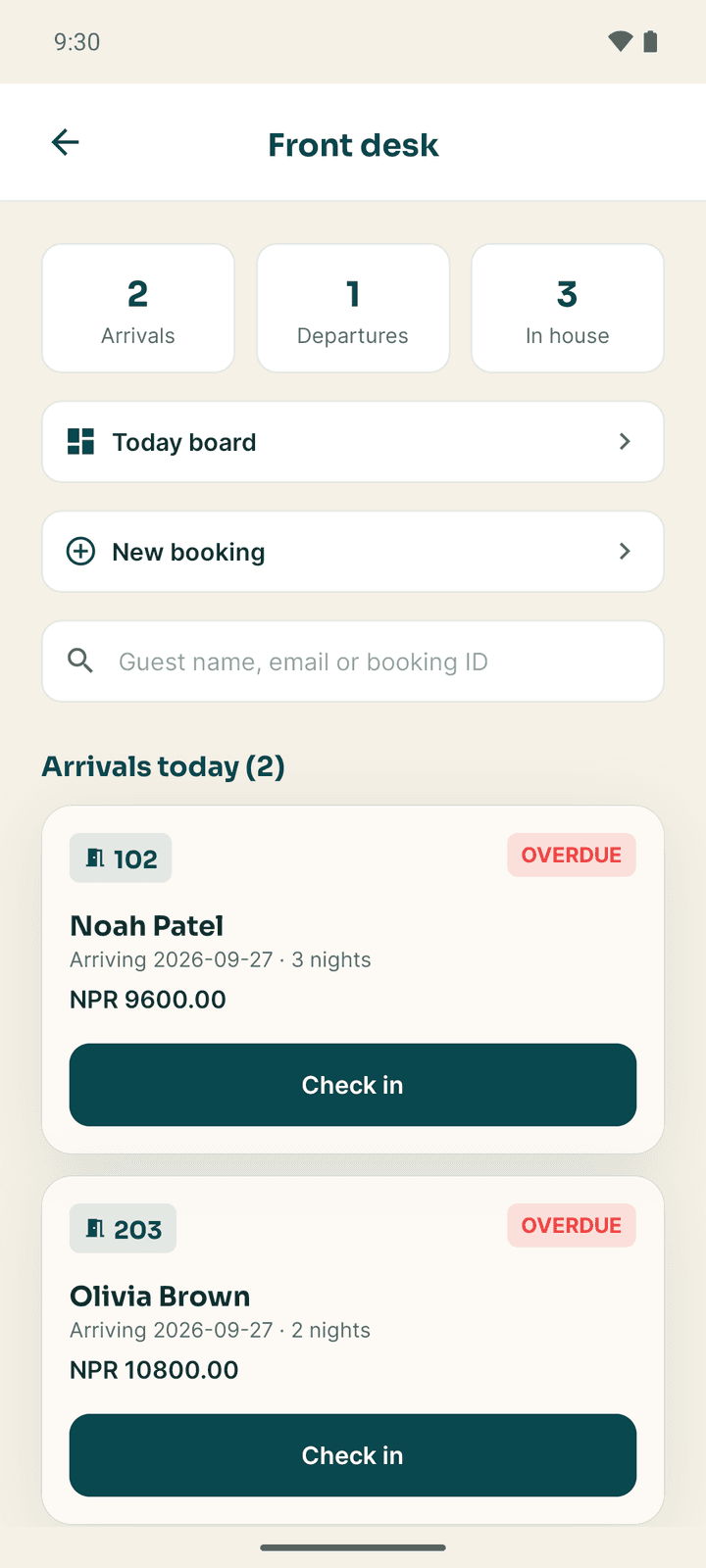
Open More → Front desk, or tap Front desk at the top of the Grid tab.
- The three counts at the top are Arrivals, Departures and In house.
- Today board and New booking open those screens.
- The search box (Guest name, email or booking ID) finds a guest after two letters.
- Arrivals today and Departures today list every guest due, with a Check in or Check out button. An OVERDUE tag means the arrival or departure date has passed.
Check a guest in
Open the arrival
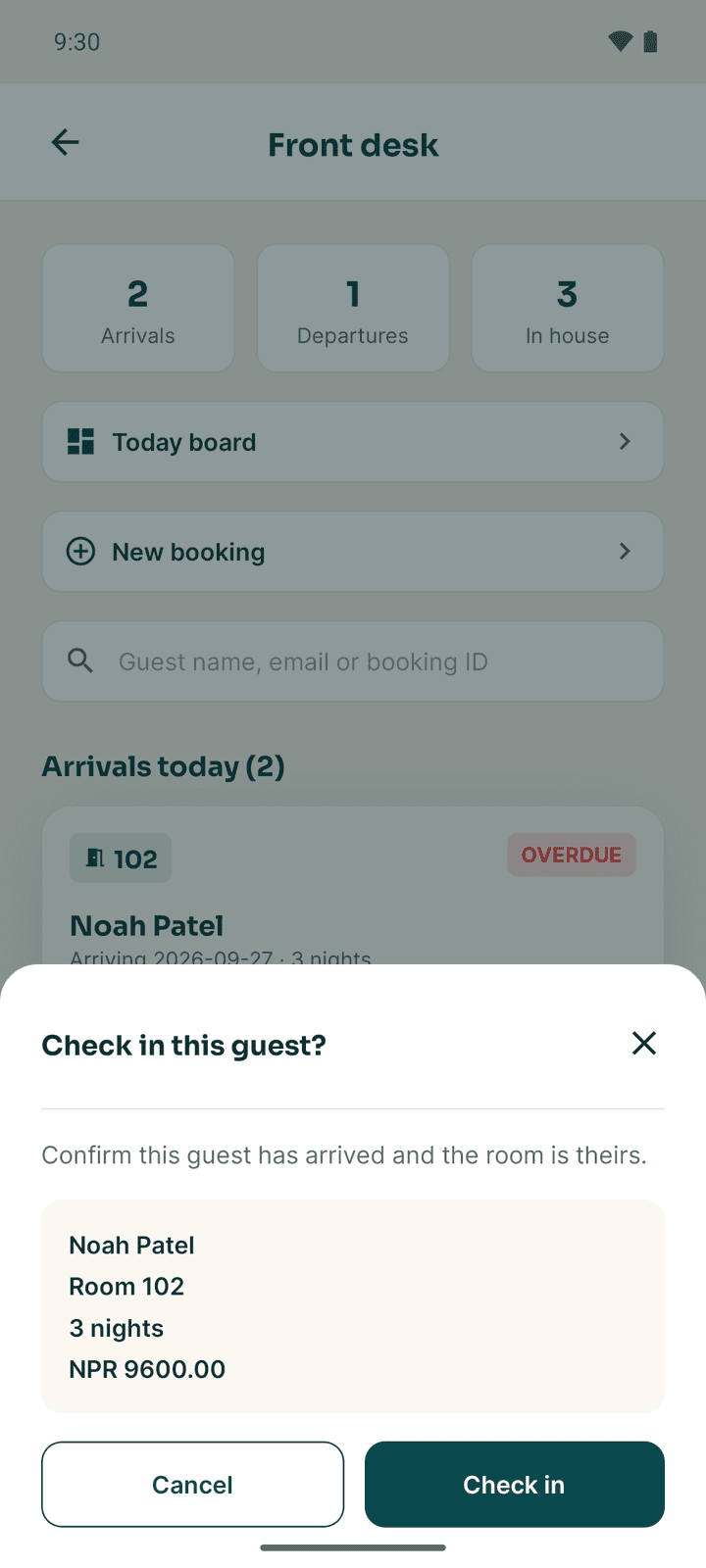
On Front desk, find the guest under Arrivals today. Tap the card to open the booking, or tap Check in to go straight to the confirmation.
Clear anything the hotel requires
When you check in from the booking screen, Stayantra may stop and ask for one more thing:
| What you see | What it means | What to do |
|---|---|---|
| No identification on file | Nepal requires an identity document for every guest. | Tap Photograph the ID now, photograph the guest's citizenship card, passport or driving licence, then tap Send to front desk. A manager can instead tap Check in without an ID and give a reason. |
| Room not ready | The room is not clean and inspected. | Tap Move to another clean room, or ask a manager, who can Check in anyway with a reason. |
| This booking starts on … | The guest is early. | A manager or owner can tap Start the stay today with a reason. Otherwise the guest waits for their date. |
Check in from the booking screen when you expect one of these. From the Front desk list a refusal only shows a red message.
There is no signature, deposit or key-card step in the app. Hand over the key the way your hotel always does.
Check in a guest from their stay pass
A guest with the Stayantra Go app can show their stay pass at the desk. Scanning it finds their booking for you, so there is no name search.
Open the scanner
On Front desk, tap Scan guest pass at the top. On the Today board, tap the scan icon in the header. Allow the camera the first time.
Scan the pass
Ask the guest to open their stay pass in Go, and hold its QR code inside the frame. Connect opens the guest's booking.
Check in
Check the name, then tap Check in on the booking. The ID, room-ready and arrival-date checks above apply as usual.
| What you see | What to do |
|---|---|
| This is not a Stayantra stay pass | Ask the guest to open their stay pass in the Go app, not a booking email or a payment QR. |
| This pass is out of date / This pass has expired | The code refreshes itself. Ask the guest to reopen their stay pass and scan again. |
| This pass is for a stay at a different hotel | The booking is at another property. |
| Camera access is off | Tap Open settings and allow the camera for Connect. |
Guests who paid for the whole stay in advance can check themselves in from Go and never need to scan.
[!TIP] The guest can send their ID ahead from the Stayantra Go app, and it then shows on the booking. See Your stay.
The booking screen
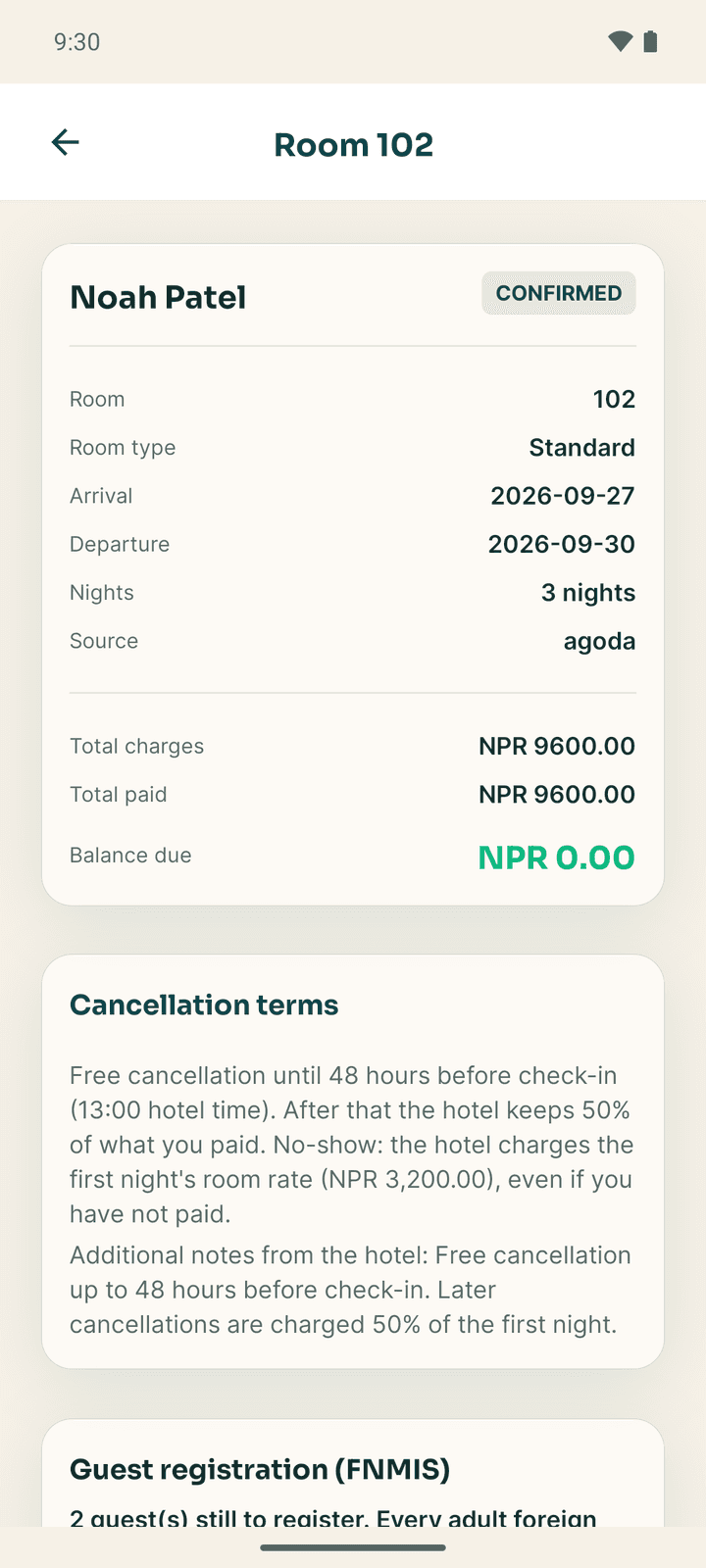
Tap a guest anywhere in the front desk to open their booking. The title is the room number.
From the top:
- Stay summary: Arrival, Departure, Nights, Room, Room type, Source, the OTA reservation number when it came from an OTA, Total charges, Total paid and Balance due. A booking with several rooms shows "Room 1 of 3" and the reservation reference.
- Cancellation terms: the terms the guest booked under.
- Payment due: shown when the guest was asked to pay a deposit or send a bank transfer. When the money arrives, fill Amount received, How it was sent (Bank transfer, eSewa, Khalti, Fonepay QR), Transfer reference and Day it arrived, then tap Record the transfer.
- Guest registration (FNMIS): foreign guests who still need registering with the Department of Immigration. Add a companion records each extra adult (name, nationality, passport, date of birth, visa number and expiry).
- Rewards perks: perks a Stayantra Rewards member is owed. Mark delivered when you have given it.
- Actions (below).
- Billing, Booked through (the broker or agent, if any), Folios, Folio (every charge line) and Changes & history.
Actions on a booking
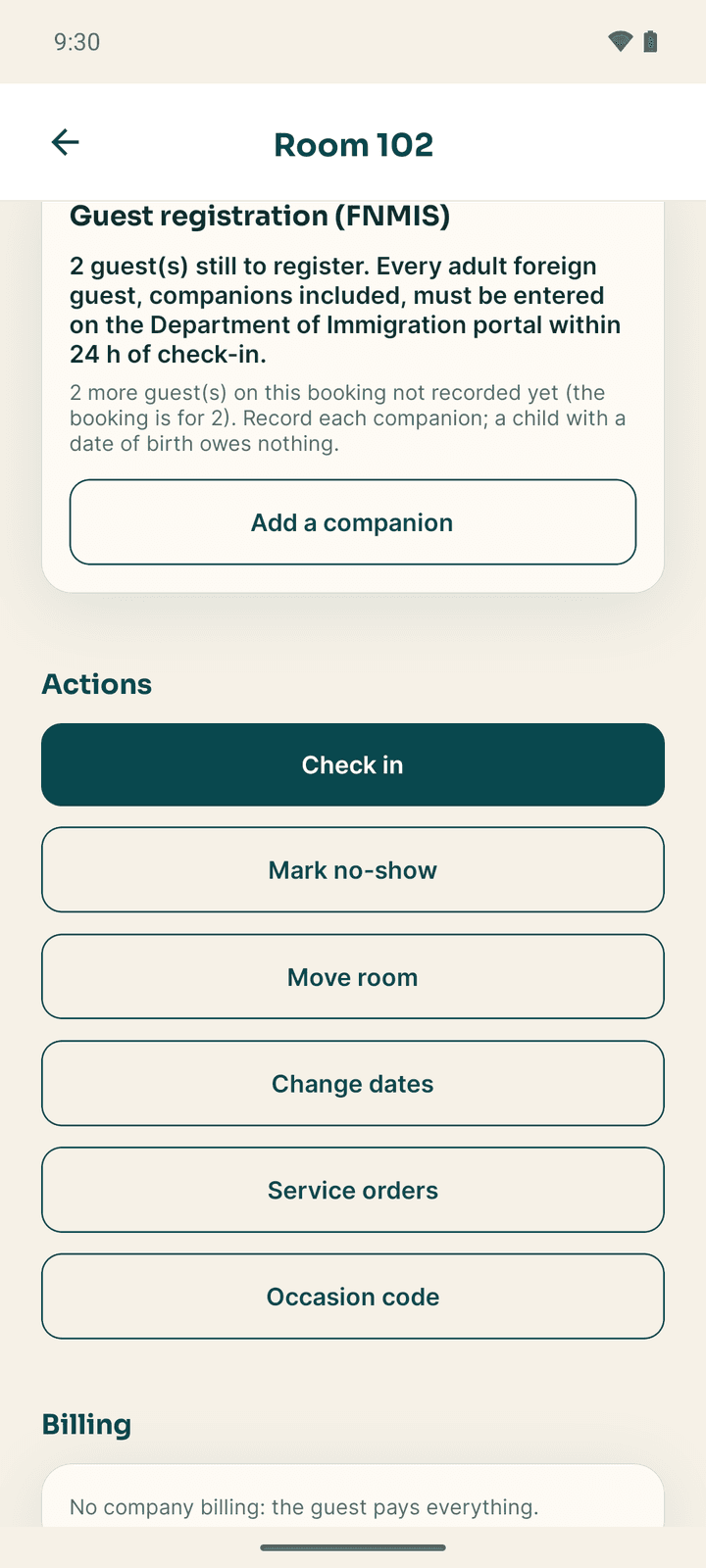
| Button | When it shows | What it does |
|---|---|---|
| Check in | The booking is confirmed or pending | Starts the stay (see above). |
| Mark no-show | Confirmed, and you may cancel bookings | Marks the guest as not arriving. The sheet shows the no-show fee under the booking's terms; only a manager can Reduce or waive the fee. Give a reason and tap Mark no-show. |
| Check out | The guest is checked in | Ends the stay (see below). Greyed out with "Settle … before checking out." while money is owed. |
| Record payment | Money is owed and you may take payments | Records a payment against the bill (see below). |
| Move room | Before check-in | Pick another free room. Same room type only keeps the choice to the booked type. Confirm move. |
| Change dates | Confirmed or checked in | New Check-in and Check-out, and Why is the stay changing?. The price is recalculated. |
| Service orders | You handle linen or charges | Create a Laundry, Transport or Event order and Bill to folio. |
| Occasion code | Front desk | Apply a guest's birthday or anniversary code (applying the discount needs the cashier job or a manager). |
If none of them apply: "There is nothing to do on this stay right now."
A charge line on the folio can be removed with Void by a manager: a reason of at least five letters, then your fingerprint or phone PIN.
Take a payment
Open the bill
From the booking, tap Record payment. From the cashier desk, find the bill and tap Take payment.
Enter the amount
Type the Amount, or tap Pay full balance. Add Notes such as "cash", a reference number or who paid. Tap Review.
Confirm it is you
Tap Confirm payment. The phone asks for your fingerprint, face or PIN: "Confirm it is you before recording this payment". The balance updates at once.
The payment sheet has no method picker: write the method in Notes. To take a Fonepay payment on the spot, a booking with more than one bill (for example a company bill and a personal one) shows Show Fonepay QR in its Folios card. The guest scans the QR with their bank or wallet app; the screen shows "Waiting for payment" with a countdown and then "… received through Fonepay".
Check a guest out
- Settle the balance first. Check out stays greyed out while anything is owed.
- Tap Check out on the booking (or on Departures today) and confirm Check out this guest?. "This closes the stay and frees the room."
- Stayantra may ask one more question:
- Early departure: shorten the stay? when the guest leaves before the booked date. Choose Shorten to today and check out or Keep the booked nights and check out.
- Orders not on the bill yet: restaurant or service orders are still open. Tap Bill it.
- Minibar not checked yet: tap Record the check and enter what was used.
- A company-billed stay opens the company check-out sheet instead.
The room turns Dirty and appears on the housekeeping board.
Take a walk-in or phone booking
Open Front desk → New booking.
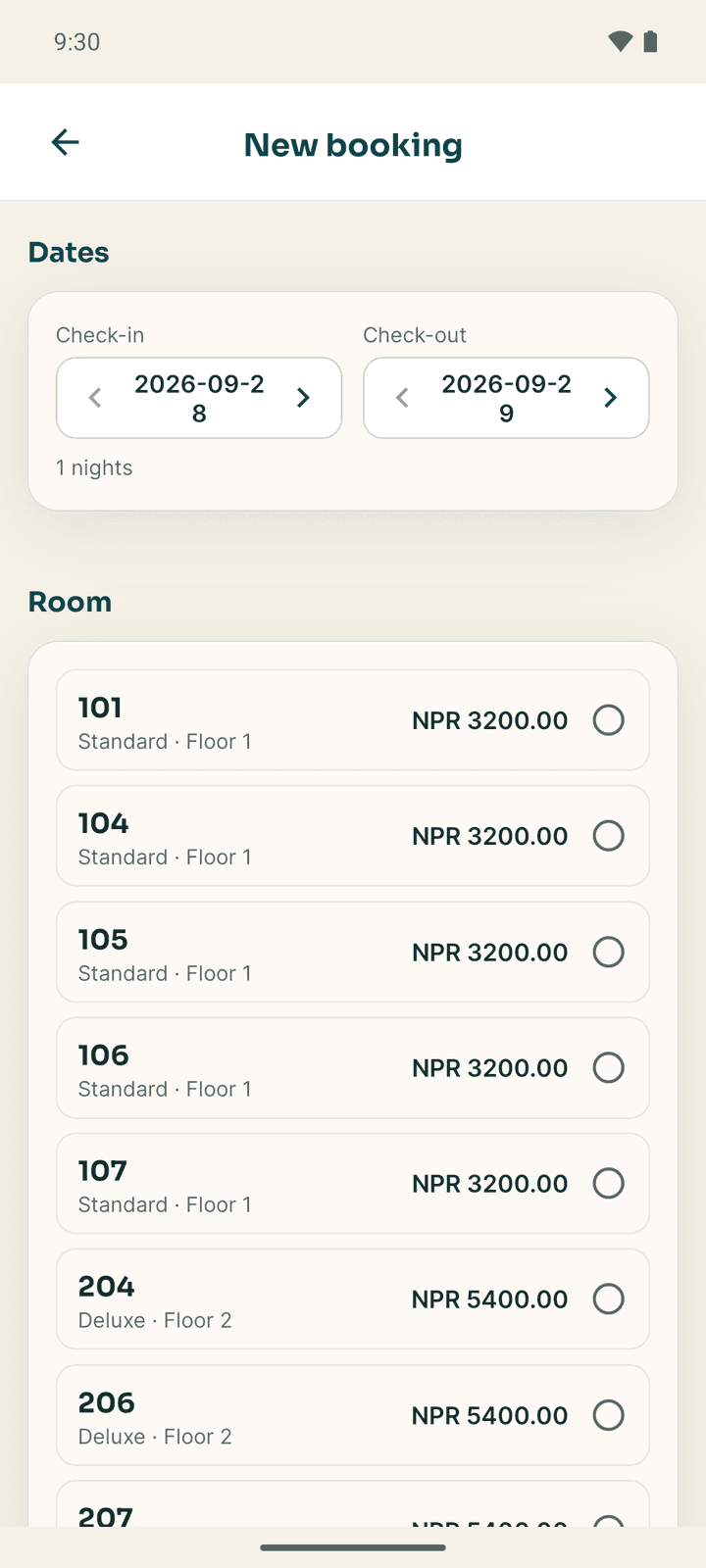
- Dates: set Check-in and Check-out with the arrows. The number of nights shows below.
- Room: pick one of the free rooms. The guest counter warns when a room is over its capacity. Add room books up to 20 rooms at once (this needs a connection).
- Rate plan: choose the Room rate. For a non-refundable rate, choose how it was Paid in full now (Cash, Card terminal, Fonepay QR) and enter the Card slip or QR reference.
- Guest: search an Existing guest by name, email or phone, or add a New guest (Full name, Email, Phone (optional)). Switch on Send booking updates to this number on WhatsApp if the guest agrees.
- How did this booking come in?: Walk-in, Phone or Email.
- Optional: Part of a group block?, company billing, and Booked through an agent.
- Tap Book room (or Book 3 rooms). You see Booked with Open booking, Book another and Back to the desk.
If the rate plan is closed on those dates, a manager can Book anyway.
The Grid tab
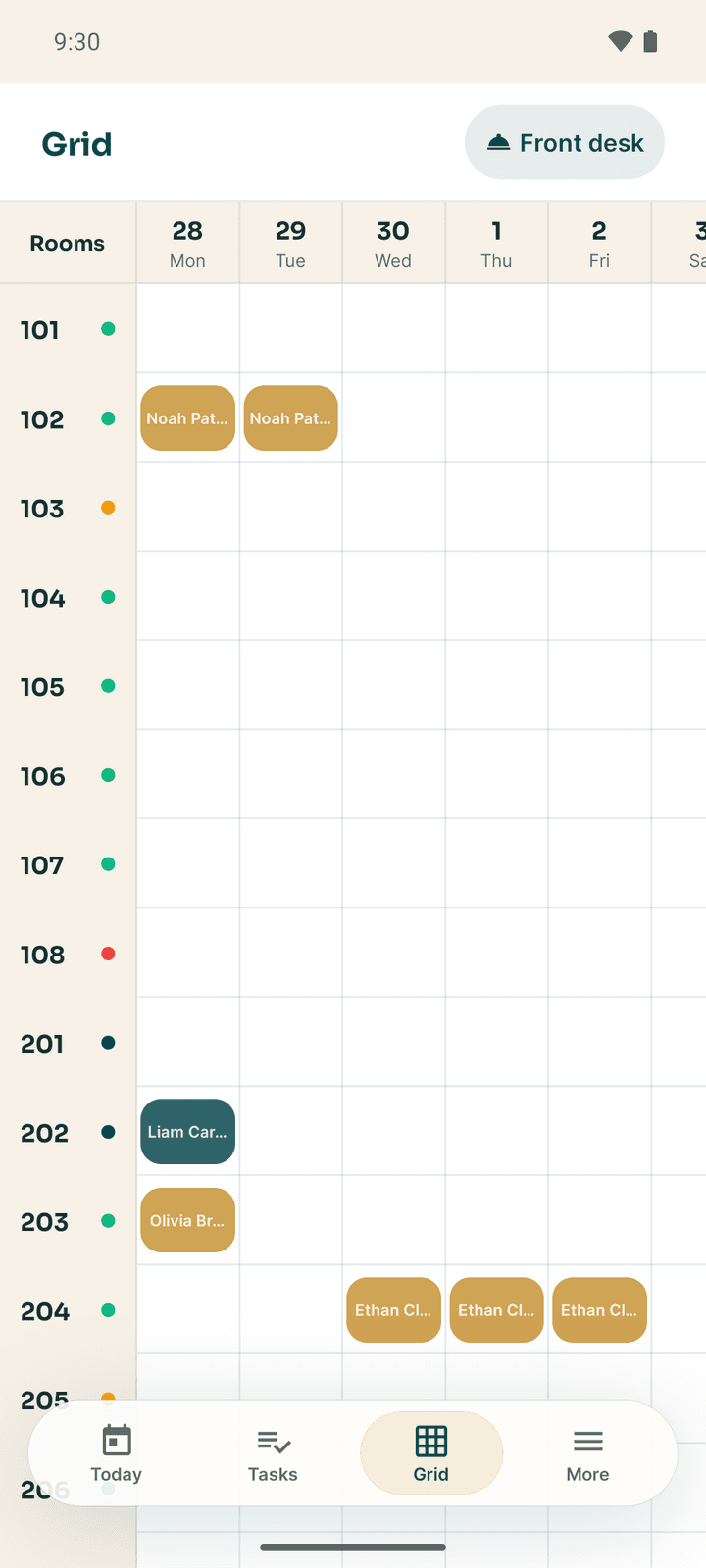
Grid shows 14 days: rooms down the side, days across the top, each booking as a bar with the guest's name. It updates live. Tap a booking to open it. Tap a room number to open the room sheet.
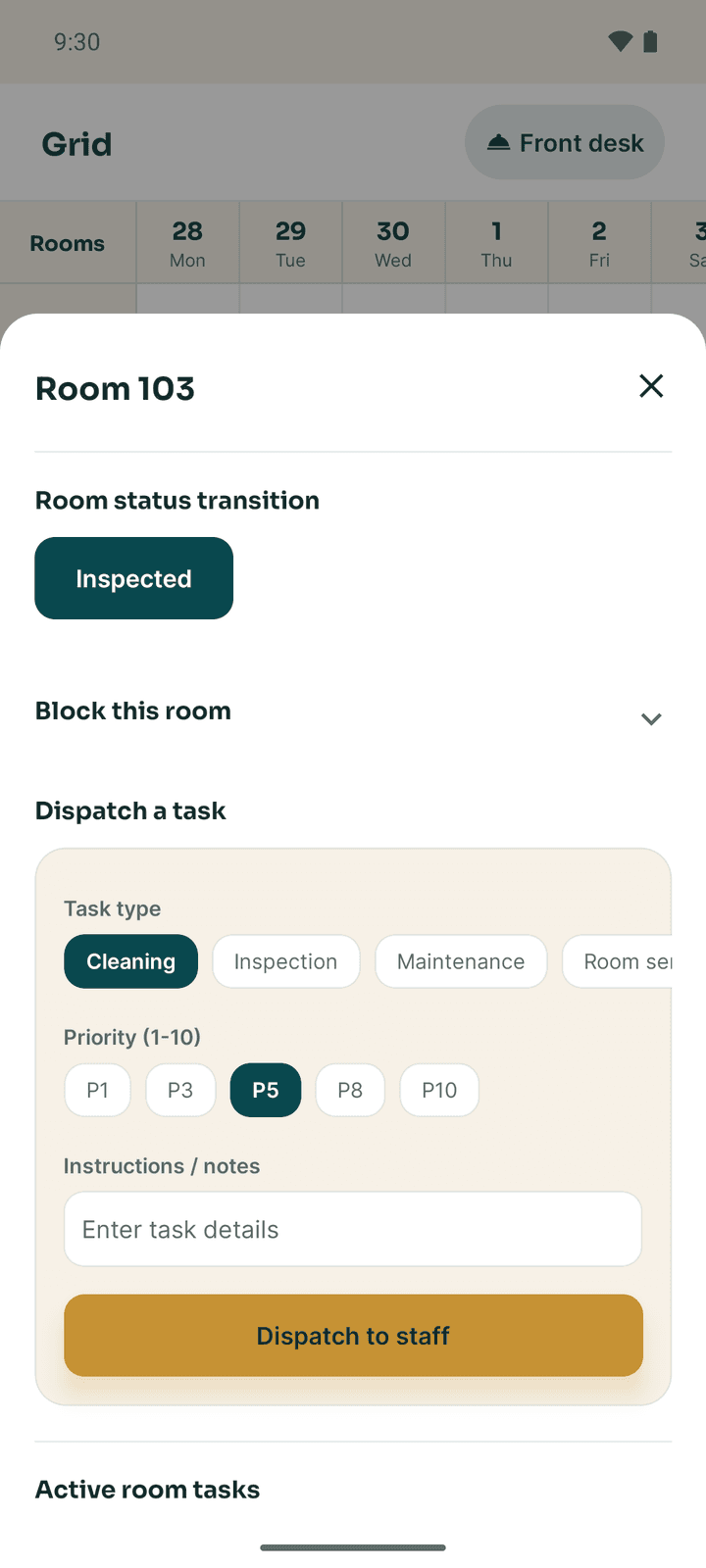
The room sheet (Room 103) offers what your role allows:
- Room status transition: move the room to its next status, for example Dirty → Inspected → Available. Choosing Maintenance asks for an Expected return date and a reason.
- Block this room: From, Until, Reason (Maintenance, Renovation, Deep clean, Owner use, Other) and Notes, then Block the room. An existing block has a Lift button; tap it twice to lift.
- Dispatch a task (managers): Task type, Priority (1-10), Instructions / notes, then Dispatch to staff.
- Active room tasks, with Auto-reassign for managers.
Arrivals and departures
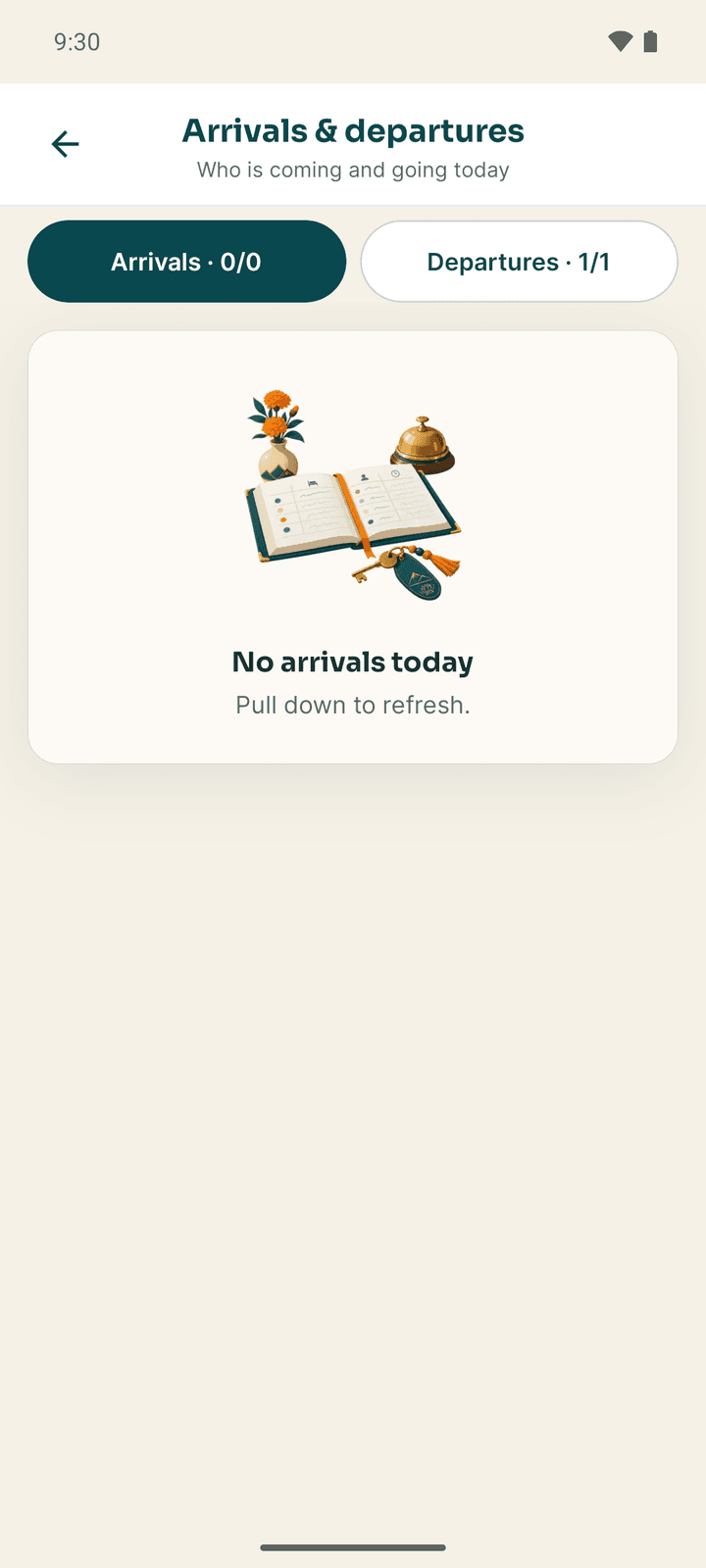
More → Arrivals & departures is a simple read-only list for the bellhop and the desk: room number, guest, number of guests, and Expected, Checked in or Checked out. Switch between Arrivals and Departures at the top. No prices are shown.
The cashier desk and the cash drawer
With the cashier job, Today opens the Cashier desk (or open More → Cashier desk).
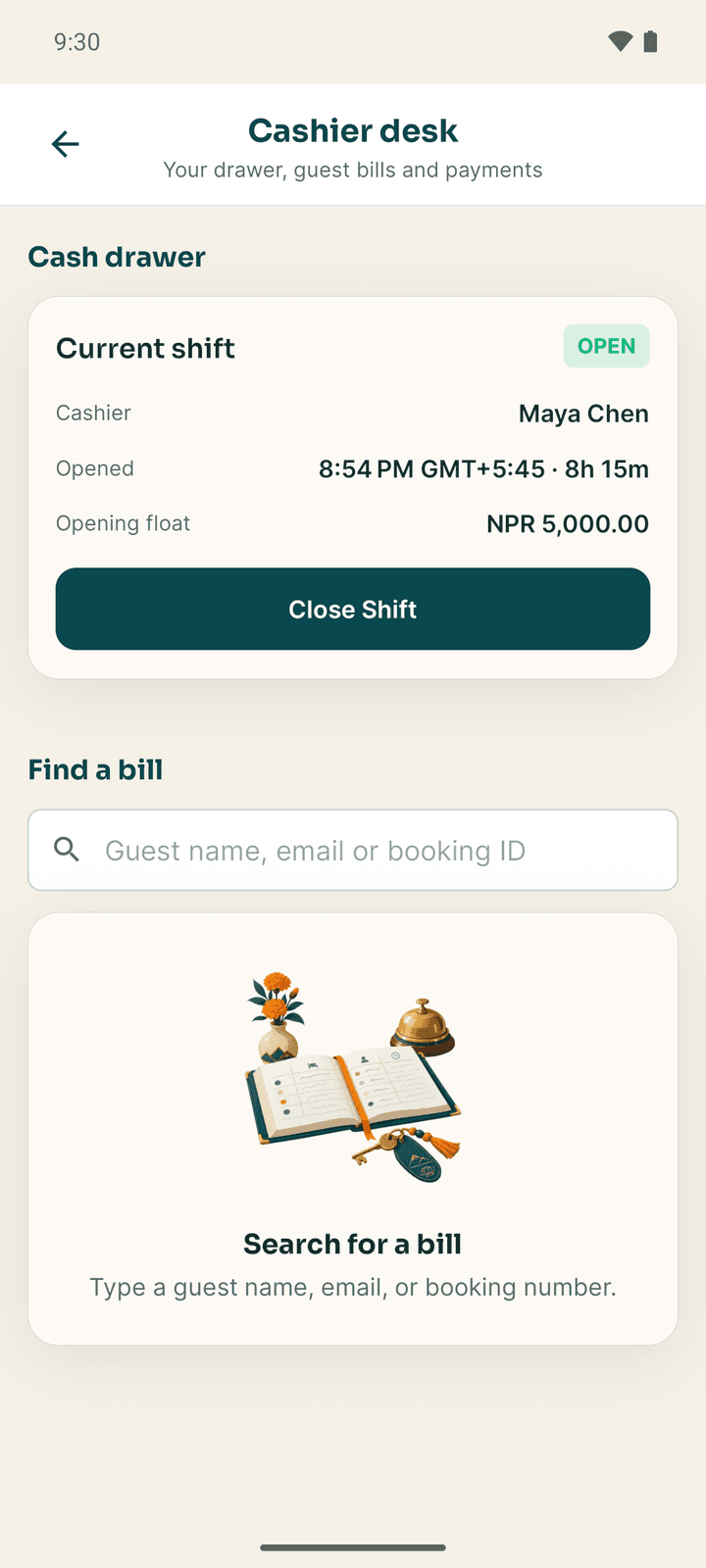
- Cash drawer shows your open shift: Cashier, Opened, Opening float, and Close Shift. With no shift open: "No open drawer" and Open Shift.
- Find a bill searches guest bills by name, email or booking number. Open a bill to see Total charges, Balance due and the Bill lines, and tap Take payment.
Open a shift
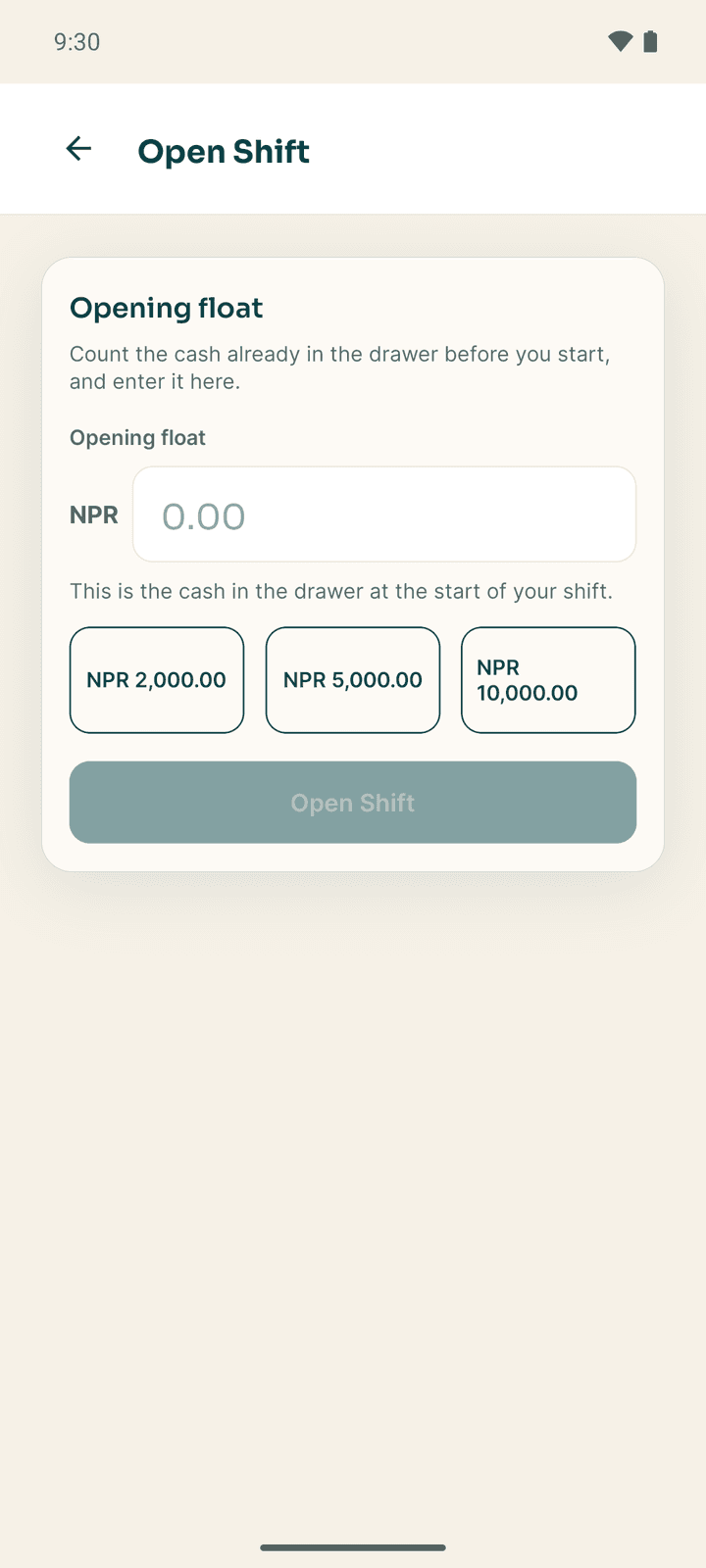
- Tap Open Shift (or More → Shifts → Open Shift).
- Count the cash already in the drawer and enter it as the Opening float, or tap one of the quick amounts (NPR 2,000, 5,000, 10,000).
- If the last cashier left a different amount, say Why is it different?.
- Tap Open Shift.
Close a shift
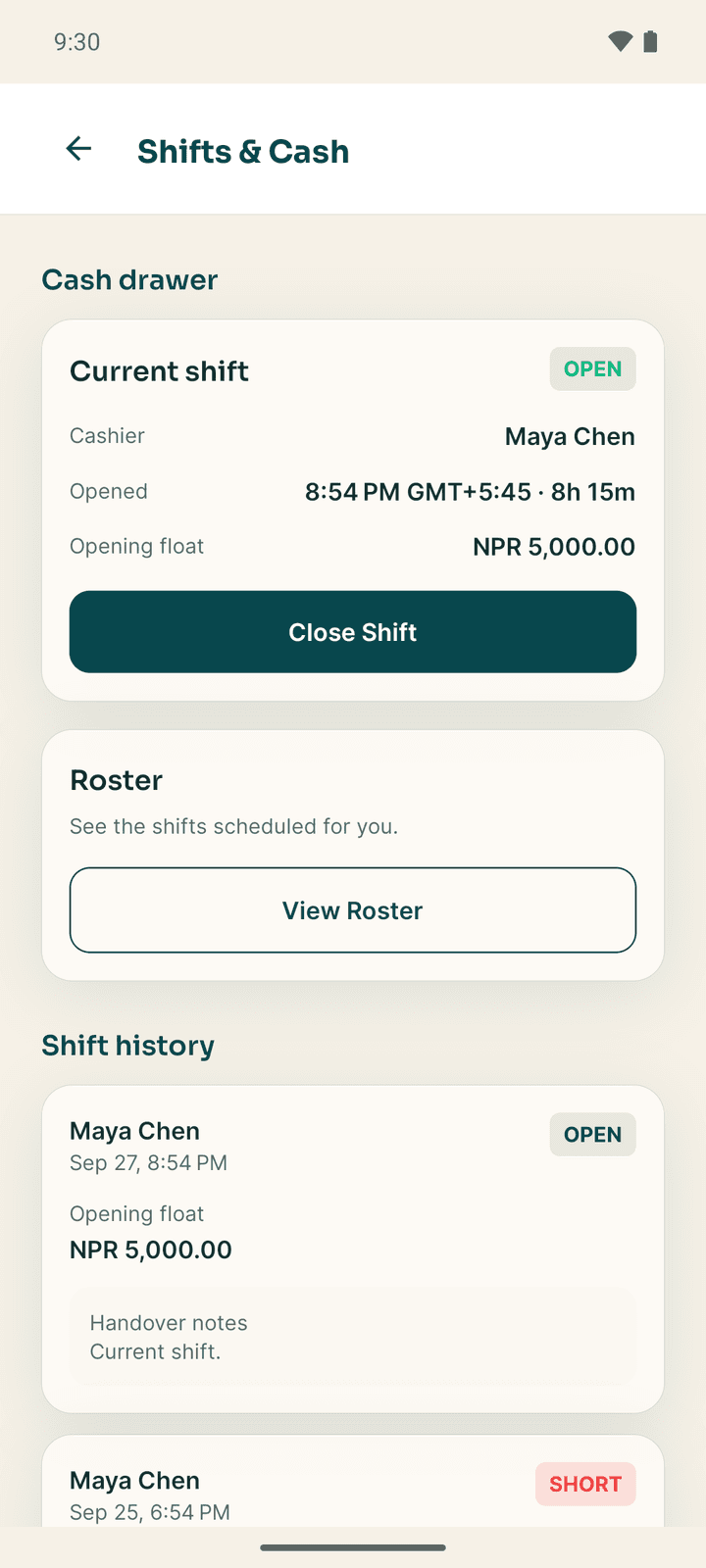
- On Shifts & Cash, tap Close Shift.
- Under Reconcile the drawer, enter the Counted cash, any Cash taken out to the safe, foreign notes, and Handover notes for the next cashier.
- Confirm with your fingerprint or PIN. If the count does not match, you see Cash does not match; check again, or tap Close Anyway.
Closing another cashier's drawer needs a reason.
Shifts & Cash also lists your Shift history and a Roster card (View Roster). Managers see Night Audit, with Run Night Audit to close the business day for the whole hotel. It cannot be undone.
Guest messages
More → Guest messages shows what in-house guests have written to the desk from the Go app or WhatsApp. Filter All, App or WhatsApp. A number shows unread messages.
Open a conversation, type in Write a reply… and tap Send. The guest sees your reply in the Go app.
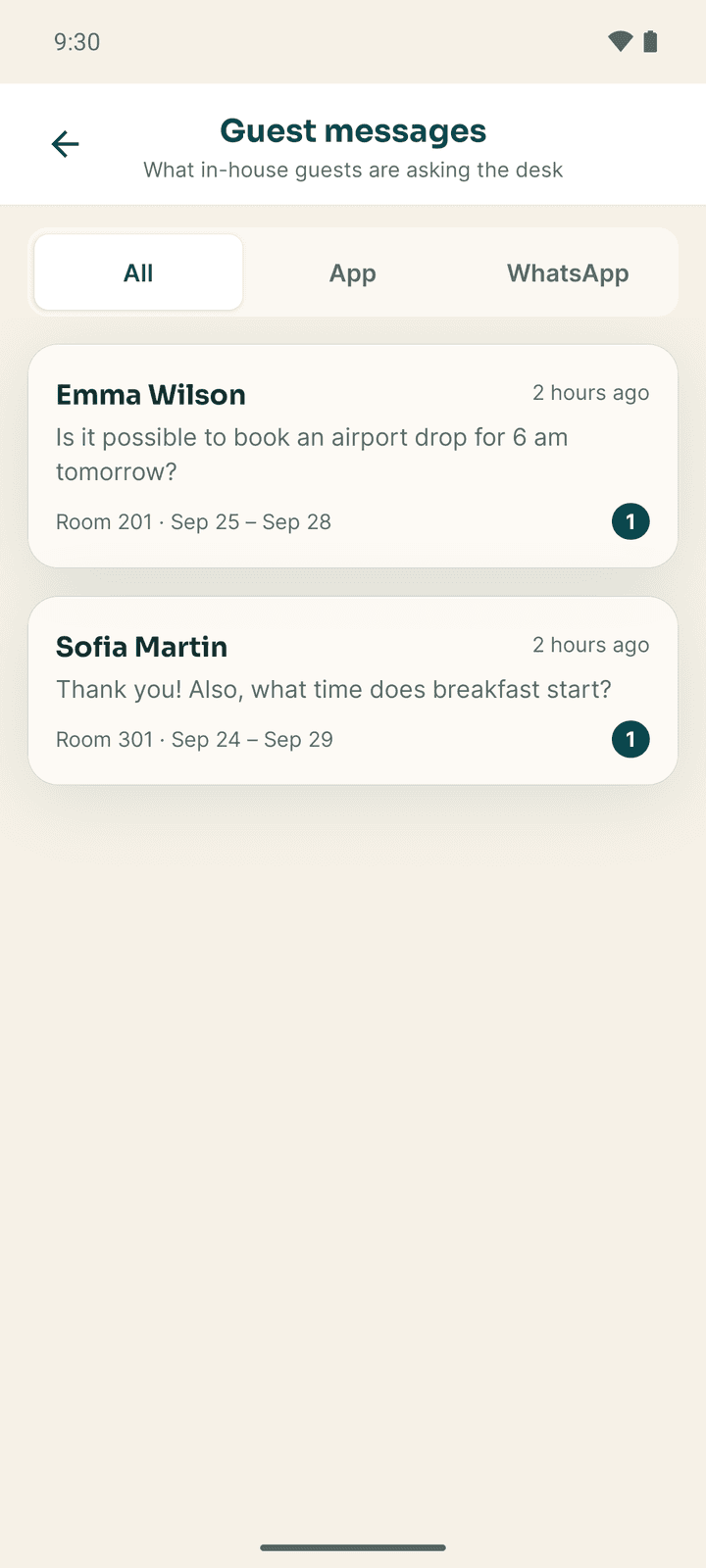
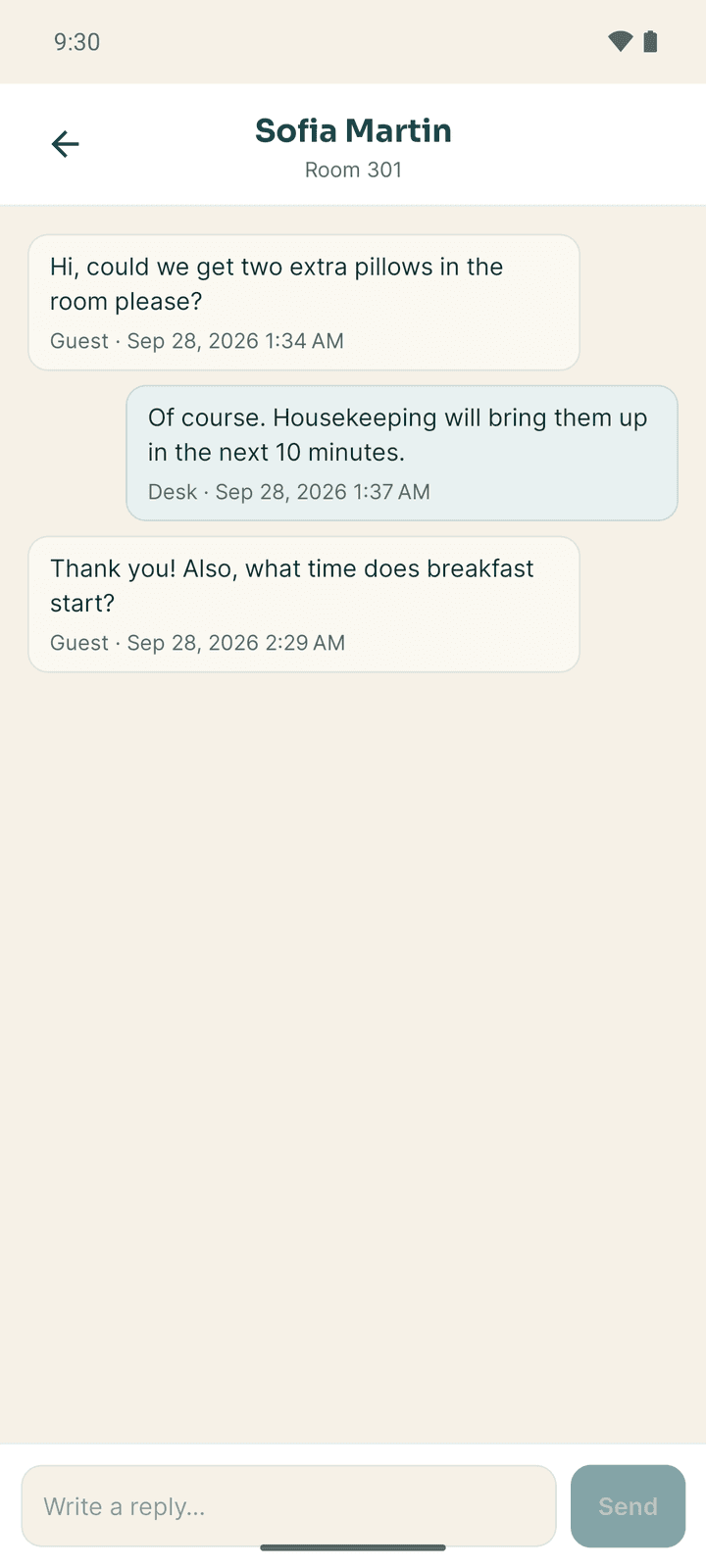
A WhatsApp conversation also shows whether the reply window is open. Outside the window, send an approved template (Send a template). Record their agreement and Record opt-out note the guest's WhatsApp consent. See Guest messages.
Brokers and agents
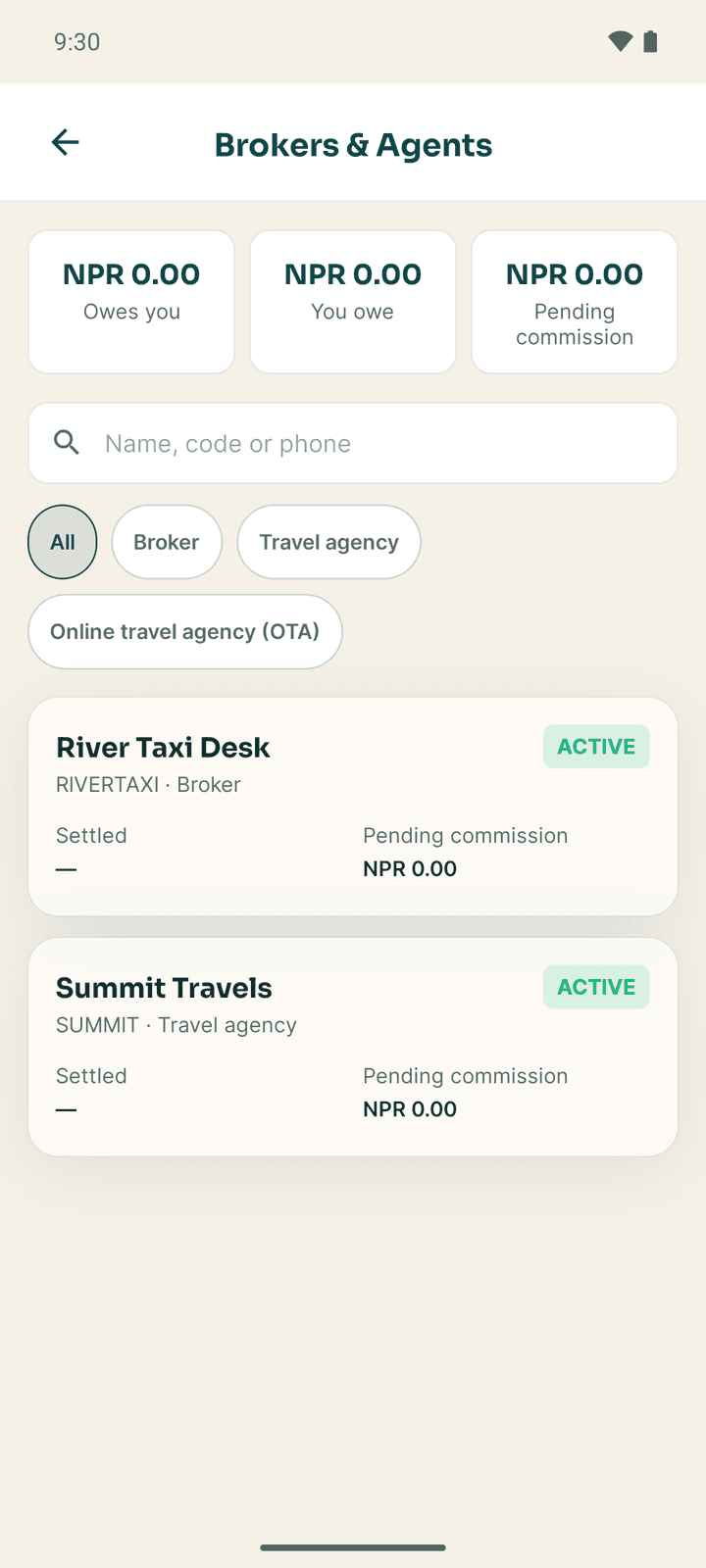
More → Brokers & Agents lists the brokers, travel agencies and OTAs the hotel works with, what each Owes you, what You owe and the Pending commission. Search by name, code or phone, or filter by kind.
Open an agent to see their balance and its age, their Terms (commission, price to the guest, who collects, TDS, payment terms), contact details, net rates, the account ledger and every stay sold through them. Managers can record Money received and Pay agent (both need your fingerprint or PIN). New agents are added in the web app. See Brokers and agents.
Refunds owed
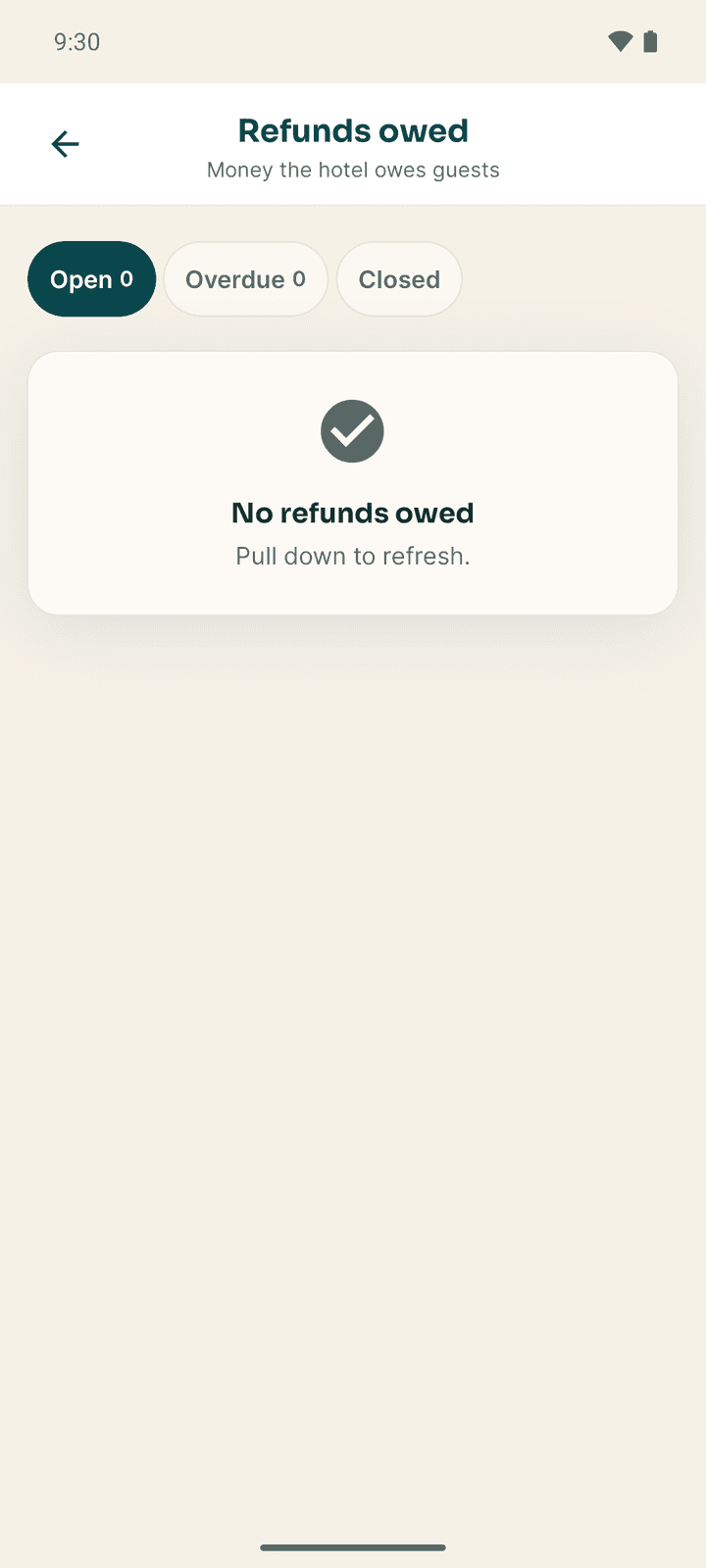
More → Refunds owed (cashiers, managers and owners) lists money the hotel owes guests, under Open, Overdue and Closed. Open a refund to see where to send it. Press and hold a value to copy it.
- For a card payment, tap Refund to card.
- Otherwise send the money yourself, then tap Mark as sent: choose the method (eSewa, Khalti, Fonepay, Bank transfer, Cash), add a reference and a reason. The guest never sees the reason.
Both ask you to confirm and then for your fingerprint or PIN.
Group blocks
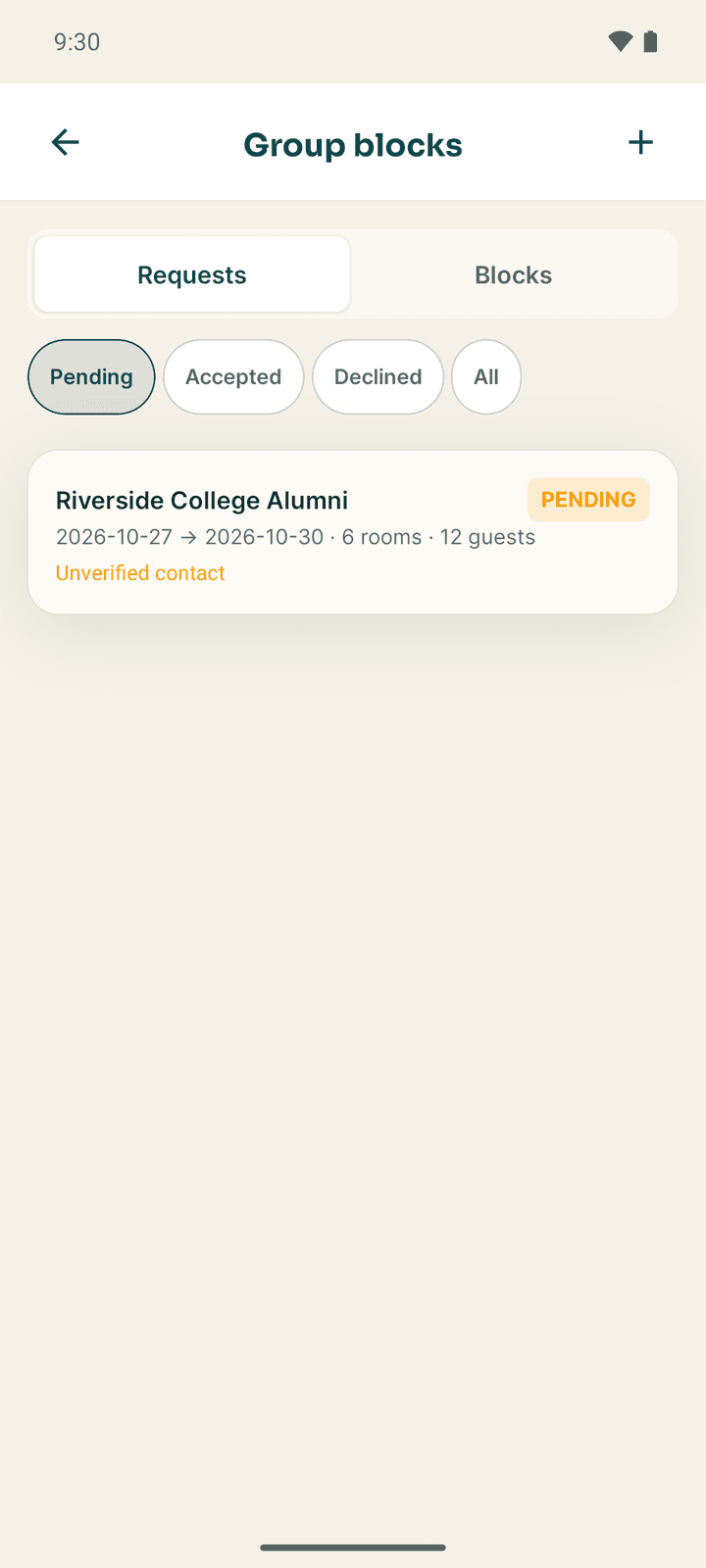
Managers and owners can work group requests and blocks from More → Group blocks: accept or decline a group request, create a block, share its booking code, book a guest into it and release unpicked rooms. It works the same as the web app; see Multi-room and groups.
Contacts and emergencies
- More → Contacts is the hotel's phone book: police, fire, ambulance, hospitals, suppliers and technicians. Tap the phone button to call or the chat button for WhatsApp. Managers can Add contact.
- All emergency numbers lists the hotel's emergency contacts and Nepal's national lines: Police 100, Fire brigade 101, Ambulance 102, Tourist Police 1144. It works offline.
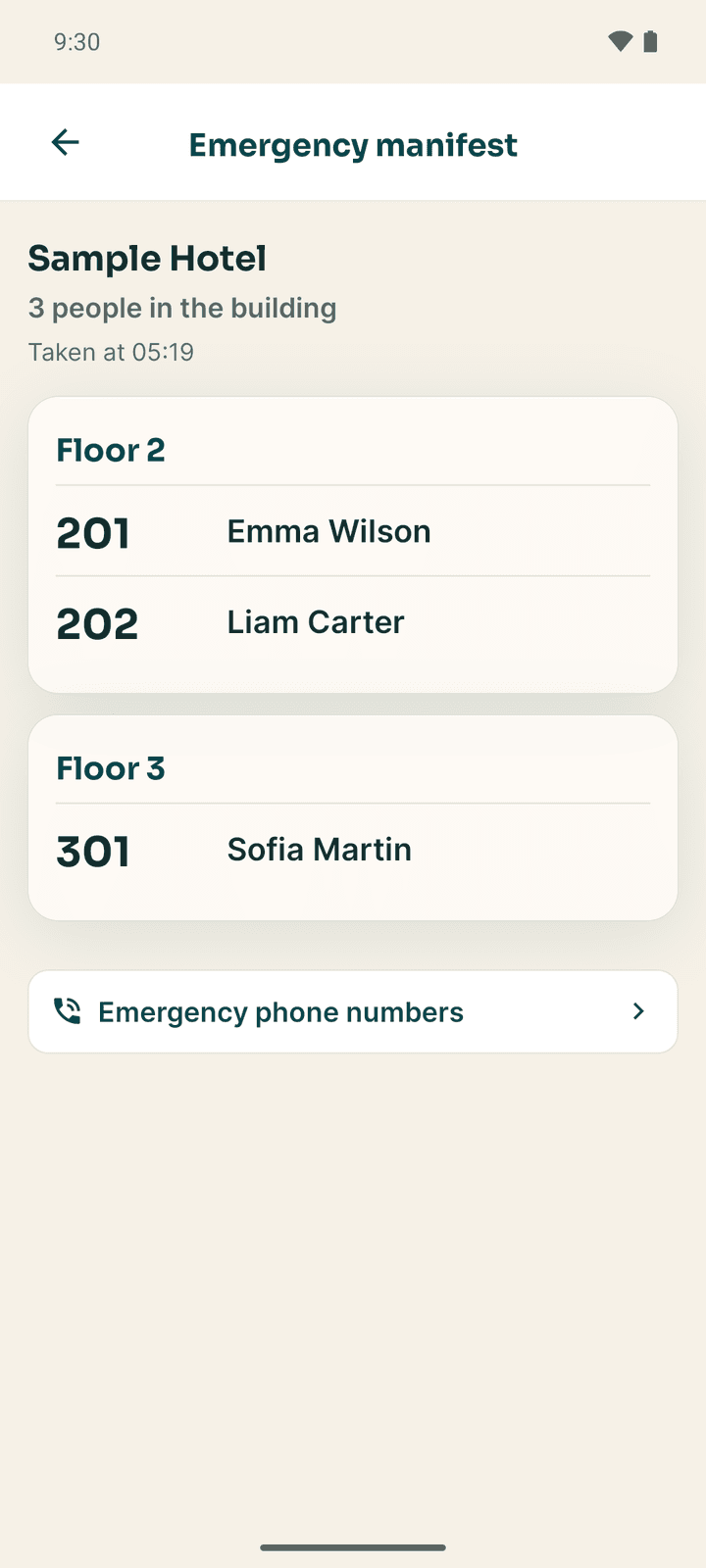
- More → Emergency manifest lists everyone checked in, floor by floor, for an evacuation. It also works offline from the last saved copy.
If something goes wrong
| What you see | What to do |
|---|---|
| No front-desk access | Your account does not have the front-desk job. Ask a manager to add it in Team → Staff. |
| Check out is greyed out | Money is still owed. Take the payment first. |
| A red message after Check in on the Front desk list | Open the booking and tap Check in there to see what is needed. |
| "Saved on this phone" / "waiting to sync" | You are offline. The change is sent when you are back online. |
| The cashier desk needs permission to view bills or record payments. | Your account does not have the cashier job. |
Getting started with Connect
Install Stayantra Connect, sign in, and find your way around the tabs. What you see depends on your role and your jobs.
Housekeeping
Clean and release rooms, work your task list, add photo proof, log linen, record lost property, check minibars and report faults from the Connect app.