
Store and purchasing
This page is for storekeepers and anyone who buys or hands out stock, using Stayantra Connect. Stock you receive, issue or count here updates the store's figures in the web app at once.
Where to find it: More, under My work (Receive goods, Market purchase, Issue stock, Stock count), Stock & purchasing (Purchase requests) and Money & people (Capture expense, Receipt inbox). Who can use it: staff with the store job; managers and owners. Purchase requests can be raised by other staff the hotel allows. The hotel's plan must include the Procurement module; without it the rows show a padlock.
The item list, stores, suppliers and reorder levels are set up in the web app under Stock & Purchasing → Inventory and Procurement. See Procurement and stock.
Purchase requests
More → Purchase requests ("Raise a request and track it to delivery").
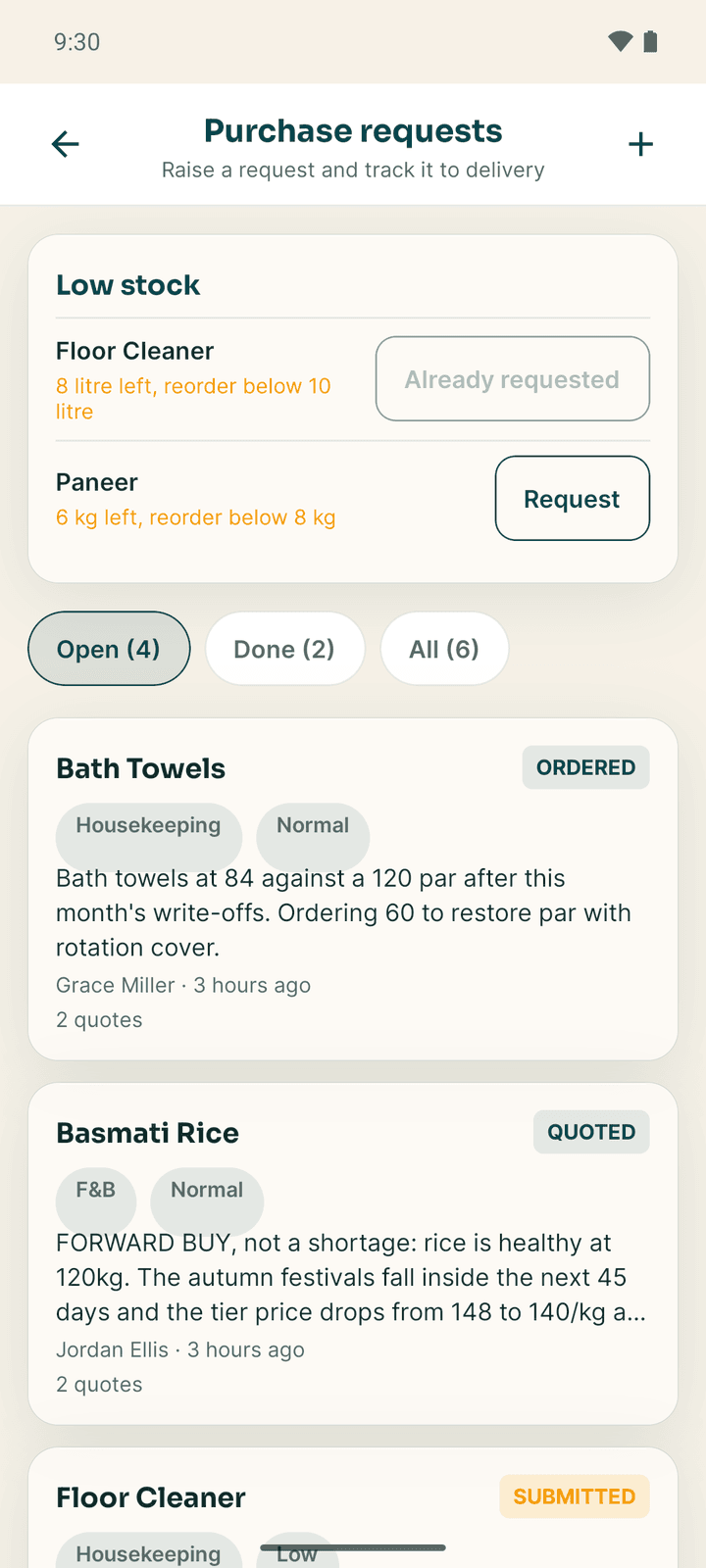
- Low stock at the top lists items below their reorder level, for example "3 kg left, reorder below 10". Tap Request to start a request for it. Already requested means one is open.
- Open, Done and All filter the list.
Raise a request
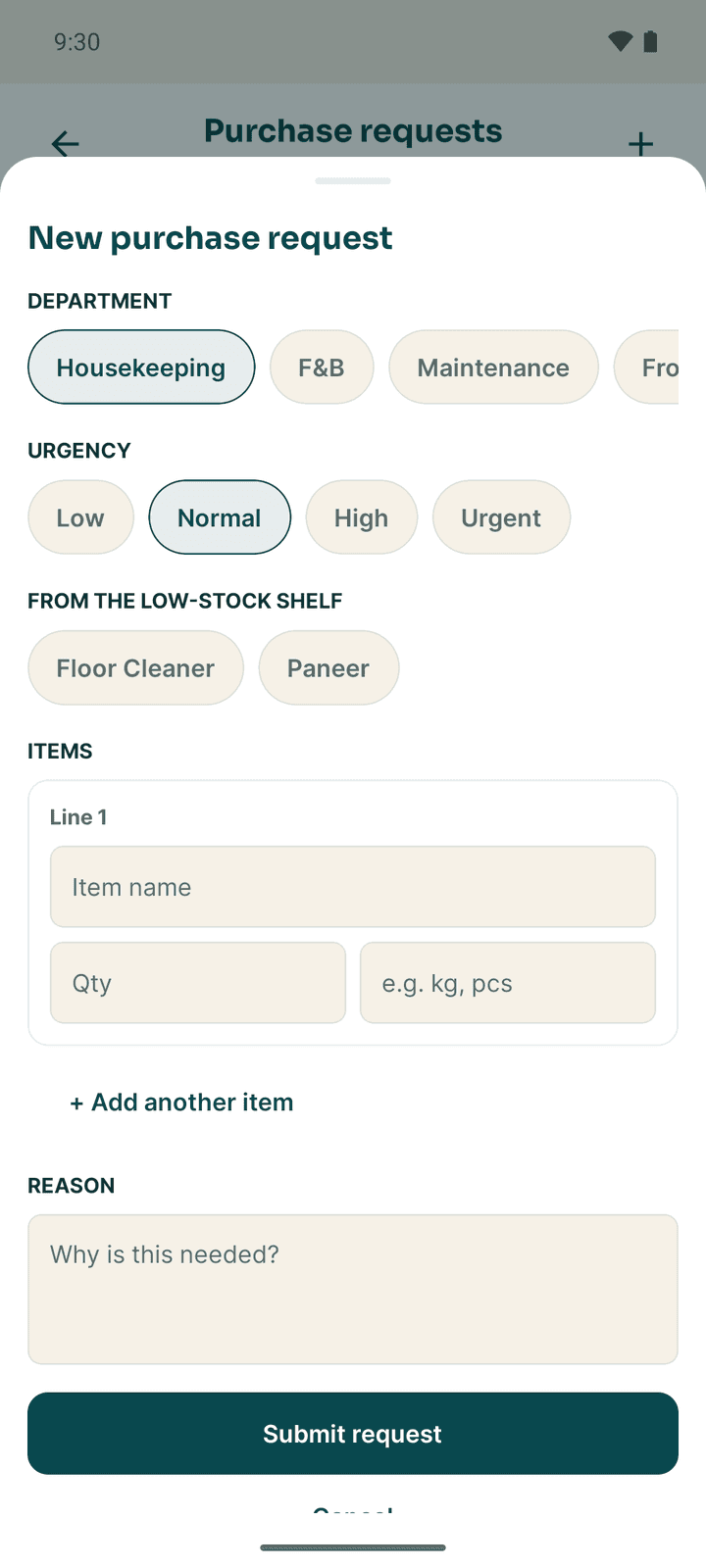
- Tap + (New request).
- Choose the Department (Housekeeping, F&B, Maintenance, Front office, Other) and the Urgency (Low, Normal, High, Urgent).
- Under Items, enter each Item, Quantity and Unit. + Add another item adds a line.
- Write the Reason and tap Submit request.
What happens to a request
| Status | Meaning |
|---|---|
| Submitted | Waiting for a manager or the owner |
| Quoted | A supplier's price has been added |
| Approved | Approved to buy |
| Ordered | A purchase order has gone to the supplier |
| Received | The goods have arrived |
| Closed | Finished |
| Rejected | Turned down, with a reason you can read |
| Cancelled | Withdrawn |
Managers can Reject a request with a reason, and Close an ordered or received one. The person who asked can Cancel it while it is open. Purchase orders themselves are made and sent in the web app.
Receive a delivery
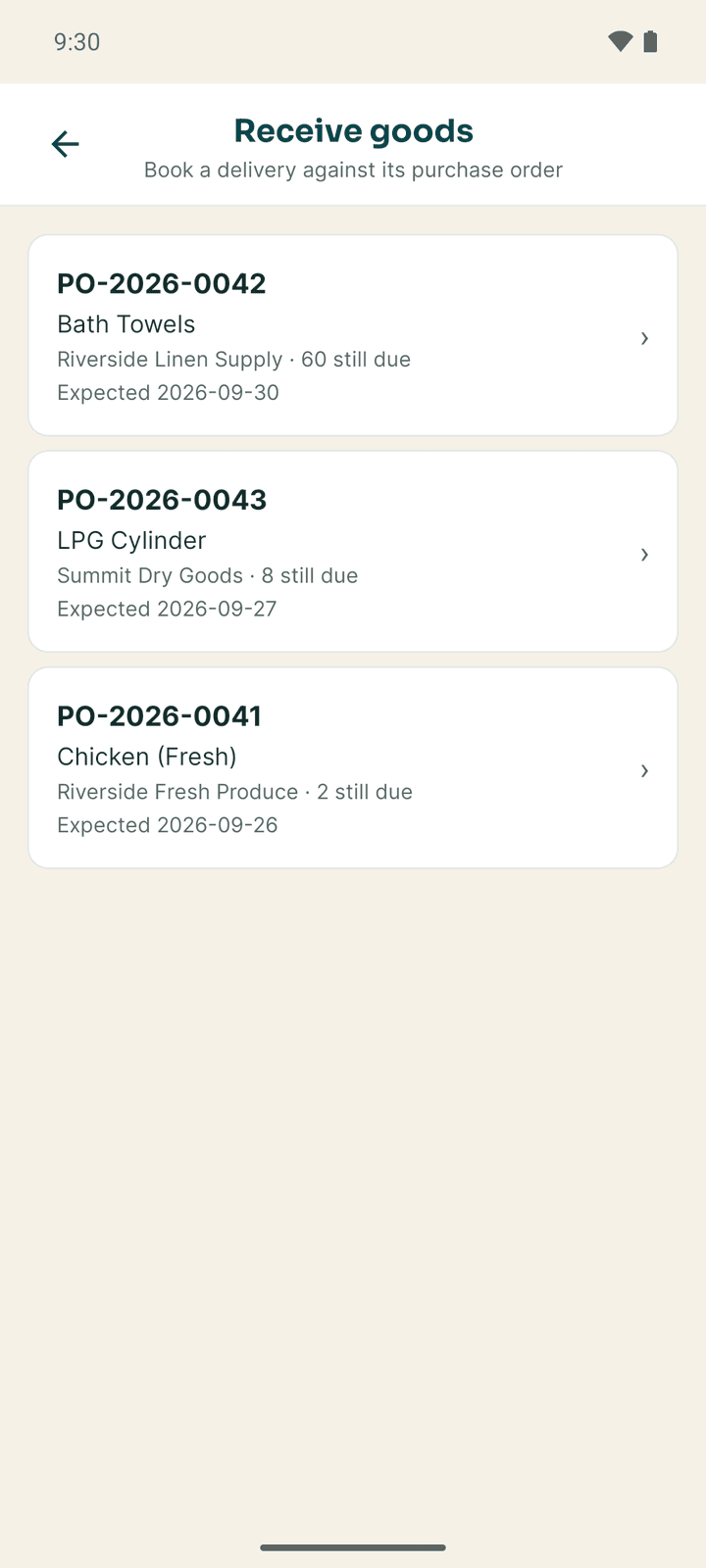
More → Receive goods lists purchase orders with goods still due ("Supplier · 20 still due", with the expected date).
Pick the order
Tap the supplier's order.
Count what arrived
For each line you see Ordered · Received · Due. Enter the quantity Received (or tap All … to take the full amount) and any Rejected, with Why rejected (optional). For perishables, add the Batch / lot number and Expiry (YYYY-MM-DD). Tap Review … lines.
Record it
Check the summary under Check before recording. The stock is booked in and cannot be undone from the phone. Tap Record receipt. You see Goods received with the goods received note number.
Record a market purchase
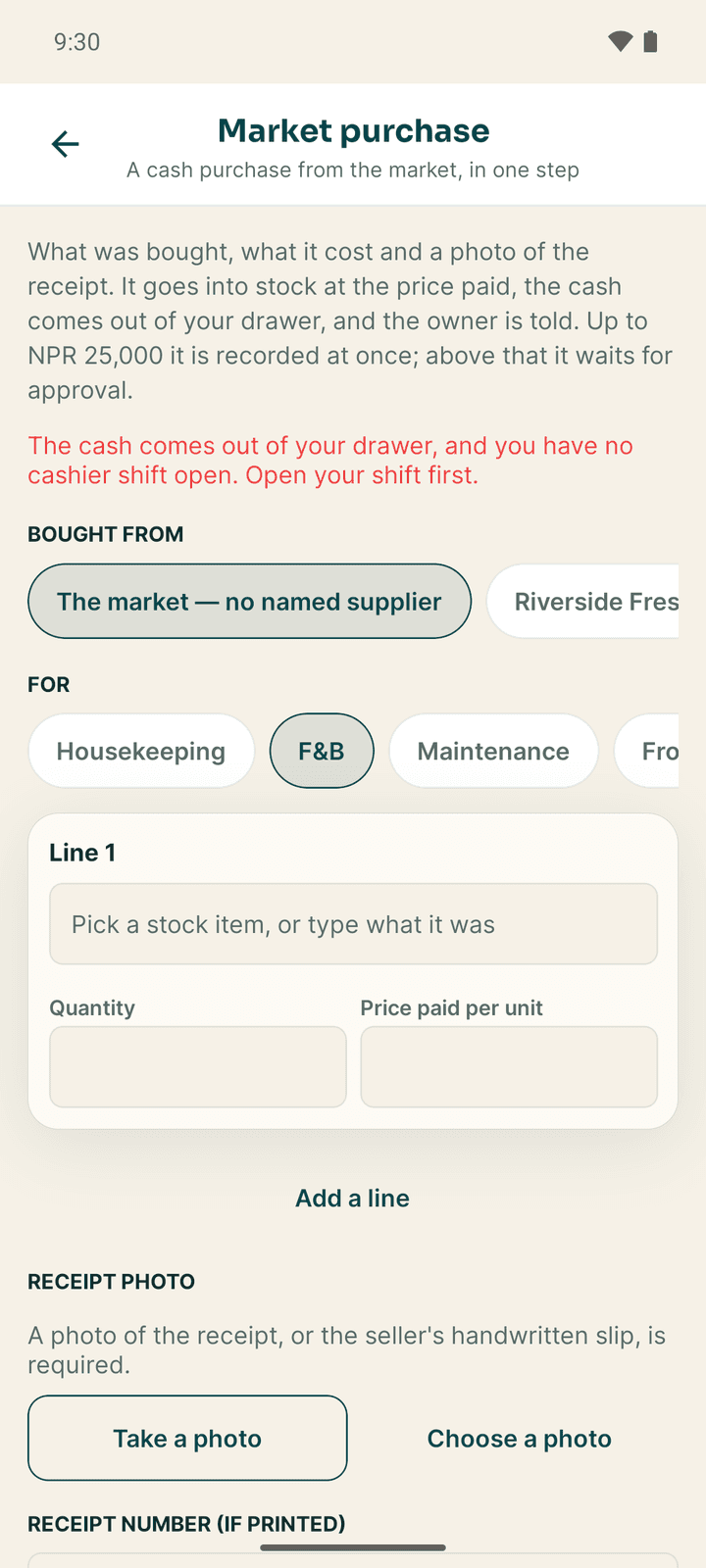
For things bought for cash at the market, open More → Market purchase.
- Bought from: "The market — no named supplier", or a supplier from the list.
- For: the department.
- Each line: What was bought, Quantity, Price paid per unit, and Lot and Use by for food.
- Receipt photo (required), Receipt number (if printed) and Notes (optional).
- Tap Record purchase.
The cash comes out of your cashier drawer, so open your cashier shift first. Up to the hotel's market purchase limit, the purchase is recorded at once. Above it, "Above the market purchase limit — it will wait for approval" and a manager or owner approves it.
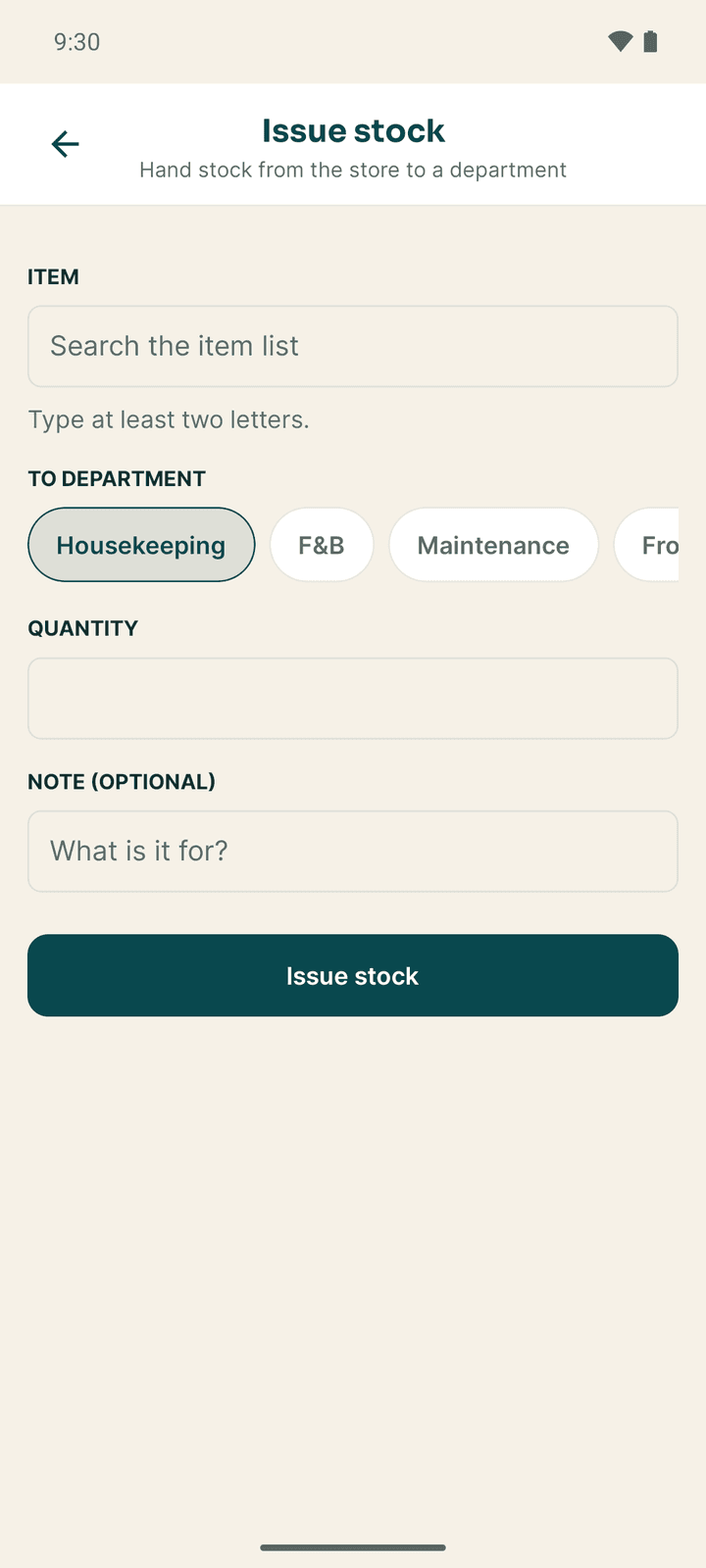
Issue stock to a department
More → Issue stock:
- From store (only if the hotel has more than one store).
- Item: type at least two letters to search the item list.
- To department, Quantity and Note (optional).
- Tap Issue stock.
You see "Issued 5 of Bath soap to Housekeeping." and how many are left in the store, with a warning when the item is at or below its reorder level. "There is not that much on hand" means the store holds less than you asked for.
Count the store
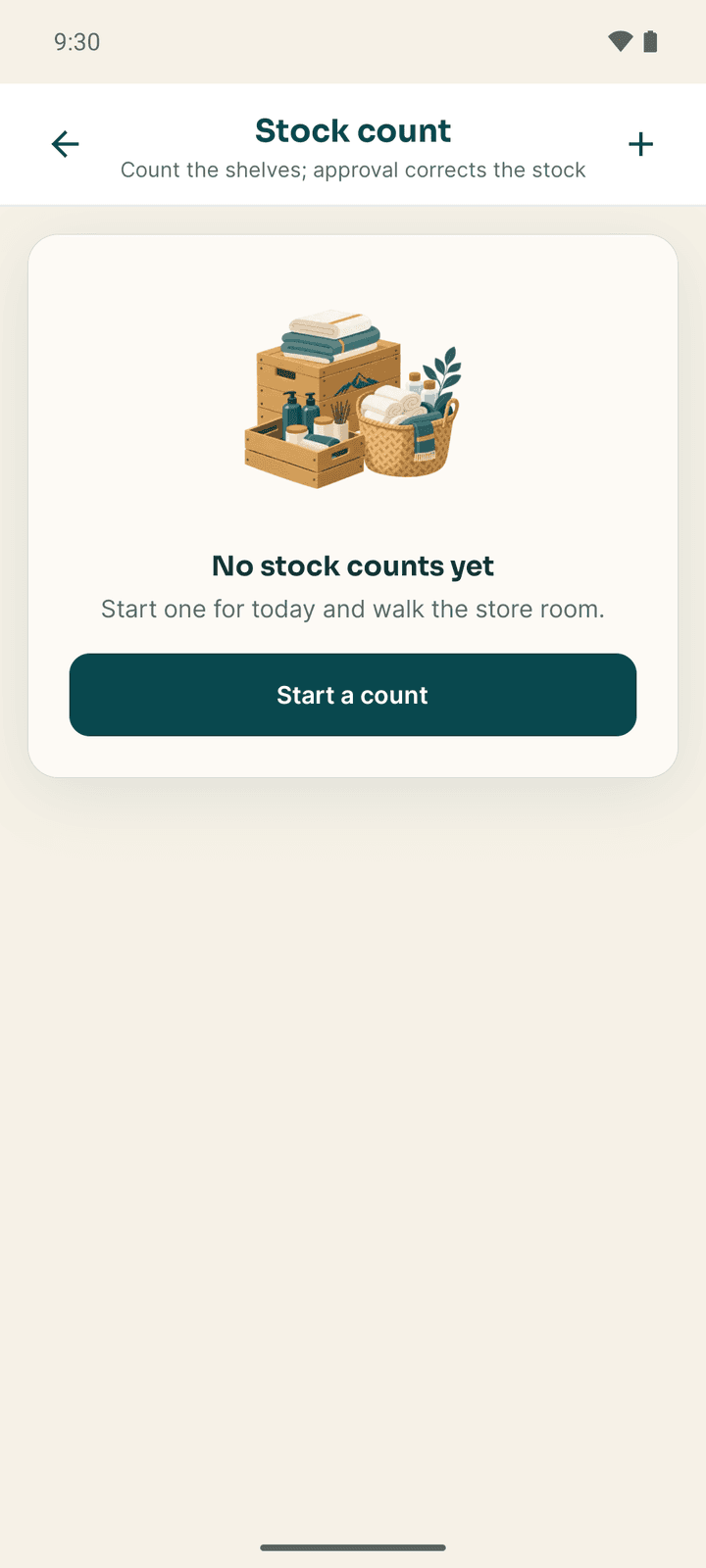
More → Stock count ("Count the shelves; approval corrects the stock").
- Tap Start a count, check the Count date and tap Start count.
- Open the count. For each item, the system quantity is shown; enter what you Counted. When it differs, add a Variance reason. Search items and the category chips help on a long list.
- Tap Save as you go, and Submit for approval when done. The figures can no longer be changed.
- A manager opens the count and taps Approve & adjust. The stock figures are corrected.
| Status | Meaning |
|---|---|
| Counting | In progress; you can still change figures |
| Awaiting approval | Submitted |
| Approved | Stock corrected |
Scan an expense receipt
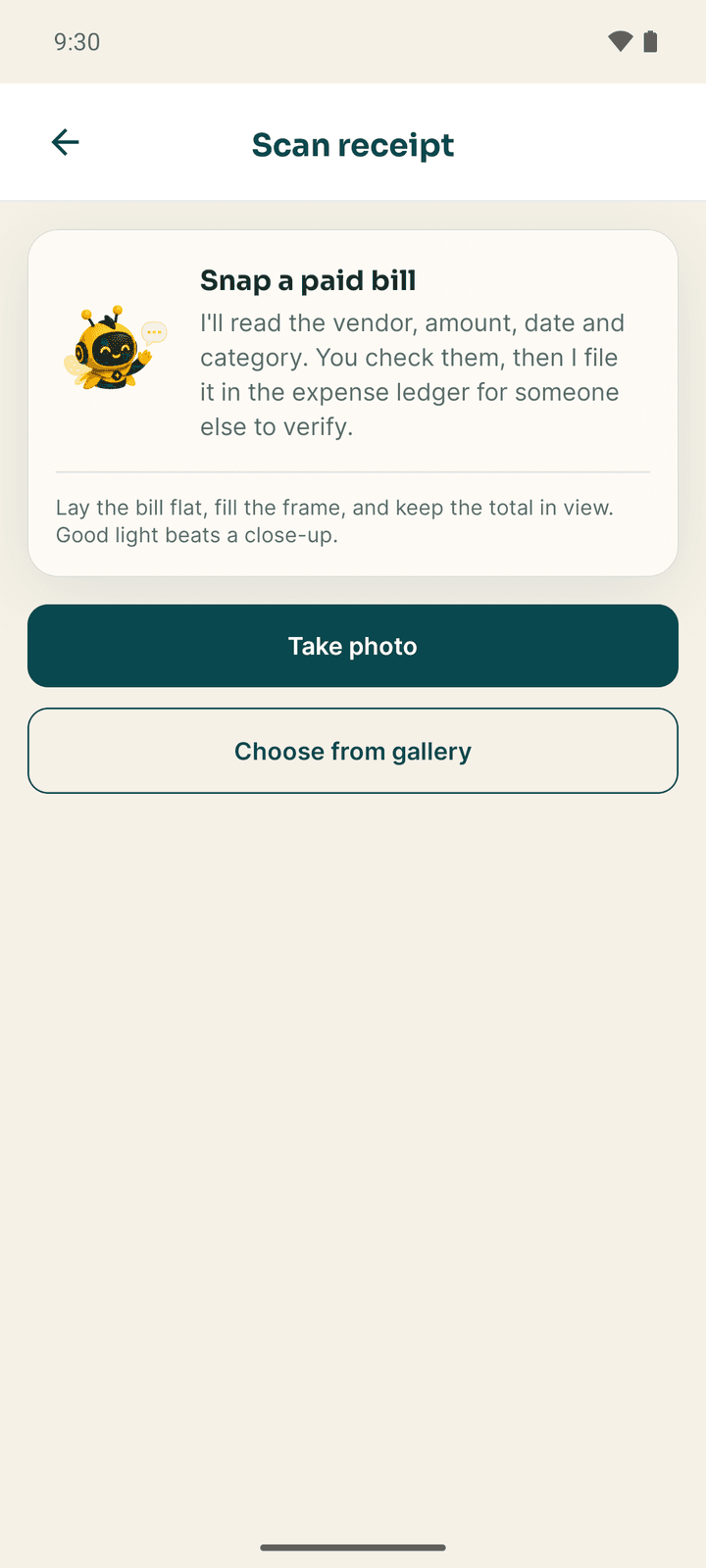
Anyone allowed to record expenses (usually managers and owners) can photograph a paid bill:
- More → Capture expense ("Snap a paid bill"). Lay the bill flat and fill the frame.
- Take photo or Choose from gallery, then Scan receipt. Exubee reads the vendor, amount, date and category.
- Check them under Check before recording and tap Record expense. If the same receipt looks already recorded, you are asked before it is recorded again.
Every scanned expense goes in unverified. Someone other than you confirms it in More → Receipt inbox (Verify), or corrects it (Amend) or cancels it (Void) with a reason.
If something goes wrong
| What you see | What to do |
|---|---|
| A padlock on the rows | The hotel's plan does not include Procurement. The owner can add it in Plan & Billing. |
| "The cash comes out of your drawer, and you have no cashier shift open." | Open your cashier shift first (More → Shifts → Open Shift). |
| AI allowance used up when scanning | The hotel has used its Exubee allowance for the month. Record the expense in the web app. |
| Photo is too large | The photo is over 10 MB. Take it again. |
Kitchen and service
Cook from the kitchen ticket board, take table and room orders, bill and split them, and manage table bookings in the Connect app.
My work: attendance, leave and pay
Clock in with your location and a selfie, ask for leave, read your payslips and roster, and use notifications, the SOP checklist, Exubee and your settings in Connect.